

Quick Answer
The best Windows apps include tools like PowerToys, Everything, VLC, 7-Zip, ShareX, Notepad++, and Microsoft To Do, covering productivity, file management, media, and utilities. These apps enhance Windows by adding powerful features, better organization, and smoother everyday workflows.
Windows has dominated the PC market share for years, continuing to support a wide range of apps. While popular apps are easy to discover, there are apps that are very useful but not widely known. For the past few months, I’ve been testing several of them and loving how they offer incredible value. Moreover, many of them are open-source and free to download. Here is a list of fifty lesser-known but highly useful apps.

Table of Contents
Best Windows 11 Apps Which Deserve More Popularity
Listary – Best File Search Tool for Windows

- Features: Offers quick file search, customizable search commands, and hotkey support.
- Supported Windows versions: Windows 7 and later
- Price: Free with premium options
I have recently explored the best file search tools for Windows. Out of all the apps, my favorites are Everything and Listary. ‘Everything’ solves almost every problem Windows has with quickly searching files. However, it lacks certain features, and the user experience is outdated.
Next, I like Listary because it offers a simple and modern experience, making it a great alternative to Windows search. It offers both quick search, similar to Mac’s Finder, and a separate search directory that offers advanced features like filtering results based on size, type, date modified, and more. You can search for documents and files in any format. You can quickly launch a quick search, and the results are shown in real time.
Ditto – Clipboard Manager for Windows
- Features: Clipboard history management, customizable hotkeys, and the ability to search your clipboard history.
- Supported Windows Versions: Windows 7 and later
- Price: Free
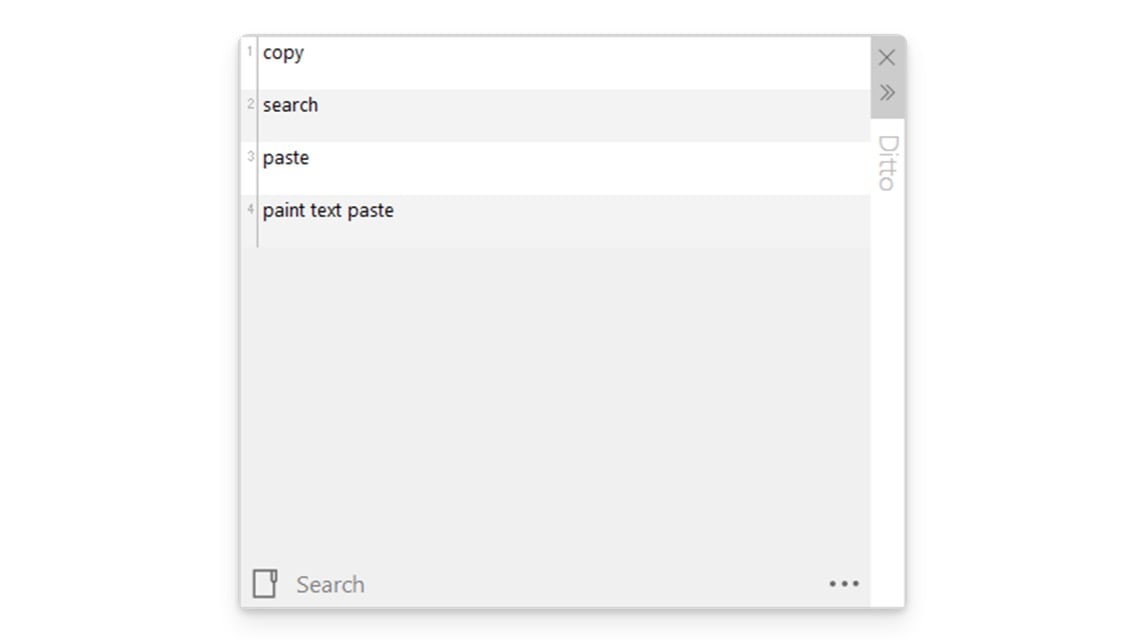
Clipboard history can be handy, especially on PCs, where you can easily lose track of what you have copied while multitasking. The built-in Windows clipboard manager is useful for basic tasks, but Ditto, a third-party clipboard manager, offers advanced features for more control over clipboard management.
You can categorize your clipboard within groups, create custom categories, and add content. Additionally, you can set up custom keys for faster access to the clipboard content. One of the most useful features of Ditto is that it can store more than 25 items in the clipboard history, compared to the default Windows clipboard history, which can hold only up to 25 items.
In addition, Ditto is available on multiple platforms, which can be helpful if you want to view text on other devices. It is free to use and works on Windows 7 or later devices.
Download Ditto Clipboard Manager
AquaSnap – Window Manager for Windows
- Features: Quick window snapping and docking, keyboard shortcuts, multi-monitor support.
- Supported Windows Versions: Windows 7 and later
- Price: Free with premium options
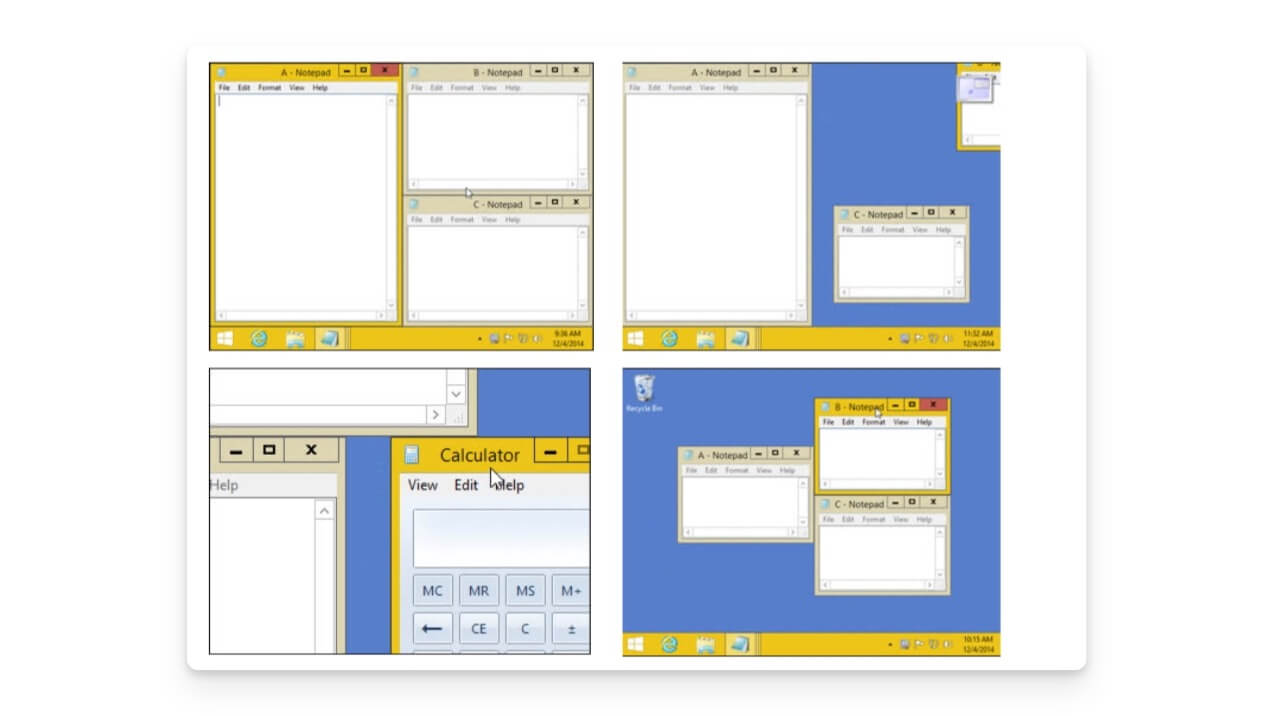
If you multitask on your PC, AquaSnap is another great tool to enhance your multitasking experience. You can attach multiple windows and place them side-by-side. You can snap multiple windows side-by-side, and there are also keyboard shortcuts that you can set for each window. Additionally, it supports multi-monitor setups. AquaSnap is free and offers premium options for Windows 7 and later devices.
EarTrumpet: Control Individual App Volumes
- Features: Control individual app volume control, integrates with default audio settings.
- Supported Windows Versions: Windows 10 and later
- Price: Free
Multitasking can be hard sometimes, especially if you have been multitasking with audio apps. There may be situations where one app plays audio while another also starts, creating an audio mess.
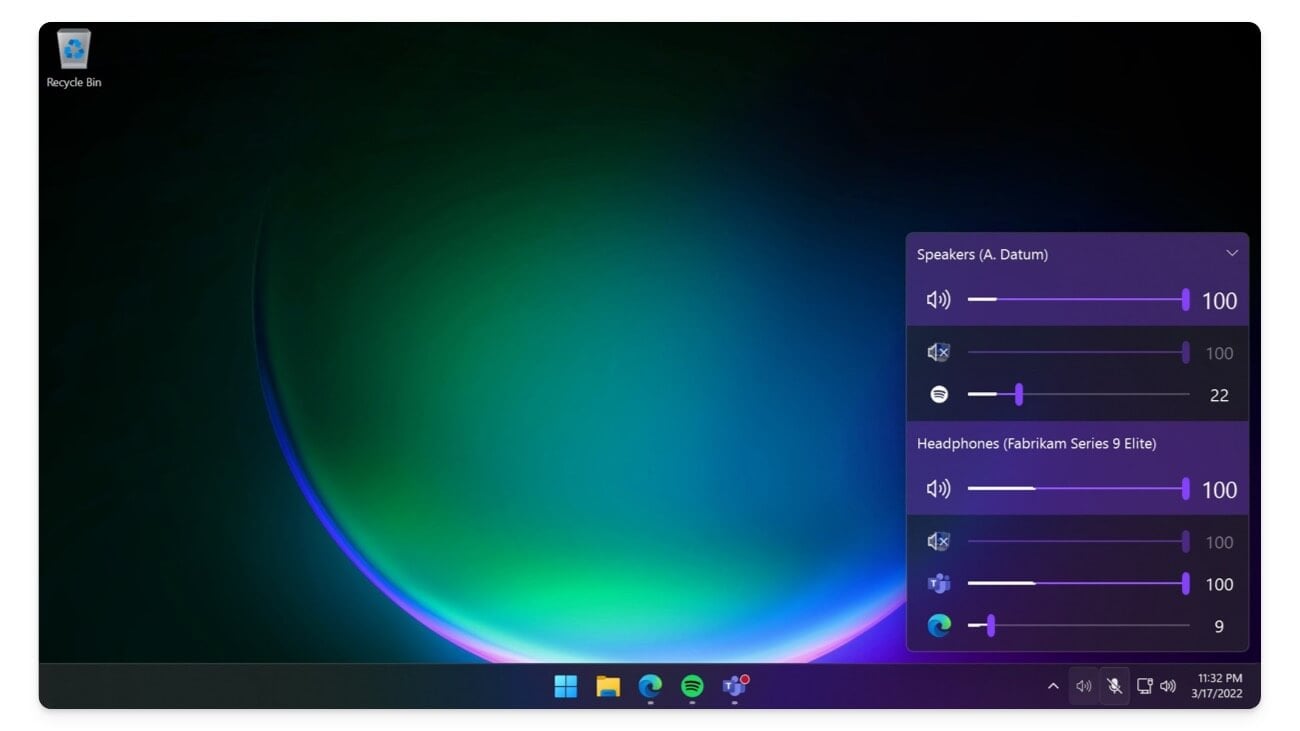
However, this issue can be easily fixed by controlling the volume of each specific app. By default, Windows doesn’t offer this feature, but you can achieve it using the EarTrumpet app on your Windows device. With EarTrumpet, you can set the volume for each window or application you use. You can control how much volume each app should have. You can also control system volume using the app.
Greenshot: A Lightweight Screenshot Tool

- Features: Capture full-screen, window, region capture, built-in editor, and export to various formats.
- Supported Windows Versions: Windows 7 and later
- Price: Free
There are plenty of screenshot tools available for Windows. Windows also comes with a built-in screenshot tool, Snipping Tool. However, if you want more features and a free alternative to the default Windows screenshot tool, Greenshot might be the best option. It offers a user-friendly experience and comprehensive screenshot editing tools compared to the standard Windows Snipping Tool.
One of the standout features of Greenshot is its lightweight design, which makes it work efficiently on any device. Like the Snipping Tool, Greenshot lets you capture the entire screen, specific windows, or selected regions. It also has built-in editing tools, which allow you to annotate and edit screenshots easily. Additionally, Greenshot offers direct options to share files, copy to the clipboard, and set custom shortcuts for different types of captures.
WinAero Tweaker: Customization Tool for Windows

- Features: Offers advanced System customization features, privacy settings adjustments, and user interface tweaks, and enhances your PC performance.
- Supported Windows Versions: Windows 7 and later
- Price: Free
If Windows customization is your thing, then you should get WinAero. The tool provides various features, from customizing your Windows. You can customize the appearance and improve your device performance, enhance more privacy to accessibility features, and the ability to quickly reverse changes you made.
On top of that, the best part of the app is its lightweight design. It offers a variety of options and is entirely free with regular updates. With its user-friendly interface, anyone without technical knowledge can easily use its hundreds of features to customize the Windows experience.
Windows Phone Link: Connect Your Smartphone With Your Windows PC
- Features: Sync notifications and messages, transfer files between devices, access phone apps on PC, screen mirroring.
- Supported Windows Versions: Windows 10 and later
- Price: Free
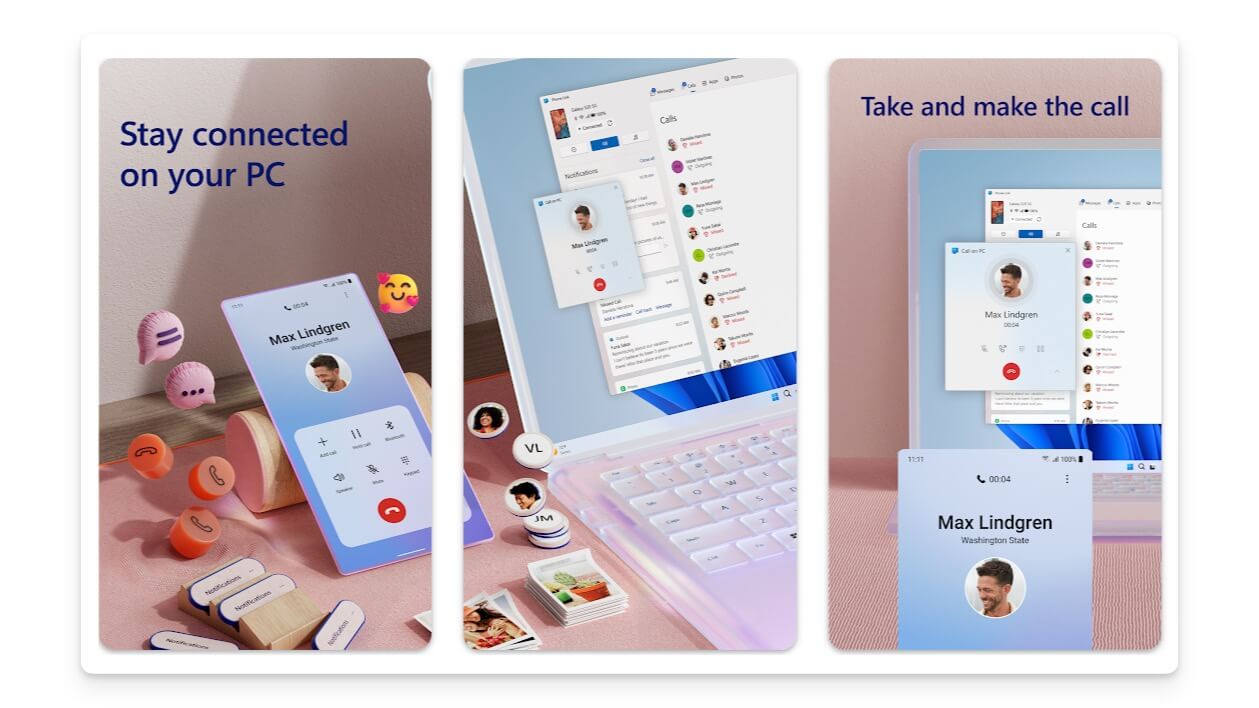
Windows Phone Link is a popular tool, but many people still don’t use it. At least in my network, I see many people who are not aware of it and love it after discovering it. One of the most significant advantages is its easy file transfer capability, allowing you to transfer files between your PC and phone quickly.
Additionally, it offers screen mirroring, enabling you to use and interact with your phone screen on your PC. While some may face issues depending on their Windows version, it is generally fast and works great.
Another advantage of Phone Link is its deep integration with Windows. It offers a more native experience than other apps like Intel Union (an Alternative to the Phone link app for Windows developed by Intel).
Download Windows Phone Link app
Text Expander: Create Shortcuts for Frequently Used Text
- Features: Text snippet creation, customizable shortcuts, syncs across devices, detailed usage reports.
- Supported Windows Versions: Windows 7 and later
- Price: Starting at $3.33/month (Might vary)
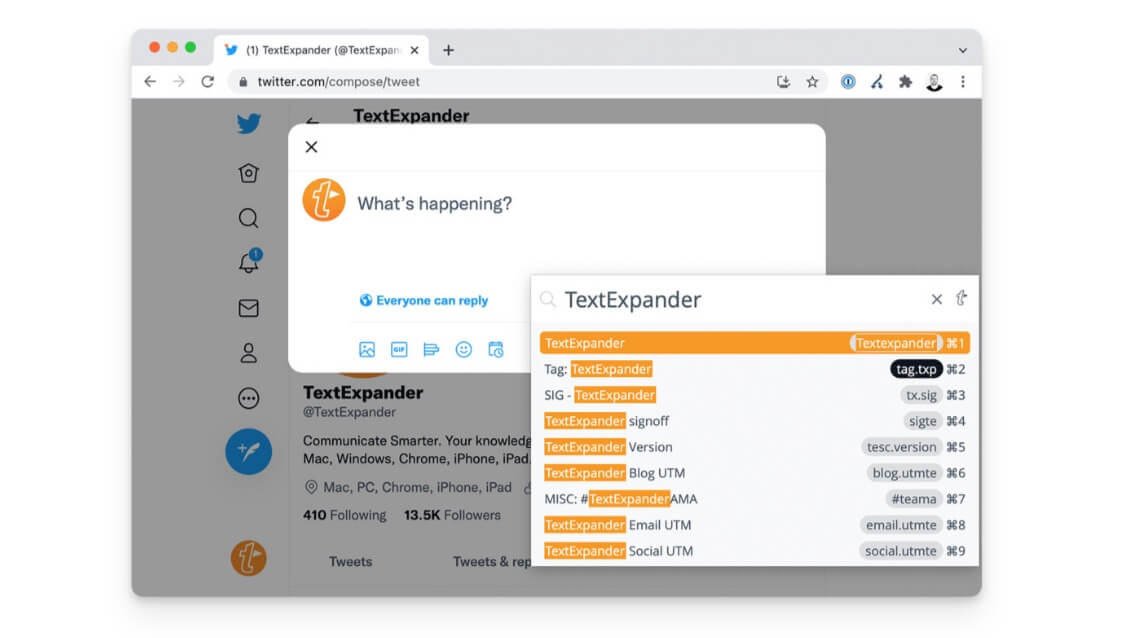
I miss the ability to create or use frequently used text on a physical keyboard. Thanks to the Text Expander app for Windows, it is now possible. You can create shortcuts for frequently used text, such as phone numbers, email addresses, templates, quotes, snippets, and more, using text expanders.
Initially, I doubted how they would implement it, but I was pleasantly surprised. You can add and customize shortcuts easily. However, there are two downsides: you have to remember each shortcut, and it can be tricky initially. Despite this, it makes typing easier and allows you to create unlimited shortcuts with minimal memory usage. For example, you can create a shortcut for your friend’s phone number. Use the shortcut by typing “Nikhil phone number, ” and the phone number will be automatically inserted.
Microsoft PowerToys: Best Utility Suite for Windows
- Features: FancyZones for window management, PowerToys Run for quick searches, Image Resizer, Color Picker, Text Extractor, search bar (activated by pressing Alt + Space).
- Supported Windows Versions: Windows 10 and later
- Price: Free
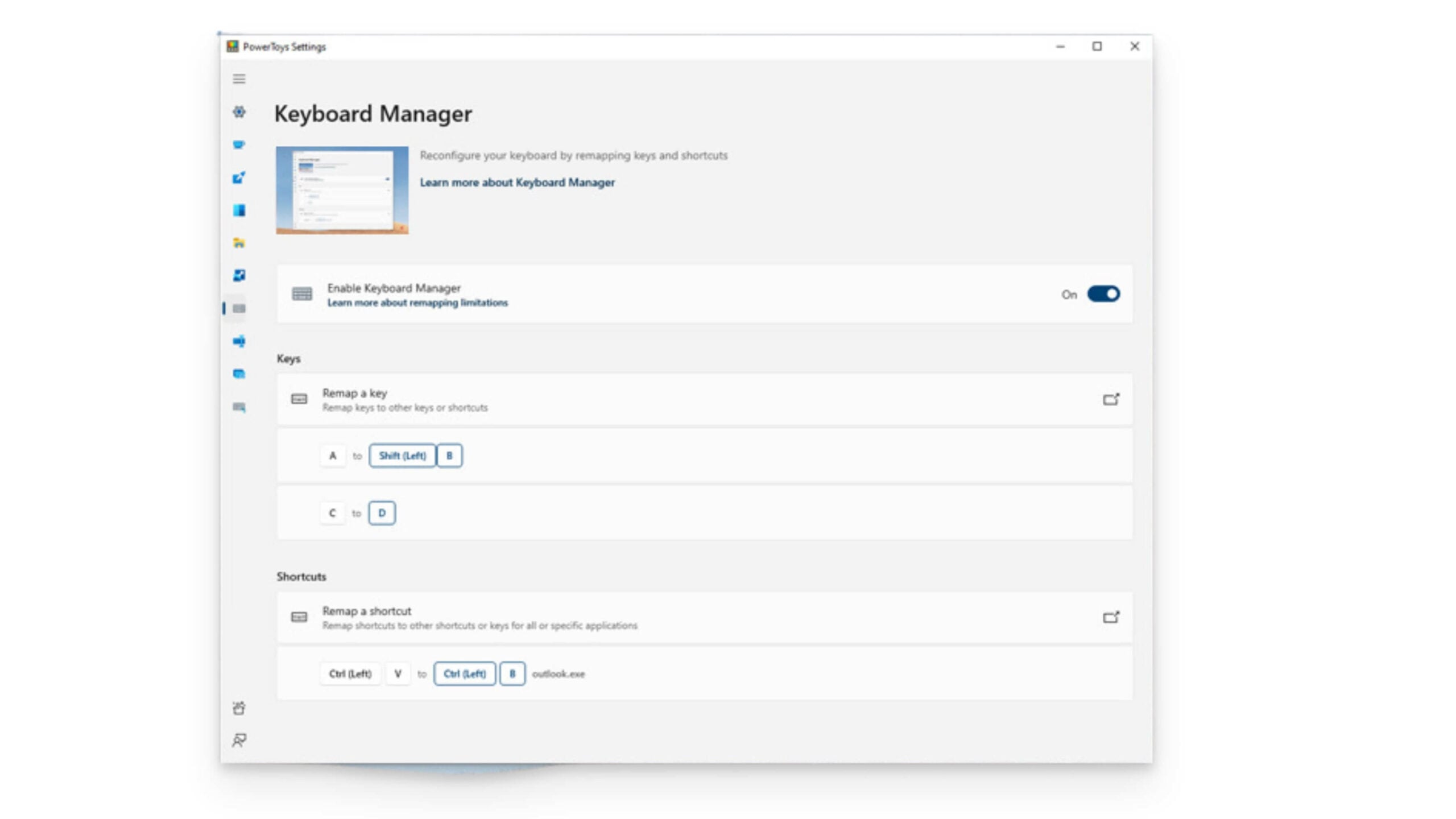
PowerToys is a popular app for Windows that offers plenty of utility tools. It offers several useful tools that can be very helpful in many scenarios. For instance, PowerToys Run offers a quick launcher for applications, files, and folders. You can also set keyboard shortcuts to open specific files and apps.
Image Resizer allows you to resize multiple images simultaneously without opening a separate application. Color Picker lets you pick colors from anywhere on the screen and copy the hex code of the color. Text Extractor converts images into text using Optical Character Recognition (OCR). PowerRename allows bulk renaming of multiple files at once. Keyboard Manager lets you remap keys and create custom shortcuts. File Explorer Add-ons enhance file preview capabilities and more.
Quick Look: MacOS-Style File Preview Tool for Windows
- Features: Quick file previews, supports multiple file formats, integration with Windows Explorer, and supports keyboard shortcuts.
- Supported Windows Versions: Windows 7 and later
- Price: Free
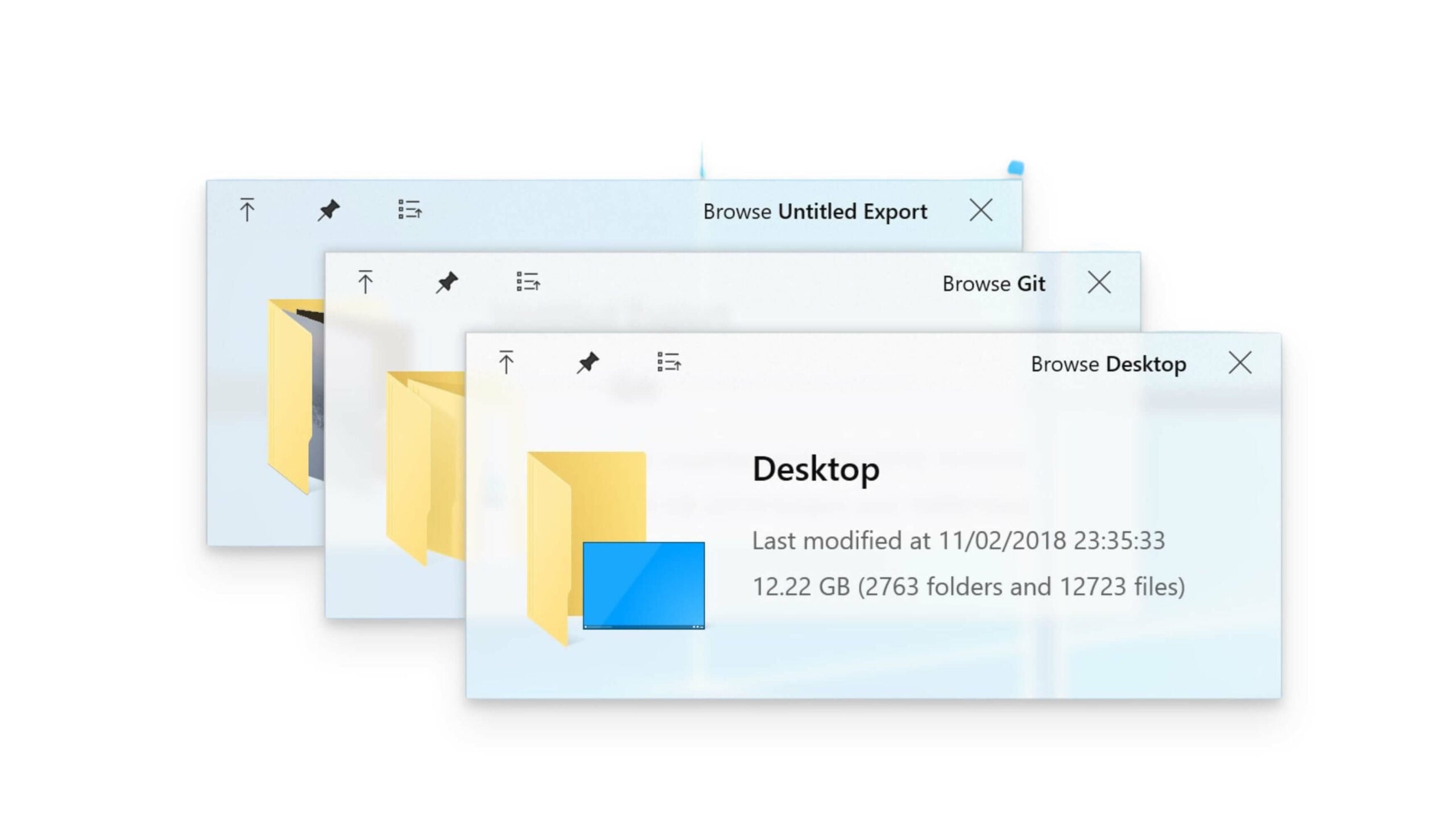
The Quick Look app is a must-have for every Windows user. There are two main reasons why Quick Look is highly beneficial. First, it lets you quickly preview files without fully opening them, saving time. Additionally, Windows Search can be slow, and having a tool like Quick Look can speed up your file viewing experience.
Download Quicklook for Windows
Pure Text: Paste Text Without Formatting
- Features: Paste text without formatting, customizable hotkeys, lightweight and fast.
- Supported Windows Versions: Windows 10 and later
- Price: Free
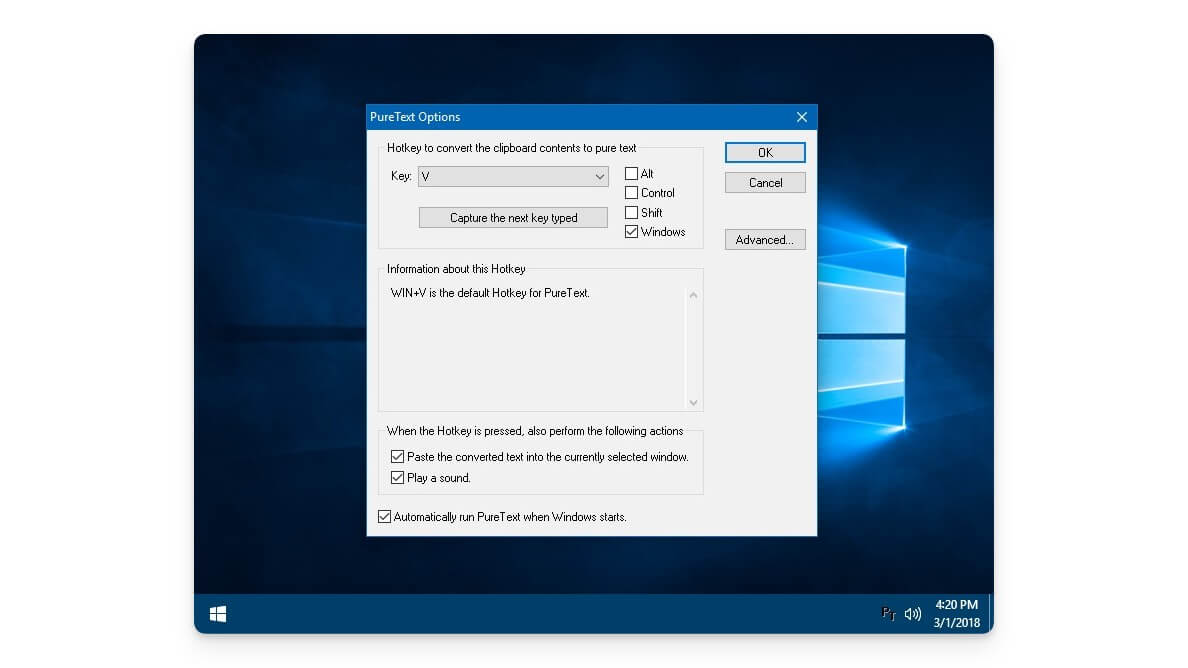
In the latest version of Windows or any operating system, the text format is copied when you copy text. This can be useful, but in some cases, the text format might misalign and appear different. You can use the shortcut Control + Shift + V to paste text without formatting; it can be challenging to do this repeatedly. To fix this, you can use the “Paste as Plain Text” app. By default, this app strips the text of its formatting when you copy and paste it, eliminating the need to press the Shift button every time you paste text to remove the format.
If you want even more control over your clipboard, our list of the best clipboard managers for Windows covers dedicated tools that go well beyond paste-without-formatting.
Deskpin: Keeps Selected Windows on the Top
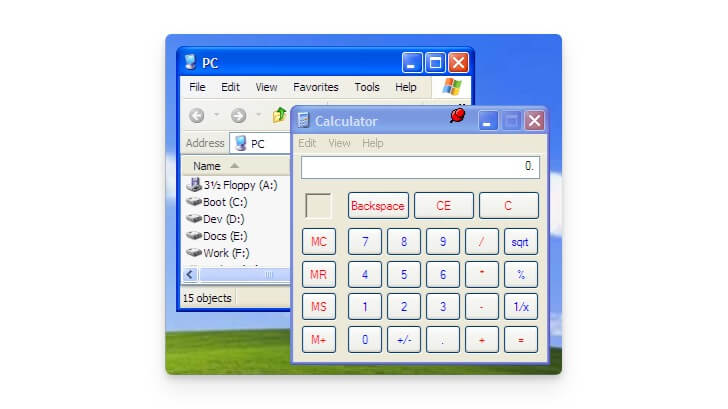
- Features: It keeps selected windows on top, has customizable hotkeys, is lightweight and fast, and is easy to use.
- Supported Windows Versions: Windows 7 and later
- Price: Free
It can be frustrating when you want to keep a specific window on top, and then it gets touched back when you tap on other windows. As a developer, I often need to keep my virtual device on top to check changes made to a website quickly. By default, Windows doesn’t offer this feature. However, you can use the “Deskpin” app to achieve this functionality. This app allows you to pin any window to the top and access it easily. You can set customizable hotkeys for pinning and unpinning windows.
Dolby Access: Best Audio Enhancement Tool for Windows
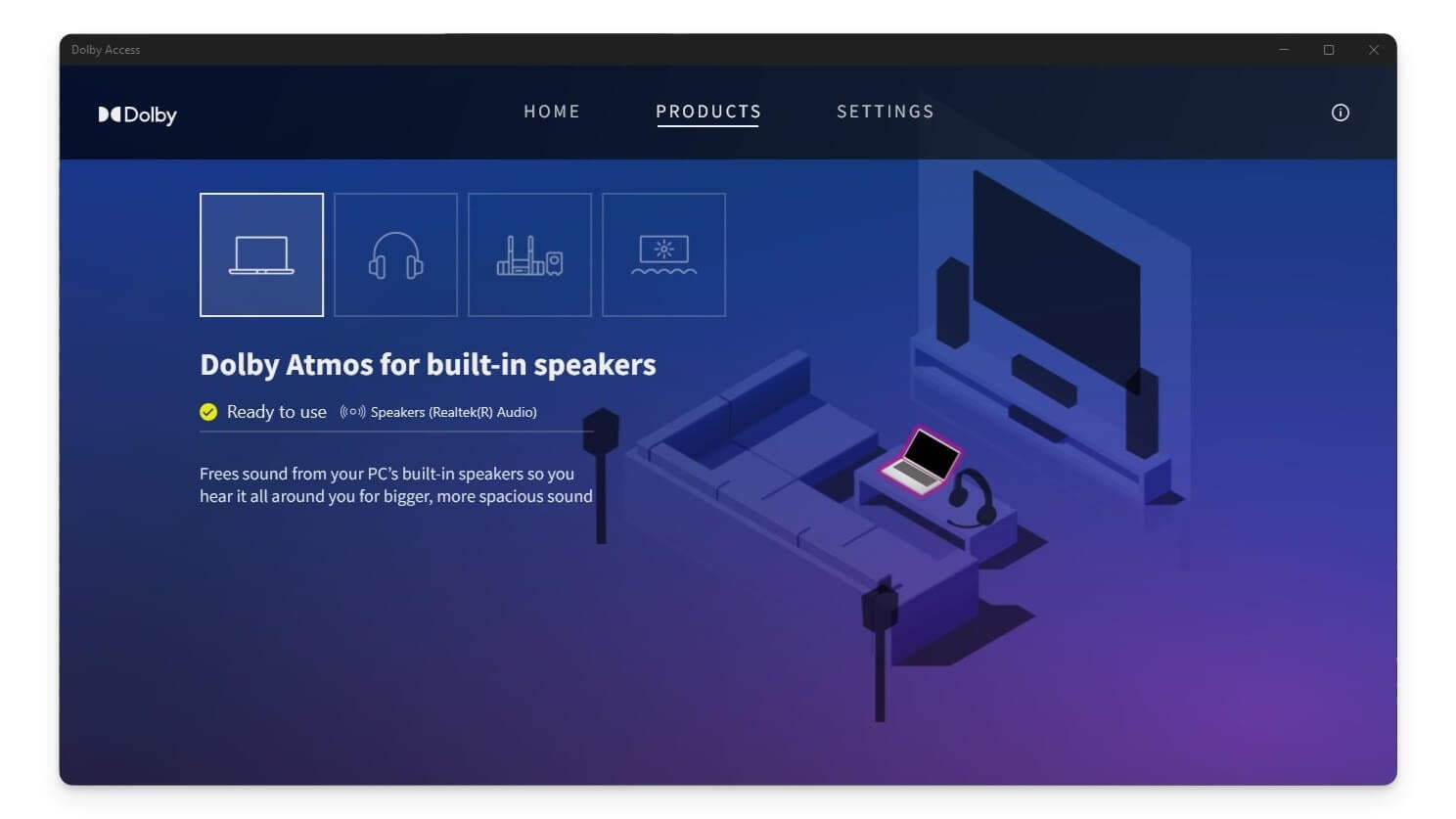
- Features: Brings Dolby Atmos support for headphones, customizable audio profiles, enhanced audio quality, and 3D sound experience.
- Supported Windows Versions: Windows 10 and later
- Price: Free with in-app purchases
Dolby has been the go-to technology for enhancing music, movies, and gaming audio. Some consumer laptops also support Dolby Sound. If your device doesn’t have Dobly, you can get this functionality using the Dolby Access app for Windows.
It can significantly improve your audio experience by creating customizable audio profiles. This app is compatible only with Windows 10 and later devices and supports headphones and external speakers.
StartIsBack: Customizes the Windows 11 Search and Taskbar
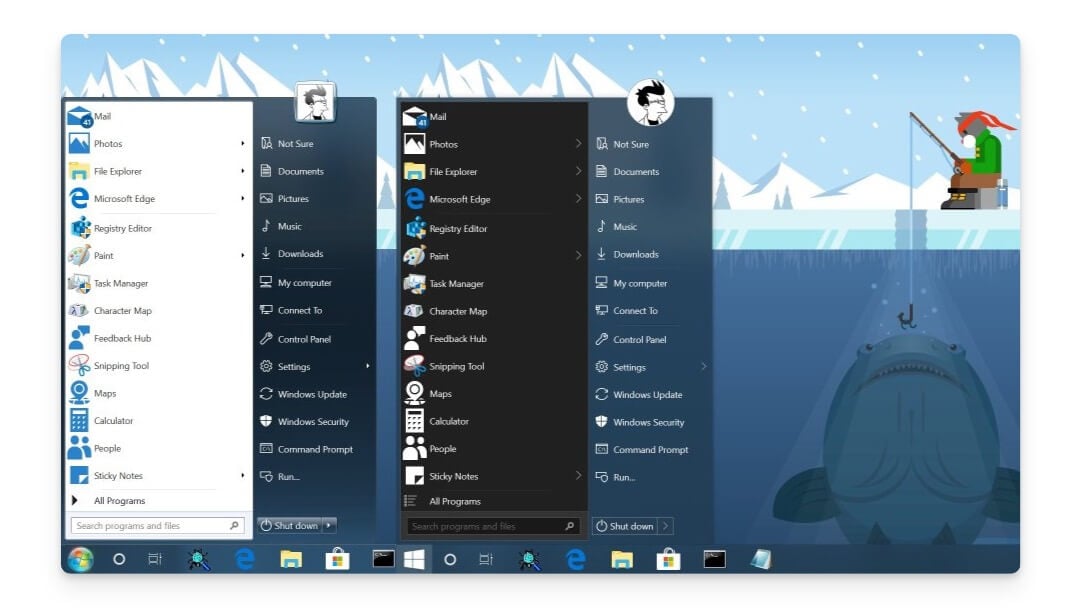
- Features: It brings Windows 7 classic start menu, taskbar customization, and an enhanced start button, and it is lightweight and fast.
- Supported Windows Versions: Windows 11
- Price: $4.99
Remember the old days of Windows 7 with its easy and efficient Start menu? It was the best Windows version of the taskbar and search functionality. With the StartIsBack app, you can return the classic menu and experience to your current Windows 10 or Windows 11 system. The app allows you to customize further the Start menu, taskbar, and file explorer to match your desired appearance. Additionally, it includes features that save specific settings in the taskbar. It is a paid tool and costs $4.99 (Onetime).
K-Lite Mega Codec Pack: Best Media Codec Pack for Windows
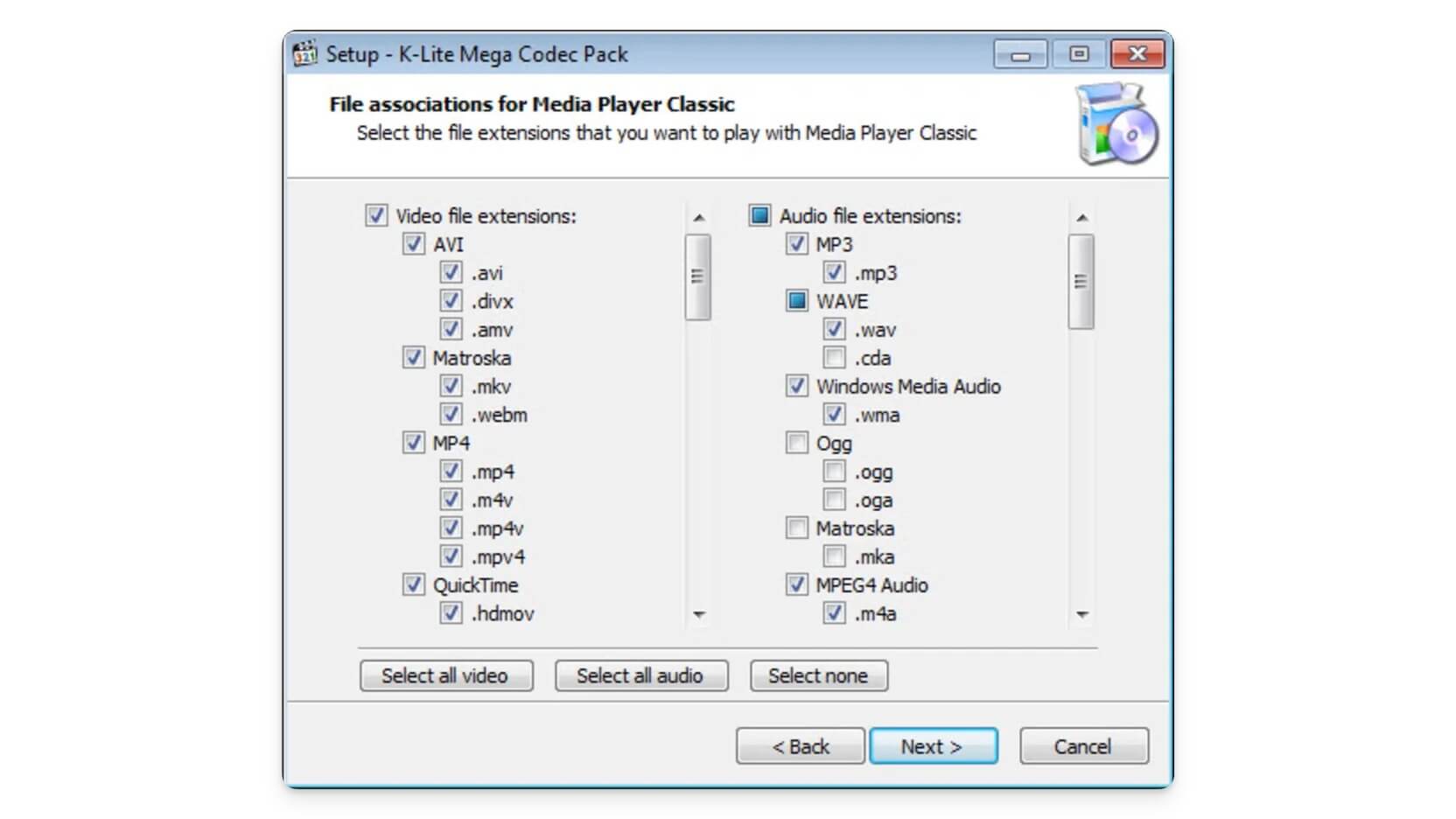
- Features: It supports various media formats. Media Player Classic is included, with regular updates and customizable installation.
- Supported Windows Versions: Windows 7 and later
- Price: Free
If you often play media and encounter codec issues, then the Mega Codec Pack can be useful for you. It supports a wide range of formats, including both common and rare audio and video formats. It has a built-in Media Player Classic Home Cinema, which can help you play high-quality videos. The app offers flexibility by allowing you to install only the necessary codecs. The best part is that it has recently received an update that adds even more codecs. It also includes advanced features like unit and settings for feedback handling, integration, and more.
Download K-Lite Mega Codec Pack
Rambox: Manage Multiple Applications in One Place
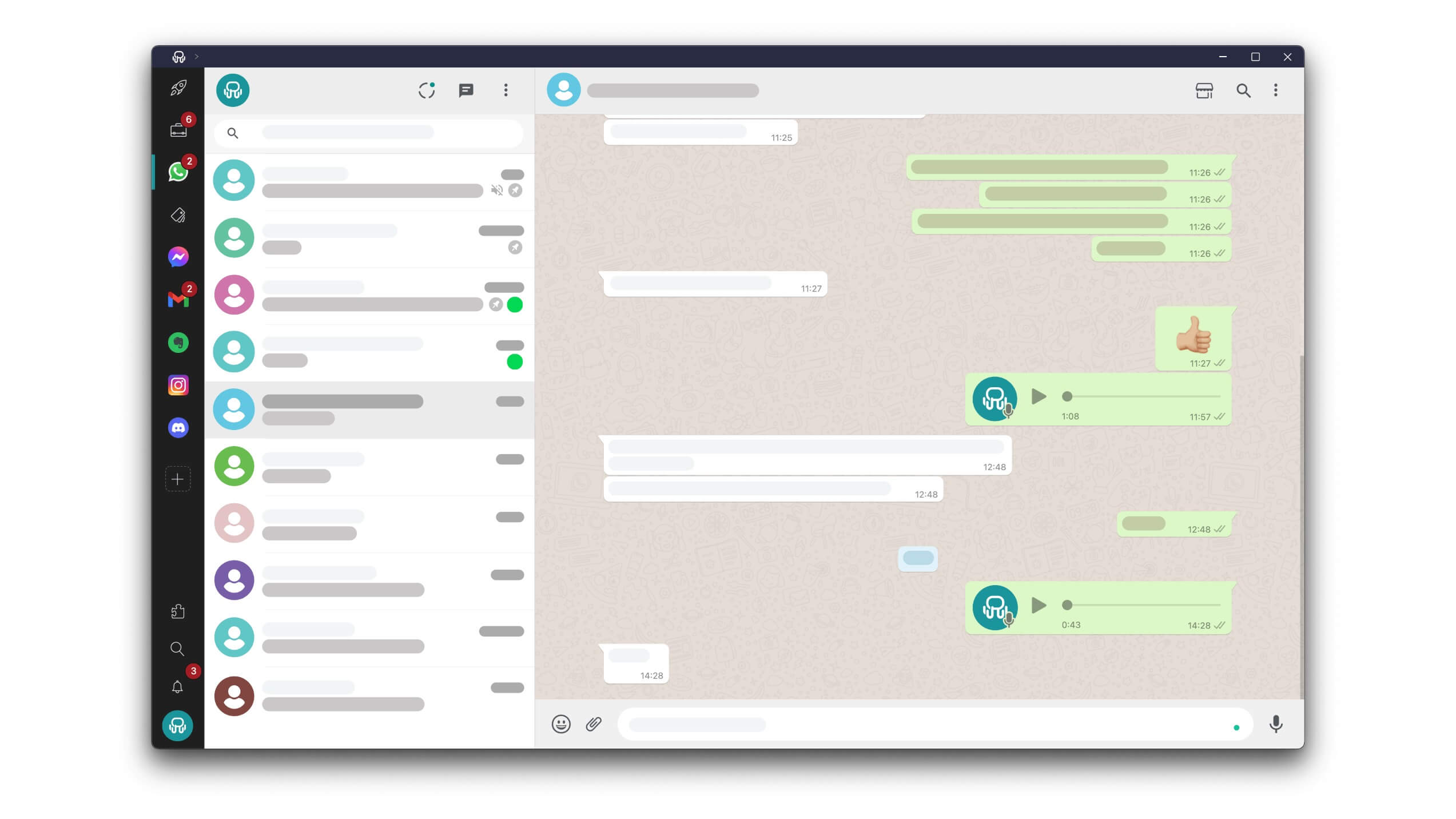
- Features: Multiple app management, customizable workspaces, cross-platform support, notification management.
- Supported Windows Versions: Windows 7 and later
- Price: Free with premium options
Rambox brings all your favorite apps under a single roof. It allows you to switch between various apps easily and supports all popular messaging apps, including WhatsApp, Telegram, Messenger, Slack, Skype, and Instagram. It also integrates with email services, collaboration tools like Microsoft Teams and Google Drive, and project management tools like Google Calendar. Additionally, it supports technical websites like GitHub. You can customize Rambox to set up different workspaces for personal, work, and project-specific tasks.
Rambox is compatible with wide operating systems, including macOS. It also centralized notification management, which helps you view all notifications in one place. If you often switch between various applications, Rambox is worth considering.
PhotoScape X: Comprehensive Photo Editing Software
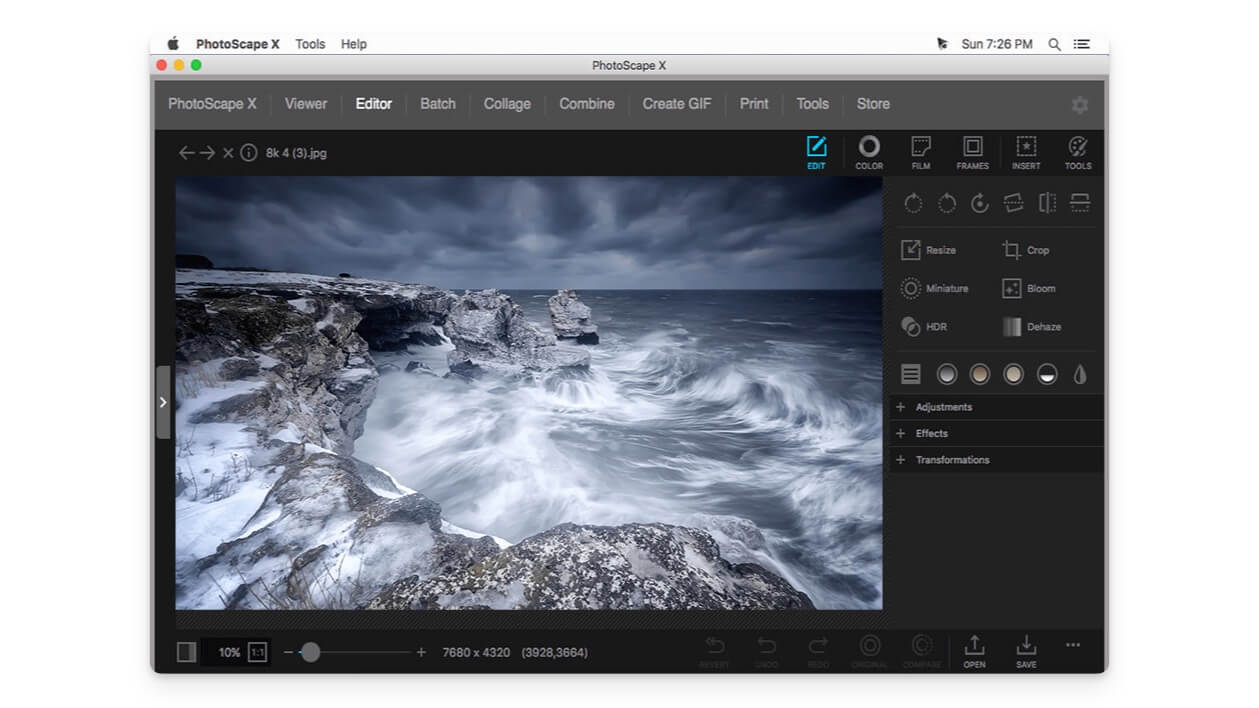
- Features: Photo editing and retouching, batch processing, collage and GIF creation, RAW conversion.
- Supported Windows Versions: Windows 7 and later
- Price: Free with premium options
If you are looking for an affordable and comprehensive photo editing app for Windows, Photoscape X might be the best option. The app offers a wide range of editing tools, including cropping, brightness adjustment, color correction, filters, and support for batch processing. It also includes creative features like collage and montage creation, a user-friendly interface, and more.
Photoscape X is more affordable than other apps. However, one downside is its interface, which might appear slightly outdated compared to other popular photo editing apps. There are also popular free options like GIMP, which require a learning curve, and Paint. NET is limited in terms of features compared to Photoscape X.
PatchMyPC: Updates Software Automatically
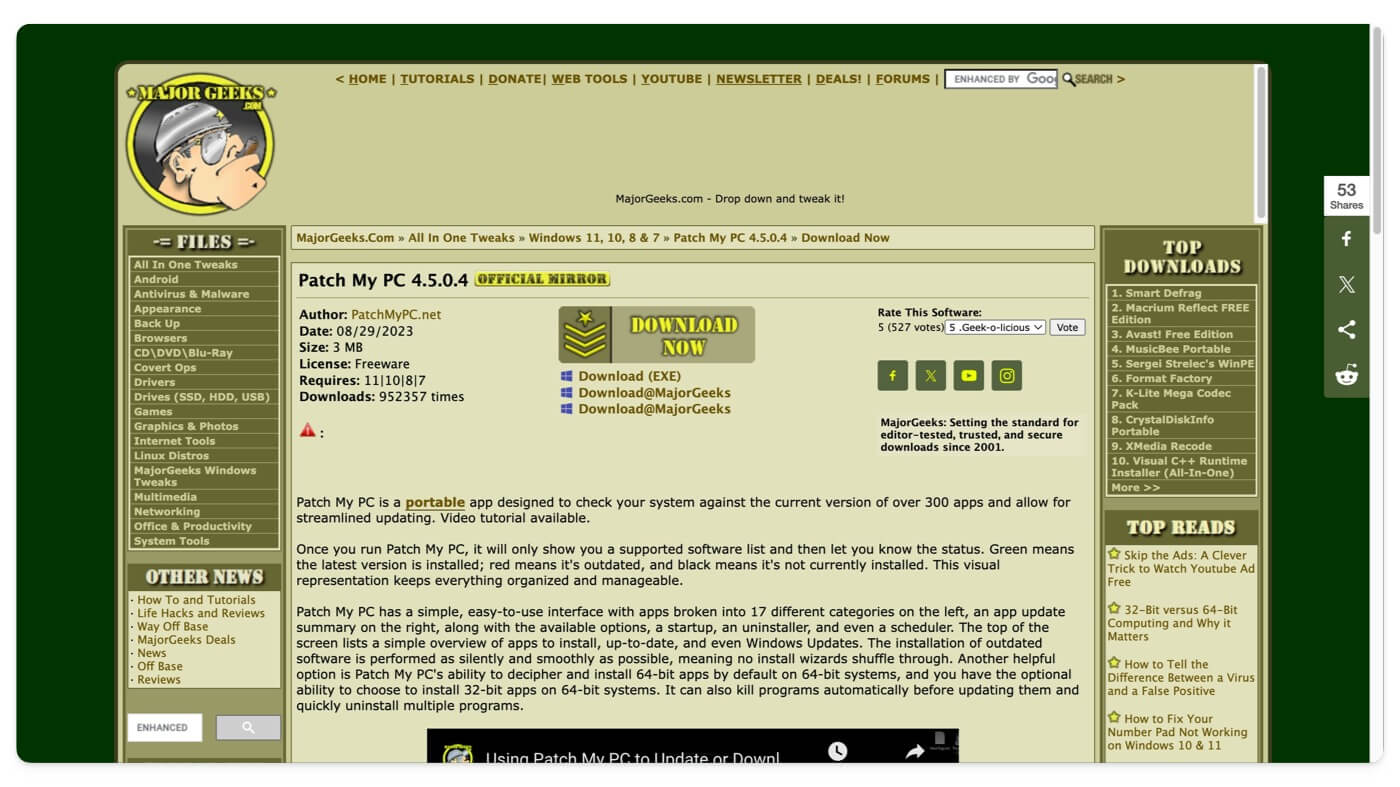
- Features: Automated software updates, background installations, support for over 300 applications, customizable update settings.
- Supported Windows Versions: Windows 7 and later
- Price: Free
Updating your Windows software can be challenging, especially with multiple applications. Updates can fix security vulnerabilities and introduce new features, but manually updating each application can be time-consuming.
Using a tool like Patch My PC, you can simplify this process. It allows you to set up automatic updates for over 300 applications. You can exclude and include specific apps in the update list. However, the tool does not offer the option to update at a specific time, which can be inconvenient if your device has limited resources and starts updating during critical tasks.
One of the benefits of Patch My PC is its ability to log updates. You can easily track which applications have been updated and identify any issues that may arise from updates.
Portmaster: Blocks Unnecessary Connections
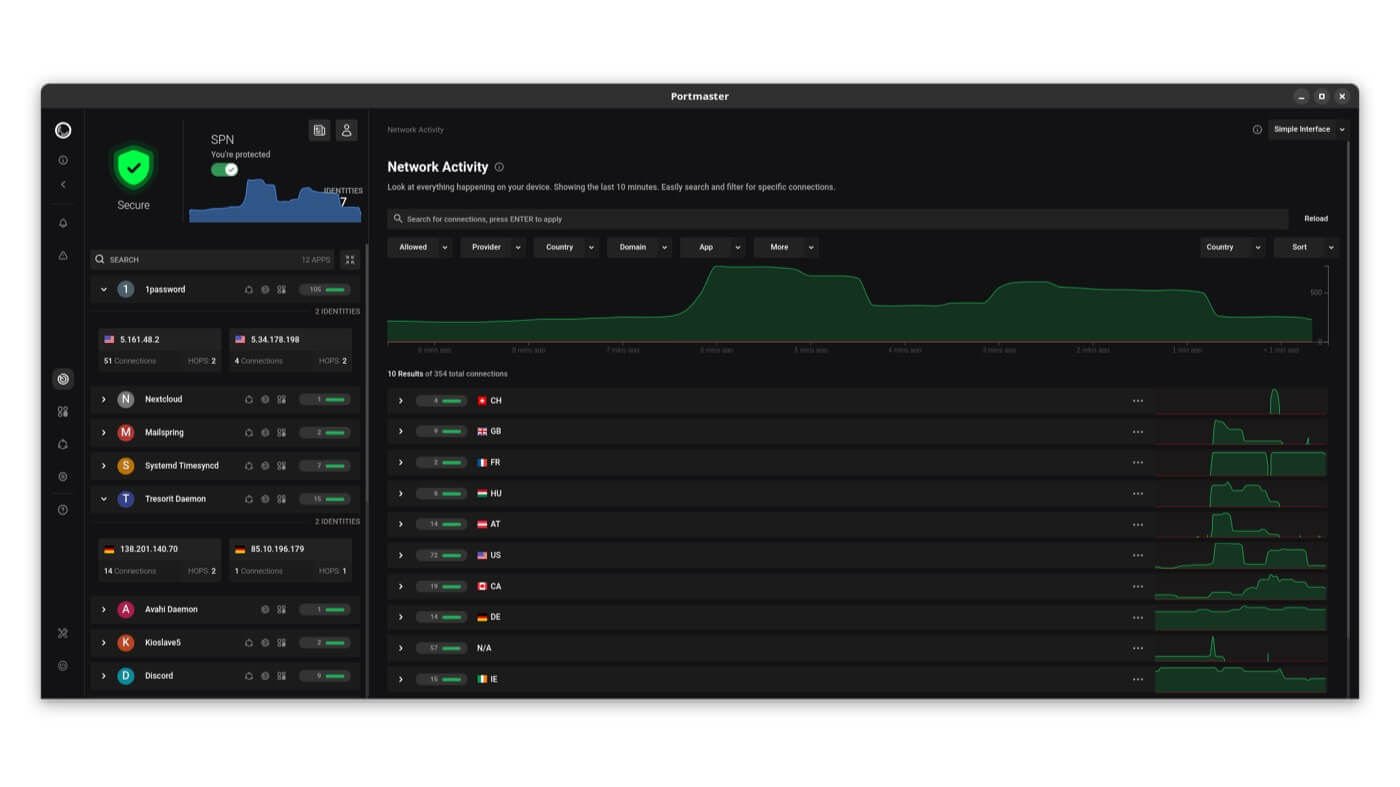
- Features: Comprehensive network monitoring, blocking unnecessary connections, customizable privacy settings, and user-friendly interface.
- Supported Windows Versions: Windows 7 and later
- Price: Free
Port Manager is an open-source, comprehensive network management system for your device. It helps you manage and monitor detailed network connections. It allows you to see which applications are connected to the internet and the details of those connections. By default, it automatically blocks trackers and ads, lists out malware domains using filter lists, and prevents unauthorized data collection by redirecting DNS queries to secure providers. This also helps reduce tracking from internet service providers.
For more flexibility, you can create custom rules for incoming and outgoing network communications, such as setting network requirements or applying app-specific settings. The app also provides real-time notifications about your network activity and alerts you if there is any malware infection or unwanted connections transferring data.
Drawboard PDF: Feature-Rich PDF Editor for Windows
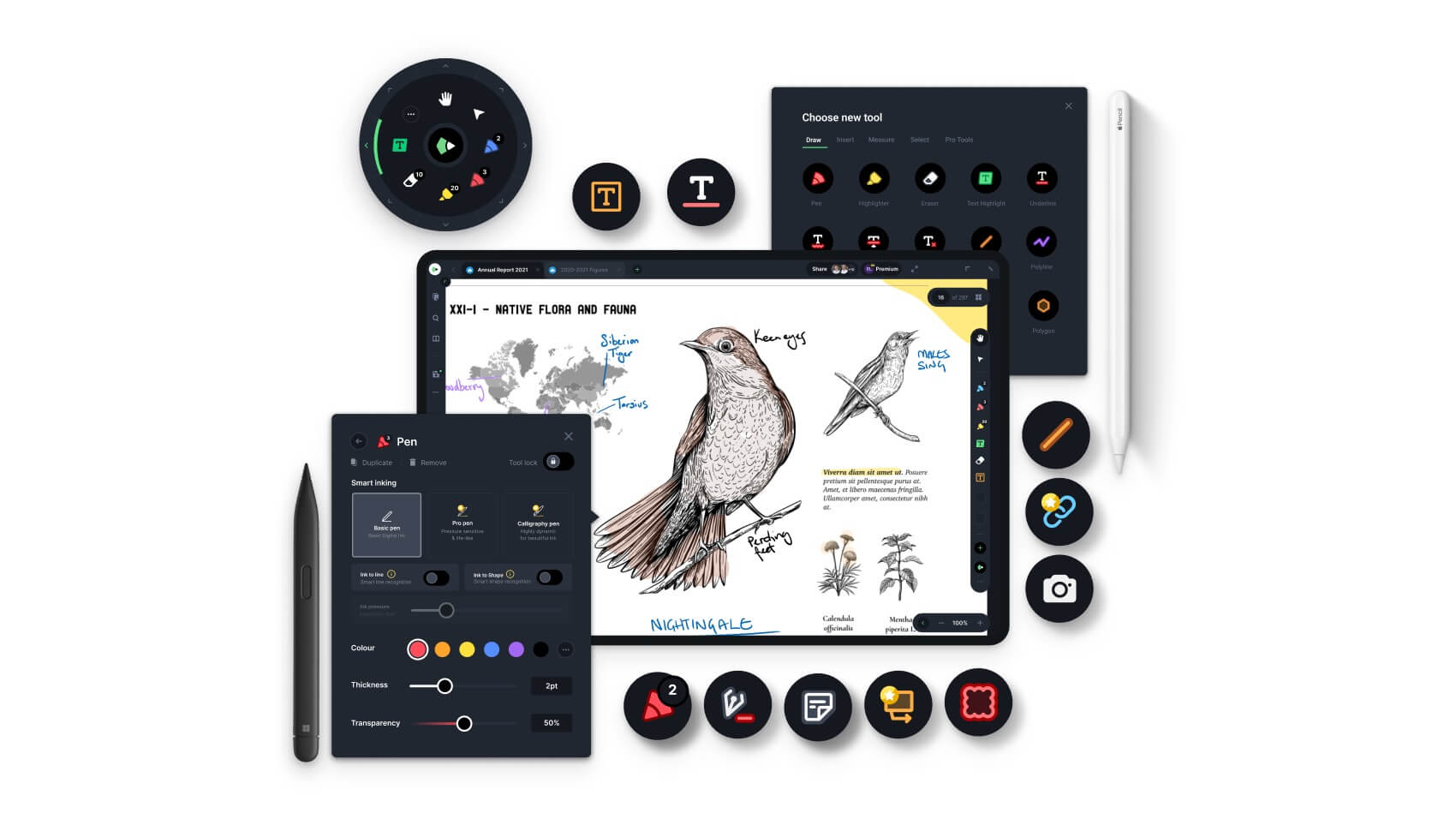
- Features: PDF annotation tools, text and image insertion, digital signatures, customizable drawing tools, and cloud integration.
- Supported Windows Versions: Windows 7 and later
- Price: Free with premium options
If you often work with PDFs and documents and are looking for a tool with comprehensive options, then Drawboard PDF might be the best option for you. There are two things I love about the tool: first is its user experience, and second is its comprehensive features compared to other PDF editors.
First, it offers annotation tools that allow you to highlight text, share annotations, and add comments to the PDF. There are advanced editing features like merging, re-ordering, deleting pages, and the ability to add digital signatures to the PDF. It also supports forms and roles and collaborates with your team members.
It also supports stylus input. However, the biggest concern with this app is its price. The pricing is slightly higher than that of popular PDF tools like Adobe Acrobat DC, Foxit PhantomPDF, and Soda PDF. It also offers a free version. If you are looking for comprehensive features, you have to spend more.
Concepts: Sketching and Note-Taking App With a Flexible Infinite Canvas

- Features: Infinite canvas, vector-based drawing, customizable brushes and tools, layer management, export to various formats.
- Supported Windows Versions: Windows 7 and later
- Price: Free with premium options
The Concepts is a great sketching and note-taking app for Windows. It lets you take notes, sketch, and create detailed designs. One of the best features of Concept is its support for infinite canvas, which allows you to draw and sketch on an unlimited canvas without worrying about running out of page space. It supports vector and raster drawing tools, which can help you easily control the details and scale your drawings.
It also offers comprehensive sketching features with a brush library and grids. The app supports pressure and tilt sensitivity, which allows you to draw based on the pressure and angle of the stylus you are using. The free version is sufficient for most regular users looking for the best sketching app for Windows. It also offers a premium for $4.99 per month or $30 per year if you want more advanced features.
Depicus Wake on LAN: Manage and Wake Up Multiple Devices Connected to a Local Network
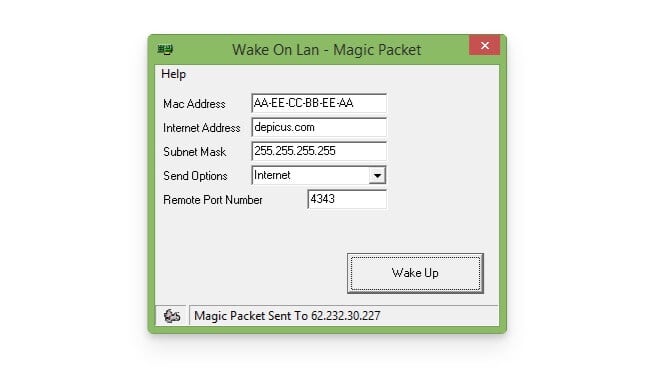
- Features: Wake-on-LAN functionality, remote device management, customizable settings, and user-friendly interface.
- Supported Windows Versions: Windows 7 and later
- Price: Free
Depicus Wake on LAN helps you manage all your devices on your local network. You can view and manage devices connected to the local network using the app from a single interface. It includes Wake-on-LAN (WOL) functionality, enabling you to wake up devices in your network that support WOL remotely.
Additionally, it offers network monitoring, allowing you to view all network activities for each device. You can also set up automatic tasks and customized alerts for various network interfaces. The free version includes essential features, but some advanced functionalities require a paid subscription.
VeraCrypt: Creates Encrypted Disks for Securing Sensitive Data
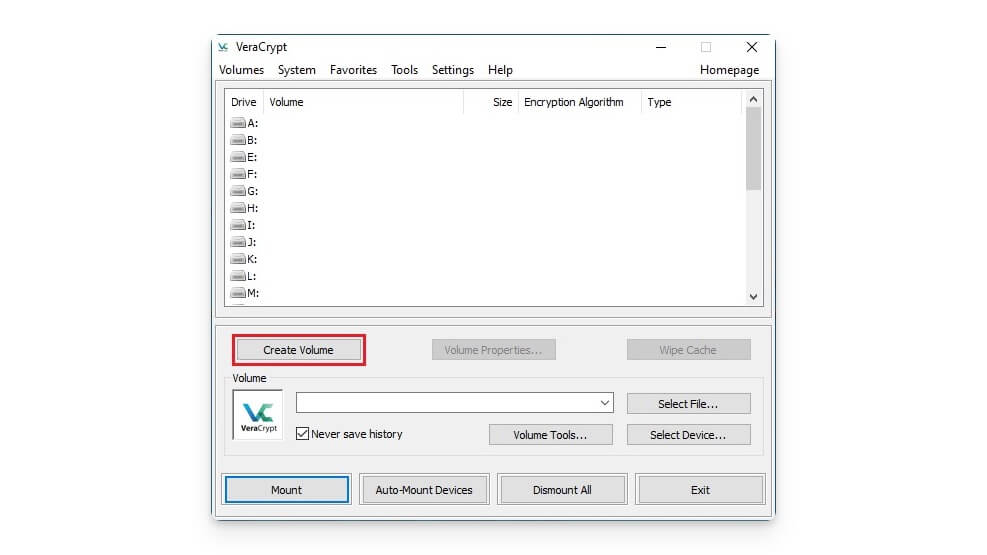
- Features: Disk encryption, hidden volumes, multiple encryption algorithms, portable mode, pre-boot authentication.
- Supported Windows Versions: Windows 7 and later
- Price: Free
While the built-in encryption Windows offers is best for securing your file, VeraCrypt provides advanced encryption features that make it a strong alternative. It allows you to create encrypted containers within your disk to store sensitive information securely. It allows you to create hidden volumes to hide data with containers.
The app uses encryption algorithms, such as AES and Serpent. VeraCrypt also offers a rescue disk feature. It allows you to restore access to your data in case of corruption or other issues. You can install or run it in portable mode. However, there are a few downsides. Creating and managing encrypted disks requires a learning curve, and using encrypted volumes can sometimes result in slower performance.
Unified Remote: Turns Your Smartphone Into a Remote Control for Your Computer
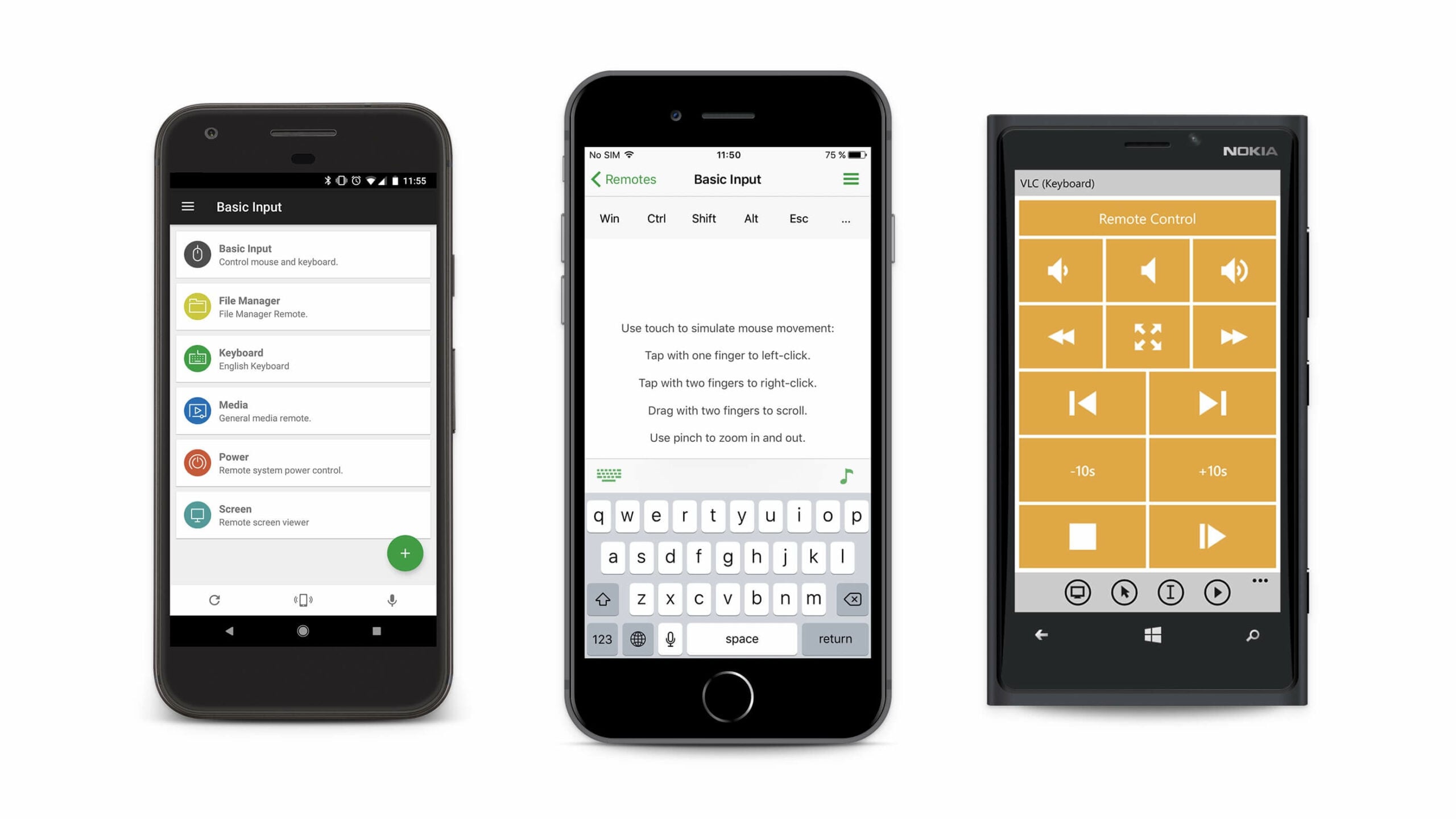
- Features: Remote control, supports mouse and keyboard emulation, customizable remote panels, support for multiple devices, and file manager.
- Supported Windows Versions: Windows 7 and later
- Price: Free with premium options
Unified Remote turns your smartphone into a remote control device for your PC. It uses Wi-Fi or Bluetooth to connect to your PC and supports over 90 applications, including media players and web browsers. You can also use your smartphone as a mouse and keyboard control and create custom remotes for specific needs and workspaces.
Additionally, you can mirror your PC screen on your smartphone for better control, remotely shut down or restart your computer, and manage files on your computer from your smartphone.
Dexpot: Adds Multiple Virtual Desktops to Windows
- Features: Ability to create multiple virtual desktops, customizable desktop settings, hotkeys for switching desktops, desktop preview, and application rules.
- Supported Windows Versions: Windows 7 and later
- Price: Free for personal use, with commercial licensing options
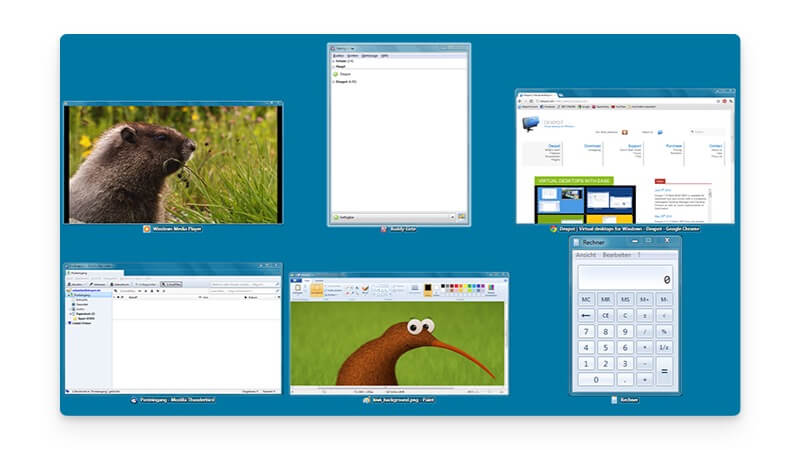
DeckSpot allows you to create up to 20 virtual screens on your computer. These are not just profiles but fully separate screens, custom wallpapers, icons, and window arrangements. You can personalize each desktop with a customizable interface. The app offers various ways to switch between these desktops, including setting keyboard shortcuts or using the mouse. Additionally, you can assign specific applications to always open on a particular desktop. DeckSpot also supports extensions and plugins, adding extra functionality to your virtual desktops.
SyncBackFree: Easily Backup, Restore Your Data
- Features: File backup and synchronization features, customizable backup profiles, scheduled backups, file versioning, and support for FTP and cloud storage.
- Supported Windows Versions: Windows 7 and later
- Price: Free
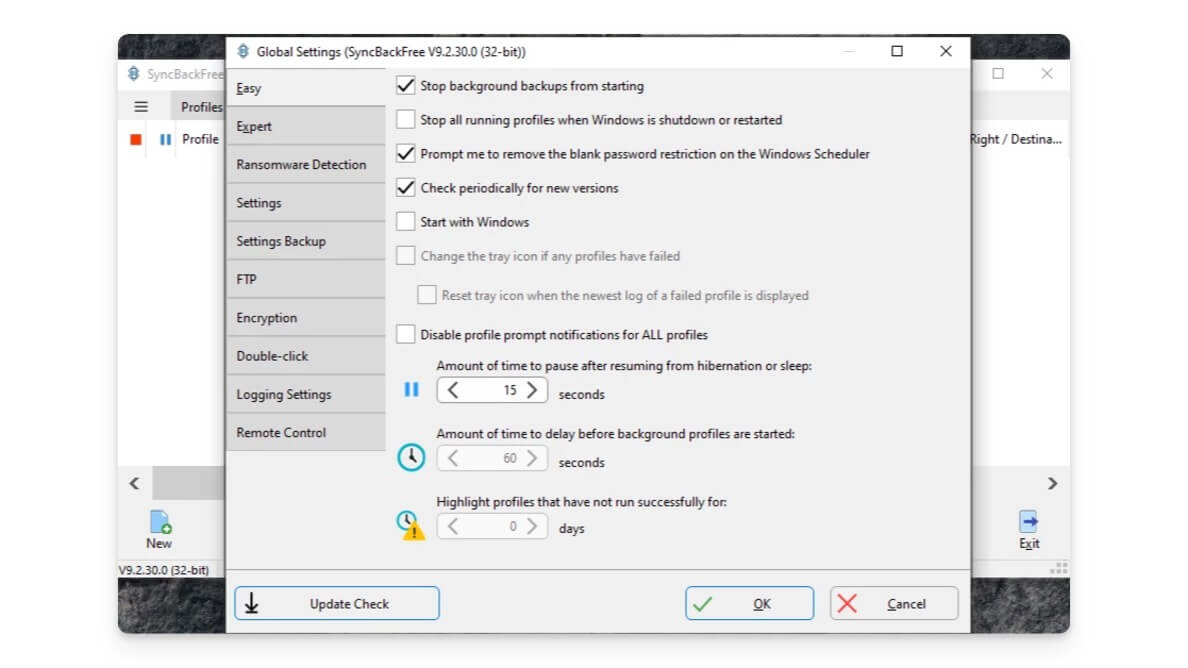
SyncBackFree is a free backup solution for Windows that allows you to create local backups of files on your computer. You can choose which files and folders to back up and store these backups on local drives or other devices on the same network. You can create incremental, complete, or backups of specified files.
SyncBackFree also supports synchronization between two locations. You can schedule backups with automated backup scheduling. In addition to these features, you can set filters to include or exclude specific files and compress backup files to save space. While SyncBackFree does not offer cloud integration in its free version, it is an excellent option for those who need to create local backups.
Launchy: Quickly Launch Files, Folders, and Programs With Keystrokes
- Features: Quick application launching, customizable plugins, hotkey support, sleek and minimalistic interface, indexing of folders and files.
- Supported Windows Versions: Windows 7 and later
- Price: Free
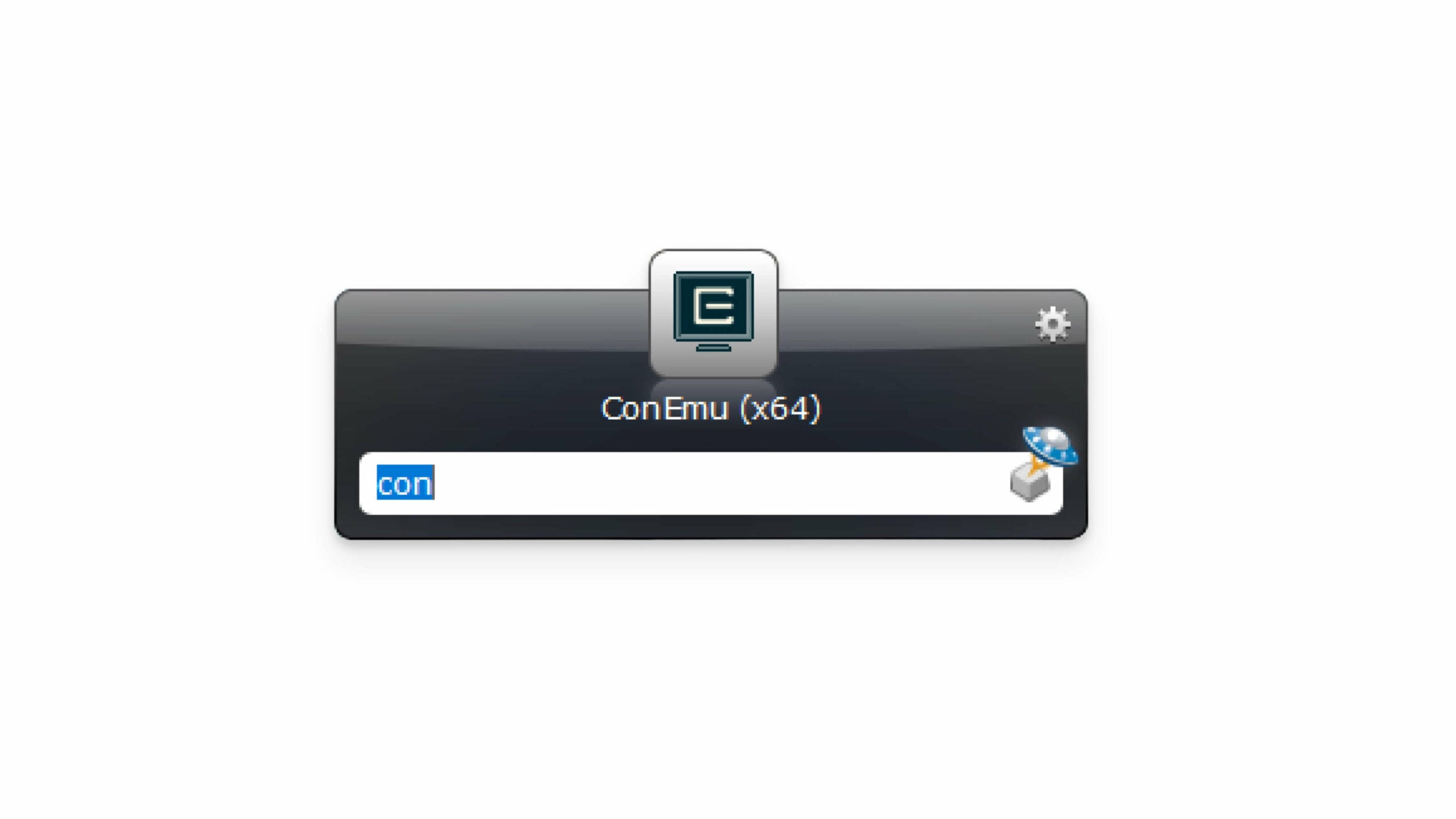
Launchy is an open-source keystroke launcher app for Windows that helps you quickly open applications, files, folders, and bookmarks. In addition to that, you can also create custom shortcuts for applications, files, folders, and even specific tasks or commands. Launch also supports plugins, allowing you to add extra functionality and customize your experience to suit your needs better.
OnTopReplica: Creates a Replica of Any Window and Keeps It on Top
- Features: Window replication, adjustment of transparency, click-through functionality, customizable window size and position, and easy-to-use interface.
- Supported Windows Versions: Windows 7 and later
- Price: Free
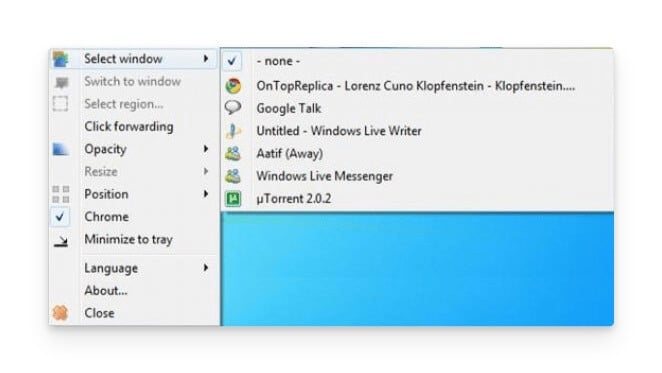
OnTopReplica allows you to create a replica of any window on your PC and keep it on top. You can select any window or a specific part of a window to create a replica, and it displays content from that window in real time. You can make the cloned window stay on top regardless of other active windows on your PC. You can resize and move it wherever possible.
Additionally, you can adjust the opacity of the cloned window to make it more transparent (less visible) and lock its position. This is especially useful in scenarios like gaming while viewing live chats on a YouTube channel. You can open YouTube in the browser, crop the comment section, and read real-time comments while working on other tasks.
Chocolatey: Package Manager for Windows That Simplifies Software Installation

- Features: Command-line software management, automatic updates, support for thousands of packages, integration with existing package managers, easy software installation and uninstallation.
- Supported Windows Versions: Windows 7 and later
- Price: Free with premium options for businesses
Chocolatey is a command-line tool for managing software on your Windows device. It lets you install, update, and manage applications using simple commands through its command-line interface. You can install software with a single command and update all your applications with simple commands. Chocolatey automates installing, updating, and uninstalling applications, enhancing efficiency.
For security, it offers options like verifying packages before installation. You can find a complete list of chocolatey commands on the Chocolatey package installer website.
Groupy: Group Multiple Applications Into Tabbed Windows
- Features: Tabbed window management, drag-and-drop interface, customizable tabs, support for multiple applications, integration with existing Windows functionalities.
- Supported Windows Versions: Windows 7 and later
- Price: $9.99
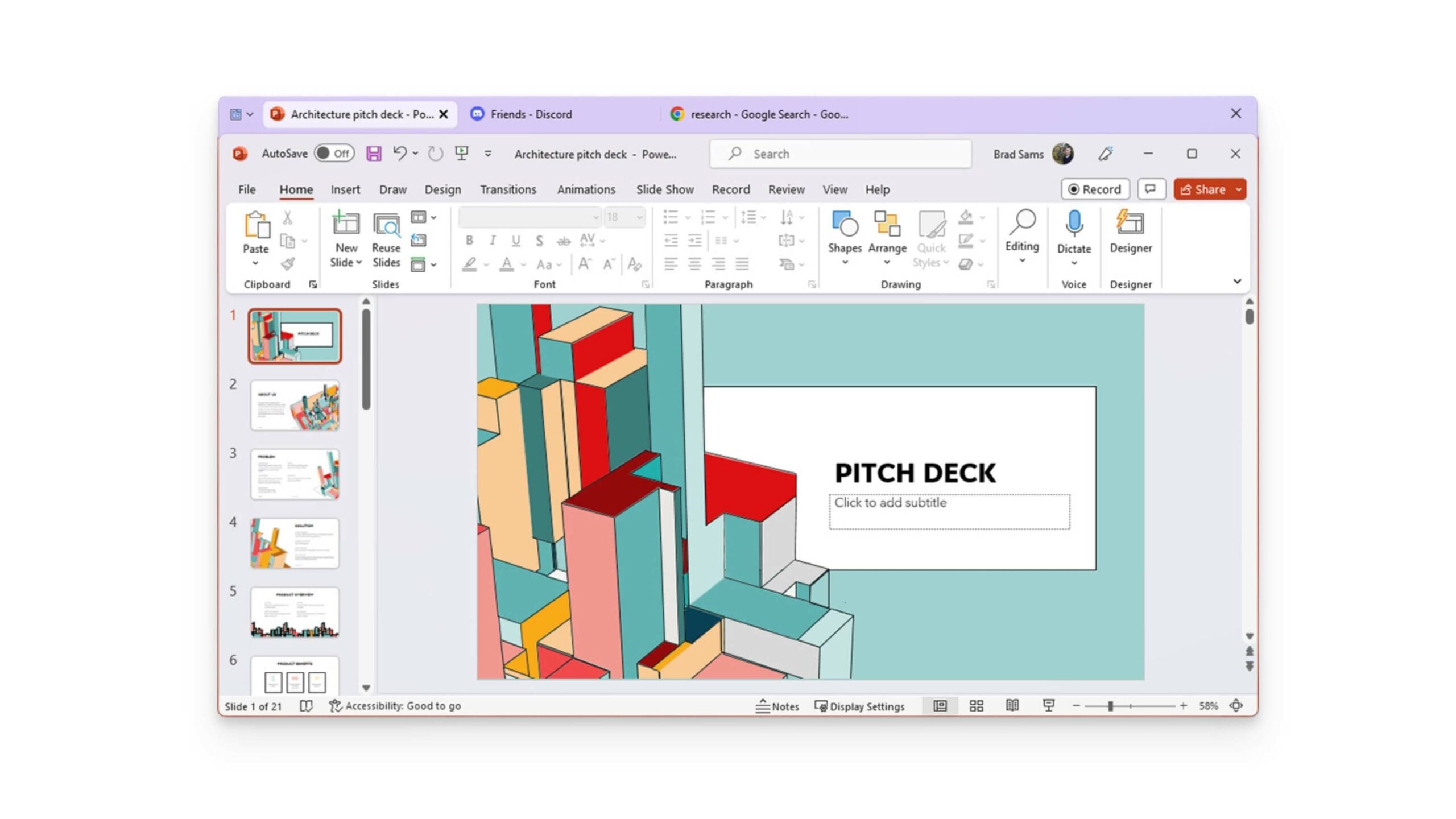
Groupy allows you to group and manage multiple applications in a single window using tabs, similar to web browsers. You can shift between tabs to manage your applications efficiently. You can group all your applications on Windows and shift through them using tabs. You can also drag and drop application windows into or out of tab groups.
Additionally, you can set rules to group basic applications automatically. Like web browsers, you can shift tabs on Windows using keyboard and mouse shortcuts. You can customize the appearance of each tab and store group states. The most significant advantage of this app is its ease of use and drag-and-drop function, which allows users to add any Windows to the tabs easily.
SpaceSniffer: Visualizes How Files and Folders Are Structured on Your Disks
- Features: Treemap visualization of disk usage, customizable filters, file and folder analysis, drag-and-drop support, and real-time updates.
- Supported Windows Versions: Windows 7 and later
- Price: Free
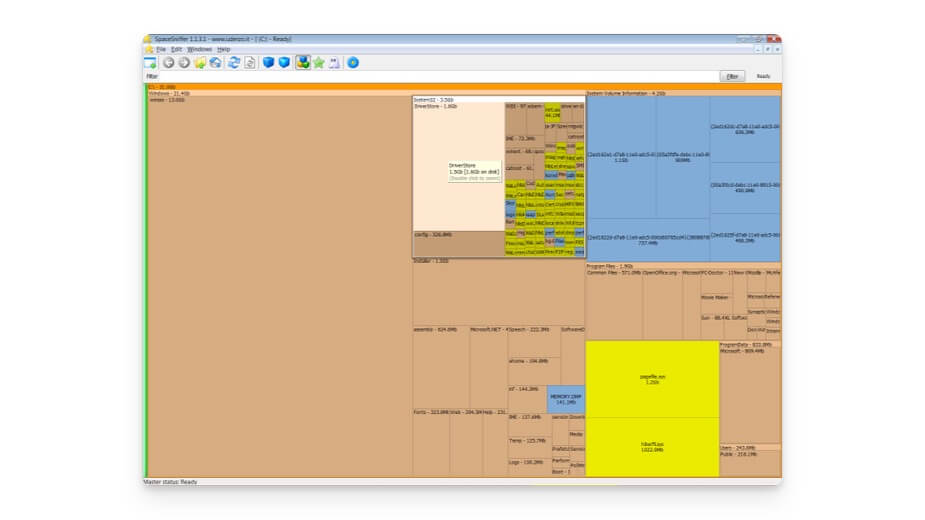
SpaceSniffer allows you to visualize how your files and folders are structured on Windows using visualization. You can zoom in and out and open folders for a more detailed analysis of how your Windows file systems are arranged. You can tag important files for quick identification and apply filters to find specific files or sizes. Additionally, you can export reports to share visualizations of your file and folder arrangements.
KeePass: Open-Source Password Manager
- Features: Manage passwords, multiple encryption algorithms, support for plugins, cross-platform compatibility.
- Supported Windows Versions: Windows 7 and later
- Price: Free
I was skeptical about recommending a free, open-source password manager, KeePass Password Safe Manager. However, after extensive research on KeePass and understanding its security and how it protects your passwords, I can safely say that KeePass is a secure password manager for your Windows. You can use it for free.
First, it stores your passwords in an encrypted database protected by a master password or key file, or you can use both. It uses strong encryption algorithms like AES-256 and ChaCha20 to protect your data. Also, being open-source, KeePass code is publicly available, allowing anyone to view, find, report, and fix any security vulnerabilities.
One of the biggest advantages of KeePass is that, unlike cloud-based password managers, it stores your data locally on your device. It also supports two-factor authentication, which is helpful if someone might know your master password. KeePass can securely store all your passwords and supports plugins that add functionality. It also has browser integration and cloud syncing capabilities. Additionally, it comes with a password generator to create random passwords.
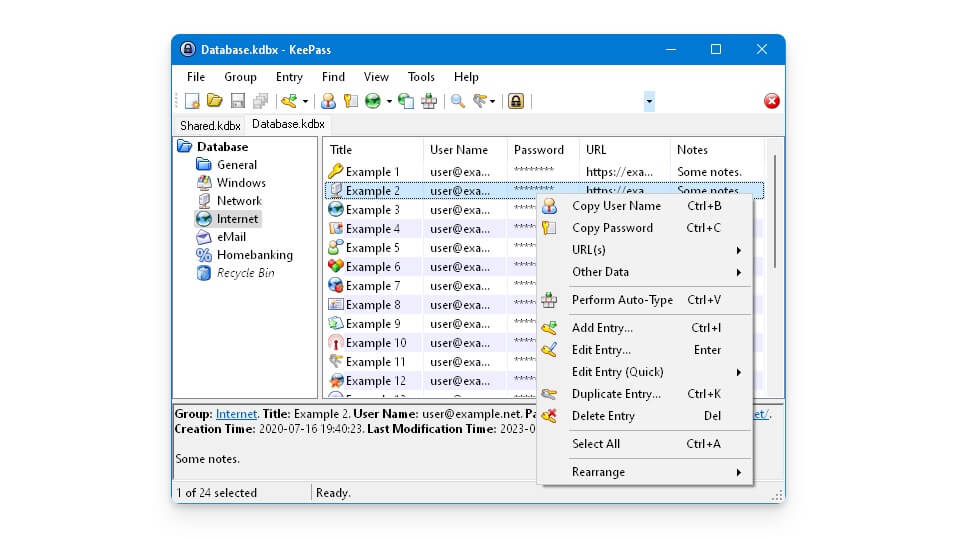
The user interface might be a little outdated due to its open-source nature, which you have to live with. KeePass is an excellent choice if you’re looking for a free and secure password manager.
Nearby Share for Windows: Easily Transfer Files Between Android and Windows
- Features: Fast and secure file transfers, support for various file types, easy setup, cross-device compatibility, no internet required.
- Supported Windows Versions: Windows 10 and later
- Price: Free
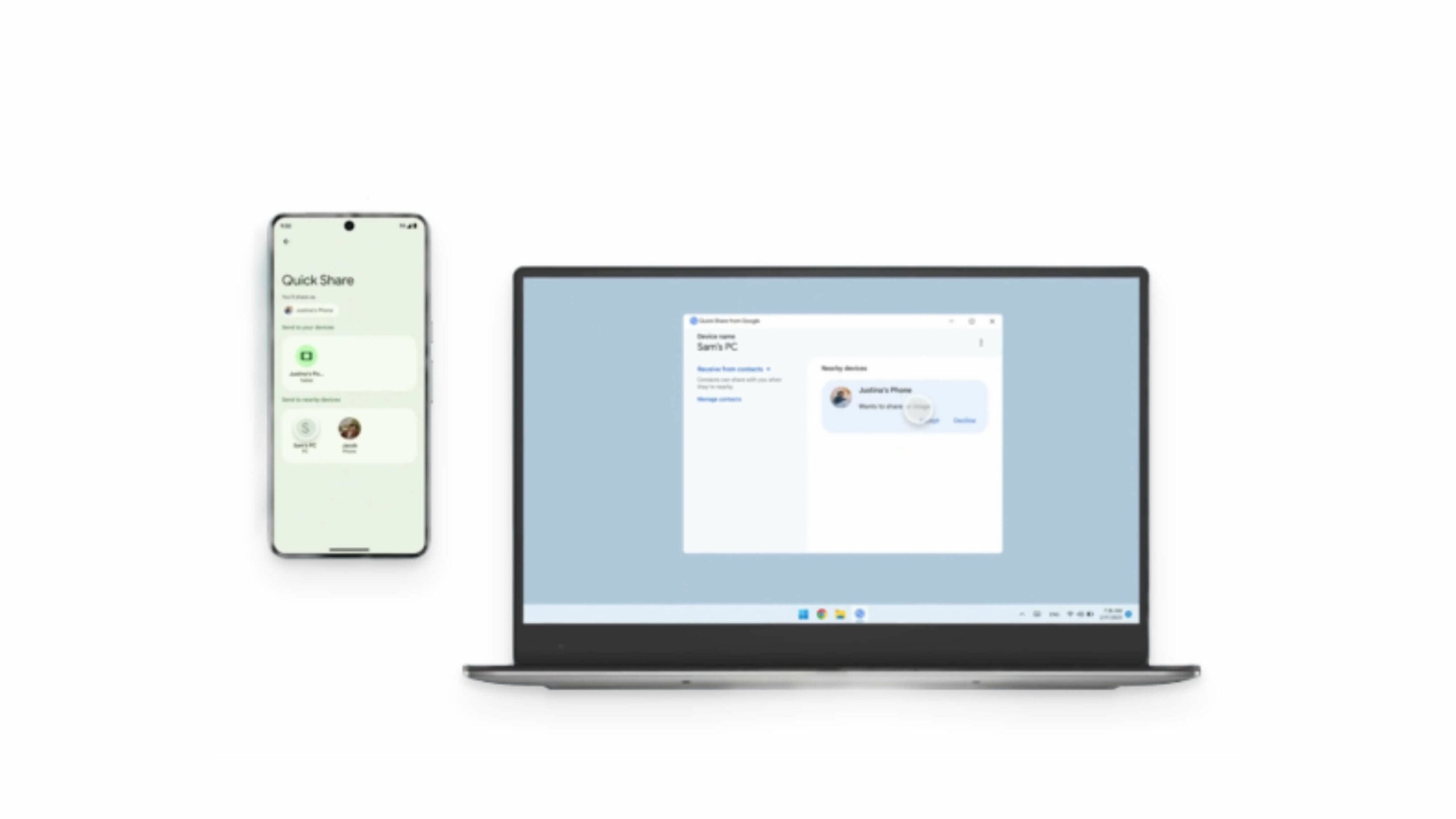
I have always complained about file-sharing features between Windows and Android, but Nearby Share by Google offers an easy solution for sharing files between your devices. You can install the Nearby Share app on your PC (Free) and use the built-in Nearby Share on your Android phone to efficiently share files between Android and Windows.
It is one of the best and most efficient ways to transfer files. You can send multiple files, and it also provides an estimated time for your file transfer. It supports all kinds of files, including documents, images, videos, audio files, compressed files, applications, and other web files such as SMS.
Min Browser: Minimalist Web Browser
- Features: Built-in ad blocker, reader mode, focus mode, dark theme, lightweight and fast performance.
- Supported Windows Versions: Windows 7 and later
- Price: Free
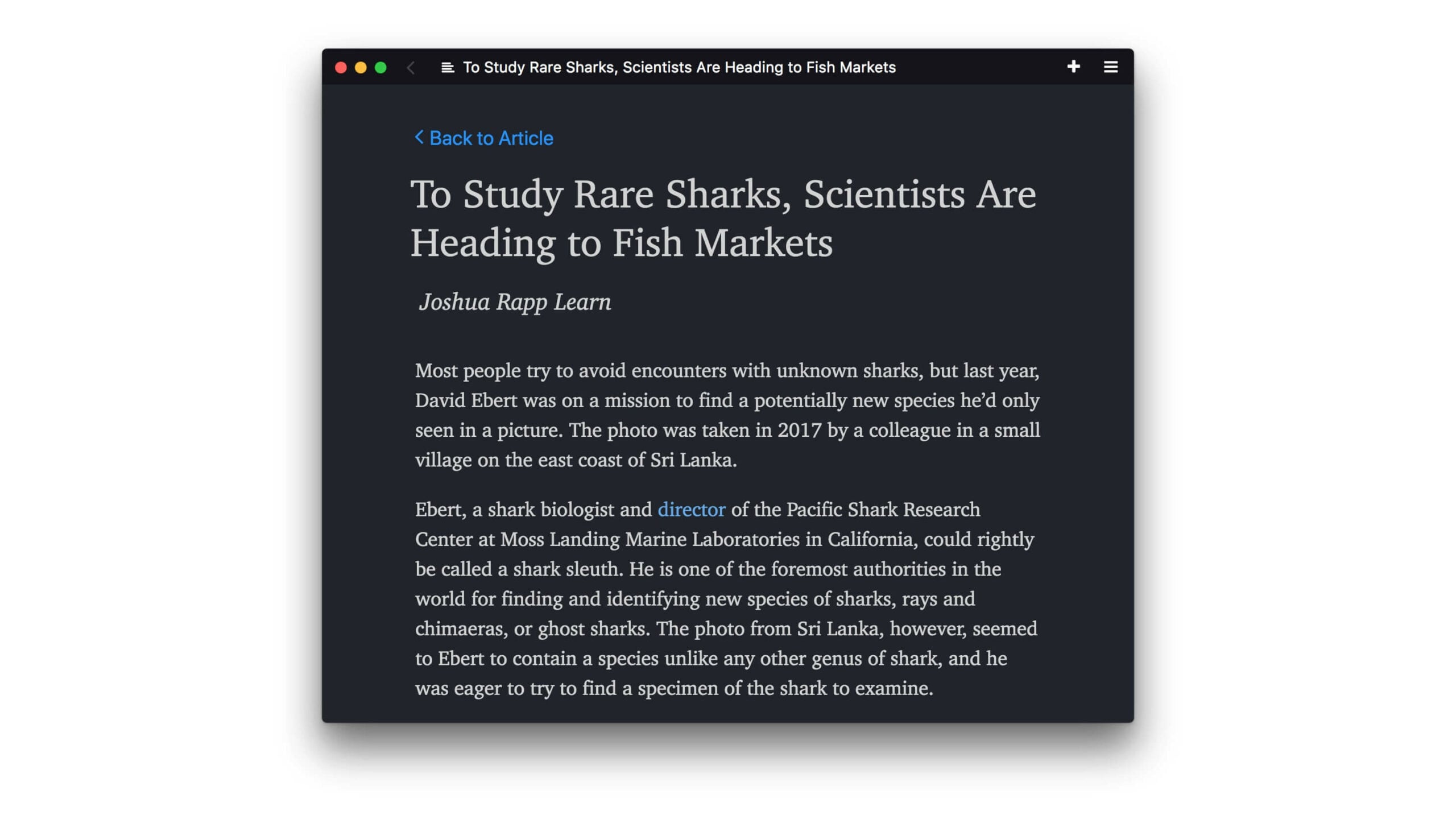
We have plenty of browsers for Windows. Many people directly install Google Chrome on Windows, even though Edge claims to be a better browser. Some people use the default Microsoft browser. However, Min Browser might be the best option if you want a minimalist option. It offers a minimalistic user interface that is clean and uncluttered. It has a built-in script blocker that automatically blocks scripts from the web browser.
It also has a tab management feature that allows you to group and organize tabs. It also offers useful features like a focus mode for reading, cross-platform support, and a dark mode. You can change the default search engine to Google or Bing at your convenience. It also supports keyboard shortcut navigation operations.
Syncthing: Sync Files Across Multiple Devices For Free
- Features: Peer-to-peer file synchronization, end-to-end encryption, cross-platform support, real-time file sync, web-based interface.
- Supported Windows Versions: Windows 7 and later
- Price: Free
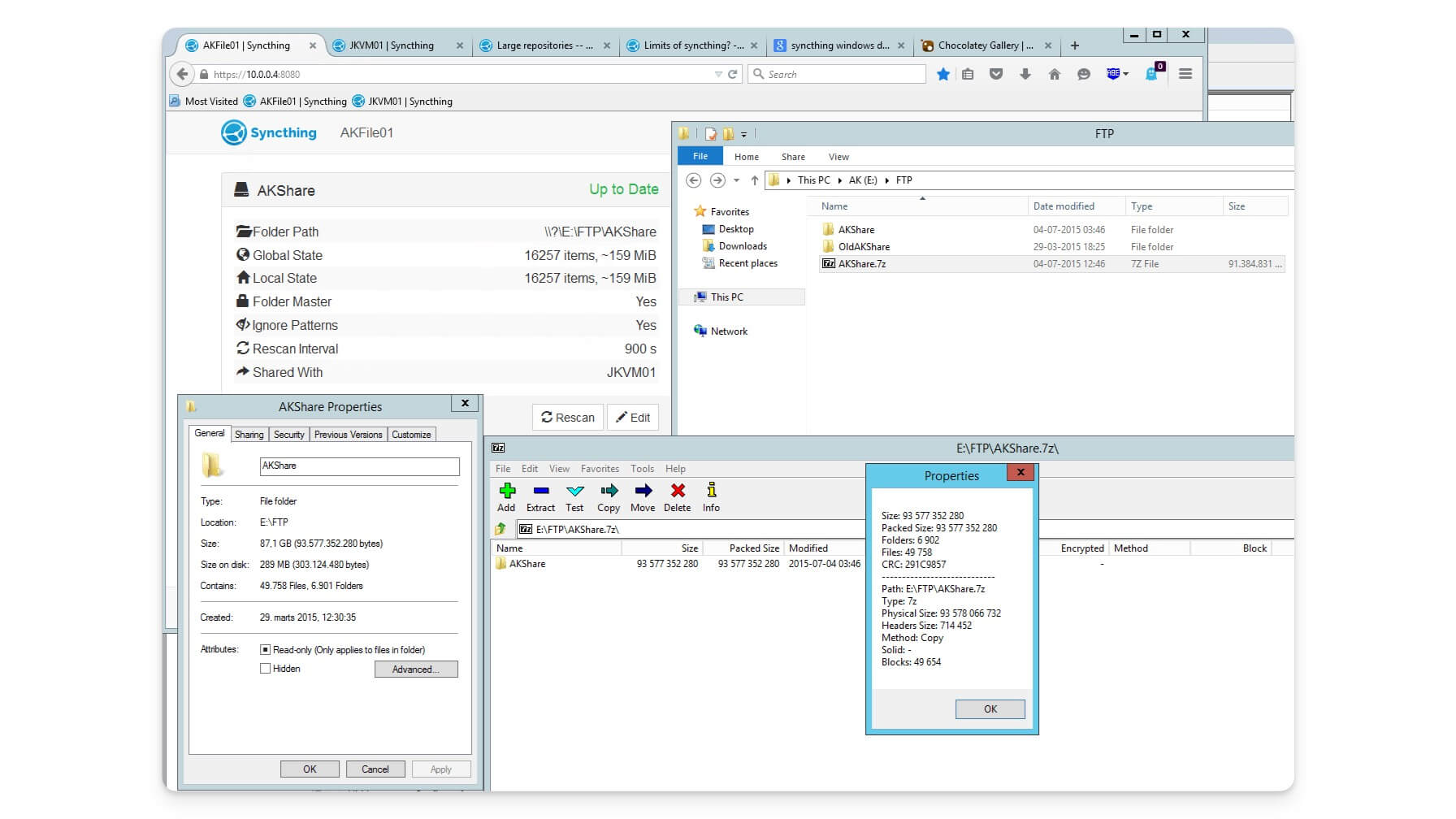
Syncthing is an open-source file synchronization tool that allows you to sync files between your device’s central servers. It syncs files quickly between devices and stores them locally on your device.
It supports cross-platform functionality for Windows, Linux, Android, and BSD. For added security, only devices you’ve authorized can access your data. It also supports real-time synchronization, automatically detecting and syncing file changes across devices.
There is also support for advanced configuration options for power users, including file versioning to keep multiple copies of changed files. For standard users, Syncthing provides a straightforward way to sync important files and photos between devices without relying on free cloud storage services like Google Drive or Dropbox, which often have limitations.
LM Studio: Run AI Models Locally on Your Device
- Features: Local machine learning model execution, support for multiple AI frameworks, customizable configurations, and easy model deployment with offline capabilities.
- Supported Windows Versions: Windows 10 and later
- Price: Free
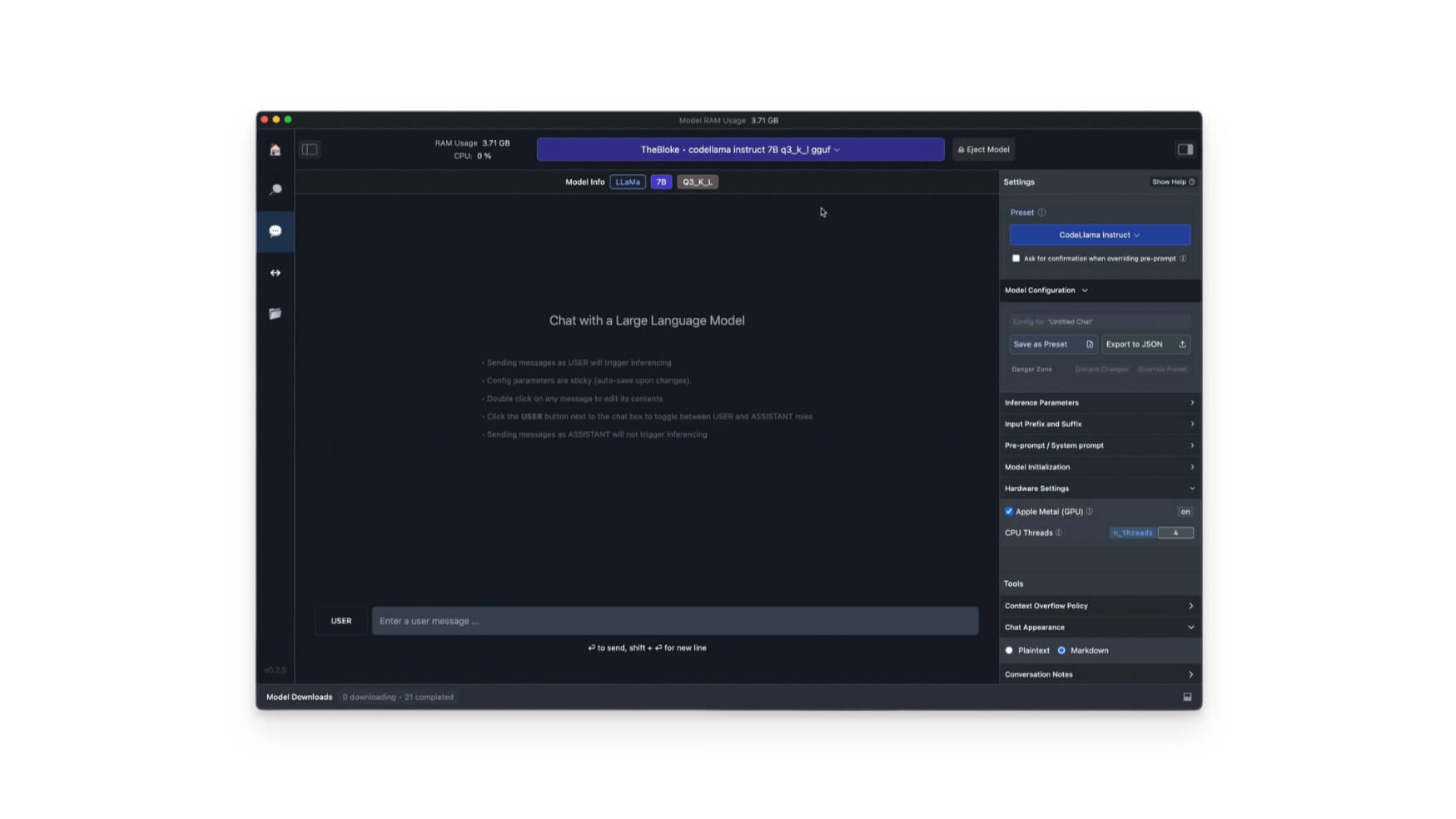
Almost every application and operating system now has AI features built in. However, privacy is the biggest concern with most AI tools if they use cloud AI models. LM Studio might be useful if you prefer an offline and local AI solution. It allows you to run AI models locally on your device and offers a user-friendly experience. It is compatible with a wide range of AI models, and running them locally on your device ensures better privacy, as your data does not need to be transmitted to the cloud.
There are specific requirements for running LM Studio on your device. The requirements vary depending on the type of model you wish to run. At a minimum, you need a decent GPU, at least 8GB of RAM, and sufficient disk storage.
Also, Open-source local models are less resource-intensive compared to more advanced models. Some local models include GPT-2 by OpenAI, BERT by Google, and various text transformation models by Google.
However, it’s important to note that each model has system requirements and may not work with all devices. This can make local AI solutions resource-intensive and somewhat limited compared to their online counterparts. Nonetheless, local AI models are a great option if you prioritize privacy and have the necessary hardware.
Barrier: Sharing a Keyboard and Mouse Between Multiple Computers
- Features: Cross-platform support, clipboard sharing, easy setup, customizable shortcuts, secure connection.
- Supported Windows Versions: Windows 7 and later
- Price: Free
I also own a Mac. It seamlessly integrates with other Apple devices with continuity features, allowing me to use the same mouse and keyboard across multiple Apple devices. For Windows, this was not an option until I discovered Barrier.
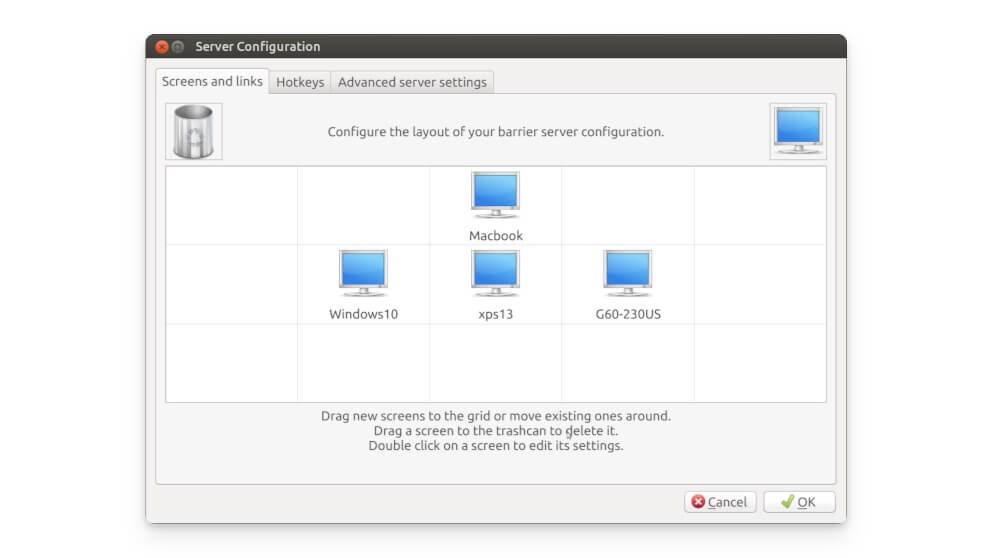
Barrier is an open-source tool that allows you to use a single mouse and keyboard across different computers. It is compatible with Windows and Mac. In addition to cross-platform compatibility, Barrier supports clipboard sharing, enabling you to copy and paste content between devices easily. It also supports drag-and-drop file transfer, and you can set up hotkeys for switching between computers.
While there are other options available, such as Synergy (a paid solution), Mouse without Borders (limited to Windows), and Multiplicity (also paid), Barrier stands out as a great free alternative for those looking to share a mouse and keyboard between computers, working similarly to its paid counterparts in most aspects.
MusicBee: Organize, Find, and Play Music Files on Your Computer
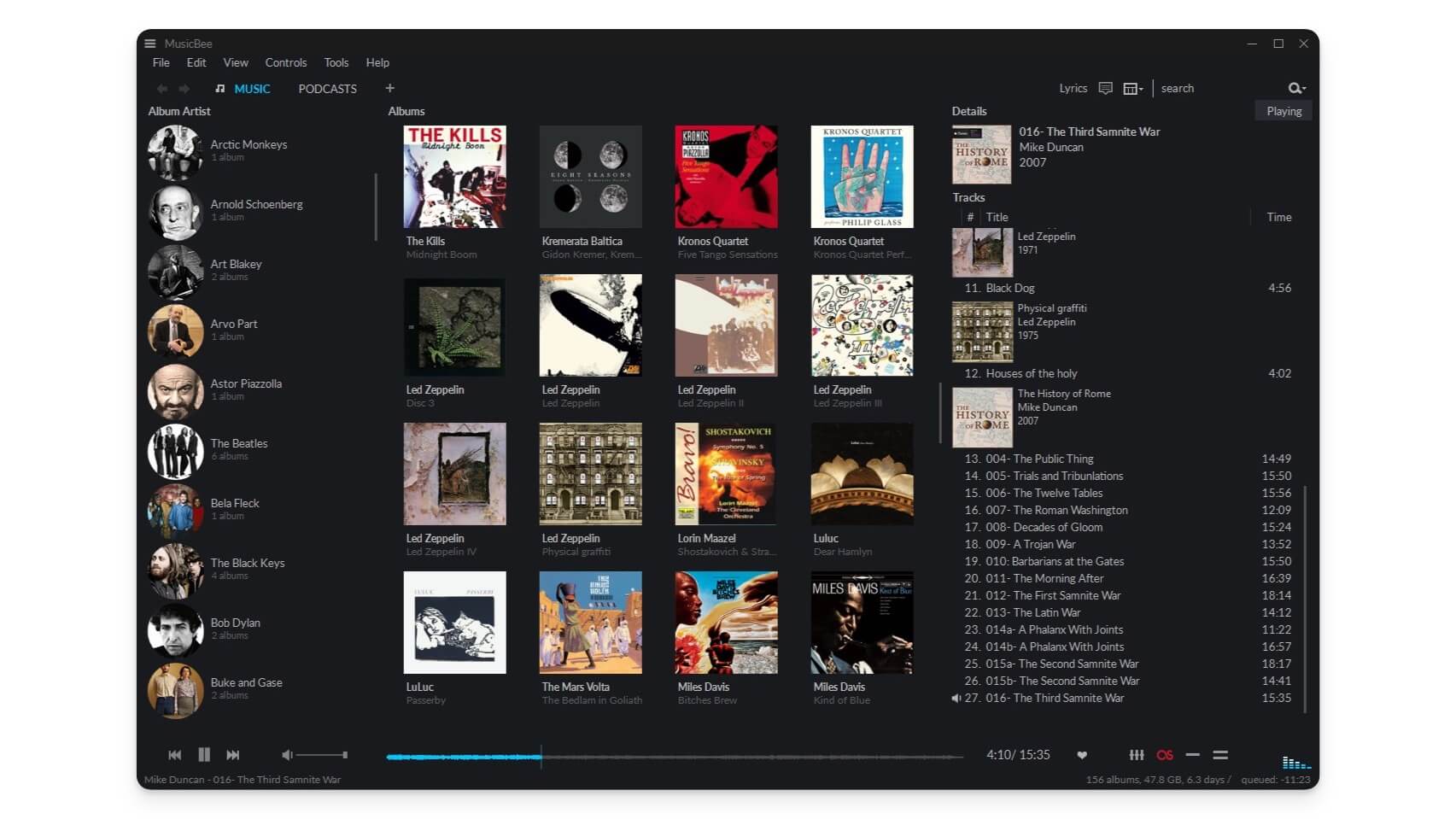
- Features: Music library management, customizable interface, advanced audio playback options, built-in tagging tools, and support for various audio formats.
- Supported Windows Versions: Windows 7 and later
- Price: Free
I recently shifted from cloud music streaming to a local music player for all my music needs. There are several reasons for this change, such as data consumption, and I often listen to the same songs repeatedly. Therefore, I downloaded my favorite tracks and used a local music player. Finding the right music player for Windows can be overwhelming, with many options. However, I found a great solution: MusicBee.
MusicBee offers extensive features that help you play and organize music locally on your computer. First, it includes library management, which allows you to organize your music library and edit metadata. You can tag and categorize your music into different categories, and it even automatically tags music based on online data.
MusicBee supports multiple audio formats, including MP3, FLAC, AOG, WAV, etc. It also features an equalizer, allowing you to customize and fine-tune your music with a 10-band or 15-band equalizer. You can customize the theme and appearance of the player to suit your preferences.
Additionally, MusicBee supports music discovery, automatically generating playlists based on keywords and your listening habits. If you run out of local music, MusicBee also supports online content discovery through radio stations and podcasts.
ScreenToGif: Simple Tool for Recording Your Screen
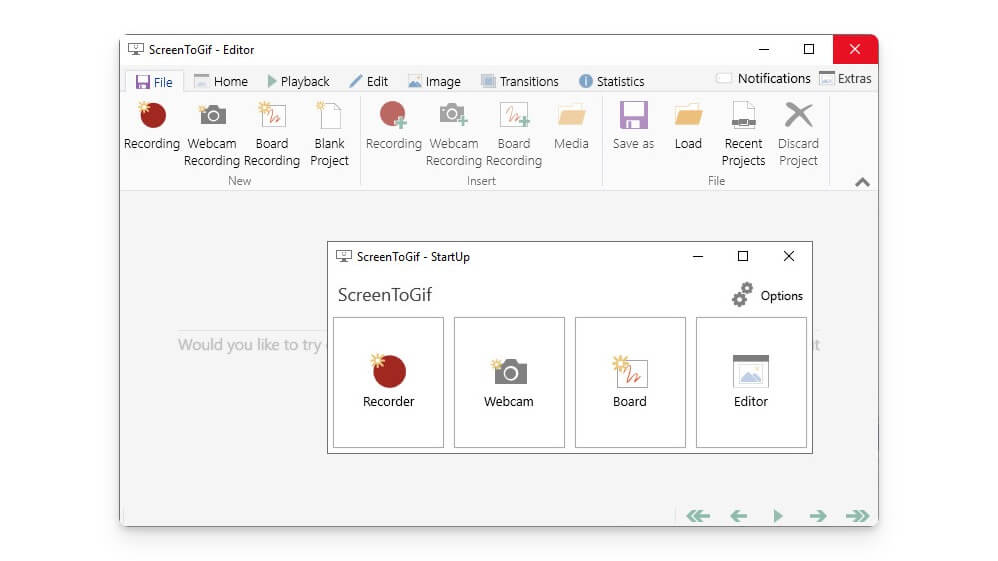
- Features: Screen, webcam, sketch board recording, built-in editor, save as GIF or video, customizable recording options.
- Supported Windows Versions: Windows 7 and later
- Price: Free
ScreenToGif is an open-source, free screen recorder tool for Windows that allows you to record your screen and capture screenshots. It offers comprehensive features for recording and editing your screen captures. First, it can record your screen and capture any part of it. Additionally, it supports webcam and whiteboard recording, where you can draw and record the process.
The tool also offers extensive editing capabilities, allowing you to edit each recording frame. It includes annotation tools to add text, shapes, and images to your captures. You can arrange and export your recordings easily. One of its standout features is the ability to convert recordings into GIF format, which is particularly useful for creating animated images. The user interface is simple and easy to use, making it accessible even for beginners.
Rainmeter: Allows You To Add Various Widgets and Skins to Your Desktop

- Features: Customizable desktop widgets, a wide range of theme options, resource monitoring, and active community support.
- Supported Windows Versions: Windows 7 and later
- Price: Free
Rainmeter is a popular app for Windows that allows you to add customizable widgets to your home screen. It offers a variety of widgets, including system monitoring tools that display CPU and memory usage, time and date, weather updates, media controls, and productivity tools like to-do lists and note-taking apps. It also features application launchers and customizable backgrounds.
The best part of Rainmeter is its extensive customization options. You can tailor widgets with custom skins and detailed configuration settings that native Windows does not support. Additionally, Rainmeter supports thousands of community-built skins. The app also supports scripting, which lets you create interactive and dynamic widgets.
However, Rainmeter can be a bit resource-heavy, potentially affecting system performance. If your device meets the minimum system requirements, it should run smoothly and enhance your desktop experience with its versatile widgets.
Biniware Run: Create Shortcuts for Apps, Files and Folders
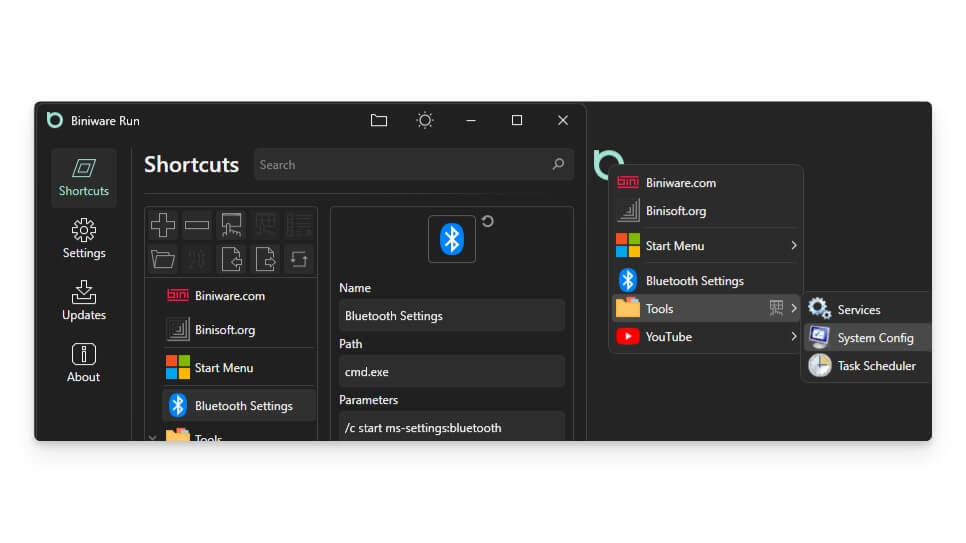
- Features: Create and organize shortcuts, portable application, drag-and-drop support, customizable interface, lightweight and fast.
- Supported Windows Versions: Windows 7 and later
- Price: Free
Biniware Runs lets you create shortcuts for apps, files, and folders you frequently use on your PC. It’s very helpful if you want easy access to frequently used files. You can open them using simple shortcuts. There is no limit to the number of shortcuts you can create.
Additionally, you can organize your shortcuts into folders and import or export them to another device. You can also customize shortcuts and set command-line execution parameters for each one. It is a portable and lightweight shortcut management app for your Windows.
Improve Your Windows Experience
Apps are arguably the best addition to any operating system. They add extra functionality to the OS. Those are the 50 best rare applications for Windows that can be helpful and improve your experience. Most of the apps are free to use and open source. Once again, before downloading, I want to remind you to ensure you scan the files using an online or local scanner once installed.
Many of these apps have outdated interfaces, which might be tricky to understand initially, but each app can offer video guides to help you navigate. You can easily find tutorials on YouTube and other online resources to help you get started. If you have any questions about installing the apps or other recommendations, please comment, and I am happy to hear from you. If you face issues while installing the app, check the compatibility with your Windows version and follow the app’s detailed instructions to install the app.

