

Quick Answer
To fix Quick Share not working on your Android, Ensure both devices run Android 6.0 or above. Quick share is turned on, and Bluetooth, Wi-Fi, and location are turned on. For better connectivity, bring the devices closer. Keep the screen on and unlocked while sharing. If these steps don’t work, Clear the Google Play Services Cache and update Google Play Services. For a detailed step-by-step process, follow the methods below.
A few years ago, Google introduced the Nearby Share feature for Android (Now Quick Share), which allows direct sharing between Android devices running Android 6 or later. The feature is very similar to Apple’s Airdrop feature for iPhone. You can select the files you want to share, tap the Quick Share button in the sharing menu, and wait for a nearby phone to appear. Tap the device, agree to share, and the files will be transferred.

However, this is not always the case. Sometimes, Quick Share encounters problems that do not work for some Android users. If you are one of them, do not worry. In this guide, you will learn how to fix Quick Share on Android in 10 different ways.
Table of Contents
How to Fix Quick Share Not Working on Android
Note: In 2024, Google rebranded Nearby Share as Quick Share in collaboration with Samsung. This feature’s functionality remains the same and is available for Android devices running Android 6 or later.
Quick Troubleshooting Steps

Check Your Android Version
Nearby Sharing only works if both Android devices run Android 6.0 Marshmallow and above. To check your Android version, go to Settings > About. Check the number under the Android version. It should be 6 or higher.
To check the Android version on your Android device, follow these steps:
- Open the Settings app on your device.
- Scroll down and tap About device. Then tap on Software Update and check the version installed on your smartphone.
- You can visit this link to check your Android version online to save time.
Turn On and off Airplane Mode
Quick Share uses a combination of network services to connect devices and securely transfer data. Turning on Airplane Mode on Android devices resets network settings such as cellular, Bluetooth, WLAN, GPS, NFC, and more. You can turn on Airplane mode on an Android device using the following steps:
- Open the Settings app on your Android device.
- Look for the Network & Internet or Connections option and tap on it.
- Look for Airplane Mode or Flight Mode
- Alternatively, you can swipe down from the top of the screen to access the Quick Settings menu and tap the Airplane Mode icon to activate it.
Enable Quick Share on Both Devices
Before you start sharing files via Quick Share, enable Quick Share on both devices you are sharing. Quick Share requires a mutual connection to share files between devices.
You can turn on Quick Share on your Android smartphone using the following steps:
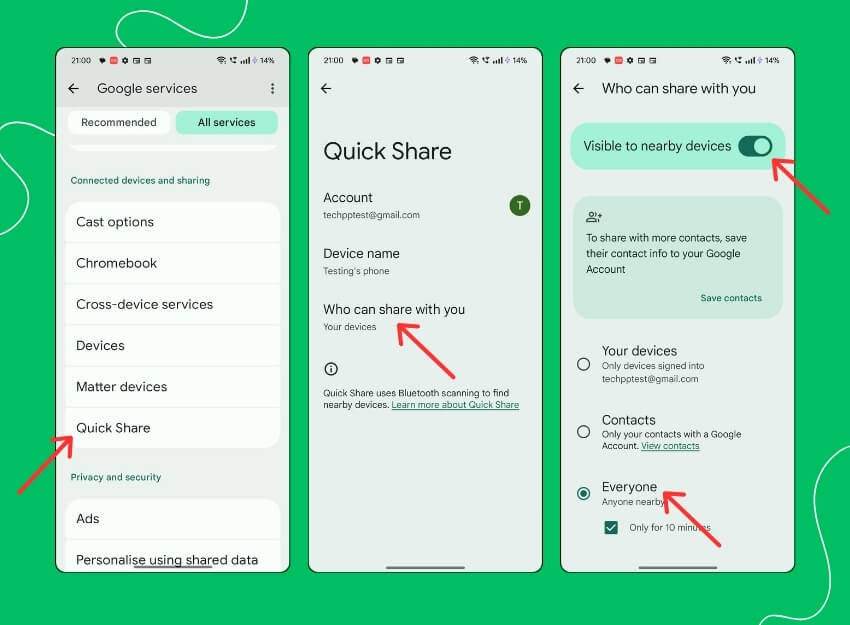
- Open Settings on your Android.
- Scroll down and tap on Google.
- Click on the All Services tab and scroll down.
- Click on the Quick Share option and tap the option that says Who can share with you.
- Ensure that visibility to nearby devices is turned on. To share with devices outside your network, Scroll down and select “Everyone.”
- All contacts: The device will be visible to all contacts in your list when the screen is ON and unlocked
- Contacts: When the screen is ON and unlocked, the device will be visible when Quick devices are selected.
- Everyone: Your device will be visible to everyone in the Quick Share.
Enable Wi-Fi, Bluetooth, and Location on Both Devices
As mentioned earlier, Quick Share uses native connectivity options such as Bluetooth (and Bluetooth Low Energy), NFC, WebRTC, or peer-to-peer WiFi to connect and enable file transfer.
When Quick Share is turned on, it automatically enables Wi-Fi and Bluetooth on the device you are sending from. If it is turned off, it will also prompt you to enable location. However, you should manually check once and ensure all three services are enabled in the Quick Settings.
Bring Devices Closer
Quick Share uses on-device connectivity options like Bluetooth, NFC, and peer-to-peer wifi to connect and enable file transfer. These connectivity options only work within the specified range. If Quick Share is already enabled and you can’t transfer files to another device, try bringing the devices closer together. Then, try disabling and re-enabling Quick Share. If it still doesn’t work, follow the steps below.
![google nearby share: what is it and how to use [guide] - asl nearby share creative v07](https://storage.googleapis.com/gweb-uniblog-publish-prod/original_images/ASL_Nearby_Share_Creative_V07.gif)
Unlock the Device
By default, Android phones do not stop background processes when you lock the device. Many applications continue to run in the background even when you lock your phone so they can continue to perform tasks or receive notifications.
However, some Android smartphones stop background processes to save battery. If this is the case, it may affect the Nearby Sharing feature when the device is locked. To fix this, unlock your device using the Quick Share feature on your Android smartphone.
Restart Your Device
Restarting the device is the most well-known and popular troubleshooting method for fixing most issues, including the problem of Quick Share not working on your Android smartphone. Different smartphones perform different steps to restart a device, but most steps are similar for all Android smartphones.
Advanced Troubleshooting Steps
No. | Advanced Troubleshooting Step | Instructions |
|---|---|---|
1 | Clear Google Play Services Cache | Go to Settings > Apps > See all apps > Google Play Services > Storage & cache > Clear Cache. |
2 | Update Google Play Services | Open Google Play Store > Profile icon > Manage apps and devices > Updates > Update Google Play Services if available. |
3 | Reset Android Smartphone (Factory Reset) | Go to Settings > General Management > Reset > Factory data reset. Backup data before proceeding. |
Clear Google Play Services Cache
Google Play Services is one of the core features of Quick Share on Android. When Google Play services experience issues, it can affect the Quick Share feature on your Android smartphone. Clearing the Google Play Services app cache can easily fix this issue. Clearing the app cache will not delete personal data such as login credentials, saved settings, or app-related documents. It only removes temporary files and data that the app has stored in the cache.

- Open Settings > Apps > See all apps > Google Play Services.
- Now open the Storage & cache option, then select Clear Cache.
Update Google Play Services
If clearing the cache of Google Play services doesn’t fix the problem, try updating the services. Generally, Google Play services are updated automatically in the background, but sometimes they may not update for some reason. You can easily update the Google Play services by following the steps below.
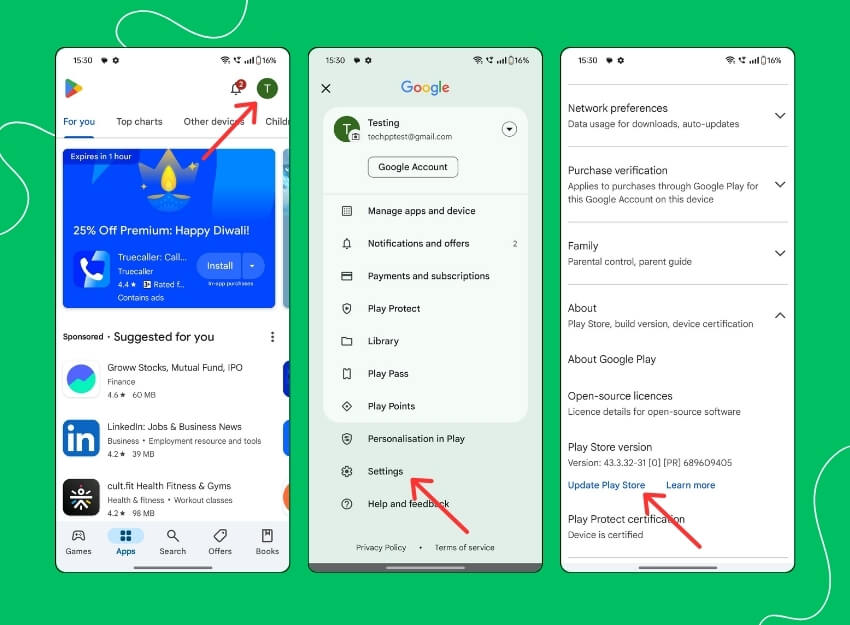
- Open the Google Play Store app and tap on your profile picture at the top.
- Select Settings
- Scroll down, tap on About Google Play, and click on the Update Play Store.
- If you can’t find the app, click this link.
Related Read: [FIXED] Unfortunately, Google Play Services Has Stopped Error on Android
Reset Android Smartphone
If the above troubleshooting methods don’t work, reset your smartphone as a last resort. This is the last method you should try. When you factory reset a device, all data, settings, and apps are reset to the original factory settings, just like a new device. All your data, including contacts, Google accounts, photos, videos, music, and documents, will be deleted from the device’s internal storage.
You need to set up your reset device just like a new one. Different Android smartphones require a different factory reset procedure. We have listed the steps for the most popular brands below. Once the reset is complete, set up your smartphone and try using Quick Share again. This should fix the problem.
Note: Before resetting your smartphone. Ensure you back the important data. Go to Settings > System > Backup > Back up now to backup.
How to reset your smartphone
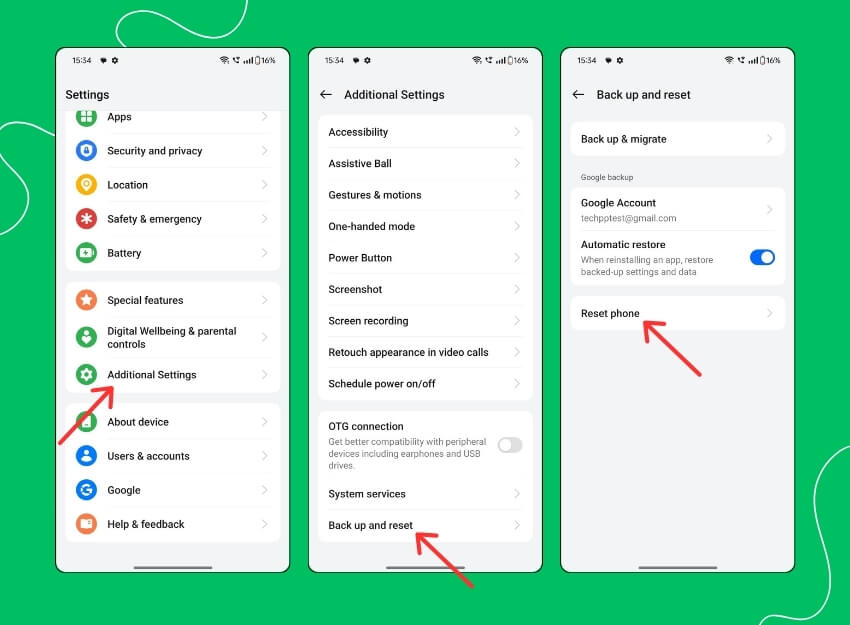
- Open Settings on your Android smartphone
- Click on the Additional Settings > Back up and Reset. If you don’t find these options, Use the Search bar and search for the Reset option.
- Click on the Reset option.
So this is how you can fix Nearby Sharing not working on Android smartphones. Quick Share is a great feature and the best alternative for Android users to share files easily between devices. I hope you find this guide helpful. If you have any suggestions, feel free to suggest them in the comments below. Also, let us know what method fixed the problem with Quick Share on your smartphone.
FAQ on How to Fix Neary Share on Android

Nearby Share not working with Windows 11. How to fix it?
Not to confuse you, Nearby Share on Windows is different from Nearby Share on Android. If you can not share files between Windows and Android smartphones, you are not alone. At the time of writing, Google has yet to roll out support for Nearby Share between Android and Windows devices. If you are having trouble with Nearby Share on Windows, follow the troubleshooting techniques below.
- Make sure the Nearby Share feature is enabled on both PCs: First, make sure the Nearby Share feature is enabled on both PCs. On Windows 11, go to Start > Settings > System > Nearby Sharing and make sure it is enabled and set to Own Devices Only or All Nearby. On Windows 10, go to Start > Settings > System > Shared Experiences and turn Nearby Sharing to On. Here you can also specify where you want to share or receive items.
- Check Bluetooth compatibility: Nearby Sharing requires both PCs to have Bluetooth 4.0 (or higher) with Low Energy support. If one or both devices do not meet this requirement. To check, press the Windows key + R to launch the Run command. Type devmgmt.msc in the box and press Enter > Double-click Bluetooth to expand it. Right-click on your Bluetooth adapter and select Properties>. In the Properties window, switch to the Details tab. In the drop-down menu under Property, select Bluetooth radio supports Low Energy Central Role. Then check the value.
- Restart your Windows PC: Try restarting your Windows PC.
How to transfer files from a phone to an Android TV wirelessly?
With Google Play services v22.15, Nearby Share users can transfer files via Bluetooth between their own phones, tablets, Android Auto devices, and Android TV devices without having to authenticate the process. You can log in with the same Google account on your Android smartphone and on your Android TV. Then select the files you want to share, tap Share Nearby, and select the device you want to share files with.
Does Nearby Share require an internet connection to work?
Nearby Share does not require an internet connection to work. It uses a combination of Bluetooth, Wi-Fi, and location services to enable devices to discover each other and establish a direct communication channel. However, Nearby Share does require Bluetooth and location services to be enabled on both devices for it to work.
Why is my Nearby Share connection slow or unreliable?
Some reasons for Nearby Share connection being slow or unreliable are:
- Distance and Interference
- Low Battery
- Outdated Software
- Device Compatibility
- Network Congestion
Can I share files with iPhones using Nearby Share?
No, you cannot share files directly between Android and iPhones using Nearby Share. Nearby Share is a feature exclusive to Android devices and is not supported by iOS devices. Instead, consider using third-party apps like Snapdrop and Send Anywhere.

