

Peek display on Motorola devices is a critical part of the MyUX experience because there is nothing else on the market like Moto’s Peek display. It would be frustrating for Motorola users if such an important feature suddenly stopped working. The Peek display is a successful take on the traditional always-on display, offers a great user interface for notifications, and lets you customize watch faces with a clean background animation – all without putting a strain on the OS.

If you’re a Motorola user and the Peek display on your device stops working, don’t worry. In this article, we’ll show you 10 different ways to get the Moto Peek display working again.
Table of Contents
8 ways to fix Moto Peek Display not working!
Re-Enable Moto Peek Display
We’ll start with the simplest troubleshooting method and then move on to more advanced methods. If your Peek display is enabled, just try to enable it again, yes, you read correctly. Sometimes OS makes mistakes like this. Even if it seems absurd at first, it might work for you.
How to re-enable the peek indicator on Motorola devices:
- Open the Moto app on your device.
- Scroll down to Display settings.
- And tap on Peek Display.
- If it is disabled, just tap the switch in front of Use Peek Display to turn it ON.
- If it is enabled by default, just disable it and enable it again.

This should fix the problem with the Moto Peek display not working. If the problem persists, the next step should work.
Restart the device
Sometimes a simple restart is enough to fix the biggest problems. This isn’t true for every scenario, but we should at least try, because many glitches and temporary bugs can be fixed with a simple restart. A simple reboot can fix the problem of the Moto Display not working. Here’s how to restart your Motorola device:
- Simply hold down the power button.
- Once the power menu appears, select the Restart option.
- And wait for the device to restart.
- Once the device has restarted, wait for the peek screen to appear automatically.

If the problem persists and the Peek display still doesn’t work, it’s time to find more advanced solutions to solve the Moto Peek display not working problem.
Check for Software Updates
Sometimes manufacturers release software updates to fix multiple problems on different devices. It’s not hard to understand what a big role software updates play in the overall user experience. We recommend always updating your phone to the latest software update. It is very likely to fix major issues like the System UI not responding or the Moto Peek display not working.
Whenever there is a software update on your Motorola device, it will automatically show up in your notification panel, like this.
But if for some reason you can’t see a software update notification in your notification panel, you can check if there are software updates or not here:
- Open the Settings app on your device.
- Scroll down until you see the System Updates option in the Settings app.
- Click on System Updates and then click Check for updates.
- The device will now start checking for updates.

If there are software updates, you should update it. However, if there are no improvements and the problem with the Moto Peek display not working still persists, or if there are no software updates pending for some reason, it’s safe to move on to the next step.
Update all the System Apps
One of the main reasons for the “Moto Peek Display not working” error is that system apps like Moto Display, Moto Secure and Home Launcher are not updated to their latest versions. These apps don’t seem to do much at first glance, but they provide a lot of functionality in Motorola devices. Things like Secure Folder, Network Protection, Chop Chop for the flashlight, and Twist for the camera all work through these apps.
It’s also important to update all the apps on your device. If you have limited internet access and have stopped the automatic updating of apps in the background, please try to update all your system apps as they play an important role in the functioning of OS.
To update system apps on your Motorola devices, follow these simple steps:
- Open the Google PlayStore and go to your profile icon on the top right side.
- Click “Manage apps and device” from the pop-up menu.
- If you have enough internet, try to update all the apps from the Available Updates section by clicking Update All.
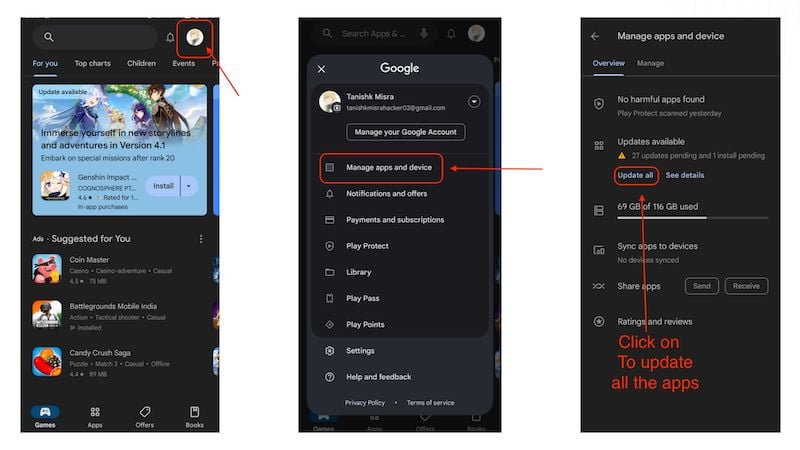
- However, if you don’t have enough internet, try to at least update all system apps by clicking the Manage button at the top.
- Once you click the Manage button and select Updates Available, you will see several apps that need to be updated.
- You need to scroll down and find all the system apps like Moto Display and Moto Secure to update them.
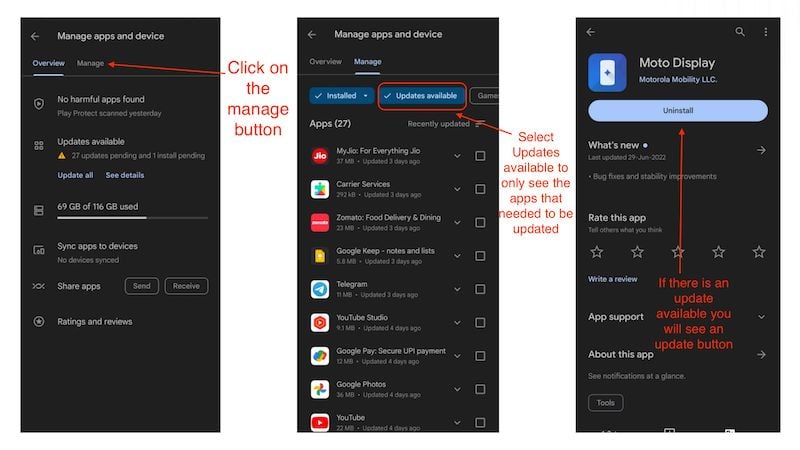
If you update all the system apps, the issue of Moto Peek Display not working should be fixed, but if the issue persists for some reason, we need to move to the next step to solve the problem.
Clearing the Cache
Cache files can easily accumulate in the background, taking up a lot of storage space and even causing some apps to malfunction in the background. Moreover, clearing the cache can improve the performance of the device by reducing app loading times and maintaining performance for a longer period of time. To solve the problem of Moto Peek Display not working, we recommend you to clear the cache for all system apps.
However, since this can be time-consuming, you can find an article here that will help you clear the cache for any number of apps at once. However, if you want to do this tedious task manually, you can find instructions here:
- Just tap and hold on any app and a popup menu of that app will appear.
- On the right side, you will see a small ‘i‘ button. When you click on it, the app info page for that app will appear.
- Click on Storage and Cache there, and then click on the Clear Cache button.
- This will clear the cache for that app.
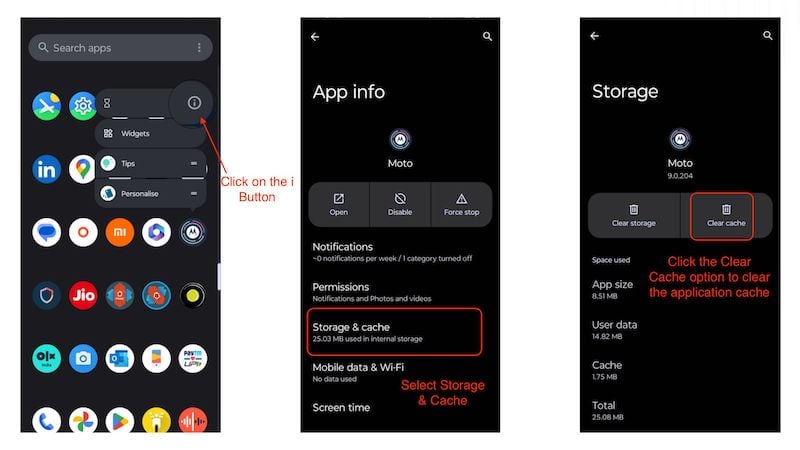
You need to do this for all system apps to fix the issue of the Moto Peek display not working. Once you have cleared the cache for all system apps, you may need to restart the device once to see if the problem is fixed. In most cases, this should fix the problem, but if your device still has the issue with the Moto Peek display not working. I think the next step should solve the problem for you.
Uninstall Moto Display
By uninstalling Moto Display, we mean uninstalling to the previous version of the app. While updating apps fixes many issues, sometimes bad or inconsistent updates break things that worked fine before. We recommend that if you’re using the latest version of the Moto Display app, uninstall the app and update to the previous version. This might fix the problem of the Moto Peek display not working. Here’s how to uninstall the Moto Display app updates:
- Open the Google PlayStore and go to your profile icon on the top right.
- In the pop-up menu, click Manage apps and device.
- Now click on the Manage button and scroll down to find the Moto Display app.
- Then click the Uninstall button to uninstall the latest update.
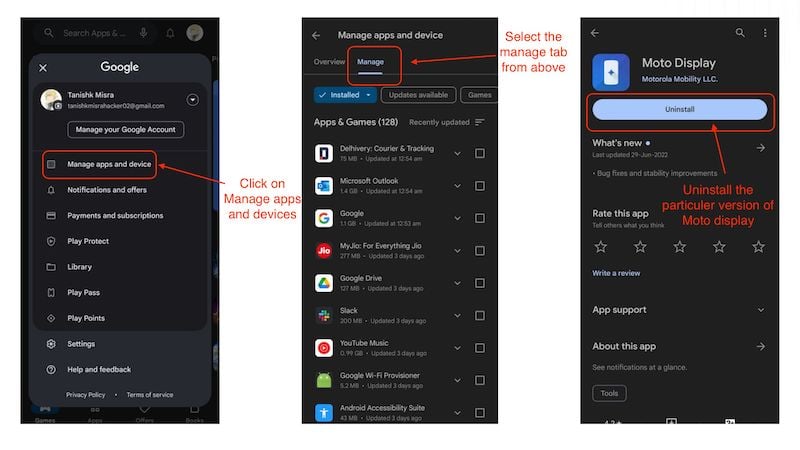
This should possibly fix the issue of the Moto Peek display not working. However, if the problem still persists, I recommend you to follow our next step as this should fix the issue.
Remove any 3rd Party Display related app
After you have done all of the above steps correctly, we strongly recommend that you uninstall any third-party apps that have anything to do with the display, any apps that promise support for AOD (Always On Display), or any apps that promise you peek display customization, as these apps are mostly fake and will not give you any additional Always On functionality or additional customization for your Peek display.
Be aware of these apps and do not install anything like them as they cannot provide system-level functionality unless they require root access or Shizuku. If you have such apps installed on your device, try uninstalling them and perform the first step again. In most cases, the Moto Peek display should then work normally again.
If you do not have any apps installed on your device that prevent the peek display from working, or if removing these apps does not work for you, you should try the next step, as this should solve the problem of the Moto peek display not working for good.
Factory Reset the Device
If the problem of the Moto Peek display not working still persists after you have followed all the previous steps correctly, the best way to fix this problem is to reset the device to factory settings. A proper factory reset will erase all settings, all customizations, all apps you have installed, and even all media, messages, and call logs. So before you factory reset your device, be sure to back everything up. Once the device is reset. You can either set it up as a new device or restore the old backup if you want to.
To factory reset your device follow these steps:
- Open the Settings app on your device.
- Scroll down and click on System.
- In the system settings, you will see Reset options. Click on it.
- Then click on Erase all data (factory reset).
- The device will give you a final warning that all data will be erased.
- You need to click the Erase all data button to factory reset your device completely.

A full factory reset should solve the problem of the Moto Peek display not working, because after the reset, the device is basically like new again, at least as far as the software is concerned.
Get Moto Peek Display Working Again
In summary, the Moto Peek display does not work, which can be a frustrating problem for Motorola device users. However, there are several troubleshooting steps you can take to fix the problem. Start by re-enabling the Peek Display and restarting your device. Check for software updates and update all system apps. If the problem persists, you should uninstall the Moto Display app updates or remove all third-party display-related apps. If everything doesn’t help, a factory reset is the last resort, but don’t forget to back up your data beforehand. If you follow these steps, you should be able to fix the Moto Peek display issue and get the full functionality of your Motorola device back.
FAQs about Moto Peek Display Not Working
1. What are the features that Peek display offers and how do I enable it?
The Peek display offers many useful features, such as interacting with notifications, customizing watch faces, and more. If you want to know more about Motorola’s Peek Display, you can check out Moto Support. To enable Peak Display, simply follow these steps:
- Open the Moto app on your device.
- Scroll down to the display settings.
- And tap on Peek Display.
- If it’s disabled, just tap the switch in front of Use Peek Display. To turn it on ON./li>
2. Can I use the Moto Peek display on a Moto phone with an IPS panel?
No, our article mentions that it only works with devices that have an OLED display. The Peek display is useless for devices with IPS panels because it consumes too much battery life.
3. Is Moto Peek display better than Always on Display?
While Peek Display offers great features and many customization options, Always on Display also has its advantages and it is a matter of personal preference.
4. What should I do if the Moto Peek display is still not working?
If you have read our article “Moto Peek Display doesn’t work” and the problem persists, we recommend you to visit the nearest Motorola Service Center. The technicians can find out the cause of the problem and fix it.

