

Two-factor authentication is an essential security setting for any online accounts you have. It protects your accounts from falling into the wrong hands and prevents unauthorized access. But if you lose your phone or don’t have access to the device needed for two-step verification, this very setting can become a bottleneck.

If you are facing a similar issue with your Google Account, don’t worry. In this blog, we will share how to log in without 2-step verification in Google. Follow the steps outlined in this blog, and get access to your Google Account.
Before we discuss how you skip two-step verification, let’s briefly explain what two-step verification is and how Google handles two-step verification differently.
Table of Contents
What is Two-Step Verification?
Two-step verification, also called two-factor authentication, is a security measure that helps protect your accounts and data from cyberattacks. The process adds an extra layer of security to your accounts and protects against unauthorized access, even if someone knows your password.
It is mainly used today on online platforms like Google, Instagram, Facebook, Snapchat and many others. Online banking services also use two-step verification to protect user data.
How Google Utilizes Two-Step Verification?
When you set up two-factor authentication for your account, Google gives you several options to use for two-step verification. These include:
- Google Prompt
- Security key
- Code by text message or voice call
- Google Authenticator app

Now that you know how Google uses two-factor authentication methods, let’s discuss how you can sign into Google without 2-step verification.
How to Login Without Two-Step Verification in Google
Technically, you can’t bypass Google’s two-step verification process. It would be a loophole in Google’s security standards if this were possible. Instead, Google gives you alternative ways to authenticate your identity and log in securely to your device when you don’t have your phone with you.
Google gives you multiple ways to verify your identity during the 2-step verification process. So, if you are not able to verify yourself using one method, you can choose another. However, some of these options need to be configured beforehand, so if you haven’t configured them for your account, you might not be able to use that option.
Let’s discuss these methods one by one.
When you try to sign in to your Google account on a new device, you will see the following pop-up window if two-step authentication is enabled.

Now if you don’t have access to your primary device for 2-step authentication, you can use other options in the Try another way option.
If you click the Try another way button, you will be shown other options for 2-step authentication configured for your account. Again, these options need to be configured when setting up 2-step verification for your account. Luckily, Google prompts you to have a backup option. Keeping that in mind, these measures will help you log into your Google account.
Method 1: Turn Off the 2-Step Verification
It may seem impossible, but you can disable 2-step verification for your account. To do that, you’ll need a device you’re already signed in to. If you have a laptop or tablet on which you are logged in with your account, follow the steps given to disable 2-step verification. You can turn it back on once you log in to your new device.
- Open Google Account Settings. If you are using a laptop, you can find this option by Chrome > Your Account Icon > Manage Your Google Account. If you are using a tablet, open Settings > Accounts > Your Google Account.
- Now, go to Security and tap on 2-Step Verification. Click Turn Off to stop the 2-step verification process.
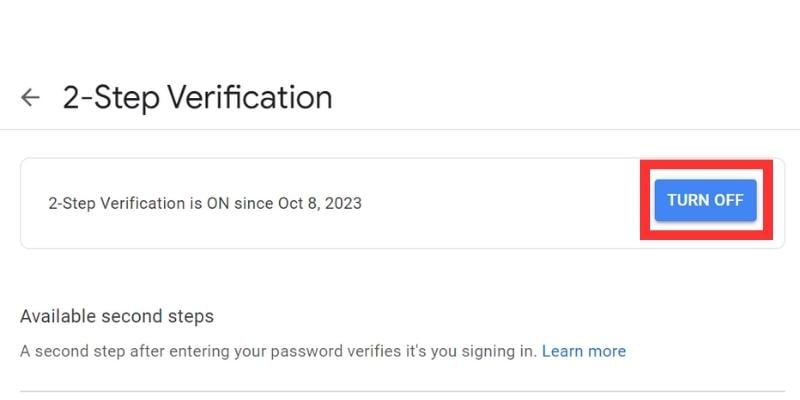
Once 2-step verification is turned off in your account, you can sign in to your new device without being prompted for verification.
Method 2: Get a Verification Code on Your Phone Number
If you have changed your phone but still have your number (which is linked to your Google account as a recovery number), you can retrieve the recovery code and log into your Google account on your new device.
This method is especially helpful if your old phone is lost, broken, or stolen, but you still have your recovery number. To log in to your Google account using this method, follow these steps:
- On the 2-step verification screen, click Try another way.
- Select the option to get a verification code by text message or voice call.

- Enter the code you receive on your phone number and click Next.
- You will be logged into your Google account on your new device.
Related Read: How to Enable Two-Factor Authentication on Your Google Account
Method 3: Use a Backup Code
You can also use a backup code to log in to your device and authenticate your identity in the 2-step verification process. A backup code is an 8-digit number offered to you by Google when you set up 2-step verification for your account. Google gives you ten such codes that you can use once. You can use these codes and log in to your account when you don’t have your phone with you for verification.
These codes can be found at Security > 2-Step Verification > Backup Codes.

You must keep these codes or write them down in a safe place so that you can retrieve them in the future when you need them.
To use this method, follow the steps provided:
- On the 2-step verification screen, click Try another way.
- Select the option to enter one of your backup codes.

- Enter one of the backup codes you saved or wrote down during the 2-step verification setup and click Next.

- This code will authenticate your identity and sign you in to your Google account on your new device.
Method 4: From Account Recovery
If everything fails, you can use the Account Recovery option to get back into your Google account. This option uses your recovery email and sends you a recovery code to authenticate your identity. You can have multiple recovery emails associated with your Google account. So if you don’t have access to one email, you can use another to get your recovery code.
To log in to your Google Account using the recovery method, follow the steps provided:
- On the 2-step verification screen, click Try another method.
- Then click the account recovery option at the bottom of the pop-up window.
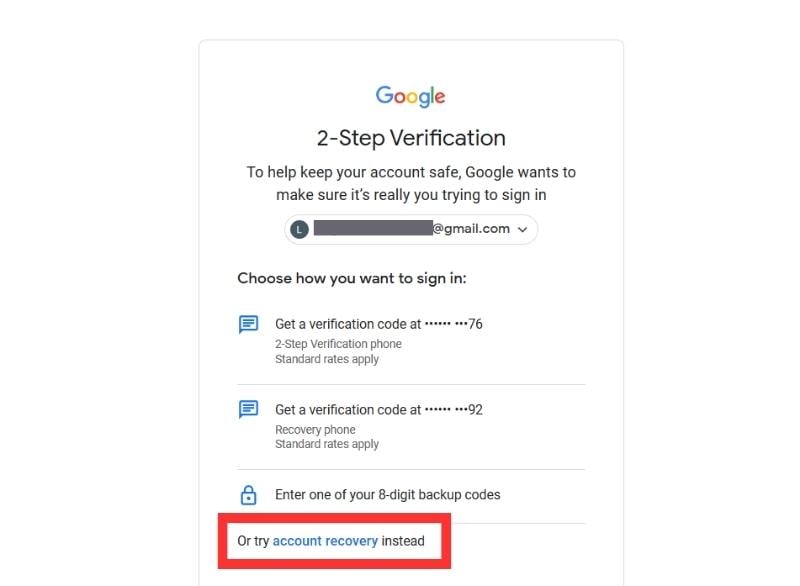
- Click on the email you want to receive your recovery code with.
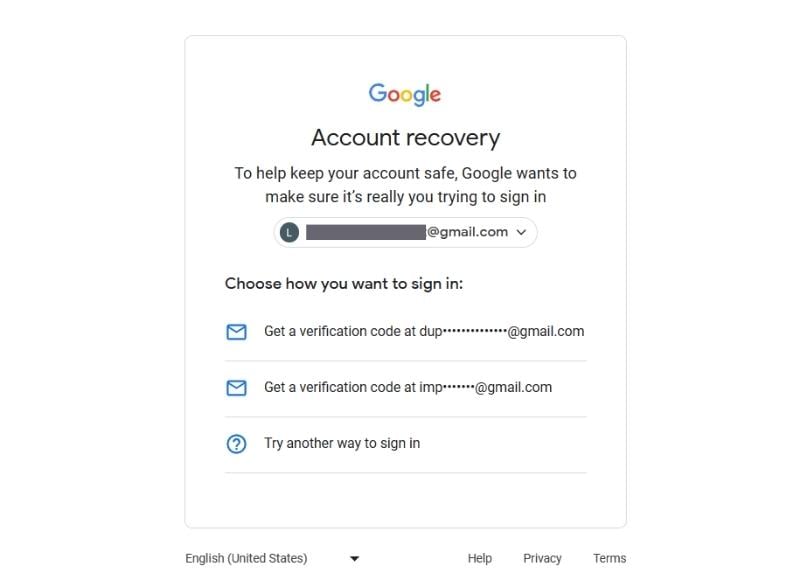
- Enter the received code into your recovery email and click the Next button. This will allow you to sign in to your Google account on your new device.

That’s it! These are a few methods you can use to sign in to your Google account by authenticating with the 2-step verification process.
Wrapping Up – Can you Bypass 2-Step Verification on Google?
Even though you can find many articles and videos promising you that you can bypass the 2-step verification when logging into your Google account, it’s illegal! Google has provided several methods to verify your identity and securely log in to your account.
So if you don’t have your phone with you to get the prompt code, you can use a verification code on your mobile number or in your recovery email. You can also use backup codes if you have them stored or written down in a safe place. Besides, you can also disable 2-step verification if you have a device on which you are already signed in.
FAQs about Logging In Without 2-Step Verification
1. How to bypass 2-step verification in Google?
You can’t bypass the 2-step verification in Google. Google provides additional backup methods to verify you during the 2-step verification. This is an important security measure that protects your account from unauthorized access. Some ways Google offers to verify you are:
- Google Prompt on a trusted device
- Security key (physical device)
- Code by text message or voice call
- Google Authenticator app
2. How to log in to my Google account if I lose my phone?
There are several ways you can log in to your Google account if you lose your phone. You can receive a code via text message or voice call to your recovery number associated with your Google Account. You can also use another device that you’re already logged into to enable your login attempt. Also, there are backup codes you can generate and save for later use to get into your Google account. If nothing works, just select the Forgot Password option and follow the instructions. With these steps, you can recover your account.
3. How to turn off two-step verification on Google?
You can easily disable two-step verification on Google by using your phone or PC where you are already logged in.
Steps to turn off two-step verification in PC:
Chrome > Your Profile Icon > Manage Your Account > Security > 2-Step Verification > Turn Off
Steps to turn off two-step verification in Smartphones:
Open Settings > Accounts > Tap on Account on which you want to turn off 2-step verification > Security > 2-Step Verification > Turn Off
4. How to generate backup codes in Google?
You can easily generate new backup codes for your Google account from your PC or smartphone where you are already logged in. Go to your account settings and access the settings. In the security options of your account settings, go to 2-step verification. Scroll down and you will find an option to generate new backup codes. This option will also show your remaining backup codes if you use them.

