

Touch ID on a Mac is really practical. It lets you unlock your Mac quickly and securely without having to enter your password every time you unlock your Mac. But that’s not all it can do. Touch ID on Mac can also be used for other things that can be helpful for many people.

In this article, we’ll show you how you can use Touch ID in different ways. We’ll explain how you can use it to unlock your Mac, shop in the iTunes Store, App Store, and Apple Books, easily enter your usernames and passwords, quickly switch between user accounts, and securely pay online with Apple Pay. Touch ID makes all these things easier and keeps them secure. When you’re ready, let’s dive in.
Table of Contents
How to Maximize Touch ID on Your MacBooks
Unlock Your Mac Using the Touch ID

Let’s start with the most basic and obvious use case. Using Touch ID instead of passwords on your Mac has several benefits. It’s faster and more secure than entering a password. If you haven’t enabled Touch ID on your Mac yet, enable it now and enjoy faster unlocking.
- Open the Apple menu on your Mac and go to System Settings.

- Click on Touch ID & Password in the sidebar.

- Click on Add Fingerprint, enter your password, and follow the instructions.

- Once Touch ID is set up, your Mac will automatically use it to unlock when it wakes up from sleep. All you have to do is place your finger on the Touch ID sensor. This makes unlocking your Mac faster and more secure.
Complete Purchases Securely Using Touch ID

You can use Touch ID to complete purchases in Apple Stores. This makes online shopping easier and more secure. With Touch ID, you don’t have to type in your card details every time you make a purchase. It also provides extra security because your fingerprint is unique and makes it difficult for others to use your payment information.
To enable Apple Pay on your Mac and use it with Touch ID, follow these steps:
- Open the Apple menu on your Mac. Go to System Settings.
- Click on Wallet & Apple Pay in the sidebar and then on Add Card.
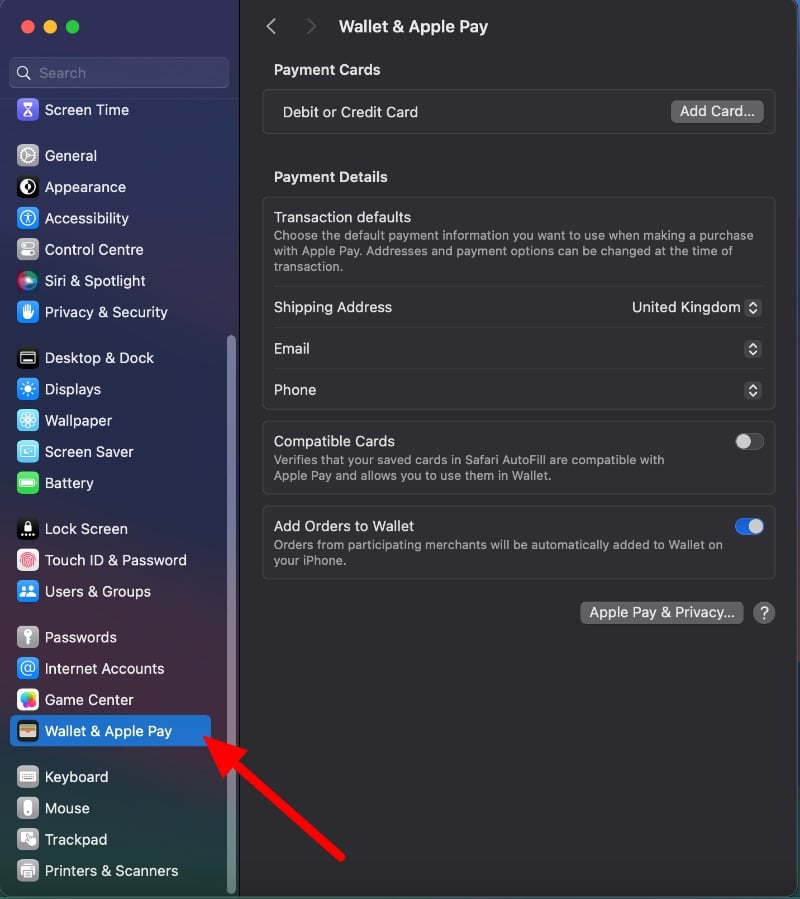
- If you’re not signed in, sign in with your Apple ID and enter your card details.
- Enter your payment information. You can import existing card details or enter new card details.
To use Apple Pay for purchases:
- When checking out from an online store, select Apple Pay as your payment method.
- Place your finger on Touch ID to complete the purchase.
Use Touch ID for the App Store and Apple Books for Purchases

You can also use Touch ID to make purchases in the iTunes Store, App Store, Apple Books, and more. It lets you buy apps, music, and books quickly and securely. Instead of entering your password every time you want to buy something, you can use your fingerprint. It’s faster and easier. It’s also safer, especially if you buy a lot of things or are in a hurry.
- Click on your Mac’s Apple menu and go to System Settings.
- Click on Touch ID & Password in the sidebar.
- Click on Add Fingerprint, then enter your password and follow the instructions. If Touch ID is already set up, you can use it in iTunes and the App Store.
- After you set up Touch ID, it’s automatically available in the iTunes Store, App Store, and Apple Books. When you make a purchase, you can use your fingerprint instead of entering your password.
Use Touch ID to Autofill Passwords and Credit Card Information
Another useful case is that you can use Touch ID to autofill usernames, passwords, and credit card information in Safari and other apps on your Mac. Instead of typing in your username, password, or credit card details every time, you simply use your fingerprint. This is a great time saver, especially if you visit a lot of websites or do a lot of online shopping.
It’s also more secure. This feature makes your online activities more convenient and provides an extra layer of security. It works for popular websites like Safari, Google Chrome, and more.
How to use Touch ID on Safari and Chrome:
For Safari:
- Open the Safari browser on your Mac and click Safari at the top and tap Safari.

- Click the username box and select the AutoFill tab.
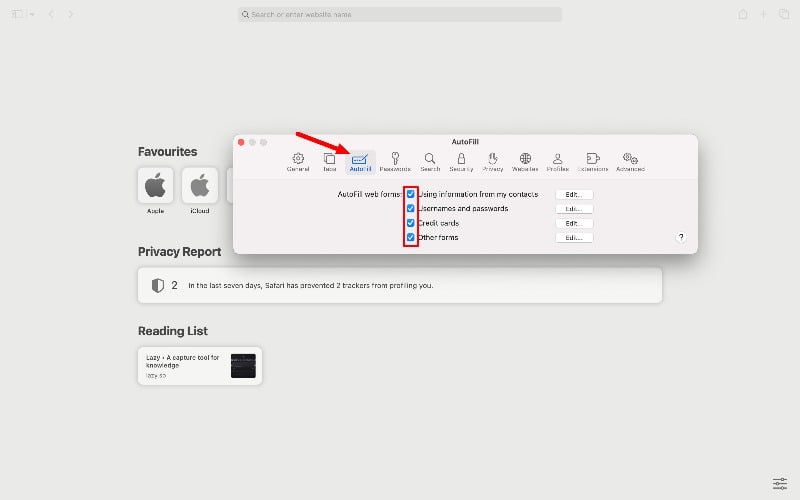
- Scan your finger with the Touch ID button when prompted, and enable the required fields you want to autofill.
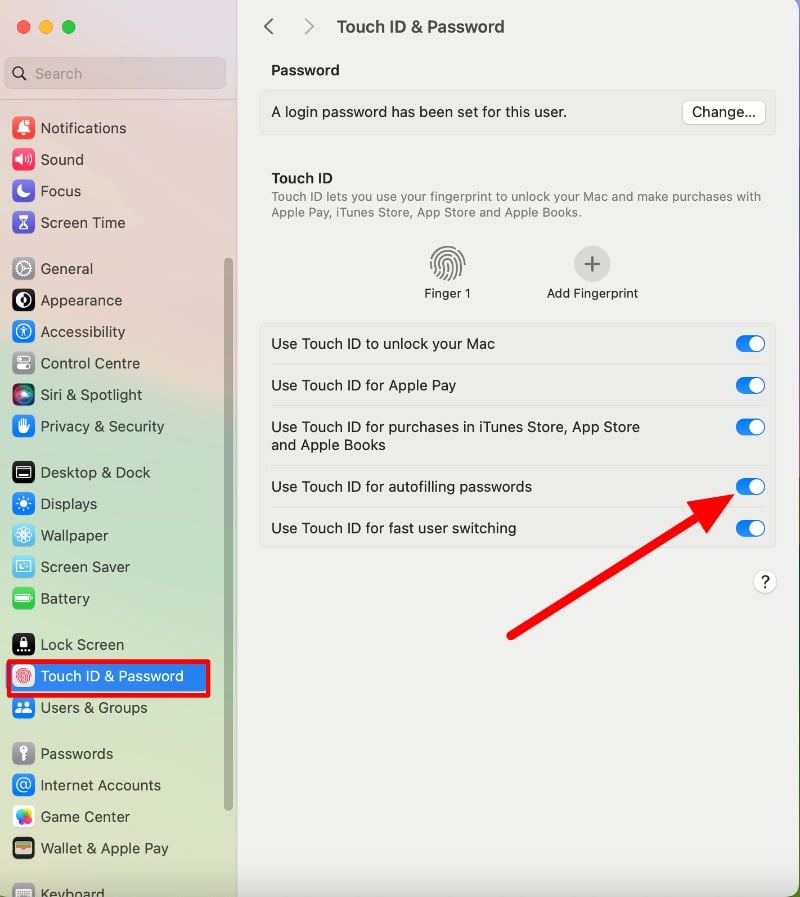
- To enable Touch ID to auto-fill passwords in general, go to the Apple logo and select System Settings. Select Touch ID & Password and turn on Use Touch ID for auto-filling passwords.
For Chrome:
- Open Chrome, click the three-dot menu icon in the upper-right corner, then click Settings.

- Click on Autofill and Passwords in the sidebar.
- Click on Google Password Manager In the Passwords section.

- Now, Click on the Settings tab and Enable the Offer to save passwords and Auto sign-in sliders.

- Click on Payment Methods
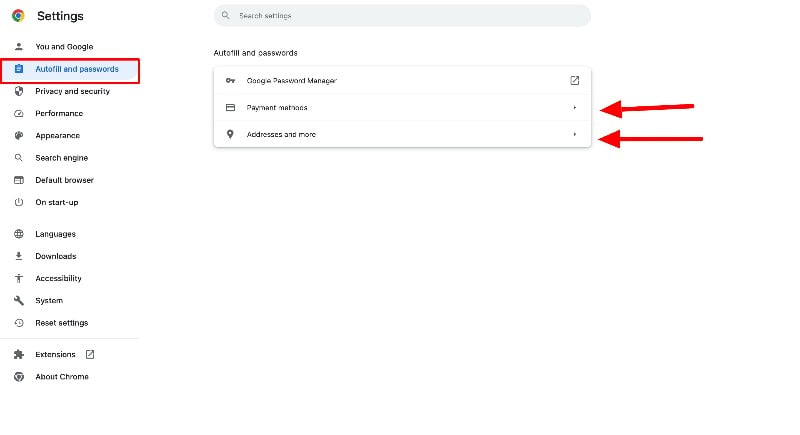
- If your device has a fingerprint scanner, like a MacBook Pro, Enable Save and Fill payment methods and Always verify when using Autofill.
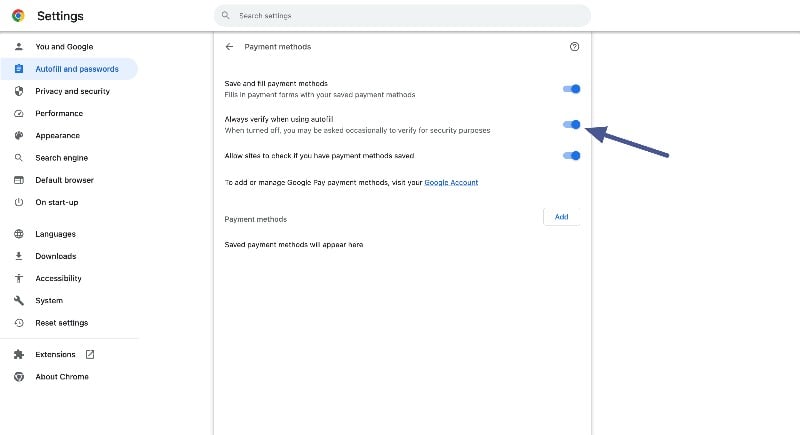
- For addresses, phone numbers, and other contact details, go to Addresses and more in the Chrome Settings menu. Ensure the Save and Fill addresses slider is enabled.
Use Touch ID To Switch between accounts on your Mac

If you share your Mac with others in the family or at work, you can use Touch ID on your Mac to switch between accounts. Instead of signing out and then entering someone else’s password, you can use your fingerprint to sign in to your user account on your Mac. This feature is helpful in families or at work where several people use one Mac.
How to enable fast user switching with touch ID on Mac:
- Open the Apple menu and go to System Settings.
- Click on Control Center in the sidebar.

- Go to Fast User Switching and click on Show in the Menu Bar, then choose any option.
- Enable Show in the Control Centre to Show Fast User Switching in the Control Center.

Switch Accounts Using Touch ID:
- Make sure two or more users are logged in to your Mac at the same time.
- If your Mac has a Touch Bar, place your finger on the Touch ID part and wait until you see a message in the Touch Bar that says Press Touch ID to switch to [your name]. Then, press down on the Touch ID until you feel a click.
- If your Mac only has Touch ID, press Touch ID until you feel a click. Your account will be switched.
FAQs about Touch ID for Mac
1. How to Reset Touch ID Settings?
You can reset your Touch ID via the settings. If you reset your Mac, your Touch ID will also be reset.
- Click on the Apple Menu and open System Settings
- Click on Touch ID and Passcode.
- Now, Hover over a fingerprint and click the X to delete it.
- Click on Add Fingerprint and follow the instructions to add a new one.
- You can also change what Touch ID is used for, like unlocking your Mac, Apple Pay, or purchasing items from the iTunes Store, App Store, and Apple Books.
2. Is Touch ID Secure for Financial Transactions?
Yes, using Touch ID is secure for financial transactions compared to passwords. Touch ID is more secure and also unique. However, make sure that your Mac or Apple device is only set up with your fingerprint. This way, only you can authorize financial transactions or access sensitive information on your device to keep your data secure.
3. How many fingerprints can I store in Touch ID on a Mac?
You can store up to 3 fingerprints on Touch ID for Mac.
4. Can I still use a passcode if Touch ID is enabled?
Yes, you can still use a passcode even if Touch ID is enabled on your Apple device.
5. How secure is Touch ID compared to a traditional password?
Touch ID is generally more secure than a normal password. Here’s why:
- Unique: Unlike a password, a fingerprint is unique. It’s very hard for someone else to copy it and use it on your Mac.
- Safe and Secure: Your fingerprint data is stored securely and secretly in your Mac. It’s really hard for anyone to get hold of it.
- Can’t Forget It: You can forget a password, but you can’t forget your fingerprint, so you won’t be locked out of your device.

