

Until watchOS 9, pressing the Side button on your Apple Watch opened the App Switcher, where you could view your open apps, jump into another app, or close the unused ones. However, if you’ve updated your Apple Watch to watchOS 10, you’ll notice this no longer works.

Let’s see why and check out the new way to access the App Switcher on your Apple Watch.
App Switcher Action Is Now Assigned to the Digital Crown
Apple has changed the Side button’s functionality in watchOS 10. Pressing it no longer brings up the App Switcher. Instead, what you see is the Control Center.
Accessing the App Switcher (previously called Dock) in watchOS 10 requires double-pressing the Digital Crown on your Apple Watch. This action was earlier reserved for accessing the last used app on the Watch.
How to Access the App Switcher Using Digital Crown
The Digital Crown on your Apple Watch in watchOS 10 has three functions. You can use it to return to the Home Screen, invoke Siri, and bring up the App Switcher.
Here’s how to access the App Switcher using Digital Crown, jump into another open app, and close the apps you no longer need in App Switcher:
- Unlock your Apple Watch.
- Double-press the Digital Crown, and it will show you a list of all the apps open on your Apple Watch.
- Turn the Digital Crown forward or backward to view these apps. You can also swipe up or down on the screen to do this.
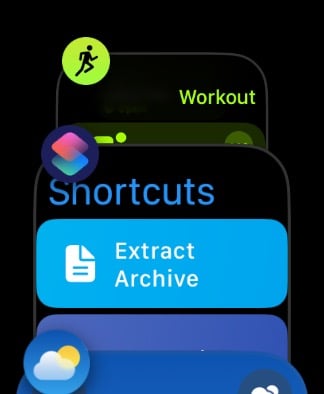
- When you want to go into an app, tap on it.
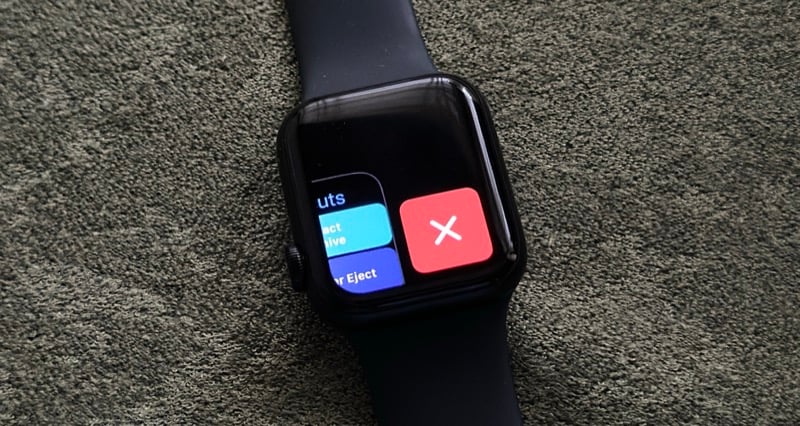
- If you wish to remove an app from App Switcher, swipe left on it and tap the red X icon to its right.
- Press the Digital Crown again to return to the Home Screen.
Related Read: How to Take a Screenshot on Apple Watch
Don’t Make a Habit of Quitting Apps Regularly
Knowing how to access the App Switcher makes multitasking on your Apple Watch easy. It also comes in handy when you want to close an app, but you should be mindful of this action.
Just like on iOS, you don’t need to close apps running in the background on your Apple Watch regularly. It’s only when an app malfunctions or when you’re sure you’re not going to need it anymore that you must clear it from the App Switcher.
Related Read: How to Use the Smart Stack on Your Apple Watch

