

watchOS 10 brings a host of new features to the Apple Watch. Smart Stack is one of the many headlining features of this update, which brings widgets to Apple Watch and changes the way you access information on it.

Here’s everything you need to know about Smart Stack and how to use it on your Apple Watch.
What Is a Smart Stack?

Smart Stack is an astute implementation of widgets on the Apple Watch. It allows you to create a stack of widgets from your favorite apps on your Apple Watch. This stack then automatically rotates widgets throughout the day to show you the information you might need at a particular time, saving you the effort of having to open the corresponding apps every single time.
For example, if you have a due task (in a to-do app), a flight to catch, and some medicines to take (scheduled in the Medications app), Smart Stack will show their widgets in the stack in order of priority so you can get to them on time.
How to Use the Smart Stack on Your Apple Watch
Using Smart Stack is easy enough. We’ll show you how to access Smart Stack on your Apple Watch, add/remove widgets to Smart Stack, and pin/unpin widgets to help you get started.
Access the Smart Stack in watchOS 10
Any action, be it checking information on a widget, editing the Smart Stack, or pinning/unpinning widgets to the top of the stack, will require you to access the Smart Stack.
Here’s how you do it:
- Unlock your Apple Watch.
- From the Home Screen, rotate the Digital Crown forward or swipe up from the bottom of the screen to bring up the Smart Stack.

- Tap on a widget. This will open the corresponding app, where you can view the information in full-screen view.

- If you want to exit the app, press the Digital Crown once, and it will take you back to the Smart Stack screen.
- Press the Digital Crown again to return to the Home Screen.
Related Read: How to Access the App Switcher on Apple Watch in watchOS 10
Add, Delete, and Rearrange Widgets in the Smart Stack
The Smart Stack contains a few widgets by default. But you can remove these widgets if you don’t need them, replace them with the ones you find more useful, or add new widgets to your Smart Stack.
Here’s how to add a new widget to your Smart Stack:
- Enter jiggle mode. Open the Smart Stack and long press on a widget to do this.
- When the widgets start jiggling, tap the plus (+) button at the top of the screen.

- Scroll through the list of apps and tap on the app whose widget you want to add to your Smart Stack.

- With some apps, you’ll get multiple widgets. Tap the one you find more useful to add it to the Smart Stack.
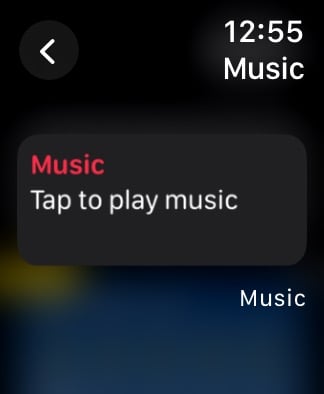
- Hit Done to save the changes.

If you added a widget to your Smart Stack accidentally or don’t like the default ones, you can remove them from your stack. Doing this is easy. Simply tap and hold the widget you want to remove, and when it starts jiggling, hit the minus (–) button in the top-left corner. Hit Done to save the changes.
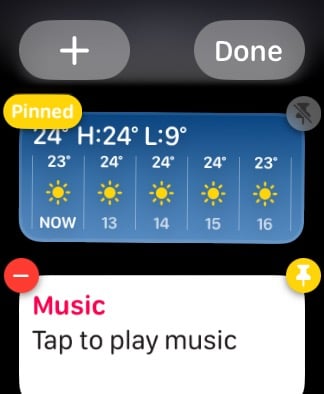
Apple also allows you to pin a widget to the top of the Smart Stack if you use it more frequently. Doing so will save you the trouble of scrolling through the Smart Stack to find it. To do this, enter the jiggle mode. Then, tap the yellow pin icon in the top-right corner and hit Done to save the stack.

Apple doesn’t limit pinning in Smart Stack to just one widget. So, if there are multiple widgets in your stack that you need to check more frequently, you can pin all of them; the order of their appearance depends on the sequence in which you pin them.
But if you don’t like this, you can rearrange them to suit your requirements. To do this, tap and hold a pinned widget, and when it starts jiggling, drag it to where you want to place it in the stack. Tap Done to save the order. (As of writing this, Apple doesn’t let you rearrange unpinned widgets, which is a pity. We hope this changes in future updates.)
Keep Meaningful Information a Scroll or Swipe Away with Smart Stack
Smart Stack puts meaningful information a scroll (of the crown) or swipe (of the screen) away on your Apple Watch. This is particularly useful for someone who isn’t a fan of complicated watch faces, as you can now get most of the information from those complications in the form of widgets in your Smart Stack and keep a less complicated watch face on your Apple Watch.

