

Like Instagram, Facebook also lets its users share their daily snippets in the form of stories. These Facebook stories remain visible on the profile for 24 hours and then disappear again. Thanks to cross-platform support, you can share your Instagram stories on your Facebook profile. However, you can unlink your Instagram and Facebook accounts by following the steps in our guide to maintaining sanity on one platform. Even though the moment you shared on Facebook may be fleeting, it’s always a good feeling to relive old memories.

You may think that you won’t be able to look at them afterwards because Facebook Stories stay live for 24 hours. Luckily, that’s not the case because Facebook offers the Story Archive option, which allows you to view your past Facebook Stories. In this guide, we’ll walk you through the necessary steps to help you view your past Facebook Stories. Let’s take a deep dive into the matter.
Table of Contents
How to turn on the Facebook stories archiving option?
Even if you can view old Facebook Stories without any problems and without using a third-party application on the platform itself, you must remember that you should have the Facebook Story Archive option enabled. Only then will all your Facebook Stories be archived and you will still be able to view your Facebook Stories after 24 hours.
Below we will show you the steps to activate the Facebook Story Archive option on your smartphone as well as on your PC or laptop.
1. On a smartphone
- Launch the Facebook app on your smartphone.
- Tap on the Menu option at the bottom right of the app page.

- Select Settings & Privacy and then choose Settings.

- Scroll down and tap on the Stories option.
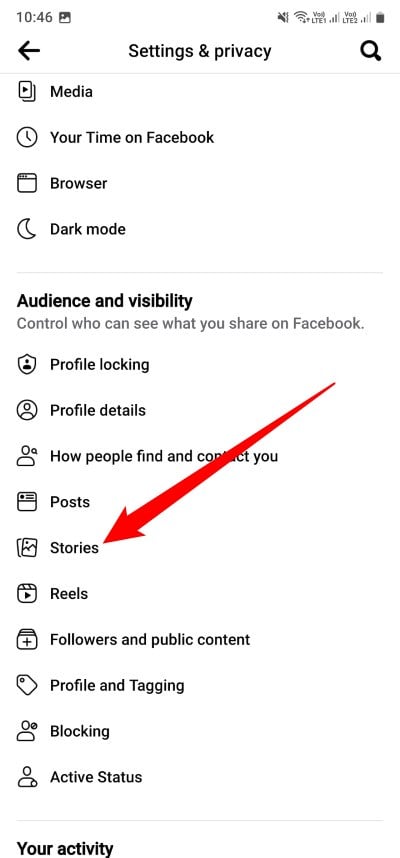
- Toggle on the Archiving your stories option.

Follow the steps in the next section to learn the steps to turn on the Facebook stories archive option for a PC or laptop.
Related Read: How to See Liked Posts On Facebook
2. On PC/Laptop
- Visit the Facebook website and log in with your credentials.
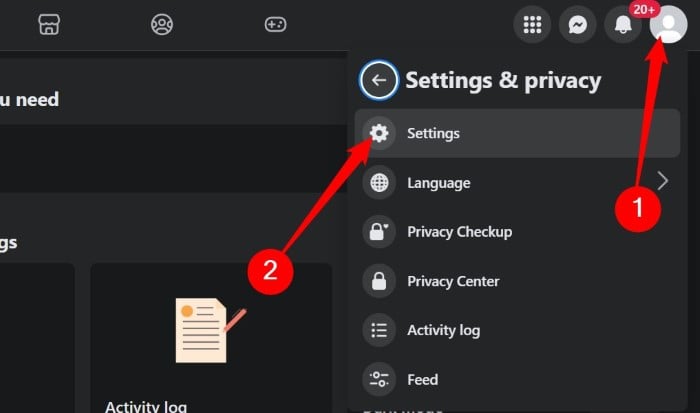
- Click on your profile icon at the top-right corner and select Settings & Privacy. Select Settings from the list that appears.
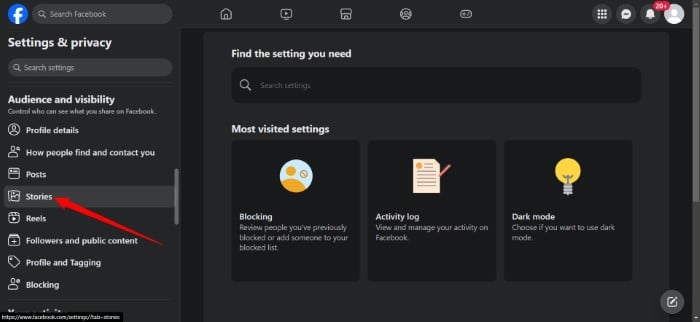
- From the left pane, scroll down and select Stories.
- Toggle on the Archiving your stories option.
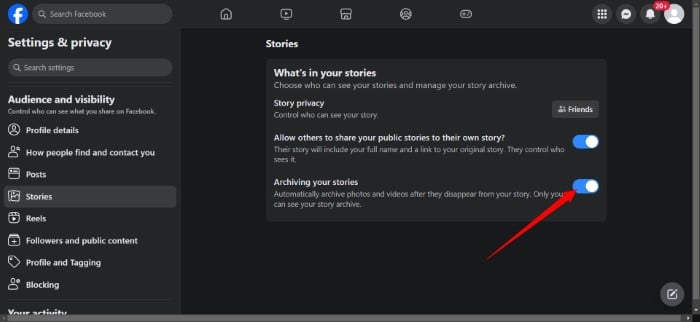
After you have turned on the Archiving your Stories option, Facebook will automatically archive photos and videos after they disappear from your profile. Please note that only you will be able to view your archived Facebook stories.
How to view old Facebook stories?
Below you can see the steps to view old Facebook stories on both your smartphone and your PC.
1. View old Facebook Stories on a smartphone
- Open the Facebook app.
- Tap on the Menu button shown as three horizontal bars at the top-right of the home page.
- Select your profile.
- Tap on the three-dot icon and select Archive.


- Select the Story archive option at the top to view your old Facebook stories.

If you have posted old Facebook stories, you can access them using the steps above. The steps to view them on a desktop are also simple and can be handy if you run a Facebook page for your business or for blogging.
2. View old Facebook Stories on a desktop
- Launch the Facebook website in your favorite web browser.
- Login with your Facebook account credentials.
- Tap on your profile name at the top-left corner of the Facebook page.
- Click on the 3-dot menu icon on your profile page and select the Archive option from the list that appears.
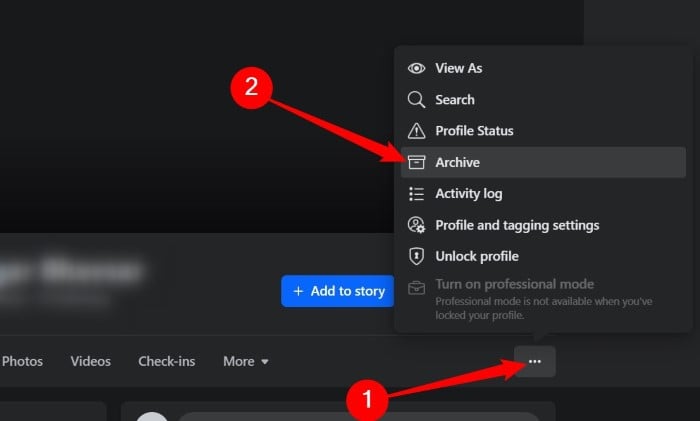
- From the left pane select the Story archive where you will find all of your old Facebook stories.
You will only see the Story Archive option if you have activated the function and have also archived old Facebook stories. If not, you will not see the option on the left-hand side.
Related Read: What Happens When You Restrict Someone on Facebook
How can I save old Facebook stories on my device?
Many have asked on the internet whether or not they can save their old Facebook stories locally on their device. This could be a great feature because it might be where you have most of your fond memories on Facebook. The answer to that is yes. Facebook gives you the option to save your Facebook Stories to your device.
All you have to do is launch the app, go to your profile, scroll through the collection of your old, archived Facebook Stories, open the one you want to save, and tap Save Story. The saved Facebook Story can then be accessed in a new folder in your phone’s gallery.
FAQs on Facebook stories
1. Can I view old Facebook stories of my friends?
Unfortunately, it is not possible to view your friends’ old Facebook Stories once they have disappeared. It is also not possible to view your friends’ old Facebook Stories, even if they are archived. You can only view them if they are still available for 24 hours.
2. Is it possible to view deleted Facebook stories?
It is not possible to view deleted Facebook Stories. If you delete something from your Facebook account, it will be deleted everywhere. They are deleted from the Facebook servers and backup systems so that they can no longer be viewed. So you can no longer see them. In such a case, we recommend that you download the Facebook story as soon as it is live by following the steps above and making a backup copy of it.
3. When you scroll past someone’s story on Facebook, do they know?
No, if you scroll past someone’s story on Facebook, it will not be counted as views. To be counted as a viewer, you must actively tap and view your friend’s story for it to appear in the list of viewers.
4. Why can’t I see stories on Facebook?
You need to be connected to a stable internet connection for the Facebook story to load properly. In addition, the app should behave normally so that all Facebook functions work smoothly. Make sure your network connection is stable and your app is up to date.

