

Imagine watching a YouTube video that keeps pausing unexpectedly. This can be frustrating, and frequent interruptions like this can break your concentration and spoil your mood. YouTube videos pausing is the most common problem that many users face. There can be several reasons for this: a poor internet connection, problems with the YouTube app itself, other processes of some apps on your device interrupting YouTube playback, and more. The good news is that you can fix these issues quickly by using simple troubleshooting techniques.

In this guide, you’ll learn various troubleshooting techniques to solve this problem. We’ll give you simple, easy-to-follow steps you can take to quickly fix the problem and enjoy YouTube playback again.
Table of Contents
How to Stop YouTube Auto-Pausing Videos
Check Your Internet Connection

Internet connection problems are the most common reason why YouTube videos often pause. The video will pause to load more content if your internet connection is weak, unstable or too slow. This can be especially noticeable if you’re watching high-resolution videos that require a lot of data and your YouTube video pauses and buffers.
To fix this problem, first check your internet connection on your smartphone. If you’re using mobile data, check that the signal strength is good. Sometimes turning the connection off and on again is enough to improve it. If these steps don’t work, try reducing the video quality on YouTube. Lower quality videos use less data and can be transmitted more smoothly on slower connections.
Turn Off Data Saver and YouTube Data Restriction
Your device’s data saving mode can cause YouTube videos to pause. When data saver mode is activated, it attempts to reduce and limit the data consumption of your apps. This can result in videos not playing or being blocked. Also check whether you have restricted background data for YouTube; this can also affect video playback, especially in picture-in-picture (PiP) mode or if you are trying to play videos in the background.

How to turn off Data Saver on Android
- Open Settings on your Android smartphone
- Click on the Network and Connection and tap on Data Saver (This might vary depending on your Android version and the brand you are using. You can use the search to find the data saver settings on your smartphone)
- Increase the data saver limit or Turn it off for the interrupted experience.
- In the same way, remove the background data usage for YouTube.
- Open Settings on your Android device. Navigate to Data Usage. Tap on Data Usage to see the data consumption stats for different apps.
- Select YouTube and Enable Background data for that app if it’s turned off. (Again, The steps might slightly change depending on the Android version and the type of brand you are using).
How to turn off data saver settings on iOS
- Open Settings on your iPhone and click on the Mobile service.
- Tap on the Mobile Data options and tap on the Data Mode.
- Set it to Standard or Allow More Data on 5G.
- To unrestrict background data usage. Go to Settings on your iPhone and Tap on YouTube
- Click on the Background App Refresh and turn on Background App refresh
Check YouTube-Server Status
Server outages are another reason why videos on YouTube can pause. If the YouTube servers are down or have problems, YouTube videos may frequently break, buffer or not load at all. To fix this problem, check whether YouTube is offline for everyone or just for you. You can do this by visiting websites such as Downdetector, which report on the status of various online services. If it’s a widespread problem, there’s not much you can do as a user. Wait for YouTube to fix the problem.
Disconnect Multiple Bluetooth Devices
Disconnect your Bluetooth devices. If Bluetooth headphones or speakers are connected, YouTube may pause the videos automatically. To avoid this, temporarily turn off Bluetooth on your device or disconnect the Bluetooth device in your device’s settings.
Try Closing Other Apps and Tabs
Sometimes other apps or background processes on your device can automatically pause YouTube videos. For example, YouTube may pause automatically if another app is running in the background that is playing audio or video. If you are using YouTube in your browser with multiple tabs open, certain websites may also pause YouTube playback in the background. Close all unnecessary apps or tabs on your smartphone to avoid this problem. If you are using a browser, check all tabs that play media and close them.
Turn Off Adblockers
Another reason cited by most users is the disruption caused by ad blockers. YouTube has started to counteract ad blockers, which causes videos to automatically pause or not play in the browser. This is a constant problem with YouTube and ad blockers. To fix this, disable the ad blocker on YouTube. If you still want to use YouTube with an ad blocker, you can use alternative ad blocking tools such as Ghostery or AdGuard. You can also use other platforms like Newpipe that offer a YouTube-like experience without ads.
How to turn off Ad blocker on your device:
Adblockers are usually used in the form of extensions. You can disable the extension or whitelist the YouTube page to allow advertising. You can follow the steps below to disable the ad blocker extension on your browser.
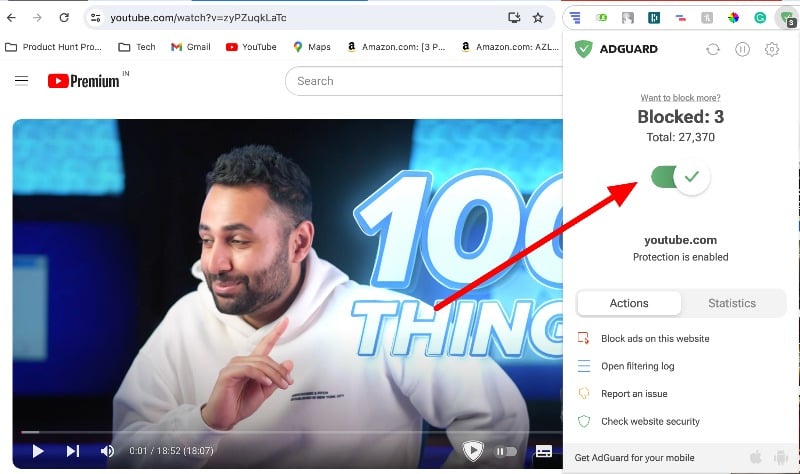
To whitelist YouTube, click on the ad blocker extension and turn off the protection. Most ad blockers offer the option of activating and deactivating protection.
Disable Browser Extensions

Turn off your extensions if your YouTube videos frequently pause on desktop. Sometimes your browser extension may unexpectedly interfere with YouTube playback and pause videos. You can disable all extensions at once or disable them individually to find the one causing the problem. Here you can find out how to disable extensions in most popular web browsers.
Google Chrome:
- Open Google Chrome and Click those three dots in the top right corner to open the menu.
- Go to Extensions, then to ‘Manage Extensions.’
- Disable Each Extension and fix the issue.
Mozilla Firefox:
- Click the menu button in the top right corner.
- Select ‘Add-ons and themes. And uninstall the extensions.
Microsoft Edge:
- Click the Extensions button in the toolbar.
- Choose Manage Extensions and then turn off the extensions.
Try Clearing Your Browser Cache

Sometimes browser or app cache problems can also lead to YouTube videos pausing. The cache is necessary to load websites or apps faster. Over time, however, this cache can become cluttered or outdated and cause problems such as interruptions in video playback on YouTube.
To fix this, clear the cache of your browser or app on your device. To clear the YouTube app cache, press on the app, click on the app info, go to Storage and remove the cache data. To clear the browser cache, go to the settings menu and find the option to clear the browser data, including the cache. Here are the detailed steps:
How to clear browser cache
- Open Chrome and select the Chrome menu icon (three vertical dots) in the upper-right corner.
- Click on the Settings.
- Click on the Privacy and Security tab and click on the Clear browsing data
- Alternatively, press Ctrl + Shift + Delete to open the ‘Clear Browsing Data’ window or enter chrome://settings/clearBrowserData in the address bar.
How to clear Youtube app cache on Android and iPhone
- Open Settings on your Android.
- Scroll to Apps or Application Manager (this may differ depending on your device).
- Find and select the YouTube app.
- Tap on Storage and click on the option to Clear Cache’ Tap on it to clear the app’s cache.
For iPhone:
- On Settings on your iPhone
- Tap on General.
- Next, select iPhone Storage. Choose the YouTube app to clear the cache.
- Inside the app’s settings, you will find various details about the app, including its size and usage. Click on the Offload App to clean the cache.
Switch Your Browser

Browser problems can also cause YouTube to pause videos automatically. Users of the Vivaldi browser, for example, have reported problems where YouTube videos are paused after just one second of playback following an update. If you have the same problem with your browser, update your browser to the latest version to resolve this issue. If the problem persists, use a different browser until the issue is resolved in your preferred browser.
Check Your Device’s Storage
Check the remaining storage space on your device. YouTube may automatically pause videos in the YouTube app when your device runs out of storage space. To make sure your device is working smoothly. Make sure you have at least 10-15% of the recommended free space on your device. If you’re running low on space on your device, you can use junk cleaner apps like Google Files to free up space.
How to clear Storage on Android and iPhone
- Download and Install the Files by the Google app on your Android smartphone. For iPhone, check the steps below.
- In the bottom navigation bar, go to the Cleanup tab.
- Now you will see different sections like clean junk files, Large files, Delete unused apps, and more.
- Depending on your preference, go to any section and clean up the unwanted files on your smartphone.
- You can use alternative apps like Cleaner for iPhone and Smart Cleaner to clean up junk files on the iPhone app.
- You can also manually delete junk files by going to settings on the iPhone. Open Settings>General>iPhone Storage. Here, you can manage storage on your iPhone. Select the app and delete the junk file.
Force Close and Restart the YouTube App

If your YouTube video pauses suddenly, there might be an issue with the YouTube app. To fix this, close the YouTube app on your smartphone. Go to the recent and swipe up the app to remove to force close and restart the Youtube app. If the issue continues, try restarting your device. This will stop all running processes on your device and the problem with the paused YouTube videos may be resolved.
Update the YouTube App

Malfunctions in the YouTube app can sometimes cause videos to pause. There are various reasons for this, e.g. outdated app versions, temporary software errors or version conflicts between the YouTube app and your device’s operating system. To fix this, update the YouTube app on your device. You can visit the Apple App Store if you are using an iOS device or the Google Play Store if you are using an Android device and update the app to the latest version.
Turn Off YouTube Break
YouTube Break reminds you to take a break from watching videos after a certain time. You can set this in the YouTube app settings. Once the limit is reached, YouTube will send you a reminder when the time is up and pause the YouTube video automatically. Turn off the YouTube Break features or increase the break time to fix this problem.
How to turn off the YouTube Break Feature:
- Open up the YouTube app on your Android or iPhone.
- Tap on your profile icon. located in the top corner of the screen
- Click on the Settings icon in the screen’s top right corner.
- In the Settings menu, Click on the General.
- Find the Remind me to take a break option. Turn the toggle off it is turned on.
- This works for both Android and iPhone.
Google Account Issues
If your Google account that is linked to YouTube has problems with synchronization, this can disrupt various services, including video playback on YouTube. To avoid this problem, you should first check the settings of your Google account. Make sure that all information is updated and correct and that sync is activated. If you have problems with your Google account, try signing out of your Google account and then signing back in. This can resolve syncing problems.
Check Device Compatibility
Check device compatibility with the YouTube app. Sometimes your device may not be fully compatible with the latest version of the YouTube app or its features. To fix this, check that your device’s operating system is up to date. Remove the current YouTube app from your device and download it from the official app store.
Turn Off Notifications

Device notifications can cause YouTube videos to pause automatically. A notification can interrupt the YouTube video you are watching. To avoid this, you can turn off notifications or set your device to Do Not Disturb mode while watching YouTube videos.
Your Complete Guide to Uninterrupted Video Enjoyment
YouTube is the most used platform, and automatically pausing videos can frustrate users. You can quickly fix these issues by using the simple troubleshooting techniques listed above. I hope you find this guide helpful. To avoid this issue in the feature, make sure you have a stable internet connection while watching the videos, update the YouTube app to the latest version and occasionally clear the YouTube app cache. Lock the Bluetooth devices when they are not in use. I hope you found this guide helpful. If you still have the problem, comment below.
FAQs about Fixing YouTube Pausing Issue
Could my internet connection cause YouTube videos to pause?
Yes, your internet connection can cause YouTube videos to pause. If your internet connection is slow or keeps dropping out, it will struggle to load the video continuously, causing pauses. You can try improving your Wi-Fi signal, using a wired connection or even lowering the video quality on YouTube for a smoother experience.
Are there any settings on YouTube that prevent continuous playback?
Yes, there are settings on YouTube that can interfere with continuous playback. For example, the 'Autoplay' feature can prevent continuous playback of videos if it is turned off. Also, if your account has playback restrictions or is in restricted mode, this can limit continuous streaming.
Is YouTube pausing related to the device I’m using?
YouTube pausing can actually be related to the device you are using. If your device is older or has compatibility issues with the latest version of the YouTube app, it may not stream videos smoothly. It may help to keep your device's operating system up to date and make sure the YouTube app is compatible with your device.
What are some long-term solutions to prevent YouTube from pausing?
You can follow these simple steps to prevent YouTube from pausing in the future:
- Stable Internet Connection: Ensure your Wi-Fi or data connection is stable. An unstable internet connection is the reason behind those annoying pauses.
- Keep YouTube app Updated: Regularly update your YouTube app and device's operating system. Staying up-to-date helps fix bugs that might cause YouTube to pause.
- Clear Cache Regularly: Try Clearing the Cache in your YouTube app and browser. It gets rid of any temporary glitches messing with your streaming.
- Check Background Apps: Close other unused apps running in the background.

