

Xiaomi devices have long been plagued by the DRM certificate issue that downgrades the certificate from Widevine L1 to Widevine L3. This results in the device not being able to play FullHD content on Netflix and other streaming platforms and also disables any kind of HDR video playback, whether locally or online. This issue usually occurs after a software update or sometimes even randomly after a restart. We faced this issue on the Xiaomi Pad 6 after updating to HyperOS.

After scouring the internet and contacting Xiaomi support a couple of times, we finally managed to find a solution to this problem. In this article, we’ll show you a detailed step-by-step guide on how to fix the Widevine L1 issue on your Xiaomi device. Let’s get started.
What is WideVine DRM Certification?
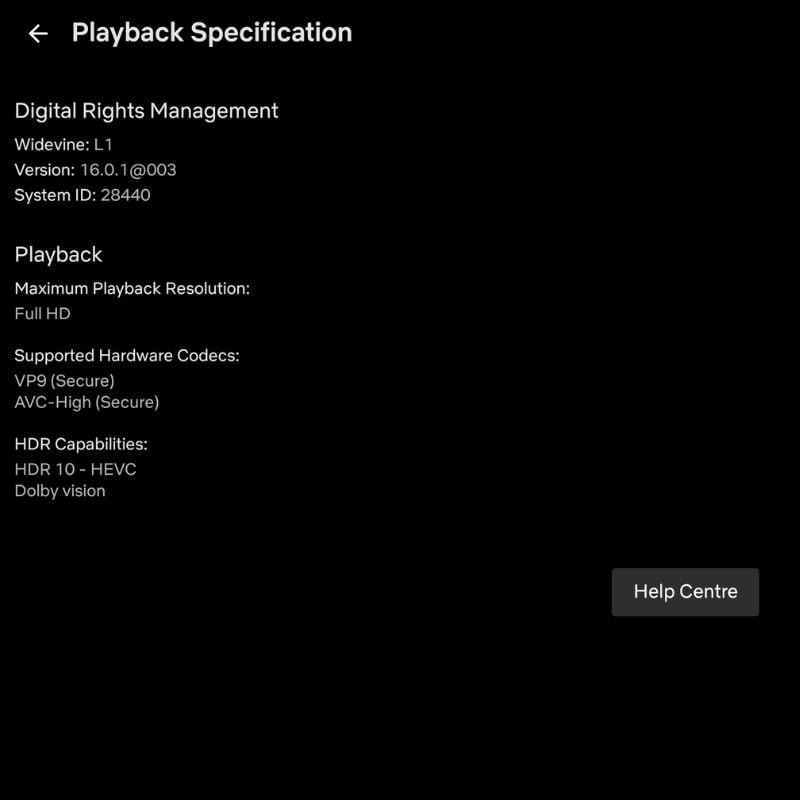
Widevine L1 is the highest level of security offered by Widevine DRM. It offers the highest level of content protection and is usually mandated by content owners for premium content with FullHD quality and more. It is used by devices and streaming platforms to display the content in the highest possible quality with HDR support.
Widevine Digital Rights Management (DRM) standards are defined based on device security for content protection. They are meant to prevent copying or piracy of data that streaming services push across the internet to their users. Hardware manufacturers usually need to pass a certification process to become Widevine DRM-certified. Android devices support either the L1 or L3 certificate, depending on hardware and software implementation.
How to Fix the DRM Certificate From Widevine L3 to L1 on Xiaomi Devices
There are essentially two ways to fix the DRM certificate issue on Xiaomi devices. Depending on your device, either one can work. Follow the steps given below.
Update Certificate From MIUI/HyperOS Settings
- Open the settings app on your Xiaomi device.
- Go to the About Phone/Tablet option.

- Tap on Detailed info and specs to open it.
- Scroll down till you find the Kernel version. Tap on it seven times to open the CIT options.

- In the CIT menu, scroll down till you find the 31st option, Security Certificates Update. It should say failed. Tap it to open.

- In the Security Certificate Update option, tap on Widevine Certificate Update to update the Widevine certificate of your device. It should say Update Success once the process is completed.
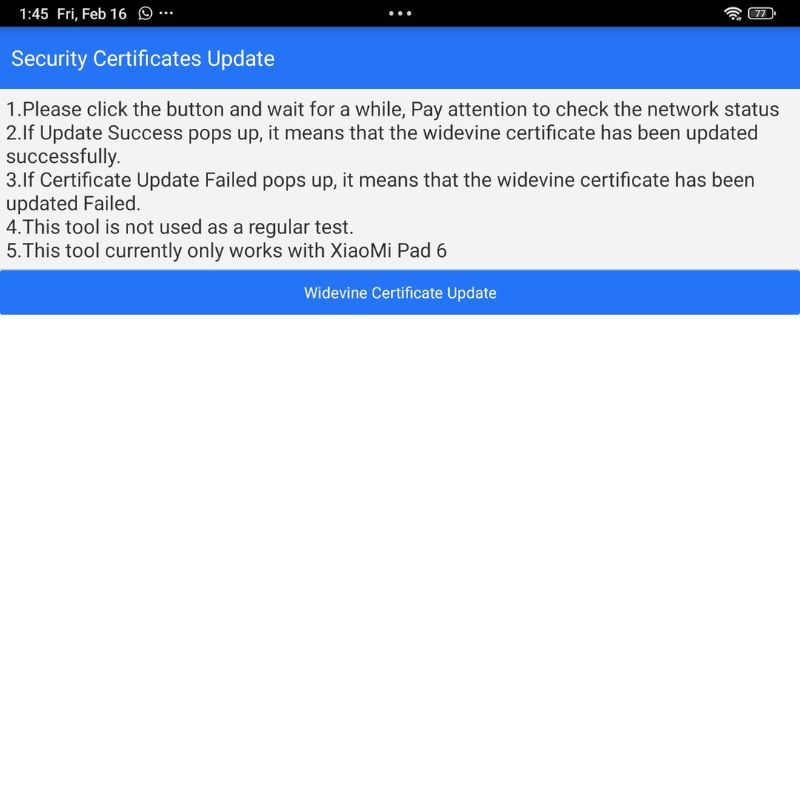
- Reboot your device and check if the issue is resolved by downloading the DRM Info application from the Google Play Store if you don’t already have it.
This should fix the issue for most people, but if it does not work, then follow the steps given in the next section.
Update Certificate Through Activity Launcher
- Download the Activity Launcher application from the Google Play Store and open it.

- In the activity launcher app, search for “Payments.”
- Scroll down till you find Xiaomi Cloud, expand it, and tap on fingerprint payments.

- Inside, you will see two options, FIDO and IFAA. Open the FIDO option first.
- In the FIDO option, tap on the Certificate button, and it will update the certificate with the current date.
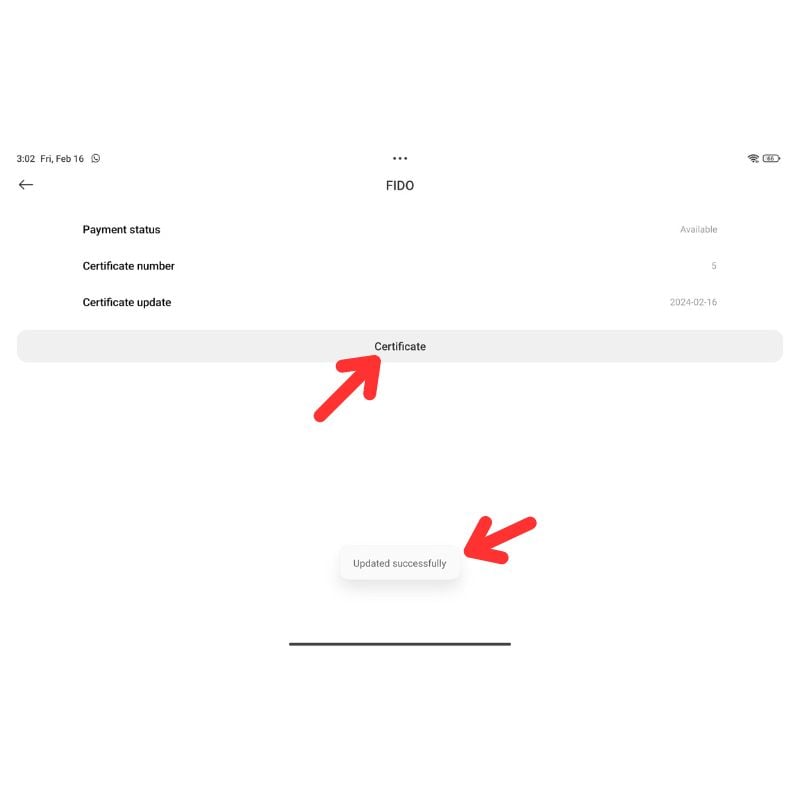
- Next, go to the IFAA option, tap on the Certificate button, and it will update the certificate with the current date.

- Once both certificates have been updated, reboot the device.
- After the reboot, open the DRM Info application to check if the certificates have been restored to Widevine L1 or not.
This is a hard fix, which will definitely work if the previous one did not work for you.
How to Fix the DRM Certificate Issue on Xiaomi Devices
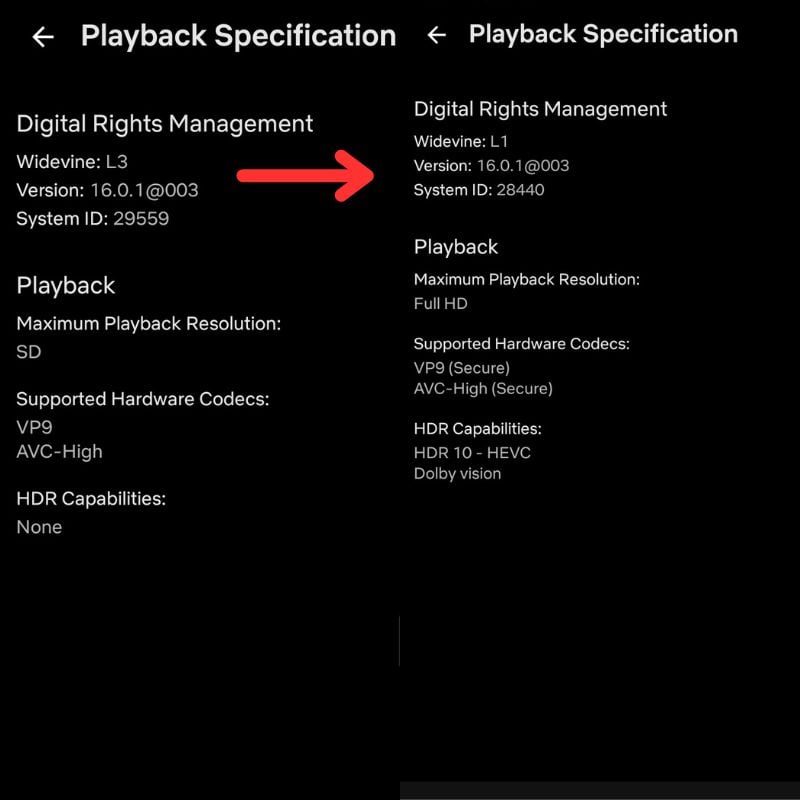
If you follow the steps described in the previous section, your problem with the Widevine L1 DRM certificate should be solved. While this issue should be addressed and permanently fixed by the brand, we can continue to optimize our Android devices to resolve issues like this ourselves. We were very disappointed when this issue occurred on our Xiaomi Pad 6, but thanks to people on the internet, it has now been resolved. Ideally, this fix should work with Redmi and Poco devices as well.
Were you able to fix the problem with the help of this guide? Let us know in the comments below.

