

The eSIM is faster and more convenient than a physical SIM card. You can activate an eSIM digitally. You can switch between different providers without having to replace the SIM card physically. eSIM offers improved security features compared to traditional SIM cards. Most smartphone brands, including Apple, Google, and Samsung, support eSIM.

If you have an iPhone and want to know whether the eSIM is activated on your device, we will show you step by step in this guide on how to check whether the eSIM is activated on your iPhone.
Table of Contents
What is an eSIM?
An eSIM, or Embedded Subscriber Identity Module, is a digital version of a conventional SIM card. It is built into your device. Unlike a physical SIM card, the eSIM cannot be removed or swapped from your device. You can activate a cellular plan from the supported network carrier and access mobile services. The eSIM gives you the flexibility to switch between different providers or tariffs without having to replace the SIM card.
eSIM offers many advantages, but not all devices support eSIM. Apple introduced support for eSIM devices with the XS series. Later, a hybrid solution was offered, and with the iPhone 14 series, Apple completely eliminated eSIM in markets like the US. If you live outside the US, you can still use the physical SIM card together with the eSIM.
List of eSIM-Compatible iPhone Models
iPhone Series | eSIM Support | Physical SIM Support |
|---|---|---|
iPhone XS / XS Max | Yes | Yes |
iPhone XR | Yes | Yes |
iPhone 11 / 11 Pro / 11 Pro Max | Yes | Yes |
iPhone SE (2nd & 3rd generation) | Yes | Yes |
iPhone 12 / 12 mini / 12 Pro / 12 Pro Max | Yes | Yes |
iPhone 13 / 13 mini / 13 Pro / 13 Pro Max | Yes | Yes |
iPhone 14 / 14 Plus / 14 Pro / 14 Pro Max | Yes | Yes (Outside US) |
iPhone 15 / 15 Plus / 15 Pro / 15 Pro Max | Yes | Yes ((Outside US) |
How to Check if eSIM is Activated on iPhone
If your iPhone model is compatible with the eSIM, follow the steps below to check if the eSIM is activated on your iPhone.
- Step 1: Click on the Settings app on your iPhone.

- Step 2: Tap on Mobile Service
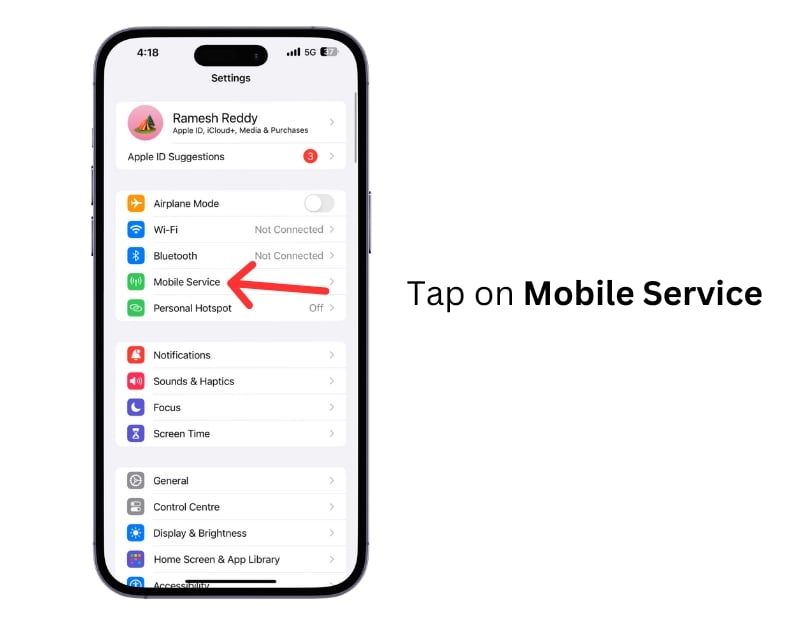
- Step 3: Scroll down here. You will see a list of available plans in the Cellular plan. If your eSIM is activated on your iPhone, you will see the eSIM services. If not, you will see the text saying Add eSIM.

- Step 4: You can Tap on the plan to see more details. If it says Digital SIM or eSIM, your eSIM is activated. You will also have the option to Delete eSIM.
- Similarly, You can also go to Settings>General>About and the Sim section to check if the device uses a Physical SIM or an eSIM.
This way, you can check if the eSIM is activated on your iPhone. We also contacted Apple to find out if there are other alternatives we can use to check if the eSIM is activated on the iPhone. The support offered me a link to a page with technical specifications where you can manually check if your iPhone model supports eSIM.

If you don’t see eSIM, you can contact your carrier for further assistance. You can click Add eSIM and go through the setup process to enable eSIM on your iPhone. With an iPhone, you can transfer the eSIM from the nearest iPhone or via the QR code provided by the provider.
I hope you find these instructions helpful. If you have any other suggestions, feel free to share them with us in the comments below.
FAQs on eSIM Activation on iPhone
1. What should I do if my eSIM is not showing up on my iPhone?
If the eSIM isn’t showing on your iPhone, this may be due to an activation problem or incomplete setup. To fix this, you can restart your iPhone, reset the network settings, and delete or reinstall the eSIM on your iPhone. If these basic troubleshooting measures don’t work, contact your eSIM provider or Apple Support for further guidance.
2. Can I use both eSIM and physical SIM simultaneously on my iPhone?
If your iPhone model is compatible, you can use an eSIM and a physical SIM card in your iPhone at the same time. You can read the exact specifications here.
3. How do I switch between eSIM and physical SIM on my iPhone?
You can easily switch between physic SIM and eSIM if your iPhone model supports it. Check if your iPhone model supports it. If you want to switch to a physical SIM, you must remove your eSIM profile. To do this, go to Settings > Cellular, tap on your eSIM plan, and select Remove Cellular Plan. Power off your iPhone, insert the physical SIM card, and then power on your iPhone. Your iPhone should now recognize the physical SIM. You can confirm this by going to settings>General> About>Scroll down and look for physical sim details.
4. What should I do if I can’t activate my eSIM on my iPhone?
First, check the eSIM compatibility of your iPhone. If the iPhone supports eSIM but you can’t activate the eSIM, follow simple troubleshooting methods such as restarting your iPhone, updating your iPhone to the latest version, removing and adding the eSIM, and more. If it still doesn’t work, contact the service provider and Apple Support for further assistance.
5. How can I set up an eSIM on my iPhone if it’s not already activated?
To activate the eSIM on your iPhone.
- Ensure that your carrier supports eSIM. Not all carriers offer eSIM services. You can confirm this with your network operator.
- To activate eSIM, Go to Settings>Mobile Serive> Add eSIM.
- Most carriers provide a QR code to activate the eSIM. If your carrier offers a QR code, Click on the Add eSIM and scan the QR code.
- Wait for some time, eSIM will be activated on your iPhone.

