

The Apple Watch stays on your wrist all day, and looking at the same screen can be boring. You can easily change the watch face or background with a simple touch and hold. However, changing the watch face manually can be time-consuming, especially if you want to switch between different watch faces throughout the day. To streamline this process, you can set your Apple Watch to change the wallpaper automatically.

In this guide, you’ll learn how to use the Photo Watch Face and the Shortcuts app on your iPhone to change the wallpaper on your Apple Watch automatically.
How to automatically change Wallpaper on Apple Watch
Use the Photos Watch app
The Photos watch face on the Apple Watch allows you to set new photos as wallpapers dynamically. When you lift your wrist or tap the display, the watch shows a new background. You can use images from a photo album, select photos manually, or dynamically display photos from your recent memories as the background for your watch. You can set up the Photos watch face via the Watch app on your iPhone or Apple Watch.
How to set photo watch face using Apple Watch app
- Step 1: Download the wallpaper and save it to your Gallery. You can use third-party wallpaper apps or websites to download wallpapers or find the best Apple Watch wallpaper from our list. Save the photos to your gallery or organize them into an album.
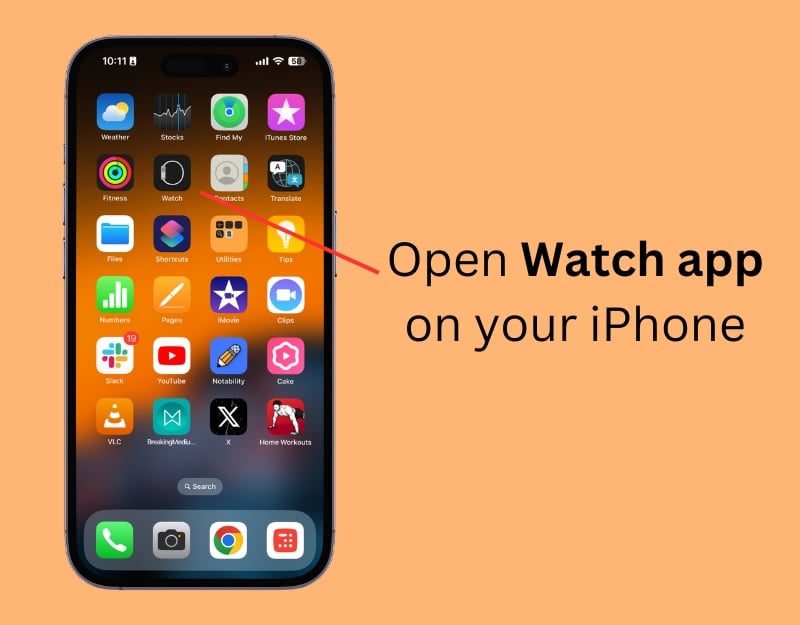
- Step 2: Open the Apple Watch app on your iPhone.
- Step 3: Go to the Face Gallery

- Step 4: Scroll down and select the Photo Watch Face or the Portrait Watch Face. The Portrait Watch Face, a new addition to Apple Watch faces, highlights people, pets, and other subjects in photos. With this watch face, you can focus on specific parts of an image, choose up to 24 photos, and adjust the style and font. It randomly displays a different photo each time you raise your wrist.
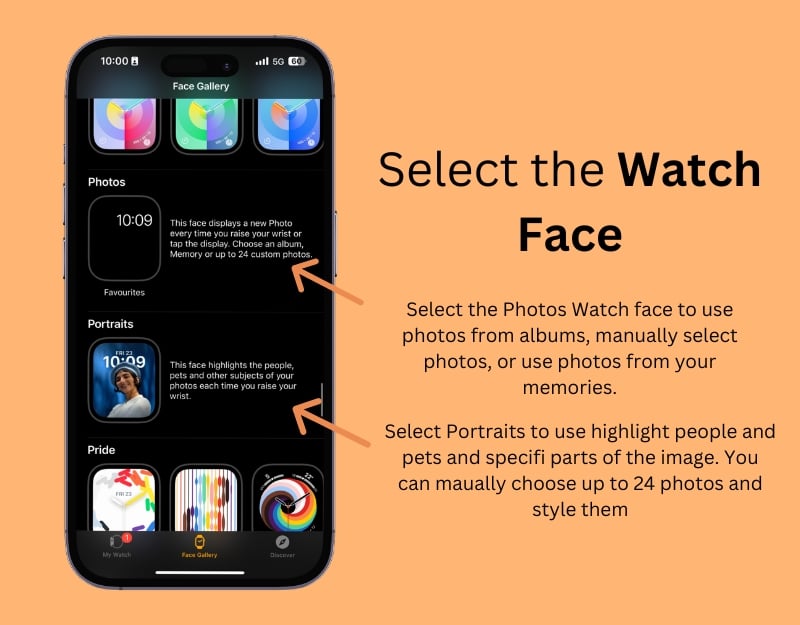
- Step 6: If you choose the Photos watch face, scroll down and select the images you want to display under the ‘Content’ section. If you want to display photos from an album, select ‘Album. ‘ You can create the album from your photos. Next, select ‘Photos’ and manually pick the pictures you want to use as your Apple Watch wallpaper. You can choose up to 24 pictures. Finally, select ‘Dynamic’ to display images from recent memories.

- Step 7: If you choose the Portrait watch face, scroll down, manually select the photos you want to use, edit the style and font, and then click ‘Add.’

How to use Apple Watch to add dynamic photos
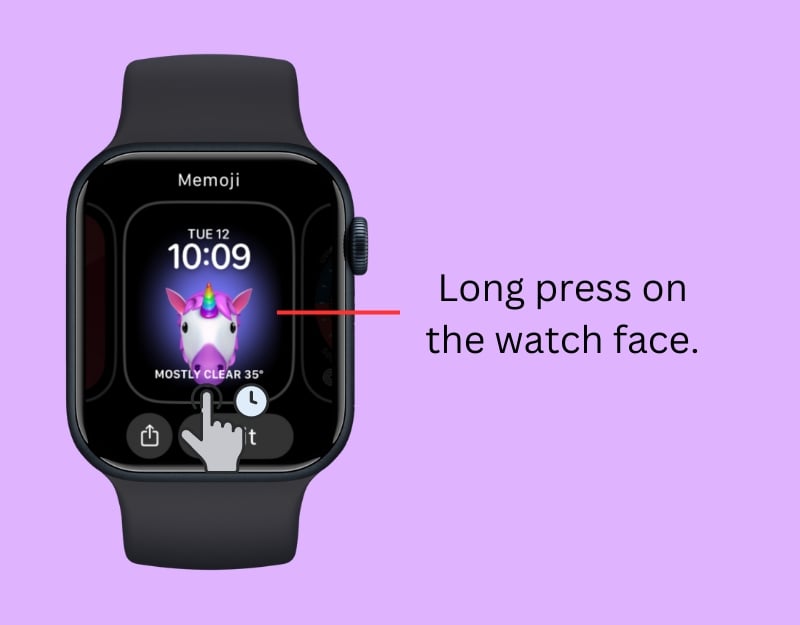
- Step 1: On your Watch, Long press the home screen or current Watch Face
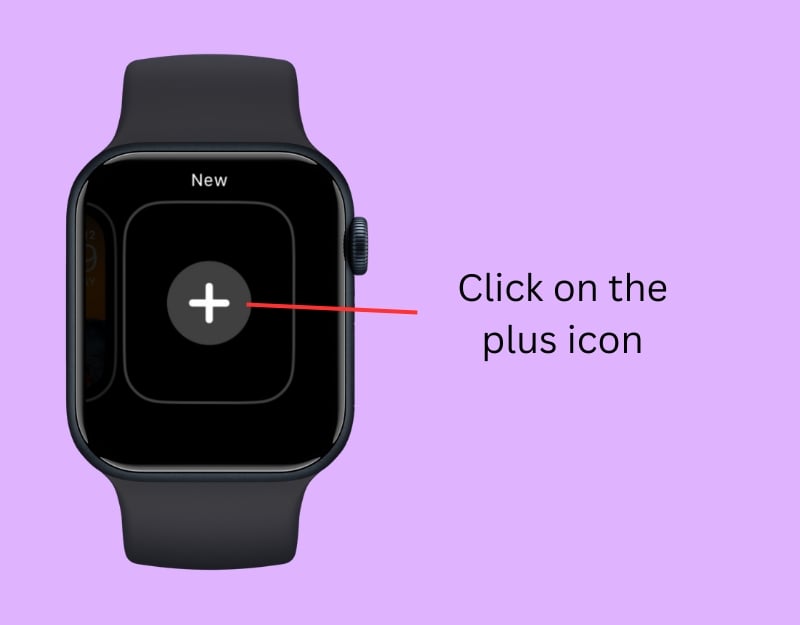
- Step 2: Swipe left and click on the plus + icon.
- Step 3: Scroll down and select Photos Watch Face or Portrait Photo Watch face

- Step 4: Now click on ‘Add. ‘ The photos will be added automatically. You cannot edit the images displayed on the Apple Watch. You need to use the Watch app on your iPhone to edit them.

- Step 5: Open the Apple Watch app on your iPhone and click on the Watch face
- Step 6: Under ‘Content, ‘ select the photos you want to add. You can display images from an album, choose photos manually, or view pictures from your recent memories dynamically.
Change Watch Face using Shortcuts on iPhone
Similar to the automatic wallpaper change on the iPhone, you can also automatically change the watch faces on your Apple Watch using key combinations. It’s important to know that the Watch Face and the Watch Background are different. The Watch Face displays various content such as time, step count, heart rate, and more, while the Watch Background allows you to set photos as the background for your Apple Watch.
In this method, you’ll learn how to use keyboard shortcuts to change the watch face on your Apple Watch automatically. You need an iPhone, and your Apple Watch must be connected to the iPhone to run the shortcut and change the watch face according to the time you set.
How to use shortcuts to change the watch face automatically
- Step 1: Open the Shortcuts app on your iPhone. You can download it from the App Store if you don’t have it.

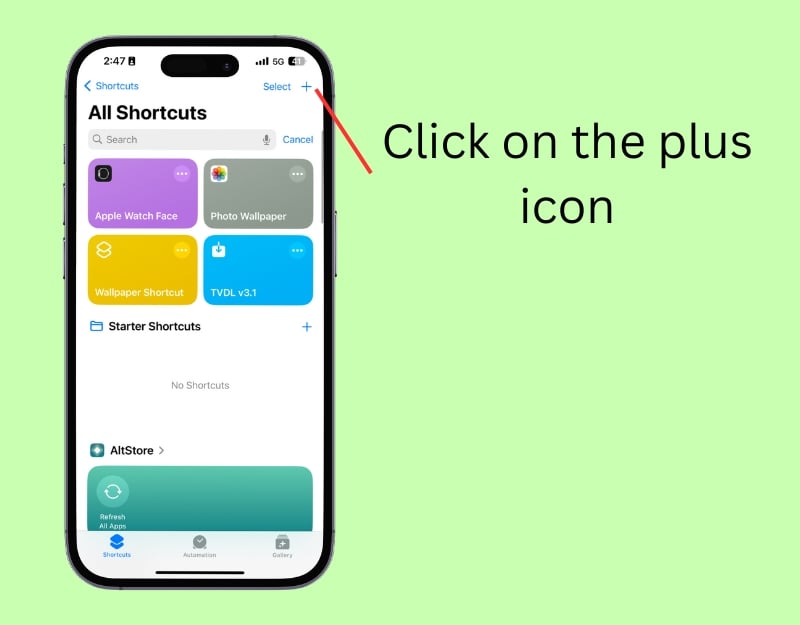
- Step 2: Click on the plus icon to create a new shortcut
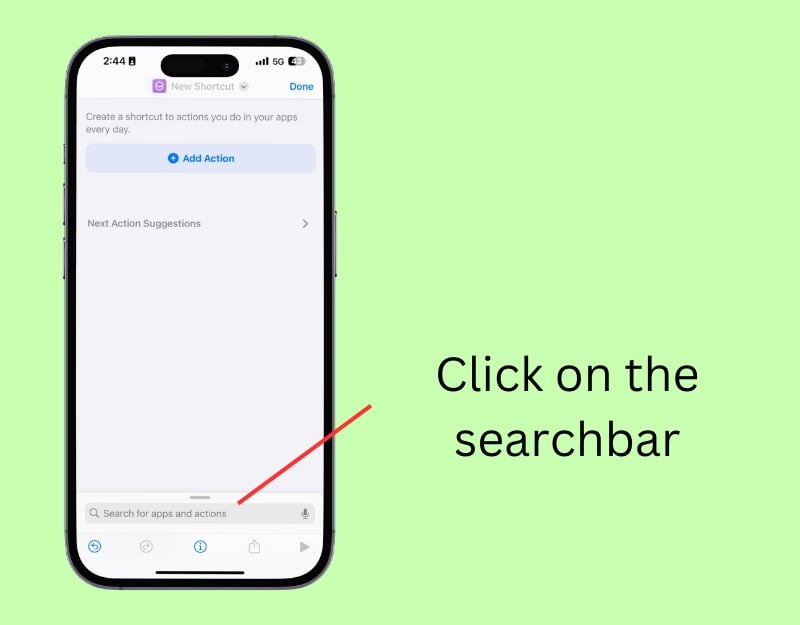
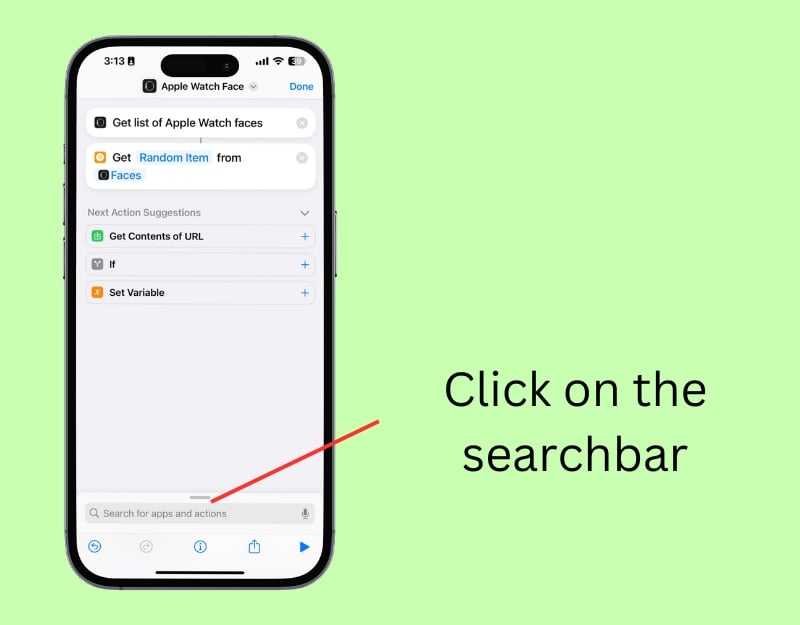
- Step 3: Click on the search bar and type Get My Watch Faces
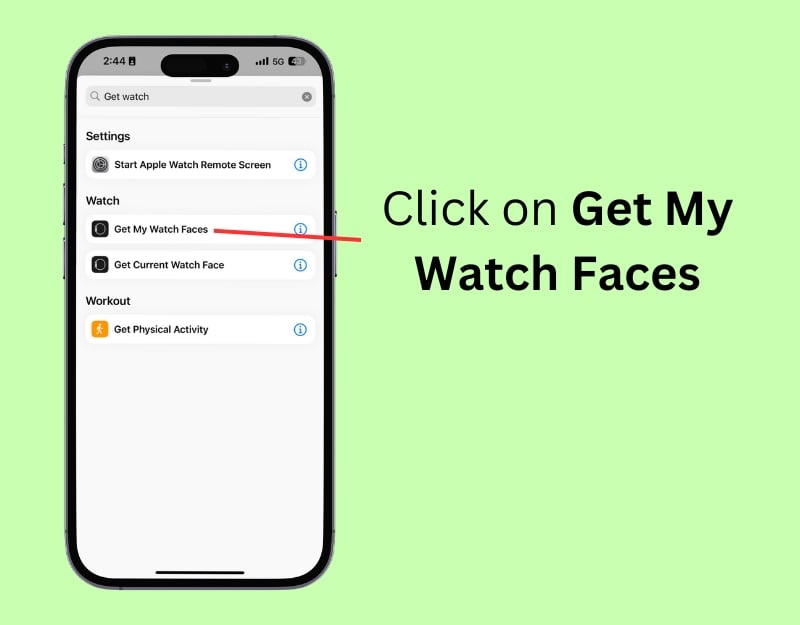
- Step 4: Tap on the Get My Watch Faces action.
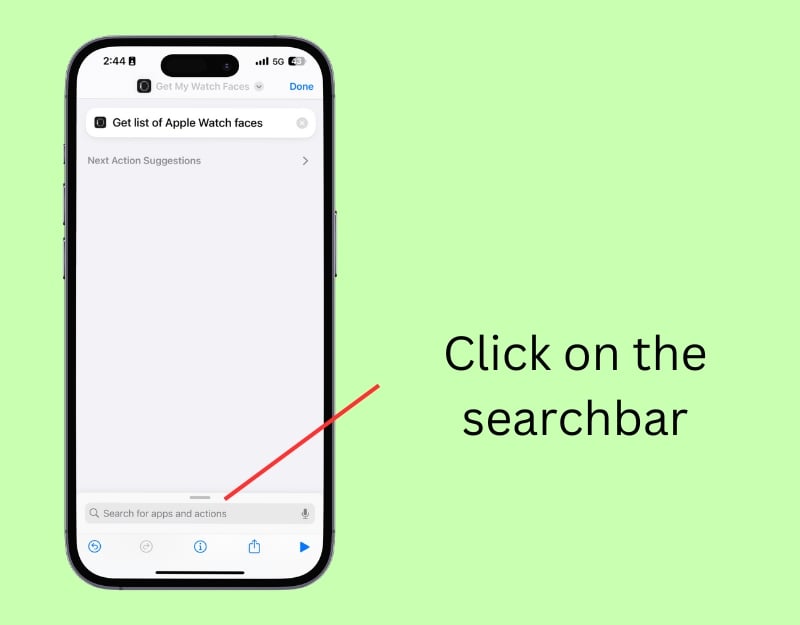
- Step 5: Click on the search bar again and type the list
- Step 6: Click on the Get Item from the List action

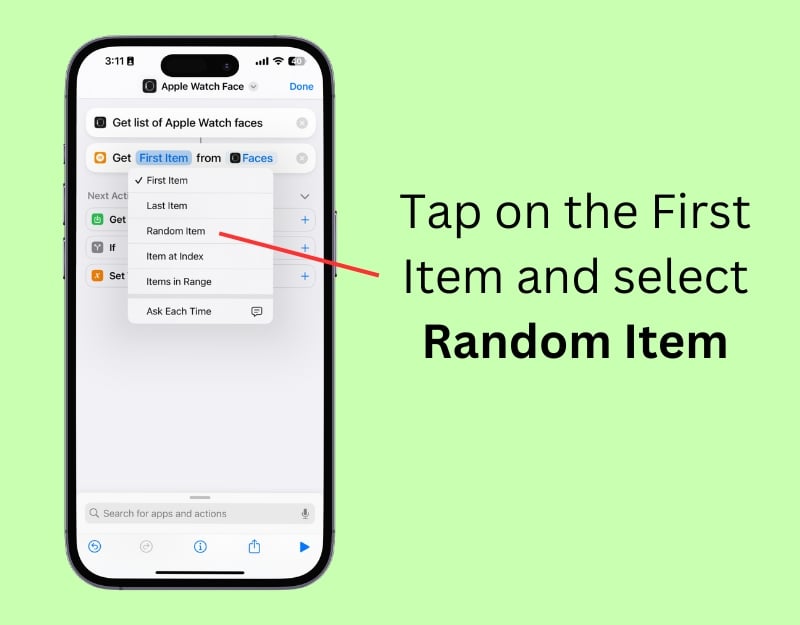
- Step 7: Click on the ‘First Item’ in the action and select ‘Random’.
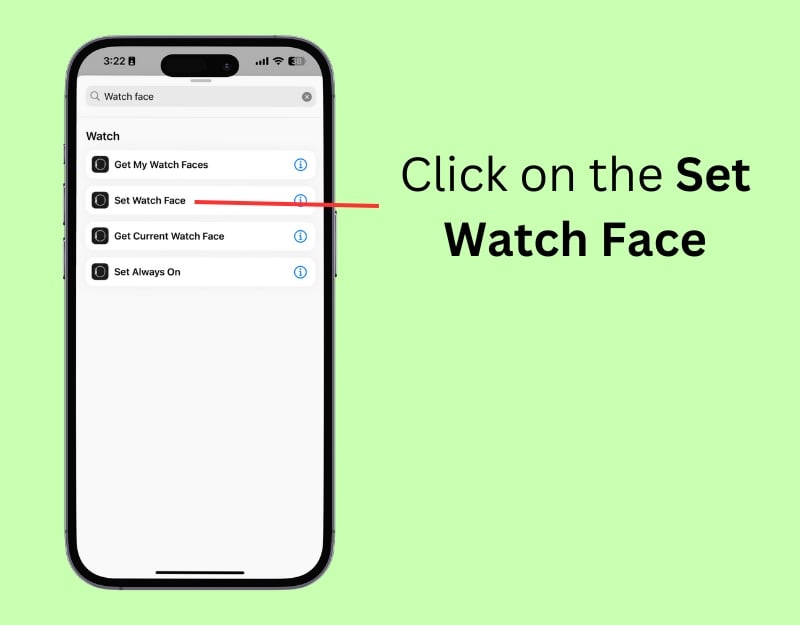
- Step 8: Click on the search bar again and type Set Watch Face
- Step 9: Tap on the Set Watch Face action.
- Step 10: Click on the shortcut name, then click ‘Rename, ‘ enter the shortcut name, and click ‘Done.’

- Step 11: Tap on the ‘Automation‘ tab at the bottom of the screen
- Step 12: Click ‘New Automation‘ or tap the ‘+’ icon to create a new automation.
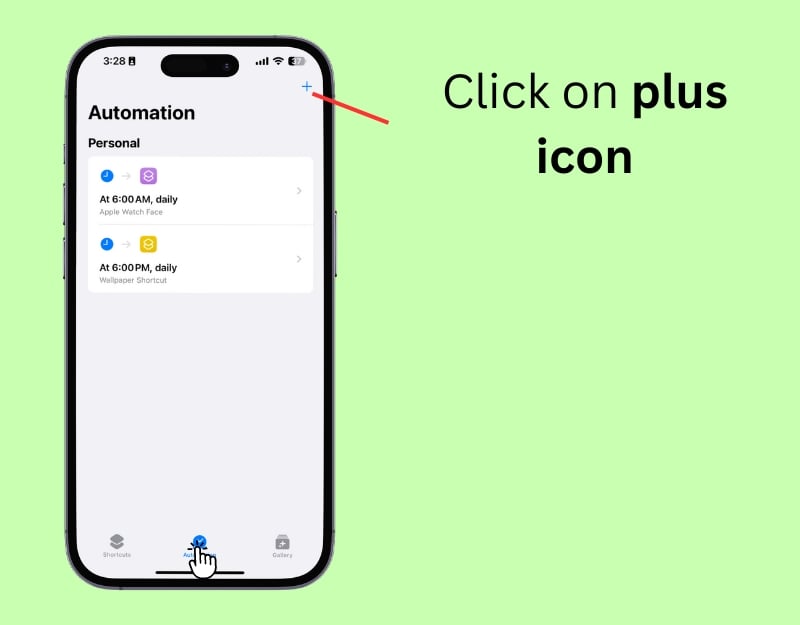
- Step 13: You will see options for when this automation should run. You can choose a specific time of day, such as when you wake up or have lunch, or select a location trigger, like when you arrive at or leave a place. You can also set the wallpaper to change when a specific event occurs, such as receiving a message or email, and more. To change the wallpaper daily, select ‘Time of Day. ‘
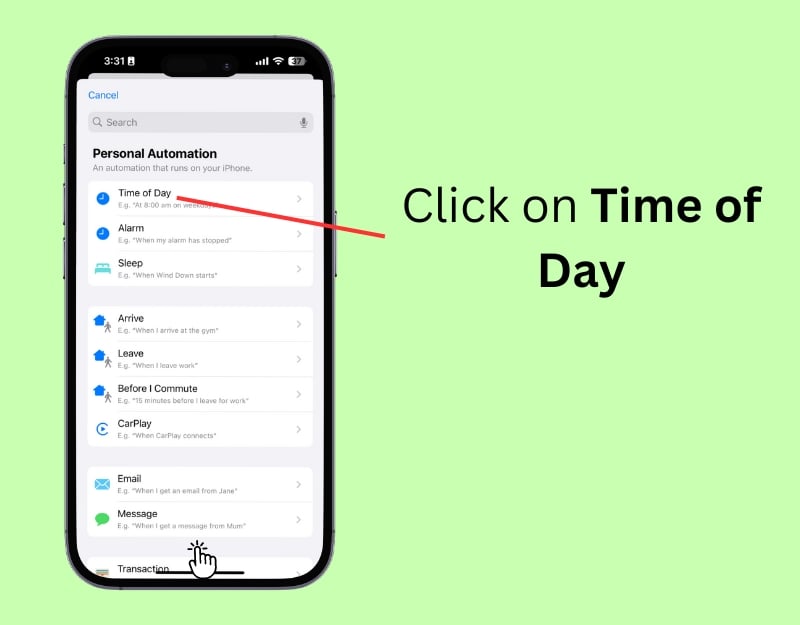
- Step 14: Set the specific time you want your watch face to change. You can also choose whether this happens daily or only on specific days in the ‘Repeat‘ section.

- Step 15: Select the Apple Watch Face shortcut you created from ‘My Shortcuts.’
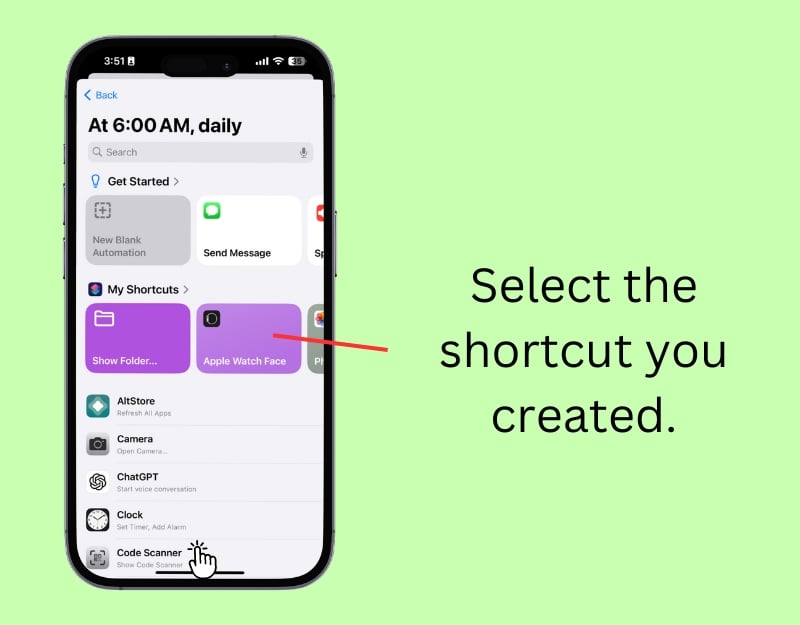
- Step 16: Your Apple Watch will automatically switch to the selected watch face at the specified time or location.
Keep Your Wrist Display Fresh and Personalized
You can use these two simple methods to automatically change the backgrounds of the Apple Watch. The Photos watch face automatically changes the photos you have selected. It changes the background of the watch as soon as you lift your wrist or touch the display. You can use shortcuts to automatically change the Apple Watch wallpaper and set a frequency for how often the watch face should change. You can disable the automatic wallpaper change feature by turning off the automation and changing the photo watch face on your Apple Watch.
FAQ’s on How To Update Watch Wallpaper Automatically
1. What images can be used as wallpapers on the Apple Watch?
You can use any image from your Photos gallery as your Apple Watch wallpaper. Make sure that the photo has been manually selected or added to an album so that the image is displayed on your Apple Watch.
2. Can I use live photos as wallpapers, and if so, how does it affect battery life?
Yes, you can use Live Photos as wallpapers on your Apple Watch. To set a Live Photo as your wallpaper, open the Watch app on your iPhone, select the Photo watch face, and under ‘Content, ‘ click on ‘Photos’ and select the Live Photo you want to apply. The battery might be slightly affected depending on how long the Live Photo is displayed on your Apple Watch.
3. How do I ensure that using personal photos as wallpapers on my Apple Watch respects my privacy?
To prevent personal photos from appearing as Apple Watch wallpapers on your iPhone, select them carefully when you add them to the album or manually select the photos you want to appear as Apple Watch wallpapers. You can also prevent pictures from being added to your reminders. With these methods, you can ensure that personal photos as wallpaper on your Apple Watch respect your privacy. To remove photos from features or pictures, open the picture and click on “Remove this picture as a feature” or “Show this photo less often.”
4. Can I set my Apple Watch to display wallpapers automatically based on the time of day or location?
You can use the Shortcuts app on your iPhone to automatically display wallpapers on your Apple Watch based on the time of day or location. To set up an automatic change of wallpaper based on location, create a shortcut on your iPhone to change the wallpaper on your Apple Watch, go to the ‘Automation’ tab, and add a new automation. Select ‘Time of day’ for wallpapers based on the time of day. To automatically change the wallpaper based on location, select ‘Location’ and enter the area where you want the wallpaper to be automatically applied.
5. Why is my wallpaper blurry on the Apple Watch?
Make sure you use high-resolution wallpapers for your Apple Watch. Also, make sure that your wallpaper fits the required dimensions of the watch. Apple Watches automatically crop the image for you; if the resolution is lower than necessary, it may appear blurry on your Apple Watch.

