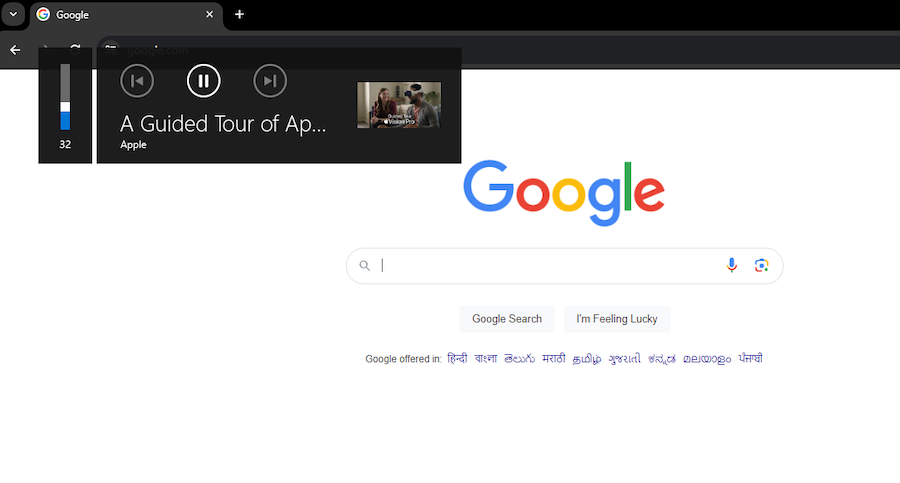
The Hardware Media Key Handling flag alows users to hide and show the meta-data of active media, such as the title and thumbnail of the video. It also provides an option to control the playback with play, pause, and skip buttons. While these extra options can he helpful, the huge size of the dialogue box makes it annoying for most users.

The latest update of Google Chrome for desktops has removed the Hardware Media Key Handling flag from the browser. This results in an annoying popup on Windows 10 and 11 computers showing the details of the media being played in Chrome. While Google has not disclosed any timeline to restore the flag, we can still eliminate that distracting volume popup overlay next to the volume bar using a simple fix.
The best part about this solution is that you don’t have to install any older version of Google Chrome, and not even use any third-party tool. Let’s have a look.
Fix Hardware Media Key Handling Flag Not Found in Chrome
The Hardware Media Key Handling flag was removed from the Chrome browser starting with version 122.0.6261.131. Google is known to shuffle flags in and out from Chrome, as these are advanced tools mostly used by developers. Until the flag is officially restored, follow this guide that will revive the same functionality.
In case, at anytime in the future, if Google again removes the flag, you can use the below instructions to put it back.
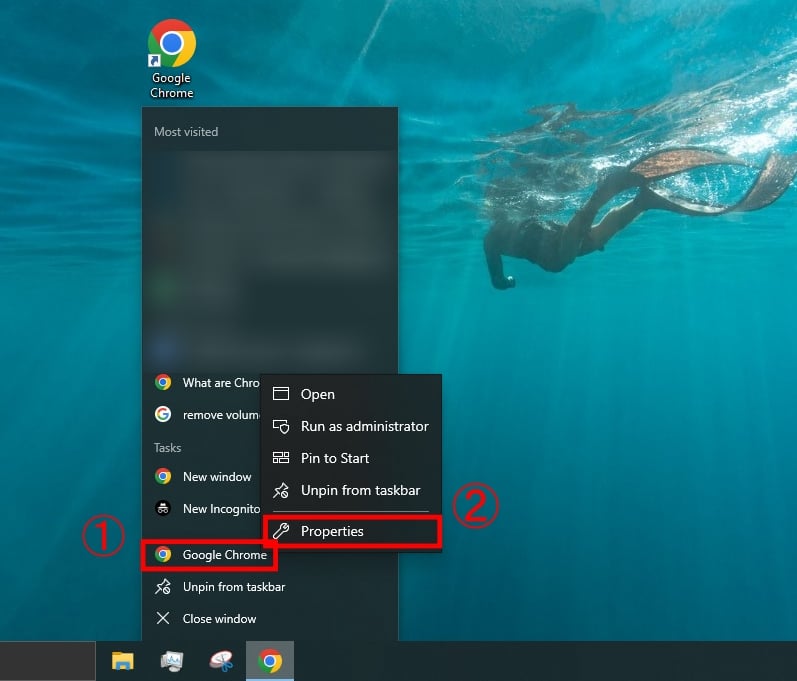
- Right-click on the Chrome shortcut on your Windows computer, and select Properties.

- If your shortcut is located on the taskbar, right-click on the Chrome icon once and then right-click again on Google Chrome and select Properties.
- Navigate to the Shortcut menu, and move your cursor in the text box of the Target section.

- Leave a single space after the closed double quote symbol, and add the following text:
--disable-features=HardwareMediaKeyHandling
- Depending on the location where you have installed Google Chrome on your computer, the Target shortcut should look something like this:
"C:\Program Files\Google\Chrome\Application\chrome.exe" --disable-features=HardwareMediaKeyHandling
- Now click on Apply, and click OK. If Windows asks for any administrator permissions for this step, then approve it

Once you complete these steps, relaunch your Google Chrome browser. The media overlay popup next to the volume menu is now removed.
In case you are wondering, it is completely safe to use this method. Although the Hardware Media Key Handling flag has been removed from Chrome, the core functionality of the flag is still present inside the browser. This method forces Chrome to disable that feature by using a manual instruction tag. Unless Google removes this feature entirely from the Chrome browser, this workaround will keep working without any issues.
Flag #hardware-media-key-handling was removed.
— Chromium Flag Updates (@ChromiumFlags) January 24, 2024
It is worth noting that the Hardware Media Key Handling flag was removed from Chromium back in January 2024. Apart from Mozilla Firefox, almost every popular web browser like Microsoft Edge, Brave, Opera, and many others are based on Chromium itself. Hence, these browsers are also likely to be affected by the removal of this flag in future updates.
In such cases, you can try using this fix in other browsers using the same method. However, we cannot confirm whether this workaround will work with every browser or not. At the time of writing this article, the flag appears to be missing only from Google Chrome.