

WhatsApp is one of the most popular social media apps around the world and offers a plethora of features such as the use of custom stickers in chats, Channels, and much more. One of these features that has made WhatsApp popular is sharing your live location with others, which is very useful if you are in distress or want to know where your loved ones are.

Even though this feature works well, sometimes, for unknown reasons, your WhatsApp live location may not update, meaning your shared live location will not update on another person’s phone until you leave WhatsApp open on your device. This is very annoying.
If you are also facing the problem of your WhatsApp live location not updating, you don’t have to worry because, in this guide, we will show you several ways to fix this problem.
Table of Contents
WhatsApp live location not updating: Try these 8 fixes
As this is a troubleshooting guide, we recommend that you carry out the troubleshooting step by step. While we have used an Android device for this guide, the steps are pretty much the same if you are facing the issue with WhatsApp live location not updating on iPhone.
Try restarting the live location
We will start with the basics to solve the problem of WhatsApp live location not updating and then move on to more advanced solutions. Sometimes there can be minor bugs. After all, it’s just a piece of software. If your live location is not updating, then try ending the current session for the live location and restarting it again. Maybe it will work.
To restart the live location again, follow these steps:
- Open WhatsApp and open the chat of the person you are sharing your live location with.
- In the chat, you will see the option Stop sharing; click on it.
- Then click on Stop from the popup.

Once done, try sharing your location again. In most cases, the issue should be resolved, but if the WhatsApp live location issue persists, try the next step.
Check for Location service
Many Android users tend to deactivate the location service and only activate it when they need it. This is not a problem because whenever you try to share your live location on WhatsApp with location services disabled, WhatsApp will prompt you to enable the location service.
However, if, for some reason, it doesn’t ask you to enable the location service, you won’t be able to share your live location with the other party. So make sure that you enable the location service when you share your live location, otherwise, you will still face the issue of Whatsapp live location not updating.
To enable location services on your Android device, follow these steps:
- Open the Settings app on your phone.
- Search for Location Services in the search bar and click on the particular result.
- From there, activate the location services by clicking on the button in front of Use Location.
- Then, try sharing the live location again.
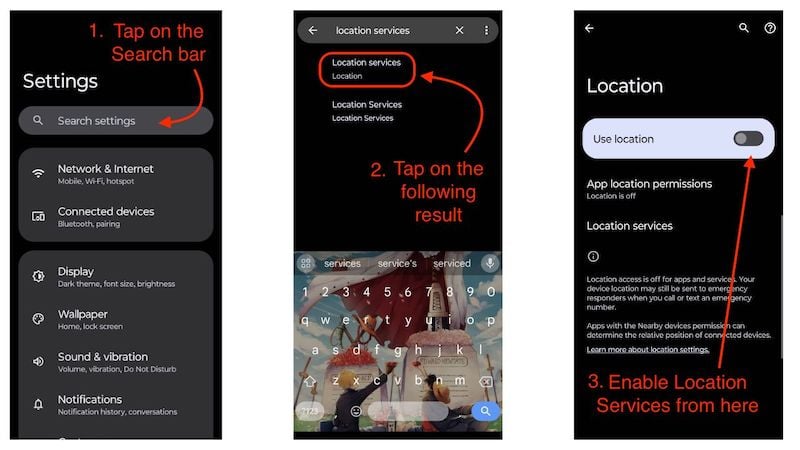
This step should work if you have not activated location services. If, after these steps, you still have the problem of WhatsApp not updating the live location, Then you may need to follow the next step.
Update WhatsApp
Updating apps can fix many bugs and glitches. Even though the WhatsApp live location issue may not necessarily be a glitch or a bug, we should still try it because updating apps to the latest firmware can help in many ways, such as adding new features to the app or even fixing bugs like this one. To update your WhatsApp to the latest version, you should follow these steps:
- Open the Google PlayStore.
- In the search bar, search for Whatsapp and click the result below.
- You will see an update button in front of the WhatsApp logo
- Hit the update button and wait for WhatsApp to update
- Once the update is completed, check if the Live Location bug is fixed or not by enabling Live Location.

In most cases, the live location bug should be fixed. If this isn’t the case for you, you should try the next step.
Check for location permission for WhatsApp
With Android 11, Google has worked on the permission settings for every particular app. Previously, we only had the option to either allow an app to access all things by granting permissions for microphone, location, and camera or to allow nothing at all. However, with Android 11, Google introduced two new options, mainly for things like camera, location, and microphone, and they are “Allowed while using the app” or “Ask every time.” This is fantastic because now users have more options to choose from.
But sometimes, these permissions can lead to problems, such as WhatsApp’s live location not updating because the user hasn’t given the app appropriate permissions. If WhatsApp is unable to provide real-time location, we need to take a look at our location settings. Here are the steps you should follow:
- Tap and hold the WhatsApp logo and press the small i button in the corner.
- Click on the app’s info page and go to the permission settings.
- Now check if WhatsApp has access to location services by clicking on the Location permission.
- You should see 3 options here: Allow only while using the app, Ask every time, and Don’t allow
- You should ideally keep this to Allow only while using the app or Ask every time (if you want to know when the app needs permission to location services).
- If you have selected one of the two options, try sending the live location again.

This step should work, and you should no longer face the issue of the WhatsApp live location not updating. However, if, for some reason, you are still facing the issue, check out the next step.
Keep WhatsApp in the background
If WhatsApp’s live location isn’t updating, it may also be because WhatsApp isn’t running in the background. These apps need to be constantly running in the background if they’re doing something like sharing live location or even something as small as sending photos. To keep WhatsApp constantly running in the background, you should try two things:
Keep WhatsApp in your recent apps and try blocking the app. Many manufacturers like Xiaomi and Samsung give you the option to lock the apps in the background. Here, you can find out how to lock an app in the background:
- Go to your recent menu and click on the app logo/ kebab menu from the top.
- Here, you will see an option to lock the app.

This is how you lock apps in Realme UI.
This trick should work for you and fix the WhatsApp live location not updating issue, as sometimes apps can be deleted from memory due to the lack of RAM.
Related Read: How to Send Fake Location on WhatsApp
Try Disabling Power Saving Mode
Android’s power-saving mode restricts many things, such as a high refresh rate and the ability to update apps in the background, so they cannot update their data in the background. All of these measures are designed to extend the battery life of your device, but on some phones, battery management is so aggressive that you can’t keep apps in memory longer. This causes problems such as WhatsApp’s live location not updating. To avoid these issues, try disabling power power-saving mode on your device. To disable power saving mode, follow these steps:
- Open the settings app and search for “Power Saving mode” or “Battery Saver.”
- Then click on the corresponding search result at the bottom.
- From here, disable the battery saver mode by clicking the button in front of Use Battery Saver.

This trick should work, especially if your phone has aggressive power management. If not, here’s the next one that can save the day.
Check Date and Time Settings
Most apps like WhatsApp, Facebook, or X (Twitter) are not able to update your location correctly if the time and date of your device are wrong. This could be one of the reasons why WhatsApp’s live location is not updating. Try setting your date and time to solve the problem automatically:
- Open the Settings app and search for Date & time.
- Now open the date and time settings.
- And click on Set time automatically.
- This should set your time and date automatically.
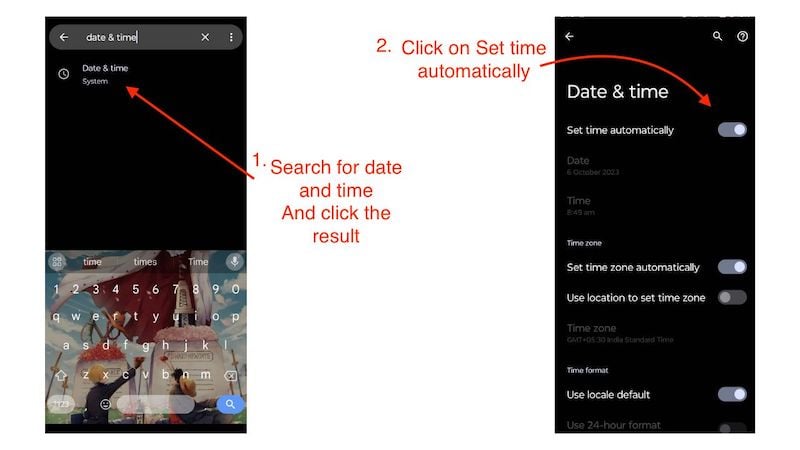
This method should work and fix the issue of the live location in WhatsApp not updating or not working. But if the problem still persists, here is the one last step you can try.
Try Reinstalling WhatsApp
If you are still facing the error of WhatsApp live location not updating after performing all the above steps, then the only option left is to reinstall WhatsApp because that might work. But before you reinstall WhatsApp, don’t forget to make a backup of your WhatsApp chats and then uninstall and reinstall it.
To uninstall your WhatsApp, follow these steps:
- Open the Google PlayStore.
- Then, from the search bar, search for Whatsapp.
- Once done, open the appropriate result.
- From here, click on Uninstall.
- Once the app is uninstalled, you need to install it again.
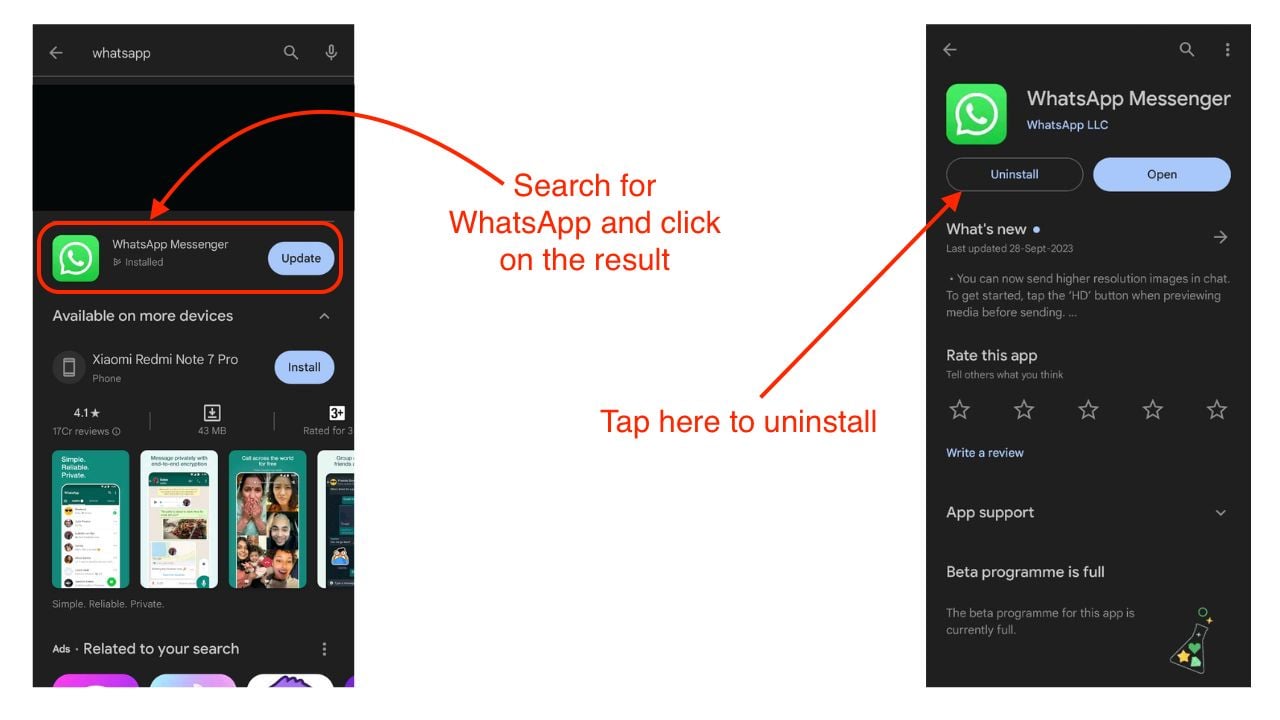
This step could be the last step to solve the problem of WhatsApp’s live location not updating. Even though you need to make a proper backup of your data, and it will take some time to uninstall and reinstall WhatsApp, this is the method that should fix the problem of WhatsApp’s live location not updating.
Find Alternate Solutions

If, after carefully following all the steps in this article, you are still facing the problem, try using a solution other than WhatsApp’s live location. Several apps offer the same feature, and we will look at the most popular one, Google Maps. Google Maps comes with a plethora of safety features, and sharing live locations is one of them.
Live location sharing in Google Maps works even better than WhatsApp live location sharing as it offers some features that are lifesavers in times of emergency. Google Maps informs you about the battery level of the device you are using to perform live location sharing and the current location of your device even when the Google apps are not in use. It also tells the user the arrival and departure times. For more information on the features of Live Location Sharing with Google Maps, visit support.google.com.
FAQs about WhatsApp Location Sharing Issues
1. Are there any other WhatsApp alternatives that offer the same functionality?
Yes, if you are facing the issue of WhatsApp live location not updating, and you have followed every step from above correctly, it is worth it to give Google Maps and Telegram a shot. While Google Maps will only allow you to share live locations, Telegram will offer the same messaging functionality as WhatsApp with the feature of sharing live locations on top.
2. What should I do if I face the problem of WhatsApp live location not working, in case of an emergency or urgent situation?
If you’re in a hurry or there’s an emergency and, for some reason, your WhatsApp live location isn’t updating, you can follow the steps mentioned in the article above or simply use Google Maps to share your live location – it’s quicker than following the steps in the article.

