

Quick Answer
To fix Circle to Search when it is not working, ensure the feature is not turned off in Settings. Make sure the Google app is up-to-date and set as the default digital assistant app. Then, clear the Google app’s cache, check for Software updates, and reset your device if needed.
Circle to Search, an exclusive feature on Android, allows you to search for something you see on the screen without leaving the app. For example, if you are watching a reel on Instagram and find an object you cannot recognize, you can simply circle the object with your finger on the screen to search for it on Google. You do not have to take screenshots or leave the Instagram app to search for it.

Currently, the Circle to Search feature is available on 80+ devices, mostly flagship phones from various manufacturers. If your device has the feature enabled and it is not working, follow this guide to fix it.
Table of Contents
How to Fix Circle to Search Feature Not Working
Before going into fixes, ensure that your device supports the Circle to Search feature. You can verify this by looking at your device’s features and specifications on the device manufacturer’s official website. Then, follow the methods below if the feature is not working.
Use the Right Way to Search
To enable and use the Circle to Search feature, you must tap and hold the Home button on your device when you find something to search for. You will notice searchable options on the screen. Now, circle the object to search for it on Google.
If you have enabled the Gestures for navigation, you must long-press on the navigational pane (at the bottom-middle of the screen).
Following the right method will enable the Circle to Search feature and allow you to use it without any errors.

Ensure Your Internet Is Stable
A stable internet connection is a must for the Circle to Search feature to work on a compatible device. If you are connected to mobile data, switch it to WiFi or vice versa and try searching.
If you have only one way to access the internet, run a speed test on your device to check the internet speeds and fix the issue. If you find slow data speeds, you need to recharge or fix the slow internet connection.
Enable Circle to Search Feature
When you disable the Circle to Search feature in Settings, it will not work when you try to use it. Make sure the feature is enabled before attempting to search for something.
To enable the Circle to Search feature,
- Open the Settings app on your device
- Tap on Display
- Go to the Navigation bar
- Toggle the button beside Circle to Search to enable it.
Now, try using the feature and searching for something. It will work fine. If you are a Pixel user, the options change. Open the Settings app and select System. Go to Navigation Mode. Toggle the button beside Circle to Search.

Enable Analyze On-Screen Images Setting
The Analyze on-screen images setting might be turned off on your Circle to Search compatible Samsung device. This will break the Circle to Search feature, and you may see an error message like “Screen search isn’t available” when you try to use it. To fix the issue, you need to enable the setting.
To enable the Analyze on-screen images setting,
- Open the Settings app and select Apps.
- Tap on Choose default apps.

- Now, tap on the Digital Assistant app. Ensure the default digital assistant app is set to Google.
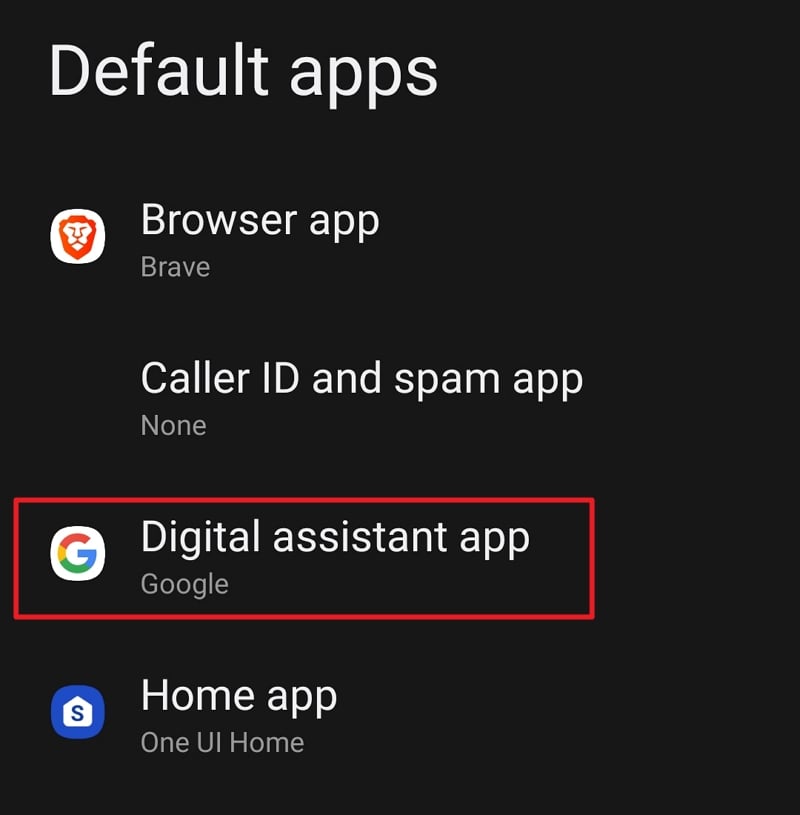
- Toggle the button beside Analyze on-screen images.

- It will usually make the Circle to Search feature work.
Clear Google App’s Cache
![Circle to Search Feature Not Working [Fixed]](https://techpp.com/wp-content/uploads/2025/01/Clear-Cache-1.jpg)
When you find the Circle to Search feature not working even if it is enabled and all settings are set up fine, there might be an issue with the Google app on your device. Tap and hold the Google app on your device. A mini info tab will appear. Tap on the ℹ️icon at the top to open the App info page. Alternatively, you can open the Settings app, select Apps, and tap on Google app to see App info.
On the App info, select Storage. Then, tap on Clear cache at the bottom. See if the Circle to Search feature is working now. Tap on Clear data and remove everything related to the app if it is not working. Then, relaunch the app and use the Circle to Search feature.
Check for Google App Updates

Check for any pending updates for the Google app on the Play Store. Open the Google Play Store and tap the profile icon at the top right. Select Manage apps and device from the options. If any updates are available for the apps installed on your device, you will see Updates available in the Overview tab. Tap on Update all. It will update the Google app if any updates are pending.
Check for System Updates
Circle to Search is still in the adaptability stages. Manufacturers have been adding the capabilities to devices with updates. Perhaps the last security or general update might have caused the issue. Check if there are new updates available so that it can fix the issues with the previous updates.
To check for System updates on Android,

- Open the Settings app.
- Tap System updates.
- Select Check for updates and wait for a few seconds.
- Available system updates will appear. Install them to fix the issue. If no updates are available, follow the below method.
Backup Your Data and Reset Your Device
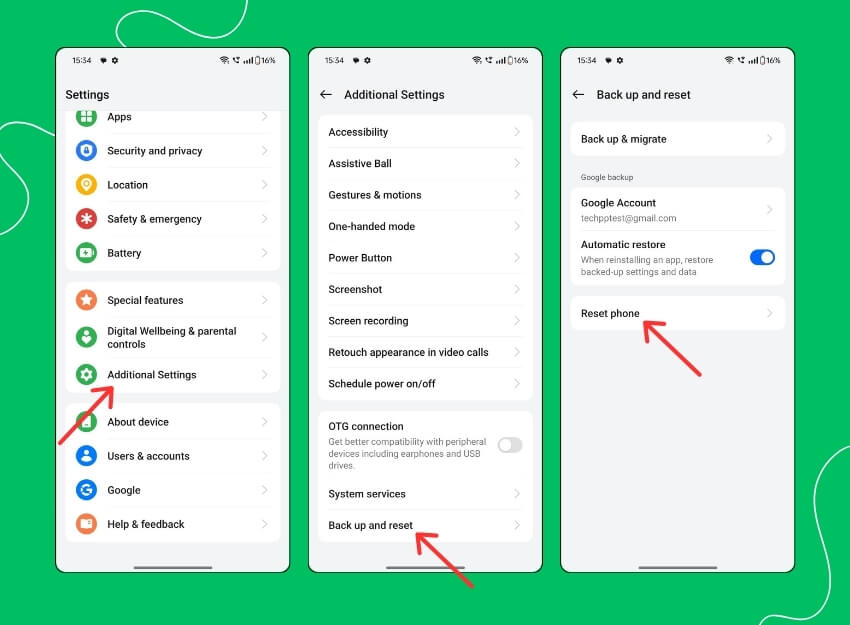
If the methods above have not helped you fix the Circle to Search feature not working issue, you need to back up your data and reset your phone. It will reset all the settings to factory data and enable all the functions. This is a longer process, but it helps in fixing the issues. The options to reset the device vary with manufacturers. Open the Settings app, search for Reset, and open it. Then, reset your device to factory settings. Make sure you back up your data before you reset your phone so as not to lose any data.
Search Your Screen With Circle to Search
The Circle to Search feature lets you circle something you see on the screen and search for it on Google without opening the browser or Google app on Android. It is enabled by default on devices that are compatible with the feature. You have to trigger it from the navigation bar and use it. To use it without issues, do not change the Google app as the default Digital assistant app on your device.
FAQs on Troubleshooting Circle to Search Feature
Is Circle to Search available on all Android phones?
No, the Circle to Search feature is unavailable on Android phones—only flagship or premium phones from various manufacturers have it. However, the feature might be available on all Android phones, regardless of their price, in the future.

