

Snapchat is a popular social media app where you upload messages, photos, and videos that disappear after a while. The fact that your content disappears makes Snapchat a very interesting social media app. With Snapchat, you can even share YouTube videos in stories or chat. However, Snapchat is not the only app with this feature. Nowadays, every social media app offers you this feature. As with anything, you may find yourself drawn to another social media platform and want to leave Snapchat.

If that’s what you want, then you’ve come to the right place. In this guide, we’ll show you the steps you need to know to deactivate Snapchat. Whatever the reason for your exit, whether it’s using another social media app or a social media detox, this guide is here to help you. Let’s dive in.
Table of Contents
How to deactivate Snapchat?
Deactivating Snapchat is pretty simple. However, you cannot deactivate your Snapchat account using your Android smartphone or device via the Snapchat Android app. You’ll need to follow the same process for Android and the web, which means you can do it through a web browser. However, deactivating Snapchat on iOS is quite simple and will be explained in the next part of this guide.
How to deactivate Snapchat on Android or the web
Here are the necessary steps to deactivate a Snapchat account on Android or on the web:
- Open any web browser on your Android phone or your PC and visit this website. You can select any one of this list of the best browsers.
- Enter your Snapchat username and then tap on Next.
- Now, you need to enter your password and then tap on Next.
- To deactivate your account, you need to click on Delete My Account.

- To confirm your action, you need to enter your username and password once again.
- Scroll to the bottom and select Continue.
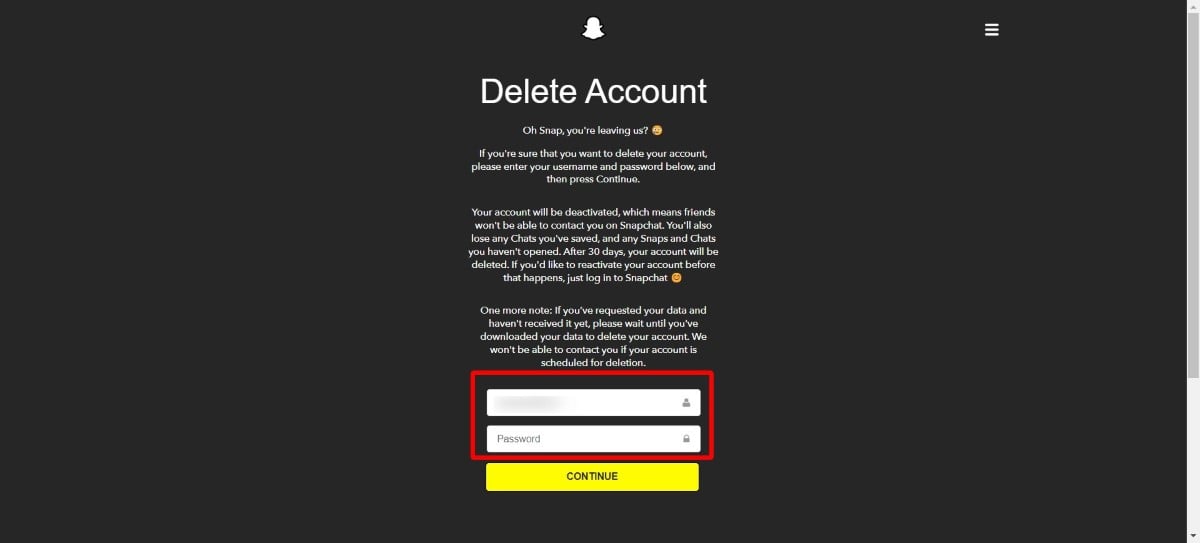
If you follow the steps above, your Snapchat account will be deactivated for 30 days. If you log back in with your credentials within these 30 days, your account will be reactivated. After 30 days, however, the account will be permanently deleted if you show no activity.
Related Read: Snap Streak Lost? How to Recover Lost Snap Streak
How to deactivate Snapchat on iOS
While you can’t deactivate Snapchat in the Snapchat Android app, you can easily do so in the iOS app. Here are the steps you need to follow to deactivate Snapchat on iOS:
- Launch the Snapchat app on your iOS device.
- Tap on the Profile picture icon on the top-left corner of the home page.
- Tap on the gear icon.
- Scroll down the Settings page and tap on Account Actions.
- Choose the Delete Account option. You will be redirected to the Accounts Portal.
- Enter the username and password and tap on Continue.
As mentioned above, your Snapchat data will still be available for 30 days. During this time, you can reactivate your account with your login details. After 30 days, however, your account will be permanently deleted. For legal, security, and business reasons, you should keep some important information, such as purchase information, with you. In the next section, we’ll learn how to download your Snapchat data.
How to download Snapchat data?
You can download your Snapchat data anytime, as Snapchat recommends. This is also possible after you have deactivated your account. Note, however, that you must download your data within 30 days of deactivating your account. If you do this after 30 days, you will no longer be able to download your data.
Here are the steps you need to follow to download Snapchat data:
- Launch this website in any web browser on your Android phone or desktop.
- Login with your account credentials.
- Click on My Data.

- Select all the data that you wish to download from Snapchat and click Next.

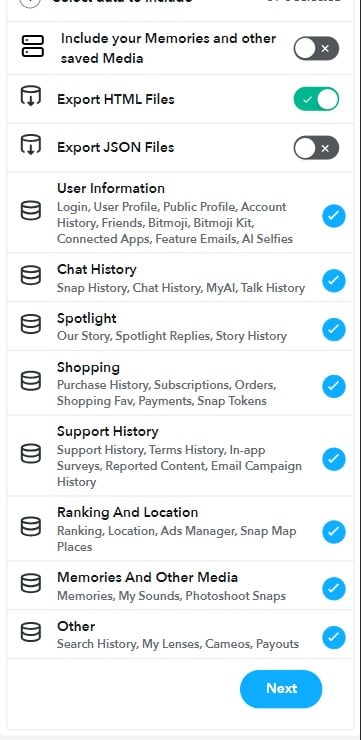
- Choose the date range of data that you would like to download and confirm the email address on which you would like to export your data. Click on Submit.

- You will receive an email with a link when your data is ready to be downloaded.
- Choose See Exports and then click on Download.
Your data will be downloaded in a ZIP file. So make sure you have a ZIP extractor on your PC to view the downloaded data. Below is the list of data you download from Snapchat before deleting your account.
- Login History and Account information
- User & Public Profiles
- Snap History
- Saved Chat History
- Memories
- Purchase & Shop History
- Snapchat Support History
- Friends
- Location
- Search History
- Bitmoji
FAQs about deactivating Snapchat
1. Can I restore my Snapchat account?
As long as 30 days have not passed since your account was deactivated, you can reactivate your Snapchat account at any time. However, after the 30 days have elapsed, you can only create a new account and cannot restore your account.
2. Which information remains with Snapchat after deleting the account?
In the official blog, Snapchat mentions that it retains certain information for legal, security, and business reasons. The company retains data about purchases if you have accepted the Terms of Service and Privacy Policy.
3. Can I know if my friend has deleted his/her Snapchat account?
You can know if your friend has deleted their Snapchat account by simply searching for their username on Snapchat. If the search result does not show the username, he/she has deleted his/her Snapchat account.
4. Can I temporarily deactivate Snapchat?
Yes. You can always temporarily disable Snapchat by deleting your account using the steps shared above and then logging back in within 30 days to reactivate it.

