

Quick Answer
- There is no built-in option to set different scrolling directions for Mouse and Trackpad separately on macOS.
- We can use third-party apps like Scroll Reverser, LinearMouse, and Mos for this purpose.
- If only changing the scrolling direction is what you need, then you can opt for the Scroll Reverser app. But for granular controls, we would recommend you use Mos.
Your MacBook comes with natural scrolling by default. This means when your fingers go upwards in the trackpad, the page scrolls downwards, and vice versa. This could be a big change, especially when you are coming over from a Windows laptop. Do note that Windows offers you the option to alter the scrolling direction inside the Settings menu. On a MacBook, yes, you can change the scrolling directions for the Mac mouse as well; however, it affects not only the trackpad but also any connected external mouse, except Apple’s Magic Mouse.

Personally, I prefer natural scrolling on the trackpad but would want to have inverted scrolling when using a physical mouse. Since it isn’t possible to access it on Mac’s settings, I need to rely on a third-party app. In this guide, I will give you some good apps that you can use to set up different scrolling directions for your trackpad and your external mouse. Let’s jump right into it.
Table of Contents
Here’s how you change the scrolling direction on macOS
macOS offers you a setting that you can tweak to change the natural scrolling direction. Here’s how you can do it:
- Click on the Apple logo in the top-left corner.
- Navigate to System Settings > Mouse. The Mouse option will only appear if you have an external mouse connected to your MacBook.
- Toggle on or off the Natural Scrolling option.
The changes that you have made above will also reflect on your trackpad. This means that if you have turned off natural scrolling for your mouse, it also gets disabled for your trackpad. To fix this, below are some apps that let you unlink and set scrolling directions separately for your mouse and trackpad.
Read More: How to Get Google Photo’s Magic Editing Features on Mac
3 Apps to Change scrolling directions for Mac mouse and trackpad
Here are some apps that you can use to change the directions separately for your Mac mouse and trackpad.
Sl. No. | App | Description | Pros | Cons |
|---|---|---|---|---|
1 | Scroll Reverser | An open-source app that allows you to reverse scrolling direction separately for the mouse and trackpad, including horizontal scrolling. | - Free to use and Easy to set up - Supports older macOS versions - Minimal learning curve - Can change scrolling directions for Apple’s Magic Mouse - Adjustable step size | - Basic functionality compared to others - Requires accessibility permissions - Limited advanced features |
2 | LinearMouse | An app that allows you to reverse horizontal and vertical scrolling, disable mouse acceleration, and adjust mouse speed. | - User-friendly interface - Supports multiple mice with different settings - Option to disable mouse acceleration - Adjustable scroll speed | - Requires accessibility permissions - Limited to certain macOS versions - Fewer customization options compared to Mos |
3 | Mos | An open-source, lightweight app that lets you reverse scrolling direction, set scroll speed, step, and duration, and customize scrolling behavior for each app. | - Highly customizable - Can set scroll behavior per app - Adjustable scroll speed and duration - Free and open-source | - Requires macOS 10.11 or later - More complex setup compared to others |
Scroll Reverser
Scroll Reverser is an open-source app that does what its name says: reverses the scrolling separately for your mouse and trackpad. It is one of the best and most straightforward apps, with a minimal learning curve, and lets you achieve what you are looking for in the app. It also offers the option to reverse the horizontal scrolling and works with older macOS versions as well.
One of the best things about using Scroll Reverser is that you can change the scrolling directions, even for Apple’s Magic Mouse. It also offers other granular controls, such as step size control, which you can use to adjust how much the page should scroll with each step of scrolling. The Scroll Reverser app can be used to change scrolling directions on Mac for free.
Here’s how you can use it:
- Download Scroll Reverser.
- Unzip the file and open the ScrollReverser.app file.
- The app will run and show up in the menu bar at the top.
- Click on the icon on the menu bar and choose Enable Scroll Reverser.
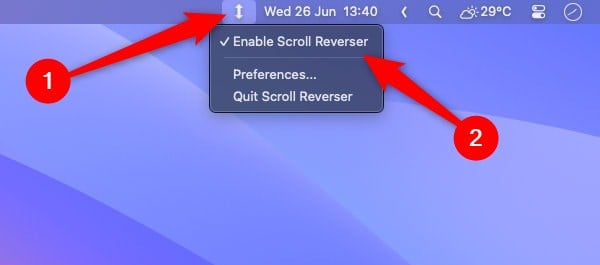
- Grant the accessibility and input monitoring permissions.
- Check the Enable Scroll Reverser checkbox.

- You can choose the scrolling directions between Reverse Vertical Scroll, Reverse Horizontal Scroll, or both under the Scrolling Axes section.

- Under the Scrolling Devices section, you can choose for which device you want to change the scrolling directions on Mac, i.e., mouse or trackpad.

LinearMouse
LinearMouse is another app that you can use to reverse the horizontal and vertical scrolling directions on a Mac mouse and trackpad. It also offers other features, such as the option to turn off mouse acceleration, and has different settings for each mouse connected to your MacBook. Using this app, you can also set the speed of your mouse.
Here’s how you can use it:
- Download the LinearMouse.dmg file.
- Double-click on the LinearMouse.dmg file to mount it.
- Drag and drop the LinearMouse.app file to the Applications folder to install it.
- Open the app and grant accessibility permissions by clicking Open Accessibility > Open System Settings and then toggle on access for LinearMouse.
- Toggle on Reverse Scrolling for your external mouse connected to your Mac. The top left corner should display the name of the mouse you are using on the LinearMouse home screen or your trackpad.

Mos
Mos is another open-source tool that is lightweight and lets you change scrolling directions on Mac separately for your trackpad and external mouse. Your MacBook should be running macOS 10.11 or later for you to use Mos on your Mac. The best part about Mos is that you can set the scrolling behavior of each app separately. Moreover, you can change the scroll speed, step, and duration.
Here’s how you can use Mos to change the scrolling direction on your Mac trackpad and mouse pad:
- Download Mos from the official website. Open the DMG file and place it inside the Applications folder to install it.
- Launch Mos and grant accessibility permissions.
- On the app’s home screen, check the Reverse Scroll box. This will change the scrolling direction of your mouse.

Change the way you scroll on the Mac
The above apps will help you change scrolling directions on Mac separately for your mouse and trackpad. Out of the above three options, all of them offer some extra features, and it is up to you to decide which app to go for. If only changing the scrolling direction is what you need, then you can opt for the Scroll Reverser app. But for granular controls, we would recommend you use Mos.

