

Quick Answer
If call history is not showing on your device, ensure the default dialer has permission to access your call logs. Enable automatic time zone to sync the call history. Check if your device is running out of storage, as this could delete your call logs to save some space. Try clearing the phone app’s cache, forcing stopping the app, or updating the dialer app to the latest version. If these steps don’t work, switch to alternate dialer apps like Truecaller. As a last resort, restart or factory reset your smartphone.
Modern smartphones have various functions but still need to display call history. The main function of the smartphone remains the same. Your Android device records all incoming and outgoing calls, including information such as call time, phone number, call duration, outgoing or incoming calls, and more. If, for some reason, your Android smartphone suddenly stops displaying your call history, this guide is for you.

In this guide, you will learn why your Android smartphone stops displaying call history, how to fix it, and how to avoid it. Let us start without delay.
Table of Contents
9 Ways to Fix Call History Not Showing on Android
S.no | Fixing Method | What to Do |
|---|---|---|
1 | Allow Phone App to Access Call Logs | Make sure the Phone app has permission to see your call logs. |
2 | Set Automatic Date and Time | Set the correct date and time on your phone by using the network time. |
3 | Free-Up Device Storage | Clear up some space on your phone so it doesn't delete old call logs. |
4 | Force Stop the Phone App | Force stop the Phone app to refresh it and stop any background issues. |
5 | Clear Phone App Cache | Clear the app’s cache to fix the issue. Also clear system cache for Call Log Backup/Restore, Phone services, and Call Management apps. |
6 | Update the Phone App | Update the Default Phone app to fix any bugs or issues. |
7 | Change the Default Phone App | Switch to another dialer app if the default one isn’t working right. |
8 | Restart Smartphone | Restart your phone to refresh everything. |
9 | Factory Reset Your Smartphone | If nothing works, reset your phone to factory settings (Backup your important data before resetting). |
Allow Phone App to Access Call Logs

Apps need system permission to access the data on your device. With each new Android version, Google has made it harder for app developers to access data, storage, and more to improve privacy. Access permissions are now required for every app on Android, and you can turn permissions on and off whenever you want. If the app crashes on your smartphone, there’s a chance that the app does not have permission to read or write data or that the app permissions have been reset.
To fix the problem, you can check the app’s permissions and see whether the required permissions are allowed. Press the app >and tap Info > permissions to check the app’s permissions.
How to grant call logging permissions:

- Open your smartphone and go to Settings.
- Now go to Apps.
- Use the search to locate the ‘Default Phone’ app. Alternatively, Long-press the Phone app icon and tap the ‘i’ icon from the menu that appears.
- Once you are in, click on the Permissions tab.
- Tap Call Logs and select Allow on the following screen.
Set Automatic Date and Time

The phone app on your smartphone synchronizes the call history with the current date and time. If your phone is set to an incorrect date or time, it may display a different or no-call log. You can easily fix this problem by setting an automatic date and time.
How to set automatic date and time on your Android:
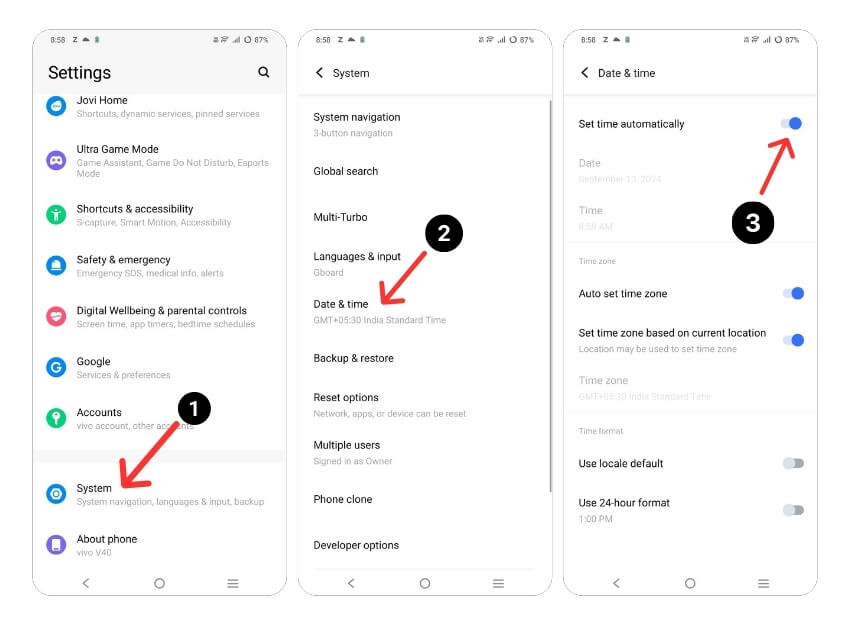
- Go to your phone’s Settings app.
- Select System or System & Device, depending on your device.
- Tap Date & Time.
- Turn on the Automatic date & time or “Use network-provided time” option.
- If the option is enabled, you can turn it off and on again to update the network time.
- When prompted, you may need to select your time zone.
- Then, restart the device and open the Phone app.
Free-Up Device Storage

Sometimes, insufficient storage can cause the app to display errors on your smartphone. On most Android smartphones, you’ll see a warning in the notification bar saying there isn’t enough storage” or “Storage space running out.” When the system runs out of storage, the operating system deletes the call logs to make more space for your system.
Most applications use internal or external storage to read or write data. Make sure that your device has enough storage. If you run out of storage, follow the steps below to free up storage space on your Android smartphone.
- Go to your Settings and select Storage. You will see information about the storage space used and a list of file categories.
- Under Storage, tap Apps. You’ll see a list of all your apps and the storage each takes up.
- Tap on the app’s name. You can now see its size, how much of the available storage is user data, and how much is cache space. Tap the Clear Storage and Clear Cache buttons.
- You can also use apps like Files by Google to free up storage space by deleting junk files, deleted screenshots, large photos, backed-up media, and unused apps.
- Another option is to delete large files like videos to free up storage space. You can also copy the large files to external storage devices such as a PC or a hard drive.
- If your smartphone has expandable memory, you can buy external SD cards to add more data.
Force Stop the Phone App

Android smartphones have a built-in “Force Stop” feature that allows you to pause and stop a particular app that is currently running in the background. When you force-stop an app, the app is closed, and its background processes are stopped. Forcing an app to stop can be useful if the app is having problems or crashes. It is also a useful tool to free up system resources when too many apps are running in the background, which can improve the performance of your device.
To force stop an app on Android, you can follow these steps:

- Open the Settings app on your Phone.
- Scroll down and tap Apps or App Manager, depending on your device and Android version.
- Find the default phone app and tap on it.
- Click on Force Stop at the top. A warning message will ask if you want to force-stop the app. Tap on OK to confirm.
- Alternatively, you can find the default Phone app, long-press on it, and click the info icon (‘i’) to see the force stop options.
Clear Phone App Cache

The app cache is a temporary storage on your smartphone that contains data and files such as images, videos, and other data that an app needs to access frequently to make the app load faster. Almost every app, including the phone app, uses this cache to load faster and run more smoothly. If the device has problems with the cache memory over time, it may cause the app to stop working. You can clear the cache to fix this problem.
Clearing the app cache will not delete personal data such as login credentials, saved settings, or app-related documents. It only removes temporary files and data that the app has stored in the cache.
To clear the cache on an Android device, you can follow the steps below:
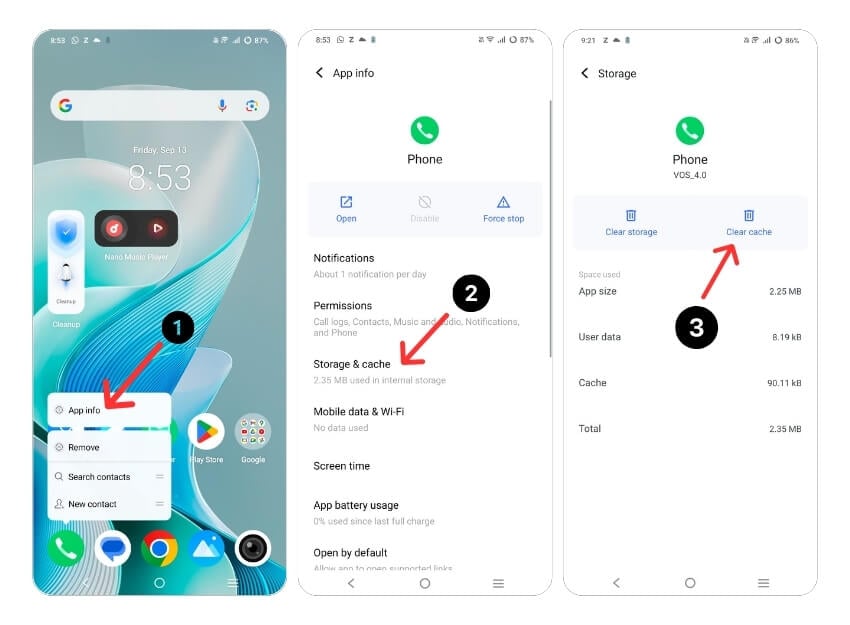
- Open the Settings app on your Android device.
- Scroll down and tap Apps or Application Manager, depending on your device and Android version.
- Find the phone app and tap on it.
- In the app info screen, click on Storage and click on the Clear cache. A confirmation dialog will appear asking if you want to clear the cache. Tap OK to confirm.
- Alternatively, you can find the phone app, long-press on it, click on the info and memory settings, and then click “Clear cache.”
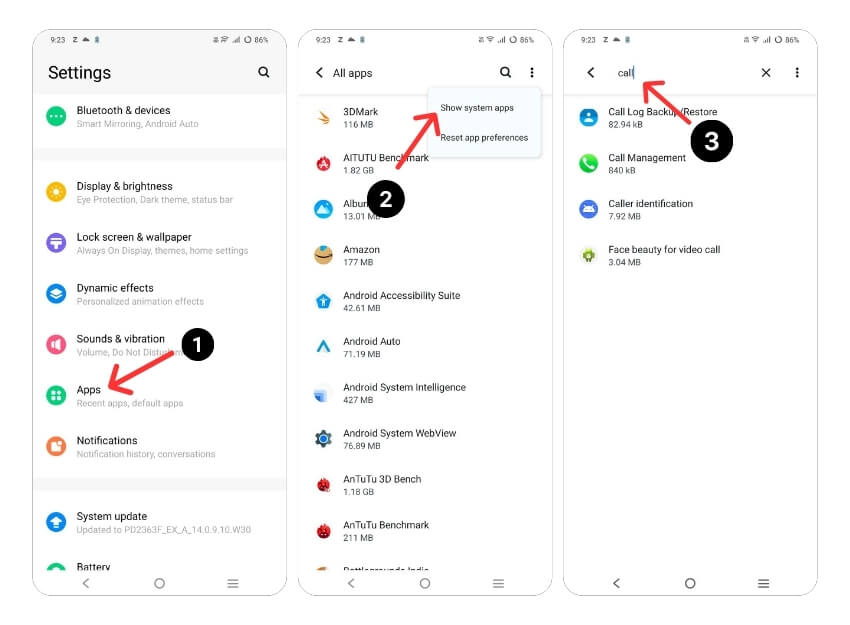
Also, clear the cache for all system apps on your device by following these steps:
- Open the Settings app on your Android device.
- Go to Apps or Application Manager Settings. Click on the three-dot menu and select Show System apps.
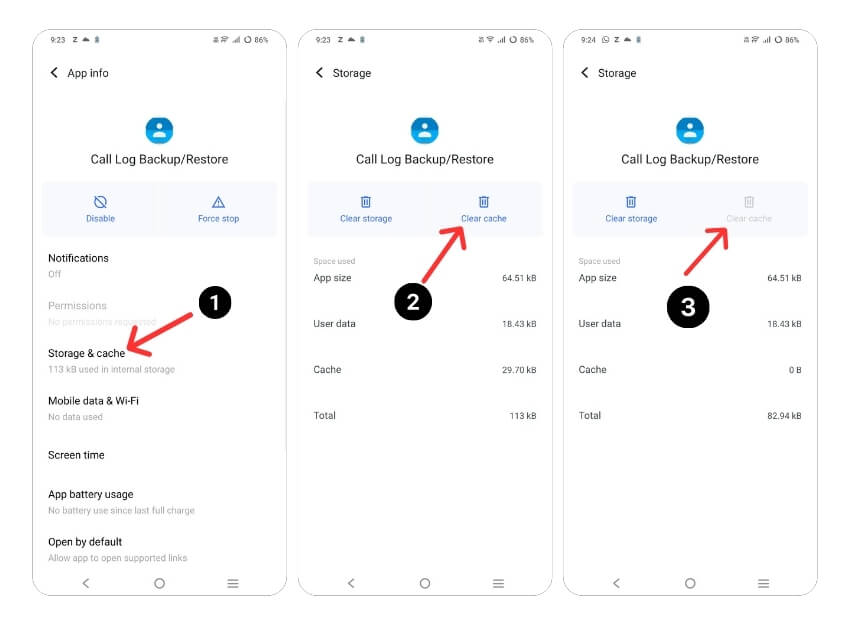
- Search and Clear cache for the following system apps: Call Log Backup/Restore, Phone services, and Call Management apps.
- Tap on the app, Click Storage & cache, and then click on the Clear cache.
Update the Phone App

Sometimes, the specific version of the app can cause a crash on your smartphone. This may be a developer’s mistake or the app is not optimized for your device. You can easily fix this issue by updating the phone app in the Google Play Store.
- Open the Google Play Store app.
- Tap the profile icon in the top right corner.
- Tap Manage apps & device. Apps with an update available are labeled “Update available.”
- Tap Update.
Change the Default Phone App

The best thing about Android smartphones is the customization. You can easily replace system apps like phone dialer apps with third-party apps. This can be useful, especially if the default phone app has issues. There are plenty of third-party dialer apps in the Play Store. Here are the five best apps you can consider.
Once you have installed the app, you can set it as your default phone. Here are the steps on how to set the new phone app as default:

- Go to your phone’s Settings app.
- Select Apps or Applications, depending on your device.
- Find the app you want to set as default and tap on it.
- Select Set as default or Open by default.
- Select the type of action for which you want to set the app as the default. For example, if you want to use Google Chrome as your default browser, select Set as the default browser.
- Select the app from the list of available phone apps.
Restart Smartphone

Rebooting or restarting your Android device is the easiest and most effective way to solve the problem of the phone app not displaying call history on your smartphone. When you reboot a device, the system shuts down all running processes and apps and reloads the operating system. This process clears the device’s memory and cache, which can fix most app problems.
Factory Reset Your Smartphone

If the above troubleshooting methods don’t work, you can reset your Android smartphone as a last resort. When you factory reset a device, all data, settings, and apps are deleted, and it’s reset to the original factory settings, just like the new device. All your data, including contacts, Google accounts, photos, videos, music, and documents, will be deleted from the device’s internal storage. You need to set up your reset device just like a new one.
Reasons Why Call History Not Showing on Your Android Smartphone
There can be many reasons why your smartphone currently stops displaying call history. The most common ones could be:
- Limited call history display: Android phones can only store 500 call logs. Once you start creating more call logs (when you make, receive, or miss calls), your device will start deleting the oldest call logs you have on your phone.
- Not enough storage: When your device runs out of storage space, the OS may automatically delete the old call logs to save space.
- Bug in the app: Like other apps, phone dialing apps have issues with errors. This results in the app not behaving properly and not displaying call logs.
- No permission to display call records: Almost every Android app running in the latest version requires permission to access mobile calls. If the system does not allow phone apps to access call logs, it may be difficult to view call history.
- An issue with the smartphone: along with the other issues, your smartphone software can cause calls not to be displayed on your smartphone. This is a very rare case. Nevertheless, you can update the phone’s operating system.
This is how you can fix the call history that is not displayed on your smartphone. We have listed the most possible cases and solutions for each problem. To avoid this kind of problem in the future, don’t reset permissions for a default phone app, make sure you have enough storage space on your smartphone, and restart your smartphone every now and then to remove unnecessary background tasks. Let us know what method helped you fix the problem in the comments below.
FAQs on How to Fix Call History Not Showing on Android

How can I get deleted call logs back on an Android?
You can use call logs backup or backup software to recover deleted call logs on Android:
- Restore from a backup: If you regularly back up your Android phone, you may be able to restore your call logs from a previous backup. To do this, go to your phone's Settings, then tap "System" > "Backup" > "Backup and restore," and select the backup you want to restore from. When you create your Android phone backup to Google Drive, your call logs also get backed up. Follow these steps to transfer your call logs using your Google Account.
- Use data recovery software: There are several third-party data recovery software available that can help you recover deleted call logs from your Android phone. This software may require root access to your phone and vary in effectiveness, so it's important to read reviews and use them with caution.
Why would an incoming call not show in a cell phone call log?
There could be several reasons why an incoming call may not show up in a cell phone call log. One of the main reasons I personally faced because of unintentionally changing the filter settings. Android Phone dialer has the option to filter calls list based on outgoing, incoming, missed, and more. Before taking any further steps, make sure that you clear your filters. However, there are other strong reasons why an incoming call not showing on your call log. Here are some of the common ones:
- The call was missed: If the call was not answered and the caller did not leave a voicemail, the call may not show up in the call log.
- Call blocking: If the number that called is on the phone's call blocking list, the call will not show up in the call log.
- SIM card issues: If the SIM card in the phone is damaged or not inserted properly, the call log may not be updated with incoming calls.
- Third-party apps: Some third-party apps that are designed to block calls or manage call logs can interfere with the phone's built-in call log and cause incoming calls not to be recorded.
Why is my call logs getting deleted?
The most common reasons for call logs getting deleted on Android are:
- Many Android devices have a default setting that automatically deletes call logs after a certain period of time.
- Call logs can be manually deleted by the user, either one by one or in bulk.
- Sometimes, a software update can cause call logs to be deleted.
- Some third-party apps, such as cleaning or optimization apps, can delete call logs as part of their optimization process.
- In rare cases, hardware issues can cause call logs to be deleted. This can happen if there is a problem with the device's memory or storage.
How do I change my call history settings?
To change call history settings on an Android device, follow these steps:
- Open the Phone app on your Android device.
- Tap on the three-dot menu icon in the top-right corner of the screen.
- Select "Settings" from the drop-down menu.
- Scroll down and tap on "Call history."
- Here, you can change several call history settings, such as the duration of time that call logs are kept, whether to show or hide missed calls, and whether to show or hide call duration.
- Once you have made the desired changes, tap the "Back" button to save the settings.
Please note that the steps may vary slightly depending on the device and version of Android you are using.
How do I recover my call history?
You can recover your call history on your Android device if you deleted it accidentally:
Method 1: Using Google Drive Backup
Open the Google Drive app on your Android device.
In the top-left corner, tap the three horizontal lines.
Go to "Backups".
Check if there is a backup of your call history available.
Tap on the backup and select "Restore" from the options.
Method 2: Using a Third-Party Data Recovery App
Install a third-party data recovery app.
Grant permissions to the app.
Choose "Call Logs" as your recovery type.
You will see a list of deleted call logs after the app scans your device.
Tap "Recover" to recover the call logs.
Method 3: Contacting your Service Provider
If the above methods don't work, you can request a copy of your call logs from your service provider. There may be a fee for this service, and call logs may not go back as far as some providers allow.
The chances of successfully recovering deleted call logs depend on how long ago they were deleted and whether new data has overwritten them. The chances of recovery increase if you act quickly.

