

There are numerous ways to stream online music, with some of the popular options including Spotify and Apple Music. Both services offer premium and ad-based versions to stream music on their platforms. Offline streaming options are also available on both platforms, for which you need to download the music on your smartphone to access them in no coverage areas. Downloading too many tracks will fill your device’s storage, which is why the timely cleanup of tracks you don’t listen to gets important.
However, what if you are trying to delete the tracks and Apple Music isn’t removing your downloads? You can get frustrated, as you might want the storage to save other important files. Fortunately, multiple solutions will help you fix the Apple Music isn’t removing downloads error. Let us get right into it.
Table of Contents
How can I fix why Apple Music isn’t removing downloads?
We have compiled a list of solutions that will help you resolve the Apple Music isn’t removing downloads issue on your iPhone or iPad. We will start with some basic fixes and then carry on with advanced solutions. Here are the fixes you should try:
Restart your phone
You should first and foremost try restarting your phone and then deleting the Apple Music tracks from your device. Restarting your phone closes all the stuck processes, which could be the reason for the issue.
Software update
There could be a glitch in the version of Apple Music that you are running, which is preventing you from removing Apple Music tracks from your storage. In such a case, we would recommend you check if there is a new update available and install it on your phone, then try to see if Apple Music is removing downloads or not. You should also check if there is a pending iOS update available for your phone to remove the downloads.
Delete songs from the storage using settings
You can use the settings app to delete the songs if Apple Music isn’t letting you directly delete them. Some users on Reddit have found success using this method, and you can try it too by following the below steps:
- Open Settings.
- Scroll down to Apps.
- From the list of apps, select Music.
- Scroll down and tap on Downloaded Songs.
- Tap on the Edit button on top right.
- A Delete button will appear next to the All Songs section. You can choose to delete songs specifically or delete all songs by tapping All Songs and hitting the Delete button.

Remove other apps and then try to delete downloaded songs
Multiple users have reported that deleting other apps on their smartphones before deleting the songs helped them successfully clear the storage. You can also try to remove some other apps before deleting the downloaded songs and see if this helps.
Enable optimized storage from Apple Music
Apple offers an optimized storage option for Apple Music, which automatically deletes the downloaded songs whenever your iPhone storage space runs out of space. This can not only help keep your track list free from songs that you don’t listen to but also delete songs to manage space. Here’s what you need to do:
- Open Settings.
- Select Music.
- Tap on Optimized Storage and enable the toggle next to it.

- You will see multiple options to choose from from 1GB, 2GB, up to 32GB. There is also a None option, which, if selected, will remove all downloaded songs from your iPhone.

Reinstall the Apple Music app
Another effective solution that could help you fix the Apple Music issue by not removing your downloads issue is to reinstall the Apple Music app from your iPhone. There are chances that the app has some bugs or temporary glitches that could be causing the issue at hand. Reinstalling the app gives a fresh start to the app, which you can do by following the below steps:
- Long-press the Apple Music icon.
- Select Remove App.
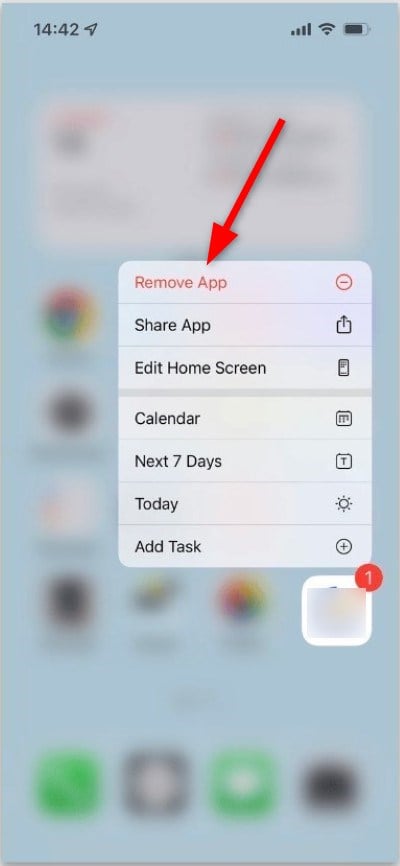
- Tap Delete App.
Disable Screen Time
Apple has a “Screen Time” option that tracks apps and services you often use and offers controlling options on the same and other Apple devices connected with the same Apple ID. You can check how much time you spend on each app on your iPhone using the “Screen Time” feature. Few users on Apple support forums were reportedly able to fix the problem of Apple Music isn’t removing your downloads issue by simply disabling the “Screen Time” feature.
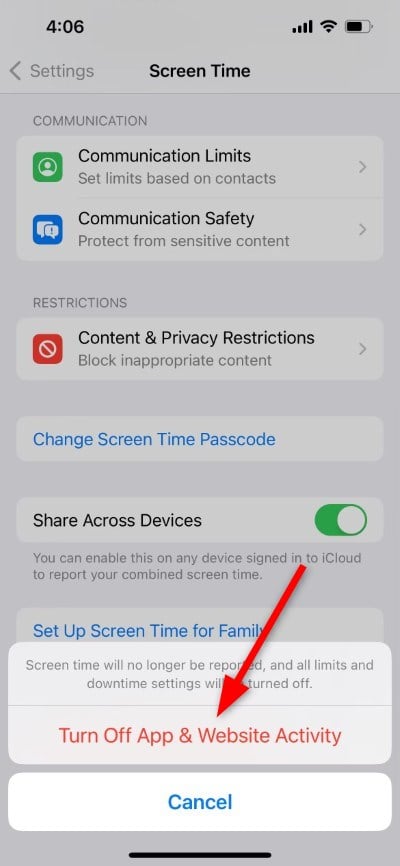
- Open Settings.
- Select Screen Time.
- Scroll to the bottom and tap on Turn Off App & Website Activity.
- Then again select Turn Off App & Website Activity.
Try removing music from the app itself
If removing the tracks from the Settings app did not help you, then you can use the Apple Music app to remove the downloaded songs. Here’s what you need to do:
- Launch the Apple Music app.
- Tap on Library at the bottom of the screen.
- Select a category under Downloaded.
- Tap and hold the music that you wish to remove and select Remove.
- Tap Only Remove Download to delete the song from your device.
- You can tap Delete From Library to obliterate the songs from your device. Do note that this will also remove the content from your other synced devices.
Remove installed profile
The Apple support forum has an interesting solution for fixing the Apple Music isn’t removing your downloads issue. If you are using iOS beta profiles (Developer or Public Beta) on your iPhone, then it could prevent you from removing the downloaded tracks. To remove the profile, you need to:
- Open Settings.
- Tap on General.
- Select Profiles & Management. If this option doesn’t show up, then it means that there aren’t any profiles installed.
- However, if there is a profile, remove it. Do note that removing a profile will also remove all settings, apps, and data linked to it.
Reset your iPhone
If none of the above methods solved your problem, then as a last resort, we would suggest you reset your iPhone. However, before you do that, you should back up all your data, either in cloud storage or external storage, to avoid data loss in case things go south. We have a guide that explains how you can backup iPhone data without iCloud and also how you can do it traditionally.
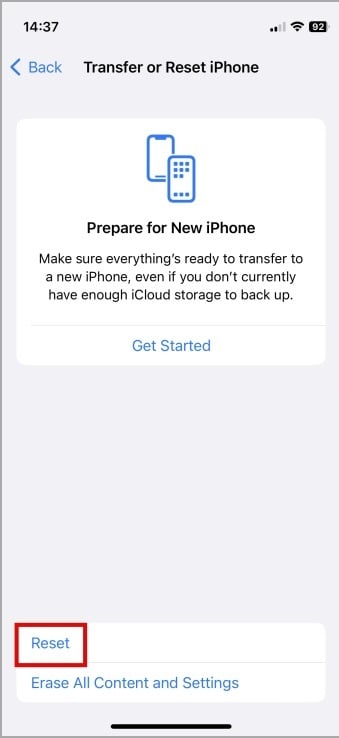
- Open Settings.
- Tap on General.
- Select Transfer or Reset iPhone.
- Then choose Reset.
- To reset your iPhone, you will get five options to choose from. Select the Reset all settings option and enter your iPhone’s passcode.
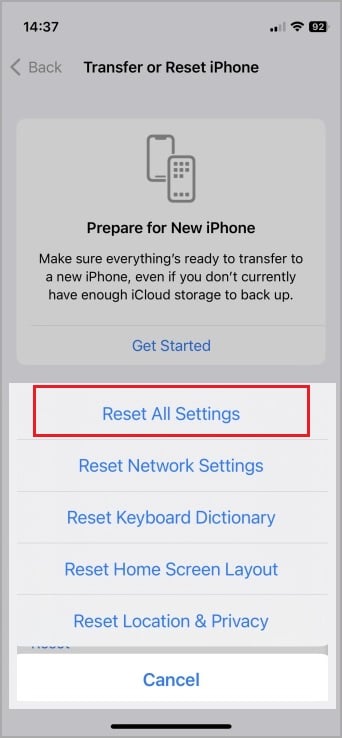
- Finally, tap on Reset All Settings.
Download them only when you need them
Since the internet is available almost everywhere we go these days, if you are a hardcore camper or know you will be passing through an area with no network coverage and you can’t live without music, then only you should download songs. Streaming is an easy way of keeping in touch with the latest songs and also prevents the unnecessary hassle of downloading and storing songs that take up storage space.
FAQs about Apple Music downloads
How long does Apple Music stay downloaded?
As long as you keep paying for the Apple Music subscription, you will be able to listen to your downloaded tracks on the music streaming platform.
Does deleting Apple Music delete downloads?
The downloaded Apple Music songs will continue to appear in your library, but can only be played when your device is connected to the internet.

