

Quick Answer
If you are having issues with downloading files on Google Chrome, check if you have a stable network connection and enough storage to save the file onto your device. Pause your antivirus protection, disable all extensions, and switch to incognito mode to download files. If this doesn’t fix the issue, follow the advanced troubleshooting methods below.
Chrome downloads can fail due to various reasons. When you click on the download link, Chrome sends a request to the server hosting the file, and the server responds with the file, and your download begins. However, if you have an unstable network, insufficient storage, or a third-party antivirus software blocking the file, this can sometimes prevent the file from being saved on your device.

This can lead to Google download failures and may automatically pause the process. Fortunately, you can resolve this issue on your own by adjusting some settings and following a few simple troubleshooting techniques. In this guide, you will learn about eleven effective methods that are likely to fix this issue.
Table of Contents
Understanding Google Chrome Download Failed Error Codes
Error codes represent the root cause of the problem. Before going to the troubleshooting steps, understanding download error codes can help you easily find the core problem and fix it quickly. Plenty of errors can occur during Chrome downloads. Here are the most common ones and why they occur, and how to fix them.
Error Code | Why does it occur | How to fix |
|---|---|---|
NETWORK_FAILED | Network issues on your end. | Reconnect to the network |
NETWORK_ERROR | The internet connection was interrupted, or the file could not be downloaded. | Reconnect to the network and retry downloading the file |
BLOCKED | Your Security settings, such as antivirus or firewall, may block the download. | Pause the antivirus security and turn of Google Chrome safe browsing (Check method 5 in the below) |
NO_FILE | The requested download file is missing or the URL is incorrect. | Retry downloading. If the same issue occurs file is missing, download file from another website |
VIRUS_SCAN_FAILED | The downloaded file was flagged by antivirus or other security software. | Pause the security or disable any third-party extensions. |
DISK_FULL | There is not enough storage space on the disk. | Increase storage space, increase the partiton size. |
INSUFFICIENT_PERMISSIONS | Chrome does not have permission to save the file in the selected location. | Grant access to save file in the location. Right-click the folder, go to Properties > Security and edit permissions. |
NEEDS_AUTHORIZATION | The server or website requires authentication to download the file. | Authenticate before downloading the file |
FORBIDDEN | The server is blocking the file download due to restrictions or permissions. | Use a VPN or download files from alternative website |
SECURE_CONNECTION_FAILED | Indicates issues with HTTPS or SSL/TLS settings while attempting to download from a secure website. | Ensure the site uses HTTPs conection or disable VPN or update your chrome |
FILE_TOO_LARGE | The file is too large to be downloaded within the limits set by the browser or operating system. | Use download manager to manage large file downloads |
CANCELLED | The user or a background process interrupted the download. | Retry downlading the file and prevent any background acviivty that can interreput downloads |
SERVER_PROBLEM | The server hosting the file is experiencing problems or is temporarily down. | Wait for sometime and then retry |
CONNECTION_TIMED_OUT | The server took too long to respond, leading to a timeout. | Esnure you have stable network and retry |
FILE_NOT_COMPLETE | Indicates an interrupted download or a corrupted file transfer. | Retry downloading file |
Start with Quick Fixes
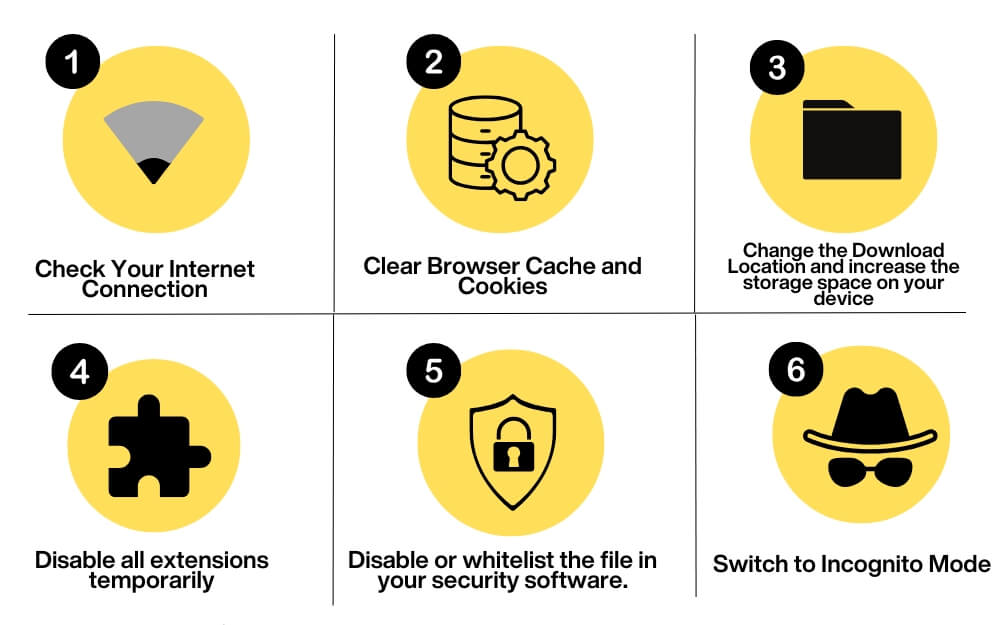
Check your Internet connection
The most common reason why your downloads are failing or pausing is because of an unstable internet connection. If you have a poor network or if your device is disconnected from the internet, you will most likely see a failed download or the download paused errors on your download screen.
To fix this, connect back to your internet and resume the download or start the download. If this happens again, troubleshoot why your Wi-Fi is disconnecting from the internet.
![How To Fix Google Chrome Download Failed! [Network Error]](https://techpp.com/wp-content/cache/warp-performance/gYJa3EwCnT8-hqdefault.jpg)
Insufficient Storage Space
Another common reason is insufficient storage space. Ensure the file download location has enough space to store the file. Usually, when this happens, you may see an error code like DISK_FULL. Also, the location where you download files needs to have enough space. If the partitioned storage is low, downloads can still fail even if other partitions have space.
To fix the error, increase the storage space on your device or change the download location if the storage is only limited to that specific partition.
Check Server Reliability
Server outages can lead to download failures. Sometimes, servers cannot handle the data and can crash, stopping the file transfer and disrupting your downloads. This can happen if you are downloading files from non-reliable sources or for large files.
As a user, there is not much you can do about this issue. However, in most cases, retrying the download often works. You can wait for some time or use alternative sources to download the files.
Pause Other Downloads or Stop Streaming
Having multiple downloads can cause one download to fail. The only reliable way to fix this is to pause or stop other downloads and avoid any tasks that consume the internet. Leave the full network bandwidth for the file you are downloading.
You can install a download manager, which can help you manage your downloads efficiently. While you are there, enable parallel download Flag in Chrome to increase the download speeds when you are downloading multiple files.
Clear Browser Cache and Cookies
Sometimes, outdated browser cookies or a corrupted cache can cause download issues on your Chrome browser. To fix this, try clearing your browsing data and check if the issue is resolved.
To clear browsing data:
- Open Settings in Chrome.
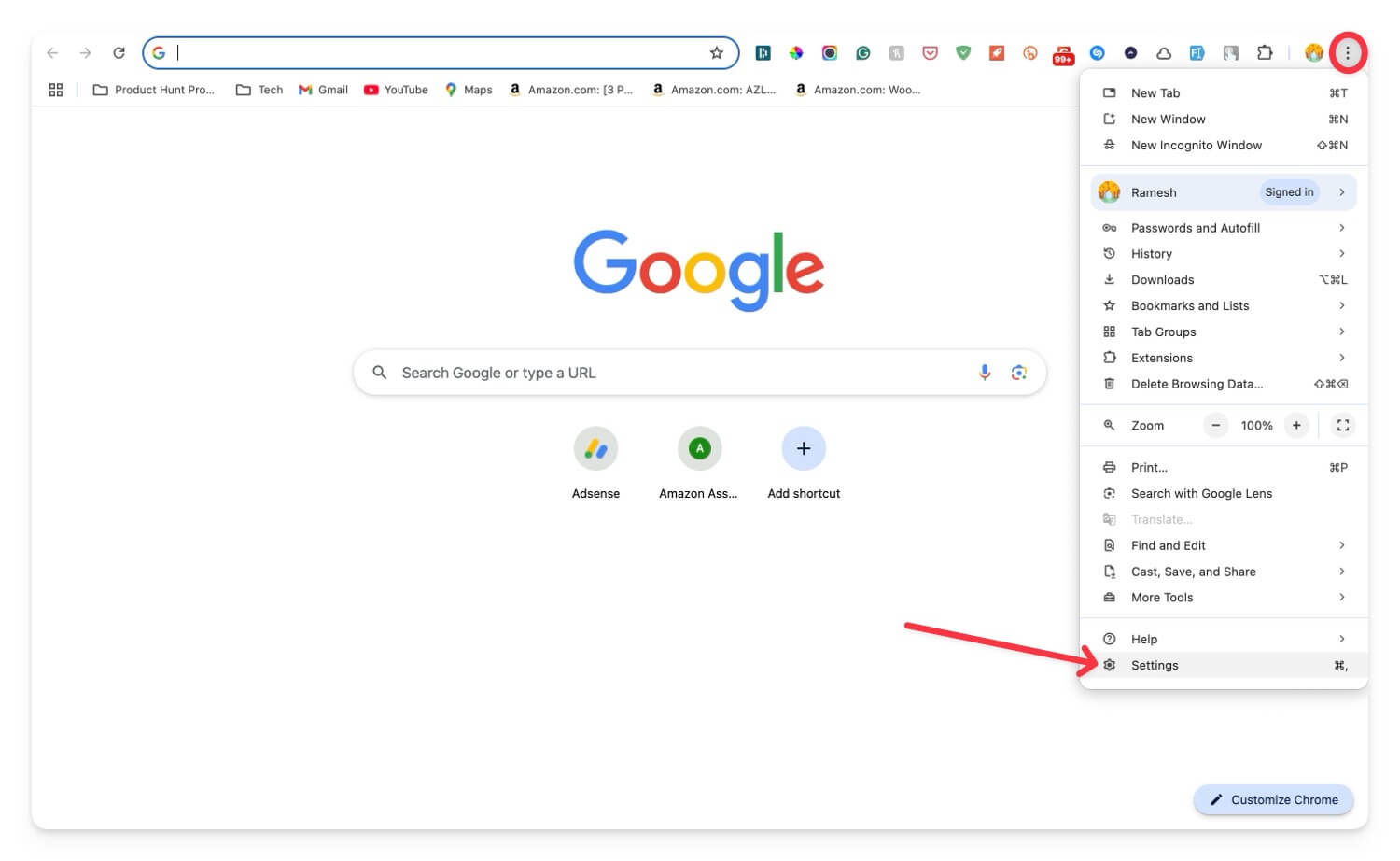
- Click on Privacy and Security from the sidebar. Select Clear browsing data and clear the cache.

After this, also flush the DNS cache if you are using a PC. Go to chrome: //net-internals/#dns and click on Clear host cache. For Windows, you can use the Command Prompt as an administrator, type ipconfig /flushdns, and press Enter. If you are using macOS, open the Terminal, type sudo killall -HUP mDNSResponder, and press Enter.

Use Incognito Mode
Sometimes, third-party extensions or the settings on your profile might interrupt downloads. If you want a download file, try downloading it using incognito mode. Ensure that you have no extension enabled in the incognito mode.
Those are the six most common problems that cause your Chrome downloads to fail or pause unexpectedly. By following these steps, you will most likely be able to fix the issue. However, if the issue is from an extension, the Chrome browser, or due to an external app or device, follow the advanced troubleshooting techniques to fix the issue.
Advanced Troubleshooting techniques
Change the Default Download Location on Chrome
If the current download location is causing the issue, you can change the default download location and check if it fixes the problem. Sometimes, insufficient storage or existing files in the same location can cause Google Chrome download issues.
To fix this, you can change the current location:
- Go to Settings in Chrome.
- Click on the Downloads tab.

- Under Location, click on Change and select a new folder to save the downloads.
Antivirus or Firewall Interference
Another most common reason why your Chrome downloads are failing or pausing is because of antivirus or firewall interference. Based on the level of security, Most antivirus apps block external downloads to protect your device.
In this case, whether you are using standalone antivirus software or an antivirus extension, you can whitelist the file or temporarily disable the antivirus for the file you are trying to download.
If Google Chrome is blocking the downloads because of unsafe files, you can fix this issue by allowing the file to download from Chrome. If the download is blocked, click on the three-dot menu, and from the options, select the option that says “Keep anyway” to download the file.

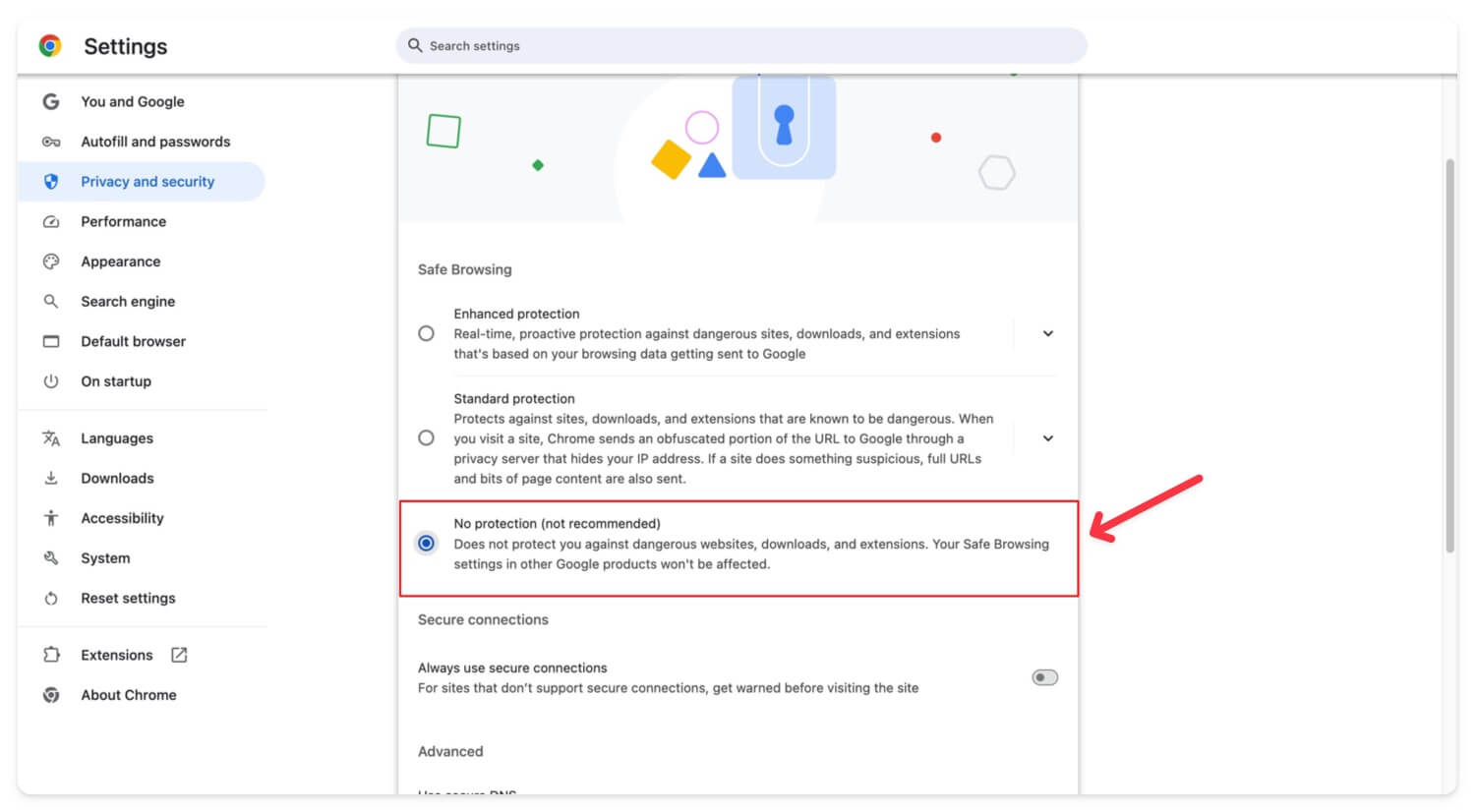
If you still can’t download the file, you can temporarily disable Chrome Safe Browsing, which blocks these kinds of downloads to protect your device.
To disable it, open Google Chrome:
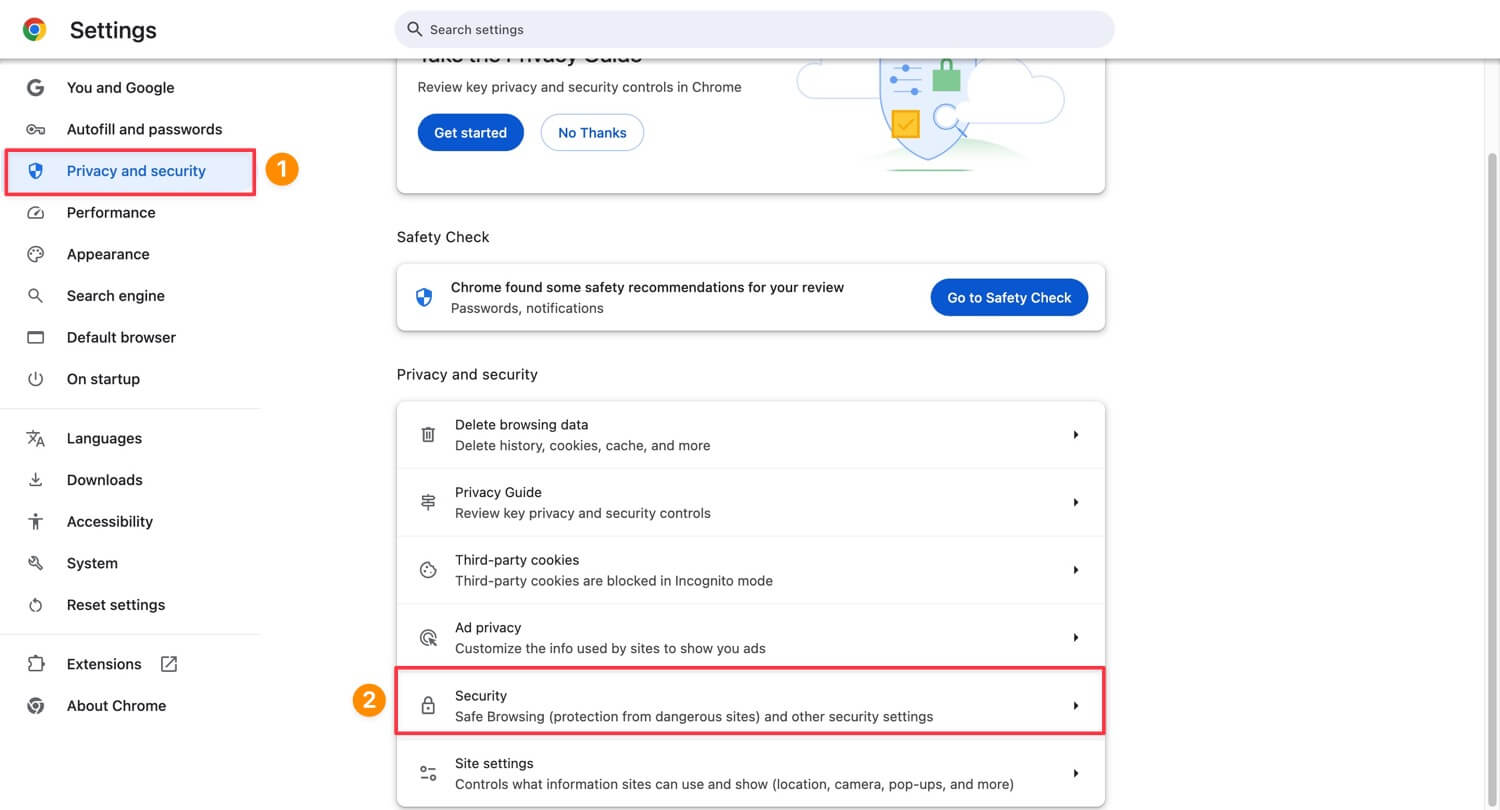
- Go to Settings on your Chrome.
- Then, go to Privacy and Security, and then go to the Security tab.
- From there, under Safe Browsing, select “No protection” and retry downloading the file. Please note that you should turn Safe Browsing back on after you download the file.
Most antivirus programs allow you to whitelist the file you are downloading. Here are the most common settings you can change if you are using antivirus on your device.
The process might vary depending on your specific antivirus, but most commonly, find the whitelist option from Settings. Add the website or file name there. If this doesn’t work, temporarily pause the protection and retry downloading the file. This should fix the issue.
Disable Extensions
Sometimes, Google Chrome extensions can interfere with downloads and block them, especially extensions related to download managers, VPNs, or security extensions that have permissions to manage your downloads.
To fix this, find those extensions and disable them temporarily. If the issue persists, try disabling all extensions at once and retry downloading. Reinstall the extensions and update them to fix the issue.
How to Disable Extensions on Chrome
- Open Google Chrome, click on the extension icon and then Manage Extensions. Alternatively, click on the menu and then tap on Extensions.

- Find the extension most likely to cause the issue and click on it to disable it. Check if the issue is resolved.

- If the issue persists, try disabling all extensions.
- Install the flag #extensions-menu-access-control flag from chrome://flags/ and relaunch the Chrome browser.
- Now click on the extension icon and then disable the extensions for the site you are downloading files. This should resolve the issue if the download error is related to the extensions.

Reset Chrome and Re-Install Google Chrome Browser
If you have changed any settings or accidentally enabled any settings in your profile, Google Chrome might not work properly for downloads. In this case, you can reset the settings in Google Chrome. Resetting Chrome will restore the browser to the default settings; however, it doesn’t wipe your data. All your settings will reset to default.
To reset Google Chrome:
- Open the Google Chrome and go to Settings.
- From the sidebar, scroll down, tap on Reset and clean up.
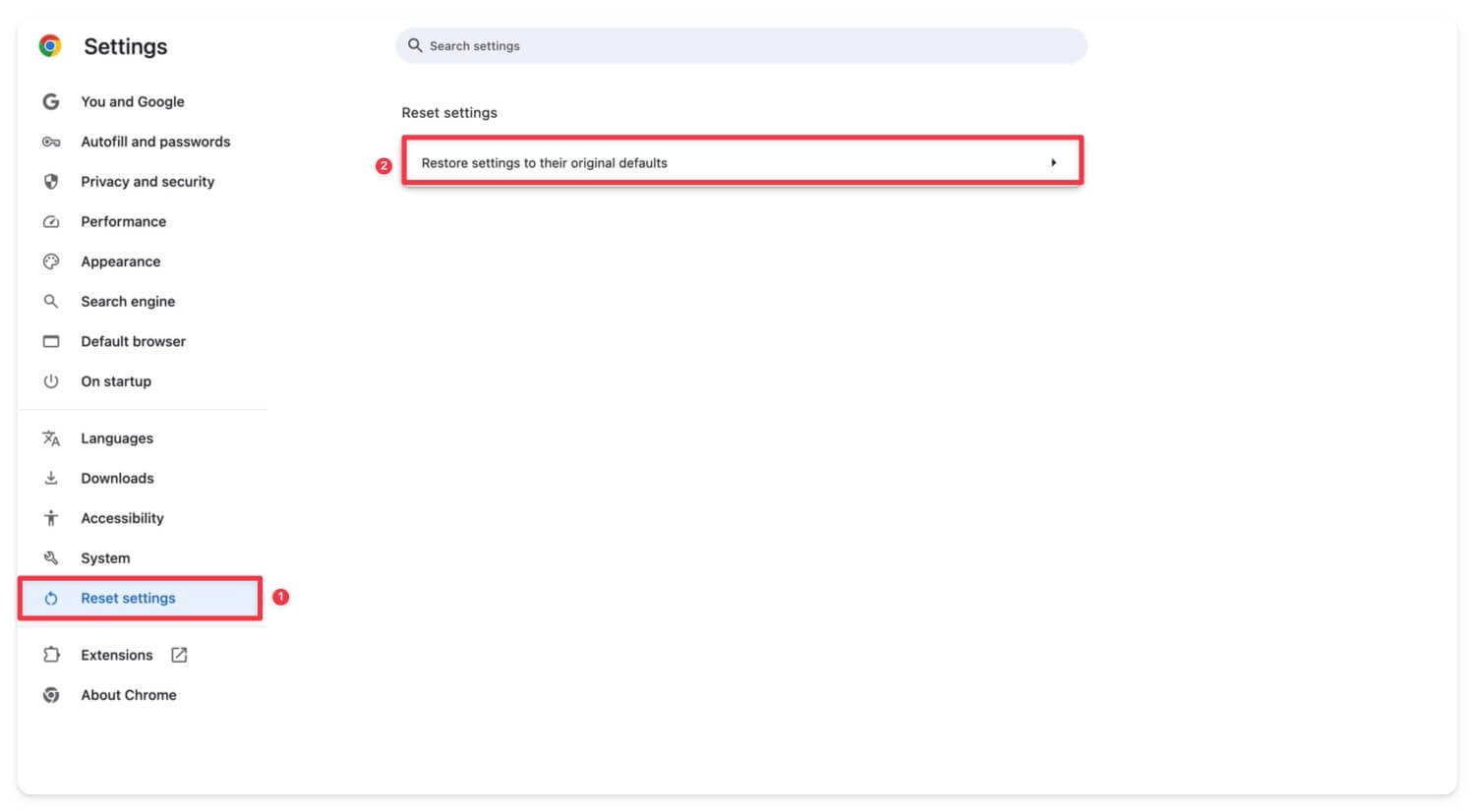
- Tap on the option that says Restore settings to their original defaults and confirm by clicking Reset settings.
If this doesn’t fix the issue and you are using an older version of Google Chrome, update Google Chrome by going to Settings and About Chrome. Alternatively, uninstall the Google Chrome browser and reinstall it on your device. This should fix the issue.
Factory Reset your Device
If none of these steps work, factory reset the device to fix the issue. Depending on your device, whether you want to reset a mobile phone or a laptop, ensure you back up your data before proceeding. Factory resetting your device wipes all of your data.
Sometimes, unwanted background processes, corrupted settings on your device, or software glitches can block your downloads in Google Chrome. If you have tried all the troubleshooting steps and they didn’t work, as a last resort, you can factory reset your device.

FAQs on Fixing Google Chrome Downloads
What should I do if Chrome downloads work on Wi-Fi but fail on mobile data?
Check if your device has a stable internet connection. You can run a speed test to ensure it meets the minimum download speed requirements (Min 100 Kbps). Also, disable the data saver if it is enabled, or turn off any VPN or custom private DNS settings you have configured on your mobile.
Can Chrome’s security features falsely flag safe files as unsafe?
Yes, sometimes Google Chrome security features can falsely flag files as unsafe. However, you can still download them by clicking the menu dropdown and selecting Keep the file anyway or turning off Google Safe Browsing temporarily (see method 8). I would highly recommend downloading the file and scanning it using online antivirus tools before opening it on your device.
Why do downloads pause or fail when my device goes into sleep mode?
Most devices in sleep mode restrict access to the internet to preserve a better life; if you are using a Chromebook, your Chromebook will automatically get disconnected from the WiFi, therefore stopping the downloading. This also can happen to some Windows laptops and Macs; ensure your device doesn't go into sleep mode while downloading the files.
Are there alternative ways to download large files if Chrome repeatedly fails?
You can use a download manager; however, it can still face issues. The best and most reliable method is using an alternative browser to download the file. Copy the website URL and use the same website to download files on another browser.

