

Quick Answer
To remove location data from photos: On Windows, right-click the image, go to Properties > Details, and select “Remove Properties and Personal Information.” On macOS, use the ImageOptim app. For iPhone, try the ViewExif app. Android users can use the Photo Metadata Remover app.
When you capture a photo using your camera app, it stores certain details with the image. The details could include your location, IP address, phone number, phone model, time, and much more. This means that anyone having access to your photo has all the previously mentioned details and can extract them from the Metadata. This is why it is important to remove such sensitive information from a photo before you plan to share it over social media or other platforms.

Metadata is also known as EXIF data, and if this data gets into the hands of an ill-minded person, then they can do all sorts of negative things. The best part is that you can easily remove location data from photos or Metadata from your images without much effort. You should start practicing this approach before you share your images with others. In this guide, we will share with you the steps to remove location data from photos.
Table of Contents
What is Metadata (EXIF), and what are the risks involved if it gets shared?
Since images are captured on digital devices, such as smartphones and cameras, the device also stores some details about the image. Apart from the megapixel and the resolution, the devices also store data such as location, date, time, phone number, model, etc., in a format called EXIF (Exchangeable Image File Format). If you have used an editing tool, then Metadata stores that information and reflects it when you view the details of the image.
However, such private and important information poses a threat to your privacy, as stalkers and hackers could extract this information from the images that you have posted online and know your whereabouts, including your exact location. In the next section, we will discuss how you can remove location data from photos.
How do I remove location data from photos?
We will discuss the steps to remove location data from photos on various platforms, including Windows, iPhone, Android, and macOS. Let us take a look at each method one by one.
Remove Photos Metadata on Windows
(a) Remove without an app
Windows lets you remove the EXIF or Metadata from your photos without using an app. Here are the steps required to do it:
- Open the folders containing the images of which you wish to remove Metadata.
- Right-click on the image and select Properties from the list of options that appear.
- Switch to the Details tab.
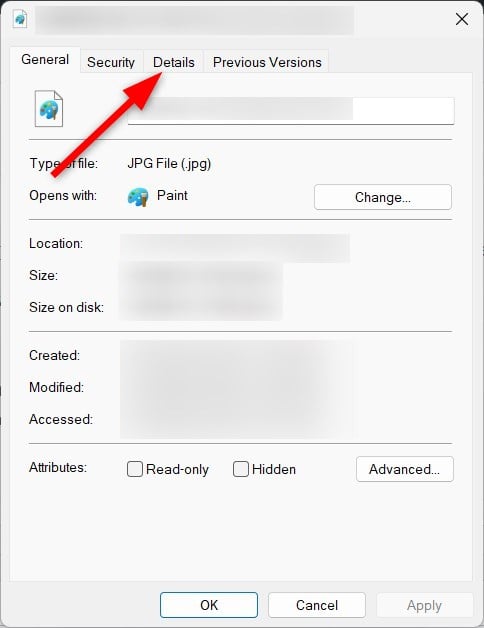
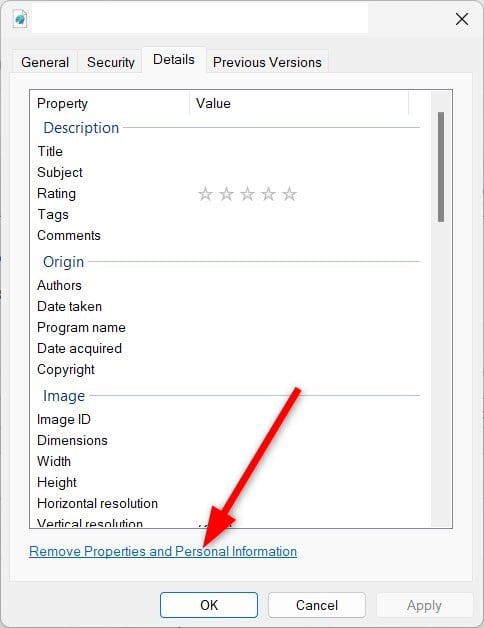
- Tap the Remove Properties and Personal Information link.
- Choose Create a copy with all possible properties removed.
- Click OK, and that’s it.
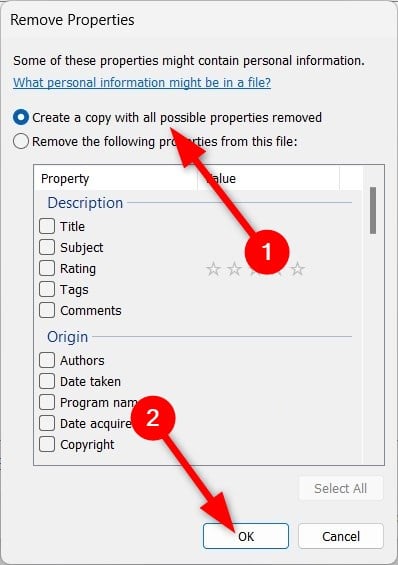
Now, the image will be clear of any metadata, and it is ready to be shared with others without you worrying about it containing any crucial information. Do note that the original image will remain intact, and Windows will create another image free from Metadata information. If you wish to replace the original file, then in step 5, choose Remove the following properties from this file and delete all the Metadata information by clicking Select All and click OK.
Notably, the created date data remains intact in the original photo, even if you remove all other information, whereas the other information replaces the created date with the current date. So, you are advised to create a copy of the image.
(b) Remove metadata with an app
Multiple third-party apps can help you remove Metadata from your images on Windows. We will be using the FileMind QuickFxi application to accomplish the task at hand. Here are the steps you need to follow:
- Download the FileMind QuickFix app from a trusted source or this link.
- Install the app and open it.
- Drag and drop the file from which you wish to remove the Metadata onto the app.
- Click on the Quick Fix Metadata button.
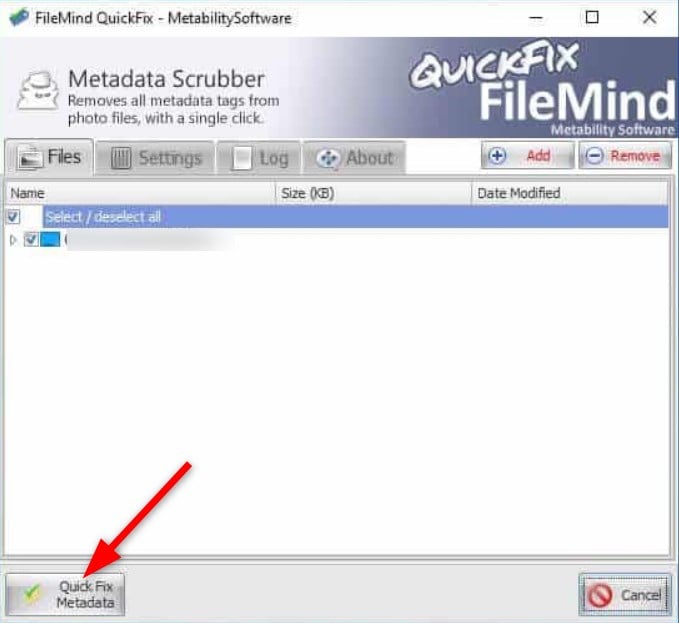
Once the process is complete, you will see a new file in the same folder or location where the original file is kept. However, the newly created file will not contain any of the Metadata details.
Remove Photos Metadata on macOS
macOS users have to apply a bit more trickery to remove Metadata from images. Apple does offer you the option to remove EXIF or Metadata from images, but all you can remove is the location data. To remove all the other data, you need to rely on a third-party application. For our case, we will be using the ImageOptim application.
- Download the ImageOptim app from its official website.
- Launch the app and go to Preferences.
- Tweak the app settings, i.e., check the box next to the data that you wish to remove.
- Drag and drop the image file into the ImageOptim interface, and the app will do the rest of the job automatically.
Remove Photos Metadata on iOS
iPhone also doesn’t give you an inbuilt option to remove Metadata information from images. You can remove the data using the Shortcuts app, but the setup process is quite tedious, and it is better to use a third-party application. There are a bunch of applications that you can use to remove the EXIF data, but for our purpose, we will be using the ViewExif app, which is priced at $0.99.
- Download the ViewExif app from the App Store and install it on your iPhone.
- Launch the app and grant permission to the app to access your photos.
- Select the photo that you wish to edit.
- Tap on the Eraser tool and select Remove Metadata.
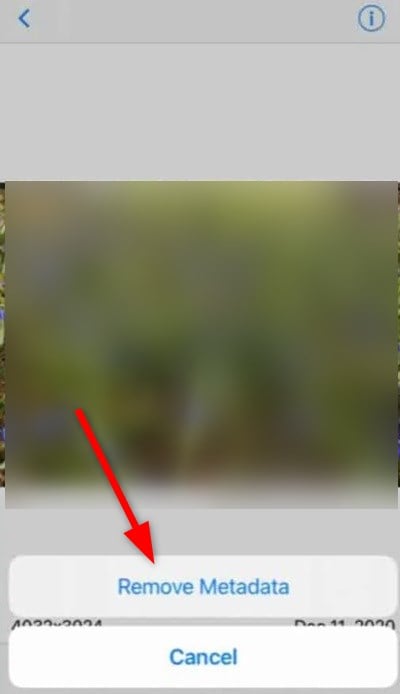
- A prompt will pop up asking for permission to modify the photo. You need to choose Modify to remove the Metadata.
The ViewExif app also has the option to share images without the Metadata from the app itself. So, if you don’t want to go through the hassle of removing Metadata, then you can opt for the option to send the image without Metadata from within the app. Notably, there is a delete option in the app, which, when used, will not only delete the photo from the phone but also the iCloud storage.
Remove Photos Metadata on Android
Android also gives you the option to select multiple third-party apps to remove the Metadata attached to an image. There are several apps, including Photo Metadata Remover – Clear Exif Metadata, Photo Exif Editor – Metadata Editor, and more. We will be making use of the Photo Metadata Remover since it lets you clean the Exif data for free from within the app.
- Download the Photo Metadata Remover – Clear Exif Metadata app from the Play Store on your Android phone.
- Open the app after installation.
- You will see multiple options:
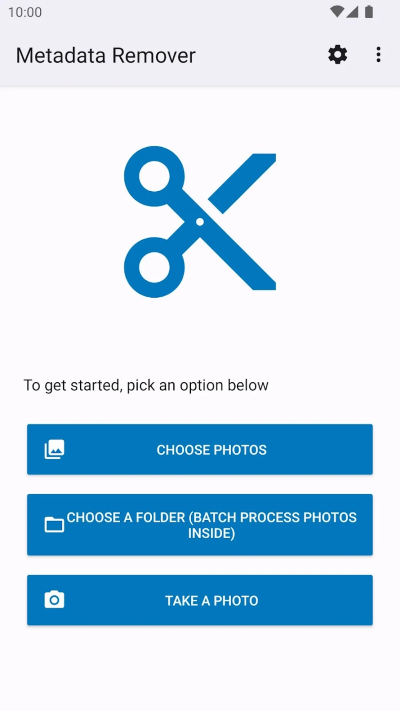
- Choose Photos
- Choose a Folder
- Take a Photo
- To remove the Metadata from a single photo, you need to select the Choose Photos option.
- Permit the app to access your photo library.
- Select the photo that you wish to edit, and the app will automatically remove the Metadata.
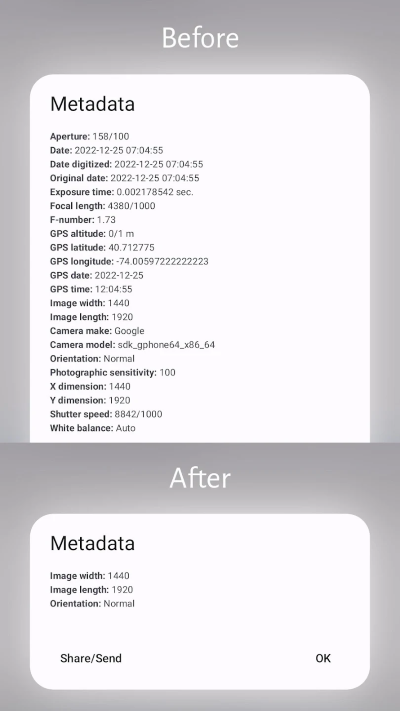
- After completion, you will have the option to share the image with anyone or simply select Done to save the image in your Gallery.

Remove Metadata using the web
The best part is that on the web, you can simply search for a free EXIF or Metadata remover, and it will give you numerous options. However, if you were to take our advice, you can choose any one among the below-listed websites:
How to take photos without Metadata or EXIF data?
You can take photos on your Android or iOS devices without Metadata or EXIF data, negating the need to remove them at a later stage.
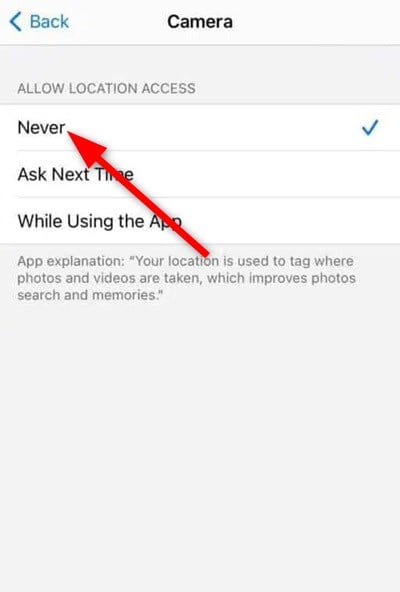
1. On iOS
- Open Settings.
- Select Privacy.
- Choose Location Services.
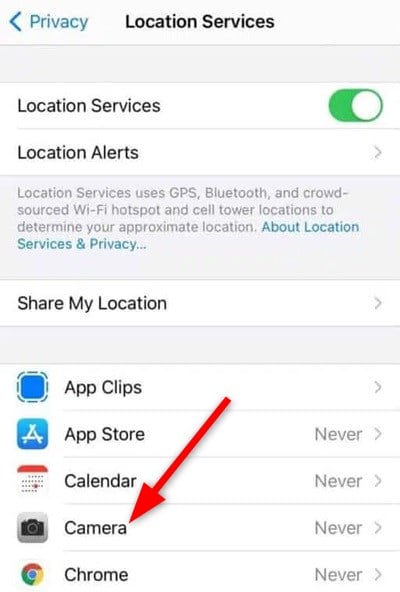
- Tap on Camera and select Never.
2. On Android
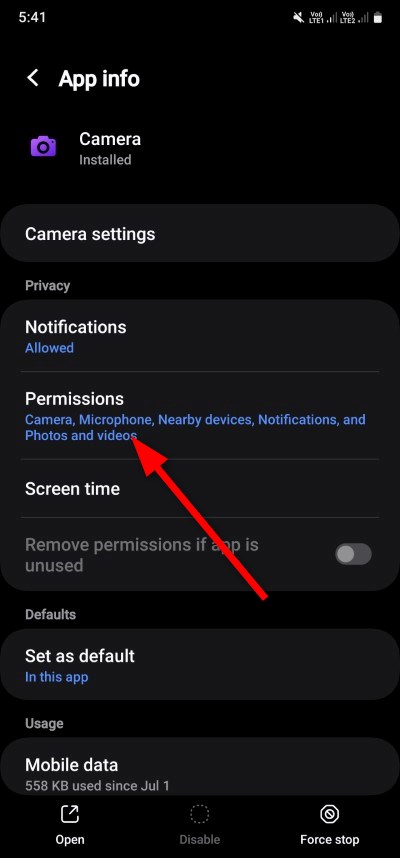
- Open Settings.
- Choose Apps.
- Select Camera.
- Tap on Permissions.

- Toggle off the Location permission.
Keep your sensitive information away from prying eyes
You should always exercise caution before sharing anything in this digital world. Anything that you share or post online has some crucial information related to you. Let us know in the comments below if you have already been sharing images without Metadata or EXIF data or if you will start using one of the methods above to be safe online.

