

In Summary
- Samsung’s One UI packs several hidden features and settings.
- Enabling or disabling these can help you get the most out of your Galaxy phone.
- Here are a few things I do on a new Galaxy phone before I start using it.
Samsung’s One UI has improved significantly over the years. It’s evolved to be more snappy, pack plenty of features, have less bloatware, and offer good customizability without complicating things.
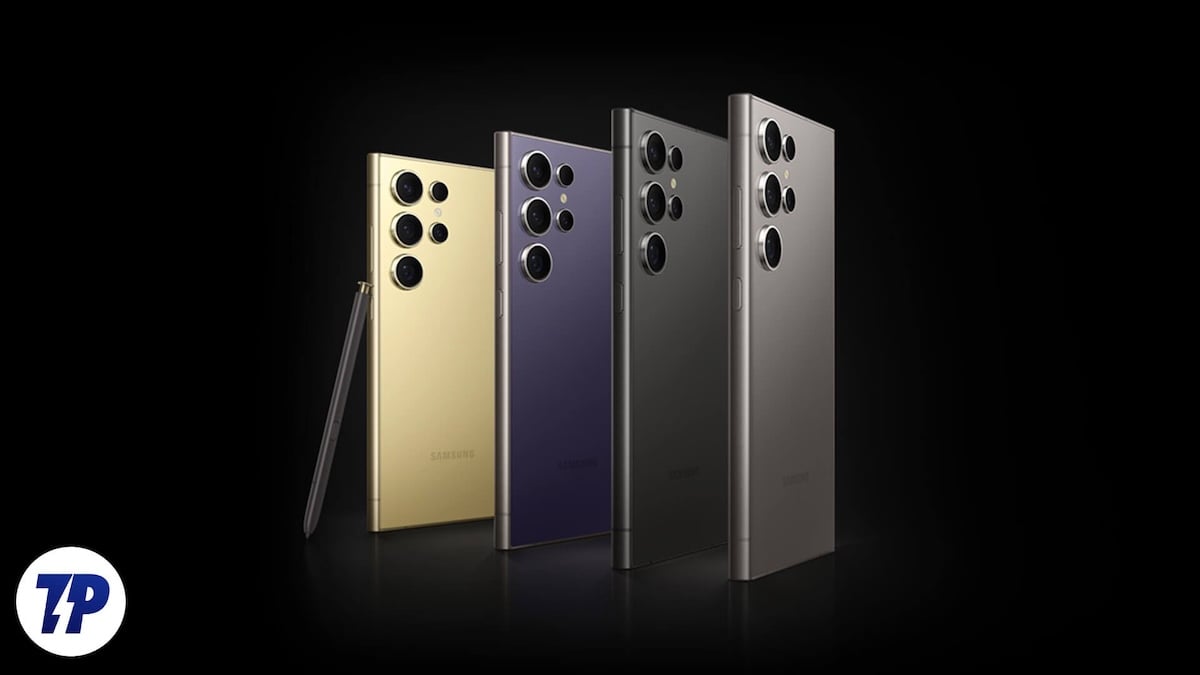
However, it still isn’t perfect: Samsung keeps many useful settings and features disabled by default, and likewise, it has several annoying ones enabled, too.
As such, I always do a few things before I start using a new Samsung Galaxy phone. I’ll discuss them in this article so you can do the same on your new device for a better experience.
Table of Contents
Remap the Side Button
The Side button on Galaxy phones supports two actions: double-press and press-and-hold. By default, the former is set to open the Camera app, whereas the latter wakes up Bixby. Although the Camera action is quite useful, the same isn’t true for Bixby, as it lacks many functionalities you get with its competitor, Google Assistant.
Thankfully, both behaviors of the Side button are customizable, so you can change them per your preference. I’ve set the press-and-hold action on my Galaxy phone to open the power-off menu and the double-press action to open the Expert Raw Camera app (since I can access the regular Camera app with the lock screen Camera control).
Here’s how you can, too:
- Open Settings.
- Go to Advanced features > Side button.
- Then, select the radio button next to the action you want to assign to each action.

If you want more flexibility for the press-and-hold action, you can use the RegiStar Good Lock module. First, install the Good Lock app from the Galaxy Store, then find and install the RegiStar module. After this, open the module in the Good Lock app. Select Side-Key press and hold action under Settings extension, and you’ll now see a bunch of actions that are otherwise unavailable for the tap-and-hold action in Settings. Select the radio button next to your preferred action.

Mind you, setting an action here will override the settings for the tap-and-hold action in the Settings app.
Turn the Back Panel Into a Button
One of my favorite features, which also happens to use the RegiStar Good Lock module Back-Tap action. Put simply, the feature turns the back of your Galaxy smartphone into a button that you can either double-tap or triple-tap to perform various actions. In a way, it’s similar to Apple’s Back Tap feature on the iPhone.
Setting up the Back-Tap action on your Galaxy device is easy. Install the RegiStart module inside the Good Lock app if you haven’t already and follow these steps:
- Open RegiStar.
- Tap on Back-Tap action under Settings extensions.

- Toggle on the switch for Back Tap to enable it.
- Now, go to Double Tap and choose the action you want to assign to it.

- Likewise, do the same for Triple Tap.
While you’re on this page, you can adjust the tap sensitivity. You can also set up gates, i.e., conditions, where you want to pause the Back-Tap action so it doesn’t trigger the designated actions when you tap on the back.
Disable Samsung Wallet’s Quick Access Gesture
A major annoyance for me on a Galaxy device is the quick access gesture for the Samsung Wallet app. It’s a simple swipe-up gesture you can perform on your phone’s home screen and lock screen (even with the screen turned off) to access the Wallet app.
Although convenient, I’ve found myself accidentally triggering this gesture when trying to bring up the Recents screen. If you find yourself in a similar situation, too, or wish to prevent it, you can turn off the gesture, like I did.
Here are the steps you need to follow:
- Open the Samsung Wallet app.
- Go to the All tab, tap the gear icon in the top-right corner, and select Settings. Then, choose Quick Access.

- Select Swipe up gesture on the following screen.
- Finally, turn off the toggles next to Lock screen, Home screen, and Screen off.

With the gesture disabled, you’ll now have to access Samsung Wallet using its app. Alternatively, you can remap one of the Side button actions to open Wallet.
Turn On Battery Protection
Keeping your phone’s battery at 100% all the time will most likely reduce its lifespan. Thankfully, many smartphone manufacturers offer the ability to limit charging beyond a certain charge level to prevent overcharging and maximize the battery health.
Samsung does this, too. However, it doesn’t have the feature enabled by default, so you need to turn it on manually. Here’s how to do that:
- Open Settings.
- Go to Battery.
- Tap on Battery protection.
- On the next page, toggle on the switch to enable the feature and choose an option per your preference.

I recommend using Adaptive. When you select this option, it stops charging the battery once it reaches 80%. Then, based on your sleep schedule, it resumes charging and switches to Basic before you wake up, so you can still get a full-charged battery in the morning without hampering your battery’s lifespan.
Set Up the Secure Folder
Secure Folder is a nifty feature on Samsung phones that gives you a private and encrypted place to store all your sensitive information, from photos and videos to documents and apps. Samsung uses its Knox security platform to encrypt all the data stored in the Secure Folder.
Since I need to keep some personal documents and photos on my phone, I will make sure to set up the secure folder before I start using it. That way, I can store them without worrying.
If you, too, need to protect documents or apps on your Samsung phone, you can set up a Secure Folder like this:
- Open Settings.
- Scroll down and select Security and privacy.
- Select More security settings under Additional security settings.
- Tap on Secure Folder.
- Hit Continue, and tap Continue again to grant all the permissions. You may be asked to sign in with your Samsung account if you aren’t already.
- Wait for the device to create the Secure Folder. Tap Done once it’s ready.
- Then, choose a method to secure the Secure Folder and set it up.
- Make sure Allow lock reset with Samsung Account is enabled. This will let you reset the lock via your Samsung account if you forget it.

- Finally, add the apps, documents, photos, or videos you want to add to the Secure Folder.
Once set up, you’ll see the Secure Folder—as an app—in the app drawer. Tap on it to access it. Once inside, you can add or remove items to the folder, customize it, and change its other preferences.
Make Notification Panel Easily Accessible on the Home Screen
Out of the box, accessing the Notification Panel from the Home screen on Galaxy phones requires swiping down from the top of the screen. Since I use a Galaxy S23 Ultra, I find this super-inconvenient, as reaching the top of the screen on my phone one-handed isn’t easy and requires performing some finger gymnastics.
Thankfully, Samsung gives you an option to avoid this and make the Notification Panel easily accessible. To enable this, go to Settings > Home screen. Scroll down and toggle on the Swipe down for notification panel option.

After you do this, you can perform the swipe-down gesture from anywhere on the Home screen to access the Notification Panel.
Change a Few Default Apps
While I like and use a few of the built-in apps you get with One UI, there are some that I always replace with third-party ones before I start using a Samsung phone. These include the browser, assistant, and messaging app.
I prefer Firefox since it helps me keep my browsing data synced across all my devices, including my iPhone and Mac. Similarly, I replaced Bixby with Google Assistant for better and more accurate results, and Samsung Messages with Google Messages for features like cross-device synchronization.
If you decide to do the same, here are the steps you need to follow:
- Open Settings.
- Scroll down and select Apps.
- Tap on Choose default apps.
- Now, tap on the default app you want to replace with a third-party one.
- Finally, select the app to set it as the default.

Use Your Phone to Its Full Potential
Setting up your new Galaxy phone, wherein you personalize a few settings and enable some hidden features before you start using it, will let you use it to its full potential. So, go ahead and customize your phone. Be sure to explore other settings and features as you do this since many useful ones aren’t enabled out of the box.

