

Samsung just wrapped its Galaxy Unpacked event, its first major launch in 2024. The company announced the new Samsung Galaxy S24 series with upgrades in hardware and software as well as the new Galaxy AI. The Galaxy AI brings new AI features to the Samsung Galaxy S24 devices.

The best thing about Samsung’s AI implementation is that instead of an AI chatbot or AI assistant, Samsung has incorporated AI into the meaningful areas, making it more usable and valuable. Most of the AI features announced by Samsung we have already seen in other devices, most notably on the Google Pixel phones and others in the form of apps and websites.
If these features are impressive and you want to use them on your smartphone. Here’s how you can use them. In this guide, you’ll learn about seven AI features that Samsung has announced and how to use them on any smartphone.
Table of Contents
How to Use Samsung New AI Features on Any Smartphone
Below are the core features you get with Galaxy AI.
- Live Translate – Real-time voice and text translations for phone calls.
- Interpreter – Translates and transcribes conversations in two languages offline.
- Chat Assist – Improves writing style in messages and provides text translation in 13 languages.
- Note Assist – Helps create notes and provides templates, automatically generated covers and summaries of notes.
- Transcript Assist – Summarizes voice memos, generating transcripts and translations.
- Generative Edit – Offers advanced photo editing capabilities in the Samsung Gallery app.
- Circle to Search – Enables online searches by circling subjects on the screen.
Live Translate

The Live Translate function on the Samsung Galaxy S24 Series translates the voice in real time and during a phone call. The function makes it easier to communicate with other people who speak a different language. Live Translate can translate texts, voice conversations and screen content. The function is already available on Google Pixel smartphones. It works for text, camera, videos, podcasts, phone calls, video calls and audio messages.
At the time of writing, the live translation function is not yet available on other Android smartphones. However, there are some workarounds you can use to convert voices into different languages. The process is not as seamless as the translation feature on Pixel and Samsung devices.
Before we get to the workaround, here’s how you can use live transcription on Google Pixel devices.
How to use the Live Translate feature on a Pixel Smartphone
- Open the Settings app on your Pixel phone
- Scroll down and select the System option and then click on Live Translate and turn on Use Live Translate
- After enabling Live Translate you can add languages that you want to use for translation. To add Tap on Add a language and choose from the list of available languages. Note that not all languages will support the same Live Translate features
- Once you set up your languages you will see a Translate button in supported apps. Pixel currently doesn’t support the real-time auto-translate feature for phone calls
How to get the live translate feature on other phones
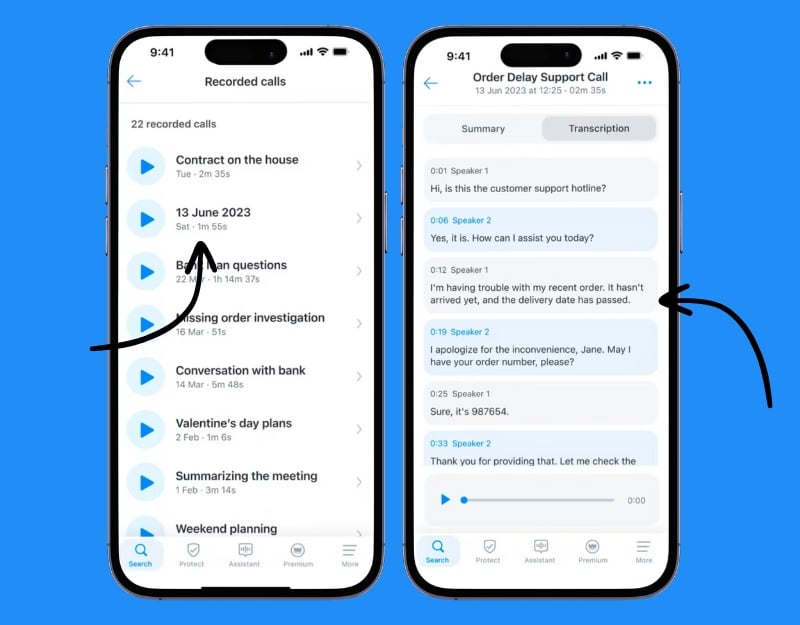
- Install the Truecaller app and the Google Translate app on your smartphone. It works on both Android and iPhone. You can use the Truecaller call recording feature to translate your mobile conversations. This feature is only available for premium users in the US for now.
- Record the incoming or outgoing call. Go to a voice recording that you want to translate. Call up the transcription function. Copy the text and paste it into Google Translate to translate it into another language.
Circle To Search
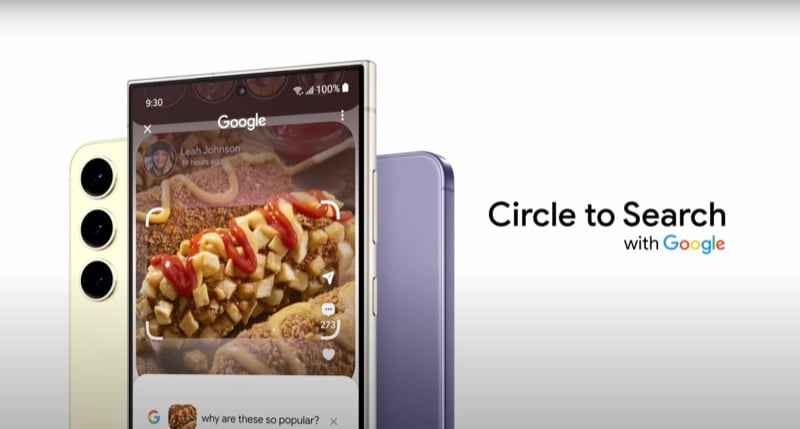
Update 25 Jan 2024: The Circle to search feature is now available for the Pixel 8 and 8 Pro. Similar to Samsung you can long press the home button in the navigation bar and activate this feature.
Circle to search is super handy if you want to search any element on your screen. With this feature, you can search for information about an image or text by drawing a circle around it with the S Pen or a finger. It uses Google Lens to scan and provide search results from Google. The Circle-to-Search feature will also be available for the Google Pixel 8 series. You can also use this feature on other devices via the Google Lens app. You cannot select the image by clicking on it. You can take a screenshot, crop it and search for the results. This is how it works.

- Install the Google Lens app on your Android device and install the Google app on your iPhone. Google Lens is not available for iPhone.
- Take a screenshot and crop the element you want to search for on the screen.
- The Google Lens app will scan the text and return the results from Google.
Interpreter

The Interpreter function of the Samsung S24 allows you to translate and transcribe conversations between two languages in real time. It works offline. You can also use this function on other devices with the Google Translate app. Similar to the interpreter function on the Samsung, the Google Translate app offers real-time transcription of voices. The app is free and also works offline.
How to use Interpreter mode on other devices
- Install the Google Translate app on your smartphone. It is available for both Android and iPhone.
- Open the app and tap on the conversation to start conversation mode.

- Click on the Microphone and start speaking. The app automatically translates the voice into the other language, along with the voice output. The other party can tap and speak on the microphone on the other side and convert the voice.
- You can also use the translator app offline. Download the voices you need to convert the text.
- You can also use the interpreter mode via Google Assistant by asking it to be your interpreter in a specific language. For example, say Hey Google, be my Spanish interpreter or a similar command for the language you want.
Chat Assist

With the Chat Assist feature, available via the Samsung Keyboard app, you can improve your text communication. You can translate chats in real time, improve the tone of your message and much more. Chat Assist works with various messaging apps such as Samsung and Android Messages, Google Chat and WhatsApp and currently supports more than 17 regions.
You can also use the Chat Assistant feature on other devices with an AI keyboard app. Similar to the Chat Assist on Samsung keyboard, AI keyboard apps allow you to translate text, improve the tone of conversations and much more. There are many AI-enabled keyboards in the App Store. Popular apps include Wordtune, which lets you generate text with simple prompts; Google Keyboard, which lets you translate text, Microsoft SwiftKey, and many more.
How to get Chat Assistance on your device
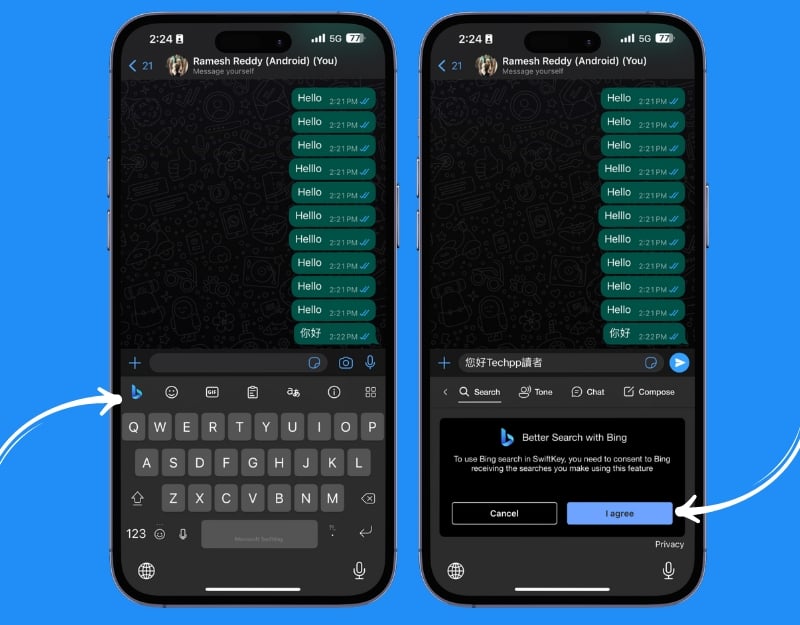
- Download and install the Microsoft Swiftkey AI keyboard app on your Android or iPhone.
- Open the app and create or sign with your Microsoft account. You can follow the on-screen instructions.
- Now set Microsoft Swift Key as a default keyboard on your Android or iPhone. If you are using an iPhone, go to Settings>SwiftKey>Keywords>Enable Swiftkey> Allow Full Access.
- On Android, tap on System Select Languages and input> Go to Onscreen keyboard> Choose to Manage onscreen keyboards>Toggle on the Microsoft SwiftKey Keyboard. Tap OK when prompted >Open any app that uses the keyboard >Tap the keyboard icon at the bottom right corner> Select the Microsoft SwiftKey Keyboard to switch to it.
- To change language, click on the Translate icon. Select the language you want the text to change.

- To generate and change the tone of your text, click on the Microsft Bing icon.
Note Assist

Samsung’s Note Assist feature helps you create, summarize and organize notes in the Samsung Notes app. There are many AI note-taking apps that allow you to transfer the Note Aisst function to other devices. Notion is one of the most popular apps and the AI feature on Notion helps you create, organize and summarize notes. You can also use other AI note-taking apps to create and organize your notes.
How to use AI in Notion:
- Download and Install the Notion app on your Smartphone. It is available free for both Android and iPhone.
- Create an account if you are new to Notion or log in without an existing Notion account. Select a personal plan when setting up your Notion account.

- Click on the plus icon to add notes.

- To get assistance, click on the AI icon located in the bottom left corner of the screen and select the format.
- Now enter the text and the AI will create the notes for you. You can insert your notes on the page and summarize them using the AI.
- Alternatively, you can also use apps such as Reflect, Mem, and Google NotebookLM to create notes and organize them.
Transcript Assist

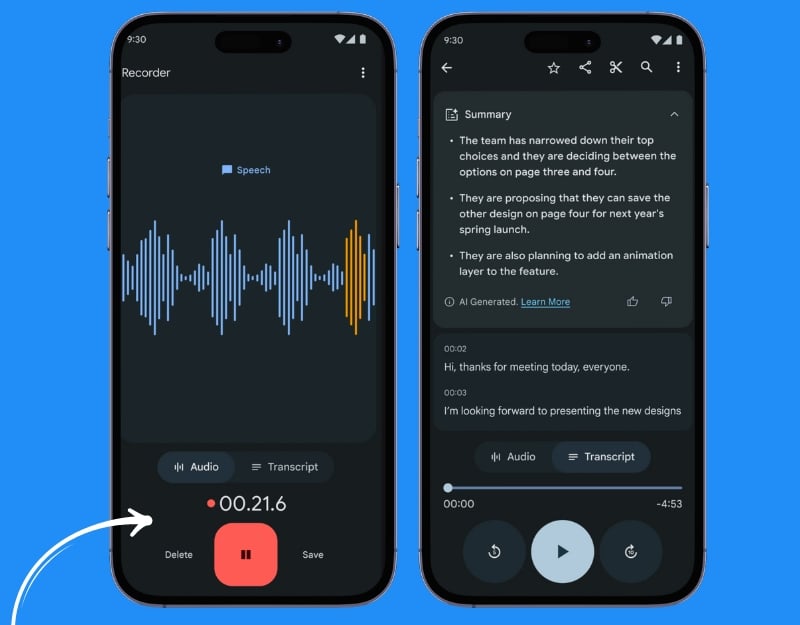
The Transcript Assist feature on the Samsung S24 summarizes your voice memories and creates transcripts and translations. You can create a summary of the voice or translate the text into other languages. The Voice Transcript feature is already available in the Google Recorder app on Google Pixel smartphones. You can install the Google Recorder app on any Android device and use the Transcript Assistant feature on other devices. Google Recorder app is not available on the iPhone. You can share voice recordings with the notta.ai and transfer them.
- Download and install the Google Recorder app on your Android smartphone
- Open the app and start recording your voice. Now click on the Transcribe tab to see the transition of your voice and a summary of the voice clip.
- If you are using an iPhone, you can use the Voice Memos app and the Notta AI app to transcribe the voice on your iPhone. Open voice memo and record the voice. Click on the three-dot icon and share the voice to the Notta AI app.
- Notta AI will automatically transcribe the voice for you.
Generative Edit
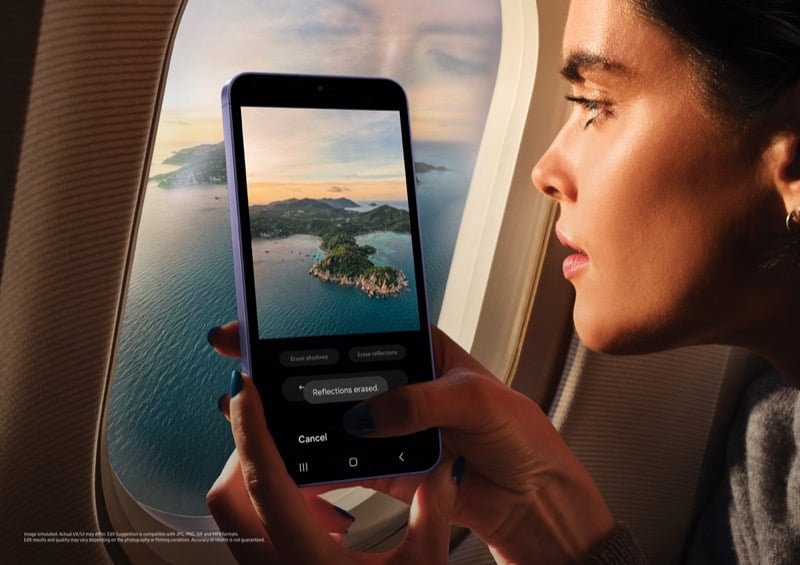
Samsung’s Generative Edit features are similar to the Magic Editor in the Google Photos app; you can make complex edits to images using AI. You can remove objects in the image, move them, zoom in or out and change the background. Generative editing is available in the Samsung Photos app. You can use the Magic Editor on Pixel phones and the Magic Editor in the Google Photos app to get similar features on other devices. Please note that the Magic Editor on non-pixel smartphones is only available for Google One subscribers. You can install third-party photo editing tools such as Snapseed to use Magic Editor-like features on other devices.
How to get Generative edits feature on other devices

- Download and install Google Photos on your Android and iPhone.
- Open the Google Photos app and select the photo you want to edit.
- Tap Edit, then go to Tools and select Magic Eraser
- Use the Magic Eraser and circle the object you want to remove The AI will delete it.
- Save the Photo after the object is removed, tap Done to save the edited photo.
Experience Samsung’s New AI Features on Your Device
These are the seven AI features that Samsung has announced. Some are Samsung-exclusive features, while others have been developed in collaboration with Google. These features are really handy and can be very useful. If you want to try these features on your device. You can use alternative methods to get these features on any smartphone.
FAQs about Getting Galaxy AI Features on Other Phones
1. What is Live Translate and how can I use it on non-Samsung phones?
Live Translate translates speech and text in real time, which is especially useful for phone conversations. To use a similar feature on non-Samsung phones, you can use Google Translate or the Truecaller app for call translation. However, keep in mind that real-time translation on calls may not be as seamless as on Samsung or Pixel phones.
2. How does the Circle to Search feature work and is there an alternative for other smartphones?
Circle to Search allows you to search for information by drawing a circle around text or images on your screen. For other smartphones, you can use Google Lens. Take a screenshot, cut out the area you want to search and use Google Lens to search for information.
3. Will using third-party apps for Chat Assist and other AI features compromise my data privacy?
Make sure you read the app’s privacy policy. In this post, we used Microsoft Swiftkey, which is legal. If you are using other apps, you should check the app’s privacy policy and make sure you are downloading the app from the app stores and not from third-party sources
4. Are there any costs associated with using alternative apps for Samsung’s AI features on other devices?
Yes, some alternatives such as Pixel Magic Editor and Truecaller Voice Recorder may require you to pay to use the service. However, there are also free alternatives for these services.
5. Can I use the Interpreter feature on devices other than Samsung S24?
Yes, you can use the Google Translate app, which offers a similar function. It enables real-time translation and transcription of conversations in different languages. The app is available for both Android and iPhone and can also be used offline.

