

Quick Answer
To convert your image online, use CloudConvert; it supports over 200 image formats and offers high-quality output. Convertio goes further and supports over 300 image formats. If you want to customize images when converting online, CloudConvert is the best option. If you are worried about privacy, consider FreeConvert; it supports 256-bit encryption, and images will be deleted after 4 hours. If you want to share converted images with others, RedKetchup allows you to create QR codes and share them with others. Likewise, we have four other options.
We currently have more than 100 image formats in use. Depending on your use, a specific image format can come in handy. For instance, JPG image formats are helpful for image compression and let you store images in smaller file sizes, while PNG supports transparency. SVG and vector image formats allow you to increase the size without losing quality.

Thankfully, there are plenty of online tools that help you do that with ease. These tools support multiple formats and allow you to convert images into different formats instantly. After testing several websites, here are my top 10 best online image converters.
Table of Contents
Best Image Converter Websites
Your Need | Best Tool | Unique feature |
|---|---|---|
If you need a free tool with resolution settings | Online Convert | Offers advanced DPI, quality,filter adjustments |
If you want a simple, free tool with batch conversion | Cloud Convert | Allows batch processing up to 10 images and supports multiple formats |
If privacy and security are your top concerns | Free Convert | Supports 256-bit SSL encryption and uploaded images deleted after 4 hours |
If you need a basic, user-friendly tool for quick conversions | Simple Image Converter | Straightforward tool with limited options. |
If you want a tool with both editing and conversion options | Image2Go | Supports over 15 editing tools (crop, resize, enhance), with batch conversion. |
If you are looking for high-quality conversion in specific formats | Adobe Free Image Converter | Offers high-quality output, but only support JPG, PNG, PDF for now. |
If you need extensive format support and cloud storage integration | Convertio | Supports over 300 formats |
If you need a simple tool for single-image conversion with easy downloads | Redketchup | You can generate QR code for converted image and use it to download |
Online Converter
Highlights:
- Price: Free, with Premium options
- Formats Supported: Extensive, including JPEG, PNG, TIFF, HEIC, WebP, and more
- Maximum File Size: 100 MB per image.
- Batch Conversion: Available only in Premium version
- Resolution Adjustment: Yes, customizable DPI and quality settings
- Privacy: Images deleted after conversion.
- Unique Feature: Advanced customization options, including filters and name presets
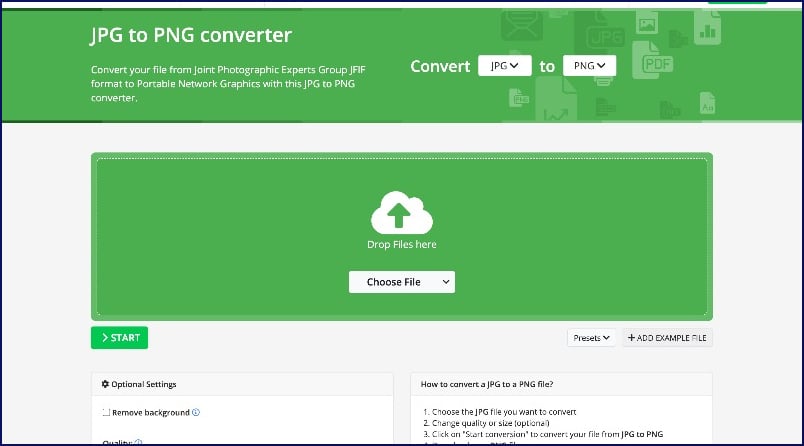
Cloud Convert is the most popular and widely used advanced image converter website. The website supports multiple image format uploads and multiple conversion formats. It has advanced image customization options and an easy-to-use interface, making it ideal for beginners and professionals.
The website supports multiple image format uploads such as ARW, AVIF, BMP, CR2, CR3, DCM, DNG and more and can convert images into multiple formats. The free version allows you to convert one image at a time; the batch conversion is only available in the premium subscription.
The website also contains advanced customization options for converting images. You can adjust the image’s quality and output’s resolution, add filters, adjust DPI (Dots per inch), and set height and width along with the other options. You can also preset the name after the conversion.
You can drag and drop and choose files on your device. You can also import files from Dropbox, Google Drive, and the URL. The converted images can be directly saved to your device, or you can upload them directly to the cloud. Additionally, it generates a unique QR code for the converted image.
Another highlight of the website is its user interface; whether you are a beginner or a professional, you can easily convert images without ambiguity. The website also offers an ad-free experience. The website also offers other converting options like video converter, audio converter, document converter, eBook converter, device converter, and more.
Overall, Online conversion is the best option for people looking for simple and advanced image converter tools online. With the simple user interface and advanced image, customization options make it ideal for beginners and professional users.
Pros:
- Supports a wide variety of formats.
- Offers advanced customization options, like DPI and quality settings.
- Ad-free experience.
Cons:
- Batch conversion is only available in the Premium version.
- The free version has a 100 MB file size limit.
Cloud Convert

Highlights:
- Price: Free, with daily limits; Premium available
- Formats Supported: Multiple, including JPEG, PNG, TIFF, and RAW formats
- Maximum File Size: 100 MB+ per image.
- Batch Conversion: Yes, free up to 10 images daily
- Resolution Adjustment: Yes, adjustable width, height, and quality
- Privacy: Secure with no storage; no ads
- Unique Feature: Cloud integration with Google Drive and Dropbox
Cloud Convert is another popular image converter website that can help you convert batch images. The free version allows you to convert ten images in batch for free. You can sign up to create an account for free to increase the limit to 25.
The website comes with a clean and simple interface. You can add images from your computer, URL or from Google Drive, Dropbox, and more. It supports multiple image formats such as 3FR, ARW, ARIF, BMP, CR2, CRW, DCR, DNG, EPS, JFIF, JPE, and more and can convert files into BPP, EPS, GIF, ICO, JPG, PNG, ODD, PS, PSD, TIFF, WEBP and more.
Regarding advanced image customization options, you can set the width and height of the image, select the fit and strip, adjust the quality, and more.
Pros:
- Supports over 200 formats, including RAW.
- High-quality conversions and integrates with cloud storage.
- No ads.
Cons:
- The free version has daily conversion limits.
- Limited batch conversion in the free version.
Free Convert
Highlights:
- Price: Free
- Formats Supported: Broad support, including BMP, GIF, PNG, SVG, TIFF, and WebP
- Maximum File Size: 1 GB per image.
- Batch Conversion: Yes, up to 5 images at once
- Resolution Adjustment: Yes, adjustable size and compression
- Privacy: Encrypted and images deleted after 4 hours
- Unique Feature: Modern interface with ad-free experience
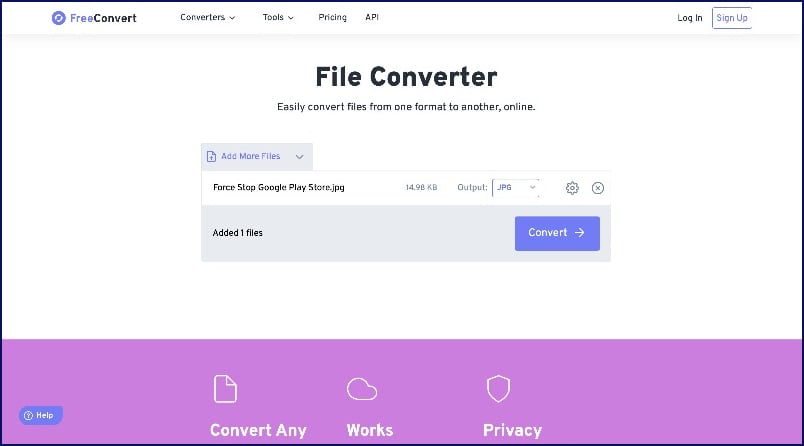
The Free convert is the best option if you want a free image converter with a simple modern interface and privacy. The site uses 256-bit SSL encryption to encrypt the images uploaded to the site, which will be removed after 4 hours of conversion.
You can convert images into formats including BMP, EPS, GIF, ICO, JPG, ODD, PNG, PSD, SVG, TGA, TIFF, WebP, and more. You can also upload images in multiple formats for conversion.
Additionally, you can adjust the image size, compress the image to decrease the file size, strip metadata, and more. The website supports batch file compression, which can convert up to 5 images simultaneously. You can also download the images in bulk and also individually.
Another highlight of the website is its user interface. It is clean and modern, Making it one of the easiest and most modern-looking even for beginners. The website also comes with an ad-free experience.
In addition to image converting, the website also offers video, PDF converters, and various other compression tools. Overall, Free Convert is the best option if you want a free image converter website with a simple and modern user interface and the ability to convert images in a batch.
Pros:
- User-friendly interface with no ads.
- Supports large file sizes up to 1 GB.
- Allows batch conversion of up to 5 images.
Cons:
- Limited to 5 images in free batch conversion.
- Some advanced features require a premium plan.
Simple Image Converter
Highlights:
- Price: Free
- Formats Supported: Limited to 8 formats, including PNG, JPEG, WEBP, PDF
- Maximum File Size: 100 MB+ per image.
- Batch Conversion: Yes
- Resolution Adjustment: Not available
- Privacy: Files are encrypted and stored temporarily
- Unique Feature: Super simple interface, ideal for quick conversions
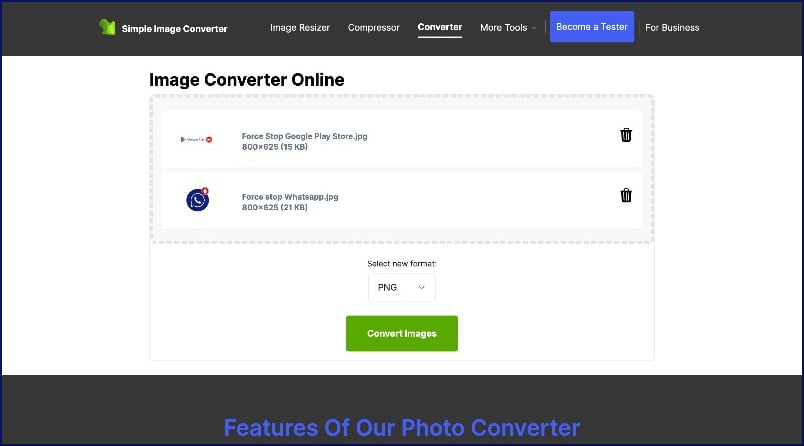
As the name describes, a Simple Image Converter offers an easy-to-use interface to convert images. You can just upload a photo from your device, select the file’s output format, and download the image. The website also supports batch image file conversions.
There is no option to select images from the URL or third-party cloud services like Google Drive or Dropbox. You can select multiple images for conversion. Using the tool, you can only convert images into 8 different formats, including PNG, JPG, WEBP, PDF, GIF, BMP, TIFF, HEIC, and more. Also, there is no option to adjust the image size, quality, height, or weight.
Pros:
- Very easy to use and fast.
- Allows batch conversion.
- Ideal for quick, basic conversions.
Cons:
- Support only 8 formats.
- No options for resolution adjustment or advanced features.
Image2Go
Highlights:
- Price: Free, with Premium available
- Formats Supported: Multiple, including BMP, EPS, PNG, JPG, TIFF, and WebP
- Maximum File Size: 30 MB per image.
- Batch Conversion: Yes
- Resolution Adjustment: Yes, DPI adjustments are available
- Privacy: Ad-free with cloud integration
- Unique Feature: Offers over 15 editing tools alongside conversion
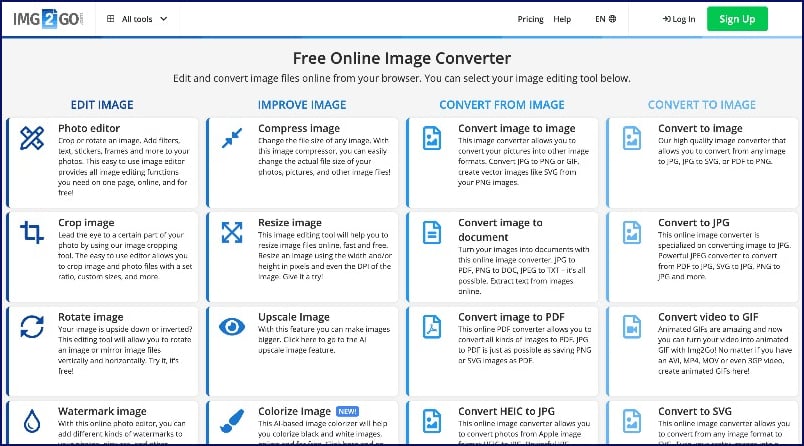
Image 2 Go is the only website you need to convert your images online alongside advanced editing options like photo editor, improve image, convert from the image, and convert to image. The website contains over 15 editing tools and lets you convert your images into different formats.
The website supports BMP, EPS, GIF, HDR, ICO, JPG, PNG, SVG, TGA, TIFF, WBMP, and WebP. You can select the image sizes, DPI of the image, and more. You can simply drag and drop the files or select images from the URL or the cloud services like Google Dropbox and more.
While the support for comprehensive features can come in handy, in my testing, when I tried to upload images, the site showed some errors, which was not the case with other sites. I tried multiple times, and it showed the same error, making it less ideal if you want to convert large image sizes of over 50 MB or want to convert less popular formats.
Pros:
- Includes over 15 editing tools, along with conversion.
- Supports batch processing and DPI adjustments.
- User-friendly interface with cloud integration.
Cons:
- The free version has a 100 MB file size limit.
- Errors while uploading files.
Adobe Free Image Converter Tools

Highlights:
- Price: Free
- Formats Supported: Limited to specific conversions, such as JPG to PNG, PDF to JPG
- Maximum File Size: 40 MB per image.
- Batch Conversion: Not available
- Resolution Adjustment: No
- Privacy: No storage of files
- Unique Feature: Fast conversion with Adobe’s high-quality standards
Adobe free image converter tools that let you convert images into multiple formats. However, the quality is unmatched by any other tool in this guide. Currently, using the tool, you can convert images into JPG, PNG, SVG, PDF, and more. However, these tools can be accessed individually.
After selecting the tool, you can select the images on your device. The website instantly converts the images into other formats. It has a simple user interface, and the conversion speed is good. The quality of the images is also really good.
Pros:
- High-quality conversions.
- Simple and fast to use.
Cons:
- Limited format support focused on popular formats.
- No batch conversion or advanced customization options.
Visit Adobe Free Image Converter Tools
Convertio

Highlights:
- Price: Free, with Premium available
- Formats Supported: Over 50 formats, including JPEG, PNG, RAW, WebP
- Maximum File Size: 100 MB per image.
- Batch Conversion: Up to 25 images with Premium
- Resolution Adjustment: Yes, adjustable quality settings
- Privacy: Secure with cloud integration options
- Unique Feature: Supports more than 300 file formats
If you are looking for an image converter with more file conversion formats, Convertio is the best image converter tool for you. The tools support more than 50 image conversion formats.
The images along the website support more than 50 formats, including ARW, AVIF, JPG, JPEG, PNG, WEBP, CUR, DCM, DCR, MRW, MTV, PIX, PLASMA, RGB, RGBA, and more. You can see the full list of supported formats from here.
The interface is very similar to other image converter tools, with the ability to drag and drop the images or choose the image files from your device, URL, and cloud services. The website also supports batch conversion, where you can select and convert multiple files simultaneously.
The website interface is simple, clean, and similar to other image converter websites. It doesn’t contain ads and offers a premium subscription, which increases the maximum file size and allows you to convert 25 images simultaneously.
Pros:
- Extensive format support with over 300 file formats.
- User-friendly interface with cloud storage integration.
- Supports batch processing.
Cons:
- The free version has a 100 MB file size limit.
- Ads in the free version.
- Batch processing is limited in the free version.
Redketchup

Highlights:
- Price: Free
- Formats Supported: Limited, including PNG, JPEG, GIF, TIFF, and HEIC
- Maximum File Size: 30 MB+ per image.
- Batch Conversion: Not supported
- Resolution Adjustment: Yes, adjustable quality
- Privacy: Temporary storage only
- Unique Feature: Generates QR code for downloading the converted image
Next, we have Redketchup (not the tomato sauce). It is a free image converter tool you can use to convert images into other formats.
Redketchup offers a simple interface. You can select the image by clicking on the browse button, drag and drop it, or copy-paste the image if it’s in your clipboard. The tools don’t support batch image processing and only allow you to convert one image at a time.
After uploading an image successfully, you can export the image into different formats, including PNG, JPG, WEBP, GIF, ICO, BMP, and TIFF HEIC. After selecting the export options, you can adjust the quality of the image, calculate the file size, add the file name, and finally download the image to your device.
The only annoying thing I found is the time required to wait to download the image and the image preview part, especially when you are on a Mobile phone. Overall, Redketchup is the best option for people looking to convert images to multiple formats, apart from the time to wait to download.
Pros:
- Simple and quick to use for single-image conversions.
- Generates a QR code for easy download and sharing.
Cons:
- Limited format support.
- No batch conversion option.
Explore the Best Image Converter Services
So, those are the best image conversion tools for converting images into different formats. These websites offer simple and easy ways to convert single and multiple images to different formats. With the simple-to-use interface, these websites can be a great option for beginners and professionals.
FAQs on Best Image Converter Websites
What are some alternative methods for image conversion?
You can use photo editing or dedicated apps for image compression as an alternative source for image conversions.
Which image converter is best for handling large file sizes?
Free conversion is the best option if you want to convert image file sizes. You can upload sizes up to 10 1 GB and convert the image into the required formats.
Are there any free image converters that support batch processing?
Cloud Convert, Free Convert, and Image2Go support limited batch conversion for free. Cloud Convert allows you to convert up to 10 images daily, and Free Convert supports batch conversion of up to 5 images simultaneously. Finally, Image2Go offers batch conversion with additional editing tools.
Can I adjust the resolution and quality of images during conversion?
Yes, most of these tools allow you to adjust the resolution and quality of images during conversion. To access, click on the settings or edit option before converting.

