

Quick Answer
If your iPhone shows a black, unresponsive screen, start by checking for physical damage or charging the device for at least 15 minutes. If that doesn’t help, force restart your iPhone or update its software via iTunes or Finder. For stubborn issues, try third-party repair tools like Dr.Fone or contact Apple Support for hardware concerns.
Yesterday marked one year since I got my iPhone, and I was cheerful that it was still running smoothly without any issues. However, my joy turned to anxiety the next morning when my iPhone suddenly went black and became unresponsive while I was using it. I was completely taken aback and disappointed to encounter such an issue just one year into owning the device.

Despite trying various troubleshooting methods, nothing seemed to revive my iPhone. After scrolling the internet for a solution for an hour, I stumbled upon a third-party method to fix Black Screen of Death on iPhone. Following the steps properly, my iPhone returned to normal and started working properly.
If you’re experiencing the black screen of death on your iPhone, don’t panic. Stay calm and read on. In this article, I’ll delve into the causes behind this issue and provide easy-to-follow steps for fixing it. Stay with me as we’ll go through the troubleshooting process together.
Table of Contents
Black Screen of Death on iPhone: What it Means
When my iPhone got stuck with a black screen, I didn’t really understand what was happening at first. It made it hard for me to fix it. So, it’s important to understand the problem to solve it easily, or else it just gets more frustrating.
Meanwhile, when your iPhone screen goes completely black and doesn’t respond, it’s called the black screen of death issue. It can happen while you’re checking messages, browsing something on the internet, or playing games. Suddenly, the screen goes black even without any warning, and nothing responds no matter what you do, like pressing buttons or tapping the screen.
But even after all this, your iPhone isn’t completely dead. It’s not that you’ll never be able to fix it or use it again. Sometimes, the black screen issue is caused by bugs or problems with certain apps on your iPhone.
iPhone Black Screen of Death Causes
Understanding the causes of any issue provides a better idea of how to find fixes, and the same is true for the iPhone’s black screen of death. So, let’s look at the reasons behind it.
1. Hardware Problem:
The primary cause of the iPhone’s black screen of death is a hardware issue. A problem with your iPhone’s hardware components can directly impact the screen, turning it black or making it unresponsive to touch. If you’ve dropped your iPhone or it has come into contact with water recently, the hardware may be damaged, leading to the black screen of death.
Meanwhile, If you’re already sure that the issue is due to physical damage, the fixes I have mentioned below may not work for you. In this case, you will need to contact Apple support. However, if you are confident that your iPhone has not suffered any physical damage, then you can try the solutions provided in this article to repair your device.
2. Software Problem:
If there’s no hardware issue, then the second most likely reason is software. This could be related to problems in your iPhone’s system, mostly related to iOS updates.
After the new iOS 18 update and the launch of the all-new iPhone 16 series, many users with previous models are reporting a “black screen of death” issue. Several users say that this problem is appearing frequently across various older iPhone models.
Apart from the iOS update issue, several other factors can cause the black screen of death on iPhone:
- Buggy Apps: Certain apps may cause a Black Screen of Death on iPhone if they aren’t optimized for the latest iOS update.
- Custom Settings: If you have customized any software settings, then it may cause a Black Screen of Death on your iPhone.
- Battery Issues: If your iPhone battery is completely drained, it won’t have the power to display anything on the screen, resulting in a black screen.
- Incompatible iOS Version: Updating to an incompatible iOS version can cause a black screen of death on iPhone.
Furthermore, overheating and issues during data transfer can also lead to the black screen of death. Keep these factors in mind and identify the root cause of the black screen issue on your iPhone.
How to Fix Black Screen of Death on iPhone
Hopefully, you have got the cause of your iPhone’s black screen of death. I’ll share nine effective ways to fix Black Screen of Death on iPhone — one should definitely work for you so try each one by one.
Check for Physical Damage
Have you recently dropped your iPhone, or has it come into contact with water? If so, this could be a serious issue. The solutions I am going to mention are mainly for software issues. However, the fixes are less likely to work if the problem goes beyond that and if it’s a hardware issue. If you’re still unsure whether there’s any damage, it’s worth trying all the fixes. But if you’re certain there’s damage, you should look into getting your iPhone repaired immediately.
Charge your iPhone’s Battery
Often, the problem isn’t as serious as it seems, and hopefully, that’s the case here, too. Your iPhone’s black screen might simply be due to a low battery. Perhaps your iPhone is completely drained and powered off.
To confirm whether this is the case, connect your iPhone to a power source and leave it to charge for about 15 minutes. After that, try to turn on the iPhone. If the battery drain was the real issue, it should start normally.
Check if the app crashes cause the issue
Encountering a black screen issue on your iPhone while using a specific app? It’s best to troubleshoot the app first before looking into more serious solutions.
If the app keeps crashing or shows a black screen upon opening, it might not be optimized properly. In such cases, start by force quitting the app on your iPhone.
If the issue continues after force quitting, try uninstalling and reinstalling it. The app might not be fully compatible with the current iOS version, or there could be issues on the developer’s end.
Force Restart your iPhone
Sometimes, a simple restart may resolve an issue, such as if minor bugs could cause it. Try restarting your iPhone by following the steps mentioned below.
- Press and hold the power button and either the volume up or down button simultaneously until the power off screen appears.
- Slide the slide to power off button.
- Wait for 30 seconds, and then press and hold the power button until the Apple logo appears.
After restarting, check if the issue is resolved. If not, then try the next method.
Update All Apps Using iPhone Mirroring
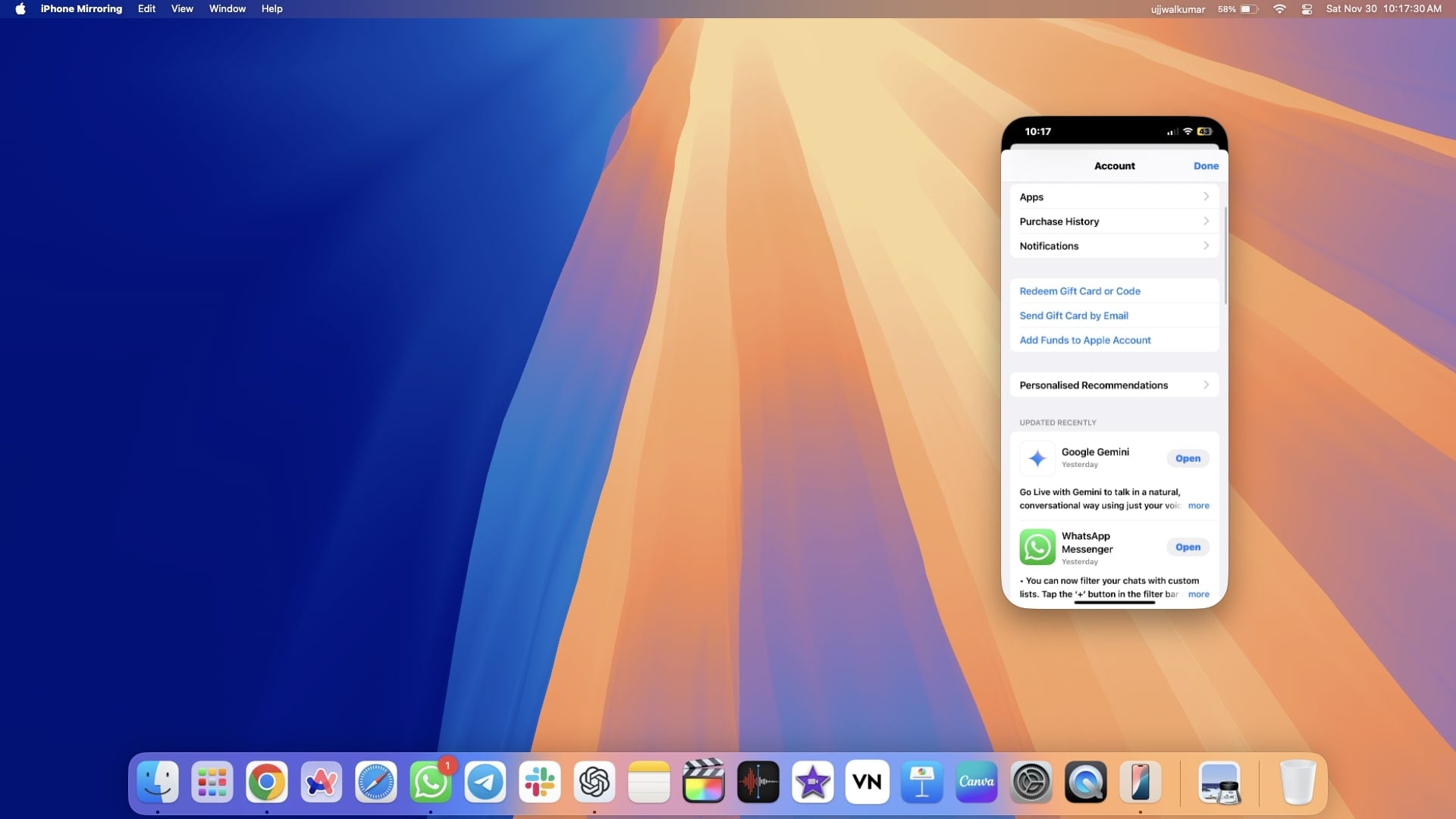
If buggy apps cause the black screen of death issue on your iPhone, updating all apps (if updates are available) could be a potential fix. However, you cannot update all apps directly from your iPhone in this state. Instead, you can use iPhone Mirroring on your Mac to update them. If you have already connected your iPhone to iPhone Mirroring, follow the steps below to update your iPhone apps using this method.
- Launch iPhone Mirroring on your Mac.
- Now, swipe left on the iPhone screen showing on your Mac.
- Open the App Store.

- Tap on the profile at the top right corner of the screen.

- Click on the Update All button beneath UPCOMING AUTOMATIC UPDATES.
Update Your iPhone
If an incompatible iOS version may cause the black screen of death on iPhone then you should try updating it, however, you can’t update your iPhone as a rule, and so I’m going to explain to you three different ways to update your iPhone.
While updating your iPhone may resolve the black screen issue, there are two key scenarios you should keep in mind before updating your iPhone.
- If the update is successful and resolves the black screen, your iPhone will restart, and everything should work as expected.
- If the update doesn’t resolve the issue, the iPhone will restart, as it does after every iOS update, but will require the passcode once to unlock. With the black screen still present, you won’t be able to enter the passcode. And, If you can not unlock the iPhone once after restart, you won’t be able to use iPhone mirroring to Factory Reset it.
1. Update your iPhone using iTunes
If you already installed iTunes on your computer (whether a Mac or Windows) and your iPhone is signed in to it, you’re in luck! Just follow the steps below to update your iPhone. However, if that’s not the case, connecting your iPhone when it’s stuck on the black screen of death won’t be possible.
- Connect your iPhone to your Mac or Windows computer using a cable.
- Open iTunes on your computer.
- Hit the icon of your connected iPhone in the upper-left corner of the window.

- Click on Summary in the left sidebar.
- Now, click on Check for Update to see if your iPhone has a new software update available.

- If an update is found, click Install and Update.
- Follow the on-screen prompts to continue updating your iPhone.
- Once the update is completed, you’ll see the Hello Screen on your iPhone.
2. Update your iPhone using Finder
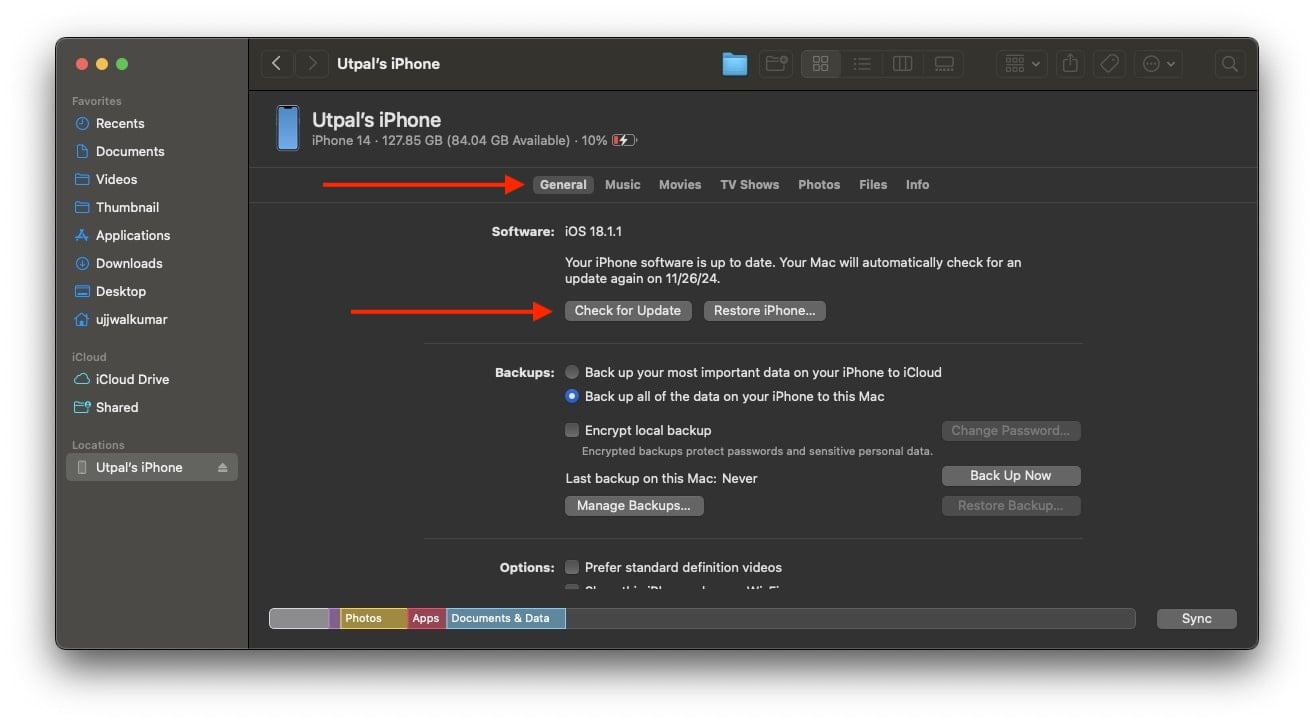
If you are unable to update your iPhone using iTunes for obvious reasons, don’t worry; you can do so by using Finder. If you have already connected your iPhone to your Mac and granted all necessary permissions, you can likely update your iPhone using Finder. Follow the below steps to do so.
- Open Finder on your Mac.
- Connect your iPhone with your Mac using a cable.
- Choose your iPhone from the sidebar.

- Make sure you are in the General tab, and then click Check for Update.
- If an update is available, hit Install and Update.
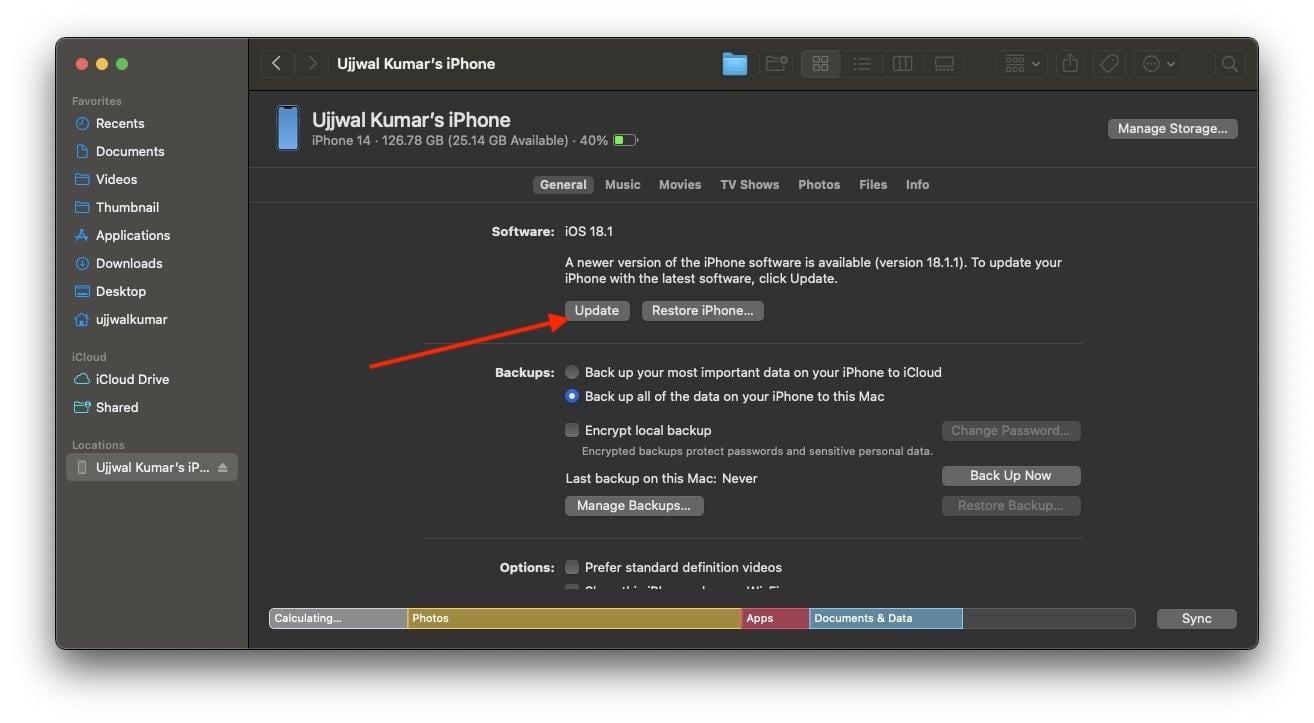
- Finally, follow the on-screen instructions to update your iPhone.
3. Update Your iPhone Using iPhone Mirroring
If you have never signed in to your iPhone on iTunes, your computer does not even have iTunes installed, or you have never connected your iPhone to your Mac, you may not be able to update your iPhone using the earlier methods.
If you have your Mac updated to the latest macOS 15 Sequoia or later and an iPhone updated to the latest iOS 18, then you can update your iPhone using iPhone Mirroring. This feature allows you to access your iPhone directly on your Mac and also enables you to update your iPhone easily with the help of iPhone Mirroring. To do so, follow the below steps.
- Open iPhone Mirroring on your Mac
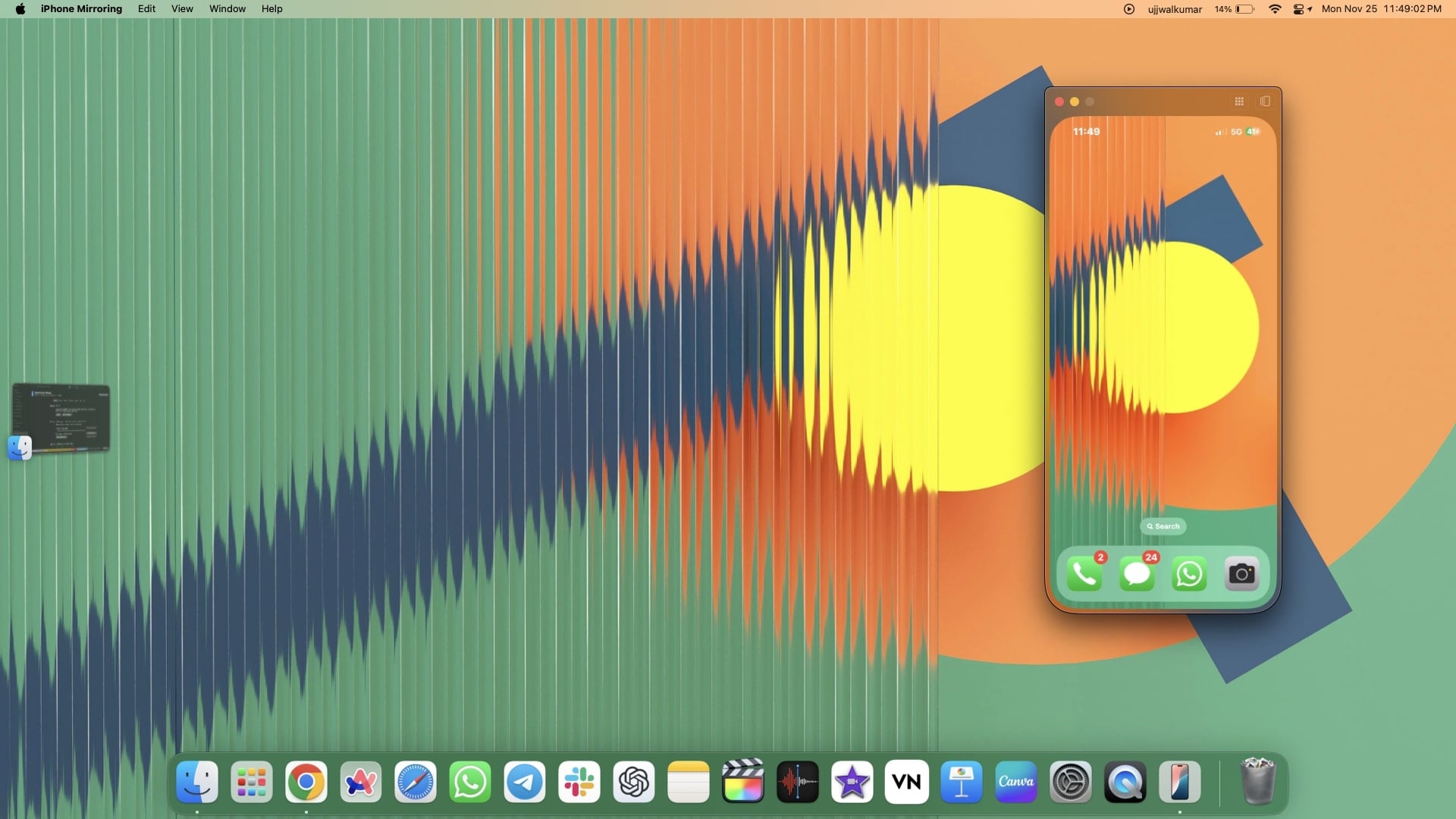
- Now, launch Settings of the iPhone.

- Go to General.

- Choose Software Update.

- Click on the Update Now button.
 Note: I have already installed this update on my iPhone while I was using it, which is why I see only the Update Now button instead of Install and Update Now. If you haven’t installed it yet, you’ll need to install it first and then update it, just like we usually do when updating our iPhones.
 - As soon as you click on the Update Now button, your iPhone will first verify the update and then start the update process. Once the update is complete, the black screen of death on the iPhone will likely be resolved, and you’ll see a prompt saying Software Update Complete.

Factory Reset Your iPhone Using iPhone Mirroring
If you have not updated your iPhone using any of the mentioned methods—whether due to inability to meet the required conditions or lack of necessary updates for your iPhone or MacBook or if you may opt to factory reset your iPhone to fix the black screen issue. Follow the below steps to factory reset your iPhone using iPhone Mirroring.
- Open iPhone Mirroring.
- Now, swipe left to App Library, and go to Settings.
- Tap General.
- Scroll down and click on Transfer or Reset iPhone.

- Hit Erase All Content and Settings.
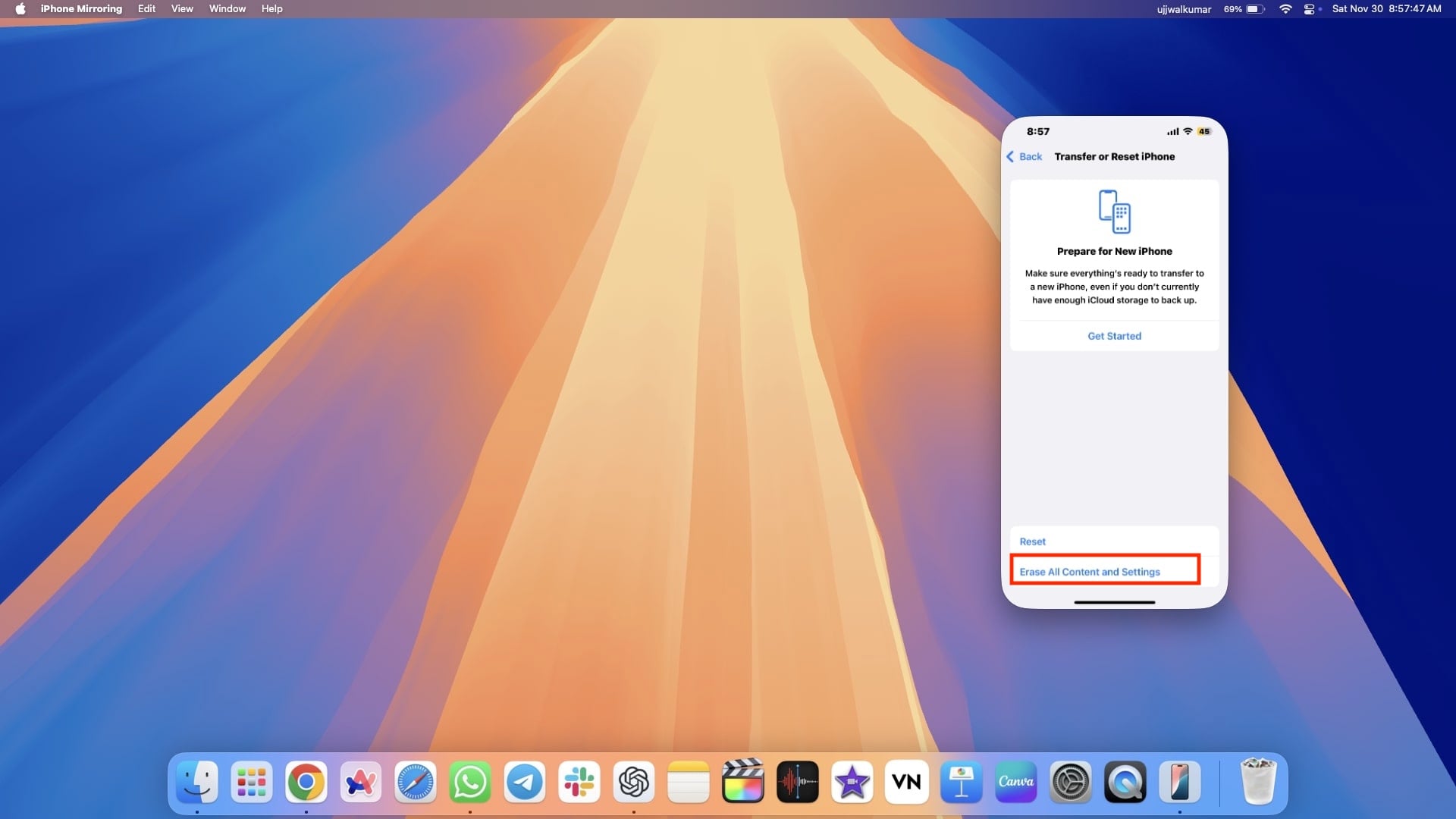
- By doing this, you will be redirected to another window displaying your Apps and Data, Apple ID, and Find My information. Click on Continue to proceed.
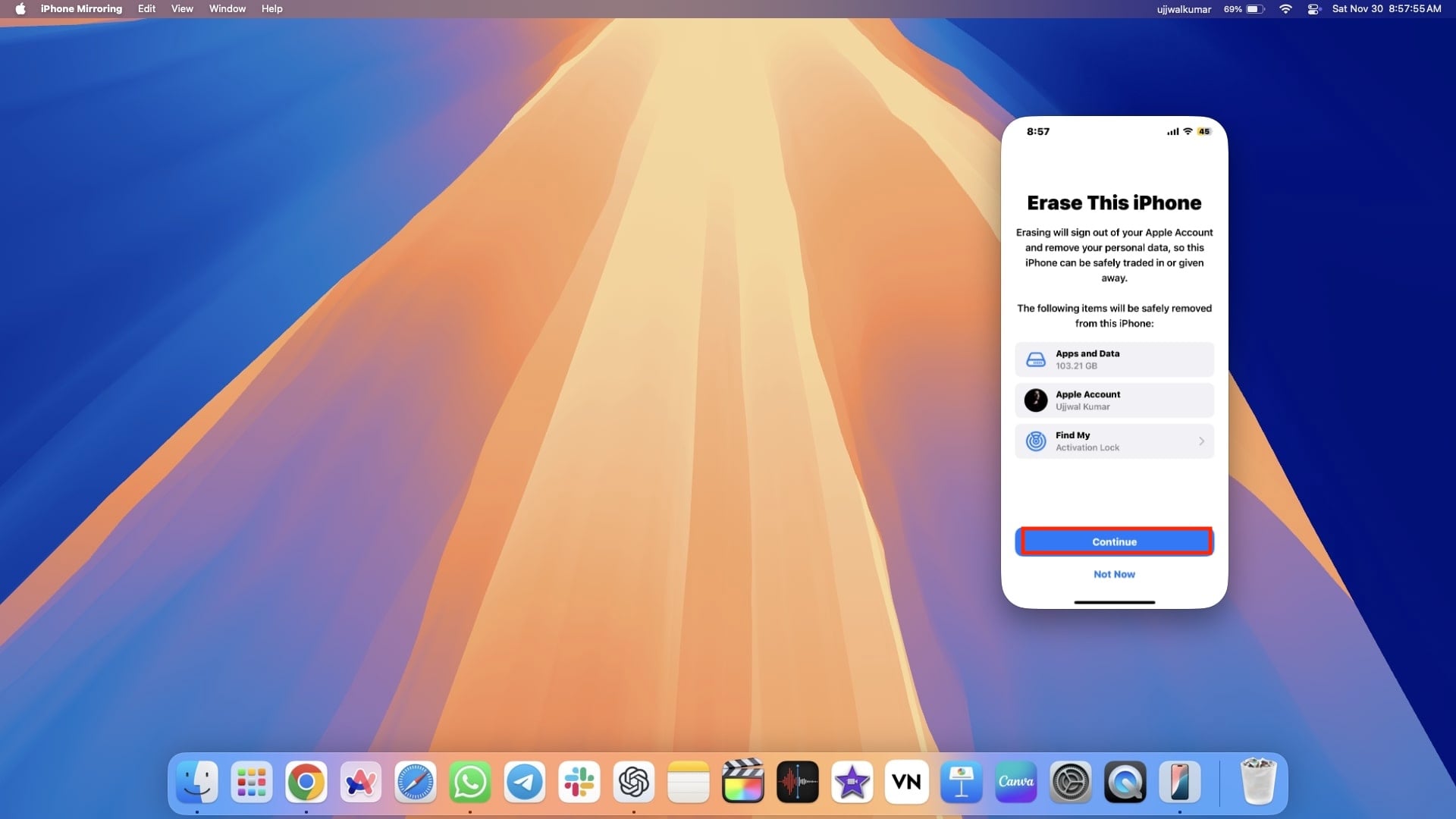
- As soon as you click Continue, a small confirmation pops up. Hit Erase iPhone.

- Finally, enter either your iPhone’s passcode or Apple ID, whatever comes up to enter, or maybe both if asking.
Use a Third Party Repair Tool
If the solutions mentioned above resolve your issue, that’s great! However, if you’re still dealing with the black screen problem, you might want to consider using a third-party repair tool to get your iPhone back to normal.
Unlike Apple-approved tools like iTunes or Finder, third-party software can often handle such tricky software issues more effectively, especially when standard fixes don’t work.
If you already have a trusted tool, you can use that. Otherwise, reliable options like Dr.Fone, EaseUS, or Tenorshare ReiBoot are worth considering when fixing your iPhone. Below, I’ve outlined general steps to use a third-party tool to address the black screen of death on iPhone.
- First, select a reputable third-party software with good reviews. You can choose one of the tools I have suggested above.
- Download the software from its official website and install it on your PC.

- Connect your iPhone to your PC using a USB cable. The software may prompt you to put your iPhone in recovery mode.
- Open the third-party software you installed on your PC.
- The software offers various options to fix different iOS and iPhone problems. Look for an option to address the black screen of death or black screen issue. If you don’t find a specific option for this, you can choose system repair instead.
- Follow the on-screen instructions carefully and wait for the repair process to complete.

- Once the process is finished, try turning on your iPhone. It should now return to its normal working condition.
Contact Apple Support
If you’ve tried all the methods mentioned above and still face the same black screen of death on iPhone, it’s likely caused by physical damage or a hardware issue. You might not be aware, but there’s a strong possibility that physical damage is the cause of the issue. Unfortunately, in such cases, these troubleshooting methods won’t resolve the problem, so you have to contact the Apple support team.
You can get in touch with Apple Support via email or phone to explain your issue. Alternatively, visit the nearest Apple service center to have your device inspected by a professional.
Also, keep in mind that if your iPhone’s screen is damaged, it won’t be covered under the standard warranty unless you’ve purchased AppleCare+.
According to Apple’s policy, screen repairs or replacements due to physical damage are not free, and you’ll need to cover the servicing costs.
Tips to Avoid Black Screen of Death on iPhone
You have already implemented the fixes to resolve the black screen of death on iPhone, and hopefully, you have found a perfect solution to resolve the issue. While there are various causes behind the black screen of death, some may be beyond your control, such as hardware failures.
However, as prevention is always better than cure, here are some tips to help you avoid the iPhone black screen of death in the future. Go through all the tips and keep them in mind while using your iPhone.
- Ensure that your iPhone is always updated to the latest iOS version.
- Avoid jailbreaking your device, as this can compromise its stability and security.
- Must restart your iPhone once in a week. It can help clear up any temporary glitches that may cause such issues.
- Always use Apple-certified accessories with your iPhone to maintain compatibility.
- Back up your iPhone data regularly to avoid iPhone data loss in case of a black screen incident.
Conclusion
If you have implemented all the methods I’ve mentioned in the article, the issue of your iPhone’s black screen of death should likely be resolved. However, if the problem persists despite trying all the methods, it is highly recommended to immediately contact the Apple Support team. They can provide you with a solution to fix your iPhone.
Additionally, the article includes tips to prevent the black screen of death issue in the future. Be sure to follow those tips to avoid facing such problems again.
FAQs about iPhone Black Screen of Death
Is the Black Screen of Death on iPhone more common in certain iPhone models than others?
Older iPhones with outdated hardware (not comparable with the latest iOS software) might be an easier target for the black screen of death. Moreover, sometimes, the black screen of death issue on an iPhone can be caused by updating to the latest iOS version.
Does Apple warranty cover the black screen of death?
If the issue is due to a manufacturing defect, it may be covered under warranty. However, the issues caused by accidents, water damage, or unauthorized repairs are usually not covered.
Can resetting all settings fix a black screen of death on iPhone?
Yes, resetting all settings can fix a black screen of death on iPhone if the issue arises due to the customization in settings. If you have customized any software settings, then it may cause a Black Screen of Death on iPhone.
Is it safe to use iPhone Mirroring to update or fix my black screen?
Yes, iPhone Mirroring is a safe method to update apps or the iOS system as it is the official method feature introduced by Apple. It allows you to perform actions like software updates or factory resets when the screen is unresponsive.
Can the black screen of death be caused by an iOS update?
Yes, the black screen issue can sometimes be triggered after an iOS update, especially if the update is incompatible or causes bugs in older iPhone models.

