

Quick Answer
To fix the Xbox One Green Screen of Death, try a hard reboot by holding the power button for 10 seconds. If it persists, perform an offline update with a USB, reset to factory defaults, or reformat the hard drive. For quick recovery, boot into the troubleshooting menu by holding Pair and Eject buttons, then follow the on-screen steps.
Xbox One was launched in 2013, and the company stopped the device’s production in 2020 to focus on the Xbox Series X/S. However, many users still hang out with the console, some to enjoy it, whereas some have the console in their console collection. Many users have reported coming across an Xbox One green screen of death error, which keeps the device in the booting stage and doesn’t boot it. The loading screen simply says “Loading…” and never loads the device. This issue is known as the Xbox One green screen of death or the Xbox One green loading screen error.

Thankfully, there are a bunch of solutions that you can apply to fix the Xbox One green screen of death error. Notably, this isn’t a rare issue but a widespread error. We have compiled the best solutions that have helped users facing similar issues fix the problem without needing to take the device to the service center. The best part is that you can also apply the solutions for other Xbox series consoles suffering from the green loading screen issue. Let’s jump right into it.
Table of Contents
Why is my Xbox One stuck on the green loading screen?
Multiple reasons could trigger the Xbox One green loading screen error. As already mentioned, this isn’t a rare problem and has been faced by many users. According to one user report:
Xbox One stuck on green loading screen?
As above my xbox One cannot get passed the green loading screen? I have tried all the normal fixes Halting power button for 10 seconds, Hard boot with the power.Its still hanging..
Any Ideas?
After scouting various forums and threads, here are some of the most common reasons that could make your Xbox One console stuck on the green loading screen:
- Microsoft server issue: The Xbox console communicates with the Microsoft server during boot to check for any updates. If there is some issue with the Microsoft server, then your console could get stuck in the green loading screen.
- Corrupt hard disk: If there is an HDD read and write error with your Xbox One console, then it could also result in this error.
- Failed system update: During an update, if the console is interrupted, then it could also lead to the green loading screen error or green screen of death error.
- Temporary glitch: Some temporary bug or glitch with the recently installed update could also cause a problem with your Xbox One console.
How can I fix the Xbox One green screen of death error?
Here are the different tested and tried solutions to resolve the Xbox One green screen of death error.
Perform a hard reboot
While this may look like a simple solution, restarting the console can solve various issues without applying any complicated solutions. Restarting the console allows the device to load all the system files from scratch, which might have been skipped during the previous session. To perform a hard reboot:
- Press and hold the power button on your console for about 10 seconds.
- Let the system reboot without interrupting it and check if this resolves the issue or not.
Perform an offline update
Before you get started, you need to have the following:
- A Windows PC
- A USB drive with at least 6GB of space with NTFS file format.
- Internet connection.
Follow the steps below to perform an offline update on your Xbox console:
- Plug the USB drive into your PC.
- Download the offline update for the Xbox One console.
- Unzip the contents of the offline update ZIP file into the connected USB drive. Ensure that the files are extracted to the root directory of the USB drive.
- Safely remove the USB drive from your PC.
- Turn off the Xbox One console and unplug the console from the power outlet. After about 30 seconds, plug the power cord.
- Press and hold the Pair or Bind button (on the left side of the console) and the Eject button (on the front of the console) simultaneously, and then press the Xbox button.
- For users having Xbox Series S or Xbox One S digital edition consoles, you won’t have the Eject button. So, you need to press the Pair and Xbox buttons together.
- You will hear a tone a couple of times, after which you need to release the buttons.
- The console will boot into the Troubleshooting menu.
- Plug the USB drive containing the offline update files into the console and select the Offline system update option from the Xbox troubleshooter menu.
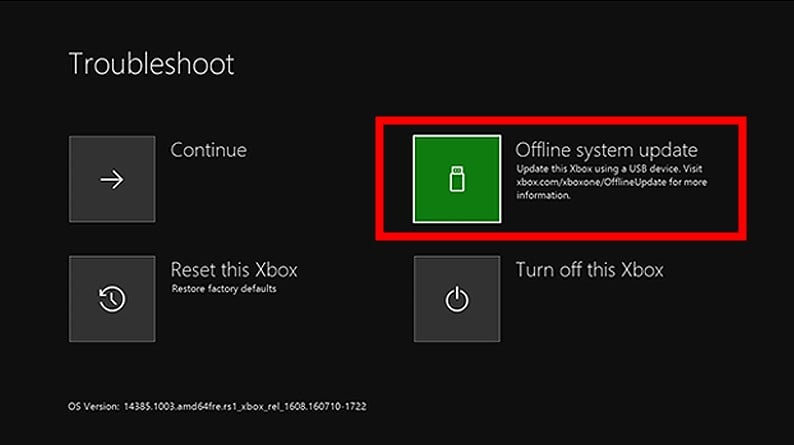
- This will initiate the update, which may take several minutes.
- Once the update is complete, the console will restart and possibly fix the green screen of death error as well.
Reset to factory defaults
- Turn off the Xbox One console and unplug the console from the power outlet. After about 30 seconds, plug the power cord.
- Press and hold the Pair or Bind button (on the left side of the console) and the Eject button (on the front of the console) simultaneously, and then press the Xbox button.
- For users having Xbox Series S or Xbox One S digital edition consoles, you won’t have the Eject button. So, you need to press the Pair and Xbox buttons together.
- You will hear a tone a couple of times, after which you need to release the buttons.
- The console will boot into the Troubleshooting menu.
- Select the Reset this Xbox option and select Reset this Xbox, Keep Games and Apps option on the next screen.

- Follow the on-screen steps to complete the process.
Format Xbox One’s hard drive
- Remove the hard drive from your Xbox console and plug it into your Windows PC.
- Grab this Xbox One hard drive partitioning script on your PC.
- Open the create_xbox_drive.bat file.
- Choose to format your Xbox One hard drive by selecting the appropriate option.
- The script will initiate, and once complete, unplug the hard drive from your PC and connect it to your Xbox One console.
- Install the offline system update as mentioned in method 2.
If this doesn’t work, then you can replace the hard drive with an external one. Once a compatible hard drive is available, you need to perform the offline system update on it as shown in method 2, and then use it with your Xbox One console.
Bonus fix (No USB needed)
A user on YouTube has shared an off-the-books solution to fix the problem. By the looks of it, this has helped users fix the Xbox One green loading screen, or what is popularly known as the Xbox One green screen of death error. Here’s what you need to do:
- Power on your controller by pressing the Xbox button at the center.
- Hold the Xbox guide button, and after it vibrates, press the Start menu button and finally remove the battery from the controller.
- Then, you just need to wait for about 10-15 minutes.
- You will see that the console will automatically boot into the dashboard and resolve the problem.
Here’s a video for it:

Final thoughts
The above fixes should help you resolve the Xbox One green screen of death error. The above solutions are also applicable to other Xbox consoles facing a similar issue. If your Xbox controller is flashing or blinking, then you can apply the solutions mentioned in our guide. Let us know in the comments below if you were able to resolve the problem or not.

