

Quick Answer
To use Separate App Sound on a Samsung Galaxy phone, go to Settings > Sounds and Vibration > Separate App Sound, toggle it on, choose the app (e.g., Spotify), and select the audio device (e.g., Bluetooth speaker). This routes app audio to your chosen device while keeping other sounds on the phone’s speaker.
Getting interrupted by notification sounds while listening to music or watching content is extremely frustrating. Luckily, if you own a Galaxy smartphone, the Separate App Sound feature can help you avoid this annoyance. Keep reading to find out how.
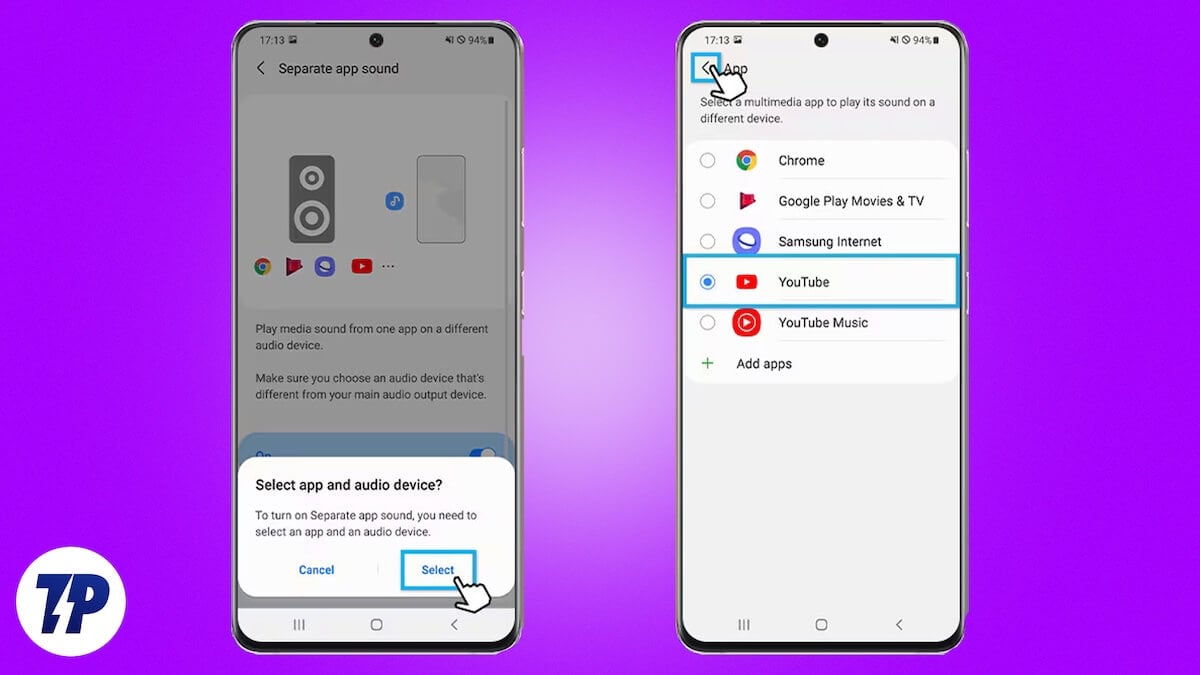
What is the Samsung Separate App Sound Feature?
Separate App Sound is a feature on Galaxy phones that lets you route audio from your preferred apps through either your phone’s internal speaker or paired audio accessory.
While you can find several use cases for this, the absolute best is to avoid interruptions from notification sounds. For instance, with Separate App Sound, you can tell your phone to play music in the Apple Music app through your car’s speakers while all other sounds, including notifications from Google Maps, come from its internal speakers. This way, you can enjoy your songs without being interrupted by the loud navigation alerts from Google Maps while still getting alerts to ensure you don’t miss a turn.
You’ll also find Separate App Sound useful when you’ve to share your Galaxy phone for entertainment, wherein you’d like to, say, listen to a podcast on Spotify, and the other person wishes to watch videos on YouTube. In this case, you can simply route the audio from YouTube through the phone’s internal speakers, and the rest of the audio, including that from Spotify, will come through your paired Bluetooth earbuds. Or, if you so prefer, do it the other way around.
How to Set Up and Use the Separate App Sound Feature on a Samsung Phone
It’s easy to configure and use the Separate App Sound on your Galaxy phone. To show you how it works, we’ll take one of the above examples, where we route audio for Apple Music through a Bluetooth device (car’s speakers in this case), so we can have the sound for Google Maps, along with all other sounds, come through the phone’s built-in speakers.
Start by connecting your Galaxy phone to your car’s music system via Bluetooth (or whatever device you plan to route the audio through). Then, follow these steps:
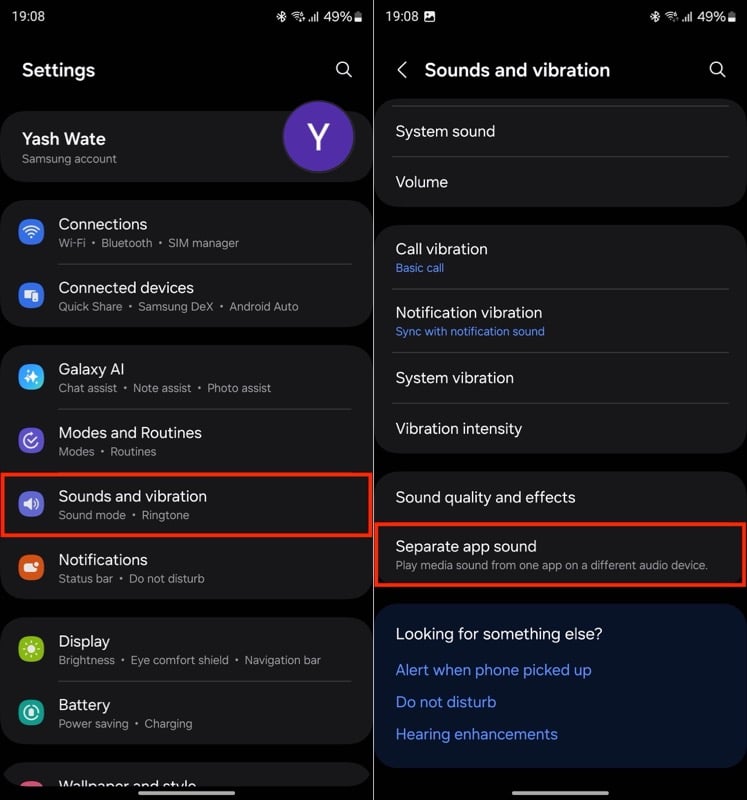
- Open Settings on your Samsung phone.
- Navigate to Sounds and Vibration, scroll down to the bottom, and select Separate App Sound.
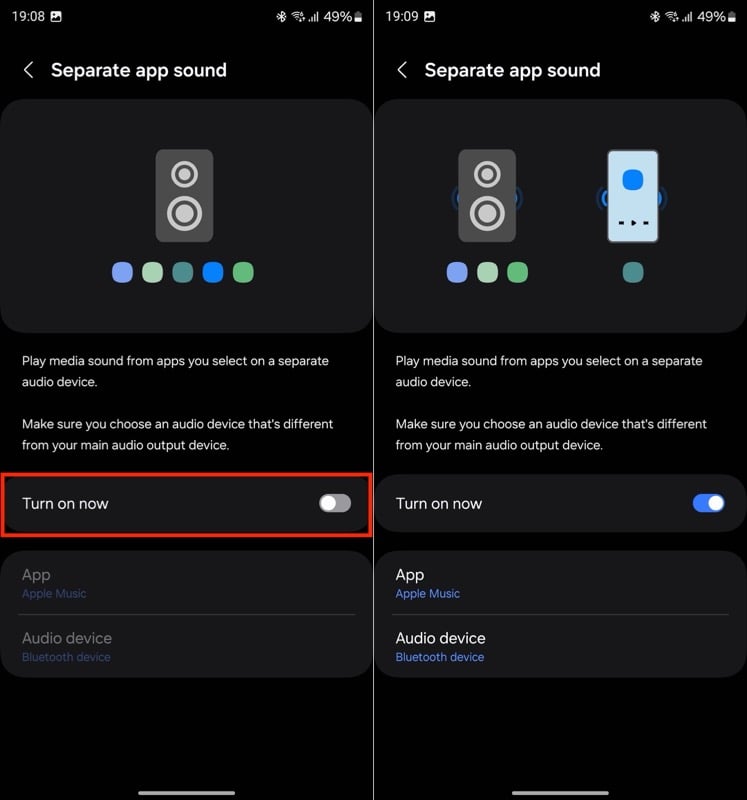
- From the next screen, toggle on the switch next to Turn on Now.
- You’ll now see a Select App and Audio Device prompt on your screen, prompting you to select an app and an audio device. Tap Select and choose the app whose audio you want to route. Apple Music, in our case. If you don’t see an app, tap Add Apps and find and select it on the following screen. You may choose multiple apps if you want.
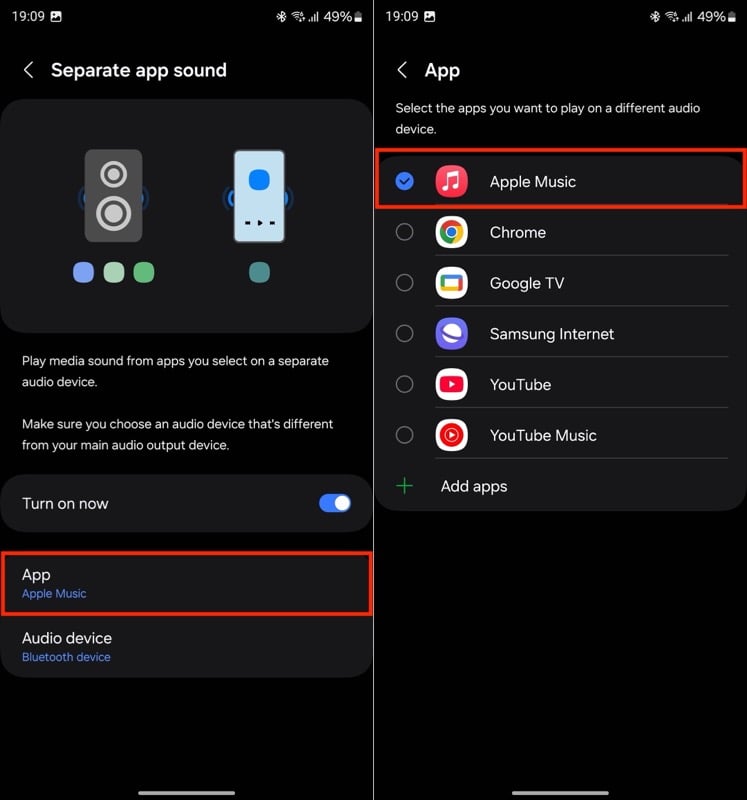
- Go back, and it’ll take you to the Audio Device screen. If it doesn’t, tap on Audio Device from the Separate App Sound screen. Then, select the Bluetooth Device option. It’ll be your car’s name for this example. If you don’t see the name of your Bluetooth device, make sure it’s connected and try again.

With the Separate App Sound feature set up, you can start playing music using the Apple Music app, and your phone will route the audio through the car’s speakers. All the other sounds, including Google Maps’ navigation prompts, will come through the phone’s built-in speakers.
At any point, if you no longer want to route audio from an app through another audio source, you can simply disable the Separate App Sound feature from the Settings app.
One UI Packs Many Useful Features That You Should Definitely Explore
Separate App Sound is a lesser-known One UI feature that’s incredibly useful and lets apps dictate how audio is routed on your Galaxy phone. While it works perfectly with popular apps like Apple Music, Spotify, and YouTube, not all apps may be compatible, and you can only find it out by trying them out with the feature.
Aside from Separate App Sound, One UI packs a few more useful features. Modes and Routines, Secure Folder, and Notification History are some features you should try on your Galaxy phone to get the most out of it.

