

Quick Answer
Google Vids in Google Workspace uses Gemini AI to help users create videos from text prompts, templates, recordings, or uploads. Customize with stock media, AI voiceovers, and editing tools, then share seamlessly via Drive or as MP4 files. Ideal for marketing, presentations, and team updates, it integrates smoothly with Workspace apps like Docs, Slides, and Sheets.
AI (Artificial Intelligence) is slowly powering everything we do, especially our online work. Right from helping us create meaningful sentences for our articles to creating a song and even generating cinematic videos, AI can do it all. Of course, the result may not be optimal at this point, but it will get better as AI evolves. Google, the tech giant, released an AI video-generating tool called Google Vids in Google Workspace that allows users to generate videos using text prompts in Gemini. You can use Google Vids to generate marketing materials, a sales pitch, or other compelling presentations with just some simple text input.
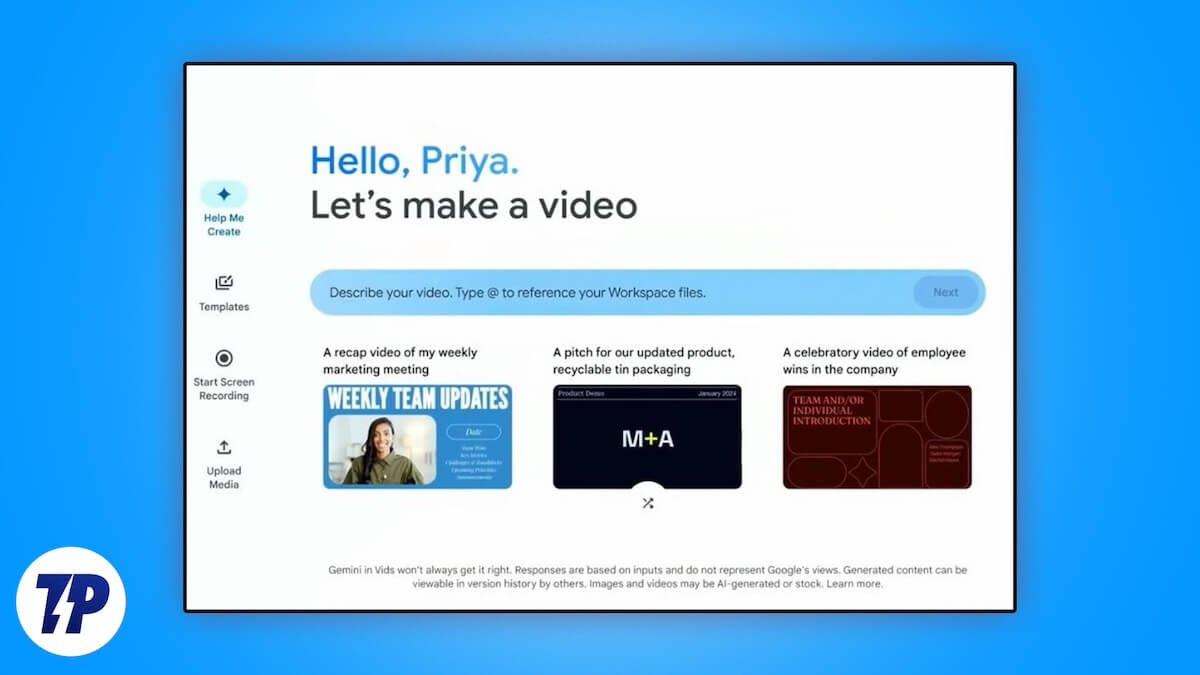
Not everything will be AI-generated, as you also have the option to upload your media, do a voiceover, or use stock content from Google’s library to make your video engaging and give it a personal touch. In this guide, we will share with you all the details you need to know about this new AI video-generating tool for workspace users, called Google Vids. With that said, let’s jump right into it.
Table of Contents
What are Google Vids features?
Google Vids is an AI tool that leverages Google Gemini to help users create, write, produce, edit, and collaborate on videos, as it is integrated with all your other Workspace tools, such as Google Docs, Slides, or Sheets. There are different options that users can opt to generate videos using Google Vids. For instance, you can go for Gemini’s “help me create” option to create a video using a prompt or start using one of the 50 available templates. You also get the option to upload your media and content from Google Drive and record a video, audio, or screen, or use a combination to generate videos using Google Vids.
Google Vids is available for the account holders listed below.
- Work account:
- Business Standard
- Business Plus
- Essentials
- Enterprise Essentials
- Enterprise Essentials Plus
- Enterprise Standard
- Enterprise Plus
- Gemini Enterprise
- Gemini Business
- Google Workspace Labs
- School account:
- Google Workspace for Education Plus
- Gemini Education
- Gemini Education Premium
- Personal account:
- Google Workspace Labs
Creating videos using Google Vids is claimed to be as easy as putting Slides together. With a host of professional-sounding AI voiceovers, templates, and content, you will be able to make your videos engaging. Rolling or read-along teleprompters let you confidently say what you want to and detail every aspect of your product with your audience. Google Vids is available in users’ local languages, aside from some AI features.
Limitations of Google Vids
Here are some of the limitations of Google Vids that you should be aware of:
- It is important to note that some AI features, such as “help me create,” read-along teleprompter, and AI voiceover, are available only in English at the moment.
- Some accounts mentioned above will have access to generative AI features for a limited period.
- Videos created using Google Vids have a maximum duration of 10 minutes, which should be more than enough in most cases unless you are trying to create a movie.
- Google Vids supports recent versions of Google Chrome, Firefox, and Microsoft Edge; you won’t be able to edit or comment on Google Vids in the Safari browser.
- Google Vids, for now, doesn’t support the creation of vertical videos.
- Vids creation is only supported on desktops for the time being.
How to use Google Vids to create a video?
When you access Google Vids, you will have four options to get started:
- Help me write: You can use Gemini AI to enter text prompts and generate a video.
- Templates: Build your video based on a template offered by Google Vids.
- Record: You can use your own video recording, screen recording, or audio recording to use over a video.
- Upload: You can generate a video by uploading your audio narration or full video recording.
Let us take a look at each one of the options one by one.
1. Generate a video using Gemini AI’s Help me create
- Visit the Google Vids website on your browser.
- Select “Help me write” from the left bar if the option hasn’t been selected already.

- In the middle of the page, you will see a text box asking you to “Describe your video in a few sentences. Type “@” to include files” you need to type your prompt. Ensure you include information such as audience, things to include, and the tone of the video.

- If you are out of ideas, you can use the Shuffle button below the text box to generate new ideas.

- Once you are satisfied with the prompt you have given, hit Next.
- You will be presented with multiple slides, which you can edit based on your liking or rewrite the prompt to generate a new outline. Click Next.

- You will see multiple design templates from which to choose.

- Select one and click Create a draft video.

- Your video will be created, and you can further add or customize elements as needed.
2. Use a template
- Launch Google Vids on your browser.
- From the left side, click on Templates.

- Choose a template from the 50 options available.

- You can select to enter the template into a single scene or all scenes.
- You can opt to change the background of your scene by navigating to Scene > Background > right-click on Canvas and choose Background.
3. Record a video
- Launch Google Vids on your browser.
- Select Record from the Gemini window’s left sidebar.

- Click Record now and then select Start.
- If you are satisfied with your recording, you need to click Insert. If you want to try again, you can click Restart.
- Once your recording is added, you can customize it as per your needs.
4. Upload your own content
- Open the Google Vids website on your browser.
- Select Upload from the left sidebar.

- Click Browse Computer, and upload the file that you would like to start with.
- When your video is added, you can further customize it.
What elements can be customized?
- You can record your narration or video clips and add them to your Google Vids video. You can use Gemini AI to generate a narration.

- There is also the option to add music and sound effects to the video.
- Gemini AI can also be used to generate AI images related to the topic of the video to enhance its visual appeal.
- There is a huge gallery of stock images and clips that can be used to edit the video generated using Google Vids.

- You can use your video, sound, or media and add it to the video generated using Google Vids.

- There are options to add text, lines, and shapes to give a fun twist to your video.

Once you have edited your video, you can share it with your team or friends as Google Vids files, MP4s in Google Drive, or MP4s after downloading it. Users can view or edit shared Google Vids videos using their personal, work, or school accounts (requires admin permission). The creator of the video can choose to allow users to comment or edit.
Who can use Google Vids?
Google Vids works like another collaborative suite of tools that Google has to offer. There are multiple use cases for Google Vids, some of which are listed below:
- Teams can use it to create explainer videos about a product. If there are any changes, a new video can be easily made by switching out scenes from the video.
- The top hierarchy can generate videos to connect with lower-level employees and update them about new company-wide changes.
- The sales team can use it to explain event recaps or campaign updates.
- Project teams can collaborate on a task and use it to share insights from a meeting or recap them.
Final thoughts
In conclusion, Google Vids is a powerful AI video-generating tool that can help businesses and schools simplify video creation. With seamless integration with Google Workspace tools such as Docs, Slides, and Sheets, users can include valuable data and information into their videos and share them to engage with their audience. You can further enhance your content by adding your media and generating content using AI to cater to diverse requirements. Google also has a Speaker Spotlight feature for Google Slides that lets you embed your webcam feed or Meet video straight into your presentation. You can also use generative AI to create images in Google Slides using Duet AI.

