

Quick Answer
Google Workspace add-ons save hours by eliminating context switching and bringing powerful tools directly into Gmail, Docs, and Sheets. From PDF editing and ZIP extraction to email tracking, grammar checks, data cleanup, secure docs, and bulk mail, these seven free add-ons streamline everyday workflows effortlessly.
Google Workspace add-ons are not as popular as other tools. However, using them saves significant time and unlocks new features in Google apps.
The biggest advantage of using Google Workspace add-ons is that you can eliminate context switching. For example, if you use Google Docs with Gmail, now with the workspace add-on, you can create, view, and manage your documents directly within Gmail without switching to Google Docs.
Not just that, you can also connect third-party apps and software to your Google apps using workspace add-ons and use them directly within your Google apps without switching to them and copying and pasting data between them.
There are plenty of free Google Workspace add-ons you can start using now for free, even with your personal Google account. For the past few weeks, I have been exploring and testing different Google Workspace add-ons.
Here are the seven best Google Workspace add-ons I found useful for most users. So if you are ready, grab your popcorn and let’s get started.
Table of Contents
7 Free Google Workspace Add-ons to Supercharge Your Workflow
Add-on | What It Does | Download Link |
|---|---|---|
Smallpdf | It gives you 20+ PDF tools inside Google apps to convert, compress, and sign PDFs without switching tabs. | |
ZIP Extractor | It lets you extract ZIP, RAR, and 7z files directly in your browser without installing any software. | |
MailTrack | It shows you when and how many times your emails are opened, with unlimited free tracking for Gmail. | |
LanguageTool | It checks grammar and spelling in 30+ languages, making it a better alternative to Grammarly for multilingual users. | |
DocSecrets | It lets you hide specific sections in Google Documents, instead of password protecting the entire document. | |
Remove Duplicates | It finds and removes duplicate data in Google Sheets automatically, with options to backup before deleting. | |
YAMM | It lets you send personalized bulk emails from Gmail using Google Sheets, with tracking and scheduling included. |
Smallpdf: Adds All-in-One PDF Toolkit for Google Workspace
Whether you are a business owner or a casual user, dealing with PDFs is one of the most common tasks in Gmail.
Many of us rely on third-party tools and websites to convert PDFs to other formats, edit, or merge PDFs.
With SmallPDF, a free Google Workspace add-on, you get up to 20+ free PDF tools that allow you to convert PDFs into other formats, organize them, and also easily sign PDFs without leaving Gmail.
Why it stands out
Direct links to tools inside Google apps:
The biggest advantage of using the SmallPDF Workspace add-on is that you get direct tool access inside the Google apps, including Google Docs, Sheets, Gmail, and Drive, so that you can directly compress or convert PDFs and even sign PDFs without switching to other tabs.
Seamless Process:
I wish the tool worked entirely inside Google apps, but you have to redirect to an external website.
However, unlike other tools, you don’t need to go through multiple steps; without requiring input at every step, the tool automatically finishes the job and lets you download the final file and save it locally on your device, which is so seamless in my experience.
Free to use:
Another big advantage is that it is free to use, so you don’t need to sign up or create an account. You can simply add this add-on to your Gmail account, even on personal accounts, and start using it across all Google apps.
How it works:
- Add Small PDF Workspace to your Google account.
- Now open Gmail or Docs, and from the sidebar tab of the SmallPDF Workspace add-on.
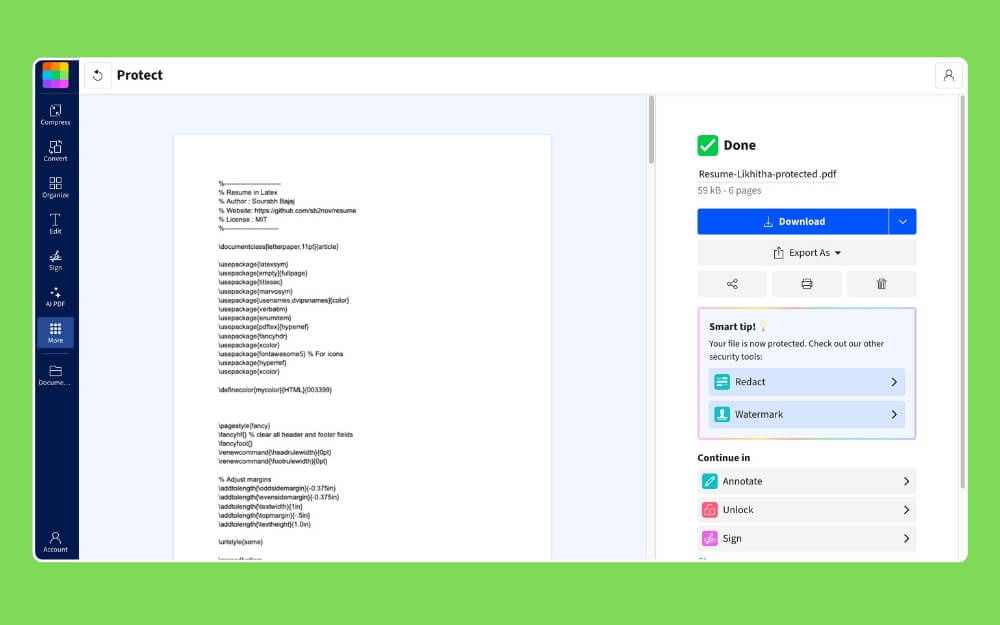
- Now you will have access to all the tools, and you can select the one you want to use. For instance, here I want to password-protect the document I am working on. Scroll down, click the document, and password-protect it. If you want to access more tools, click on More Tools.
- Now that’s it, you will be redirected to the new website, and the ongoing flow is very simple, without you having to manually add the file again.
- You can simply start using the tool once you are finished. The file will be locally saved on your device.
ZIP Extractor: Best Local ZIP Extractor that Runs on Browser
If you often receive zip files in email, this Google Workspace add-on is a lifesaver. Zip Extractor is a Google Chrome Workspace add-on that lets you download and extract files locally on your device from the browser.
Since it is a Workspace add-on, it integrates with all your Google Workspace apps, such as Gmail, and with Google Drive, so you can open zip files directly in the browser.
It is completely free to use, and since it is browser-based, it works on any device without any device requirements.
Why it stands out
Works on any device locally:
The biggest advantage of using the Zip Extractor Google Workspace plugin is that, since it is browser-based, it works locally on any device. It is especially useful in school and workspace environments where most don’t allow third-party software installation.
Private and secure:
Since it works locally in your browser, you don’t need to worry about uploading files to the cloud. Your data stays in your browser, and the extraction process runs locally.
Supports multiple formats:
It also supports multiple formats, including ZIP, RAR, 7z (7-Zip), TAR, GZIP (GZ), and BZIP (BZ2). GZ, and more.
Even works for encrypted files:
It also works for encrypted and even password-protected zip files. You can simply tap the zip file to extract it with a password.
Preview and download only the required files:
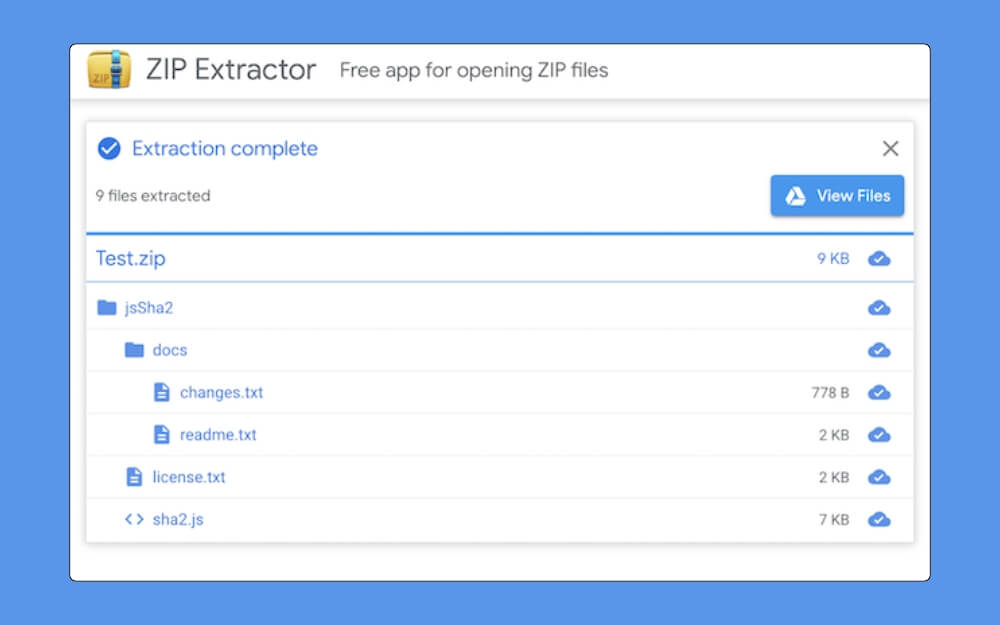
Another big advantage is that, unlike extracting a full zip file, you can preview and download only the required files inside the zip folder, which is a win, especially for users who often share zip files via email.
How it works
- After installing, you can select the file, right-click it, and tap Open with Zip Extractor.
- It will open a preview in your browser where you can browse the files in the zip folder without extracting them, and download the required files.
- You can also extract the full contents of the zip file. Plus, you can export the ZIP file directly to your Google Drive and save it to the cloud.
MailTrack: Free Unlimited Email Tracking for Gmail
The biggest pain point in Gmail is that, after sending an email, you don’t know whether the other person received and opened it or if it ended up in spam.
Gmail doesn’t come with a read recipient option, but fortunately, there is a way to see whether the user has opened the email using Mail trackers.
Why it stands out
There are plenty of mail trackers that allow you to add tracking links to your Gmail. However, the free Mailtrack add-on differentiates itself by offering most of the mail-tracking services for free.
Real-time tracking:
It also supports real-time tracking, so you can know exactly when and how many times your email has been opened, with real-time instant notifications.
Track group or individual mails:
Whether you send group or individual mail, you can track delivery, including opens, and the add-on lets you view the complete history with timestamps.
Reliable, free-to-use tier:
As I said before, there are plenty of mail tracking services, but MailTrack differentiates itself by offering unlimited email tracking for free, and you can also add it to your Google Workspace and send emails directly from Gmail. There are also dedicated iOS and Android apps that let you view mail delivery services.
How it works:
- You can add the Mail Tracking Google Workspace add-on to your Gmail.
- Once added, you can sign in with your account.
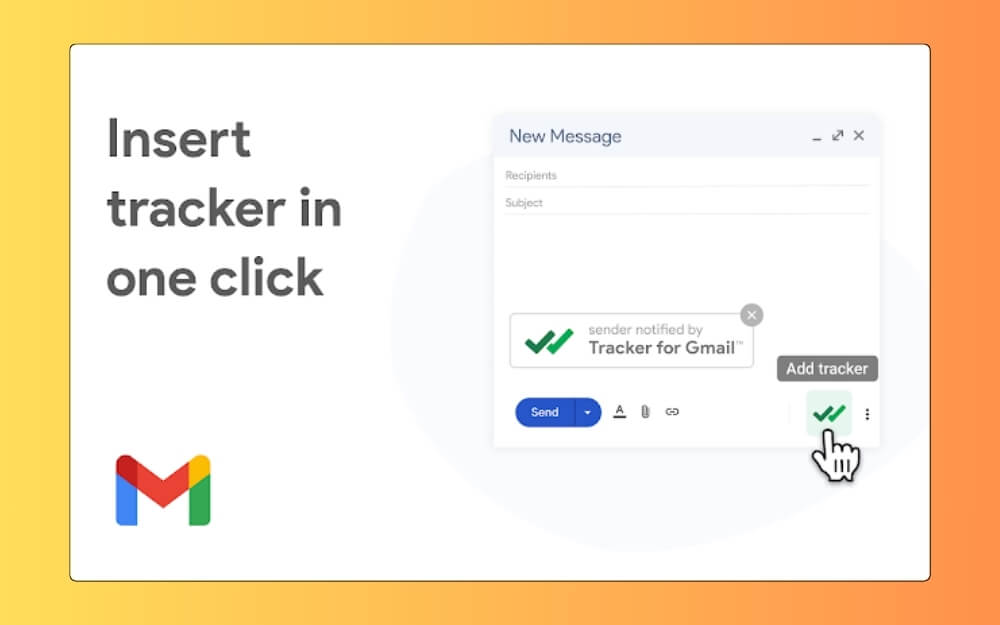
- Once your account is completed, you can start sending your emails. Email tracking is automatically enabled for every email you send; you can also disable it if you want.
Related: Best Gmail add-ons to boost your productivity
LanguageTool: Grammar Checker that Supports 30+ Languages
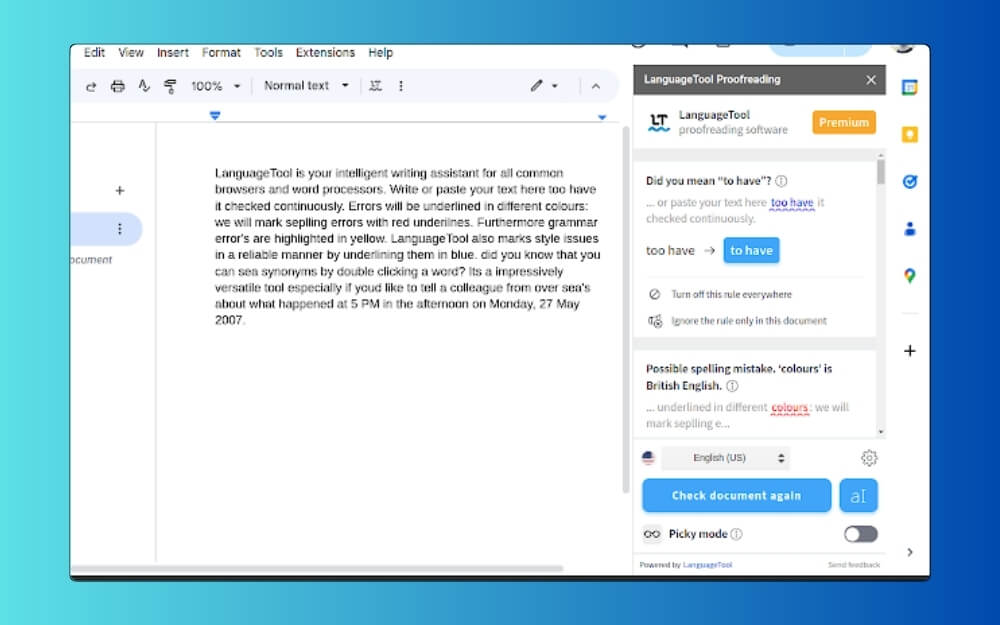
If you often write content in Google Docs, you might have already heard of Grammarly, a popular grammar-fixing tool. However, if you have never heard of this tool, Grammarly is a popular writing tool that helps you fix spelling and grammar mistakes as you write in apps like Google Docs
However, despite its popularity, Grammarly still supports only English, which is very limited for users who want to write in other languages.
Fortunately, there are plenty of other free Grammarly alternatives that are affordable and offer plenty of features. LanguageTool and other spelling-checking tools are one such add-on available in Google Workspace. It lets you use it inside Google apps to fix your spelling and grammar mistakes without spending much.
Why it stands out
Support for 30+ languages:
The biggest advantage of LanguageTool is its language support. At the time of writing, it supports 30 + languages, including English, German, Spanish, French, Dutch, Polish, Russian, Portuguese, Italian, Catalan, Chinese, Japanese, and 20+ more.
Affordable than Grammarly:
The premium LanguageTool is also affordable compared to Grammarly. It also includes regional pricing, which is more affordable than standard global pricing.
Open source:
Since it is open source, your data will not be stored. It works similarly to Grammarly, which provides real-time spelling and grammar corrections.
How it works:
Language and spelling checker tools work very similarly to Grammarly. You can directly install the add-on from the Google Workspace using these links and add it, and you can start writing your document, and in the sidebar, you can tap on the add-on to get real-time grammar and spelling mistake suggestions.
DocSecrets: Hide Specific Sections in Google Docs

DocSecrets is an excellent add-on if you often work with sensitive data in Google Docs. The add-ons let you hide specific phrases in the document and fully protect them with a password.
While most third-party document locker tools let you lock the entire document, with DocSecrets, you can only hide sensitive information, making it an excellent option for anyone who doesn’t want to lock the entire document.
How it works
Hide specific sentences or words from the document, instead of locking it completely:
While there are plenty of document locker tools available, DocSecrets allows you to lock specific paragraphs and even sentences, so that you can also hide single words from the document.
Uses standard AES Encryption
It is used in AES Encryption, which is a current standard for encrypting documents. Also, no data will be shared with the cloud, as all this happens locally in your browser.
Highlight hidden words for easy reference:
The hidden content in the document will be automatically highlighted for other users. You can also set different colours so other users can easily identify them.
Free to use without requiring you to create an account:
It is also completely free to use and doesn’t require an account to create, making it the best option if you want to access information from the document.
How it works:
- Using DocSecrets is easy; just add the Google Workspace add-on to your Google account.
- Open the Google doc, select the words, and click on the DocSecrets add-on and set a password for hidden words.
- Remember the password and share it with the user.
- The user can click the text and enter the password to read it.
Remove Duplicates: Remove Duplicates in Google Sheets Automatically
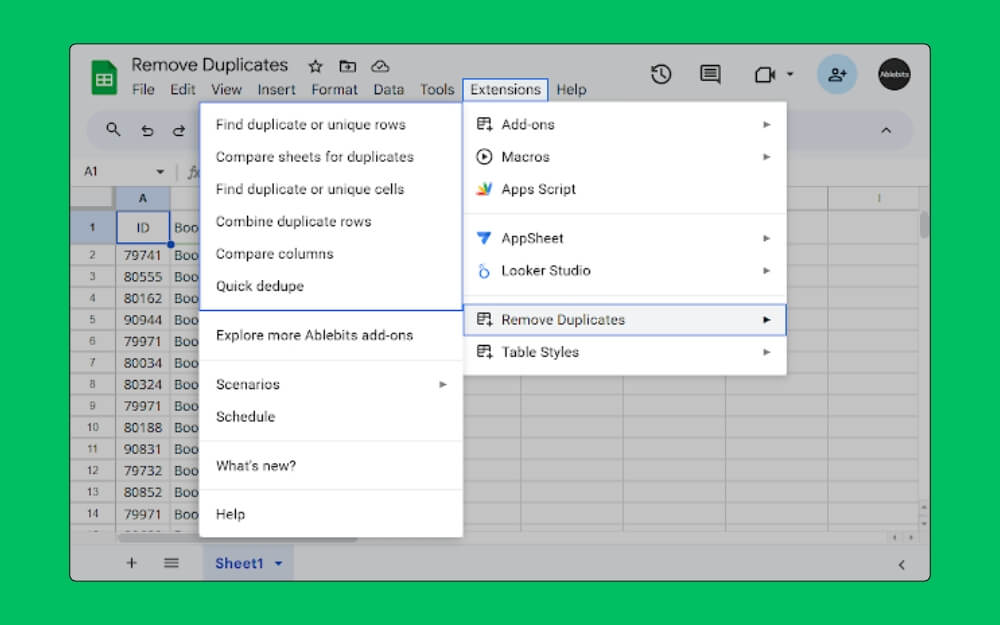
If you use Google Sheets, you know how hard it is to manage duplicate content in the sheets. Sometimes, with hundreds of rows of data, it is easy to miss duplicates, leading to incorrect results, especially when using Google Sheets for analysis.
Google Sheets also includes a built-in row duplicator; however, it is very basic and automatically removes duplicates without a backup, which can result in data loss, especially with large datasets.
Fortunately, you can use the Remove Duplicate add-on from the Google Workspace for free to manage all the duplicate content in your Google sheet.
Why it stands out
Automatically highlight duplicate content:
It automatically highlights and colours duplicate content, so you can easily remove it and manage all your duplicates.
Backup duplicate content and move it to a different sheet for automatic backups:
The best part is that if you are sure the data is duplicated, you can move it to another file for backup, so you can manage it later if you want.
Add tags and merge duplicate content into single cells:
To make it easy for the user, you can also manually add tags to the duplicate content and even combine duplicate data into a single cell.
How it works
- Using the Remove Duplicate add-on is very easy after you install and add it to your Google account.
- You can simply open the Google Sheets and select the data range.
- From here, you can launch the add-on to remove duplicate content.
- You can also perform other functions, such as exporting the duplicates to a new sheet and comparing multiple sheets.
YAMM: Send Personalized Bulk Emails Directly from Gmail

If you send bulk emails from your Gmail, then Yet Another Mail Merge (YAMM) is the best option for you. It lets you send bulk emails directly from your personal Gmail account using Google Sheets as a backend.
The free version allows you to send up to 2250 emails per day, which is a decent option.
Why it stands out:
1. Real Time Tracking
The best part of YAMM is that you can also insert custom fields for personalization. Plus, it also comes with real-time tracking, which lets you open click responses and supports real-time updates directly from your Google Sheets.
Schedule Emails:
You can also schedule the emails and send custom images from your Google Drive.
Better conversions:
Since it uses Gmail, it is most likely to end up in the user’s inbox rather than in a third-party email service provider’s inbox.
Get started for free:
Since it works inside Google apps and doesn’t require installing third-party extensions, you can directly use the free Google services and connect them together using YAMM.
How it works:
- First, create a Google Sheet with the required data, including names and email addresses, and any custom fields.
- Now open Gmail and compose a Gmail draft using tags.
- Now open YAMM from your Google Sheets add-ons menu.
- Now tap Start Mail Merge to send personalized emails to everyone.
Final Thoughts
These are the best Google Workspace add-ons you can install and use inside your Google Apps workflow.
To summarize, Smallpdf is the best option. It lets you use 20+ PDF tools within your Google Apps. Whether you want to convert a PDF or sign a document, you can instantly use this tool to get the work done.
ZIP Extractor is the best option if you want to extract multiple compressed files, including ZIP, RAR, and 7z, whether they are protected. The tool runs locally in your browser and lets you preview and download specific files without extracting the full ZIP file.
Mailtrack lets you add read receipts to your Gmail, while LanguageTool is a free alternative to Grammarly.
DocSecrets allows you to hide specific sections or words in Google Docs without protecting the entire document.
Remove Duplicates is a great option for Google Sheets, especially when managing multiple datasets.
Finally, YAMM is the best option to set up a bulk email sender from your Gmail account.
I hope you found this guide helpful. If you have any suggestions or find any tools that can be useful, please let us know in the comments below. I will review the file and include it in this post.

