

Google Workspace is meant to allow its users to collaborate in real-time. As AI moves into all areas, it will become much easier and more exciting to use. Google has also introduced the capabilities of Duet AI in Google Slides, which allows you to create images with the help of a few prompts thanks to the capabilities of AI.

Your presentations are more about images and data than text. With the help of Duet AI, Google Slides tries to enhance your presentations with images that can be created directly in the tool. Now you no longer have to download an image from another source and then insert it into Google Slides, because with Duet AI you can create the images you need directly in the app. In this guide, we’ll show you how to generate images with Duet AI.
Table of Contents
What is Duet AI for Google Slides?
Duet AI is not exclusive to Google Slides, but is available for all Google Workspace products, which is why Google calls it Duet AI for Google Workspace. There are several AI-powered features that Duet AI offers for Google Workspace products, in our case Google Slides. For other Workspace products, you can use Duet AI in Gmail and Google Docs to compose full responses and get help with writing. In Google Sheets, you can use it to analyze and edit your data, create unique backgrounds for Meet Calls, etc.
In Google Slides, you can use Duet AI to generate AI images based on prompts that you can use in your presentations, opening up the world of possibilities for your presentations. But before you try Duet AI in Google Slides, there are a few things you need to know to get started.
You’ll need to make sure you’re signed in with your Google Workspace account, as this will give you access to Google Workspace Labs. Once you’ve done that, you can use Duet AI to create AI images in Google Slides.
How to create a Google Workspace account to access Duet AI?
With a normal Google account, you cannot access Duet AI in one of the Google Workspace products. You need a Google Workspace account to use Google Workspace Labs and its features, such as Duet AI. Follow the steps below to create a Google Workspace account:
- Visit the Google Workspace Labs website in a browser on your PC.
- Enter your Google account login credentials and sign in.
- After you have signed in, you will be redirected to the Labs page sign-up page.

- Scroll all the way to the bottom, check all the boxes below the Consumer Acknowledgment section, and click on Submit.
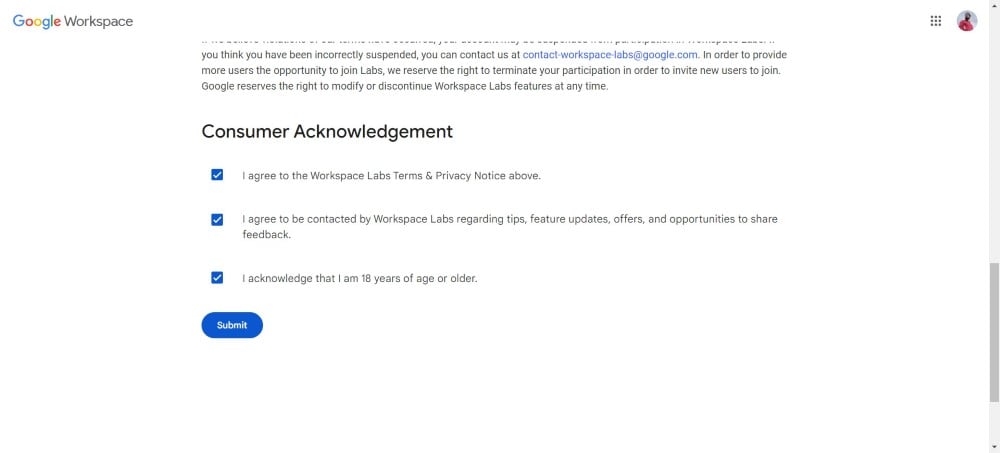
- You will receive a confirmation notice that you can now use Google Workspace Labs.
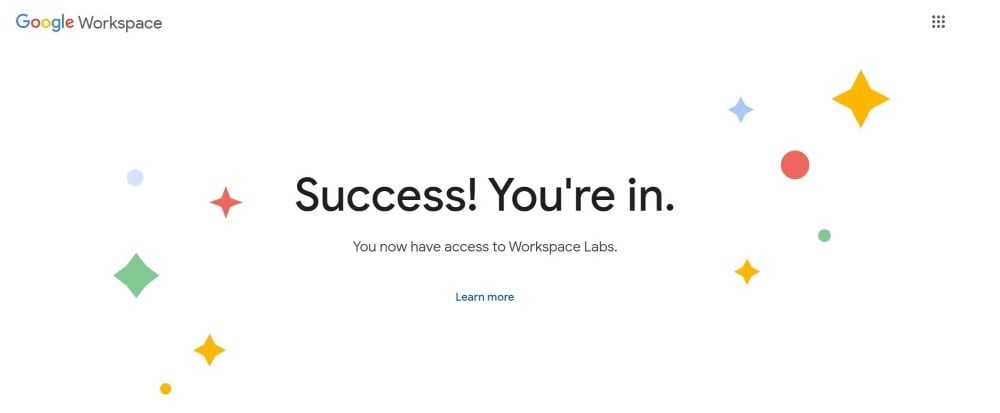
- However, the confirmation may not be immediate and you may see the message You’re on the waiting list! as the feature is being rolled out gradually.
Related Read: 5 Best AI Presentation and PowerPoint Design Tools
How do I generate AI images using Duet AI in Google Slides?
You should note that you can generate AI images in Google Slides with Duet AI via the Google Slides desktop web version only. This feature is not available for the mobile apps on Android and iOS. With that out of the way, here are the steps to use Duet AI in Google Slides to generate AI images:
- Visit the Google Slides website in any of your favorite browsers on your PC.
- Open a Slides presentation.
- Click on the Insert button at the top menu bar and select Image, then click on the Create Image with Duet AI option.

- Alternatively, you can click on the Create Image with Duet AI shortcut icon at the far right side of the toolbar. The icon resembles a square with two triangle peaks inside it and a star at the top right corner.

- You will see a sidebar open where inside the Describe your idea box, you can enter your prompts to generate images using Duet AI.

- Enter any prompt you want to generate an AI image of, then select the art style. You get different art styles to choose from including, Photography, Background, Vector Art, Sketch, Watercolor, or Cyberpunk. In case you go ahead with no style, Duet AI will automatically what it thinks is the best.

- After everything is selected, click on Create.

- Duet AI will take a few seconds to generate images based on your prompts and art style selection.
- If you don’t like the initially generated images, then you can click on View more.
That’s it! Now you can generate AI images just like that with some prompts and selection, and you will have your presentation decorated with AI images. Do note that AI image generation can be hit or miss. So, there are a few tips that we would like you to keep in mind before you go ahead and try out Duet AI in Google Slides for image generation.
Read More: Top 7 AI Art Generator Websites [Free and Paid]
Tips to know for better image generation with Duet AI
If you use AI art generators, then you may have some skills to create better AI art with prompts. However, if you are someone who doesn’t usually work with AI and want to get the best results, here are some tips that will help you.
- When entering a prompt, make sure you give specific details about the artwork you want to create and not vague sentences. For example, if you want to generate an AI image of a boy, specify the hair length, beard or not, the type of clothing the person is wearing, etc.
- Avoid generating images with people in them. The Duet AI is still learning and is a bit nervous when it comes to creating images with people in them.
- Try different prompts to generate an image. Maybe a different prompt will help you get the right image out of Duet AI.
Related Read: How to Generate Images in Google Bard for Beginners
FAQs about Duet AI
1. Is Duet AI good with its output?
Duet AI is still in the learning phase. It lacks factual knowledge, which is why the results it produces aren’t accurate. So sometimes you get results that are factually incorrect, irrelevant and make no sense.
2. Is there any other alternative that can be used with Google Slides?
Yes, you can use Plus AI to supercharge Google Slides. While Duet AI can only help you generate AI images with prompts, you can use Plus AI to do multiple things, such as convert your slides into three-column slides, generate beautiful fonts and colors, transcribe your presentations with AI, translate your slides, and more.

