

Quick Answer
If your Windows 11 laptop shuts down without a low battery warning, check notification settings, enable low battery alerts in Power Options, apply energy recommendations, and assess battery health. Disable “Do Not Disturb” mode and system-level notification blocks. If the issue persists, your battery may be degraded—generate a battery report and consider a replacement.
Low battery notifications are very common on any device we use when the battery drains to the lowest level. The notification reminds us to connect to the charger or a power source and recharge the battery. If we do not see low battery notifications, it becomes hard for us to monitor the battery level constantly while immersing ourselves in work.

We also see low-battery notifications on Windows 11 laptops. The energy-saving feature turns on when the battery reaches 30%, and if it falls below 20%, you will see a low battery notification. When you do not see a low-battery notification on a Windows 11 laptop, there indeed is an issue. We show fixes you can use to avoid your Windows 11 laptop shutting down without low-battery notification.
Table of Contents
4 Ways to Fix Laptop Shuts Down Without Low Battery Notification
Enable Notifications
If you have enabled the “Do not disturb” feature to skip notifications on your PC, you may not see the low battery notification. The low-battery notifications are skipped, and your laptop may shut down automatically when the battery level reaches below two percent.
To disable do not disturb mode on Windows 11,
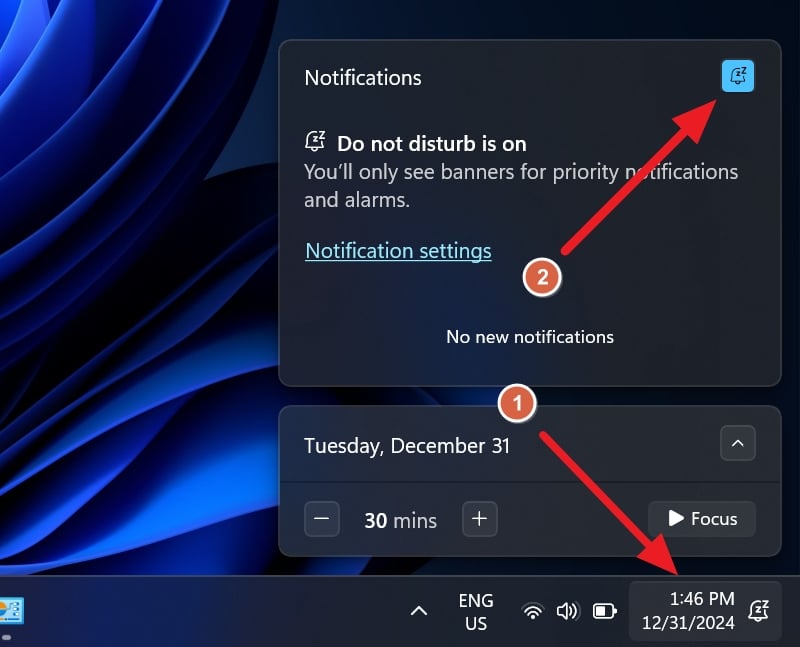
- Click on Time on the Taskbar corner overflow.
- You will see if the do not disturb feature is enabled or not.
- If enabled, click on the bell icon to disable it. When you have disabled the do not disturb mode successfully, the bell icon turns into System color (light or dark), and the information about the do not disturb feature disappears.
Sometimes, when you disable the do-not-disturb mode and the notifications at the system level are disabled, you cannot see the low-battery notifications. To enable notifications at the system level,
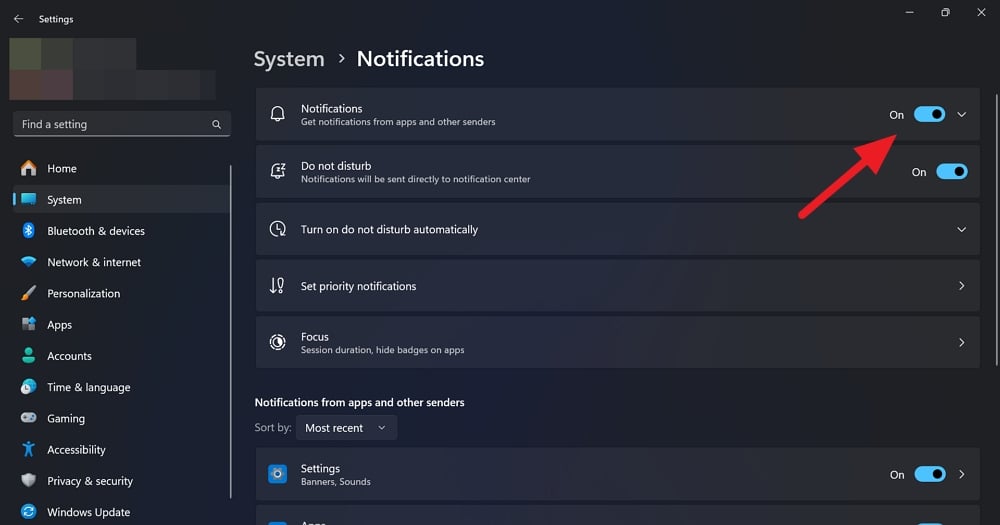
- Open the Settings app using the Start menu or the Win + I keyboard shortcut.
- Select System from the left-side menu and go to Notifications.
- Toggle the button beside Notifications to enable the notifications.
That’s it. If the low-battery notifications on your Windows laptop are affected by the notification settings, you will receive them from now on.
Enable Low Battery Notification
The power options on Windows enable you to change your PC’s behavior according to the battery level. If the low-battery notifications are turned off in the Power Options, you must enable them to see the notifications instead of automatically shutting them down.
To enable the low battery notifications in Power Options,
- Click the Start button, search for Control Panel, and open it.
- Change View by options to Small icons.
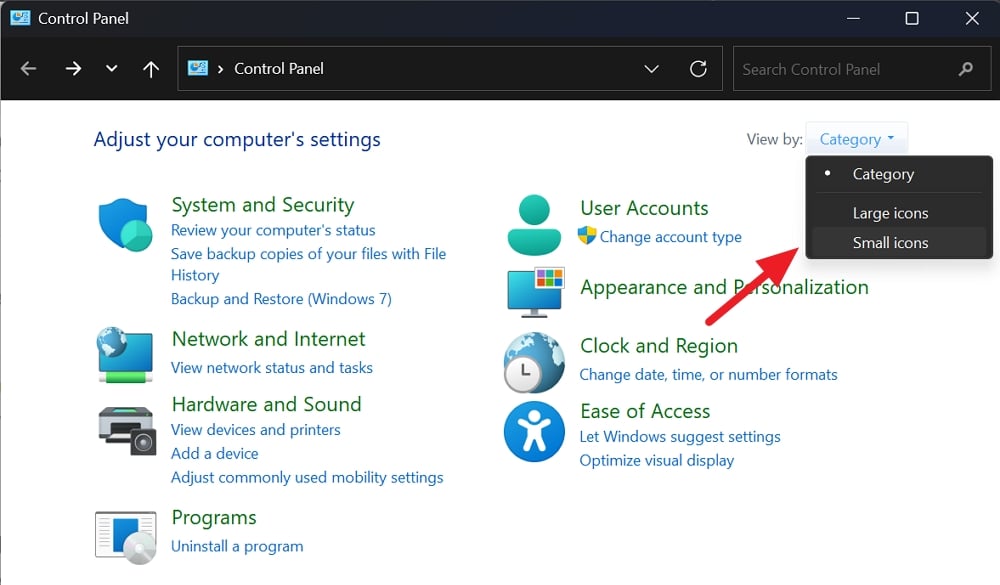
- Now, select Power Options and click on Change plan settings.
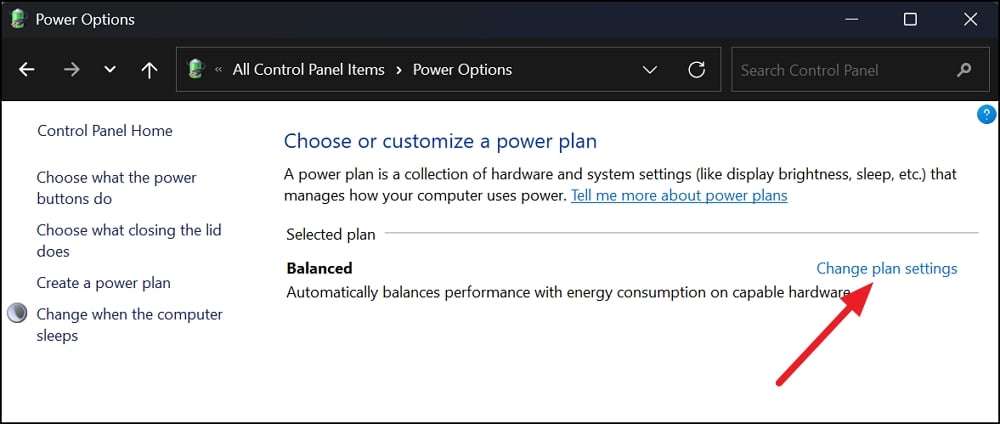
- Click on Change advanced power settings to change the Power Options.
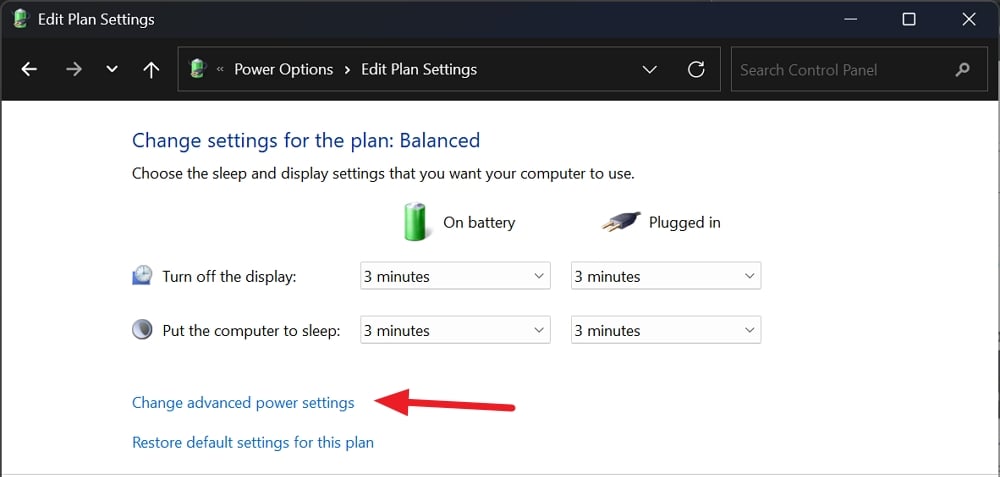
- Expand Battery options and then expand Low battery level and Low battery notification options. Set the percentages, or leave them as they are, and enable the notifications by setting the option to On under Low battery notification options.
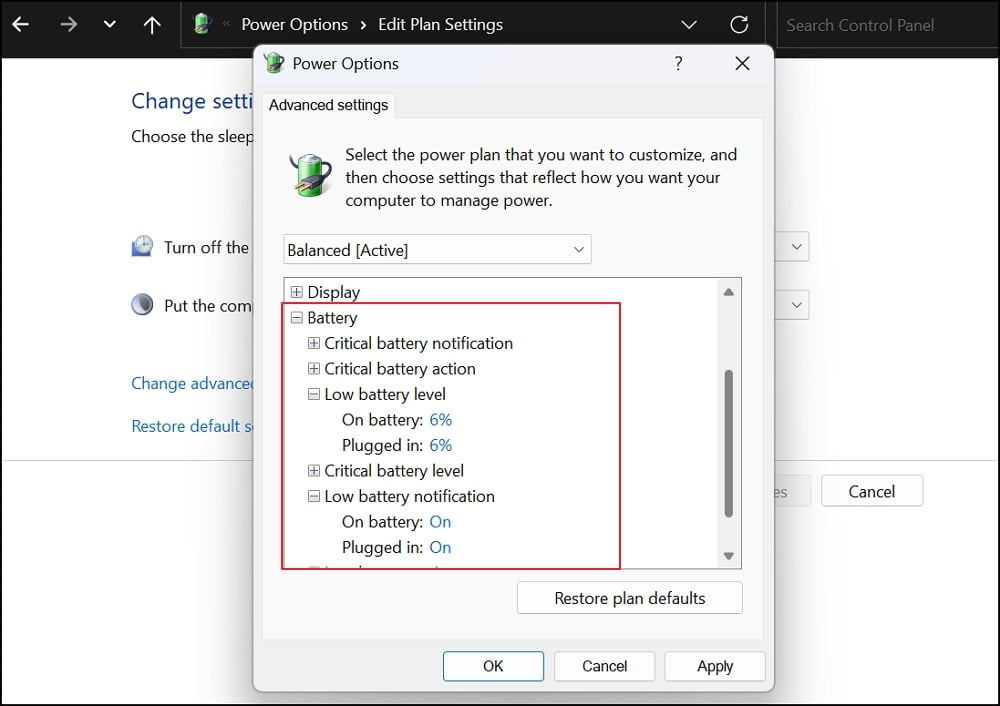
This will now enable the low-battery notifications on your laptop.
Apply Energy Recommendations

The energy recommendations on Windows 11 give you suggestions for the optimal performance of your battery. It enables your battery to run longer and gives you space to connect to a charger before it runs out, thereby not disturbing your work.
To enable energy recommendations on Windows 11,
- Open the Settings app and select the System tab.
- Click on the Power & battery tab.
- In the Power & battery options, you will find Energy recommendations at the top of all options. Click on it.
- Now, click the Apply All button on the energy recommendations page.
This will not affect your low-battery notifications, but it will give you some time to connect to a charger before your laptop shuts down abruptly, causing you to lose all your work.
Check Battery Health
If your issue is not yet fixed and your laptop is shutting down abruptly, then there must be an issue with the battery. To ensure that there is an issue with the battery, you need to check battery health. You can get a battery report on your Windows 11 PC with all the data that you can use to assess the battery situation.
To get the battery report and check battery health on Windows 11,
- Run the Command prompt as an administrator.
- Enter the following command and press Enter.
powercfg /batteryreport /output "C:\battery_report.html"
- It generates the battery report on your PC and automatically saves it as an HTML document on your C drive.
- Go to the C drive and open the Battery report HTML document.
- You can assess the battery’s health using three sections: Installed batteries, Battery capacity history, and Battery life estimates.
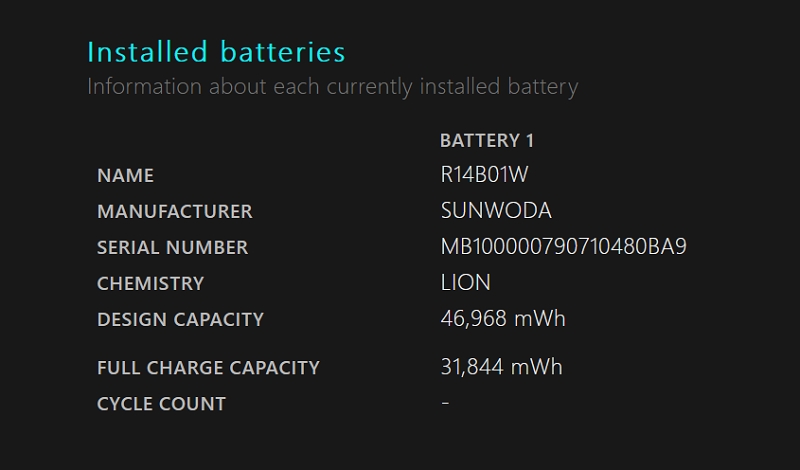
- In the Installed batteries section, you will see Design Capacity and Full Charge Capacity. Design Capacity carries the data of the battery power when it is designed or made. That is the peak power capacity. The Full Charge Capacity is the battery capacity at its 100% charge when you use it. It gives a rough idea about the battery’s health. The more the difference between design and full charge capacity, the worse the battery health is.
- Now, in the Battery Capacity History and Battery Life Estimates section, you will see your battery’s current data and status. Under Battery capacity history, you will see the date the report was published and the current data on Full Charge Capacity and Design Capacity. If the Full Charge Capacity is below 60% of the Design Capacity, your battery health is bad. To learn more, refer to the Battery Life Estimates section, where you can see the number of hours your laptop battery works at full charge.
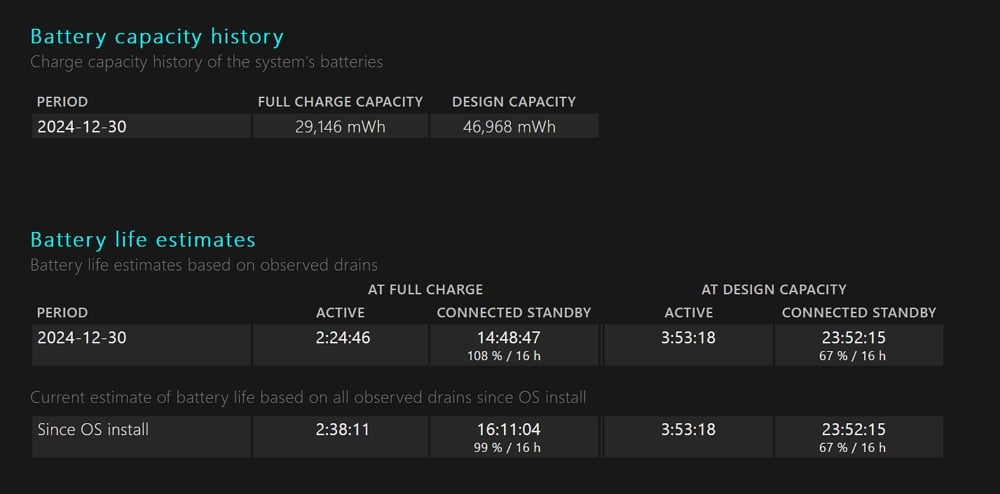
If your battery health is bad or worse, you must replace it. The longer your laptop’s lifespan is, the more the battery will drain. With bad battery health, you cannot get low-battery notifications unless you set the low-battery notification to 50% or more in the Power Options.
Laptop Not Warning Battery Low in Windows 11
You will not see low-battery notifications on Windows 11 when you turn off the notifications, low-battery notifications in the Power Options, or when the battery health is bad or worse. The bad health makes it hard for the battery to reach the low-battery notification trigger level as it shuts down the laptop. Change notification settings or replace the old battery with a new one to fix the issue.
FAQs on Windows 11 Laptop Shuts Down Without Low Battery Notification
Why does my laptop shut down automatically even with a full battery?
The battery health of laptops goes from bad to worse with the years of usage. A new battery works far better when compared to a used one. When the full charge capacity of your battery reaches below 5% of your battery's design capacity, the laptop shuts down automatically even with a full battery, as it needs to be connected to the charger all the time.
Why does my laptop not warn me when the battery is low?
In the Power Options, you can show low-battery notifications when it reaches 6% or some other level you set. A battery with bad health does not reach the 6% to trigger the low-battery notification. So, your laptop does not warn you of low battery as there is no way to trigger the notification. To fix this, you need to change the low-battery notification trigger level or replace the battery with a new one.
Can a bad battery cause a laptop to shut down?
A bad battery can definitely cause a laptop to shut down before it shows you a low-battery notification. A battery with bad health drains so fast that it does not show the low-battery notification. Instead, your laptop shuts down automatically and turns on when you connect it to the charger.
What are the symptoms of a bad laptop battery?
The symptoms of a bad laptop battery are that it drains so fast that you do not see the low-battery notifications. You always need to connect your laptop to the charger to use it. Your laptop may also heat with the damaged battery.
How can I fix my laptop battery health?
Implement energy recommendations and disconnect the charger when it recharges fully. Regularly check the battery's health, and if it goes to bad or worse positions, that is, when the full charge capacity is below 50-60% of the design capacity in the battery report, you need to replace it with a new one.

