

Quick Answer
To fix the “Ad blockers are not allowed on YouTube” issue in Brave, disable Shields for YouTube by clicking the Brave icon in the address bar and toggle it off. If that doesn’t work, try updating the Brave browser. Alternatively, you can also clear cache or cookies in Brave Browser or use YouTube in a private window. If you still see ads, then bypass the YouTube anti-ad blocker popup by creating custom filters. If none of these work, you can also try using Brave alternatives like Mozilla Firefox, Opera, or DuckDuckGo Browser.
YouTube has become an essential part of our daily lives, whether for learning, entertainment, or passing time. While exploring YouTube, nothing disrupts the experience more than those unskippable ads that break the flow of a video. Until recently, ad-blockers were the good-to-go solution for blocking these ads, but YouTube’s latest policy changes have cracked down on ad-blocking extensions, making them ineffective for most users.

If you’re also frustrated by the ‘Ad Blockers are Not Allowed on YouTube’ pop-up in Brave but don’t want to pay for a YouTube Premium subscription, there are still ways to enjoy an ad-free experience. While YouTube actively detects and blocks ad blockers, a few methods can still help you bypass these restrictions.
Table of Contents
17 Ways to Fix Ad Blockers are Not Allowed on YouTube in Brave
The battle between YouTube and the Brave browser has been going on for a long time. Every time YouTube introduces new rules to block ad blockers, Brave responds with updates to bypass them.
However, last year, YouTube made a major change. Since then, many users have struggled to skip YouTube ads in Brave. In response, Brave again came up with a new update and shared a few fixes on X. I have tested these fixes along with some other methods, and now, I will share the seventeen best ways to bypass the ‘Ad Blockers are Not Allowed on YouTube’ pop-up in Brave.
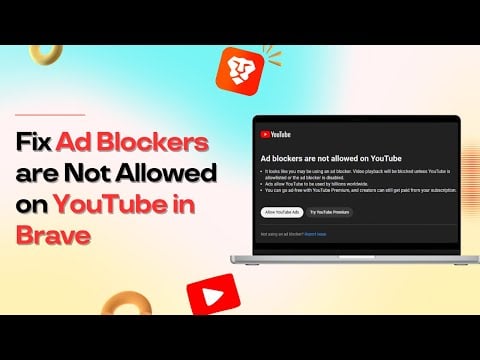
Turn Off and On the Ad Blocker in Brave Browser
If you’re seeing the Ad Blockers are Not Allowed on YouTube message in Brave, a basic fix is to disable and re-enable the built-in ad blocker. It will make sure that you have enabled the ad blocker. Sometimes, Brave’s shield settings may not work correctly, but a quick turn-off and on will resolve the issue.
Note: This Fix is also for those who are currently using an ad blocker extension. If you are, then turn it off and use Brave’s built-in Ad Blocker by following the steps below.
- Make sure you’re on the YouTube page.
- Click on the Brave Shields icon or the lion icon in the address bar.
- Turn off the toggle right to ‘Shields are UP for www.youtube.com’ and refresh the page.
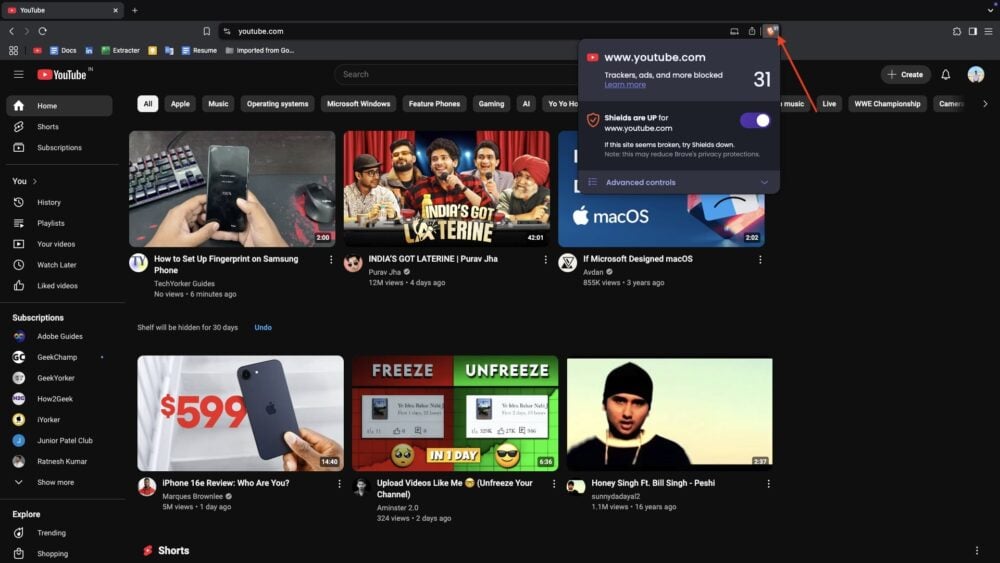
- Wait a few seconds, then turn on the toggle again.
Use a Private Window in Brave Browser
The best part of Brave Shield or Ad Blocker is that it even works smoothly in the private window. So, If you’re looking to browse YouTube without ads, a temporary solution is to use a Private Window in Brave. Well, it’s temporary because you need to log in every time to see your favorite YouTube feed. But, For some users who watch content by searching, this method works permanently, so it’s worth trying. Private mode prevents websites from storing cookies and tracking data, which can help bypass YouTube’s ad-blocking detection.
1. To do this, open the Brave browser on your device.
2. Click the Brave Shields (lion) icon and ensure it is enabled to block ads.
3. Now, click on the three horizontal lines at the top-right corner.
4. From the menu, select ‘New Private Window’ or ‘Private Window with Tor.’
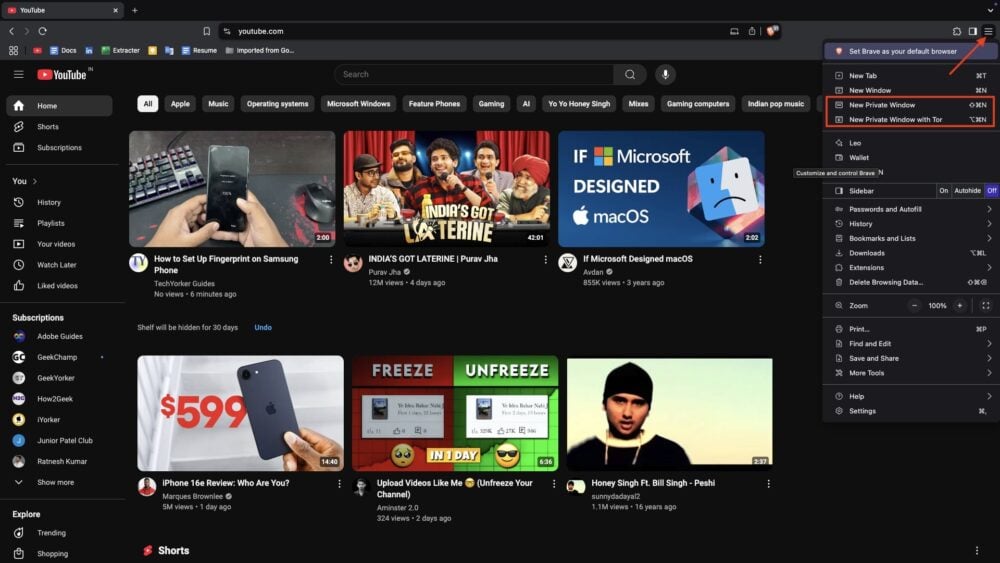
5. Now, Visit YouTube.com and check if ads still appear.
Update the Brave Browser
When was the last time you checked for a Brave browser update? If it’s been a while, this could be why you might be kicked by YouTube. Recently, many users have reported issues with Brave’s ad blocker not working properly. To fix this, Brave has released new updates, specifically for its ad-blocking feature. Brave officially stated on X that users should update to version 1.0.9653 or later for a smooth, Ad-free experience. If you haven’t updated it yet, there’s a high chance that YouTube’s pop-up will appear because of this.
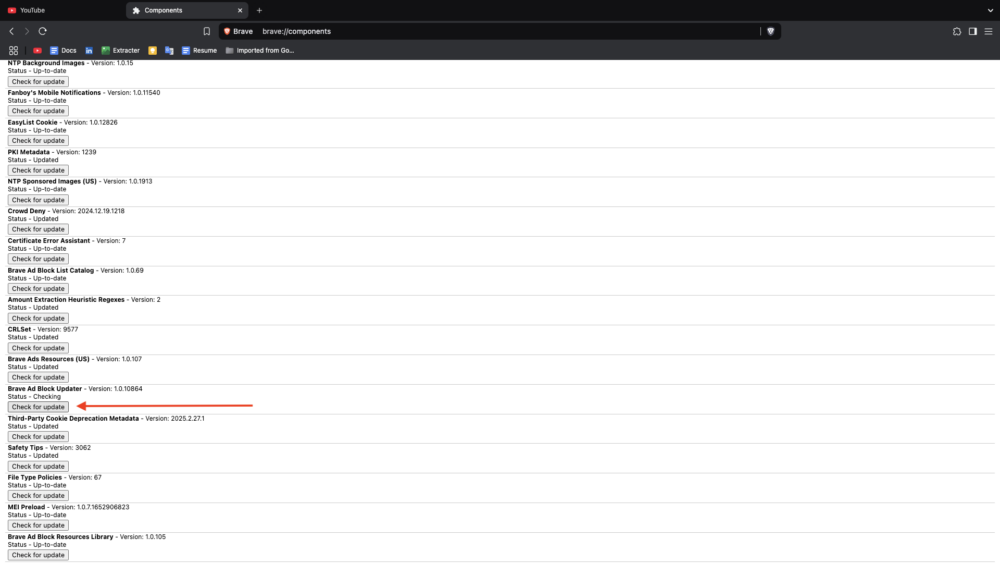
- To update, open the Brave browser and type brave://components in the address bar.
- You will see a list of 23 components with their versions.
- Brave suggests updating the Brave Ad Block Updater to version 1.0.9653 or later.
Check Brave Shield Settings
If ad blockers are not working for you and you keep getting the ‘Ad Blockers Are Not Allowed on YouTube’ pop-up, you should check Brave Shields settings. There’s a chance that an update may have changed some default settings, and that’s why you are facing this issue.
- Open Brave and click on the hamburger menu (three horizontal lines) at the top-right corner.
- Click on Settings when the menu prompts.
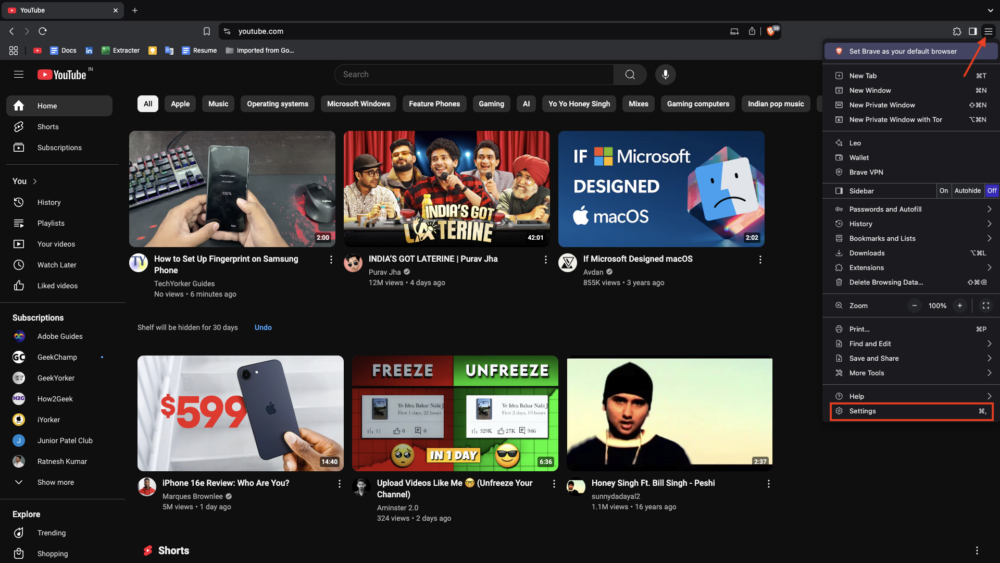
- Click on the Shields option.
- In the right-side panel under Shields, first set ‘Trackers & Ads Blocking’ to ‘Aggressive’ for maximum ad filtering. Then, adjust the following settings accordingly:

- Upgrade connections to HTTPS: Set to Strict.
- Block fingerprinting: Enable it.
- Block cookies: Set to block Third-party cookies.
- Block scripts: Ensure this option is Disabled (enabling it may break some websites).
- After making these changes, open YouTube, refresh the page, and enjoy an ad-free experience.
How to Clear Cache or Cookies in Brave Browser
Cache, cookies, website data, or browsing history are stored by your browser or any platform like Youtube to enhance Your experience by showing results with your interest. This is useful for saving your data and personalizing your browsing experience. Sadly, it also allows YouTube to track your activity. This tracking enables YouTube to detect ad blockers, which may be the reason you’re seeing the ‘Ad Blockers Are Not Allowed on YouTube‘ pop-up. To resolve this, you need to clear the cache and cookies of the Brave browser.
- Open the Brave browser and click on the three horizontal lines in the top-right corner.
- Select Delete browsing data.
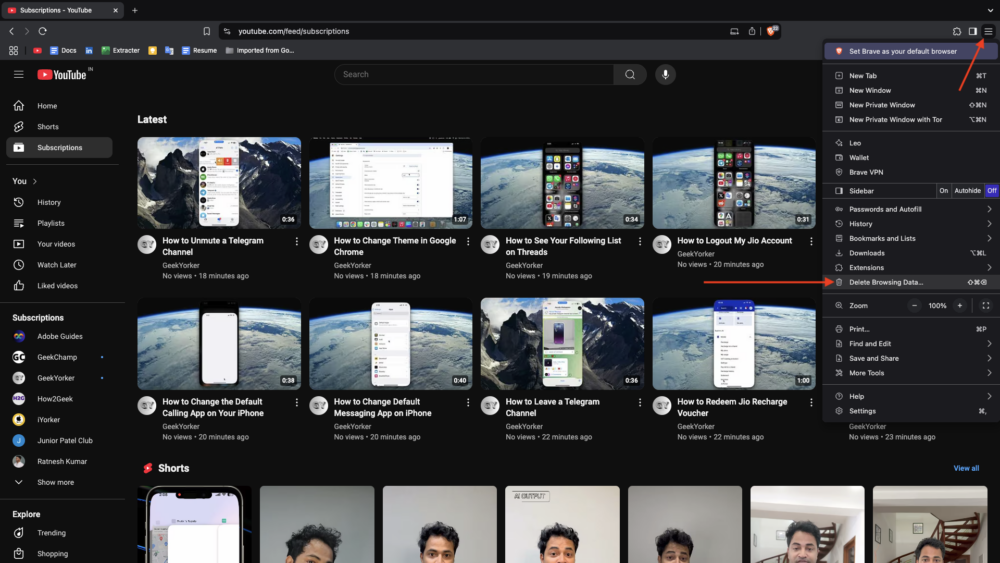
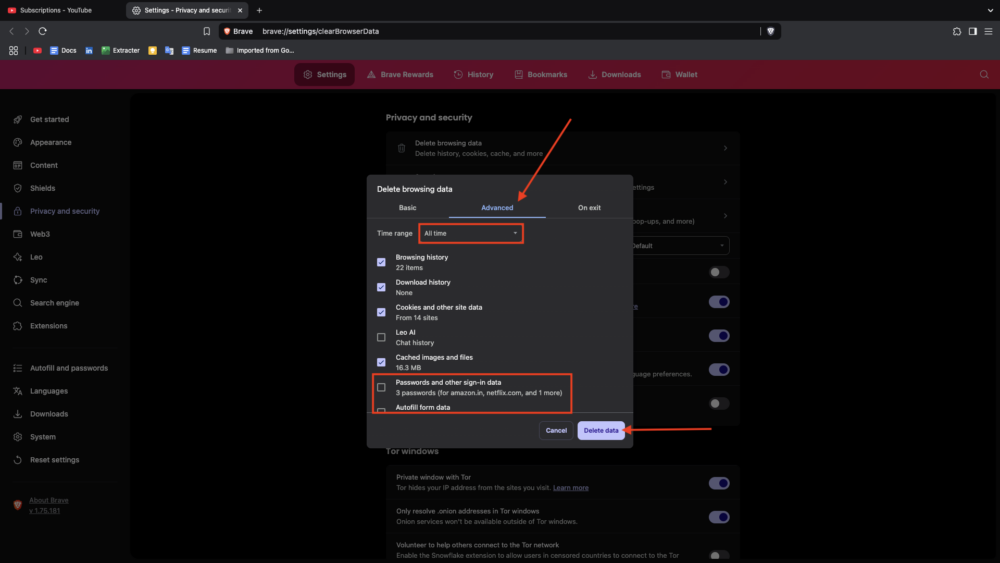
- You will see two important modes for clearing data: Basic and Advanced. I recommend switching to Advanced for a more thorough cleanup.
- Next, click on the drop-down menu next to Time Range and select All Time to delete all stored data.
- If you haven’t saved any important passwords, sign-in data, or autofill details, check all the available boxes. However, if you have important saved data, make sure to uncheck Passwords and other sign-in data, Autofill form data, and site and Shields Settings.
- Finally, click on Delete data.
Edit Content Filter List
One of the best features of Brave Ad Blocker is its ability to use content filters. If your ad blocker is enabled but not working properly, selecting specific filters can improve its performance and enhance ad blocking.
- Open Brave Browser and click on the three horizontal lines in the top-right corner.
- Choose Settings.

- In the left panel, select Shields.
- Scroll down to the right-hand pane and click on Content Filtering.
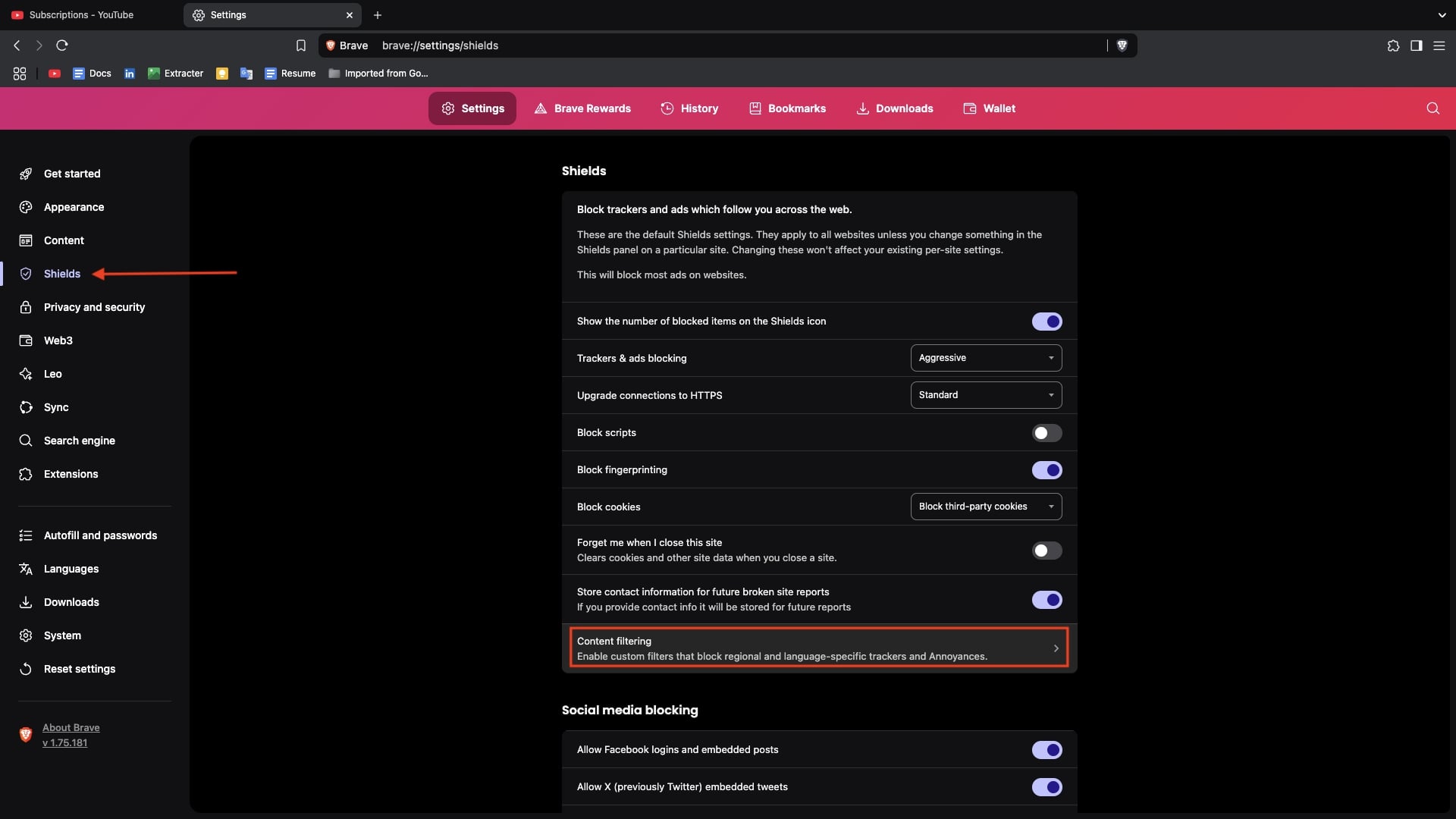
- Click on Show Full List and check the box next to the following filters:
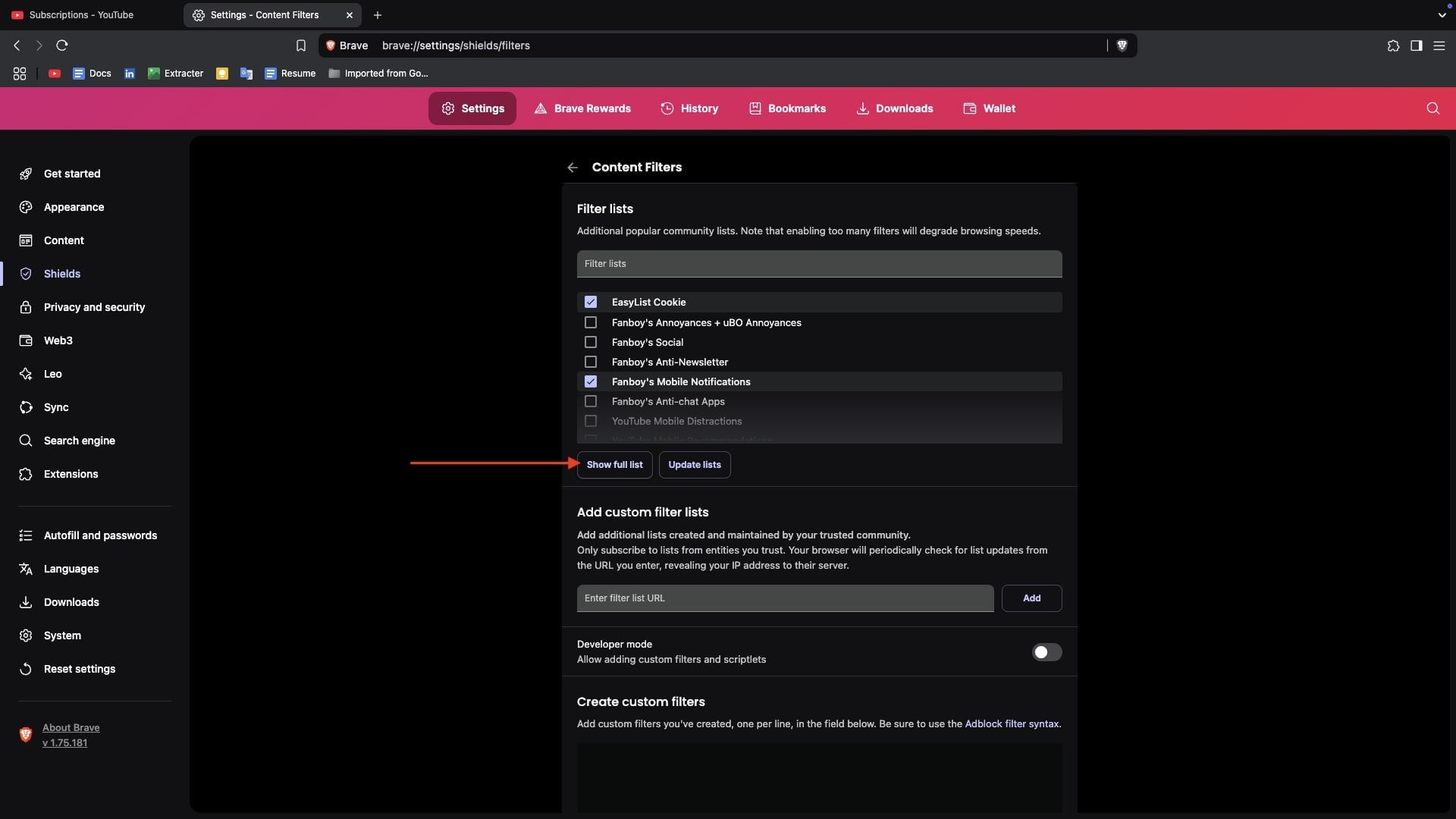
- EasyList Cookie
- Fanboy’s Annoyances + uBO Annoyances
- Fanboy’s Anti-Newsletter
- Fanboy’s Mobile Notifications
- YouTube Mobile Distractions
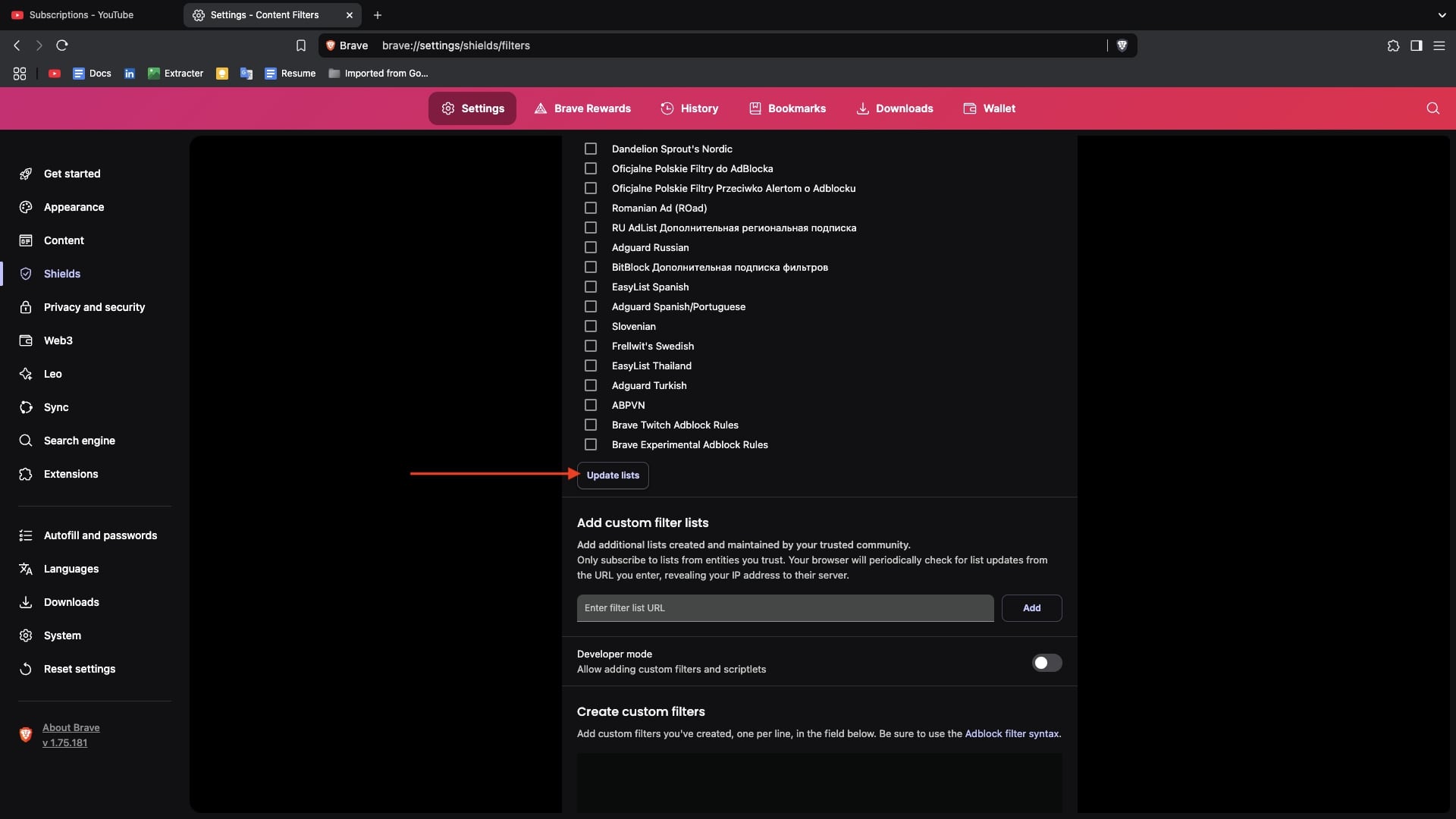
- After enabling the filters, click Update List at the bottom.
Bypass YouTube Anti Ad Blocker Popup by Creating Custom Filters
There’s a clever workaround that keeps Brave’s ad-blocking magic alive while stopping YouTube’s pop-ups. By adding a custom script to Brave’s ad blocker filters, you can bypass the detection and enjoy uninterrupted, ad-free viewing. Here’s how to make it happen.
1. Open the Brave browser on your computer.
2. Go to youtube.com.
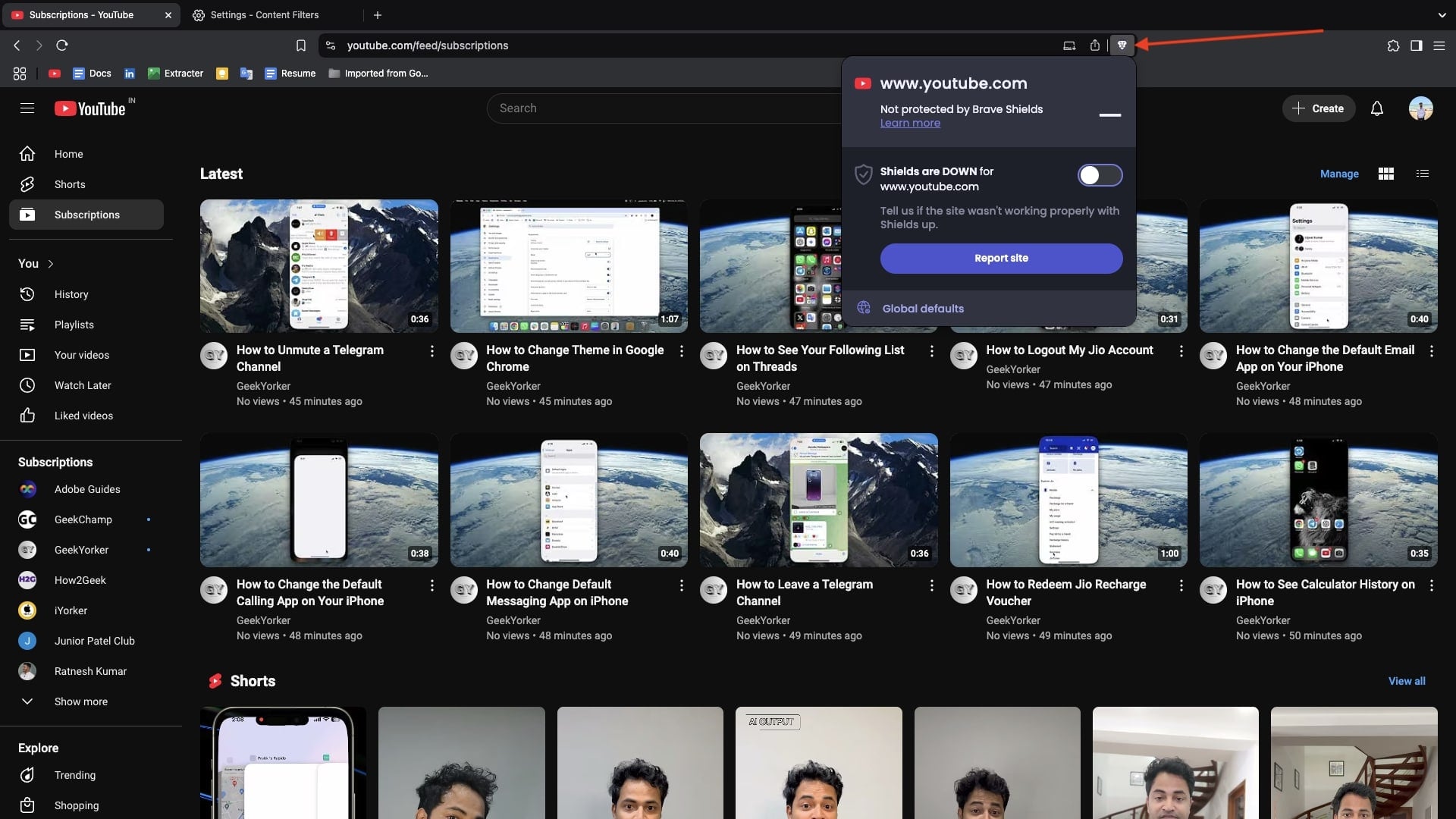
3. Click the Brave Shields icon next to the address bar.
4. Turn on the switch next to Shields are Down for www.youtube.com to block ads.
5. Type brave://settings/shields/filters in the address bar and press Enter.
6. Scroll down to the Create Custom Filters and enable the toggle right to the Developer mode box.
7. After enabling, paste the below script in the box.
youtube.com##+js(set, yt.config_.openPopupConfig.supportedPopups.adBlockMessageViewModel, false)
youtube.com##+js(set, Object.prototype.adBlocksFound, 0)
youtube.com##+js(set, ytplayer.config.args.raw_player_response.adPlacements, [])
youtube.com##+js(set, Object.prototype.hasAllowedInstreamAd, true)
8. Now, Click on Save Changes to lock in the script. Refresh YouTube, play a video, and watch the popup vanish while ads stay blocked.

Log Out of YouTube and Log In Again
If you’re still facing the Ad Blockers are Not Allowed on YouTube issue in Brave, a simple and effective fix is to log out of your YouTube account and log back in. Sometimes, YouTube tracks ad-blocking behavior through your account preferences and stored session data. By logging out, you force YouTube to reset its session tracking, potentially removing any stored data that flags your account for ad blocker usage. Follow the below steps to log out and log in back again
- Open YouTube in the Brave browser.
- Click on your profile icon in the top-right corner.
- Select Sign out when the menu prompts.

- Restart Brave browser.
- Open YouTube again and click Sign in.

- Enter your Google account credentials and log back in.
Add an External Ad Blocker Extension
Are you using Brave’s built-in ad blocker to block ads on YouTube? If yes, then there’s a possibility that you’re seeing the Ad Blockers Are Not Allowed on YouTube message because of this.
Now, you should try using an external ad blocker extension. Also, If you’re already using an external ad blocker and still facing the issue, consider switching to a different one.
I recommend trying uBlock Origin Lite or AdGuard AdBlocker to block YouTube ads. You can also explore other ad-blocking extensions in the Chrome Web Store.
- Open Brave Browser and go to the Chrome Web Store.
- Search for the ad blocker you want to try, like uBlock Origin Lite.

- Within the search result, click on the extension, then select Add to Brave.
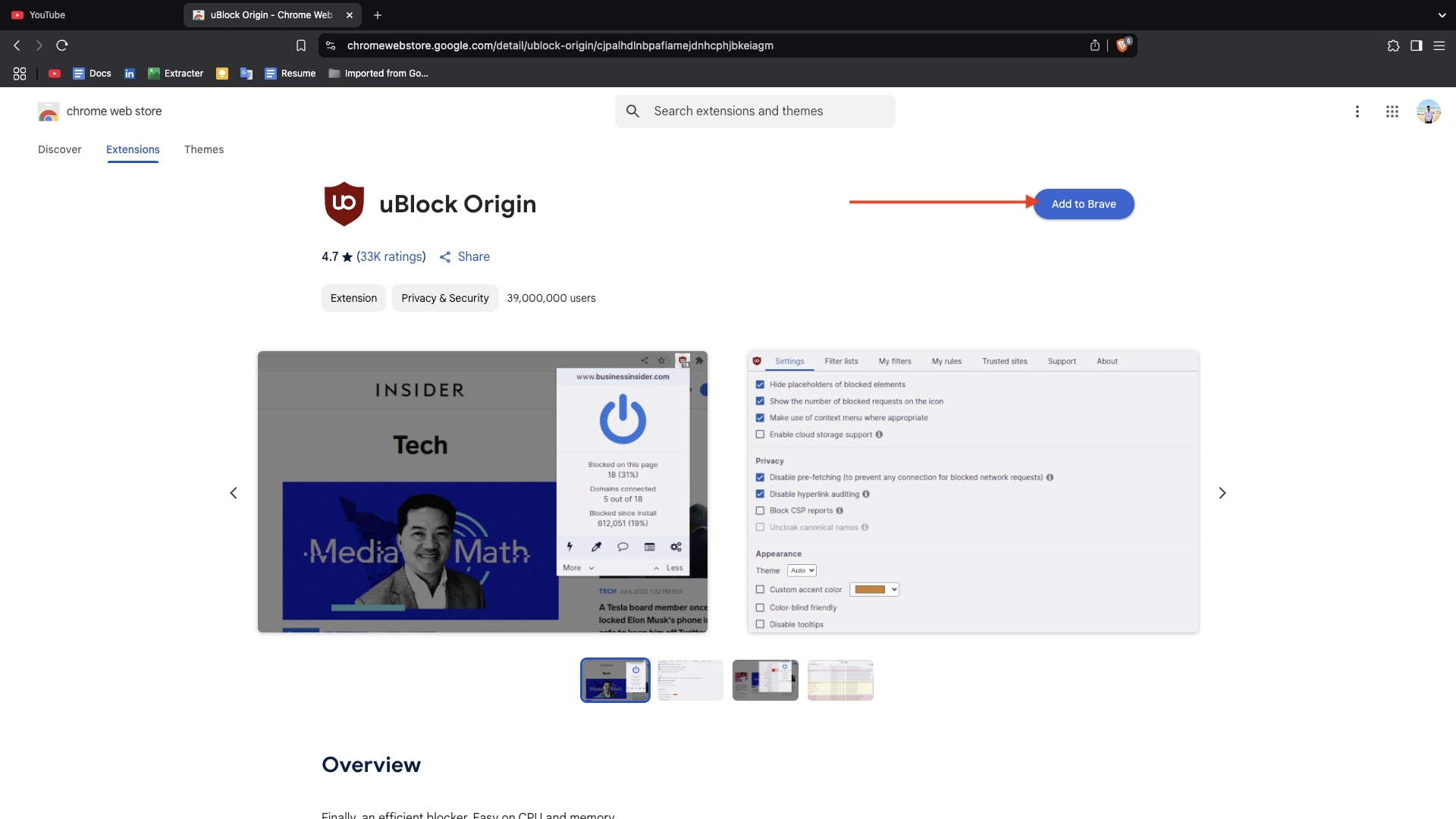
- Confirm by clicking Add Extension in the pop-up.

- Once installed, restart Brave and open YouTube to check if ads are blocked.
Enable Only One Ad Blocker at a Time
If you’re using multiple ad blockers simultaneously, they might interfere with each other, making it easier for YouTube to detect and block them. Running multiple similar extensions can cause conflicts. For instance, one of the blockers may be working fine while YouTube detects another.
To avoid this, I recommend enabling only one ad blocker at a time. If you have multiple ad blockers installed, try removing or disabling the extra ones by following these steps:
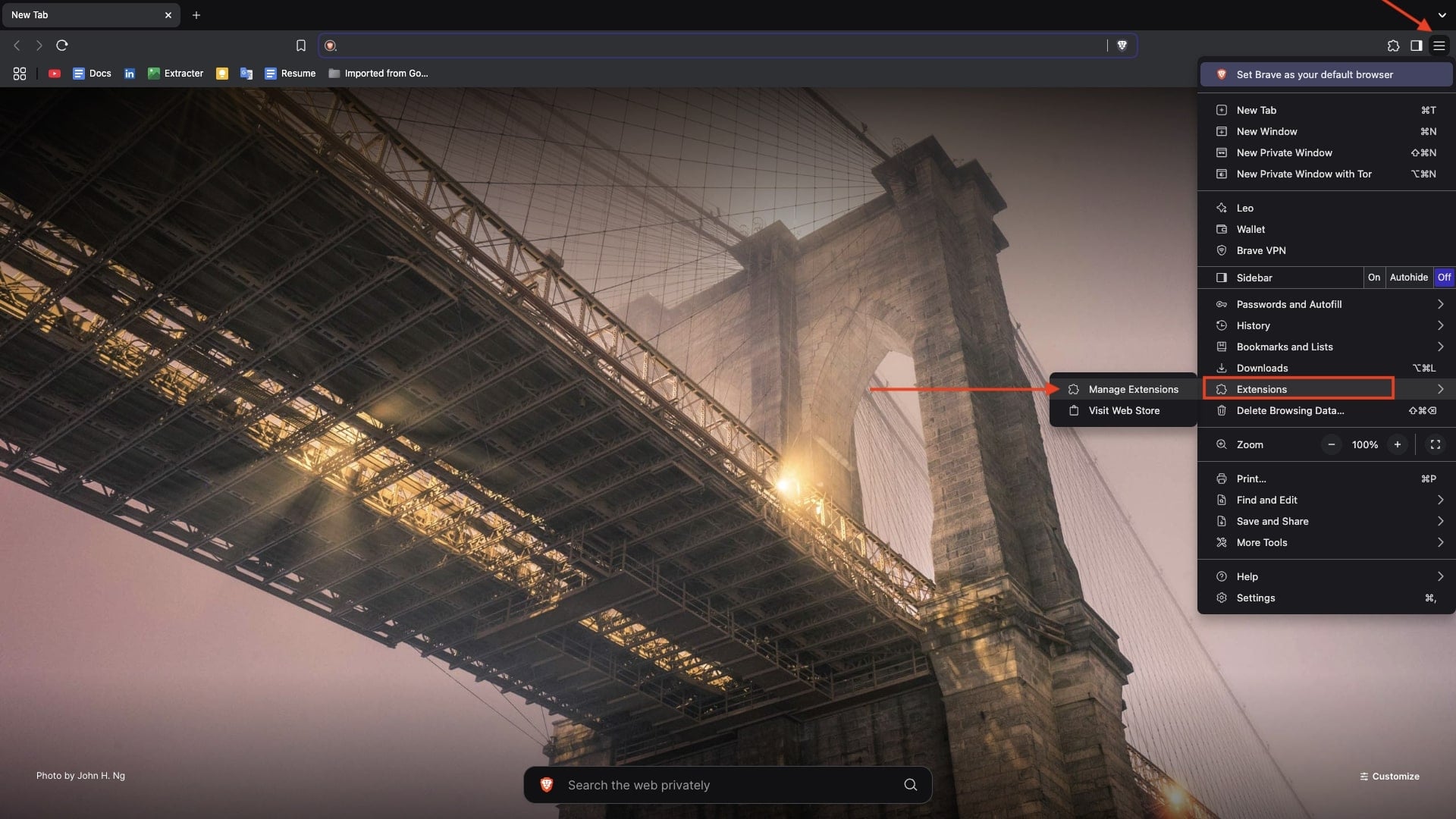
- Open Brave and click on the three lines in the top right corner.
- Take the cursor to Extension and then click on Manage Extension from the menu prompted.
- Look for the ad blocker extensions you have installed in your browser.
- Disable extra ad blockers by turning off the switch.
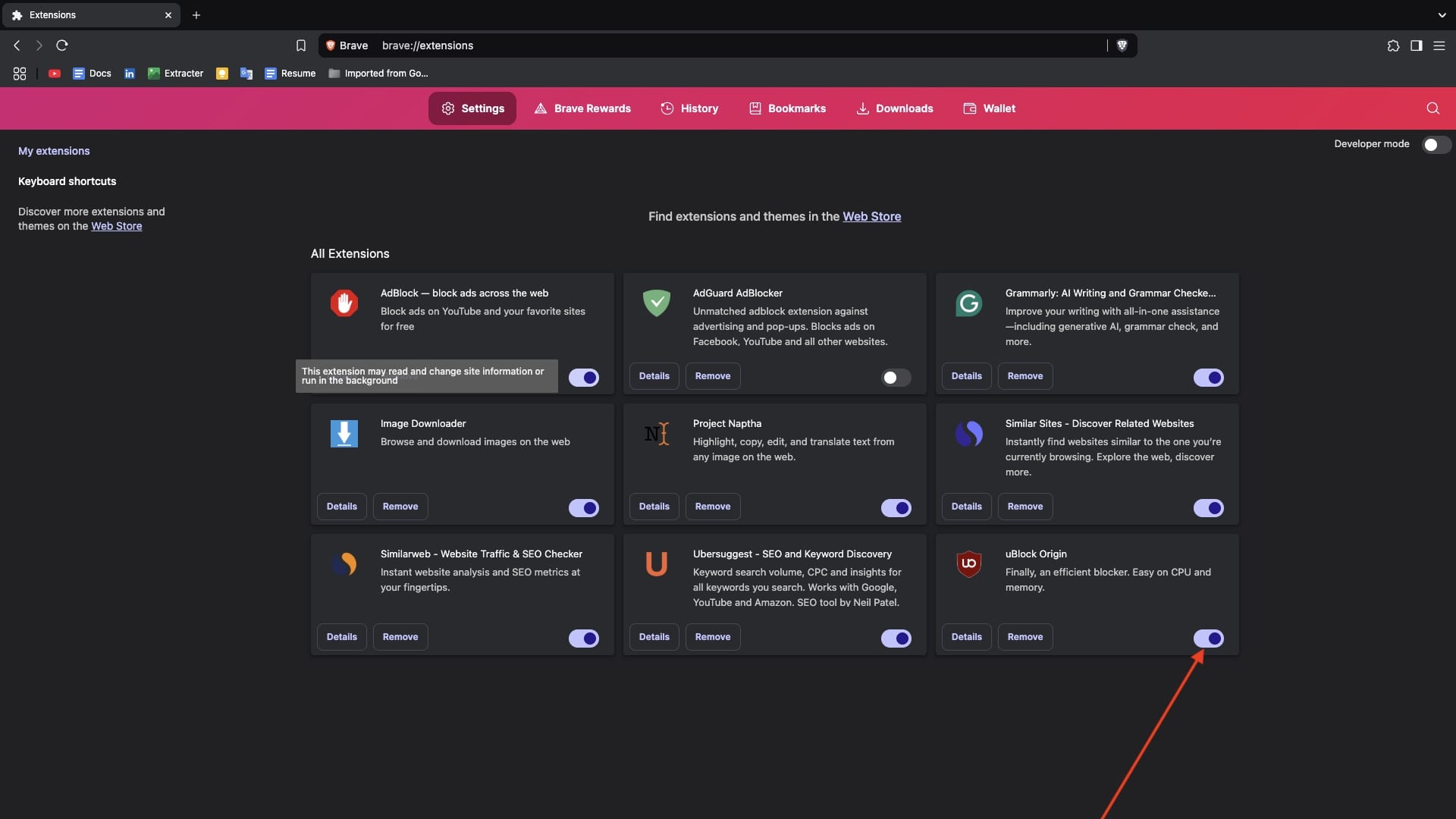
- If you want to remove them completely, click Remove and confirm.

- Now, Restart Brave and check if YouTube works without showing the pop-up message.
Use the “Ad Blockers Are Not Allowed on YouTube Bypass” Extension
If you’re using Brave’s built-in ad blocker and still facing the ‘Ad Blockers Are Not Allowed on YouTube‘ pop-up, you can try the Ad Blockers Are Not Allowed on YouTube Bypass extension. It might seem confusing at first, but I’ll make it simple.
This extension doesn’t block ads directly; instead, it bypasses the pop-up message that forces you from watching YouTube videos with ads. And if the pop-up message disappears, the ad blocker will start working and remove ads from your YouTube videos. As a result, you can watch YouTube without interruptions. I’ve tested two such extensions, and both worked well for me. You can try them too:
Ad Blockers Are Not Allowed on YouTube Bypass
- Click on one of the links above.
- Click the Add to Brave button.

- Confirm by clicking Add Extension in the popup.
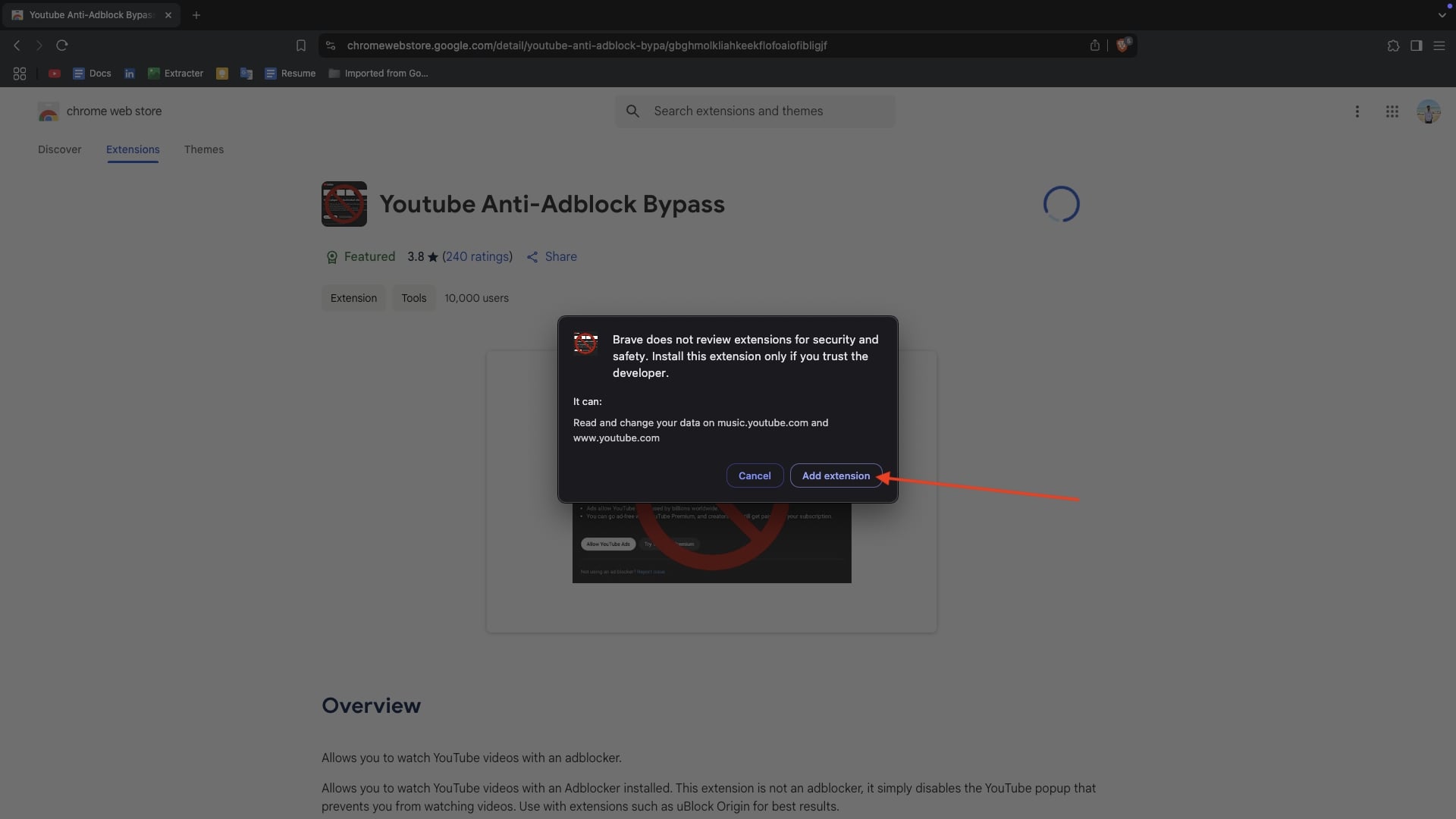
- Once installed, refresh YouTube and check if the pop-up disappears.
Update the Ad Blocker to the Latest Version
It’s been quite some time since YouTube started detecting ad blockers and displaying the pop-up Ad Blockers Are Not Allowed on YouTube. As a result, ad blockers are also getting smarter and updating their systems to bypass YouTube’s restrictions. So, if you have a third-party ad blocker extension and haven’t updated it for a long time, update it now.
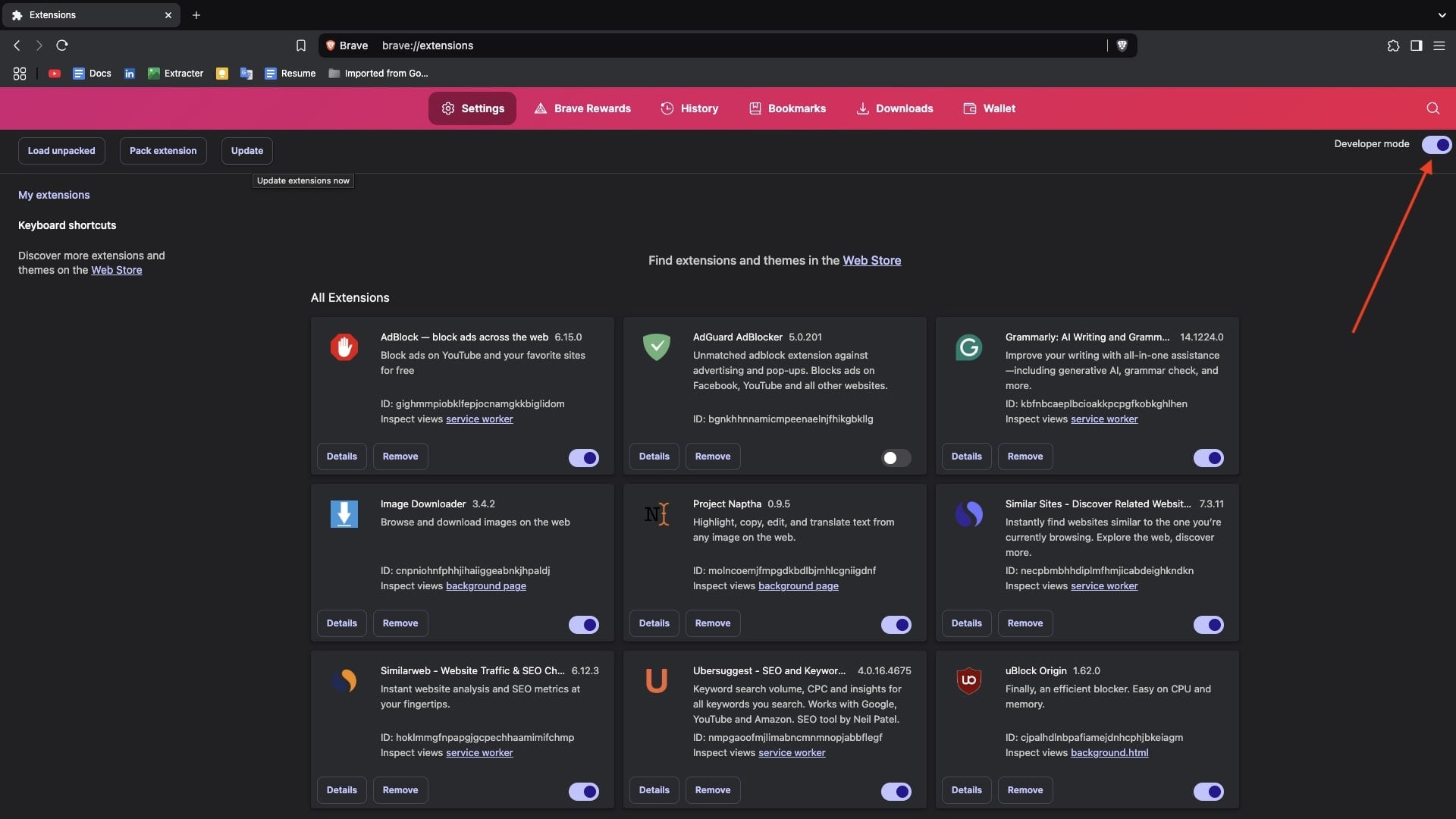
- Open the Brave browser and click on the three horizontal lines at the top right corner.
- Take the cursor over Extensions and click on Manage Extensions.
- Make sure you have enabled Developer Mode.
- Click on the Update button to instantly update all the extensions installed on your computer.
- Restart your browser, open YouTube, and enjoy an ad-free video experience.
Remove and Re-Add the Ad Blocker Extension
If you’ve been using a reputed third-party ad blocker for a while and are still facing the Ad Blockers Are Not Allowed on YouTube issue, it might be due to outdated settings or glitches. In such cases, removing and re-adding the extension can give it a fresh start, which may help resolve the problem.
- Open the Brave browser and click on the three horizontal lines at the top right corner.
- Click Extensions and hit Manage Extensions from the menu.
- Find the ad blocker extension in the list, then click Remove, and confirm by clicking Remove in the pop-up.
- Restart your browser to apply the changes.
- Go to the Chrome Web Store and search for your preferred ad blocker.
- Click Add to Brave to install the extension again.
Use a VPN
While searching for fixes, I found that YouTube doesn’t run ads in some countries like Albania, Moldova, Myanmar, or Russia. This information is Partially true. To check this, you just need a VPN that can connect you to one of these countries. I have an ExpressVPN account, so I decided to test it out. Here’s what I did:
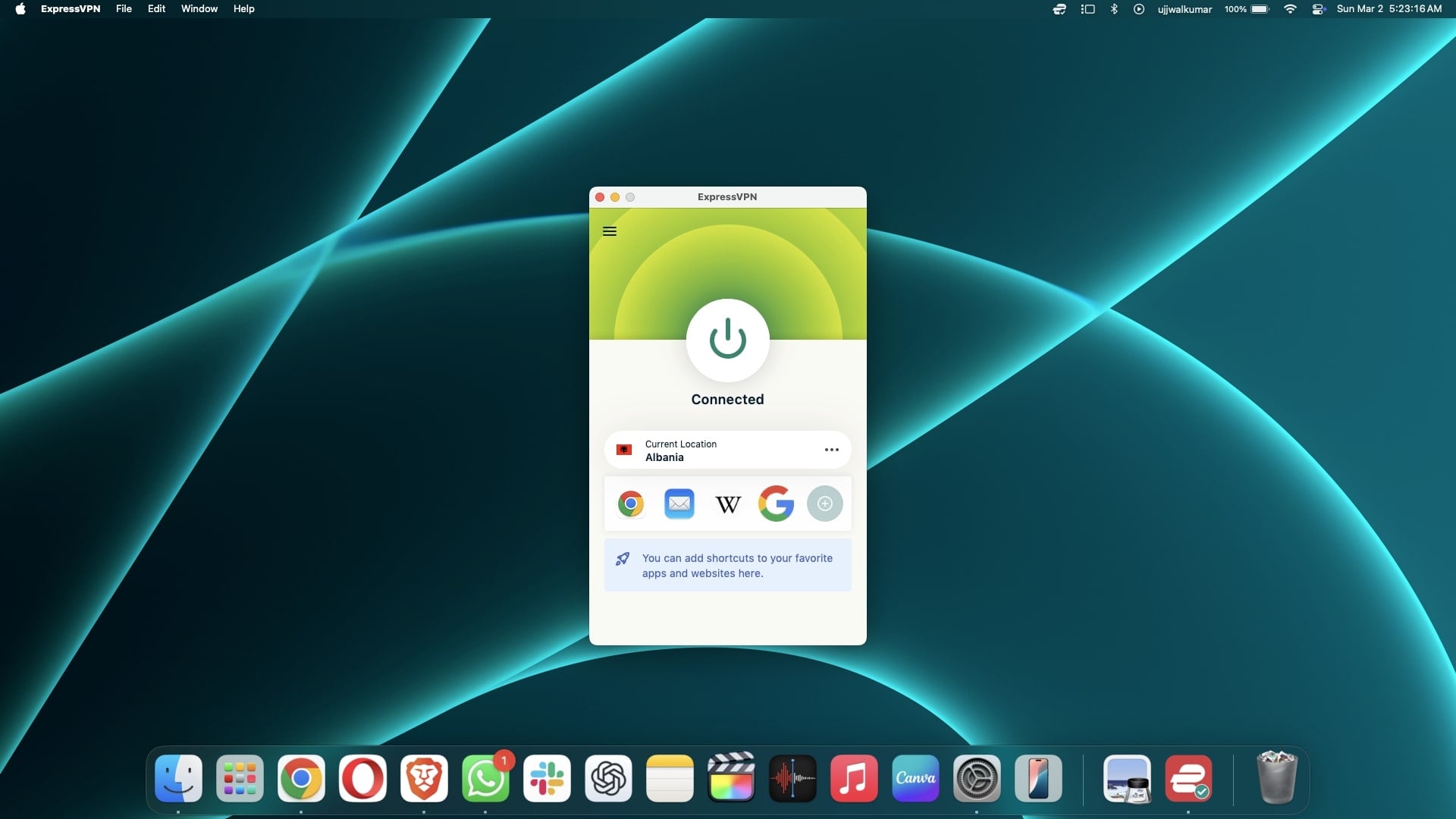
I connected to a VPN with all these countries and tested several for about an hour. In my experience, while connected to Myanmar and Russia, I still saw few ads in videos. When connected to the Moldova server, I didn’t see ads while watching YouTube videos. However, while scrolling through the YouTube feed, some ads were still visible. In my research, Albania was the best option; I didn’t see a single ad while watching videos for about half an hour.

If you are going to try this approach, first of all, choose a VPN that offers most of the countries (we recommended ExpressVPN). Keep in mind that this method does not technically block ads. It simply changes your location, and then it all depends on YouTube’s ad policies in that country. This workaround might work temporarily, but based on my research, it can reduce the number of ads significantly.
Reinstall the Brave Browser
Nowadays, YouTube is getting better at detecting ad blockers, especially on Chrome. So, If you’ve imported your bookmarks, passwords, and other data from Chrome or another browser into Brave, you might face Ad Blockers are Not Allowed on YouTube due to this. I faced this problem, too. What worked for me was uninstalling and reinstalling Brave.
On Windows:
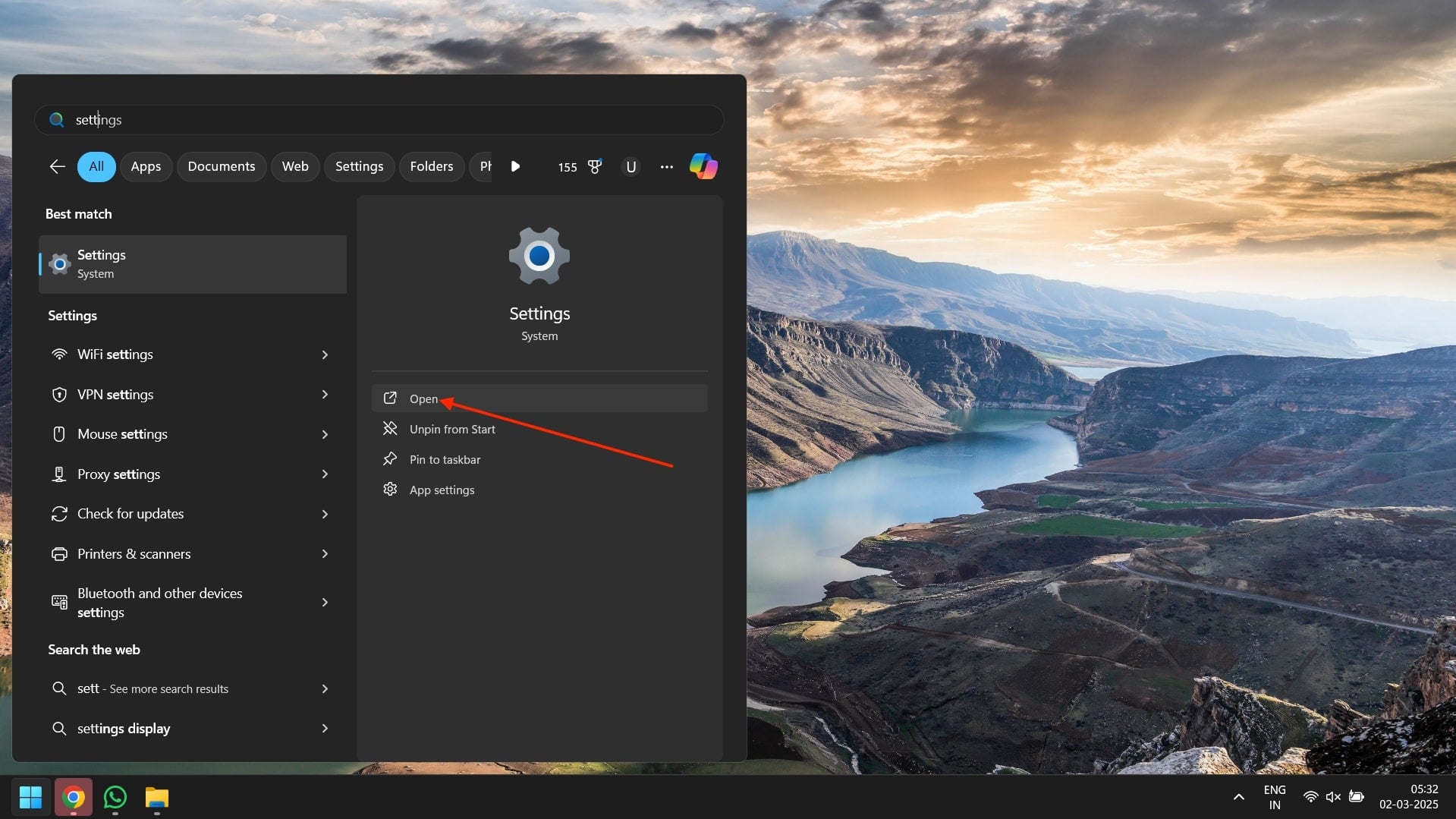
- Open Settings.
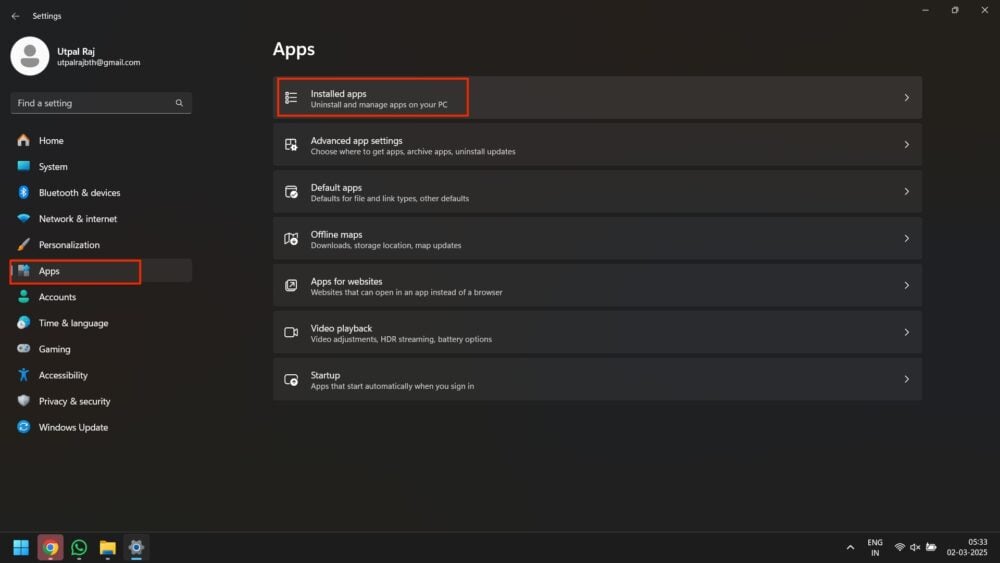
- Click on Apps in the left side pane and select Installed Apps in the right sidebar.
- Find Brave Browser and click the three dots next to it.
- Click Uninstall when the small menu prompts.
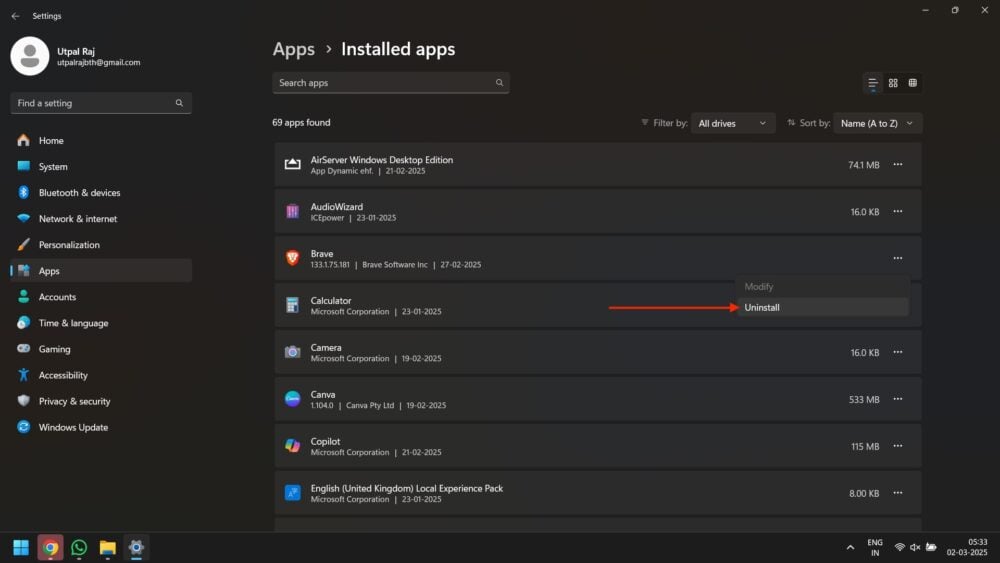
- Finally, click uninstall again when the confirmation pop-up appears.
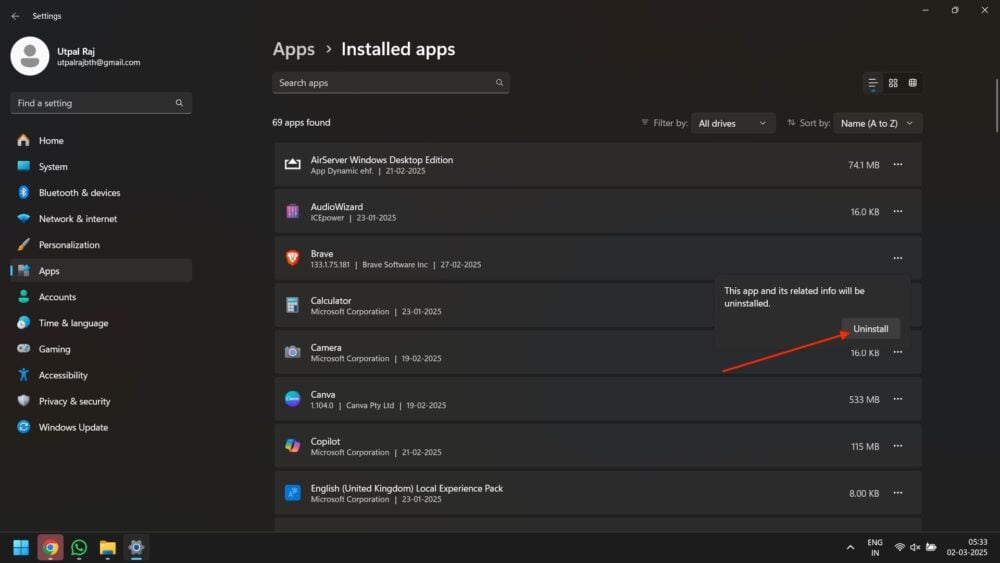
- Open brave.com and reinstall Brave Browser.

On MacBook:
- Open Finder and go to Applications.
- Find Brave Browser and drag it to Trash.
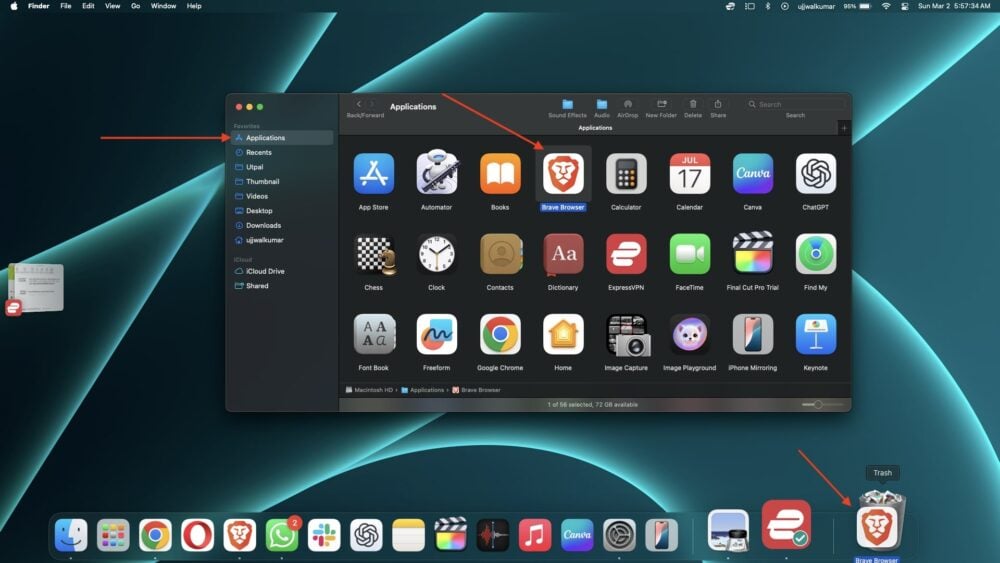
- Empty the Trash to remove it completely.
- Open Brave.com and reinstall it on Mac.
After uninstalling, download a fresh version of Brave and set it up without directly importing data from other browsers. This helped me to watch YouTube without ads, and hopefully, it will also work for you.
Try YouTube Premium Free Trial
If you’re frustrated after trying all methods to block ads on YouTube, you can now try YouTube Premium free trial for a month. This way, you won’t have to worry about ads for a month. Apart from that, you will also get a YouTube music subscription with the trial. However, this is not a permanent solution for getting Ad-free YouTube. You won’t have to worry about YouTube ads for at least a whole month. At that time, you can find an alternative, or the issue might resolve itself.
- Click on your profile and choose Purchases and memberships when the menu prompts.
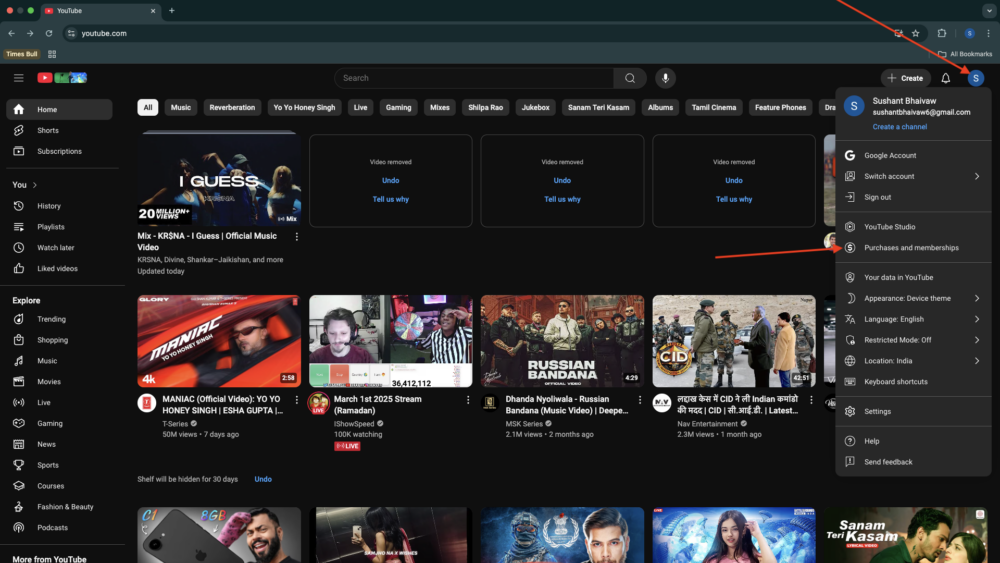
- After that, click Learn more.
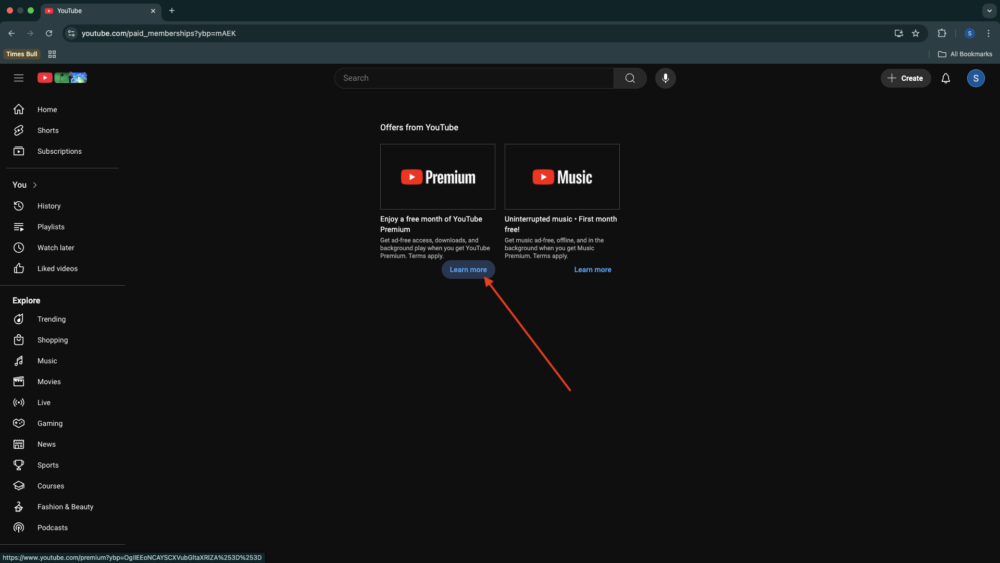
- On the next page, hit the Get YouTube Premium button.

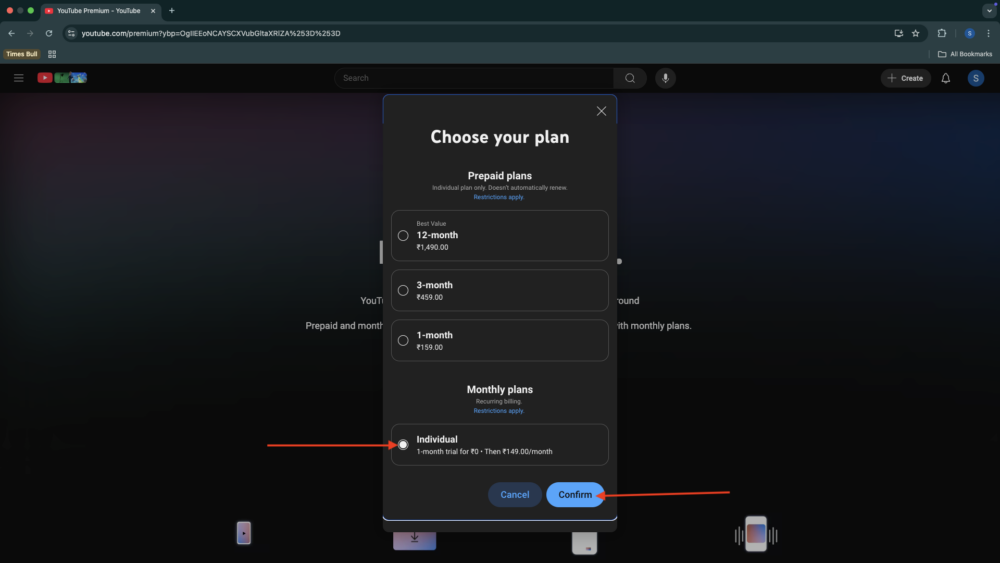
- After that, check the circle previous to the individual and hit the confirm button.
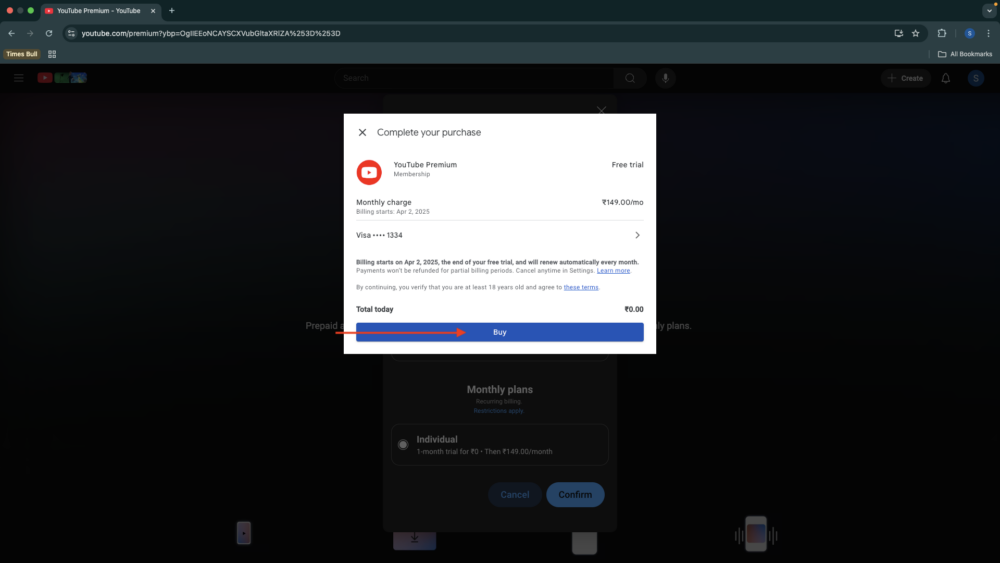
- Select the payment method and then click on Buy.

- After that, you will be prompted by a confirmation like pop-up, you need to click on buy again.
- Next, click verify to make your purchase.

- Enter the code sent to your registered mobile number and hit CONFIRM.

- And finally, you will be prompted by a pop-up ‘Welcome to YouTube Premium!‘

Use Brave Browser Alternative
After even uninstalling and reinstalling the Brave browser, if you are still forced to watch ads on YouTube, then the only option is to change the browser and use some other like-to-like replacement. Several browsers provide built-in ad blockers, enhanced privacy and security, tracker prevention, fast browsing speed, and other customization options, just like Brave.
Among the best alternatives, you can consider:
- Mozilla Firefox
- Opera
- DuckDuckGo Browser
- Vivaldi
- Microsoft Edge
Additionally, browsers like Opera include a free built-in VPN for extra security, while Vivaldi stands out with its highly flexible interface. Microsoft Edge gives you rewards for Browsing. So each of them has its own benefits so choose according to your needs.
(Resolved) Ad Blocker Not Allowed On YouTube
I hope the methods in this article helped you fix the issue, and now you can watch your favorite videos on YouTube without any Ads. I have explained different ways to solve this issue so that no matter which method works best for you, you can enjoy YouTube without interruptions.
To make things easy, I started with simple fixes to check if basic settings caused the problem. Once you confirm that, you can try the advanced solutions, like using different ad blockers or changing your browser settings. Following these steps should help you fix the issue and allow you to watch YouTube without any trouble.
FAQs about Ad Blockers Not Allowed on YouTube in Brave
Which Adblock is best with Chrome for YouTube?
You can use uBlock Origin Adguard Ad Blocker to block YouTube Ads. It is considered the best ad blocker for YouTube and other websites. Also, both of them are free and open-source.
How to block ads on YouTube without installing anything?
You can block YouTube ads without installing anything by subscribing to YouTube Premium at an affordable price, which removes ads entirely. Also, you can watch videos through browsers like Brave that block ads by default.
Does using an ad blocker affect YouTube’s algorithm?
No, using an ad blocker does not affect YouTube’s recommendation algorithm. The algorithm is based on your watch history, engagement, and preferences, not whether you view ads.
Can using an ad blocker get you banned from YouTube?
No, using an ad blocker won’t get you banned from YouTube. However, YouTube discourages ad blockers and might display prompts urging you to disable them or consider YouTube Premium.

