

Quick Answer
To listen to Hi-Res audio on Windows, you’ll need compatible audio files (like FLAC or DSD), a Hi-Res-capable output device (preferably wired), updated audio drivers, and a player like AIMP or MusicBee with WASAPI mode enabled. For streaming, subscribe to services like Tidal, Qobuz, or Apple Music and enable their Hi-Res settings.
Once you start listening to Hi-Res (high-resolution) audio, there is no going back. The quality, the sound, and everything hook you to it. Normal audio does not impress much. Thanks to the advancement in technology and easy availability of tools, you can listen to Hi-Res audio at your convenience.
Windows, as an operating system, is widely used and powerful with its features. But still, there is no guarantee that every Windows PC is capable of playing Hi-Res audio. In this guide, we show you how to listen to Hi-Res audio on a Windows PC and the tools you need to get the most out of it.
Table of Contents
What Is Hi-Res Audio?
We generally listen to audio on YouTube or other streaming platforms. The audio quality varies with original upload quality and internet speeds. Even if we download and listen to them, it does not change much. The bitrates fluctuate, and we never get to enjoy the original sound in our casual listening. If we intend to experience the audio track or a music track, preserving all the details, then we need to opt for Hi-Res audio (High-Resolution Audio).
Hi-Res audio comes with a higher bitrate and sampling frequency that enables you to hear everything clearly. If you take a music track and listen to it in a casual way as well as in Hi-Res, you can clearly understand the difference. The minute details you get to listen to, the lows and the ear-soothing highs are unmatchable. In a normal audio track with multiple instruments, they get mixed, and we never get to experience the sound as intended. But, in a Hi-Res audio, each instrumental data is preserved, and we hear everything with the right equipment.
On the music streaming platforms, when we opt to listen to the best quality, it is generally set to 256/320 kbps tracks. That is considered the best quality to stream. A Hi-Res audio comes with a minimum bitrate of 1411 kbps and more that preserves the detail of every sound. An audio CD comes with 16-bit/44.1 kHz. The 16-bit provides more depth to the audio and enables us to hear every loudness and silence in the clearest form with less noise.
The 44.1 kHz denotes the sampling rate of the audio track. It is like a frame rate in a video. The higher the number of frames, the better the picture quality. Similarly, in an audio CD, 44100 samples are provided every second to make the listening experience clearer and better.
Hi-Res audio is a better version of normal audio, as well as audio on CD. It comes with a minimum of 24-bit/96 kHz. It means that the sound is provided in 24-bit with a sampling rate of 96 kHz. It enables the audio track to contain even the subtlest nuances in the best possible way. Hi-Res audio is available in formats like FLAC, ALAC, WAV, AIFF, MQA, and DSD.
Music platforms like Tidal, Qobuz, Apple Music, and Amazon Music Unlimited offer streaming in Hi-Res on supported devices. We regularly see gadgets like smartphones with high-res certifications in the specification information.
Listening to Hi-Res music without the right tools and equipment does not make any difference. It will be similar to listening to audio at 320 kbps quality. To make it clearer, we cannot play 8K or 4K videos perfectly on devices that only support up to 1080p video. The devices struggle to play, or we experience stuttering or some other performance issues. Similarly, playing a Hi-Res track on unsupported devices does not yield much of a difference, even if they are able to play the Hi-Res formats.
To play Hi-Res music or audio on a Windows PC and enjoy the immersive experience, you need to have Hi-Res audio tracks, the right tools, software, and a system configuration that supports Hi-Res audio. Let’s see what tools we need and how to play Hi-Res audio on a Windows 11 PC.
What Do I Need To Listen to Hi-Res Audio on Windows
Setting Up PC to Play Hi-Res Audio
Windows 11 supports playing Hi-Res audio with the built-in audio drivers and sound cards. They support up to 24-bit/96 kHz audio quality with the right equipment. It should be enough to play Hi-Res audio on your Windows 11 PC. Ensure the audio drivers are up to date and have wired connections to the speakers.
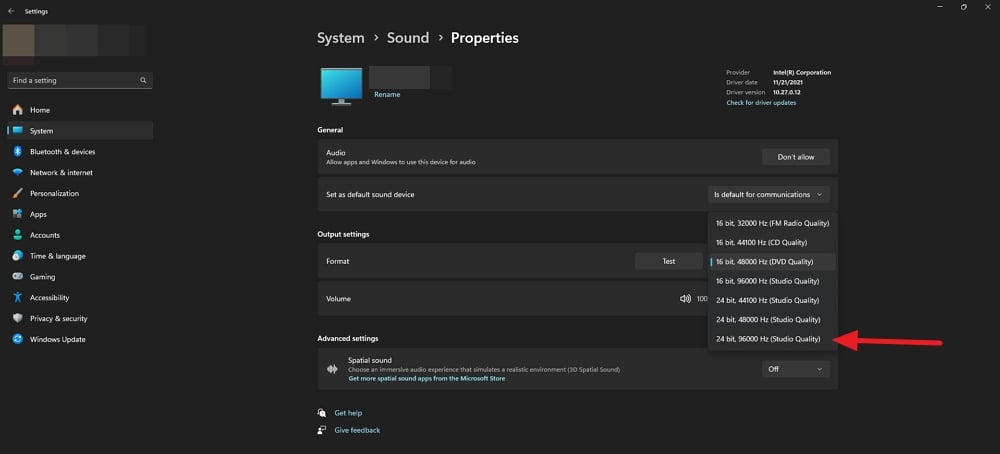
To check if your Windows 11 PC supports Hi-Res audio and enable it, open the Settings app on your PC and select the System tab. Click the Sound tab. Under the Output section, you will see all your sound output devices connected to your PC. Click the one that you seem fit to play the Hi-Res audio. Make sure the output device (preferably wired) supports Hi-Res audio to experience the intended sound. Then, click the drop-down button beside Set as default sound device and select 24-bit, 96000 Hz (Studio Quality).
If you do not have a Hi-Res supported output sound device, you can check out the following devices.
Audioengine A2+ Desktop 24 Bit Wireless Bluetooth Desktop Speakers
Edifier QR65 Active Monitor Speakers
Alienware AW520H Wired Gaming Headset
You must choose the wired speakers or headphones to get the intended quality output as recommended by Apple and other brands that support Hi-Res audio.
Streaming Hi-Res Audio
There are not many options to stream Hi-Res audio on Windows 11. Only Tidal, Quboz, and Apple Music support Hi-Res music. You need to subscribe to one of the streaming platforms to start streaming Hi-Res music. Tidal and Quboz provide high-quality audio tracks by default that oscillate between CD quality and Hi-Res based on the availability of older tracks.
When you subscribe to Tidal to stream Hi-Res music, it provides you with three qualities to stream: Low, High, and Max. Low quality is restricted at 320 kbps, which is deemed the best quality on regular music streamers. High quality provides audio in CD quality at 16-bit/44.1 kHz. Max provides the real Hi-Res music in 24-bit/192 kHz. Like every other music streaming platform, you need to enable Hi-Res to stream audio in the required formats. To enable Hi-Res music streaming on Tidal on the desktop app or Web, open Settings, select Streaming, and select Max under Audio Quality.
To stream Hi-Res music on Quboz, you need to subscribe to either the Studio or the Sublime+ plan. Then, you need to select Hi-Res in Quboz’s streaming settings.

Apple Music provides Hi-Res music in lossless formats. If an audio track or an album is available in lossless, you will see the lossless  icon beside it. To enable lossless streaming on Windows, you need to subscribe to Apple Music, go to Settings, and select Playback. Then, click Lossless from the available options.
Buying Hi-Res Audio Tracks
Streaming Hi-Res audio tracks requires a stable internet connection all the time. If the internet speeds are fluctuating, you might not get to experience the Hi-Res music. The best way to beat this is by buying the favorite tracks or albums from Hi-Res music providers online. When you buy Hi-Res audio, you will be able to download the tracks or albums in FLAC or other Hi-Res formats and keep them forever to play whenever you want.
Quboz, HDtracks, and HIGHRESAUDIO are some of the major platforms offering Hi-Res music to download and play. Unlike streaming, you might find the prices higher as you are buying the ownership of the track for a lifetime to play for your enjoyment. There is no limit on the number of devices you can play the downloaded tracks on, as long as you do not resell the tracks for a cheaper price.
Audio Players to Play Hi-Res Music
Hi-Res streaming formats are not supported by all media players. Even if they support, you do not get to experience the immersive nature of the high-quality music. Some dedicated Hi-Res music players enable you to play Hi-Res audio on a Windows 11 PC. The following are some of the best Hi-Res music players on Windows.
- AIMP: AIMP is one of the most popular and free audio players for Windows that supports Hi-Res formats like FLAC and WAV. You can download it for free and enjoy playing Hi-Res audio tracks.
- MusicBee: MusicBee is another great audio player for Windows and is widely used to play Hi-Res audio. It is known for its simple interface and easy-to-use options.
- Foobar2000: Foobar2000 is a highly customizable audio player that supports Hi-Res audio in formats like FLAC, DSD, MQA, and others.
You can use these free audio players and select WASAPI mode in the audio player settings to play Hi-Res audio formats without any interference from other audio modes supported on Windows.
Listen to Hi-Res Music on Your PC
With each passing OS update on Windows, the minimum system requirements keep changing for the better. It is now very much possible to stream or play Hi-Res audio on Windows with the supported audio output equipment in the budget. It used to be an expensive affair to enjoy studio-quality audio, but with the advancements in technology and accessibility, listening to Hi-Res music on a Windows PC is not a burden on wallets.
FAQs on Listening to Hi-Res Audio on Windows
1. Do I Need DAC to Play Hi-Res Music on Windows?
DAC (Digital-to-Analog Converter) is optional to play Hi-Res music on Windows 11, as the sound cards are built to support Hi-Res music playback. A DAC will only enhance the experience as it needs the best audio equipment, which requires a considerable investment. Normally, you can stream or play Hi-Res audio on Windows 11 with WASAPI output mode on the audio players with the supported or Hi-Res certified equipment.
2. Can MP3 be Hi-Res?
No, MP3 is not Hi-Res, as the highest quality possible for an MP3 audio is 320 kbps, whereas Hi-Res audio starts at a minimum of 1411 kbps. It goes on increasing with the latest audio tracks that are mastered in the best possible way to preserve the original sound.
3. How to use Tidal in India?
Tidal is currently not available in India. To use Tidal in India, you need to connect to a VPN and use it via countries like the USA, the UK, Australia, Canada, Switzerland, or other countries where Tidal is available for streaming. Alternatively, you can use Apple Music, which supports Hi-Res music in India.

