

Quick Answer
To completely reset YouTube homepage recommendations, clear your watch history, pause history tracking, and remove likes, comments, and interactions. Use Not Interested and Don’t Recommend Channel options to refine suggestions. Unsubscribe from unwanted channels, use incognito mode, and respond to YouTube surveys. For a full reset, consider creating a new account.
Social media platforms are run with algorithms that hook the users to it. They recommend content based on what we say, interact, and see. YouTube is no exception. We get so many recommendations on the YouTube homepage based on what we have watched, searched, liked, and commented on.

YouTube’s homepage suffers from freshness after a certain point. You may find it filled with content that you don’t watch or that you do not even click to watch. Platforms like X (formerly Twitter) have options to mute content by words, hashtags, etc. There are no such customization options on YouTube. If you are fed up with your YouTube homepage and want to reset it and get recommendations for your likeability, follow this guide. Let’s reset YouTube homepage recommendations.
Table of Contents
How to Fix YouTube Homepage Recommendations
There is no easy way to reset YouTube homepage video recommendations. You need to do most of the things mentioned below (if not everything) to get to a clear and fresh start on YouTube.
Mute Channel Recommendations
If you are seeing videos from channels that you do not like, or content that you do not want to see, on the YouTube homepage, click on the three-dot icon beside the respective video and select Don’t recommend channel.
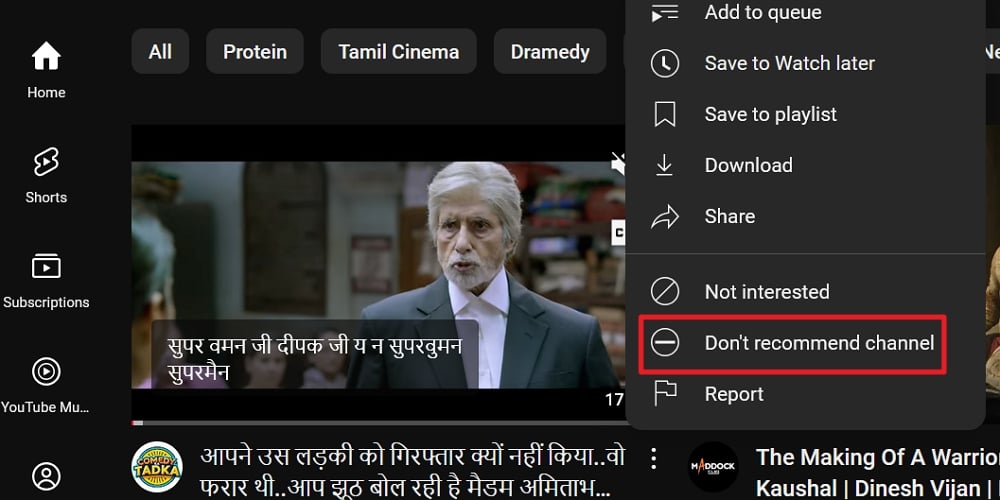
You will never see videos from that particular channel. You may still see the content related to the videos on the muted channel.
Use Not Interested Feature
YouTube has a Not interested feature you can use on any video on the homepage. You can use the Not Interested button on videos and playlists. Click on the three-dot icon beside a video or a playlist and select Not interested.
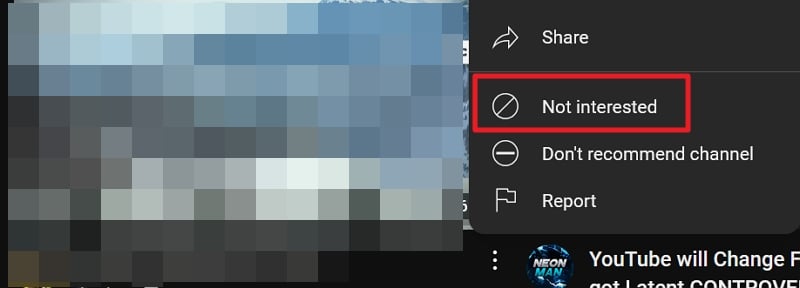
This way you can mute videos from the channels you have subscribed to.
Unsubscribe Channels
If you have subscribed to a channel in the past and you no longer like their content, you can first set Don’t recommend channel and then unsubscribe to the channel. To unsubscribe to the channel, go to the channel home page and click on the Unsubscribe button, on both web browser and app.
Alternatively, you can click on the hamburger menu beside the YouTube logo, and click on All subscriptions under the Subscription menu. Click the Subscribed button and select Unsubscribe.
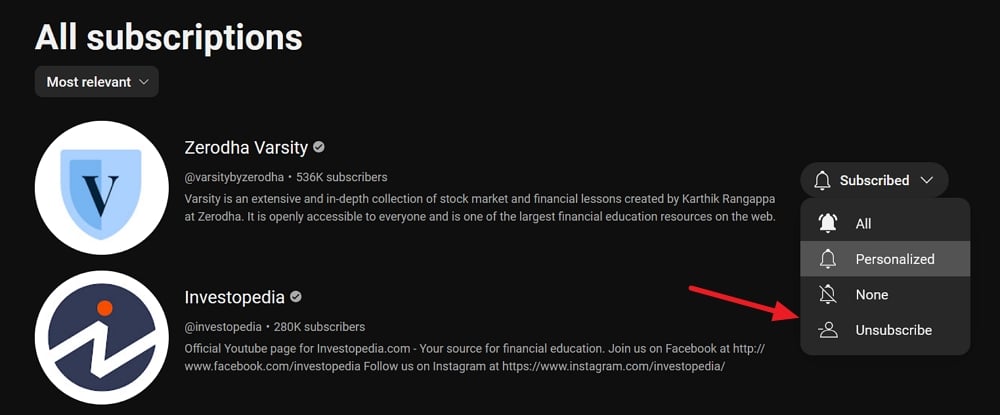
On the YouTube app, tap on the Subscriptions tab. On the subscriptions page, if you have many subscribed channels, scroll the channels to the left to see the All button. Tap on it.
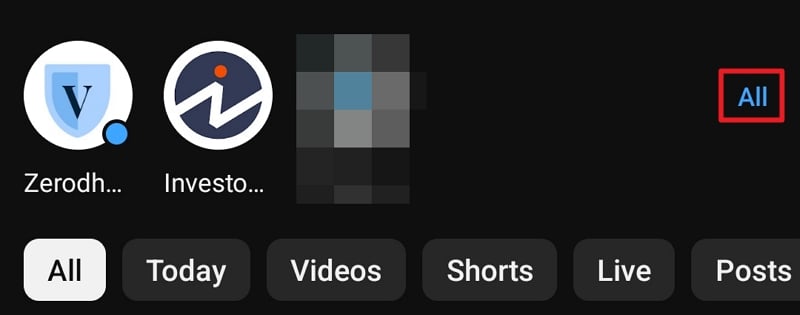
Then, tap on the subscription beside the channel you want to unsubscribe to. A pop-up will appear at the bottom. Select Unsubscribe to remove the channel from your subscriptions.
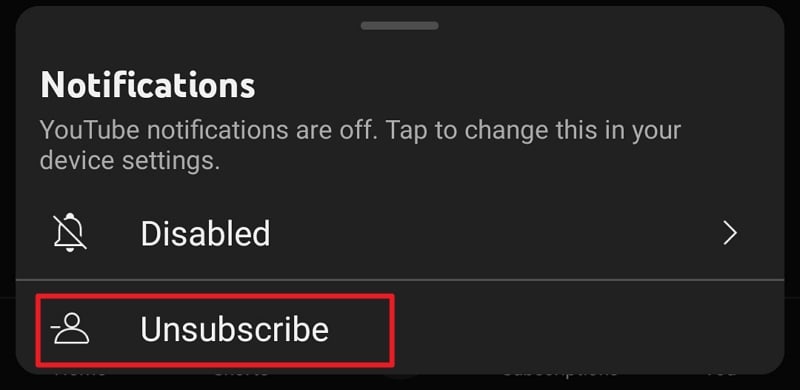
Repeat the process until you have unsubscribed the channels you do not like.
Pay Attention to What You Listen to on YouTube Music
The music you listen to on YouTube music can also help YouTube suggest based on your activity. Pay careful attention to what you listen to. Whatever music you listen to on YouTube music, you will see it on the YouTube homepage in the form of a Mix.
Use Incognito Mode on YouTube App
To not let a video into watch history and mess up your YouTube homepage, watch it in the incognito mode on the YouTube app. To enable incognito mode, tap on the profile icon at the bottom of the YouTube homepage. Under your profile details on the Profile page, swipe the options to find Turn on Incognito. Tap on it to enable it.
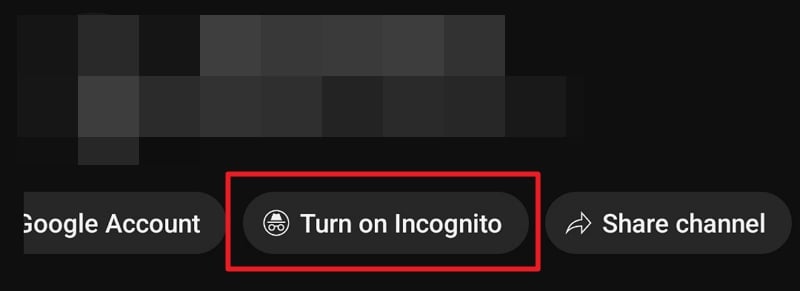
Watch videos in incognito mode and turn it off when you don’t want it. To turn it off, tap on the profile icon to see the incognito page. Then, tap on Turn off Incognito.
Clear Watch History
One of the prime sources of YouTube video recommendations is based on what you watch. So, clearing your entire watch history in a way resets the homepage and tables you to fill the homepage with what you like to watch. Remember that you cannot revert once you have cleared the watch history. Whatever you have watched will be gone forever.
To clear watch history on YouTube on a web browser, click the hamburger menu beside the YouTube logo on the homepage and select History.
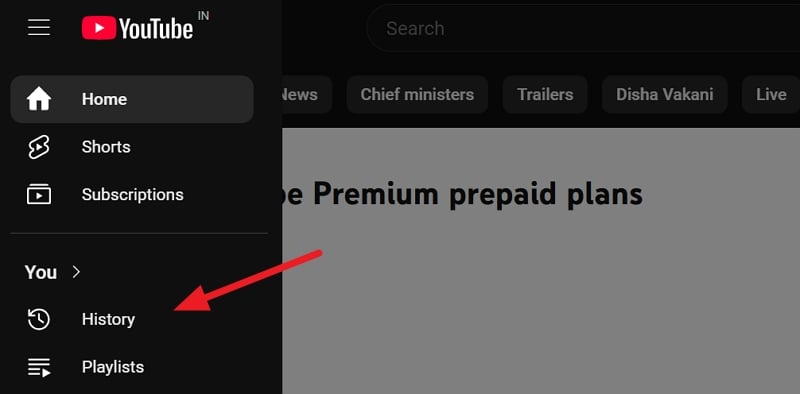
It will open the YouTube history page where you can find all the videos you have watched. Click Clear all watch history.
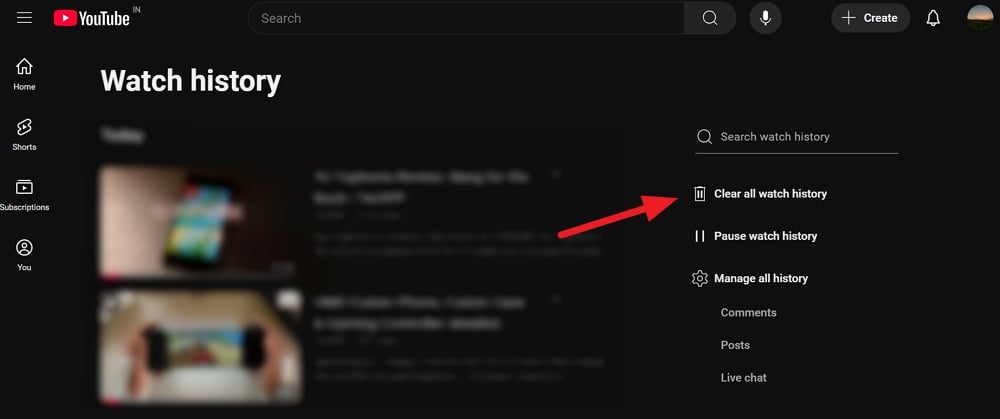
You will see a Clear watch history prompt. Click Clear watch history to confirm clearing your watch history.
To clear your watch history on the YouTube app, tap on the Profile icon at the bottom of the homepage. It will show your profile page where you can find watch history and playlists you have created. Tap the View all button beside History. On the history page, tap on the three-dot icon and select Clear all watch history.
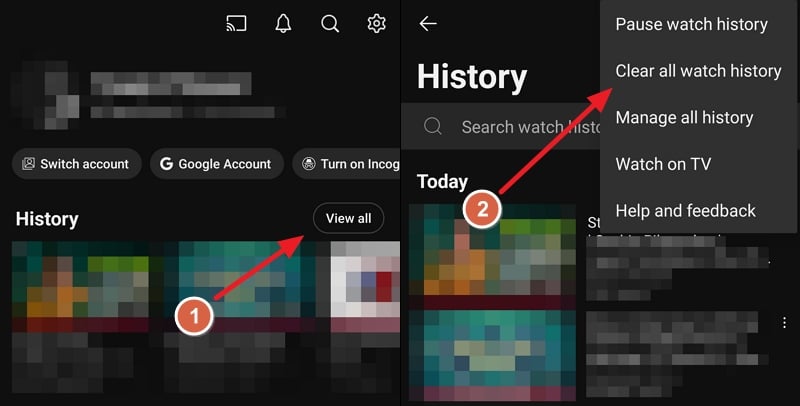
Confirm by tapping on Clear all watch history on the prompt that appears. It will remove everything you have watched on YouTube with your profile.
Remove Likes
What you like is monitored by the algorithms and your homepage is filled with video recommendations based on them. The algorithms deem you like videos similar to them, based on them, or related to them. Removing likes is one way to start fresh and make the most out of YouTube homepage recommendations.
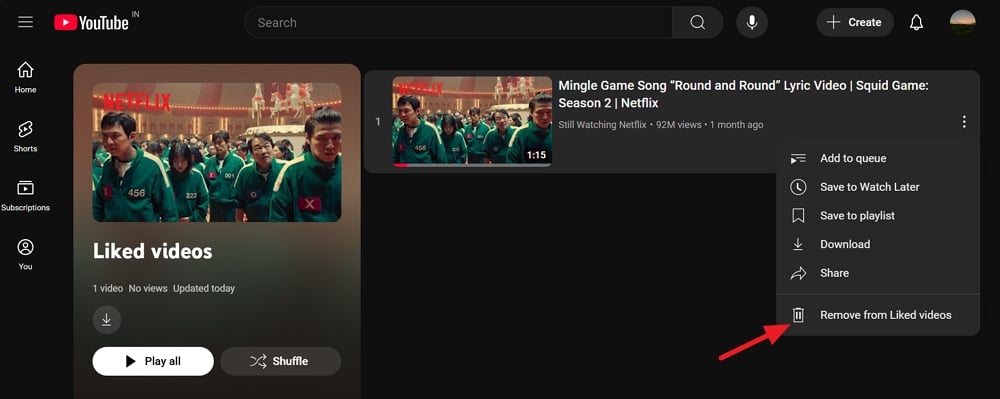
To remove likes on YouTube videos on a web browser, click on the hamburger menu beside the YouTube logo and select Liked videos. On the Liked videos page, click on the three-dot icon beside a video and select Remove from Liked videos.
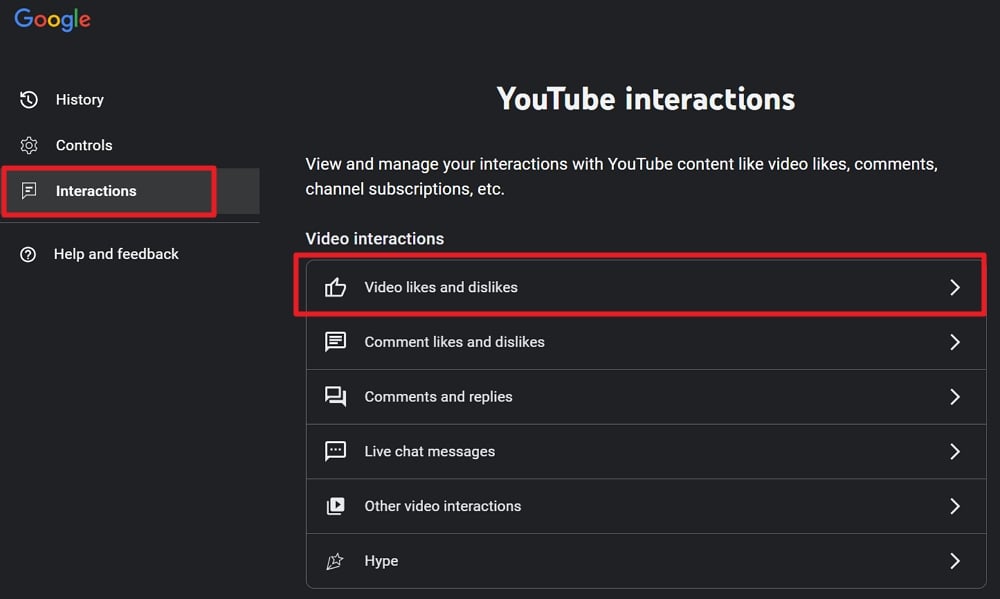
If you have thousands of liked videos and you cannot remove likes manually, there is another way to do it. Visit the YouTube history page on the Google My Activity website. Click on the Interactions tab and select Videos likes and dislikes.
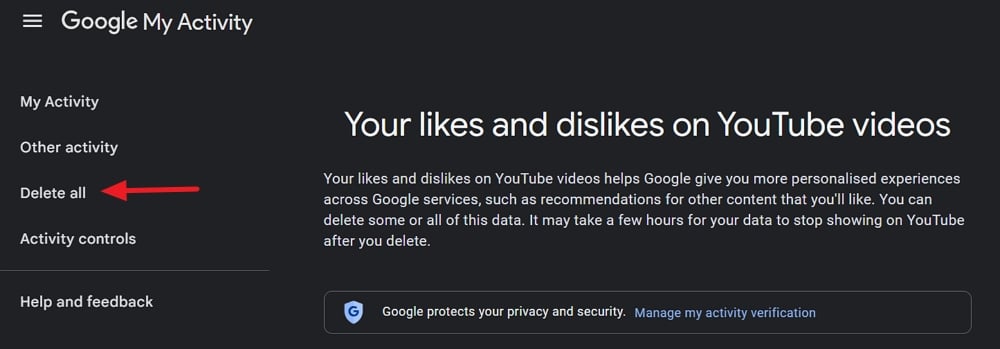
On the Your likes and dislikes on the YouTube videos page, click Delete all on the left side menu.
Confirm deleting likes and dislikes by clicking on Delete when prompted.
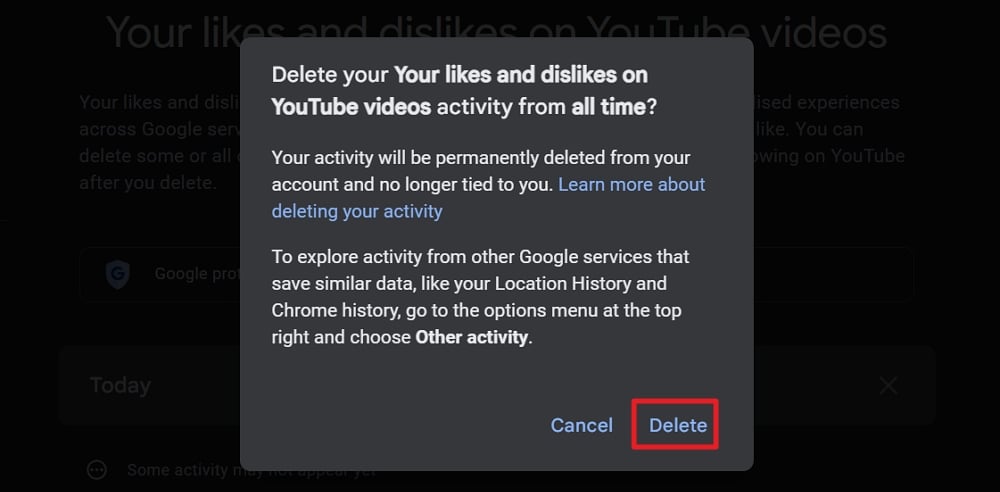
All your likes and dislikes will be removed from respective videos and you will see no history of them on your account. Similarly delete everything in the interactions including comments, replies, live chat messages, etc.
To delete all the history on the YouTube app, tap the profile icon, then tap on the gear icon to open settings. In the Settings page, select Manage all history. Then, tap on Interactions to see all the likes, dislikes, comments, replies, etc., and delete them.
Respond to YouTube Surveys
To suggest content that you like on the YouTube homepage, YouTube asks for your suggestions at times. Respond to them attentively without brushing them off to make your homepage better. The surveys morally ask you to select what shows you like, what kind of videos you like to watch, etc.
Create a secondary account
If you are a person who loves exploring new genres but doesn’t want to mess up your recommendations, then the safest bet is to create a secondary YouTube account. What this will do is give you the freedom to explore content, and secondly, it keeps the recommendations on the main account focused.
To switch accounts:
- Tap on your profile picture at the bottom.
- Tap on the Switch account button.

- Select the secondary account.
When you want to watch content that interests you, you can switch to the main account. And when you are in the mood for exploring, then you can switch over to the secondary account. Another option is to go incognito, as it will help keep your subscriptions and watch history separated.
Play videos from your subscriptions
If you want to keep your recommendations tidy, then one of the best ways is to keep watching videos from the Subscription tab. This will only show videos uploaded by the channels you have subscribed to, ensuring that you feed shows their content.
Tap on the Subscription tab on the bottom bar and start watching videos from the content creators you like. It is one of the most effective ways to improve YouTube recommendations.
Update (31-12-2025):
Use the “New to you” Tab
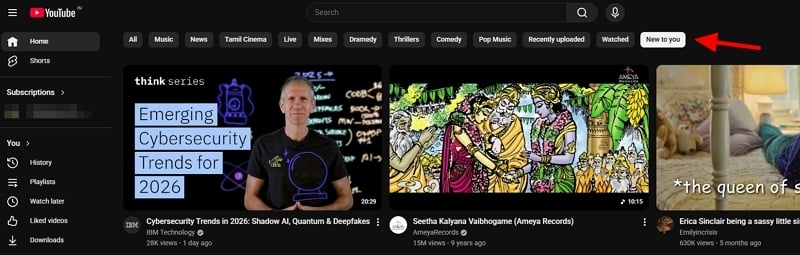
At the top of your YouTube homepage recommendations, we find many tabs that categorize videos. They are all based on our watch history. Click the New to you button that you see there. It shows the videos that you do not find on your homepage. Click on videos that you find interesting from the New to you section and watch them. It impacts the current YouTube homepage recommendations, and they get updated to something better than the existing ones.
Whenever you find your YouTube homepage recommendations boring or redundant, just head to the New to you section and watch something interesting.
Use the Subscriptions Tab
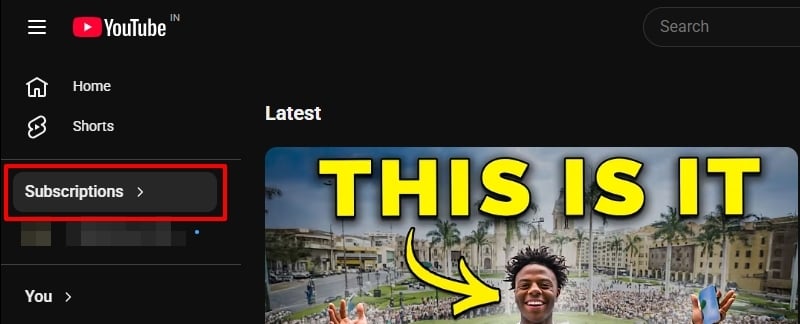
This eliminates the possibility of watching recommended videos on YouTube. Subscribe to the channels you like consuming content from, and you can just watch them whenever you feel like watching something. Subscription tab, along with the New to you section, can make a lot of difference in your YouTube homepage recommendations.
The flipside of just sticking to the Subscriptions tab is that your watching habits get limited to a few subscribed channels.
How do I remove YouTube home recommendations?
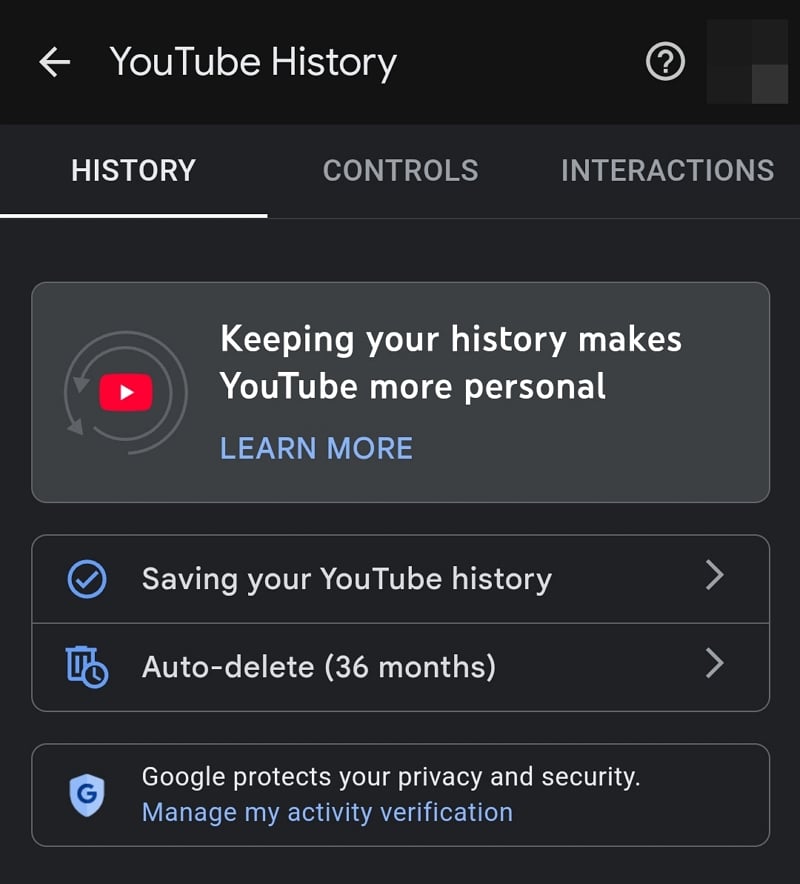
To remove YouTube home recommendations, you need to clear all watch history on the History page, and then pause watch history to stop new recommendations based on your watch history. Then, click on Manage all history on the history page to navigate to the YouTube history page on Google My Activity. Click on Saving your watch history and select Turn off. It will remove all recommendations on the YouTube homepage.
Alternatively, you can go to myactivity.google.com, sign in with your account, and pause YouTube history.
How do I refresh my recommended YouTube page?
Refreshing recommended videos on YouTube’s homepage is a constant process. Whenever you find videos that you do not like to watch, you may either mute the channel by opting for the Don’t recommend channel or you may select Not interested to remove the video from the homepage.
How do I show no videos on my YouTube homepage?
To see no videos on your YouTube homepage, you need to pause YouTube history by visiting myactivity.google.com. You need to clear all watch history too.
Change My YouTube Homepage Recommendations
It is not an easy task to change YouTube homepage recommendations as we have to beat the algorithms to improve suggestions. One accidental click on a video we normally do not watch can mess up the entire homepage with suggestions based on that click. We need to be careful about what we click, watch, and like and make the YouTube homepage better with constant attention.

