

Quick Answer
You can fake a drone shot for free in Google Flow by uploading a single photo in the Frames to Video option, adding a prompt like a slow cinematic zoom-out, and letting the tool animate camera movement. In a minute, Flow turns your static image into a drone-like clip that you can crop and share easily.
AI is taking over every field. Be it content writing, content creation, direction, film making, research and analysis, you name it. AI is now so capable that it can go make an entire movie, negating the need to have a full-fledged film crew. Things have gone literally too far that you can imagine with AI. However, AI has also made things easier and opened a world of imagination. You can enter a simple prompt and generate an image. In fact, you can now upload an image and ask AI to add movements. One of the great things I recently discovered was that you can even fake a drone shot with AI.
Drones aren’t something everyone has access to. And there are instances when you were in a scenic location, only to feel sad that there was no drone with you for a shot. I, fortunately, have a drone, and I take it with me around the world wherever I travel. But seeing what Google Flow could do to my image from Interlaken, Switzerland, had me mesmerized, and I thought of sharing this secret.
What is Google Flow?
Amidst a long list of video-generating AI tools, Google introduced Flow back in May 2025. Google Flow is an AI filmmaking tool available via Google Labs. Users can use it to create cinematic scenes for their movies or short stories, without any boundaries. It makes use of Google’s powerful AI tools such as Veo, Imagen, and Gemini, and thanks to them, you can control the camera movements, motion, and angles. Though these are premium features. But even with the free version, there are a lot of things that you can do, for instance, create a fake drone shot.
Now, I have an image from my recent staycation at Interlaken. The image has me standing in front of Höhematte Park. While the image is stunning with the view of the Swiss Alps in the back, I always wished I had charged my drone’s battery that time. Thanks to Google Flow, I was able to recreate a drone shot with some easy prompts and steps. How? Follow the steps below.
How to fake a drone shot in Google Flow?
- Visit Google Flow’s website by clicking here.
- Login with your Google account if this is your first time. Do note that with a single Google account, you will get 100 free credits for video generation. But that is more than sufficient, as you will be able to create up to 5 videos.
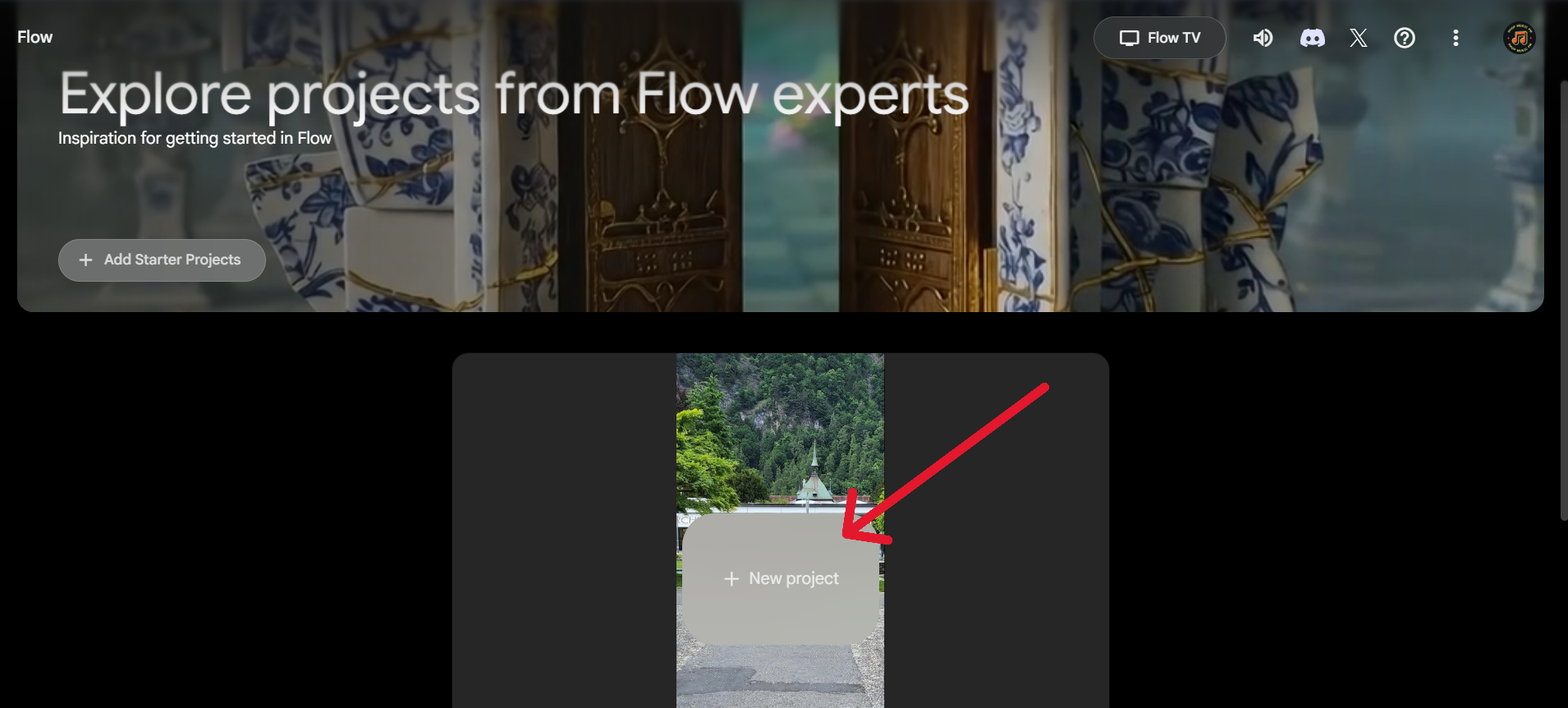
- Click on New Project.
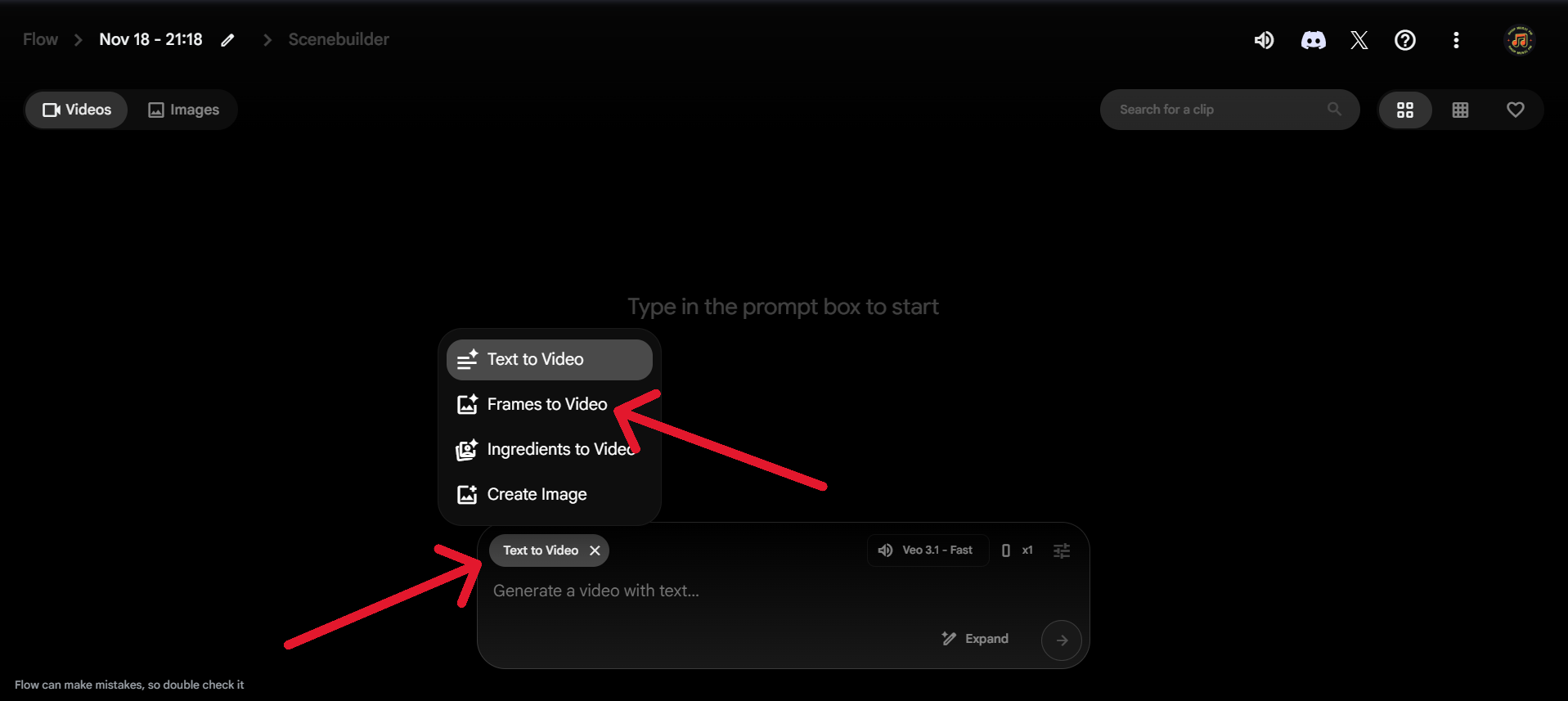
- In the prompt box, click on the Text to Video button and select Frames to Video option.
- Tap on the left-most Plus or + icon and upload any image of yours that you wish to fake a drone shot with. Do note that it works better if you have no one except you as the subject, with a less crowded backdrop.

- After the image is uploaded, in the prompt box I pasted this prompt and clicked on the forward arrow button: a cinematic drone shot zooming out very slowly with the person continuously, not stopping, running towards the drone with arms stretched wide open embracing the beauty.
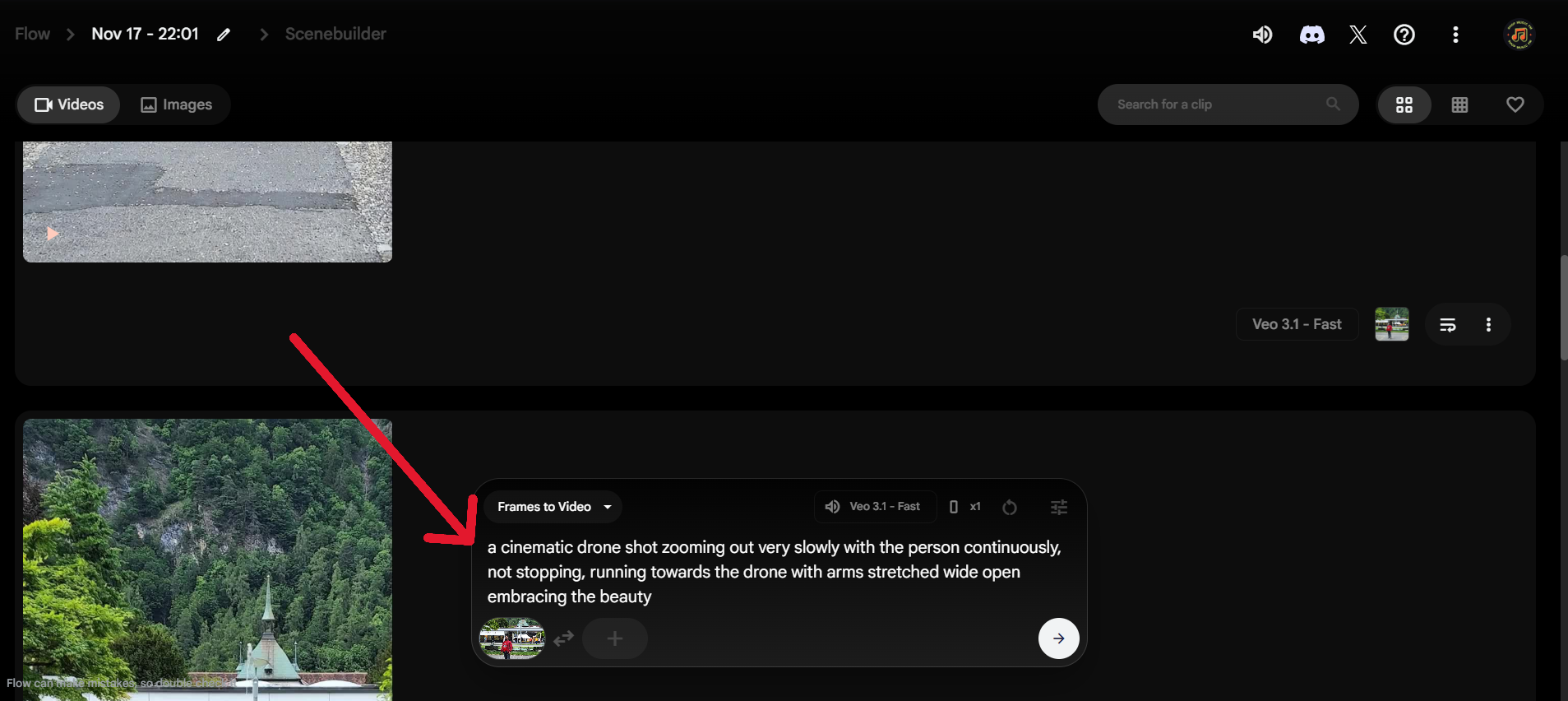
- You can insert any prompt and modify it according to your needs. After a few attempts, I found this prompt suited my image.
- Flow will take a minute or two, and your video will be generated. The result? Check for yourself.
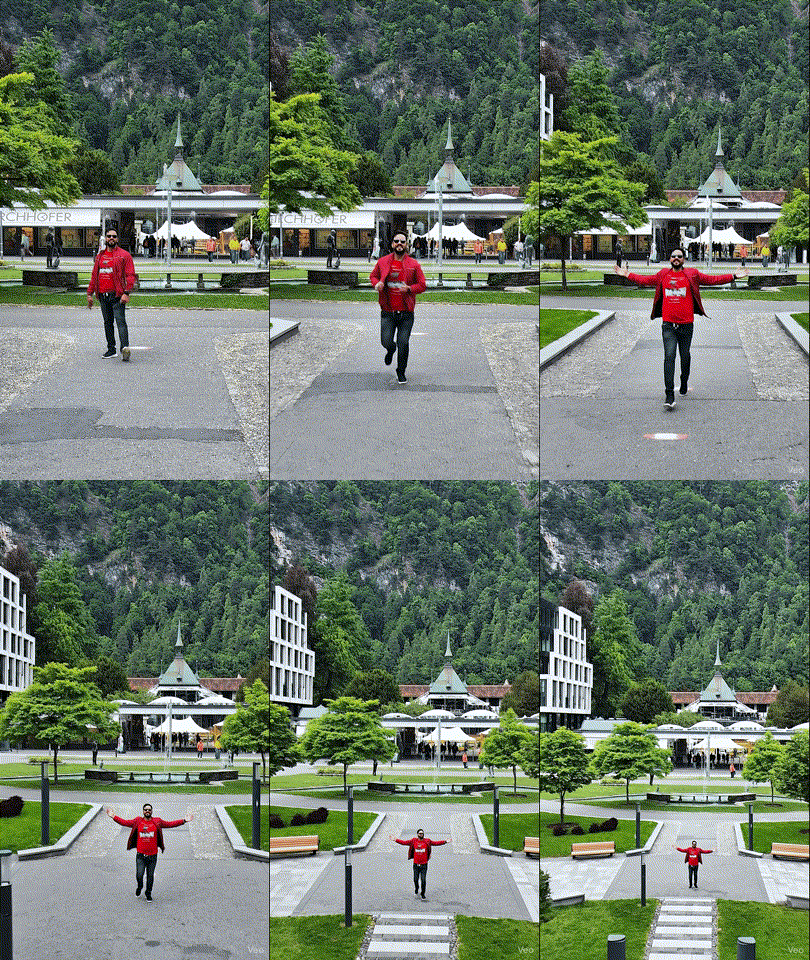
That’s it. You can share this great fake drone shot video across your social media platform and woo anyone. Do note that the video that is generated contains a small “Veo” branding in the bottom right corner. You can get rid of it by simply cropping it, and there you have it, a clean drone shot from a static image. Let us know in the comments below if you come across any issues with the above steps.

