

Quick Answer
To remove the Recommended and All sections from the Windows 11 Start Menu, first disable Recommended items in Settings under Personalization > Start by turning off all recommendation toggles. To remove both sections completely, use Group Policy Editor (Pro editions) or add specific DWORD values in Registry Editor or PowerShell. Restart your PC to apply changes.
It is funny how Microsoft took a turn and released Windows 11 in 2021 after announcing that Windows 10 would be the last major operating system. Since then, Windows 11 has evolved into a mature operating system. However, like most Windows users, I liked the redesigned Windows 11 Start Menu. While the design is clean, the “Recommended” and “All” sections are just straight-up bad. The Recommended section takes up half of the Start Menu, filling it with recent files.
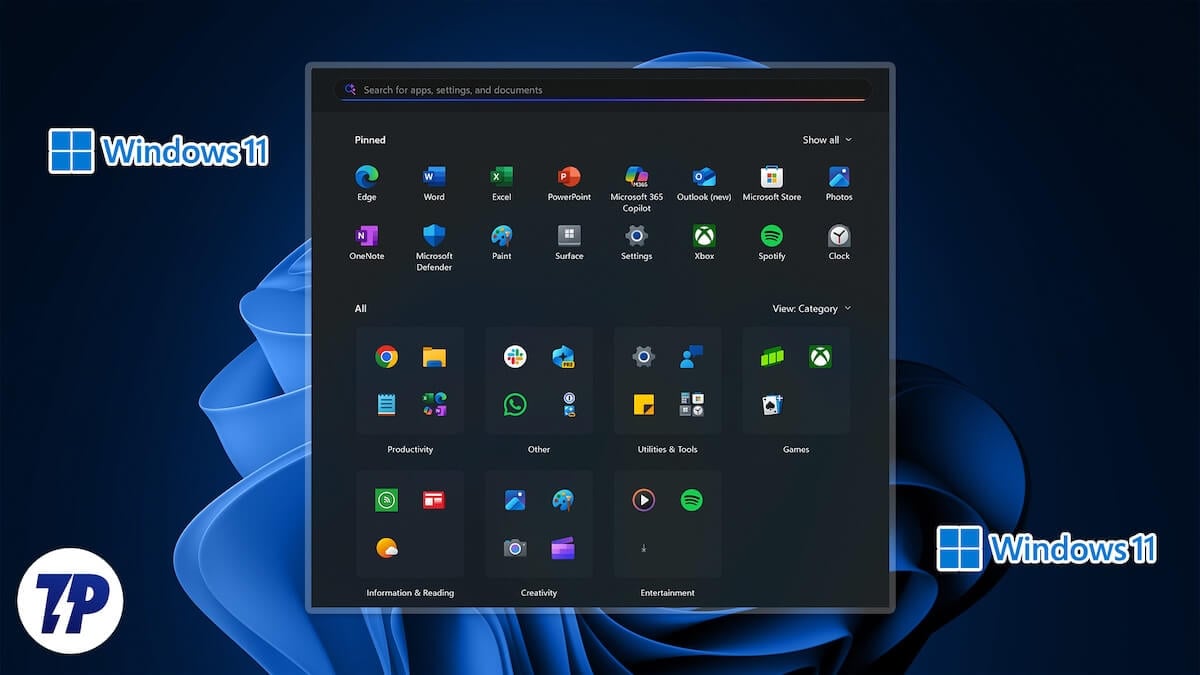
On the other hand, the All section shows you all the apps installed on your PC. Both these sections clutter the Start Menu. If you are looking to reclaim your lost Start Menu space, then this guide is for you. As we will show you how you can get rid of the Windows 11 Start Menu’s Recommended and All sections for good. Let’s see how to do it.
Table of Contents
4 Ways to Remove the Recommended and All sections from the Start Menu
Using Windows Settings
Before we go ahead and tweak the Windows Registry to remove the Recommended and All sections from the Start Menu, let us take a look at what Microsoft official allows us to do. Spoiler alert: the official option just lets you shrink the Recommended section, and you cannot remove the All apps section.
Let us go through the steps to hide and shrink the Recommended section:
- Press the Win + I buttons to open the Settings menu.
- Select Personalization.
- Click on Start.
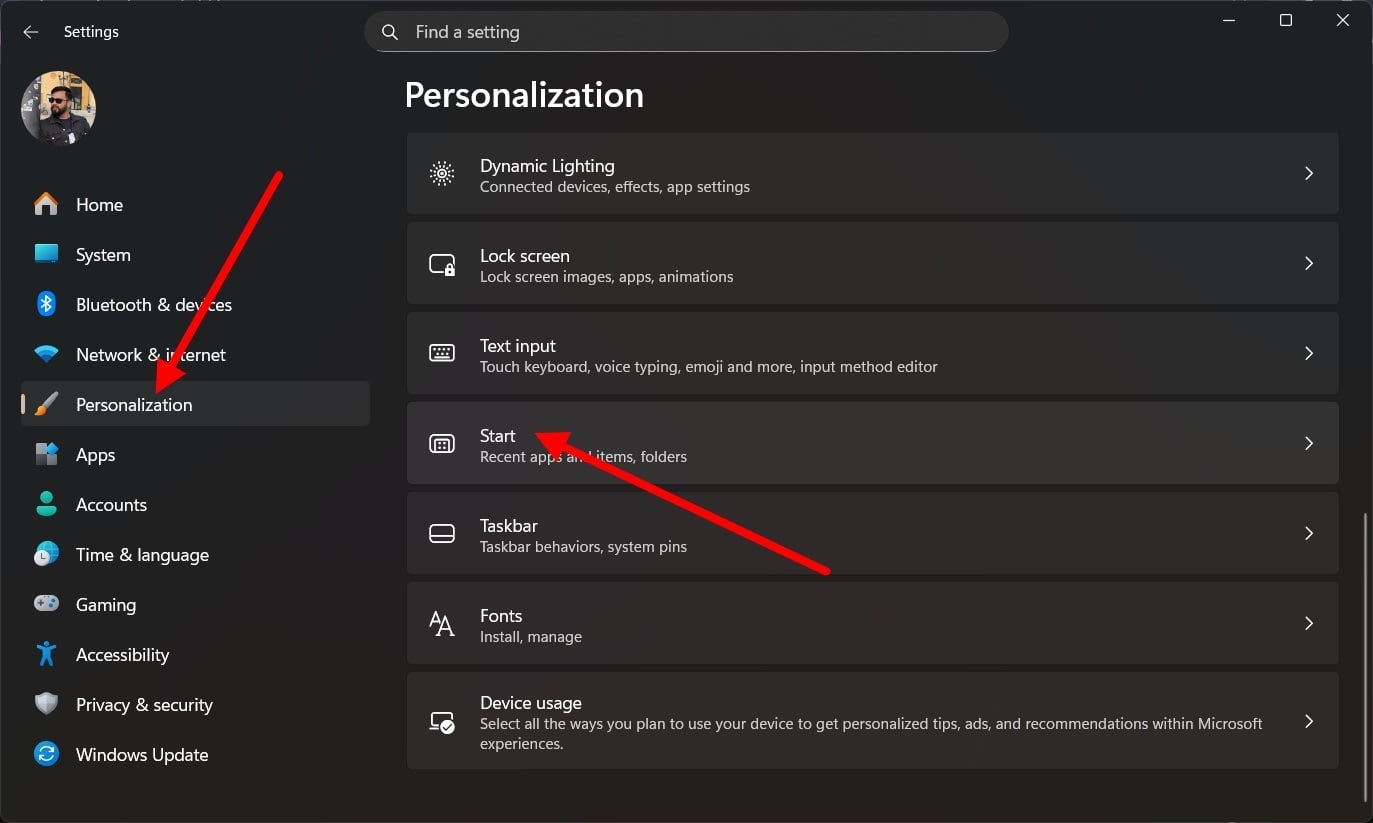
- Then turn off the toggles below:
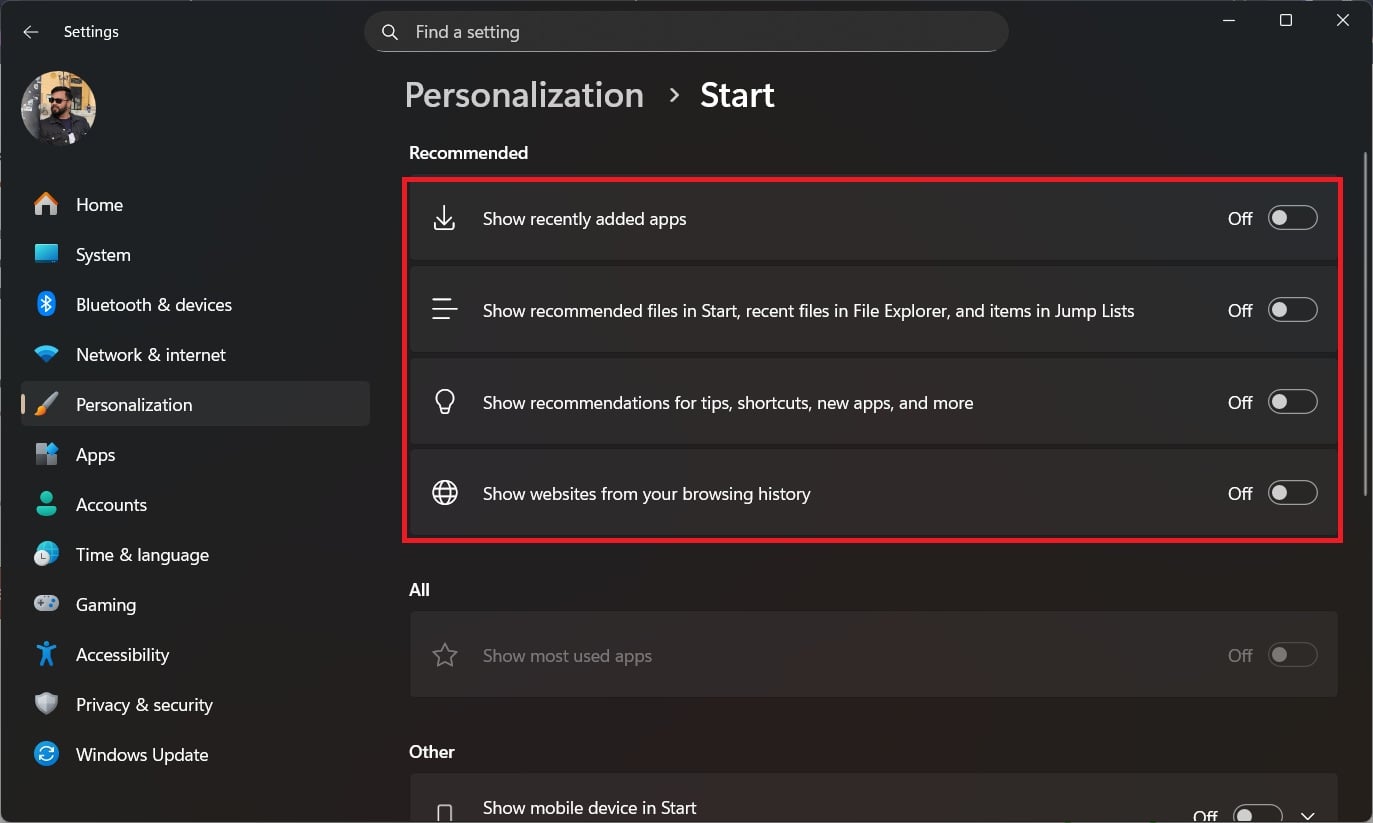
- Show recently added apps
- Show recommended files in Start
- Show recommendations for tips, shortcuts, new apps, and more
- Show websites from your browser history
After completing the above steps, the Recommended section disappears from the Start Menu. However, the All apps section remains, and there is no official way to disable it.
Using Group Policy
The above method only lets you hide the Windows 11 Recommended section, but there is no cure for the All apps section. To remove the All apps section, you will have to tweak the Group Policy using the Group Policy Editor. It not only removes the All apps section but also gets rid of the Recommended section altogether. Do note that Group Policy is not available for the Windows 11 Home edition.
Here is what you need to do:
- Press the Win + R keys on your keyboard to open the Run dialogue.
- Type gpedit.msc and press Enter.
- Navigate to User Configuration > Administrative Templates > Start Menu and Taskbar.
- To remove the Recommended section, you need to search for Remove Recommended section from Start Menu.
- Double-click on it, select Enabled, and click OK.
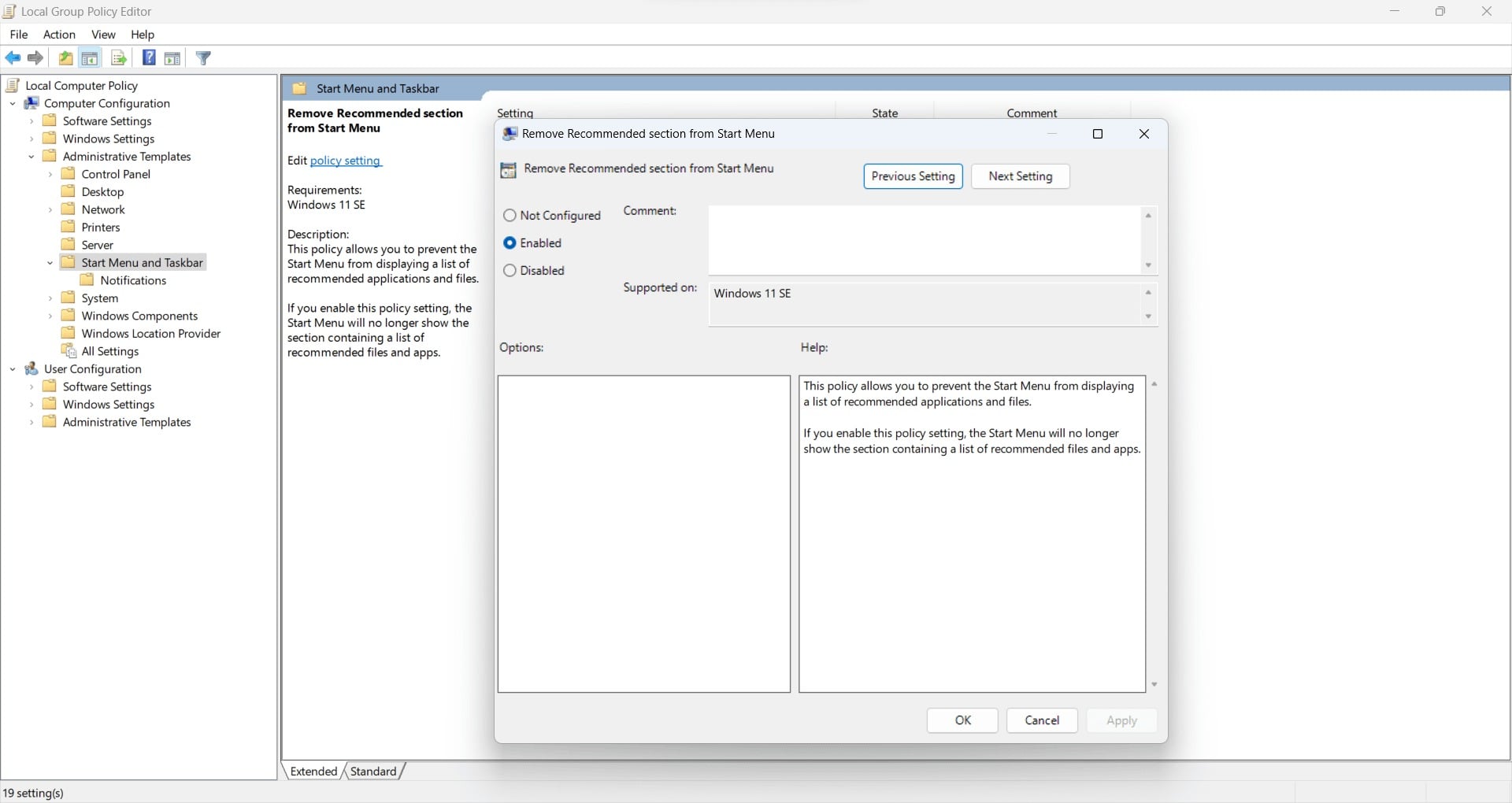
- To remove All apps, search for Remove All Programs list from the Start menu.
- Double-click on it, select Enabled, and click OK.
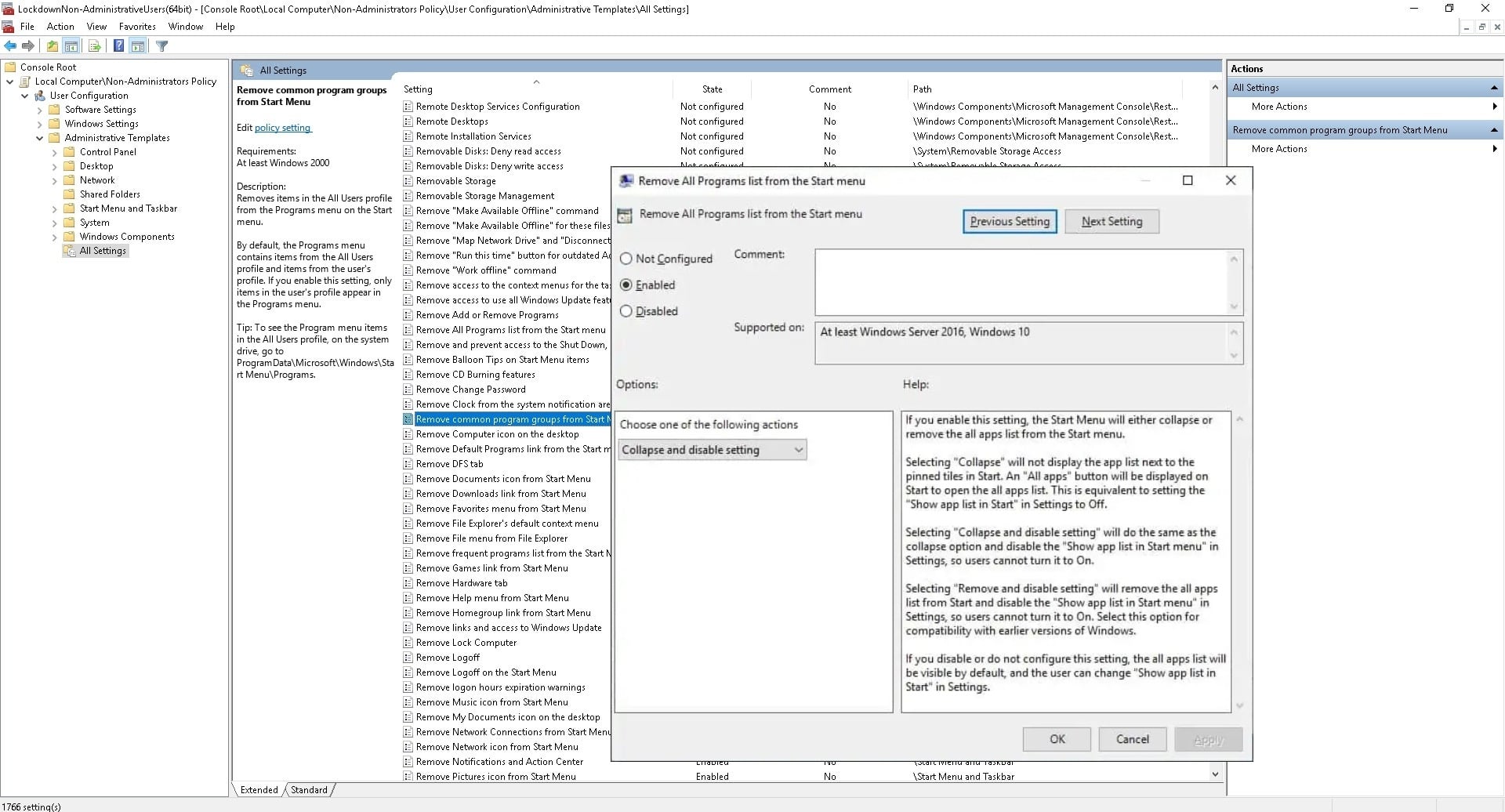
There are some users online who claim that getting rid of the Recommended and All apps sections did not work for them. So, if that happens to you as well, you can check out the next method.
Using Registry Editor (For Windows Home users)
Windows 11 Home edition users don’t have the Group Policy Editor. It is only found in the Windows Pro, Enterprise, or Education editions. To check which version of Windows 11 you are running, you need to navigate to Settings > System > About. Scroll down and under Windows Specifications, you will see the edition name.
If you are running the Home edition, you can still remove the Recommended and All apps sections from the Start Menu and make it clutter-free. But before you do that, you should create a restore point to have a backup in case things go south.
Create a restore point
- Open the Start menu.
- Type Create a restore point and open the appropriate app.
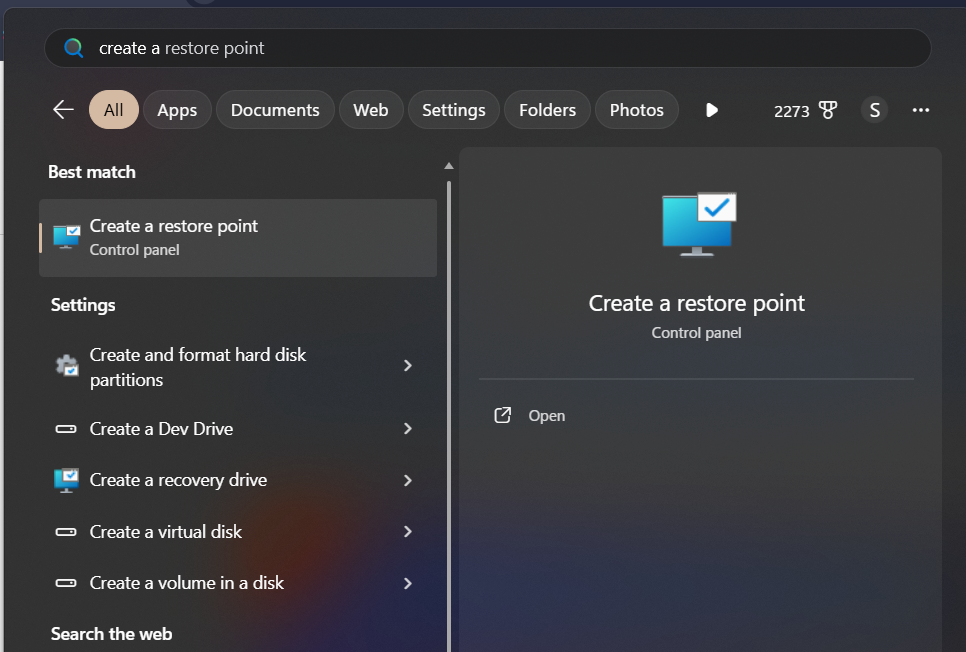
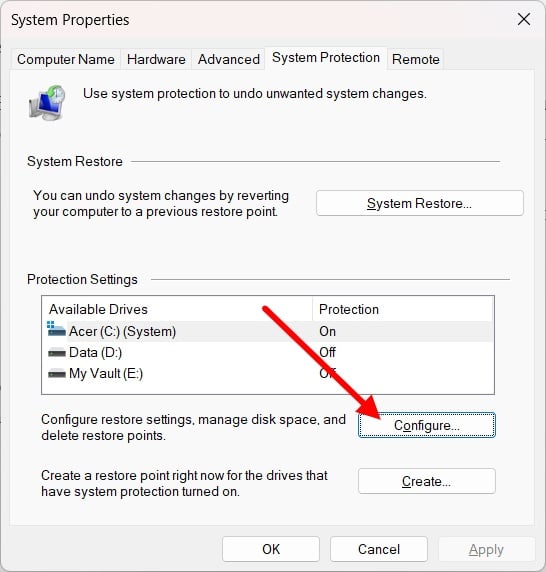
- Select the drive where you have Windows 11 installed and click on Configure.
- Click on the Turn on system protection.
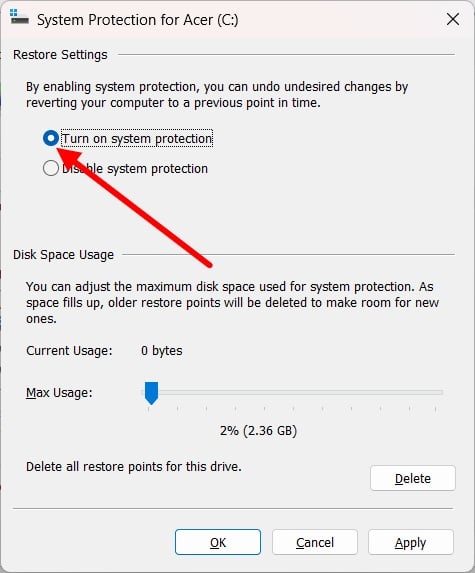
- Click Apply and OK to save changes.
- Now, click on the Create button.

- Type the description or date in the text field to quickly identify the restore point and press Create.
Use the Registry Editor
- Press the Win + R keys to open the Run dialogue.
- Type regedit and press Enter.
- For the Recommended section, paste the HKEY_LOCAL_MACHINE\SOFTWARE\Policies\Microsoft\Windows in the top text field.
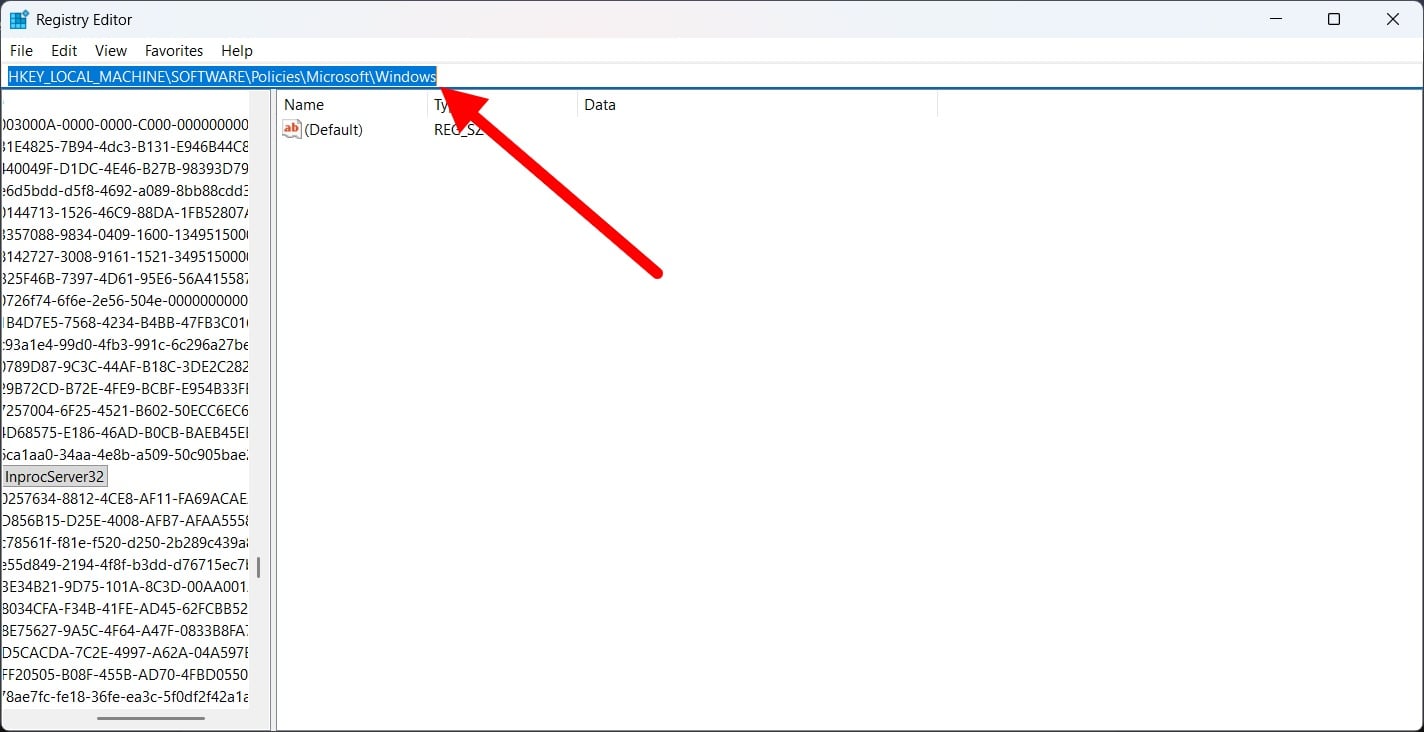
- Right-click on the Windows folder on the left pane, and select New > Key, and name it Explorer.
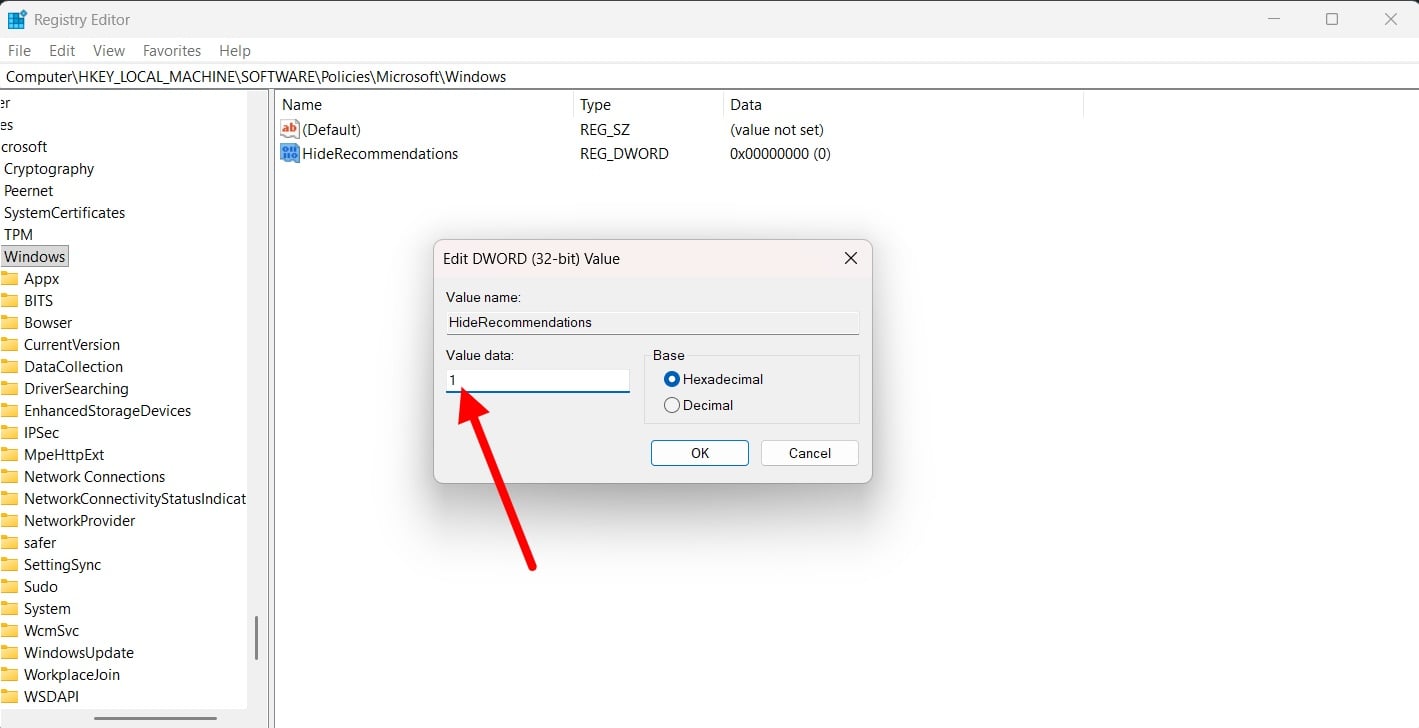
- Inside the Explorer key, on the right side, right-click> New > DWORD (32-bit) Value.
- You have to name it HideRecommendations.
- Set the Value data to 1.
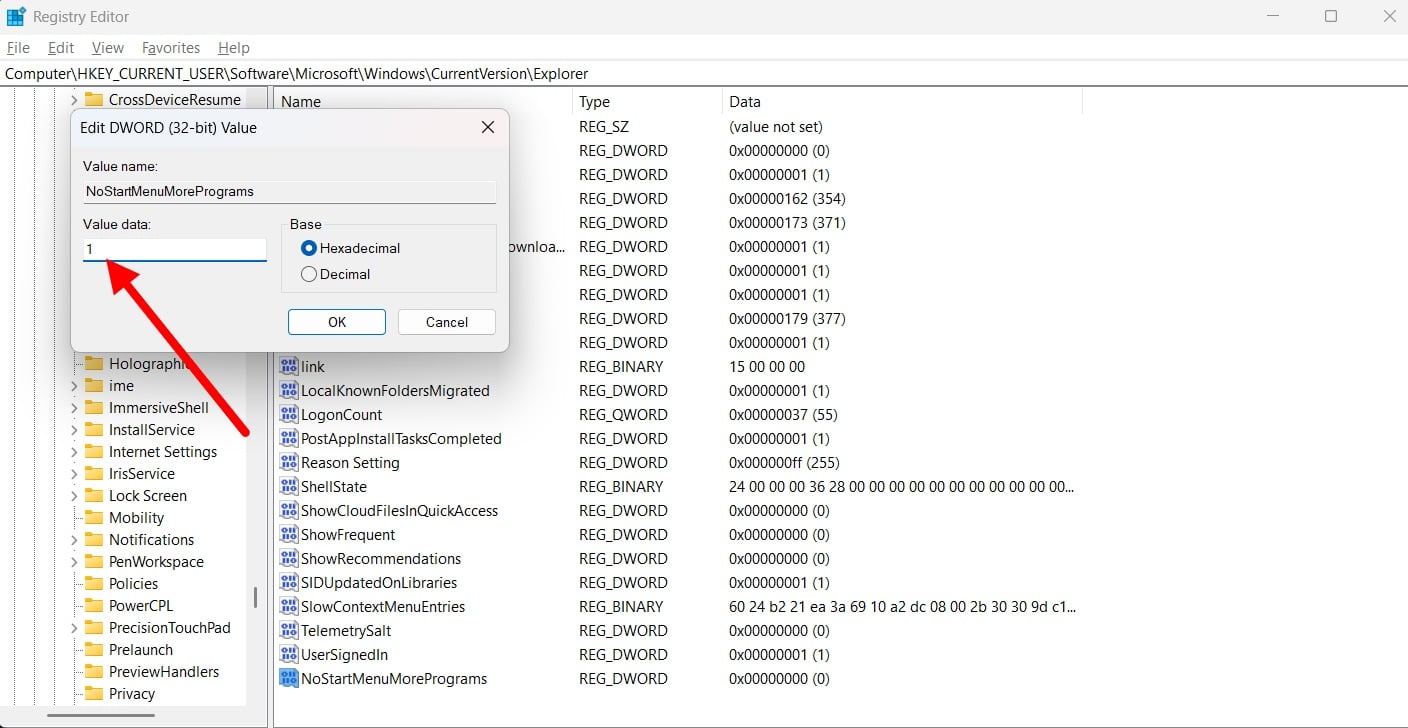
- For the All apps list, navigate to HKEY_CURRENT_USER\Software\Microsoft\Windows\CurrentVersion\Policies\Explorer
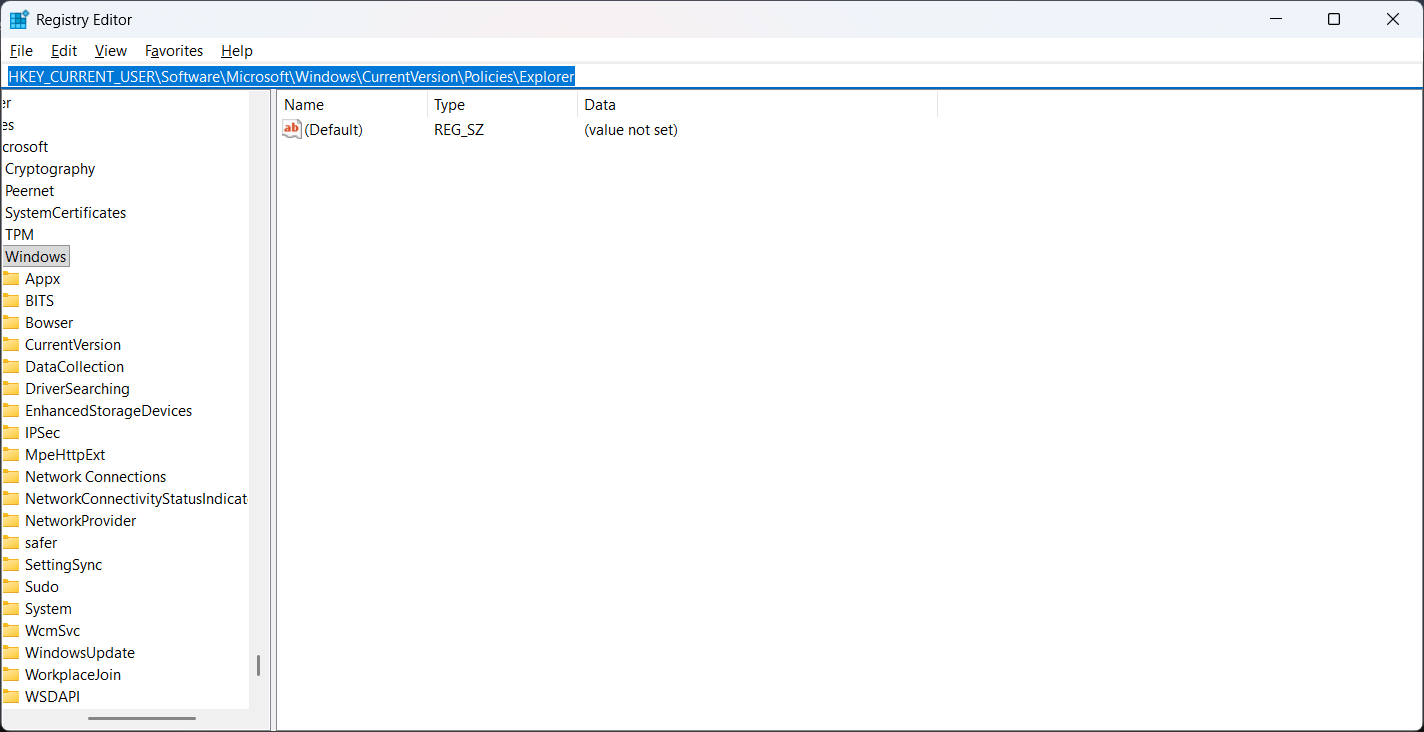
- Right-click on the right side > New > DWORD (32-bit) Value.
- Name the new key NoStartMenuMorePrograms.
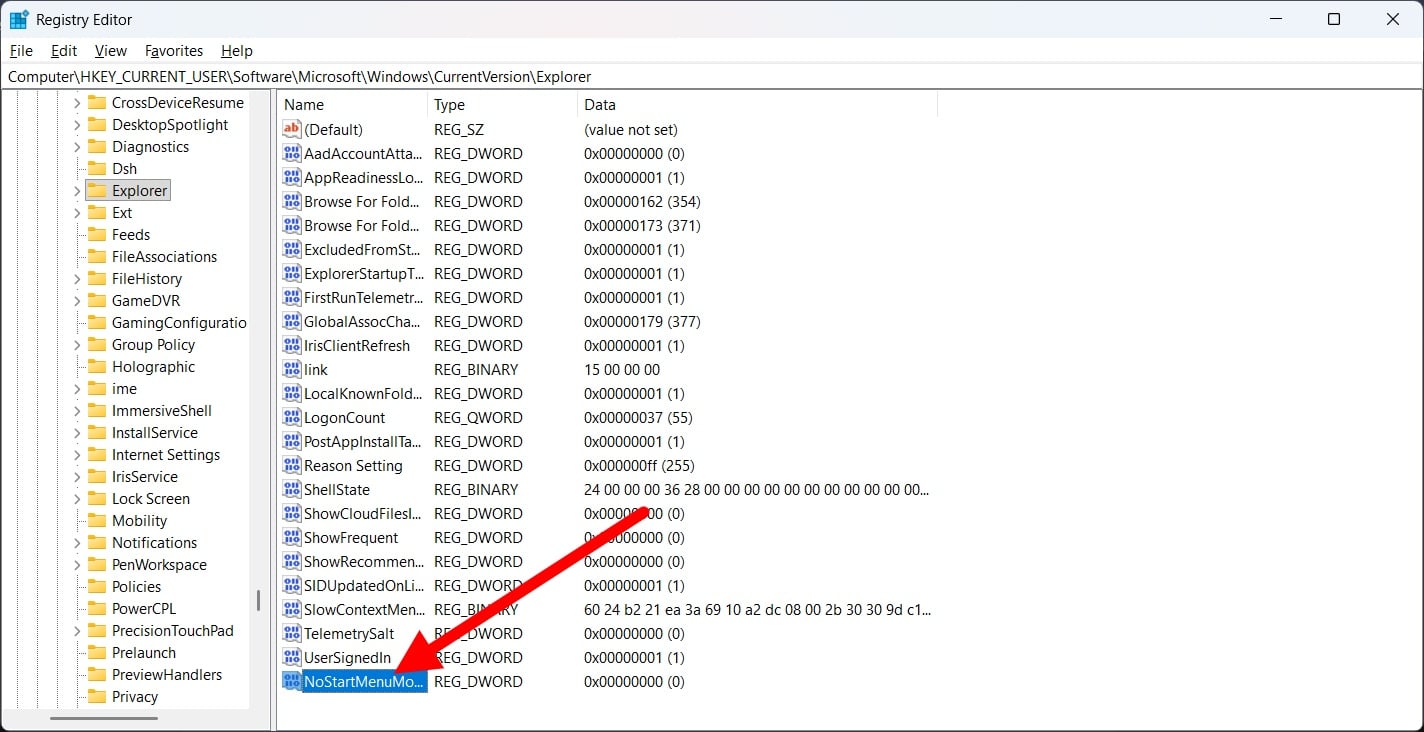
- Set its Value to 1.
- Restart your PC.
- After the boot is complete, you will see that both the Recommended section and the All apps section are gone.
Use PowerShell command
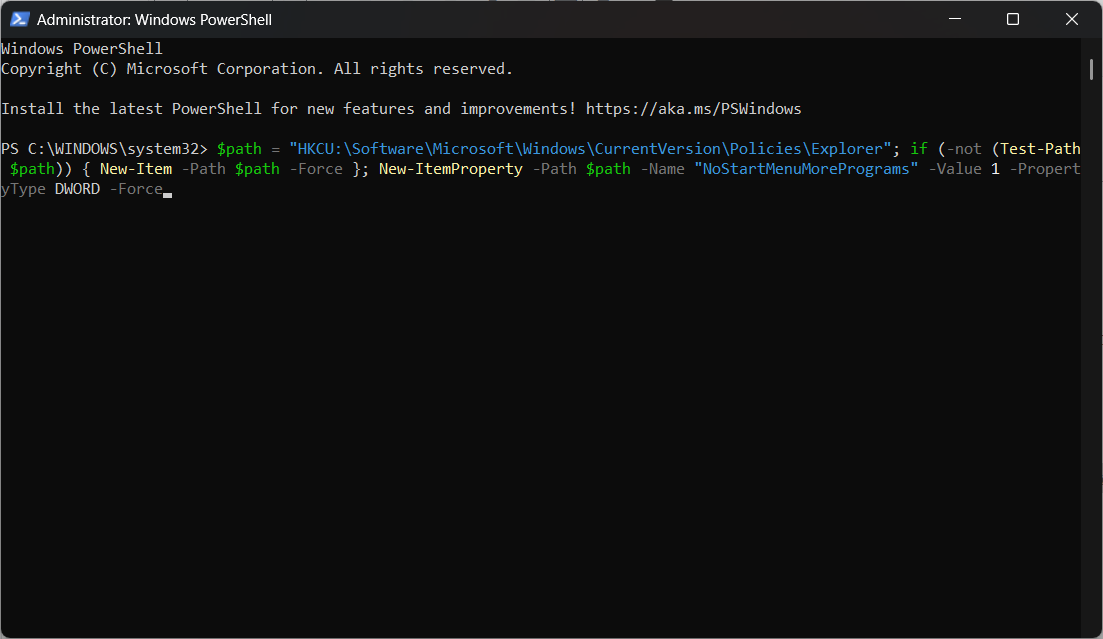
For those who feel tweaking the Registry is quite risky, we have a simple command that you can run in PowerShell and get rid of the Recommended and All apps section. Here’s what you need to do:
- Open the Start menu by either clicking the Start button from the taskbar or pressing the Windows button.
- Search for PowerShell and open it as an administrator.
- Run the following command: $path = “HKCU:\Software\Microsoft\Windows\CurrentVersion\Policies\Explorer”; if (-not (Test-Path $path)) { New-Item -Path $path -Force }; New-ItemProperty -Path $path -Name “NoStartMenuMorePrograms” -Value 1 -PropertyType DWORD -Force
- That’s it!
Windows Start Menu, as clean as it could get
The above methods not only let you remove unwanted sections from the Start Menu, but also give you more space to pin your most frequently used apps. You can make better use of the space than the default option. If you want to take care of all the issues of your PC, then you should check out this tool that makes life much easier. Also, if you want to make launching apps, doing calculations, or accessing system settings easier, then you should install Flow Launcher.

