

Quick Answer
To generate music using Producer AI, first head over to Producer.ai and sign in with your Google account. Once done, enter the prompt to generate the music. If you are a beginner, you can use any AI tool to optimize your prompt. Once the music is generated, click the three-dot horizontal menu and hover over the download button, and select the required format to download the music.
I recently saw a tweet showing how Google has acquired companies over the years and built products around them. Here is the link to the tweet if you want.
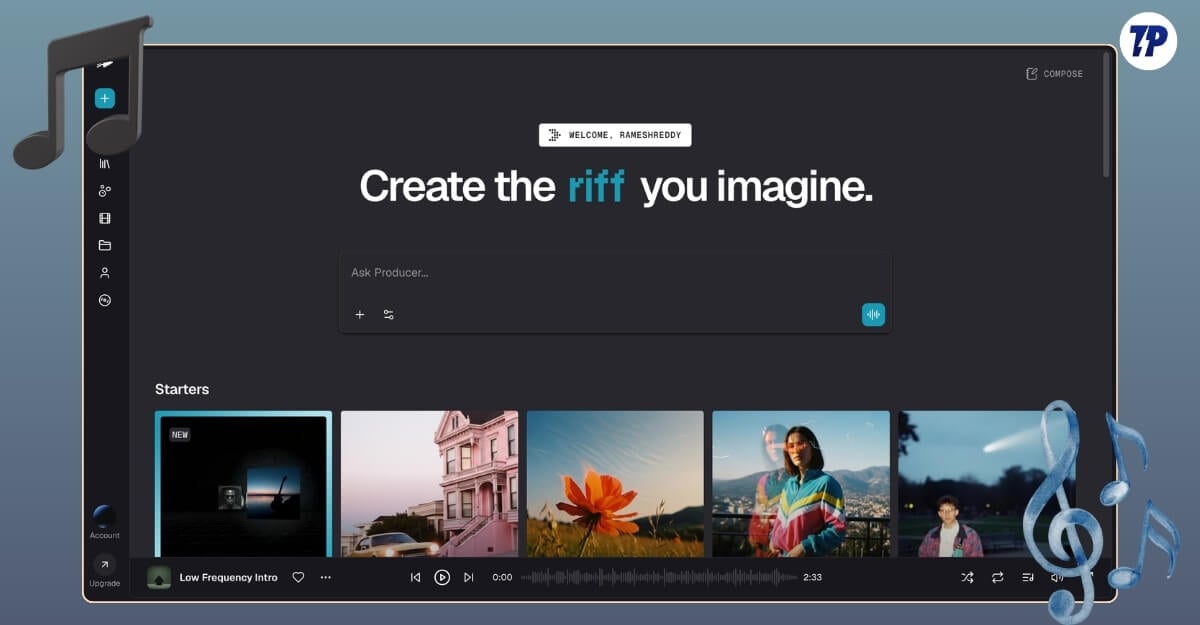
Now, Google made another announcement: Google Labs, part of Google, is acquiring the AI music generation platform Producer AI.
Producer AI now differentiates itself from the competition by combining with other Google models, such as Lyria 3 for music, Gemini for chat, Veo for music videos, and Nano Banana for album artwork, and much more; however, I am particularly excited about the free music generation credits. In this Guide, you will learn about how to use Producer AI to generate music for free.
Table of Contents
How to Generate Music Using Producer AI
The biggest issue with other AI music generators is their limited free tiers; even after Google acquired them, the producer AI offerings remain the same. I really hope they increase the free limits or, in the future, integrate with the Google AI Pro plan.
Please note that, currently, the songs generated on the free tier in Producer AI are for personal use only, and every song will have a Google-assigned systematic ID so it’s easy to spot its AI-generated nature.
Enough of the information, and now let’s get straight into how you can generate music using the new Producer AI from Google Labs.
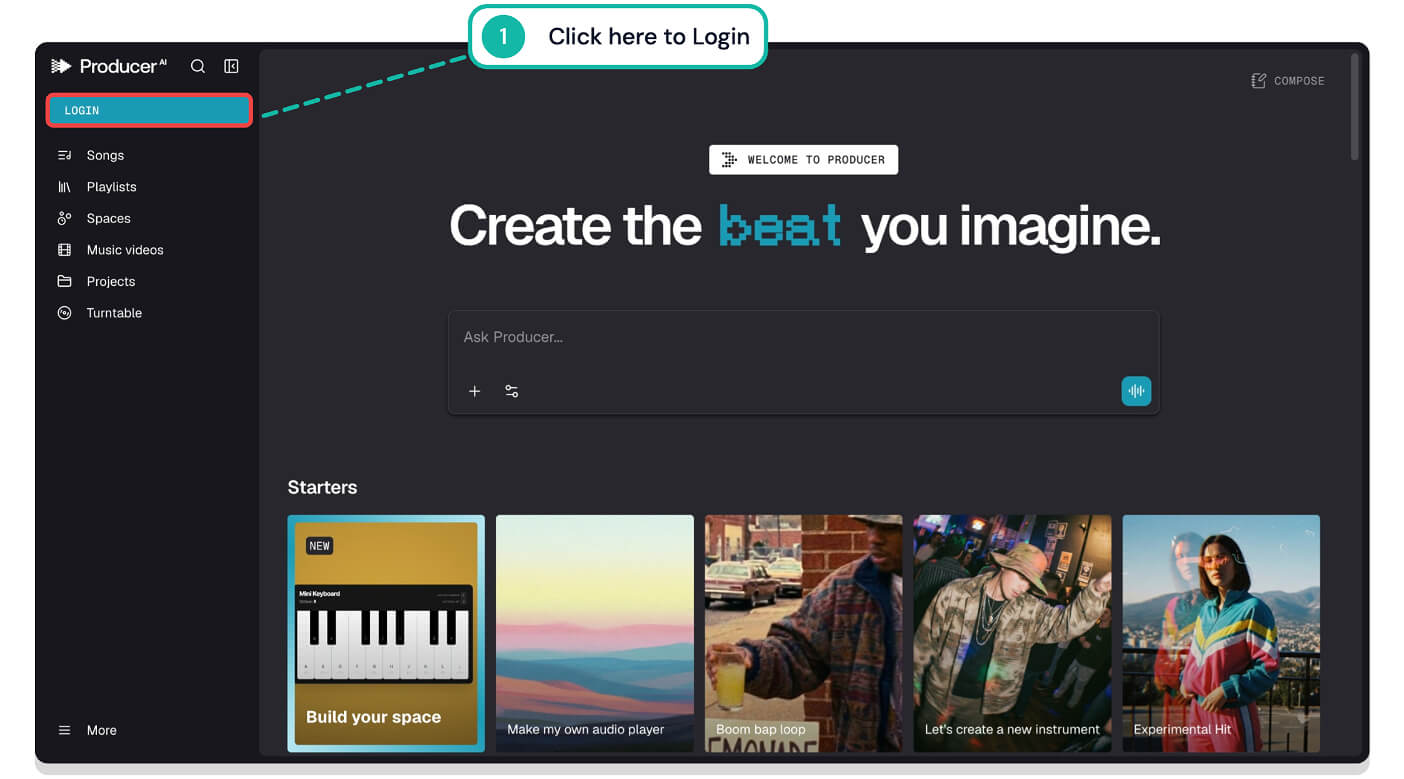
Step 1: Go to the Producer.ai website and click on the login button in the sidebar.
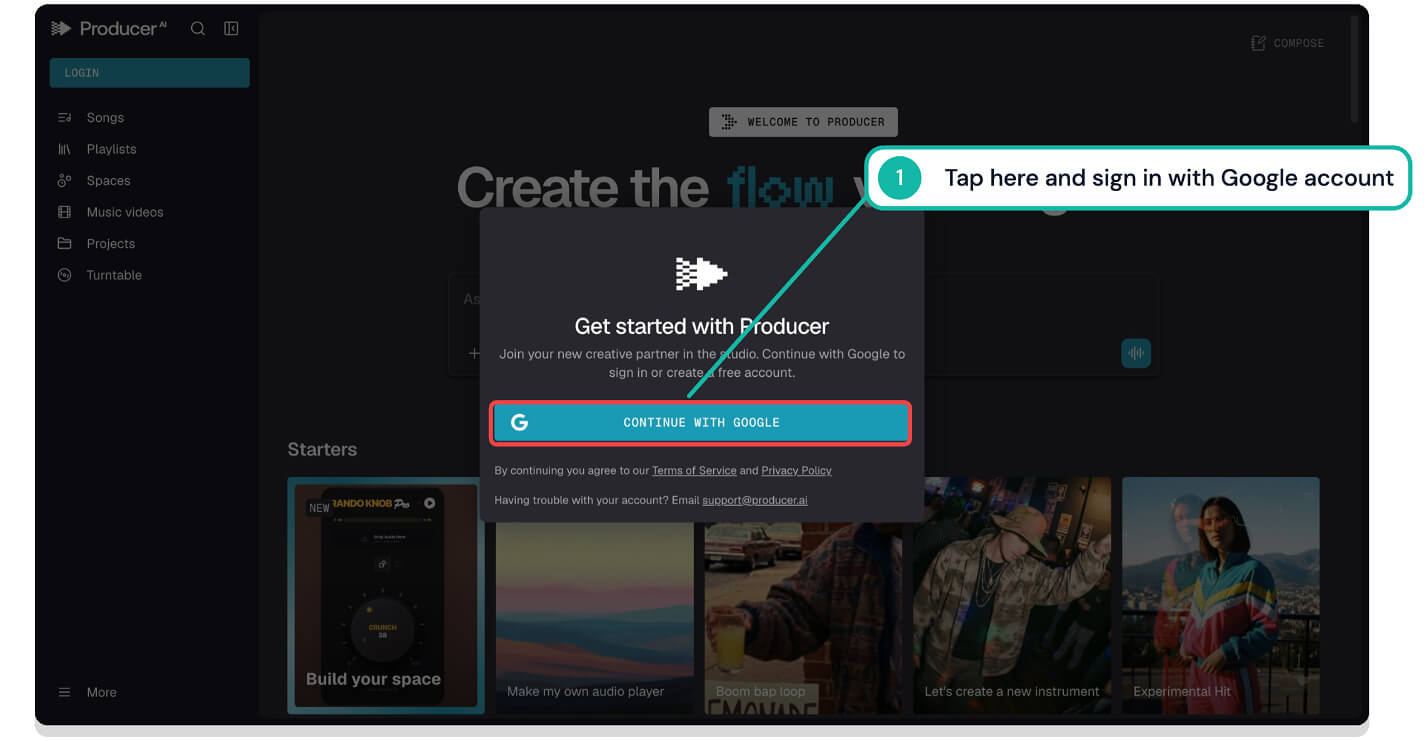
Step 2: Sign in with your Google account. Currently, you can only log in with your Google account. If you do not have one, you can watch the guide here.
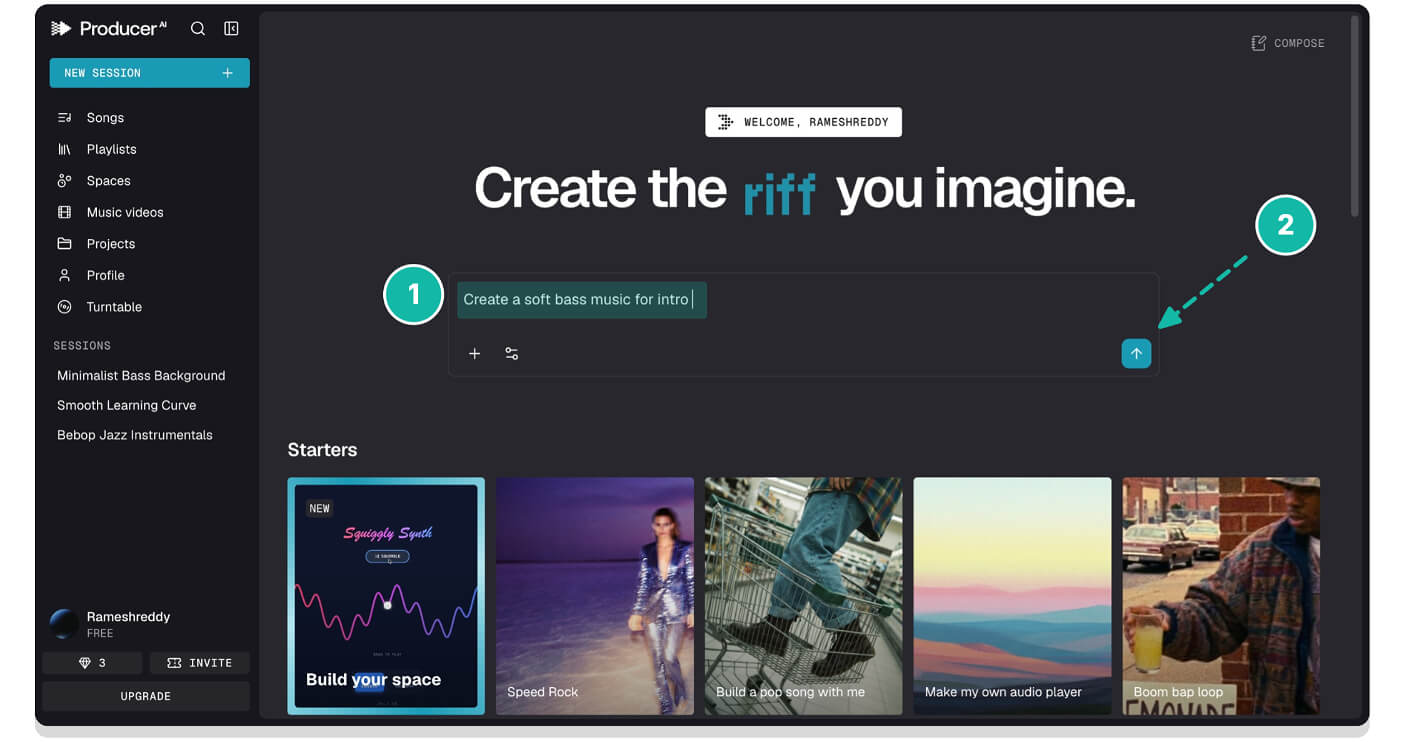
Step 3: After successful sign-in, you will be redirected to the Producer AI home screen. Here, you will see a new prompt box, similar to Google Gemini and most other AI tools. Enter the prompt here to start generating music.
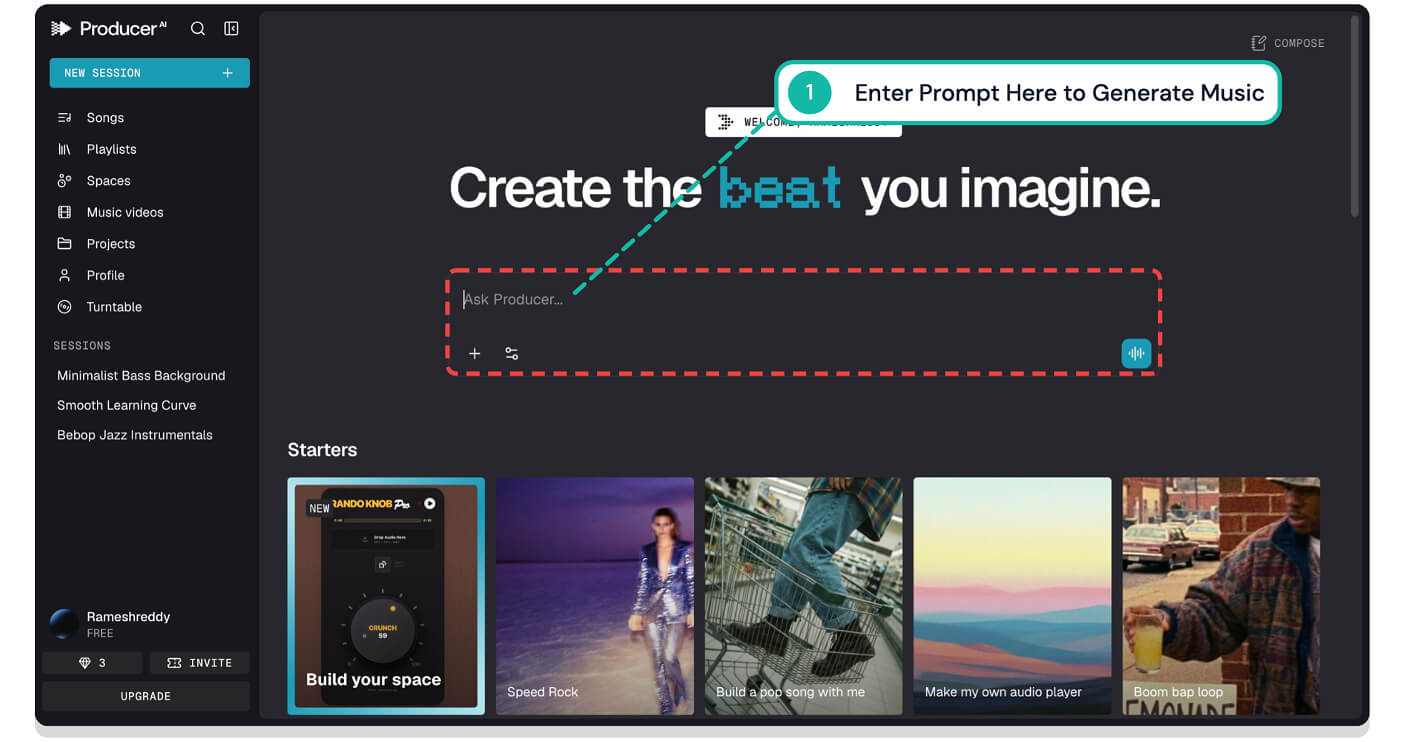
Step 4: If you are a beginner, you can use any AI tool, such as Google Gemini, ChatGPT, Perplexity, or even Claude. You can describe your thoughts and generate an optimized prompt based on your music preferences. Now, copy that prompt and paste it here to generate music. Once you enter the prompt, tap on Enter.
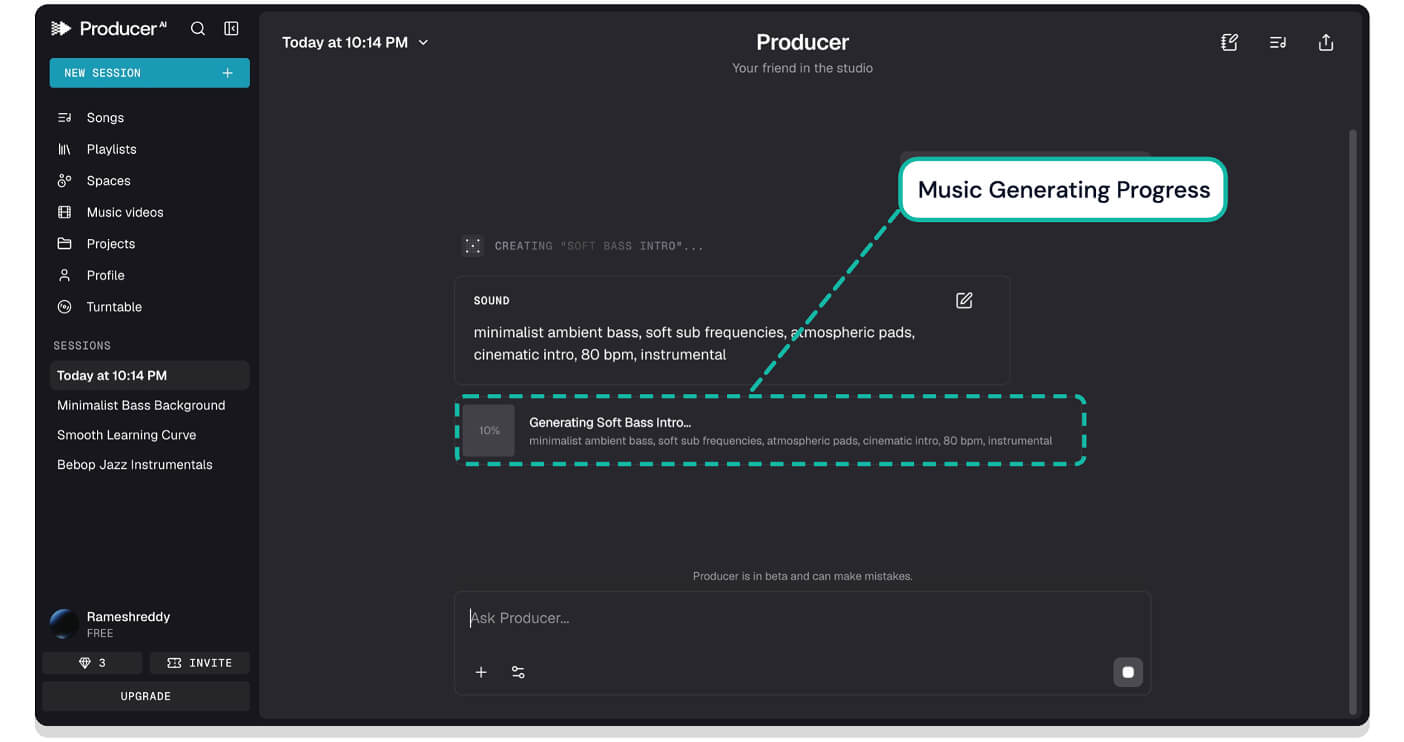
Step 5: Wait a few seconds for your music to generate. You can see the progress below.
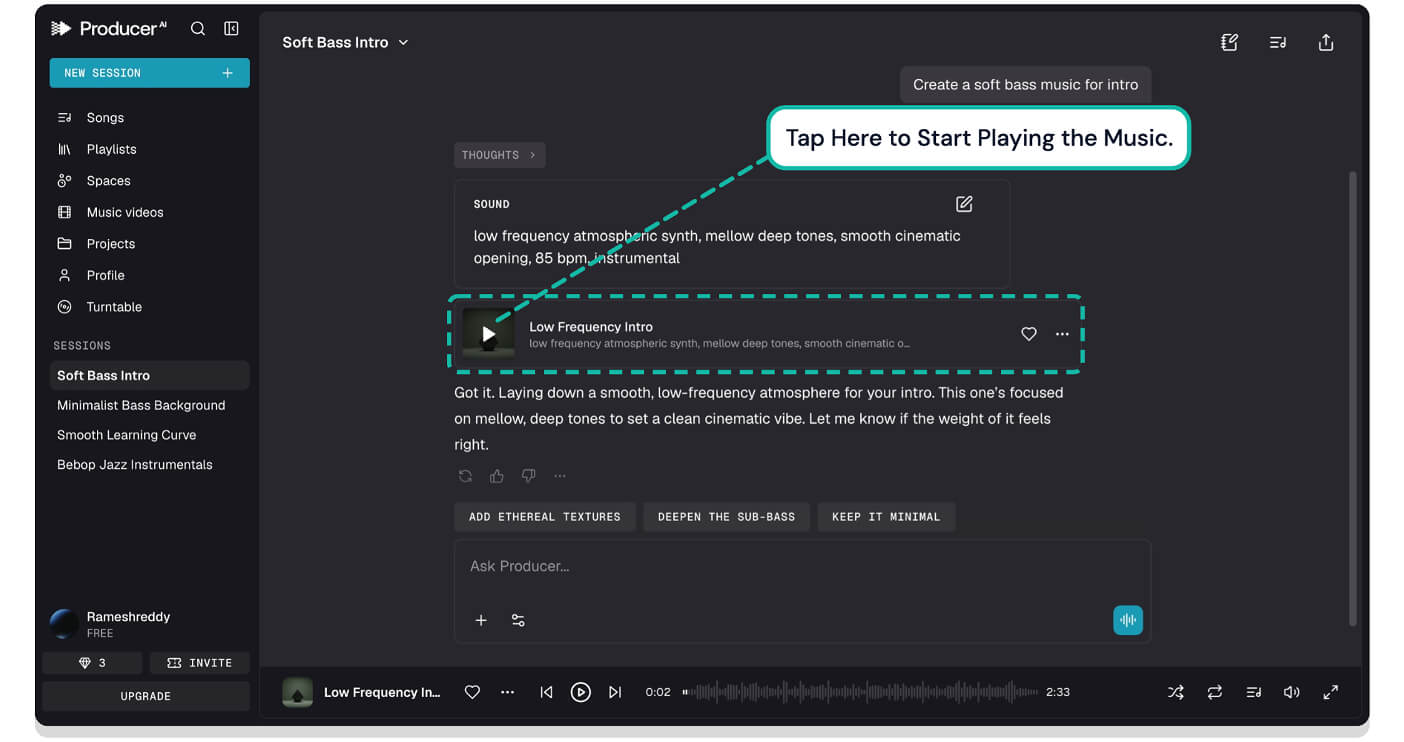
Step 6: Once the music is generated, you can tap on the play button to start playing the music.
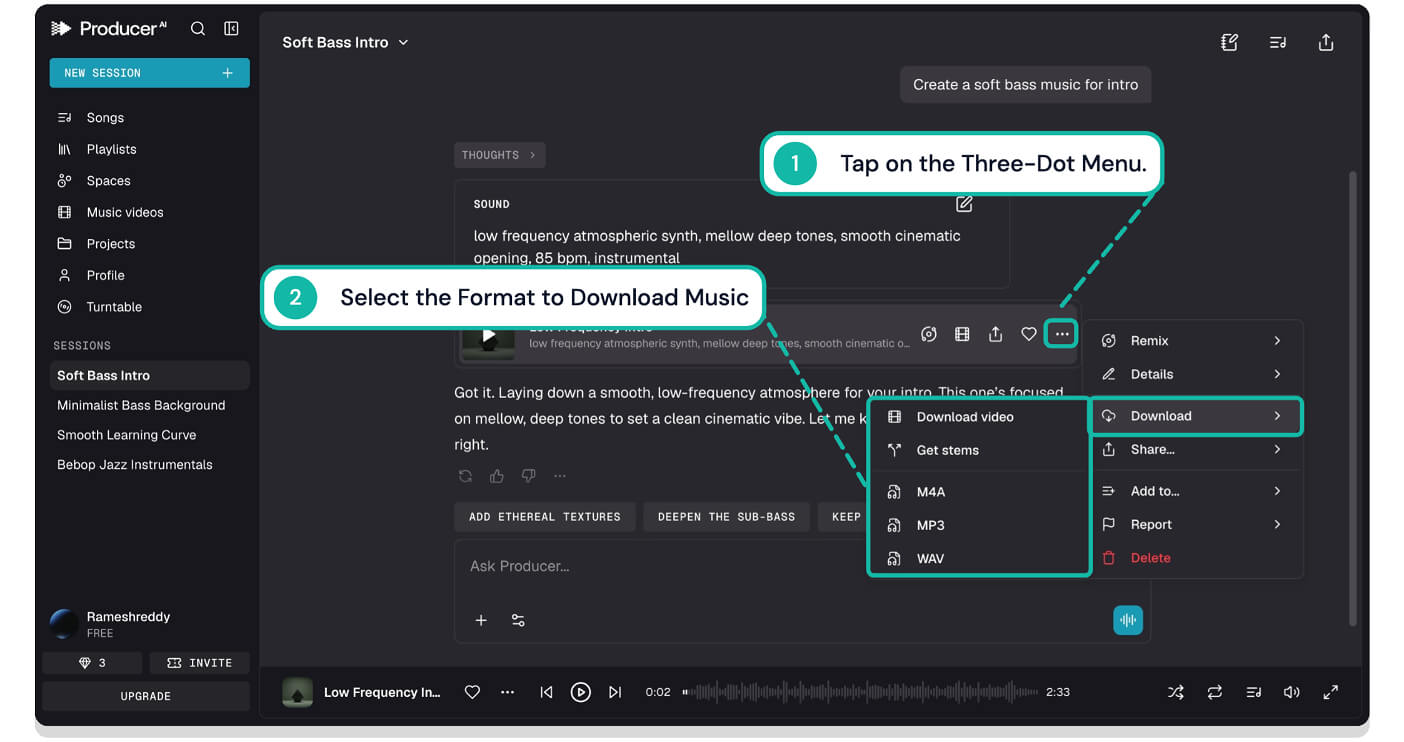
Step 7: To download the generated Music, tap the three-dot horizontal menu over the download button, then select the music format you want to download. Currently, it supports M4A, MP3, and WAV formats. You can also download music in the video format by tapping on the download video button.
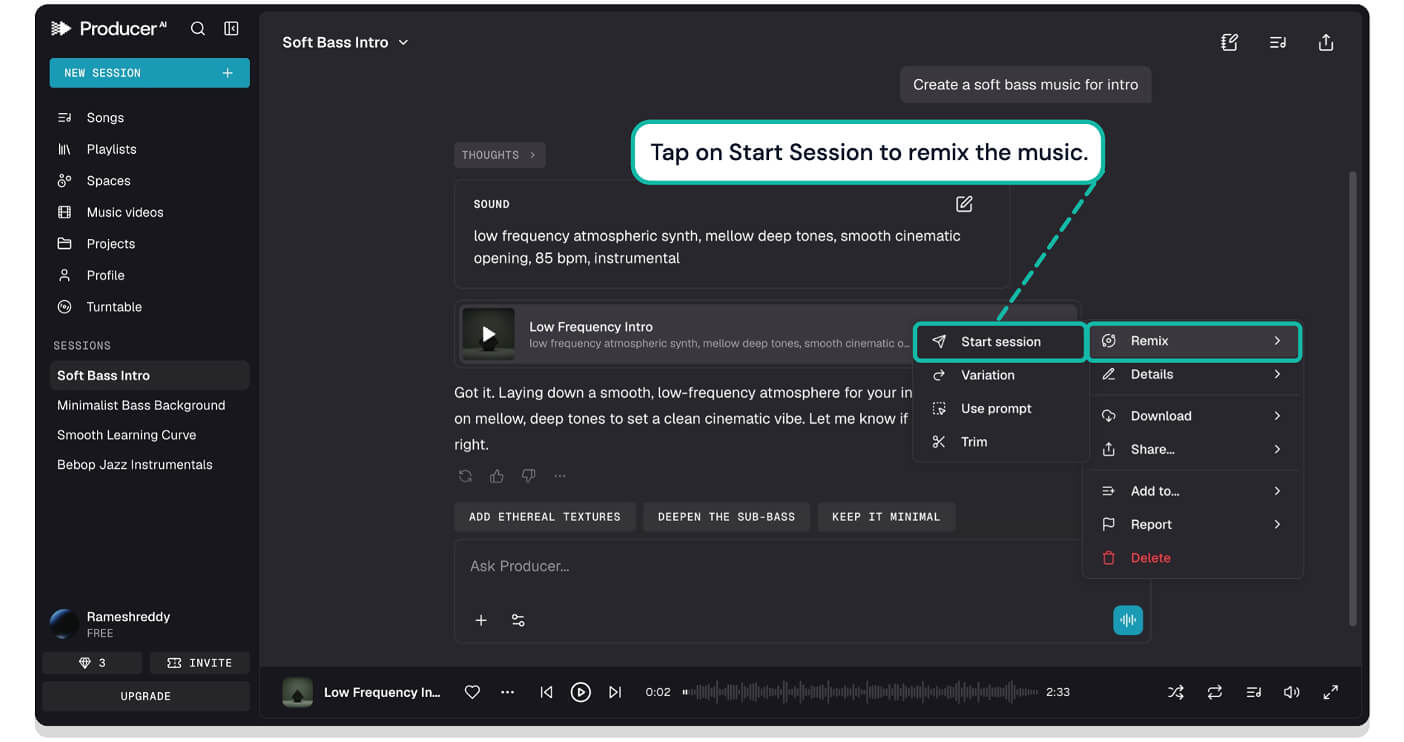
Step 8: If you don’t like the output music, you can remix and customize it based on your needs. To do this: Tap on the 3-dot menu again, tap on the Remix option, and finally tap on Start Session.
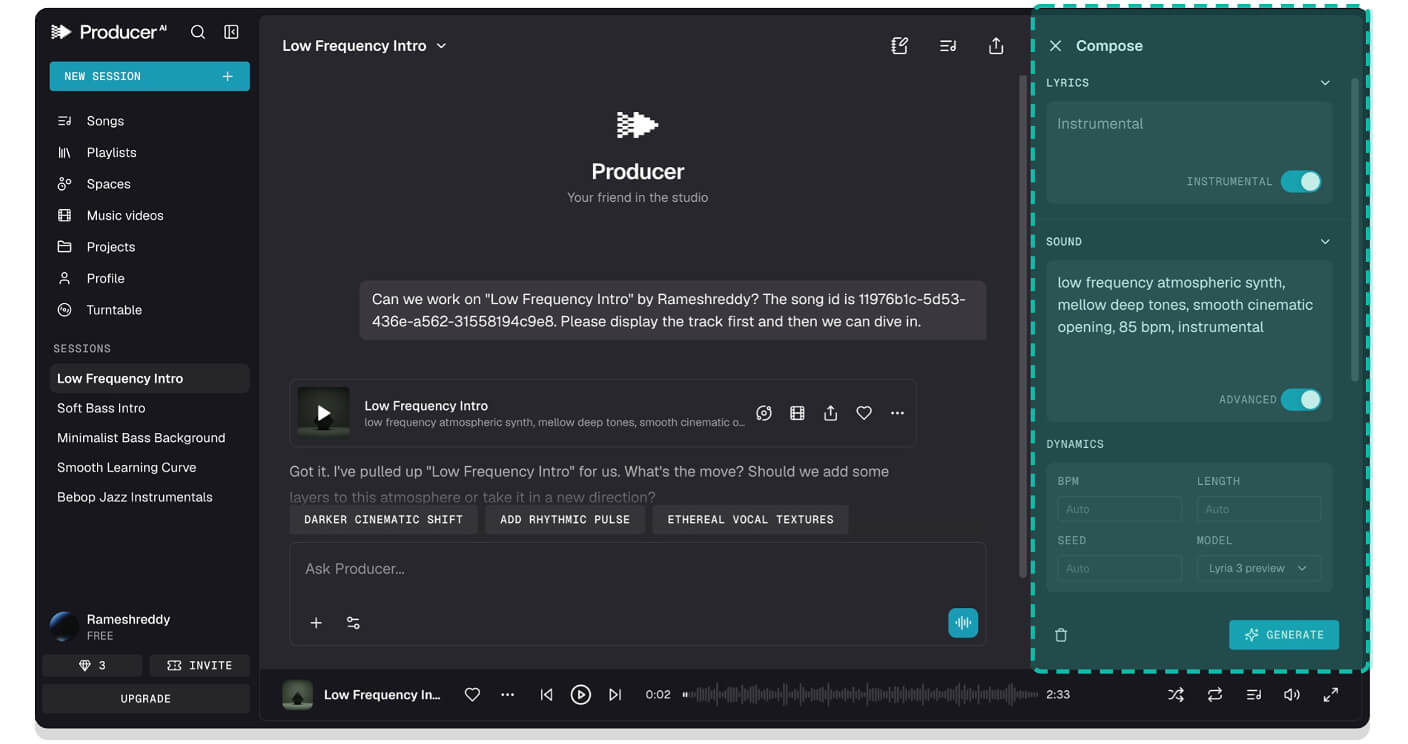
Step 9: It will open a new compose interface. From here, you can adjust the lyrics, sound, and dynamics, and finally tap on the Generate button to generate a new music output.
Wrapping Up: Creating Music with Producer AI
Those are the simple steps you can use to generate music using the latest Producer AI music generator tool. The free version currently offers 2 concurrent music generators, and paid plans offer more limits on generating music.
Remember, music generated in the free version is not for commercial use, so you are not allowed to use it inside YouTube or Spotify; however, if you are looking for one, you can generate music inside the Google Gemini app, which currently supports up to 30 seconds, which is not limited to commercial use.
However, these terms keep changing; if you want to use this music for commercial purposes, always review the terms of service before. I hope you find this guide helpful. Producer AI also works on mobile; you can easily sign in and generate music on mobile, too. If you are facing any issues, let me know in the comments, and I’m happy to guide you.
FAQs on Generating Music Using Google Producer AI
1. Do I fully own the music I generate?
Yes, you own the music you generated with this tool; however, in the free version, you are not allowed to use it commercially.
2. Can I regenerate variations of the same idea?
Yes, after generating the music, you can click the three-dot menu, hover over the remix option, and tap Variation.
3. Can I upload copyrighted samples?
Yes, you can upload any music file; however, the file must be less than 40 MB.
4. What if the AI generates something inaccurate or “hallucinates” lyrics?
Since it is AI, it can hallucinate sometimes; you can rearrange the song or give a more refined output for better results.
5. Can they reuse parts of my music?
You can upload the music as a reference; however, there is no direct way to reuse the music that you have already created for now.

