

Quick Answer
Google Squoosh, a free image compression tool from Google Chrome Labs, replaced TinyPNG for me. It runs locally in your browser, works offline, supports more formats, removes file size limits, and lets you fine-tune compression with real-time comparisons, all while keeping image quality almost identical.
Having better resolution doesn’t always mean a better image. In some cases, a large image size can be due to extra details in the images, like metadata and color profiles, which most modern devices like smartphones and cameras automatically add to images to preserve the original quality, which can unnecessarily increase the image size.
Because of this, the average image size has significantly increased over the years. This resulted in an increase in file size, and it also takes more time to transfer. Fortunately, using image compression tools, you can remove this unwanted data without affecting the picture quality.
There are plenty of image compression tools out there to help you do that; however, TinyPNG has remained my go-to tool because of its simple user interface, its smart lossless compression that significantly reduces the image size without affecting the quality.
However, I recently discovered Squoosh, an image compression tool developed by Google’s Chrome Labs team that replaced my TinyPNG for good. It not only offers all the features of TinyPNG but also eliminates its biggest pain points.
Since then, I have stopped using TinyPNG and started using Google Squoosh for all my image compression. If you use TinyPNG or any other image compression tools, here is why Google Squoosh is better in many ways.
Table of Contents
What is Squoosh?
Squoosh is an open-source image compression tool by Google Chrome Labs. It was announced at the Chrome Dev Summit 2018. However, I only discovered this tool very recently while researching for my recent article on browser skills.
I even asked my friends whether they had heard of it, and most of them were not aware of this tool either. Even though the tool was developed by Google, it is not as popular as other image compression tools.
One obvious reason might be that it’s not easy for beginners; many people find Squoosh complex. However, after using it, it is much simpler than most people think.
How to Access Squoosh
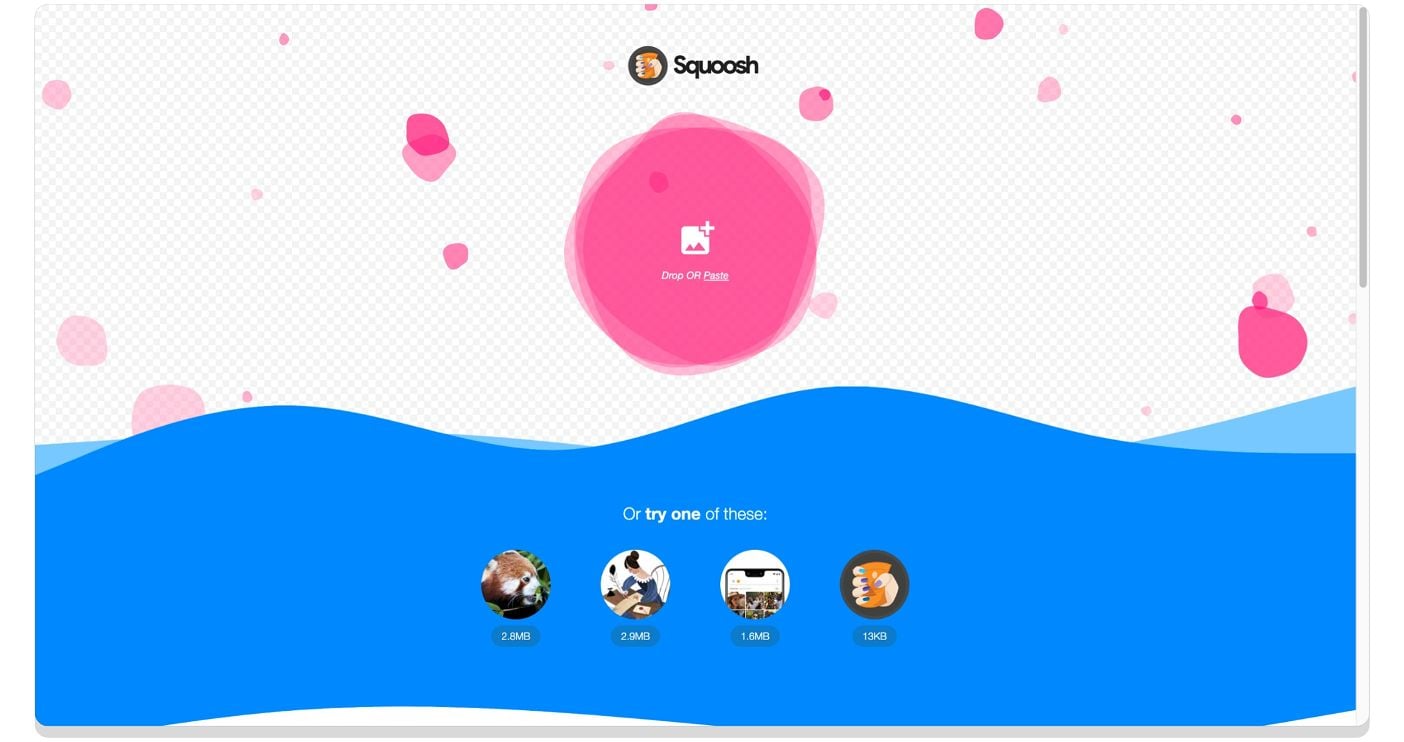
Just like TinyPNG, you can visit Squoosh.app to access the tool online. It also works offline by using it as a PWA application.
How to Compress Images Using Squoosh
Using Squoosh is very similar to TinyPNG. You can visit the website, upload the image, drag and drop the image, or upload from your local storage. Once you have uploaded the image, you can adjust the compression parameters and finally download the file.
Step 1: Visit Squoosh.app on any device; it also works on mobile
Step 2: Now you can drag and drop the image, copy and paste the image from the clipboard, or tap on the select option and select the image from your local storage.
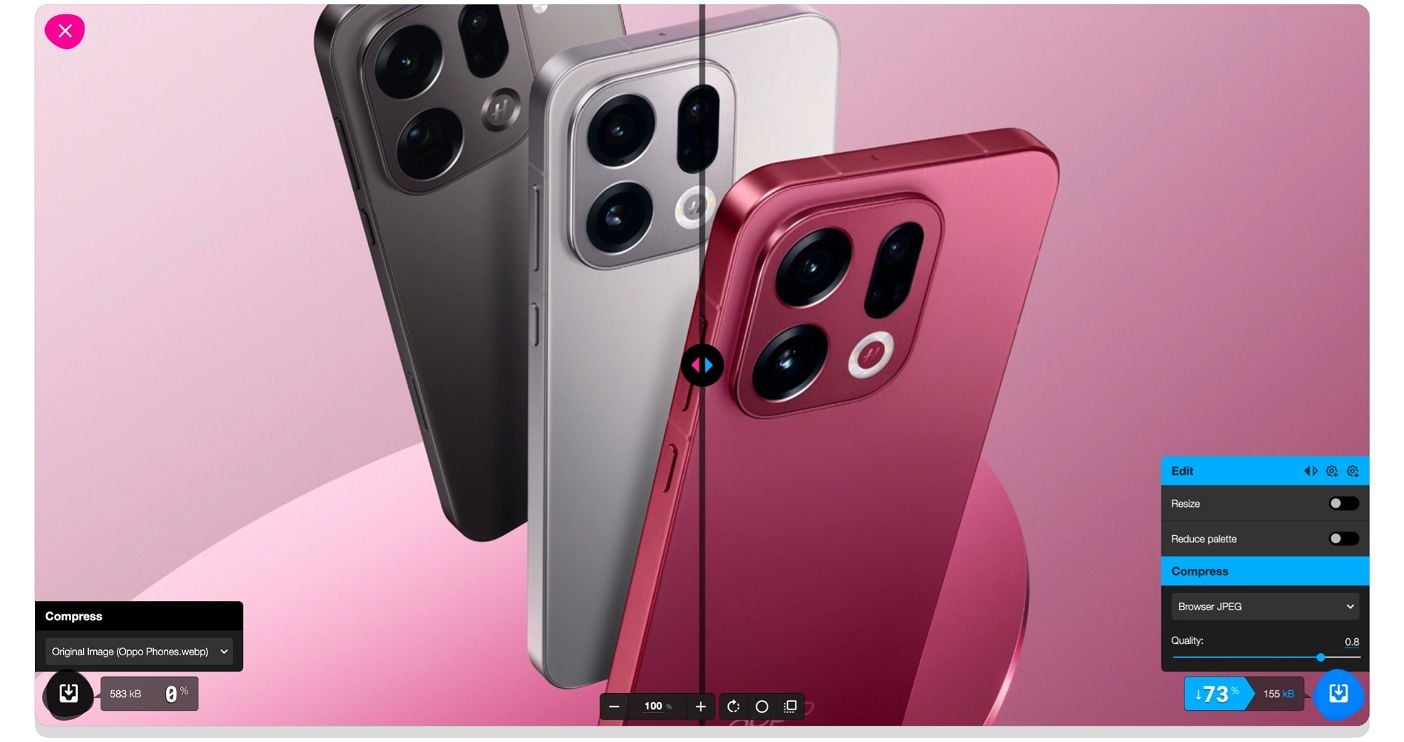
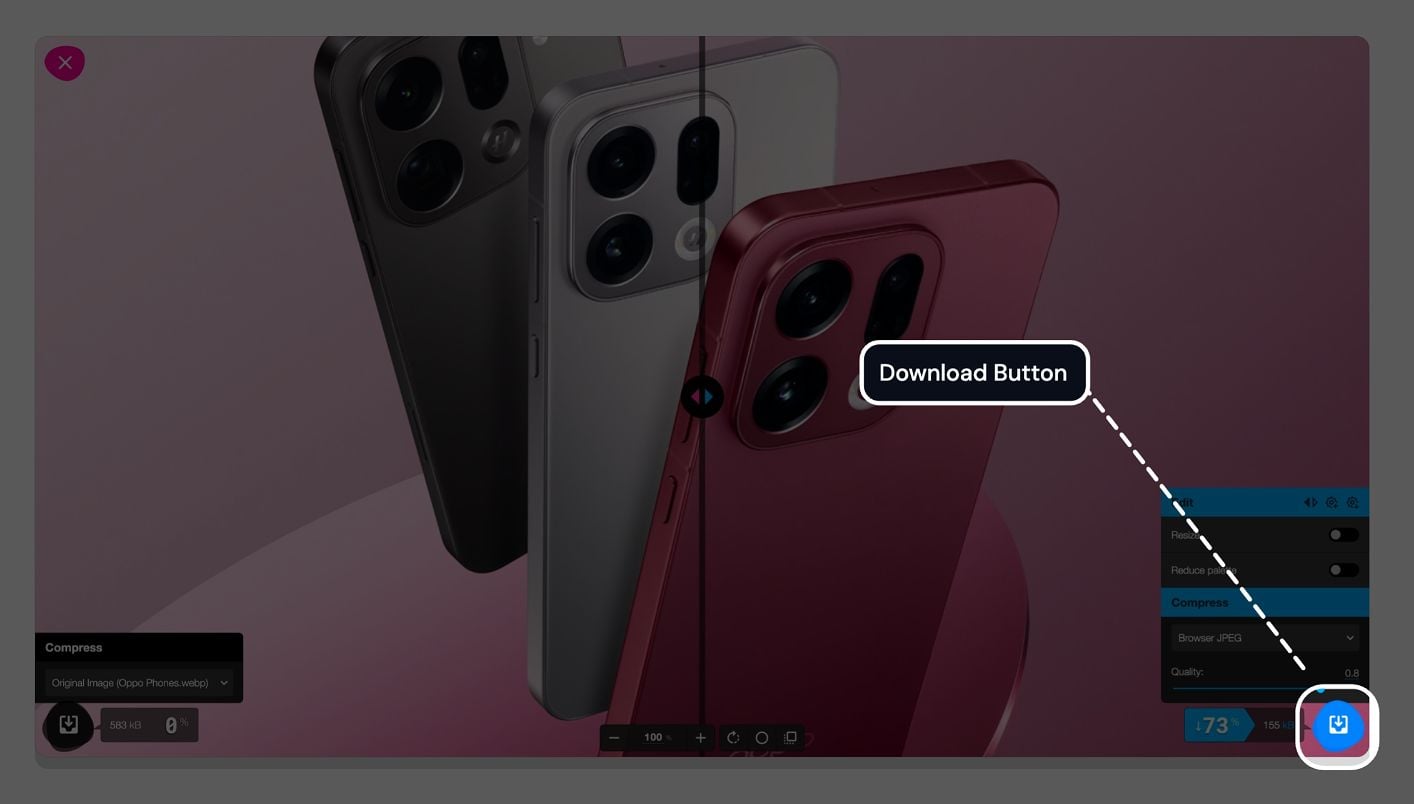
Step 3: Once you are done, the image appears on the screen with real-time slider comparison. You can adjust the compression parameters in the bottom right corner of the screen, which includes Compression quality, Format, and much more.
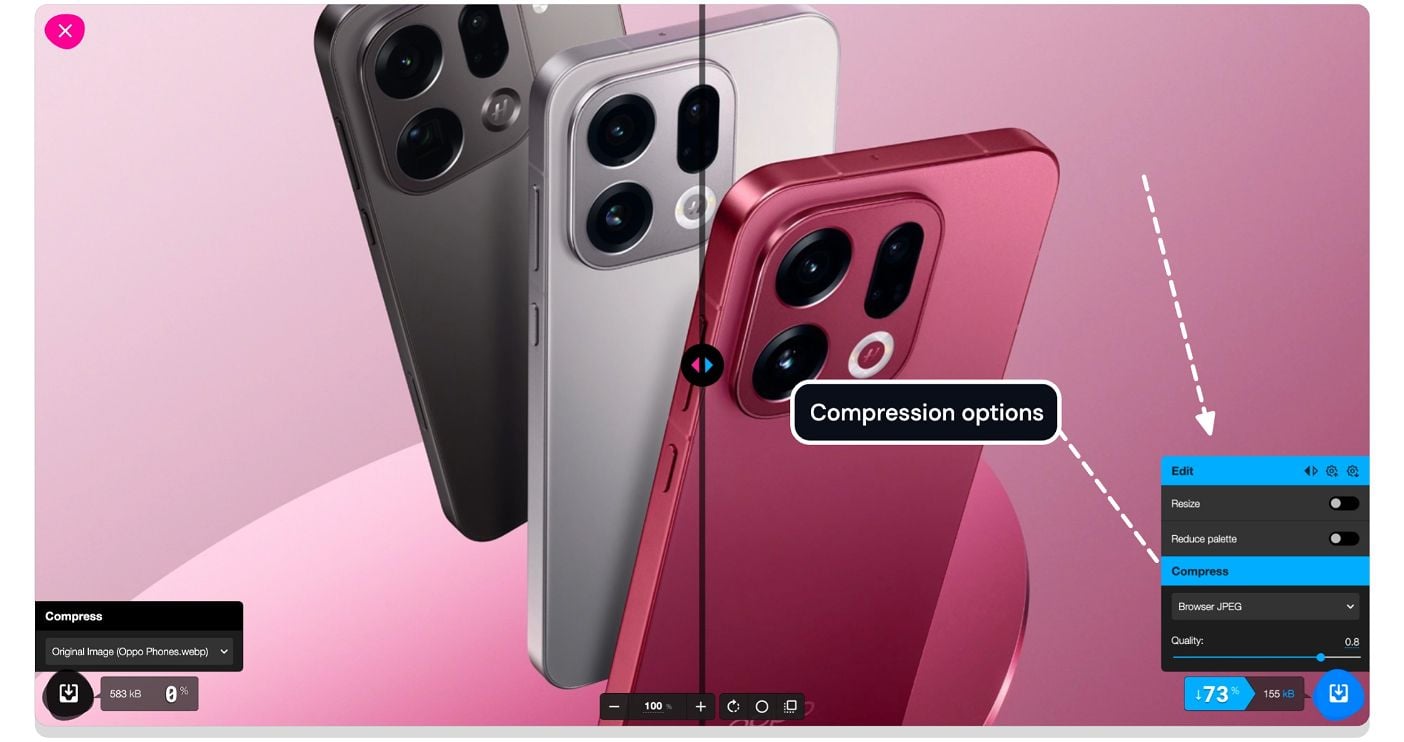
Step 4: Finally, click on the download option to save the image locally on your device.
5 Reasons why Squoosh is better than TinyPNG
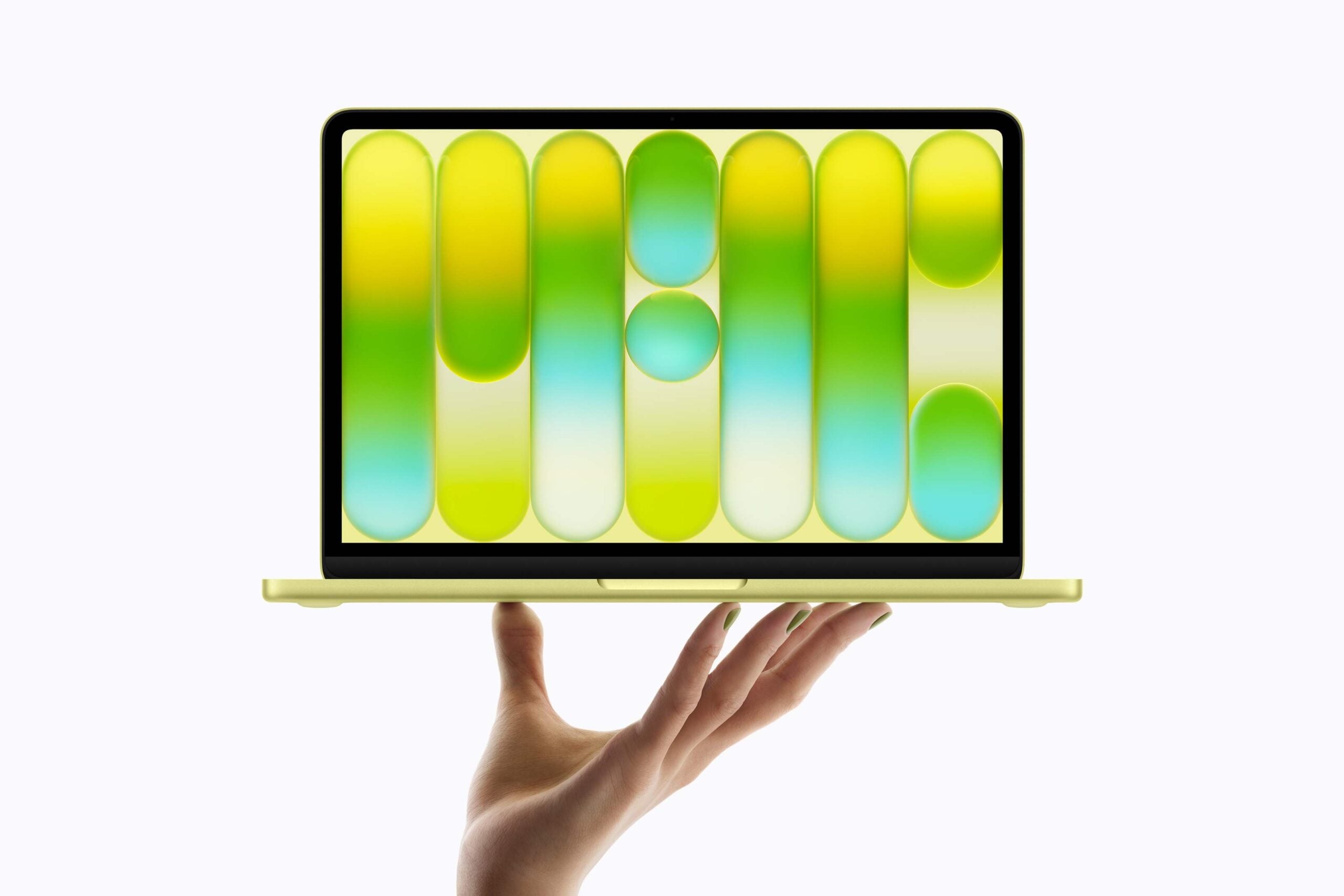
Before going to the reasons, I tested the image quality of both using these tools. The difference is almost negligible if you match the size of both outputs. For example, here are two images that I compressed using tools to the same size, and you can’t find a major difference between them.
Image compressed using TinyPNG – 144KB
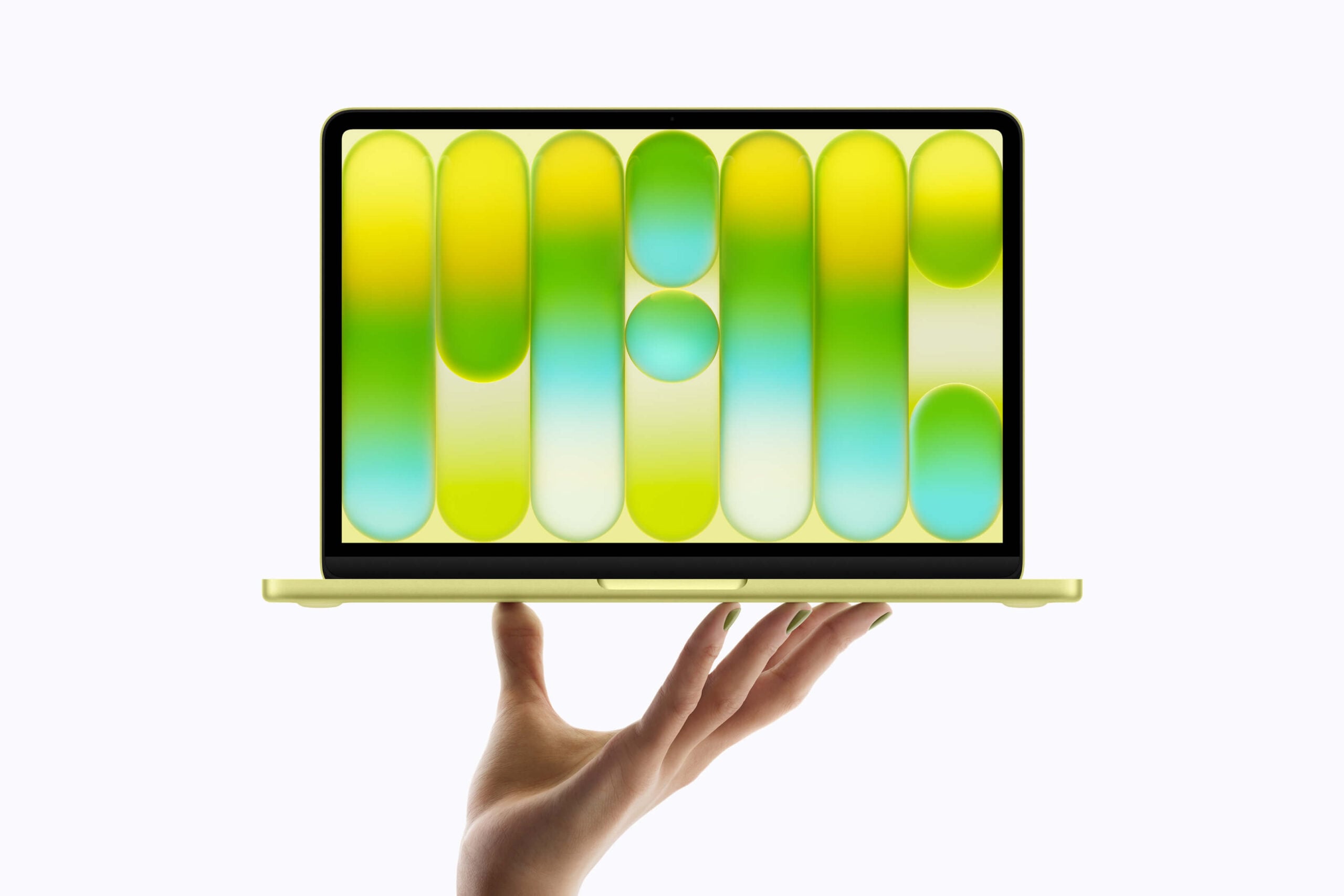
Image compressed by Squoosh – 143KB
Apart from the Quality, Squoosh stands out from TinyPNG in many ways by eliminating all the pain points TinyPNG has, such as file upload size limitations, the ability to adjust compression, support for different formats, and much more.
Works offline, which makes it faster
TinyPNG is one of the fastest image compression tools out there, but no tool can beat offline local browser processing.
Unlike TinyPNG, where processing happens in the cloud, your images first need to be uploaded and then later downloaded, which takes time.
On the other hand, Squoosh runs everything offline in your local browser. Because of this, the compression is much faster. In simple words, it is so instant that you can simply upload the file and download the compressed file instantly in a split second, which is not the case with TinyPNG.
You can adjust the compression
Simplicity is one of the most praised aspects of TinyPNG. For most users, the default compression is enough. However, there are times when you need to adjust the compression and the quality of the image output.
For example, when you want to compress images with heavy text, such as documents and screenshots, the default compression makes the compressed images less sharp and harder to read. In such scenarios, you can reduce the compression to preserve more details. And sometimes, if you need the smallest file possible, you can further compress it to reduce its size.
With Squoosh, you can adjust the compression standard to 0 and also to 100 percent to preserve more quality. Having this flexibility allows you to adjust the quality based on your requirements.
Offers a real-time side-by-side comparison with the download file size
Squoosh also compares the original with the compressed images in real-time using a slider. You can easily compare the original and the compressed results side by side, so you can easily adjust the compression depending on the needs.
Another tiny but useful feature is that it also shows the download size of the compressed image. This is the best option if you want to keep the image size to a specific limit, which only shows after the image is compressed in TinyPNG.
Supports multiple formats
While TinyPNG also allows you to compress and convert files into different formats, it currently only offers up to four formats, including AVIF, JPEG, PNG, and WebP.
In comparison, Squoosh offers a wide range of formats, including: Browser JPEG, JPG XL, MozJPEG, PNG, WebP, WebP version 2 (which is a modern format).
Along with that, you can also easily resize the images once they are uploaded. You can also rotate the file, change format, resize the image, and much more.
No file upload size limits
Another advantage of Squoosh over TinyPNG is that it doesn’t have any file size upload limits. TinyPNG comes with a hard limitation of 5MB per image. Whereas Squoosh runs locally on your device, and there is no hard limit. You can upload images as large as 50MB+ in size.
Not everything about the Squoosh is great. One of the biggest limitations of the tool is that it doesn’t support batch image processing: you can only upload and compress one image at a time, whereas TinyPNG offers batch processing. You can add up to 20 images at once and compress them simultaneously.
How to Get the Most Out of Squoosh
One feature that you need to learn in Squoosh is how to save your preferences. Squoosh allows you to adjust the compression and other parameters individually for each image. So, if you follow a specific format, you can adjust and save the settings, so you don’t need to adjust them every time, which most people using TinyPNG will love to do.
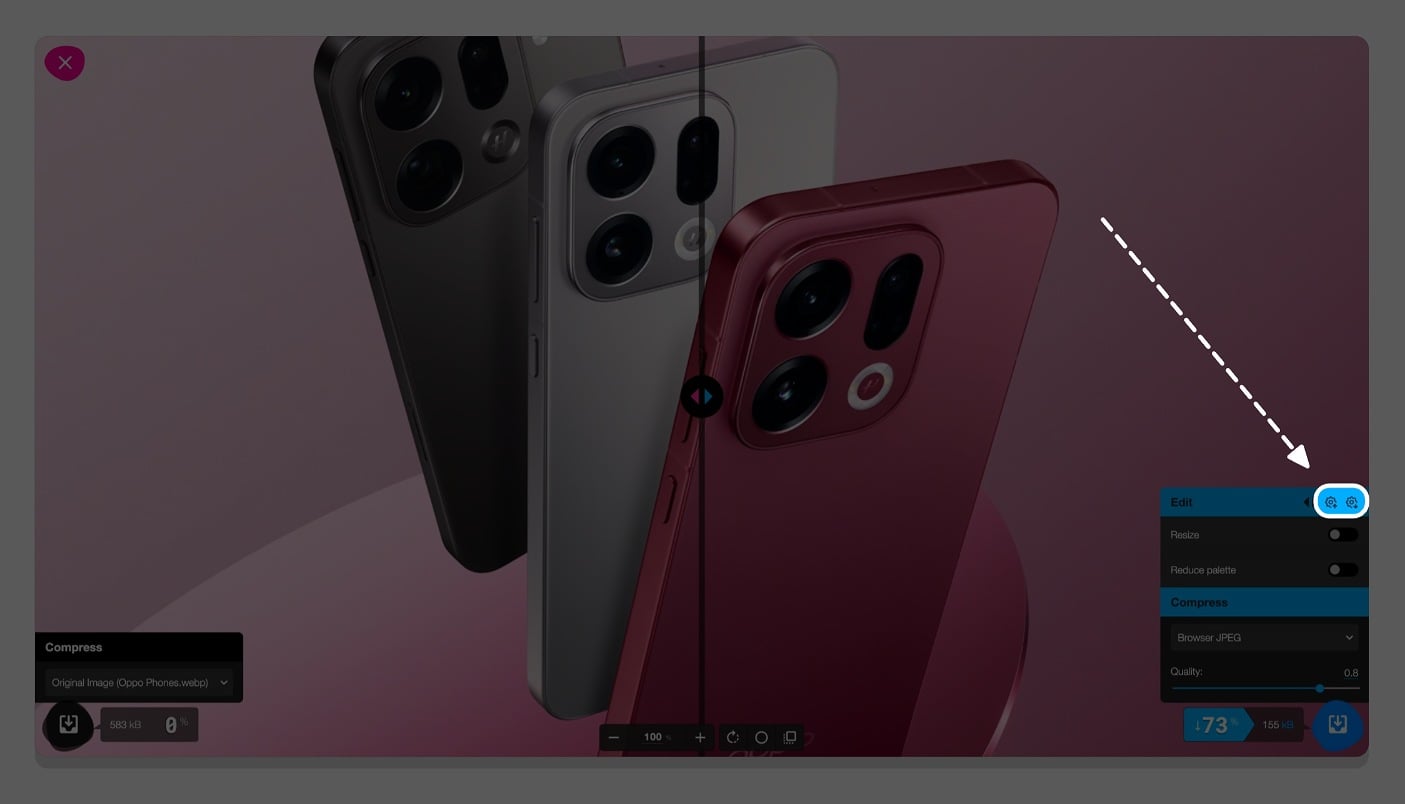
You can adjust the compression settings, tap on the settings icon at the top, and Squoosh will remember your preferences. This way, every time you visit the website, you don’t need to worry about resetting to your preferred default values.
So those are the five best reasons why I switched to Squoosh over TinyPNG. If you are a content creator or someone who often compresses images, chances are you might have already heard about TinyPNG. However, after learning about Squoosh, I completely switched my workflow to this new tool that fixes all my worries that I had about TinyPNG.
However, the only downside currently is batch processing; Squoosh doesn’t support image batches. TinyPNG is still a great option if you don’t want to adjust all the values and want a quick file compression. It is still great for its simplicity and for people who want to batch process images.
FAQs on Squoosh Image Compressor Tool
1. Is Squoosh safe to use for private images?
Yes, Squoosh is completely safe, even safer than TinyPNG, because all the image processing happens locally on your browser.
2. Does Squoosh reduce image quality compared to the original file?
Yes, it does reduce the image quality depending on your compression value settings. However, it also supports lossless compression if you want to. However, the file size may not be smaller when you use lossless compression.
3. Does Squoosh work well on mobile devices?
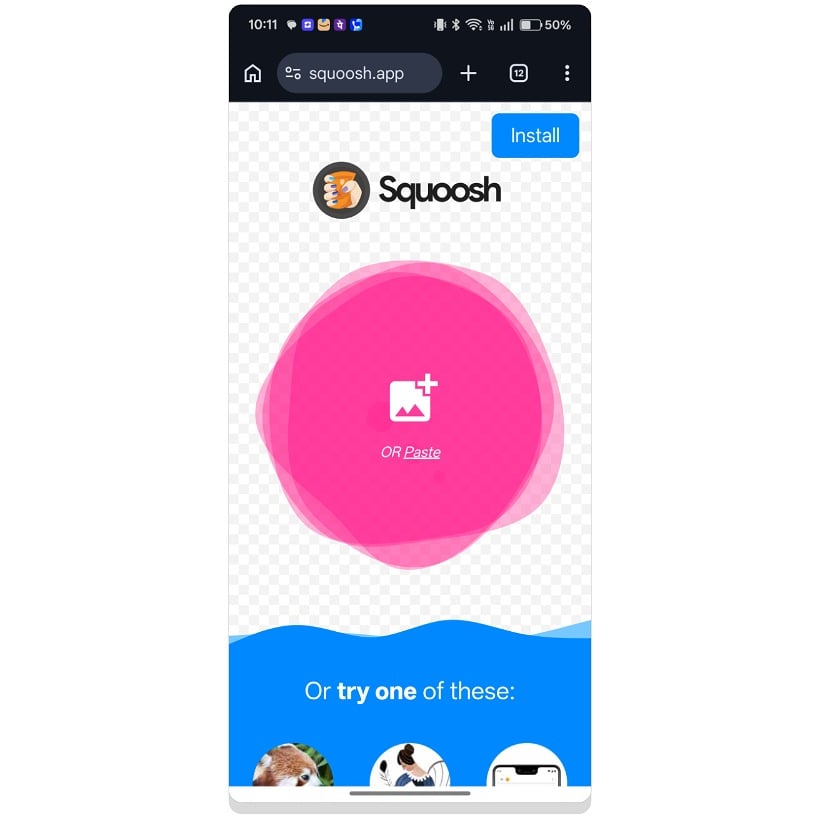
Yes, the tool is also optimized for mobile use. You can also install it and run it offline. Here is how it looks on a mobile phone.
4. Can Squoosh compress images directly from Google Drive or cloud storage?
No, Squoosh is a basic image compression tool. You need to manually drag and drop the images or upload from local storage. It doesn’t support batch processing.
5. What is the best compression level to keep images sharp while reducing file size for a website?
I would suggest keeping the compression value close to 80 to get the best result without compromising the image quality.

