

Quick Answer
Blurring sensitive info in Android screenshots is easiest with apps like Screenshot Editor Markup (AI text detection), Blur Face (auto face blur), PrivacyBlur (simple offline), Screen Master Pro, and Screenshot Touch. Samsung phones have built-in blur, others need apps.
Screenshots are one of the best ways to save stuff that we find interesting. It could be a meme on Instagram, or a product on a shopping website, or showing a funny conversation to a friend; screenshots just make things easy. On many occasions, they come in handy when you want to save something important, say your financial information, email addresses, passwords, etc. Me being a technical content developer, I have to take screenshots to explain apps and other stuff.
During this process, there are times when my screenshots contain personal data, and removing that info from Google Search becomes necessary too. Since I needed to blur sensitive info in Android screenshots before sharing them, I started looking for apps that could handle this better than the built-in screenshot tool. So, in this guide, we have compiled a list of screenshot apps that hide sensitive info on your screenshots.
Table of Contents
Can Android blur screenshots without an app?
Before jumping into third-party apps, it is worth checking whether your phone already has this feature built in.
Samsung Galaxy devices
If you own a Samsung Galaxy phone, you are in luck. The Samsung Gallery app has a built-in mosaic brush that lets you pixelate parts of a screenshot without downloading anything. Here is how to use it:
- Open the Gallery app and open the screenshot you want to edit.
- Tap the pencil icon at the bottom to open the photo editor.
- Tap the decoration icon (it looks like a smiley face with a pencil).
- Select the mosaic pen and choose your preferred blur pattern.
- Draw over the areas you want to pixelate, then tap Save.
It is not as precise as a dedicated app, but for a quick fix, it works surprisingly well.
Other Android phones
For Pixel, Xiaomi, Motorola, and most other Android devices, the stock screenshot editor only offers basic tools like cropping, drawing, and adding text. There is no native blur or pixelate option.
If you are on a non-Samsung phone, you can still use Google Photos as a workaround. Open the photo, tap Edit, then tap the Markup tool. From there, select the pen, pick a color that matches the area you want to cover, and draw over it. It is more of a cover than a blur, but it gets the job done. For a proper blur effect though, the apps listed below are your best bet.
If you are on a OnePlus device specifically, there is also a built-in way to pixelate or blur content on OnePlus phones directly from the Gallery app.
5 Best apps to blur Android screenshots
While the Google Play Store is filled with apps that help you hide info on screenshots, some of them are either filled with ads or don’t do their job well. Here are five apps that do exactly what you need:
Screenshot Editor – Markup
Best for: AI-powered text detection and offline screenshot redaction
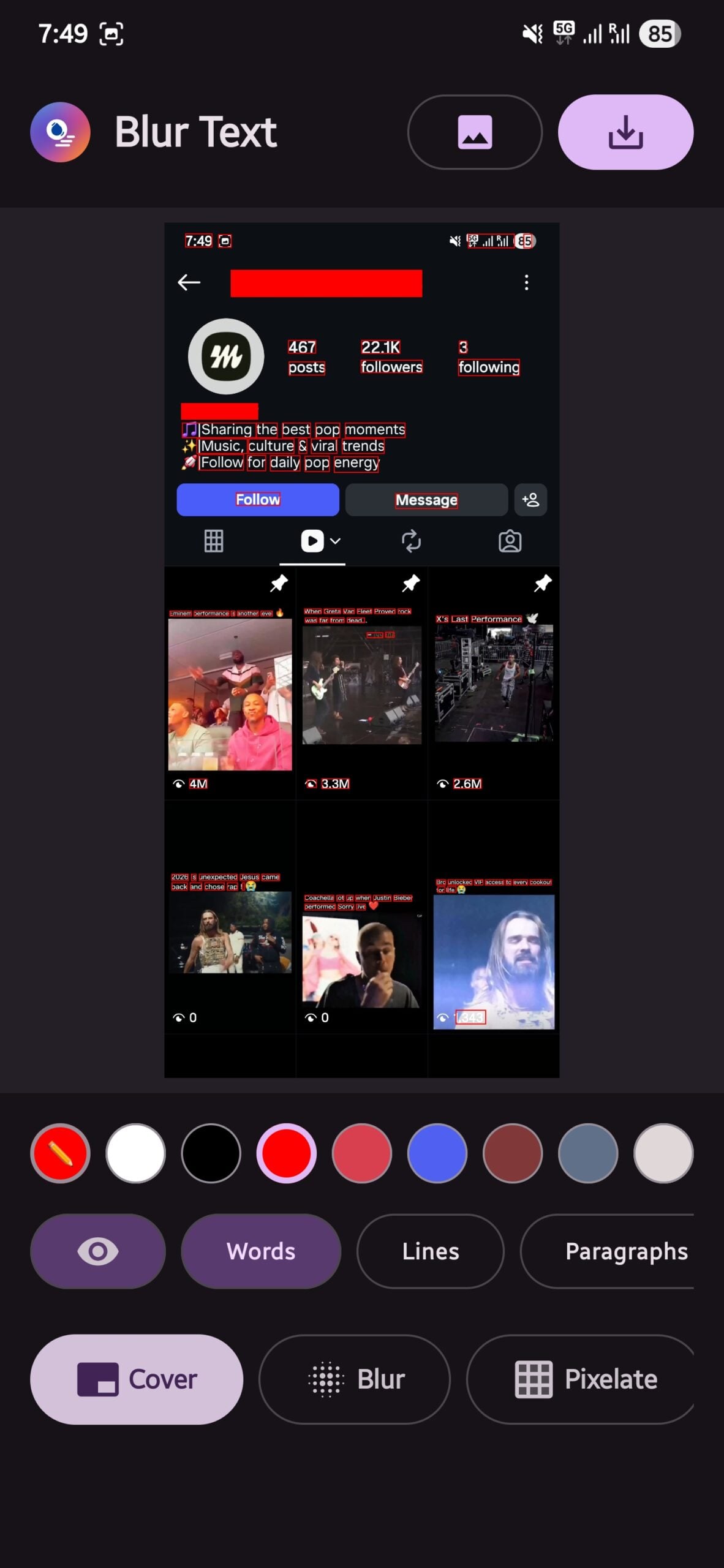
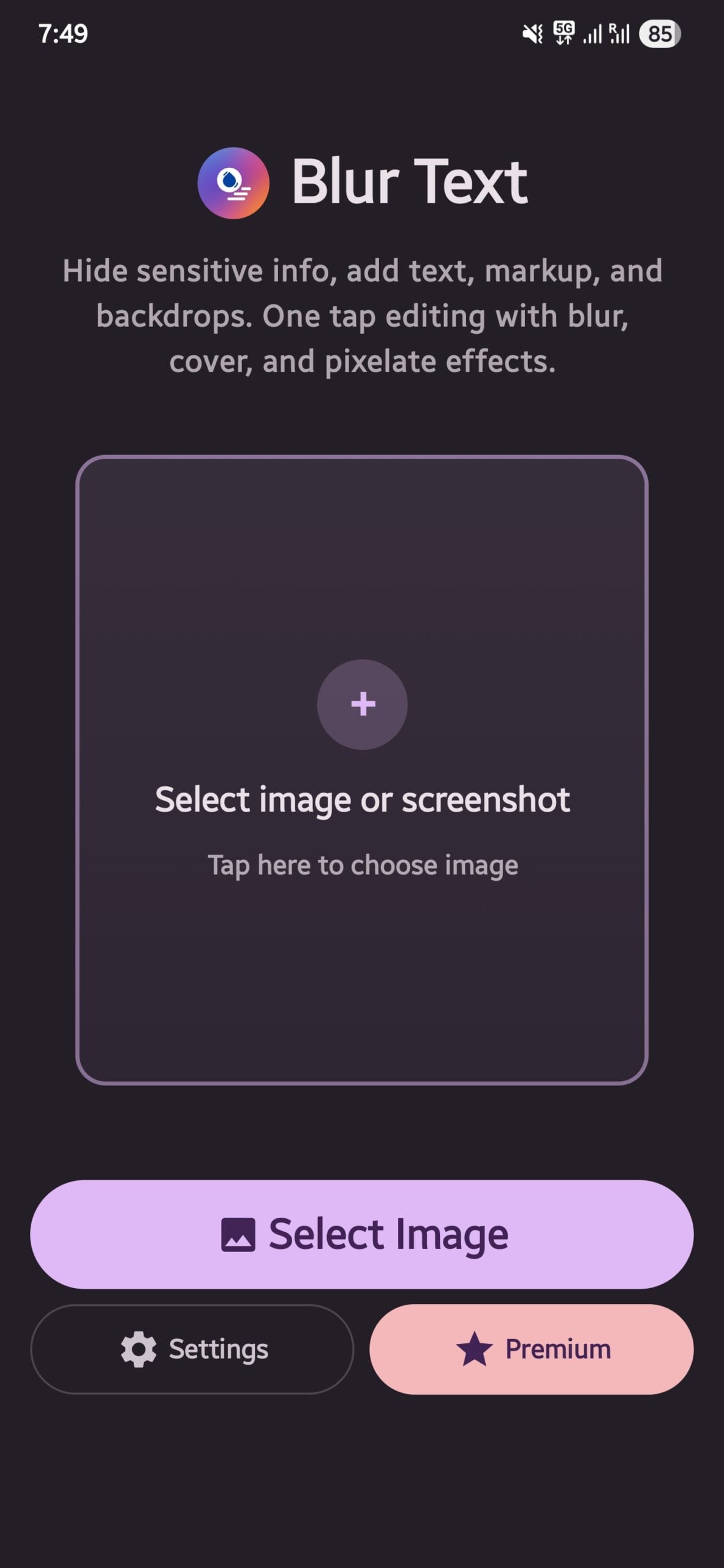
One of my favorites in the list and the one I am currently using is the Screenshot Editor – Markup developed by Adrian Kajda. You might have faced this situation where, while trying to hide the sensitive info, you also covered up the text next to it. Well, the Screenshot Editor – Markup app is an all-in-one tool designed specifically to solve this problem. This app uses AI to detect text in the image and lets you blur it with just a single tap. Aside from blur, you can also highlight, redact, underline, or strike through the text as well.
Instead of treating your screenshots as a blank canvas and blindly painting on them to hide your info, you can let AI handle the task or easily draw custom rectangles to pixelate or blur specific parts of the screen. Beyond hiding things, you can also add custom texts with full styling options, draw arrows, circles, and other shapes, and even apply stunning backgrounds and visual effects. The best part is that everything works offline, and your image is processed on your phone.
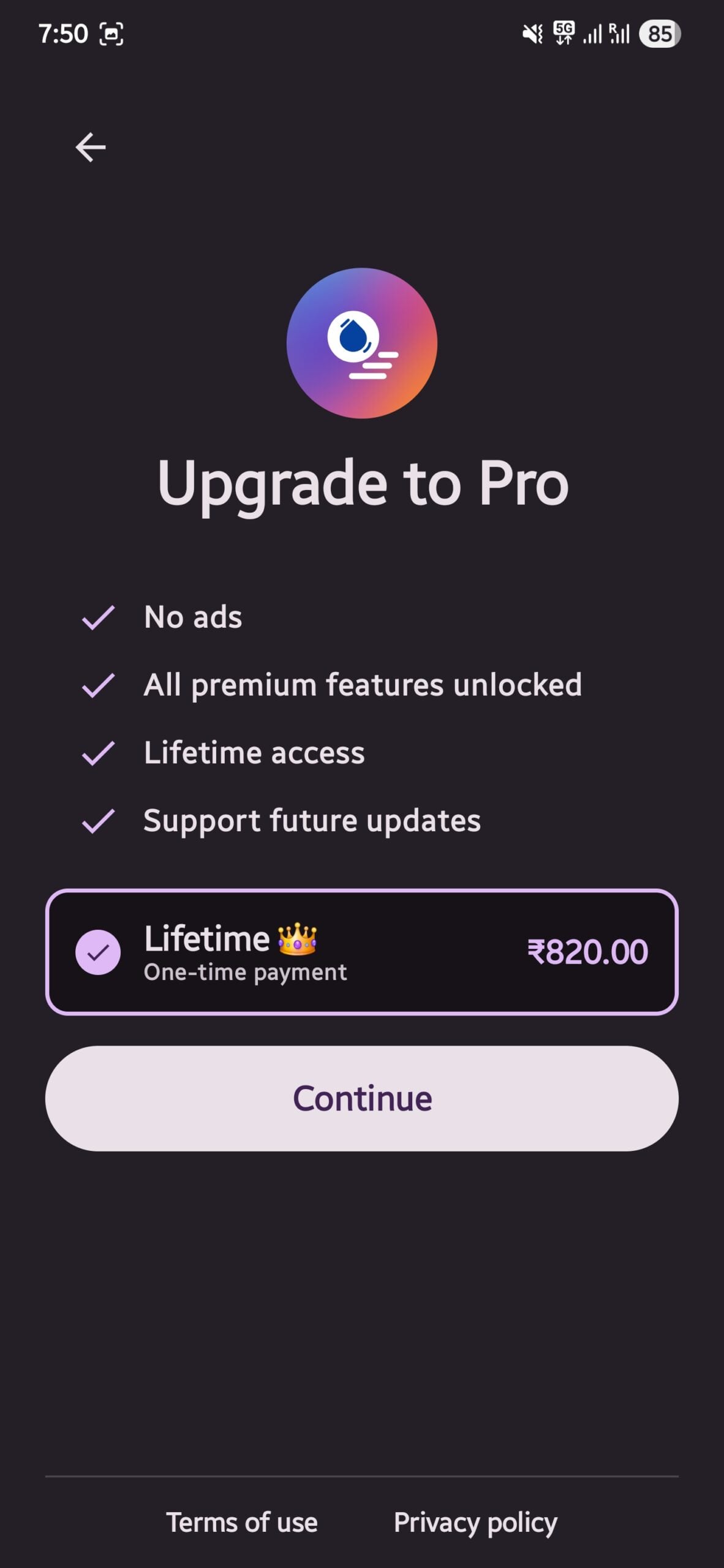
Speaking of price, the free version gives you access to all the core tools, such as text options, backdrop effects, and privacy features (for which you have to watch ads). If you decide to go premium, you can unlock an ad-free experience, more typing styles, advanced markup shapes, custom text templates, and undo/redo buttons.
How to blur sensitive info using Screenshot Editor – Markup
Here is how to blur or redact text in a screenshot using this app:
- Open the app and tap the + button to import a screenshot from your gallery.
- Tap the AI text detection button at the top. The app will automatically highlight all the text it finds in your image.
- Tap on the specific text blocks you want to hide. You can select multiple areas at once.
- Choose your preferred effect, whether that is a smooth blur, a pixelate, or a solid redact cover.
- Tap the checkmark to apply the changes, then hit Save to export the edited screenshot to your gallery.
That is all it takes. For manual control, you can skip the AI step entirely and draw a custom rectangle directly over any sensitive area instead.
Download Screenshot Editor – Markup
Blur Face – Photo & Video
Best for: Blurring faces in photos and videos with one-tap AI detection
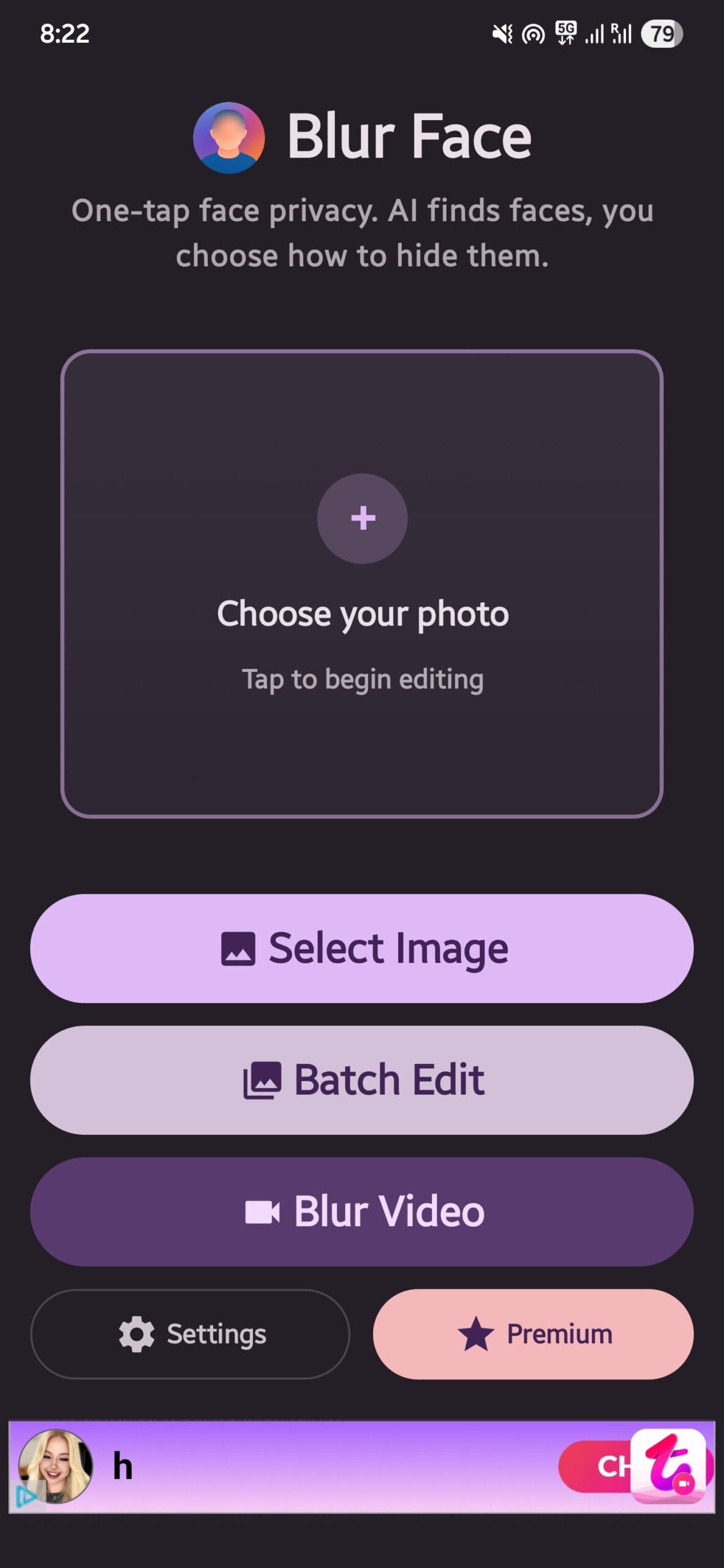
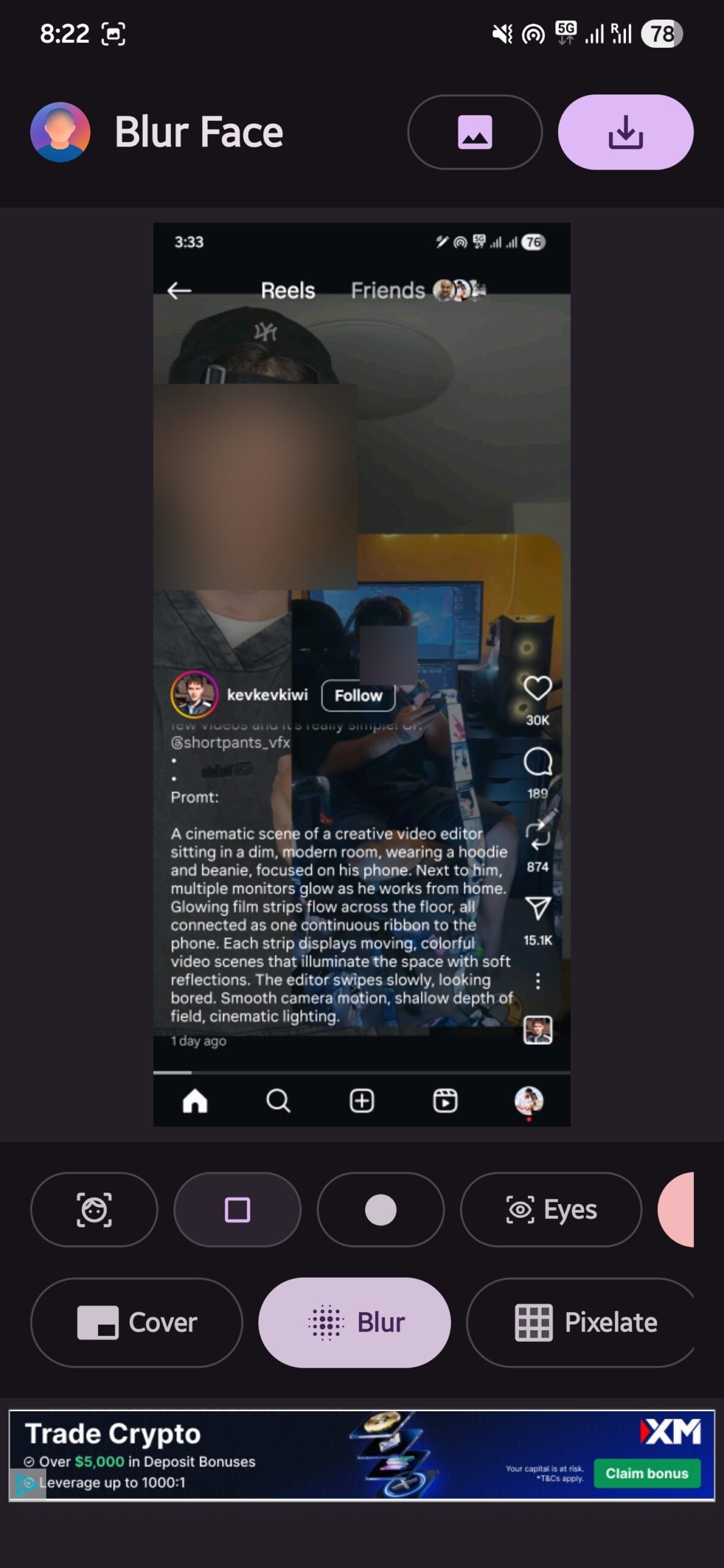
While hiding passwords and emails are important, what if your screenshots include images of yourself or faces of someone you don’t want to show the world? Whether you are sharing a snippet of a group video call, a social media feed, or a family photo online, you often need to keep the faces of those involved in the image private. This is where another app from developer Adrian Kajda, Blur Face – Photo & Video, comes into the picture.
The best part about this app is that, aside from photos, you can hide faces even in videos with this app. If you are specifically looking for a dedicated solution for videos, we have a separate guide on how to automatically blur faces in Android videos for free that is worth checking out. And for privacy, just like the first app, this app also operates all the AI functions within your phone itself. Your media never gets uploaded to a cloud server, ensuring that your data is safe.
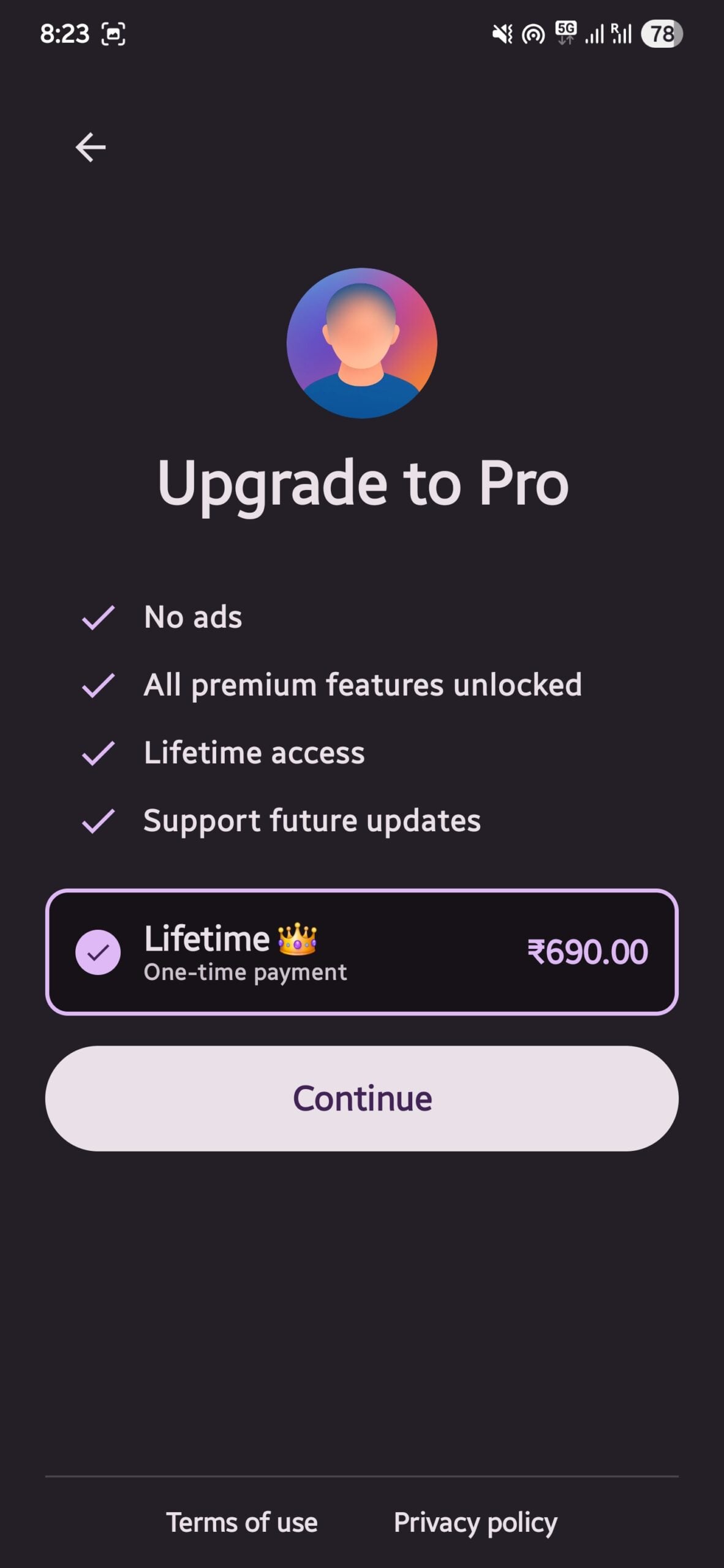
The Blur Face – Photo & Video app offers one-click face detection and blur. You don’t have to manually draw circles around people’s faces. The app’s built-in AI instantly detects faces in your static photos or moving videos. All you need to do is tap on the faces to apply a smooth blur, a pixelated mosaic, or a solid cover to protect their identity. You can even do batch editing and blur faces in multiple screenshots or videos inside a folder, though that requires a premium subscription.
Download Blur Face – Photo & Video
PrivacyBlur
Best for: Simple no-fuss privacy blur with open source transparency
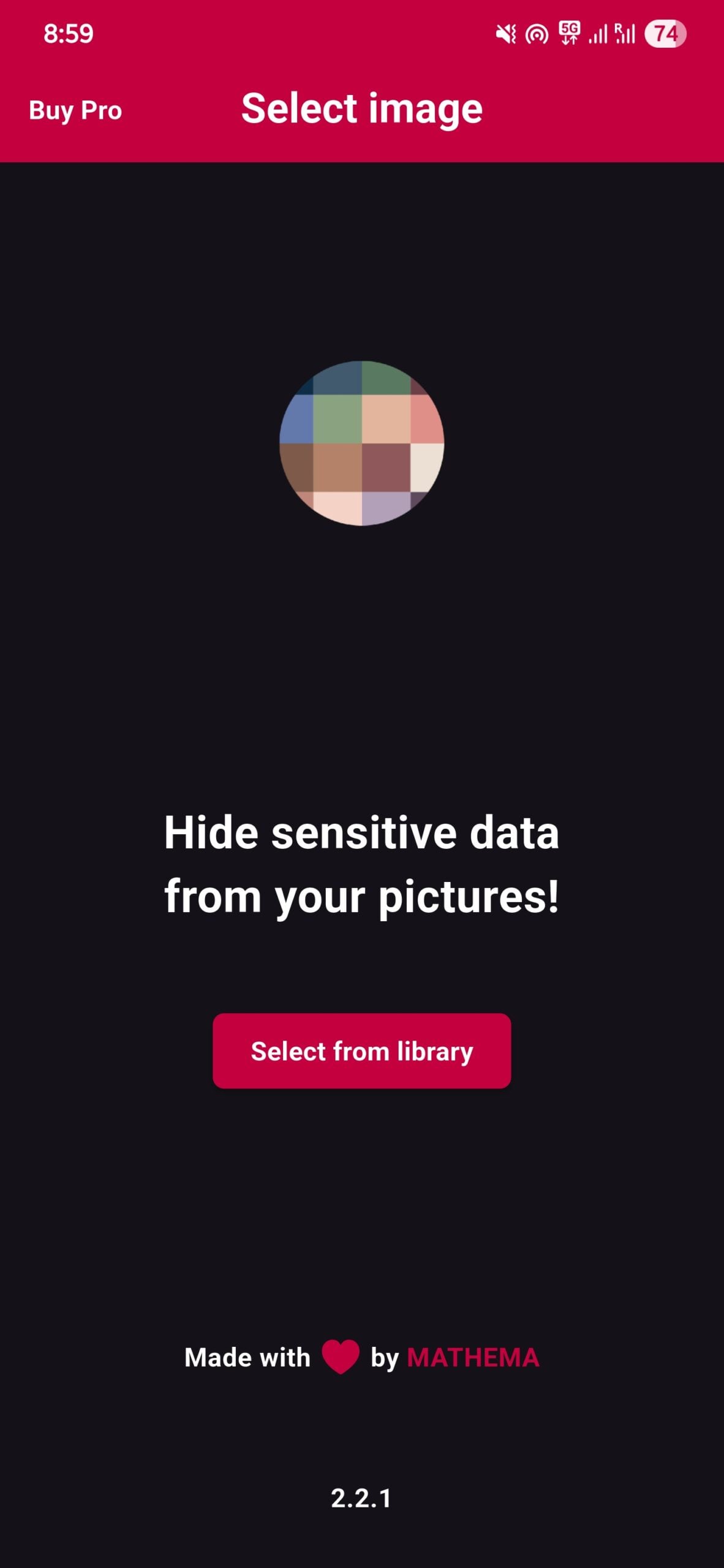
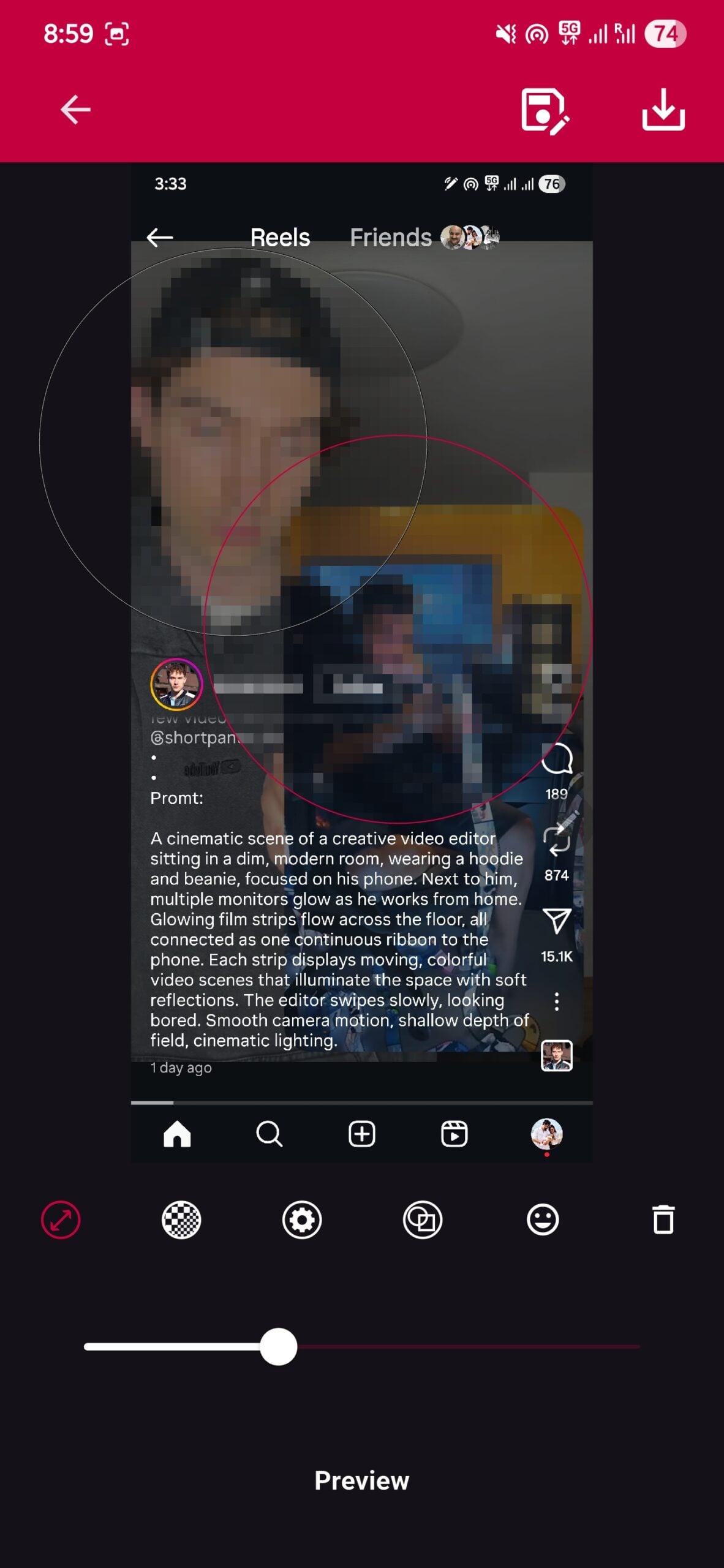
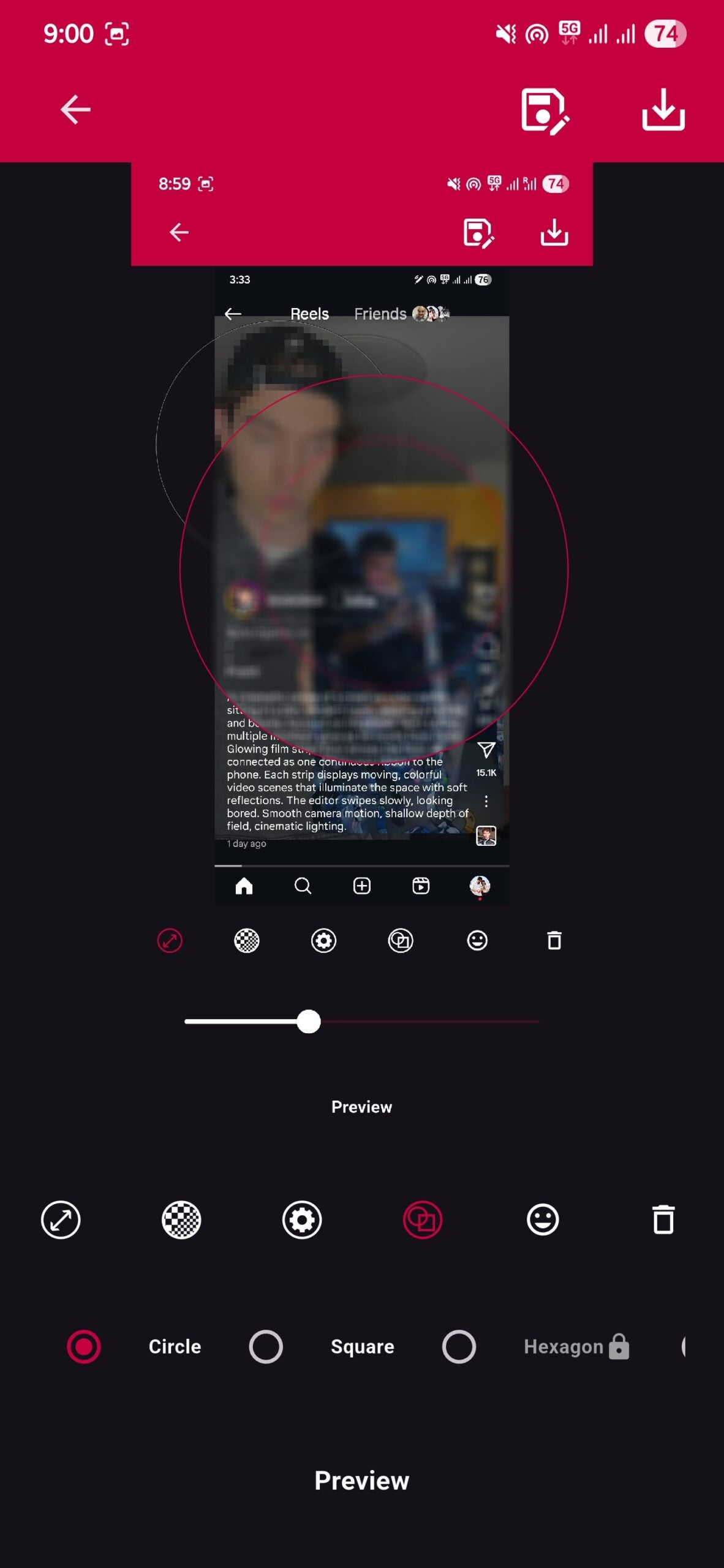
PrivacyBlur is unlike other apps that try to pack a million features into one, making them confusing to navigate. For PrivacyBlur, it is simple: blur or pixelate areas of your images that you don’t want to share with the world. It does one thing, and it does that brilliantly. Whether you need to hide your kids or family members from a photo, or hide sensitive info from a document, PrivacyBlur is the app to go for.
You can blur sensitive data in a matter of a few seconds. The app features automatic face detection, so you don’t have to manually hunt for faces in a crowded photo. Another good thing about this app is that everything happens on your phone, and nothing is uploaded to any server for processing. This ensures that your photos remain strictly in your hands.
PrivacyBlur gives you multiple options to change the redaction. You can choose between a smooth blur or a pixelated effect. Or even adjust it from a fine grain to a coarse grain, depending on your needs. It also offers the option to choose between round or square coverups.
For those who prefer open source software, PrivacyBlur is worth a closer look. The app’s full source code is available on GitHub, which means anyone can verify exactly how your images are handled. There are no hidden data collection practices hiding anywhere in the code, which is reassuring when you are dealing with sensitive documents or personal data.
Screen Master Pro
Best for: Replacing your default screenshot tool with a full capture and markup suite
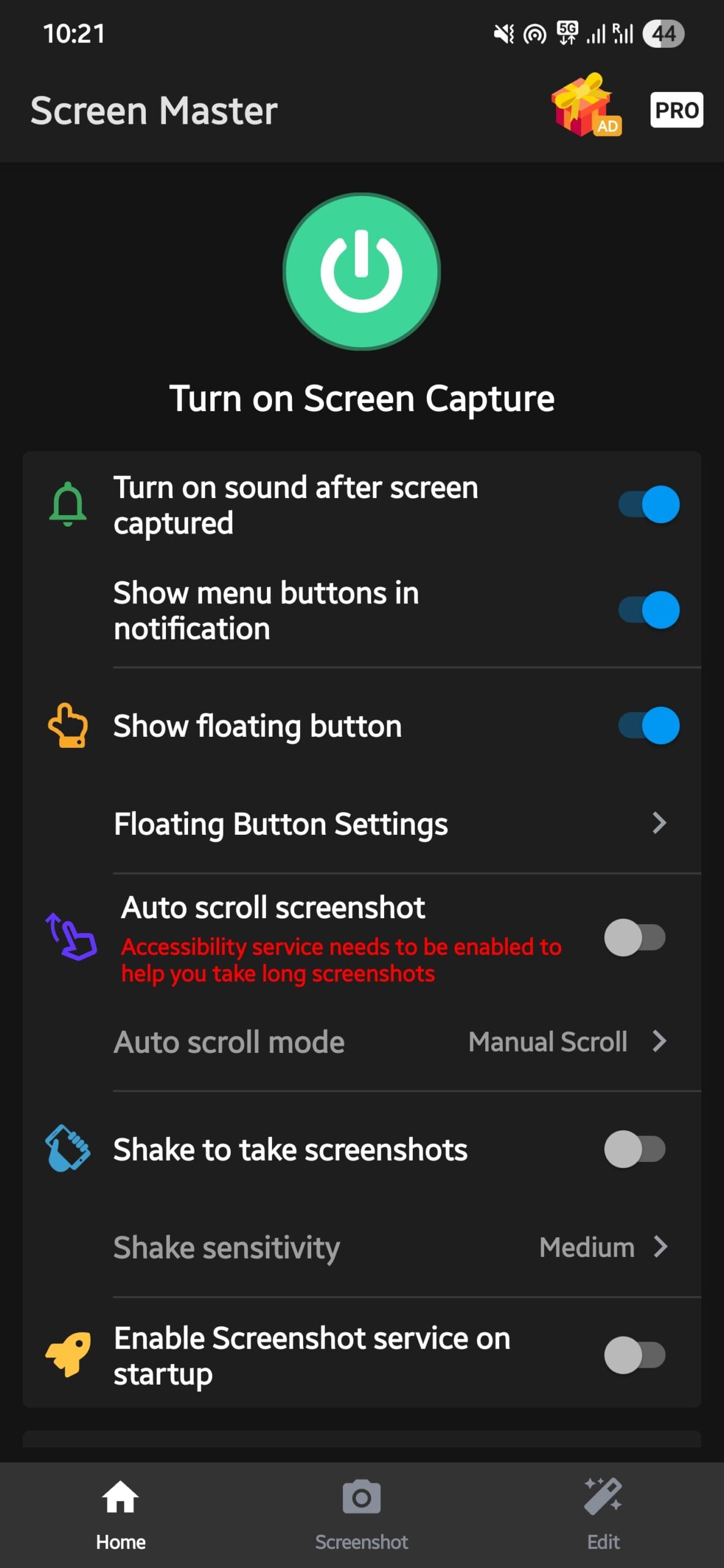
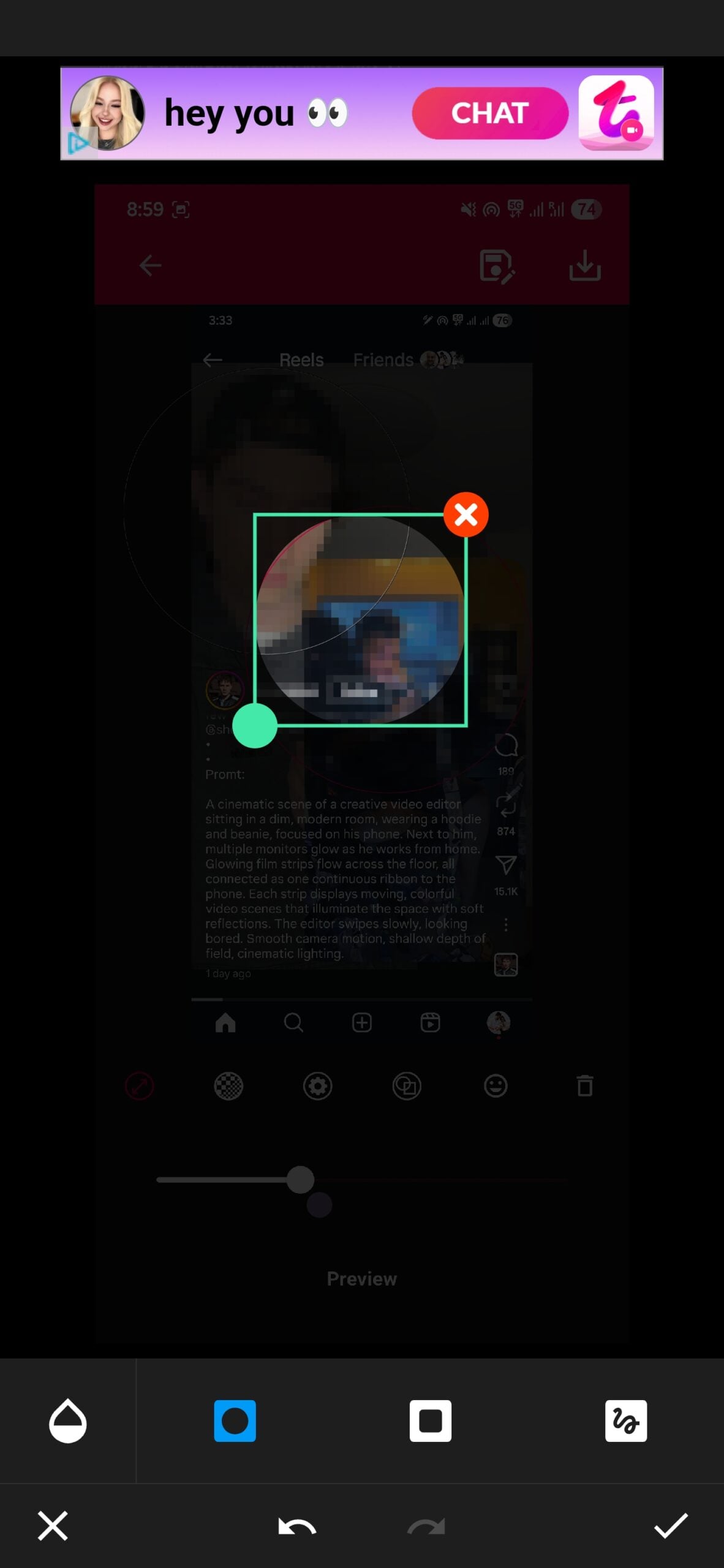
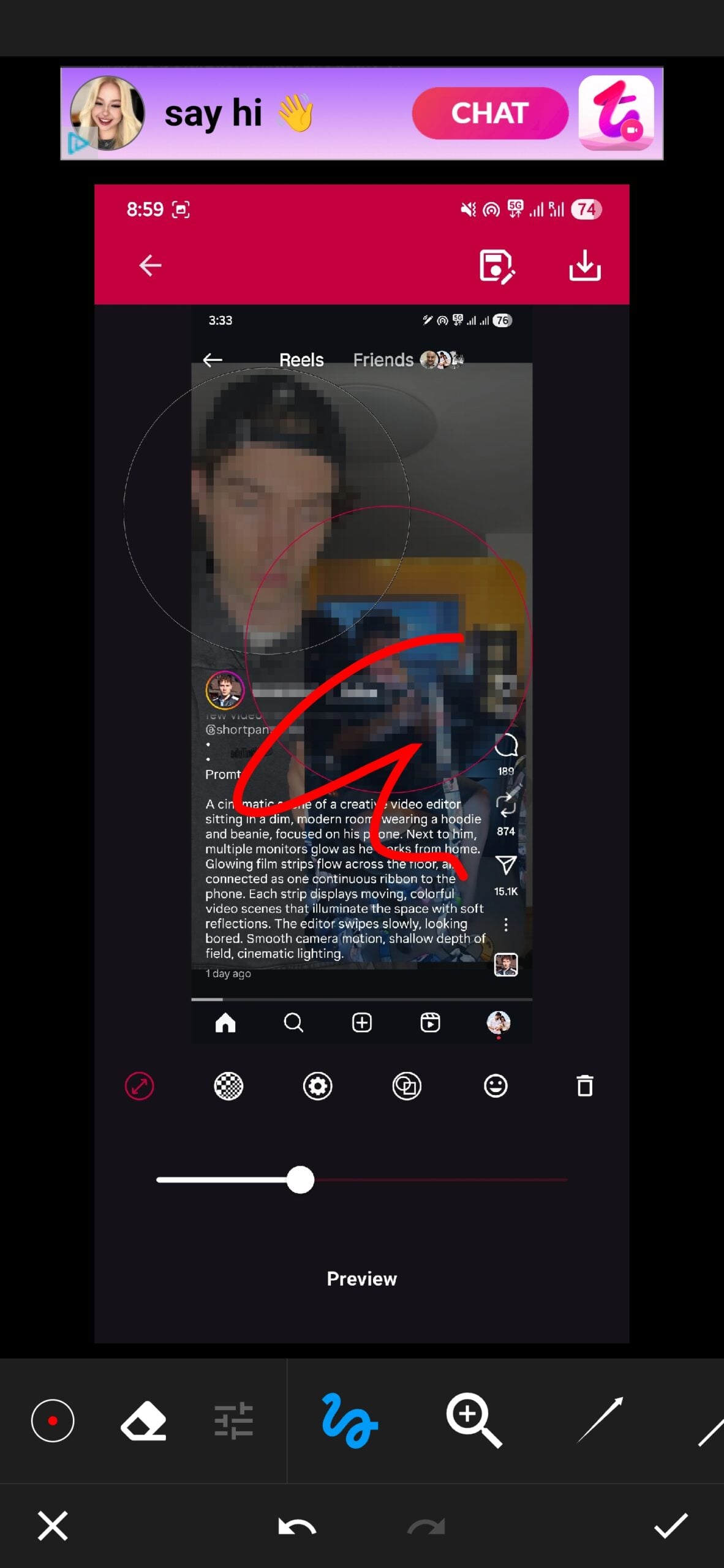
This one is a paid app, but it has been included because of the features it offers. It acts as a command center for your images, letting you pixelate sensitive parts and serving as a complete replacement for the default screenshot tool on your Android phone. You get all the professional markup tools without needing to root your phone. You no longer need to awkwardly hold your phone and press the volume and power buttons to take a screenshot.
With Screen Master Pro, you get a handy floating button that sits on top of whatever app you are using for one-tap captures. You can also set it to take a screenshot when you shake your phone. When it comes to hiding data, it gives you the option to pixelate areas that you don’t want others to see. On top of this, there is a brilliant “Spotlight” feature that highlights the important part of the image while dimming the rest of the image.
There is also a magnifying loupe to zoom in on tiny details. The screenshots are saved in high-quality, lossless PNG files. You get all the markup tools you would need, like arrows, text, rectangles, circles, and even emoji stickers. Screen Master can also stitch multiple photos together, either vertically or horizontally. The only downside is that there are ads on every page.
Screenshot touch
Best for: Organizing screenshots into folders while editing and hiding personal information
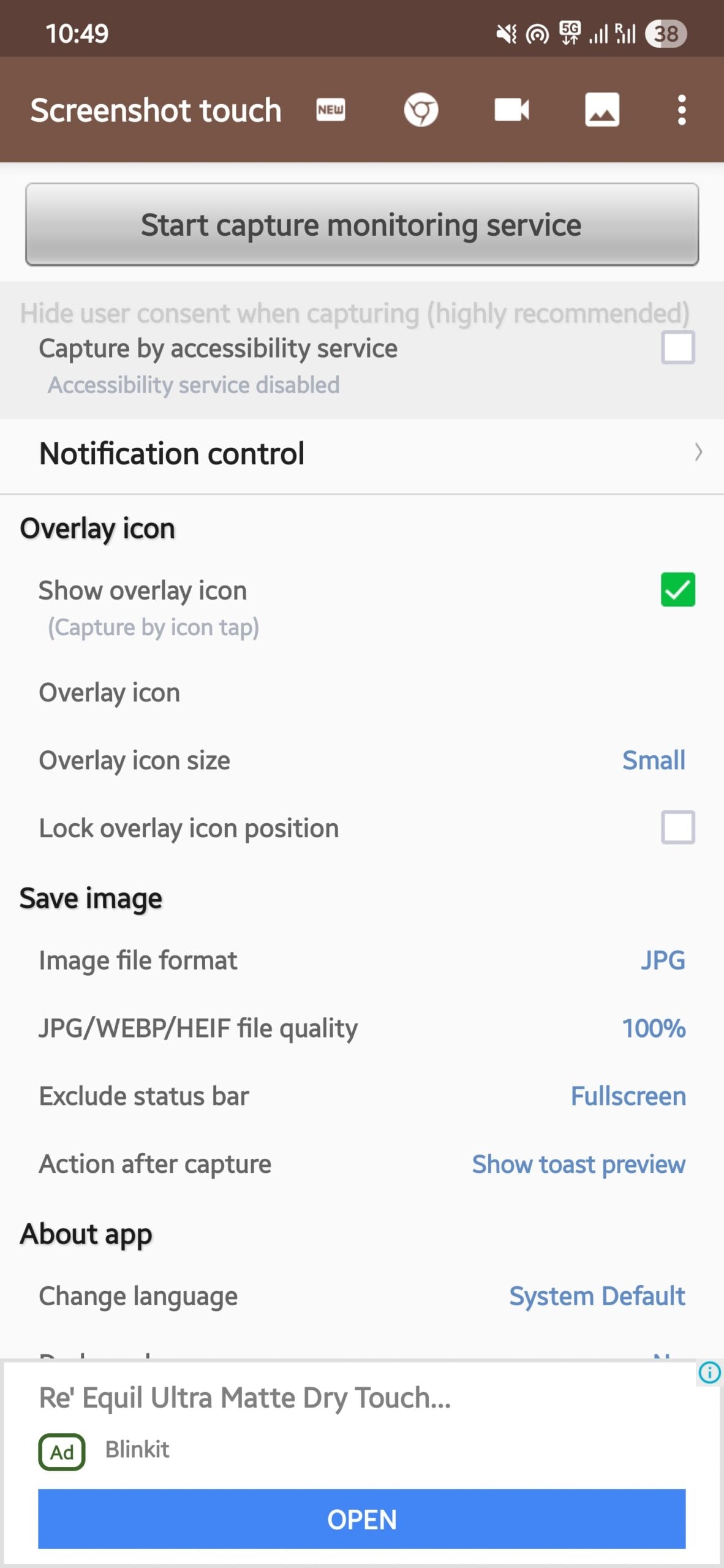
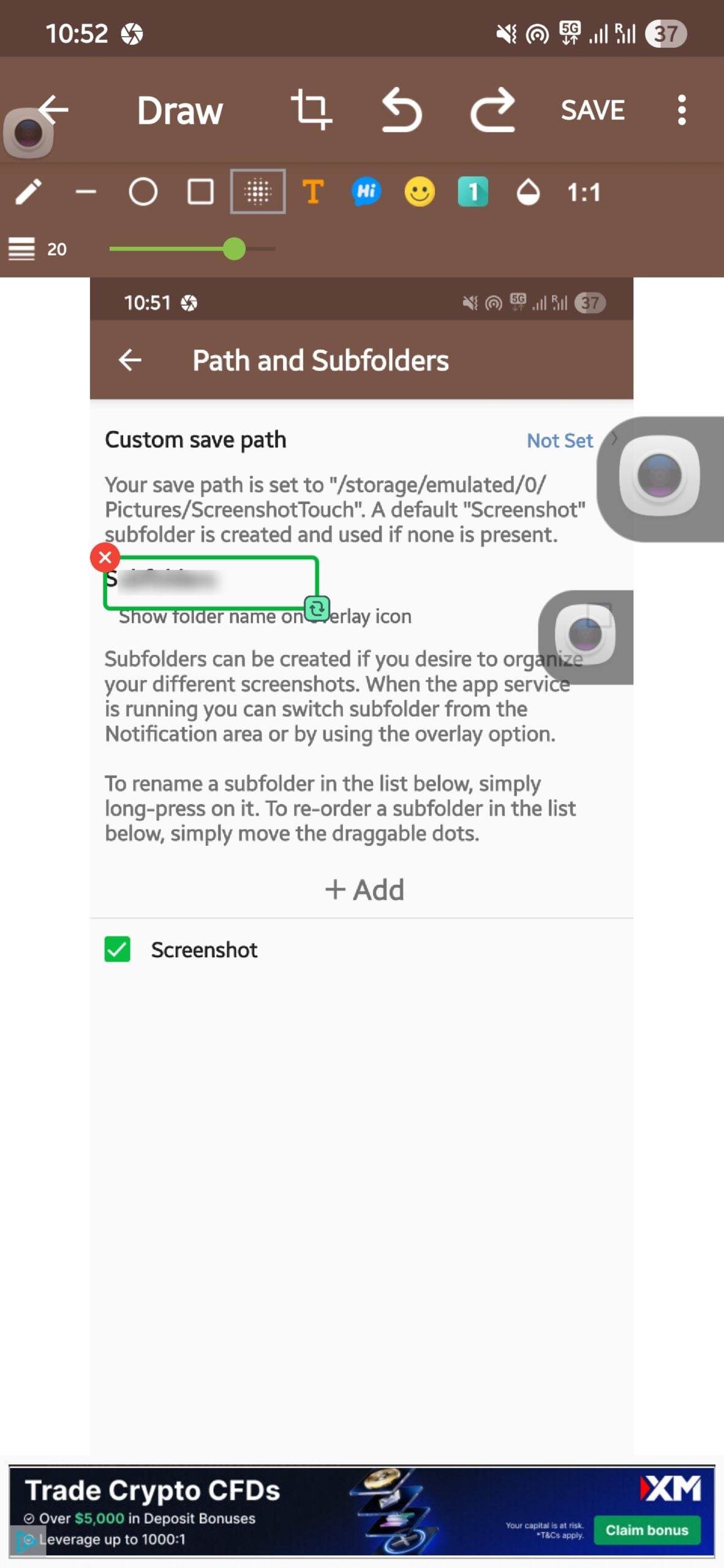
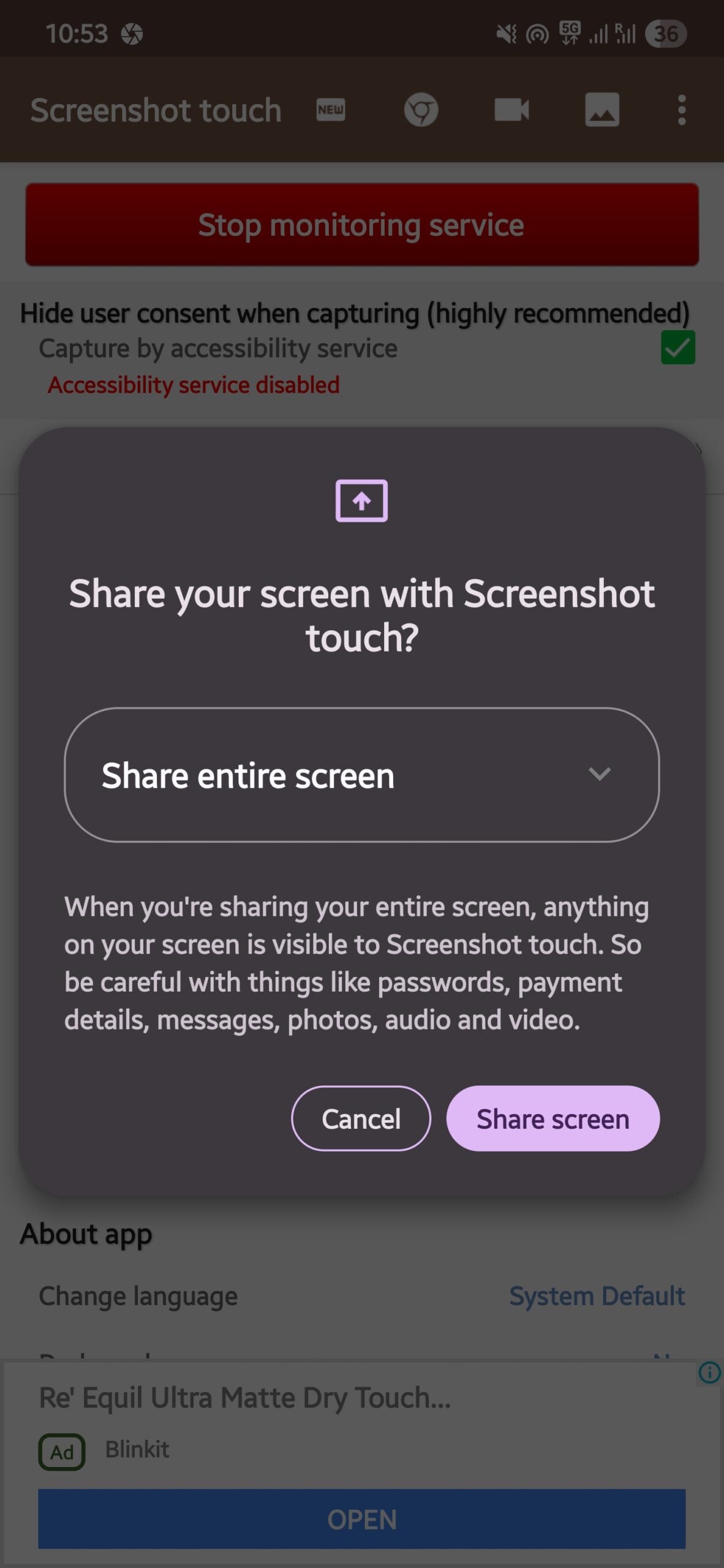
Last but not least, we have on our list the Screenshot Touch app. For those who are constantly taking screenshots for all the different purposes, this app is also a great choice. Of course, with so many screenshots, your gallery will get cluttered, and Screenshot Touch is built to solve that problem. The app focuses on speed and organization and lets you capture, edit, and hide your personal information from screenshots before sharing them.
It is always present on your screen, thanks to the floating button, which negates the need to press the awkward button combinations to take a screenshot. Screenshot Touch also supports full-screen recordings to MP4 video, complete with the option to record your voice if you are making a quick tutorial. Instead of dumping all the photos inside a folder on your phone, this app lets you create multiple custom folders. This way, your screenshots can be easily located.
The app also features the option to take a scrolling webpage capture so that you don’t have to take multiple screenshots. You can also stitch your screenshots into one and even convert them into a PDF. It features a host of image tools such as pens, text, shapes, stickers, and opacity controls. While the free version gives you access to the core features, it is supported by ads.
Quick comparison: Which app should you use?
App | Blur Method | AI Detection | Offline | Face Blur | Video Support | Free Tier |
|---|---|---|---|---|---|---|
Screenshot Editor - Markup | Blur / Pixelate / Redact | Yes (text) | Yes | No | No | Yes (with ads) |
Blur Face - Photo & Video | Blur / Mosaic / Cover | Yes (faces) | Yes | Yes | Yes | Yes (with ads) |
PrivacyBlur | Blur / Pixelate | Yes (faces) | Yes | Yes | No | Yes |
Screen Master Pro | Pixelate / Spotlight | No | Yes | No | No | Yes (with ads) |
Screenshot Touch | Blur / Pen / Shapes | No | Yes | No | Yes (screen record) | Yes (with ads) |
Protect your info
Sharing a screenshot is an easy way to share information, but it shouldn’t be a stressful chore. It should not have your personal info, and it should also not ruin the look of your images. Whether you need AI-powered smart detection or a simple offline tool to blur sensitive info in Android screenshots, there is something in this list for every need. For most people, Screenshot Editor – Markup is the best place to start since it is free, works offline, and uses AI to detect text automatically. If faces are more of a concern for you, go with Blur Face – Photo & Video. And if you want an open source option you can fully trust, PrivacyBlur is the one to pick.
Speaking of privacy, there are also a bunch of apps that let you hide your personal files so that they don’t show up to everyone. But hiding files is not enough, and you should also install security apps to protect your phone from viruses and malware.
FAQs about Screenshot Blur Apps on Android
Which app is best for hiding text in Android screenshots?
Screenshot Editor - Markup is the best option for this. It uses AI to automatically detect and highlight text in your screenshot, so you can hide specific words or entire sections with a single tap. It works completely offline and is free to use with ads.
Is blurring sensitive info in a screenshot actually safe?
A standard blur is good enough for casual sharing, but it is not 100% foolproof. Some blur effects can be partially reversed using image processing tools. For anything highly sensitive, using a solid redact cover is the safer choice. You can also take a screenshot of your edited image before sharing it, since this flattens the edits and makes them much harder to undo.
Is there an open source app to blur sensitive info on Android?
Yes. PrivacyBlur is open source and its full source code is available on GitHub. This means the privacy claims can be independently verified by anyone. It supports both blur and pixelate effects and includes automatic face detection, all for free.
Do these blur apps send my photos to the cloud?
No. All five apps in this guide process your images locally on your device. None of them upload your photos to a remote server for editing, which is especially important when you are blurring things like bank details, passwords, or personal identification.

