

Quick Answer
WhatsApp Plus features like custom stickers, chat themes, custom icons, ringtones, and better chat organization can already be used for free on regular WhatsApp using apps like Stickerly, launchers like Nova, and built-in customization settings on Android and iPhone.
Meta, the parent company of WhatsApp, Facebook, and Instagram, has announced a new Plus subscription for all three of these apps. The new Plus unlocks additional features for subscribers, which are different from the verified subscription found on Instagram and Facebook.
For $3.99 per month for Facebook and Instagram plus a subscription, you get features like story insights, longer stories, customizable icons, and much more.
For $2.99 per month for WhatsApp, you can pin 20 chats on the home screen, get access to custom stickers, themes, and app icons, and exclusive ringtones.
App subscriptions aren’t new; companies are looking for different ways to make more money apart from ad revenues. It started with Telegram and was followed by Snapchat, and now it’s for Meta.
While Plus features for Facebook and Instagram sound appealing, especially the Stories feature, none of the Plus offerings are appealing for WhatsApp. Part of the reason is that, prior to this, WhatsApp rolled out the most requested features for free.
If you are considering a WhatsApp Plus subscription, here is a detailed comparison of the Standard and the Plus plan, including what you would get when you upgrade, what is already available on the Standard plan, and more.
Most requested features on WhatsApp, like an ad-free experience for plus plans, removing channel promotions, hiding typing indicators, freezing last seen, downloading status directly, scheduling messages, and full chat backup without Google Drive, would have made the plan more appealing. But for now, it’s not worth considering.
In fact, you can get most of these plus features for free. In this guide, you will learn how to get the most WhatsApp Plus features for free on your Android or iPhone.
Table of Contents
How to Get Most WhatsApp Plus Features on Standard WhatsApp
New Custom Stickers: Actually, You Can Get Unlimited Stickers for Free
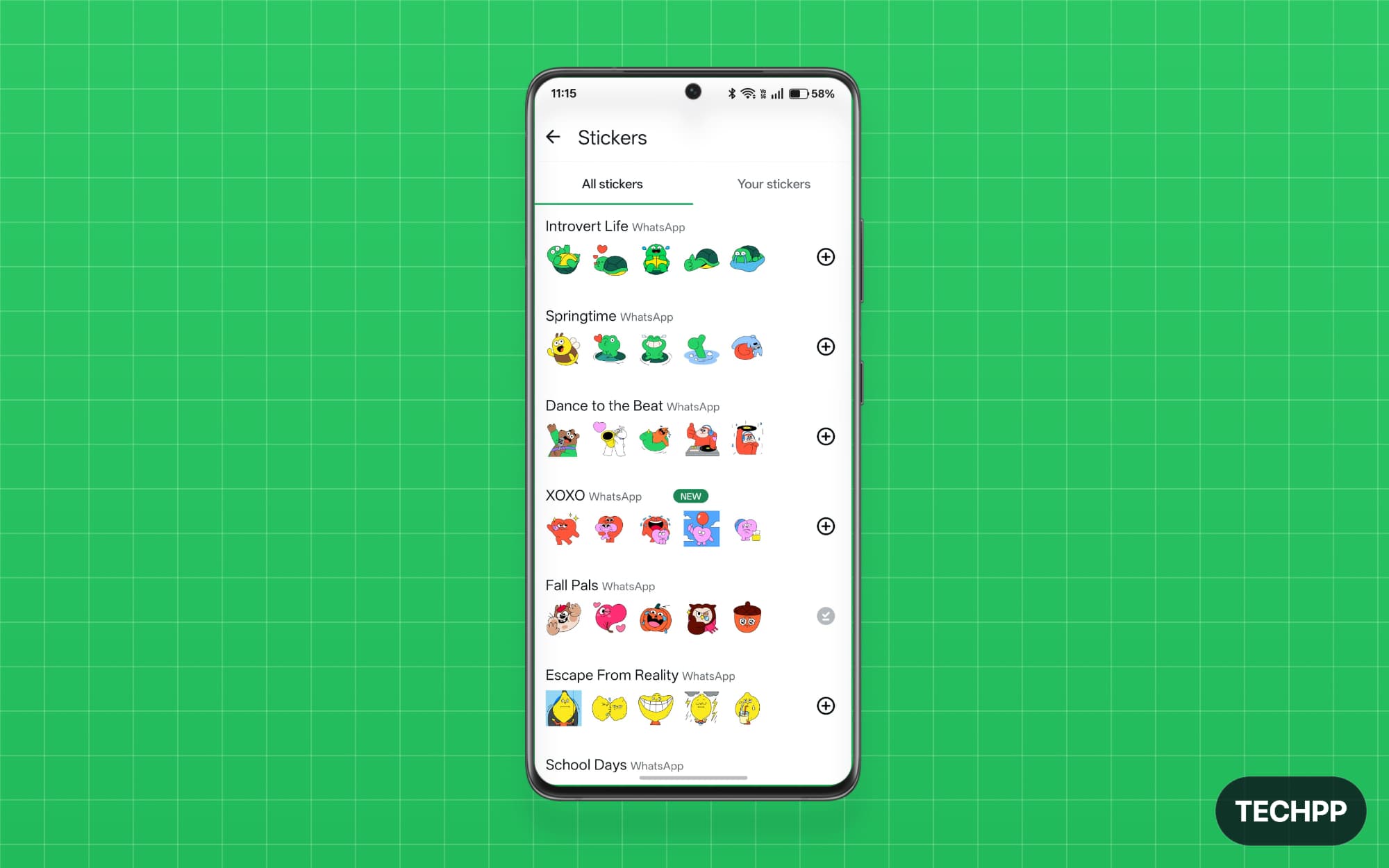
Stickers are my favorite addition to WhatsApp. Meta went one step ahead and also added the ability to import third-party stickers to WhatsApp. This has resulted in plenty of third-party sticker apps that frequently add and update stickers, which you can import easily.
I use stickers very often; in fact, almost 80% of my communication is through stickers. They are fun and easy to use. In addition to that, others can also save stickers and reuse them in their chats.
Using third-party sticker apps, you can import all types of stickers, including current trending memes and even popular Telegram animation stickers, to WhatsApp easily. With this flexibility, you can access hundreds of stickers, so why upgrade to WhatsApp Plus for those limited, exclusive sticker options?
How to import custom Stickers to WhatsApp
Step 1: Open WhatsApp and open any chat.
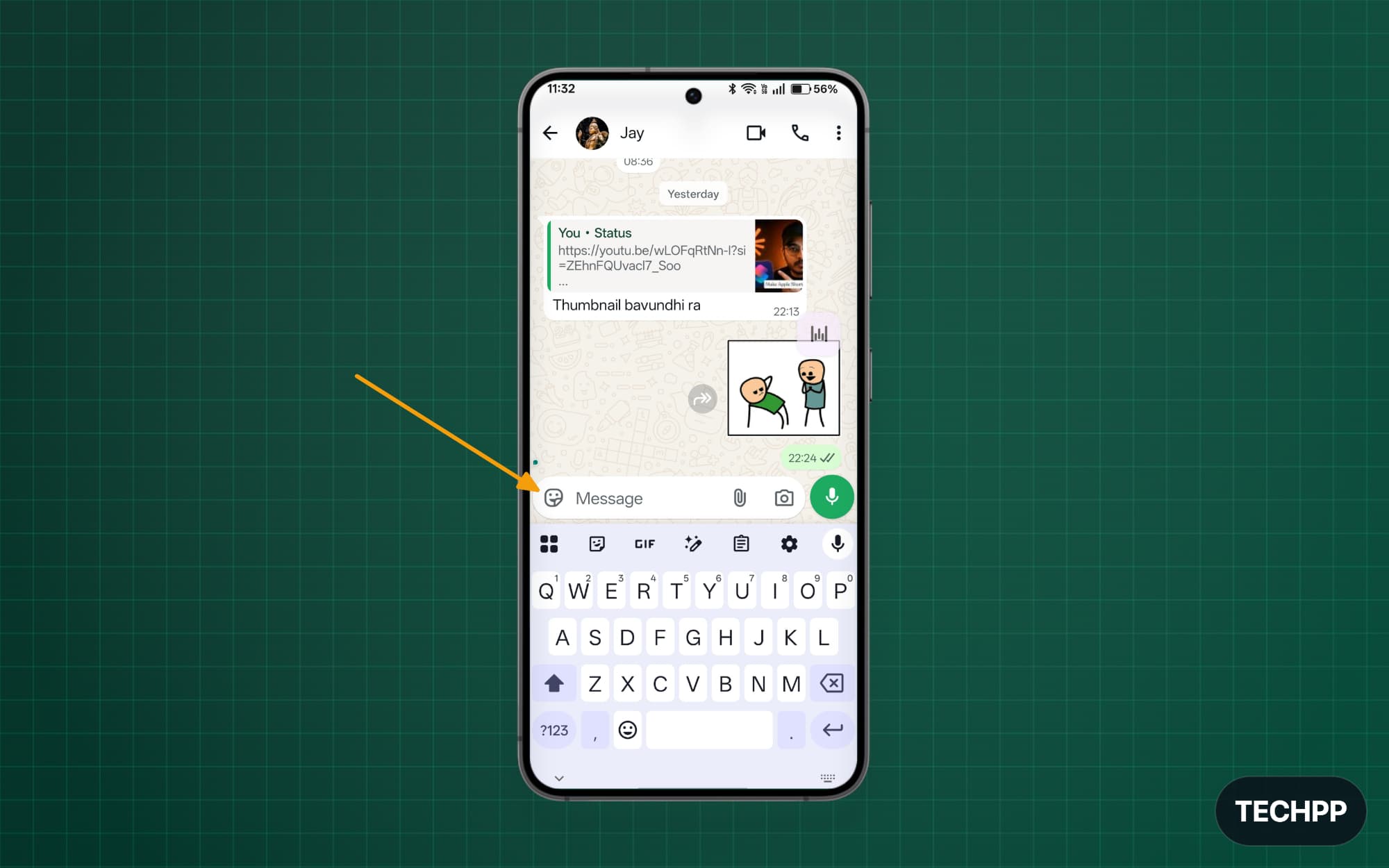
Step 3: Tap on the stickers option.
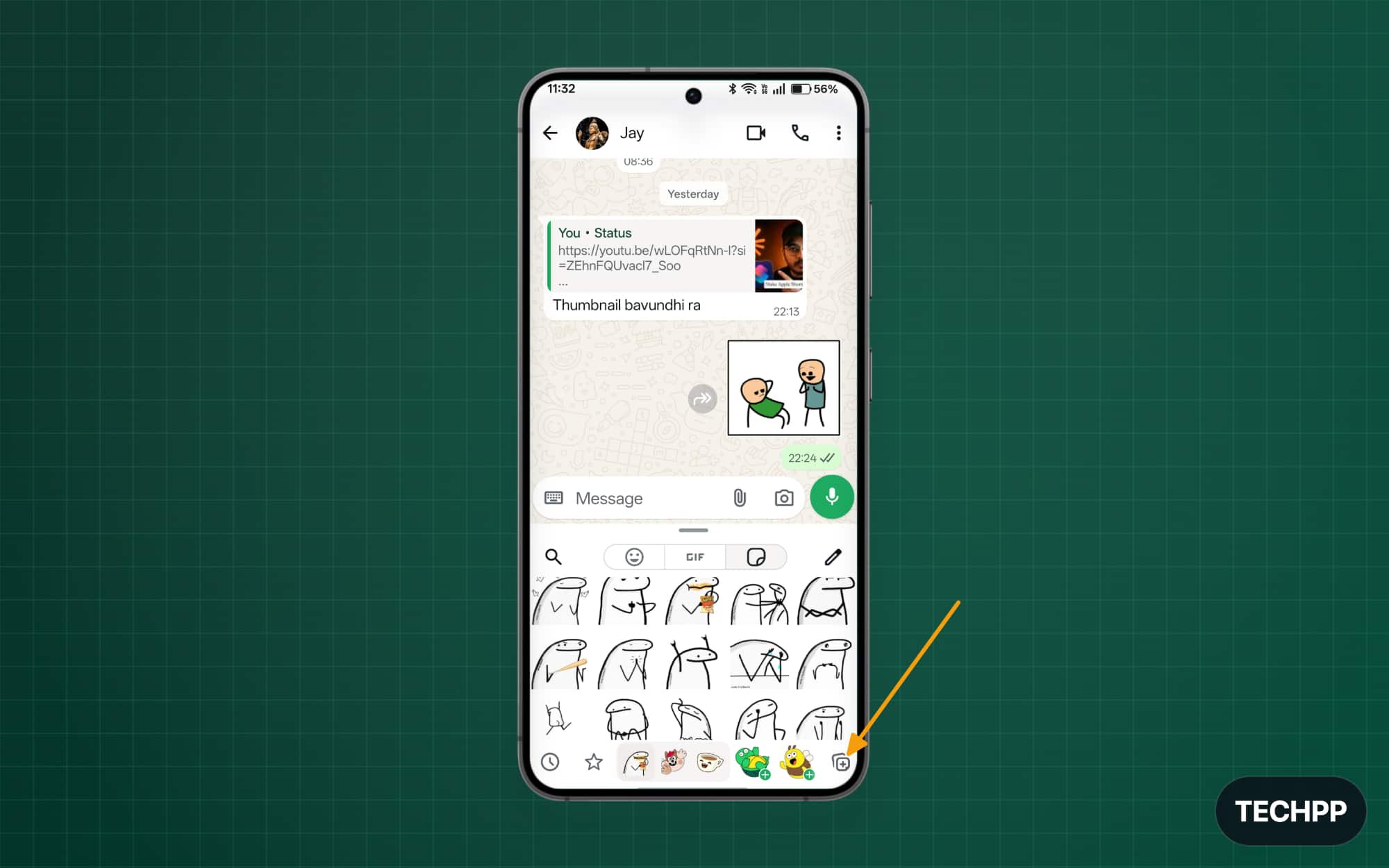
Step 4: Tap on the Plus stickers and tap on the plus to add the stickers.
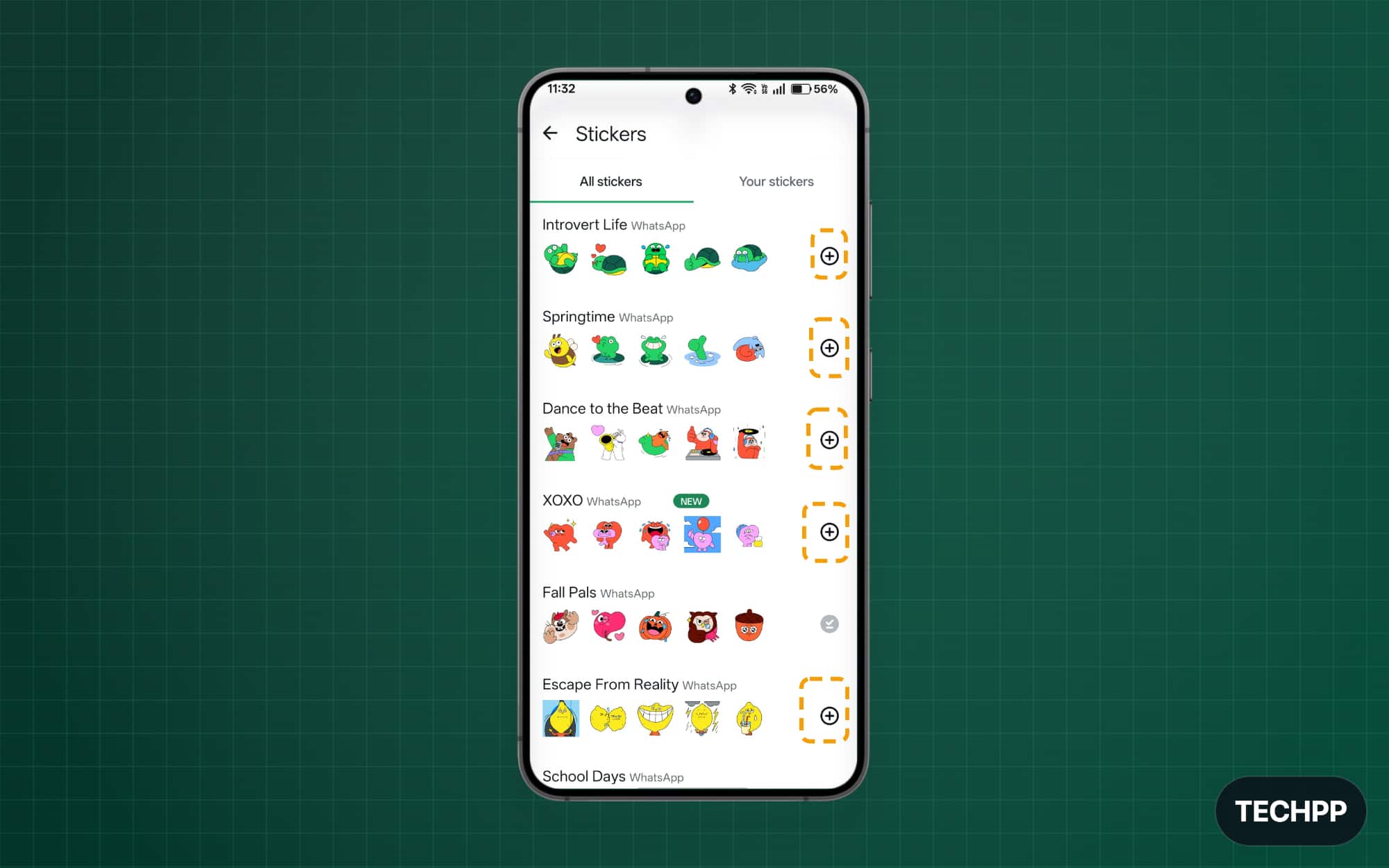
If you want to add custom stickers from third-party apps, install any free third-party WhatsApp sticker app. In this case, I am using Stickerly. Download it for Android or iPhone.
Step 1: Open the Stickerly app, and on the home screen, you can find all the stickers.
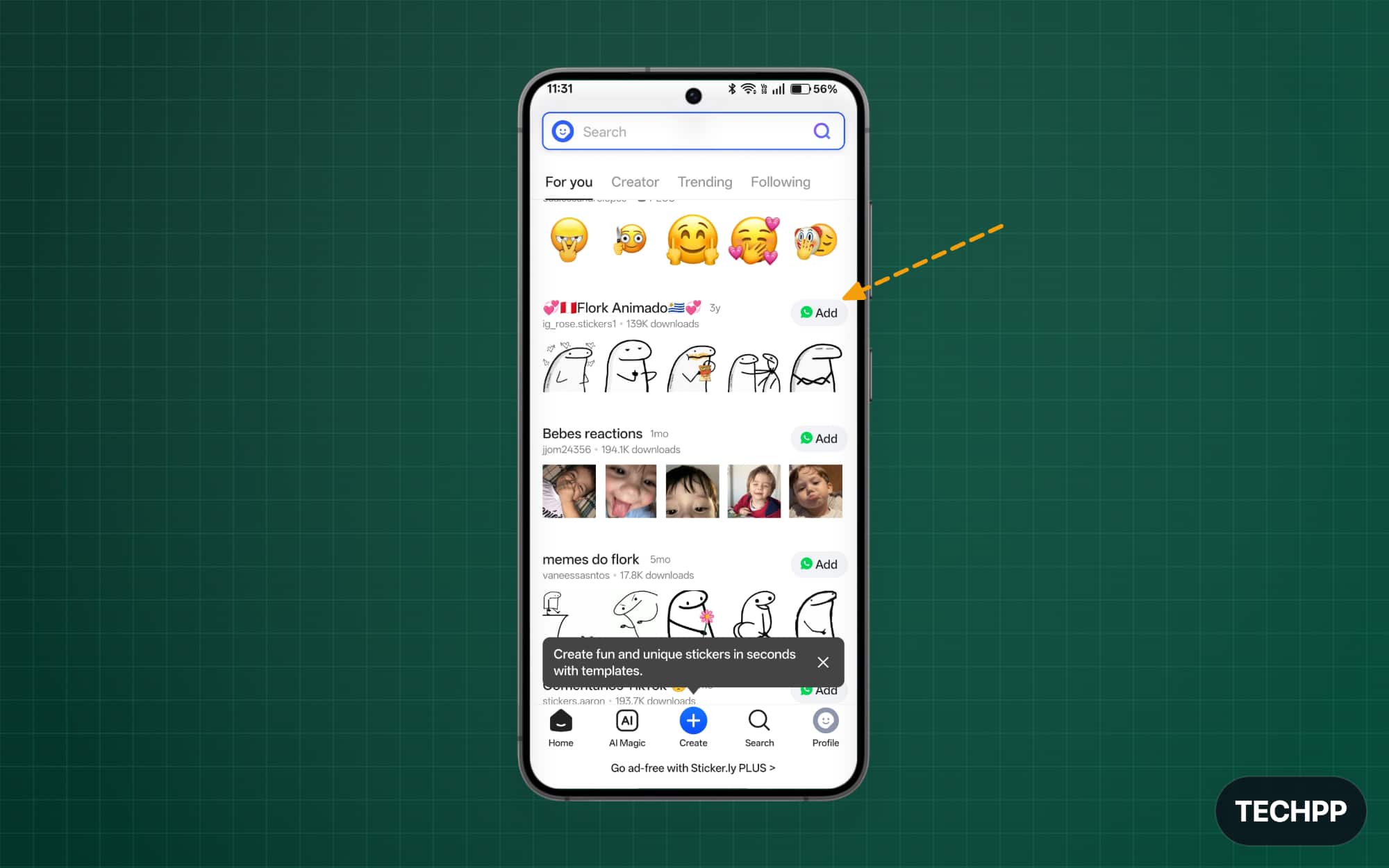
Step 2: Tap the “Add” option, then tap “Add to your Stickers” to add the stickers to WhatsApp.
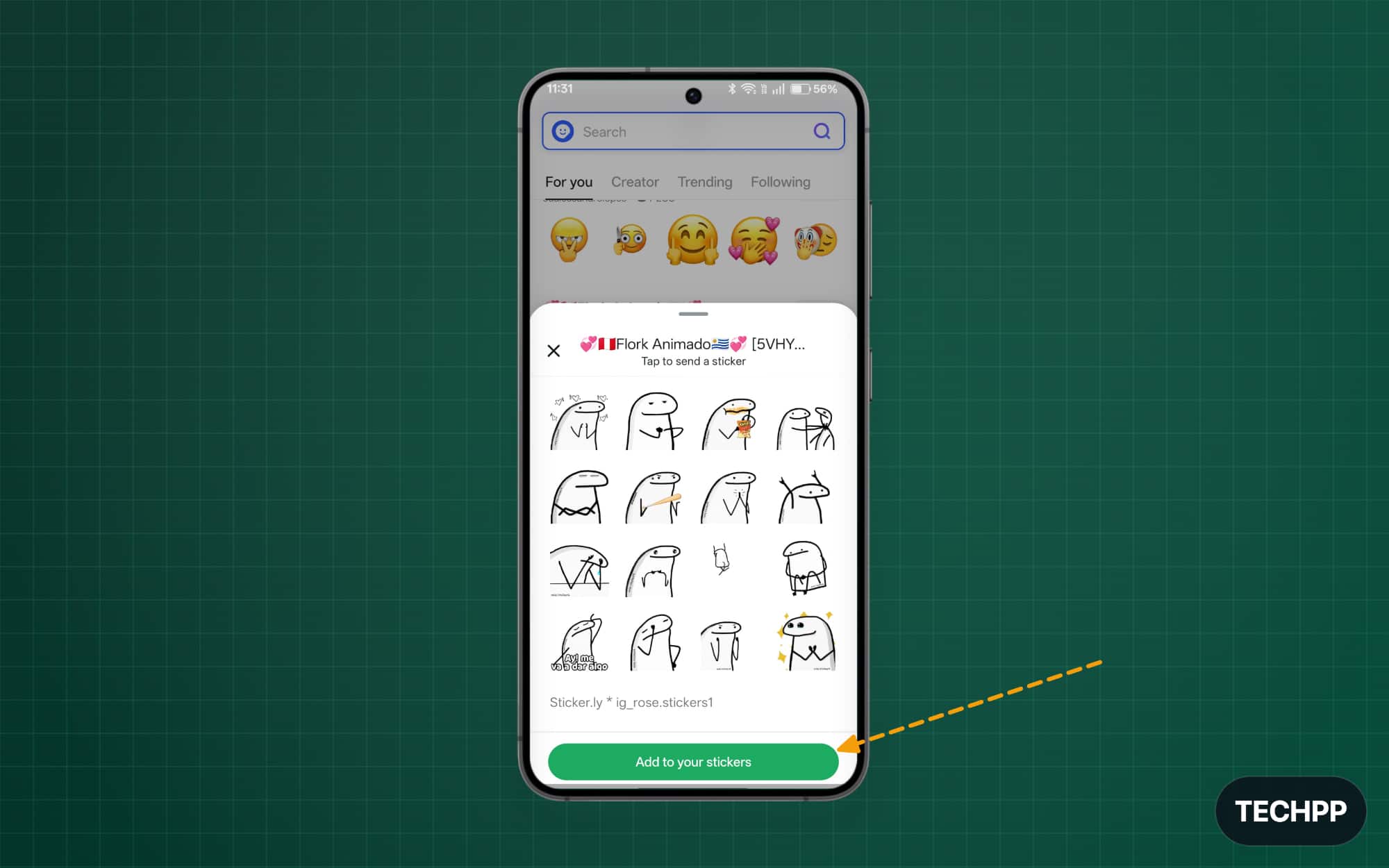
Step 3: Now open WhatsApp, and you can see that the stickers have already been added.
New Chat Themes: WhatsApp Already Lets You Make Chats Look Good
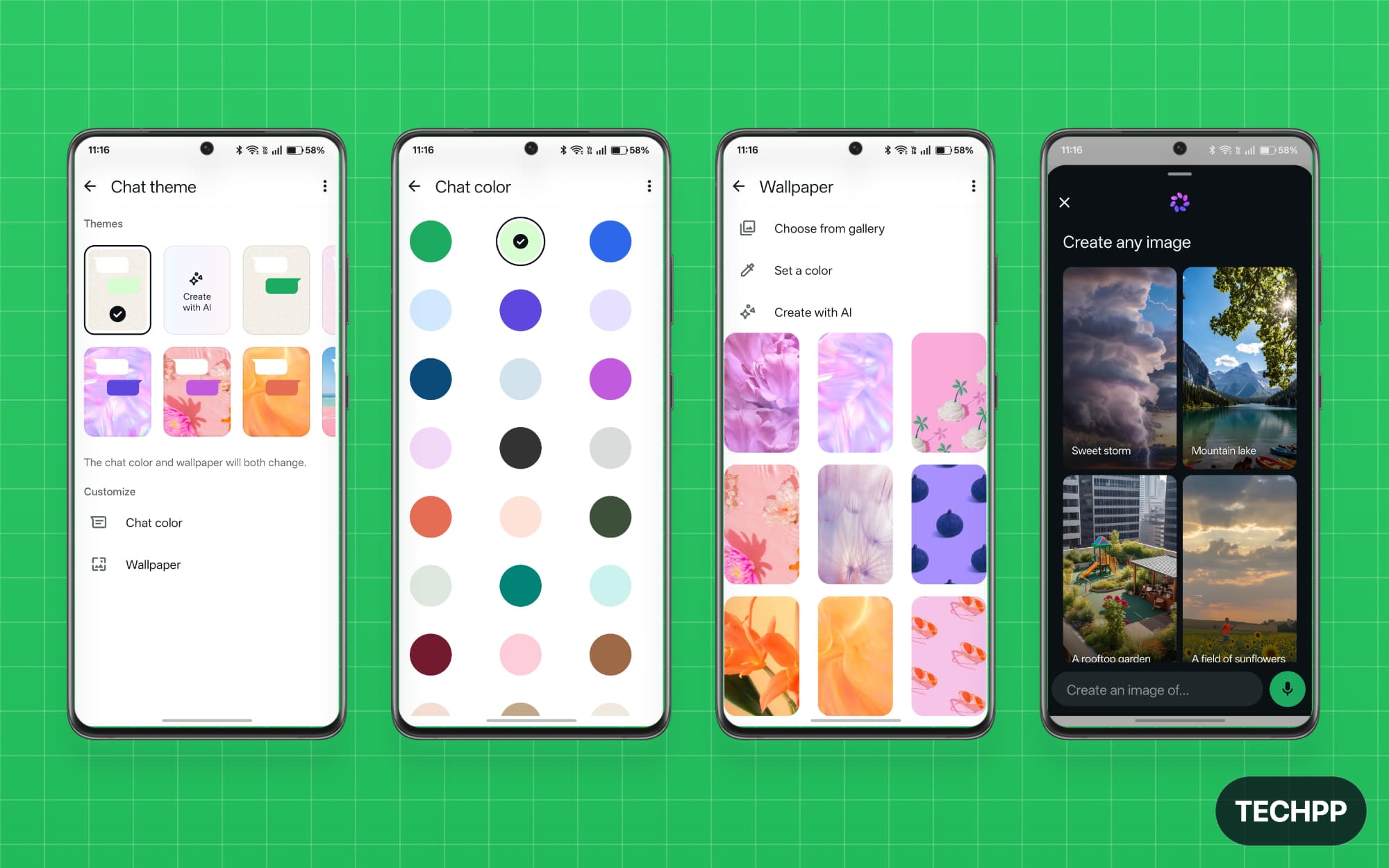
WhatsApp already offers plenty of customization options in the free plan as well. These include the ability to set a custom background, even generating your own personalized one with Meta AI, and changing the colors of the chat bubbles, choosing preset chat themes, using background wallpapers, uploading your background, applying one theme to all chats, or setting different themes for individual chats, and more.
WhatsApp Plus plan offers the ability to change the entire app theme and includes 18 more theme options. But existing chat customization options are more than enough for most users, even those who love a lot of customization options. So one more reason not to upgrade to the Plus.
How to add a custom theme to WhatsApp chats:
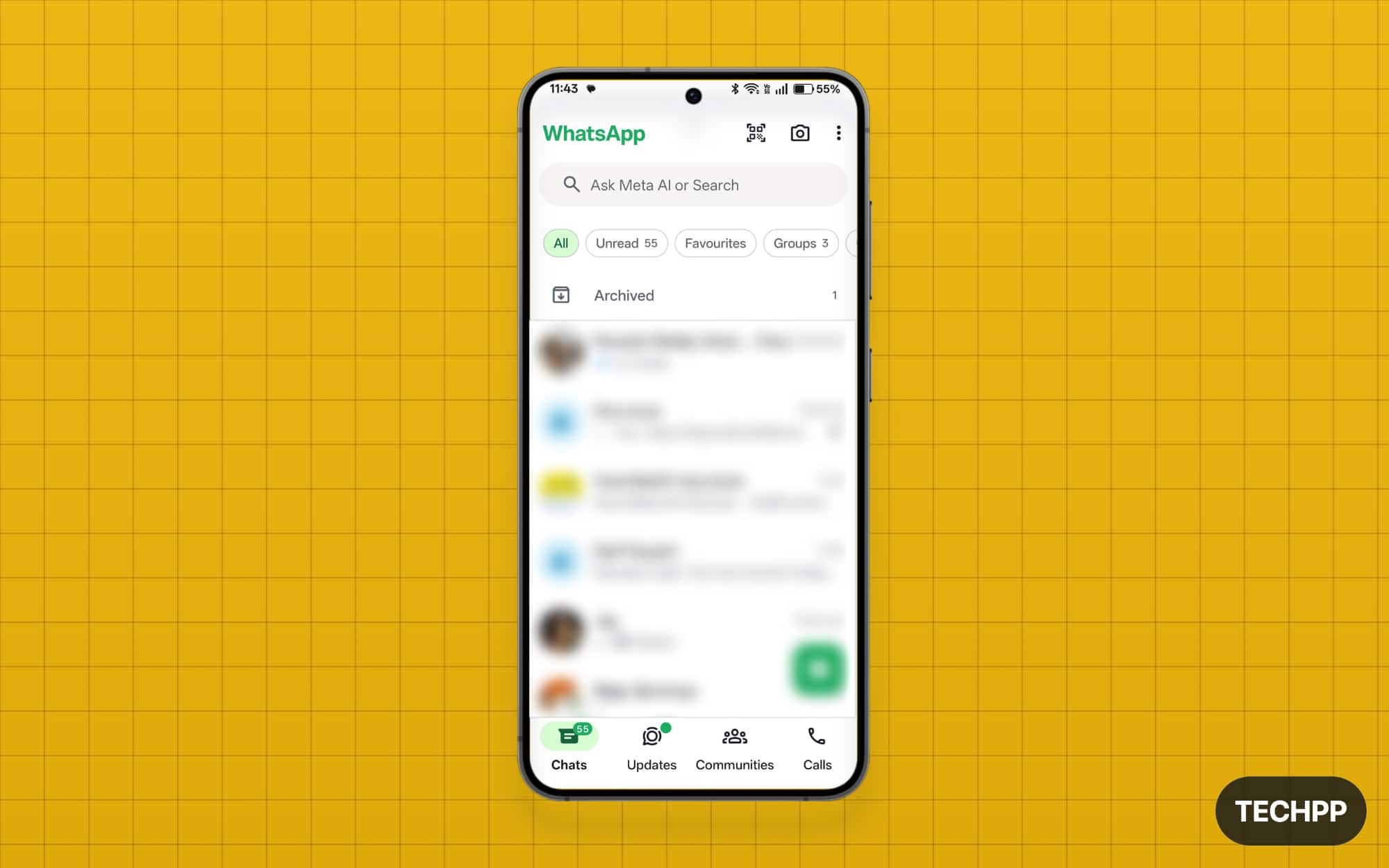
Step 1: Open WhatsApp.
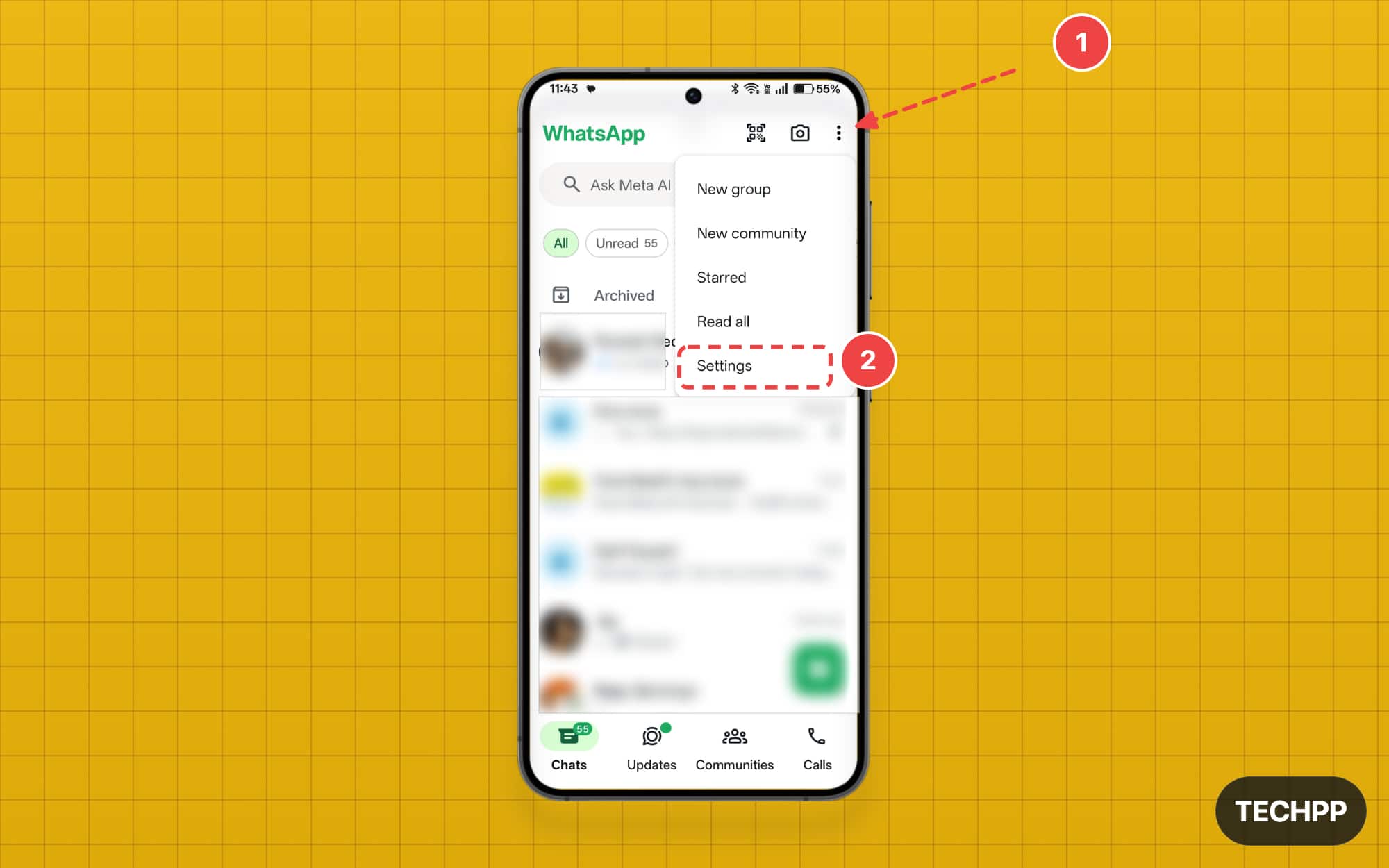
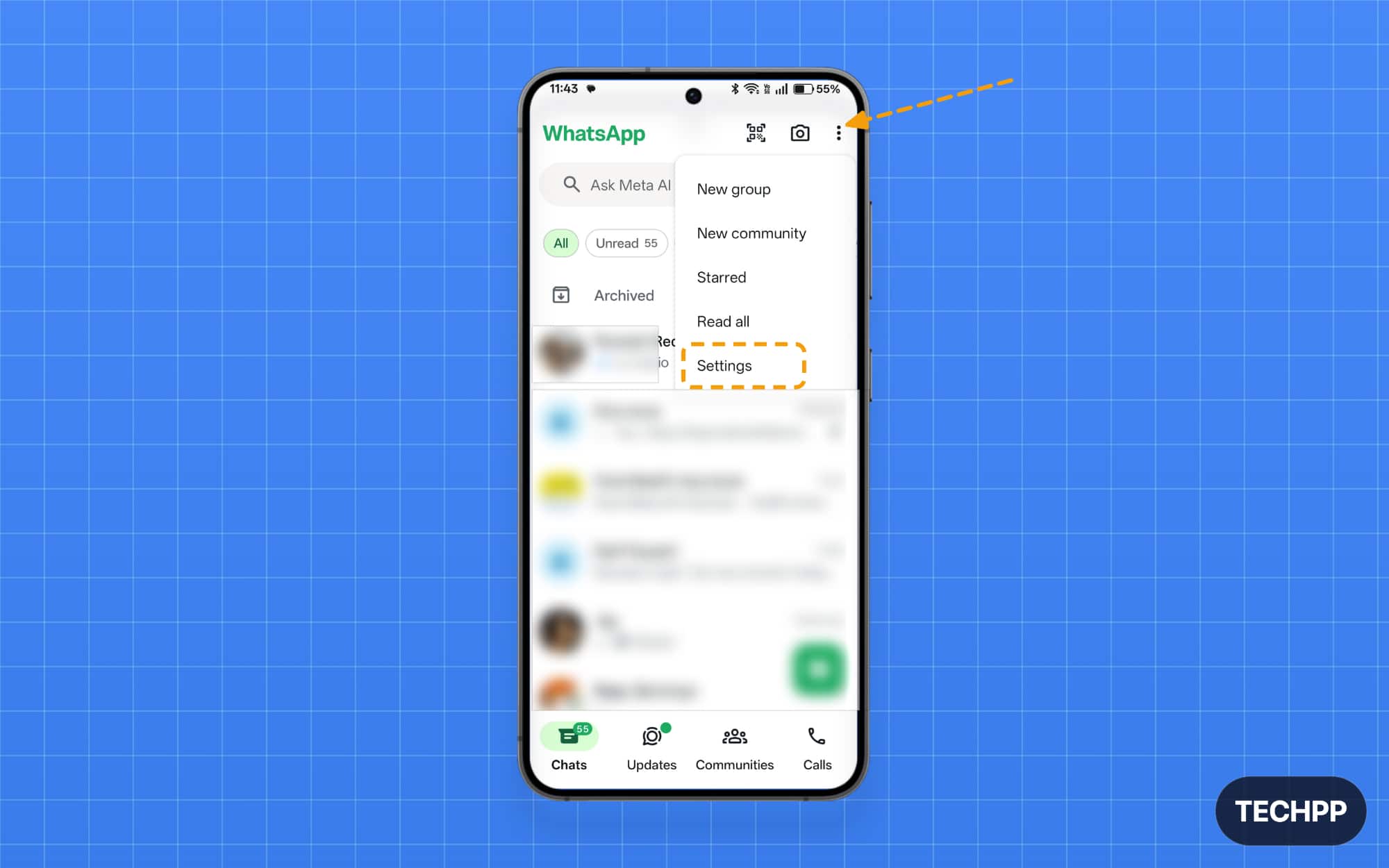
Step 2: Tap the three-dot menu, then tap Settings.
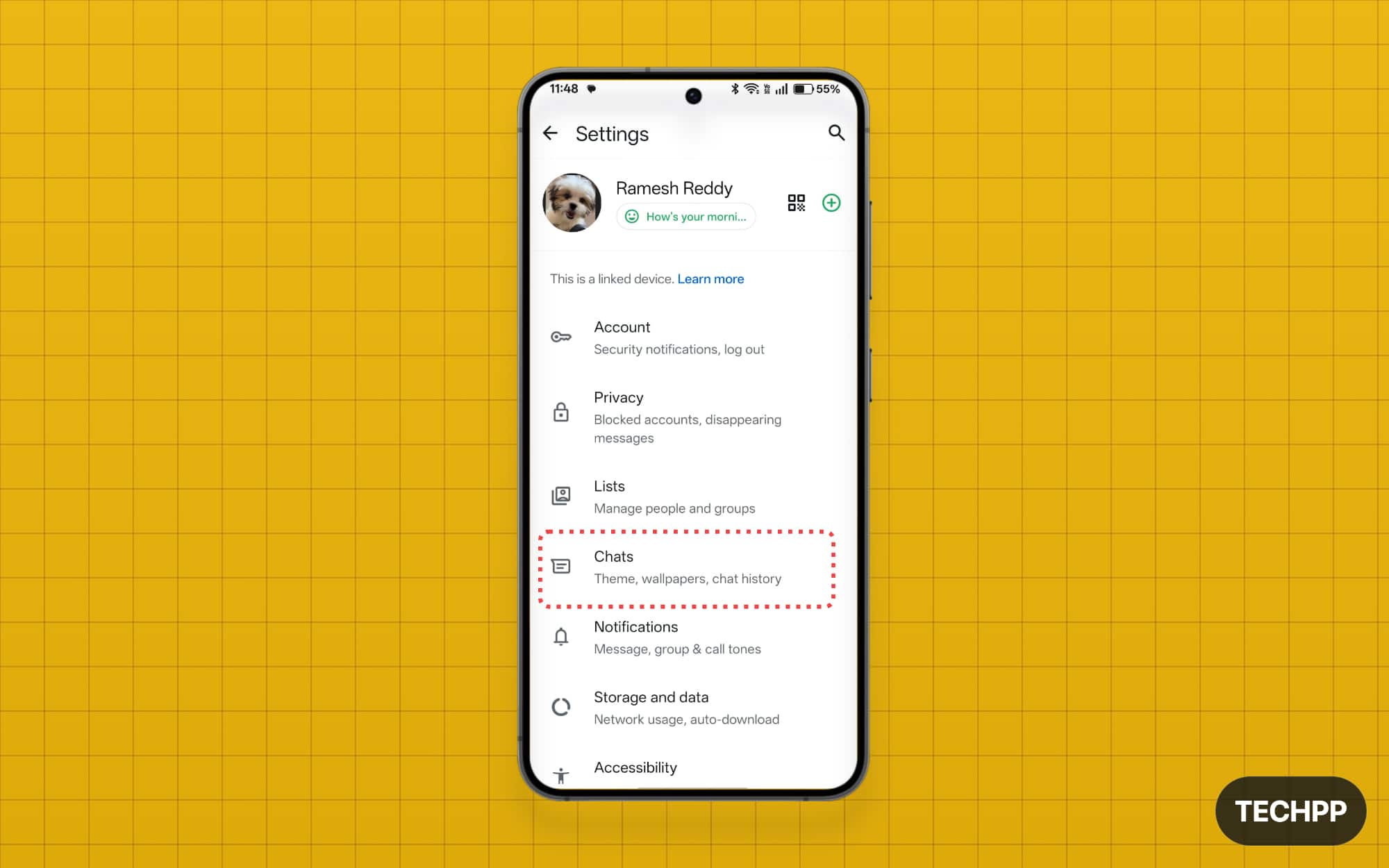
Step 3: Scroll down and tap on Chats.
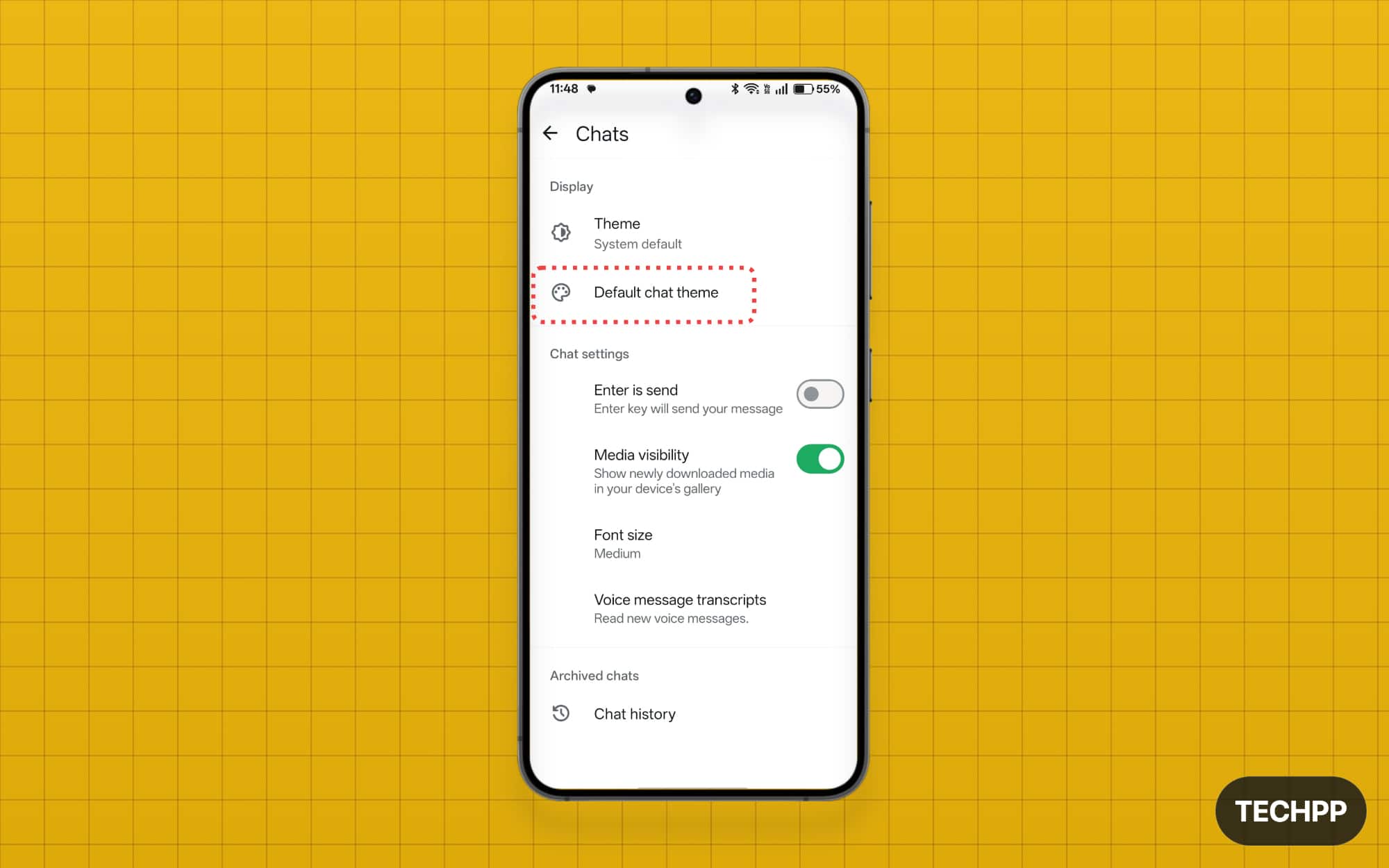
Step 4: Tap on the Default chat theme.
Here you can see all the chat customization options. Browse themes, chat color, and set wallpaper from here.
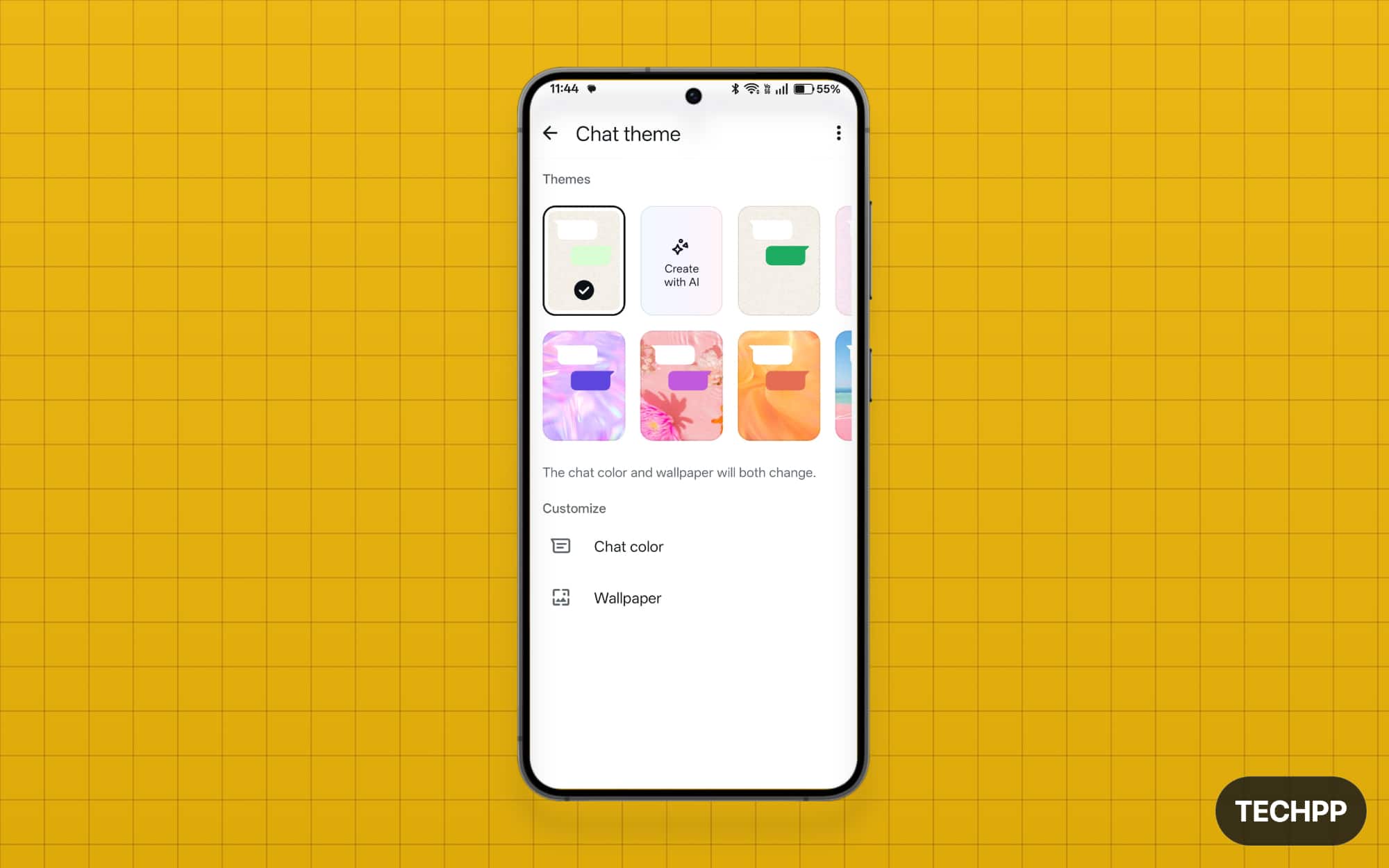
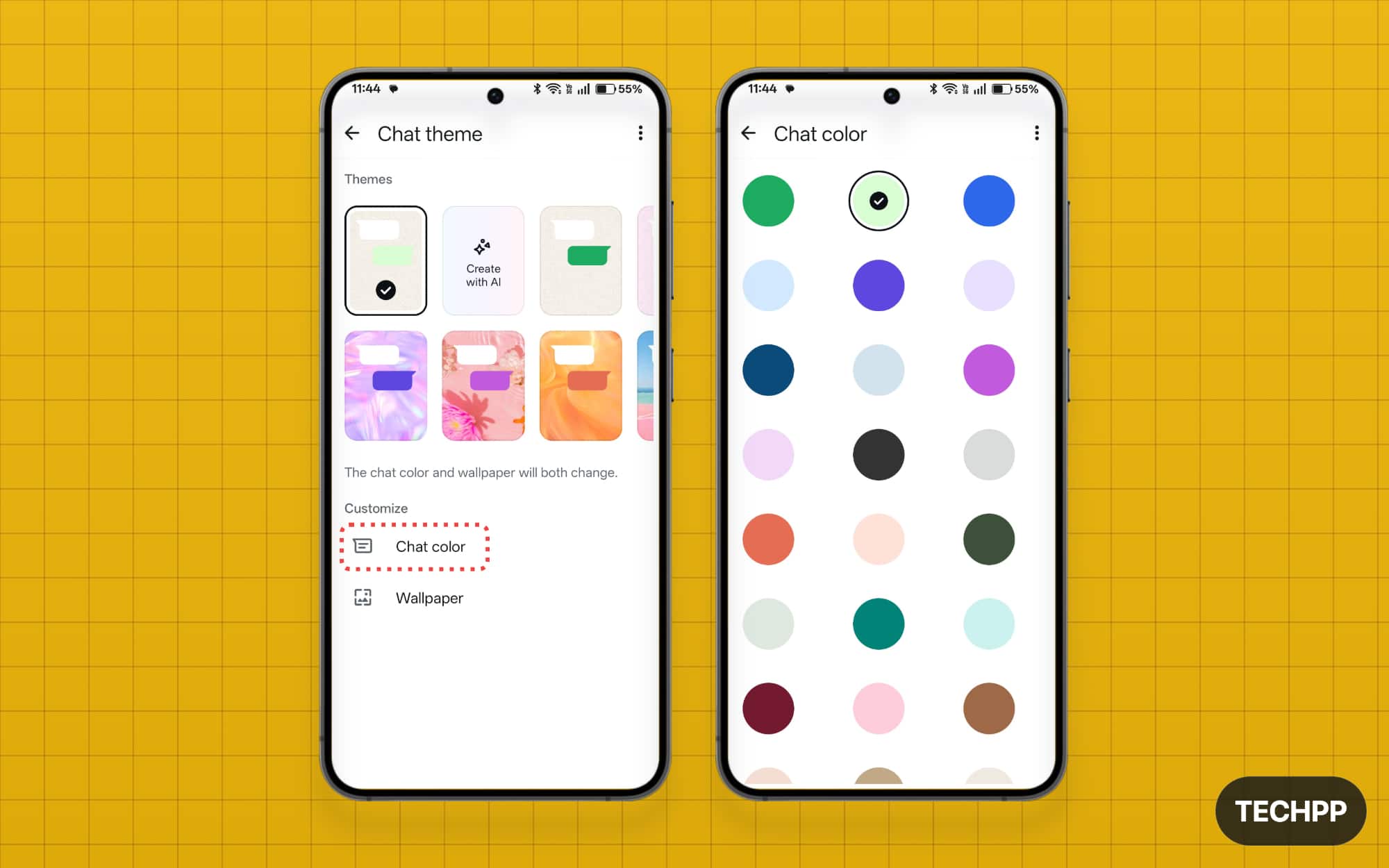
To change the chat color, tap on the Chat color option and select your preferred colors.
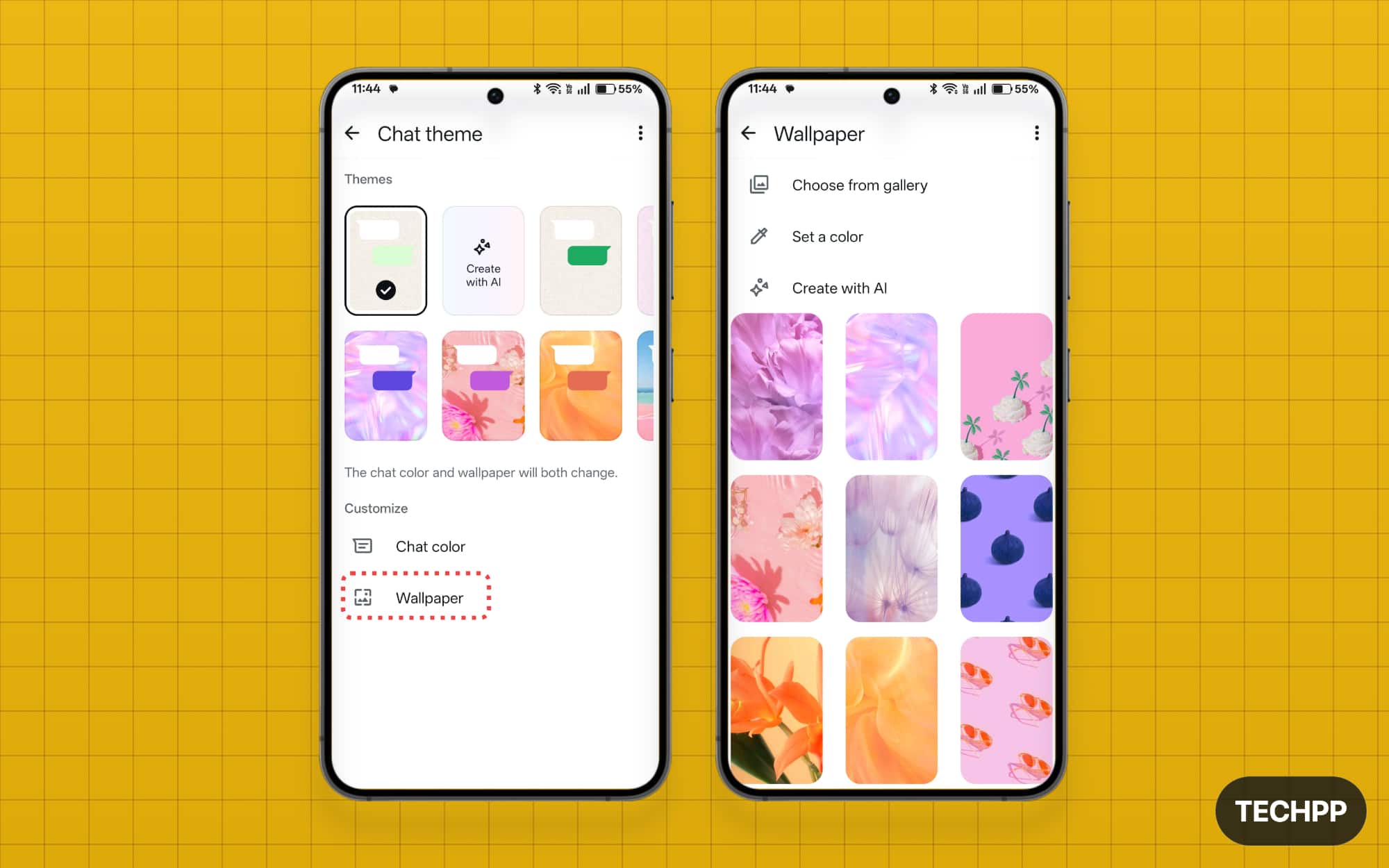
You can also select custom wallpaper as your chat background. To do that, tap on the Wallpaper and select one.
Custom App Icons: Please Don’t Pay Just to Change a Logo
I hate people who upgrade to Pro or even pay for a custom app icon. If you’re one of them, I would like to hear your thoughts as well. The comment section is open below, and you can share your opinions.
I also have some good news for you: you don’t need to pay for Meta to get custom app icons. Chances are, if you are using an Android, you can actually set a custom app icon by default for all the apps. You can also individually edit each app icon or even set a photo as an app icon.
Even if you don’t want to deal with all the technical jargon and just want to simply set an app icon, most custom launchers allow you to set a custom app icon. Here are all the tutorials on how to set custom app icons on your Android phone, and also one more reason not to upgrade to WhatsApp Plus.
How to set a custom app icon for WhatsApp:
You can install any launcher that supports the ability to set a custom icon for the app. There are plenty of launchers. In this case, I am using Nova Launcher.
Step 1: Download the custom WhatsApp icon you want to set. Ensure you download it in the PNG format for the best appearance.
Step 2: Download Nova Launcher from the Play Store.
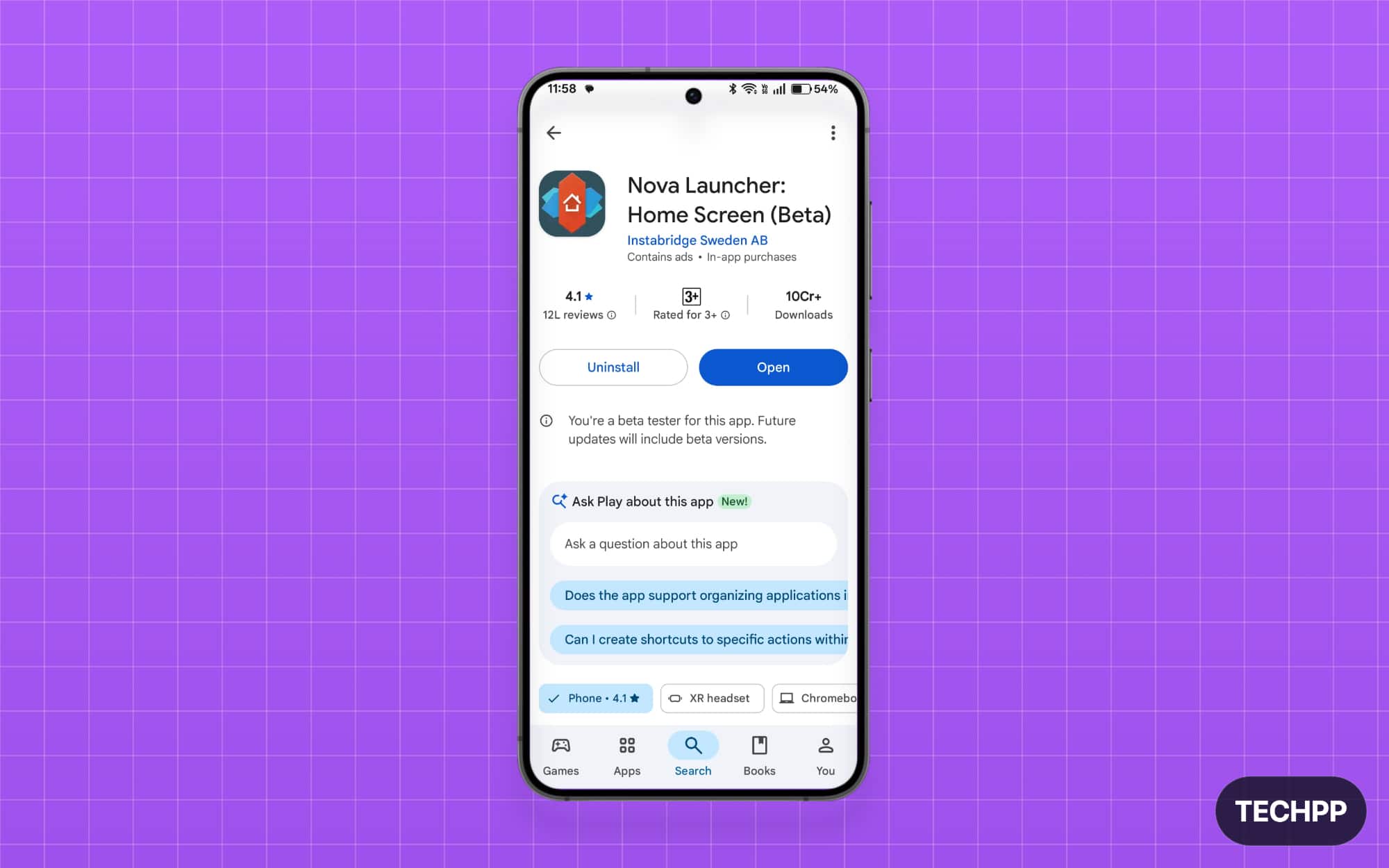
Step 3: Open the Nova Launcher and set it as the default.
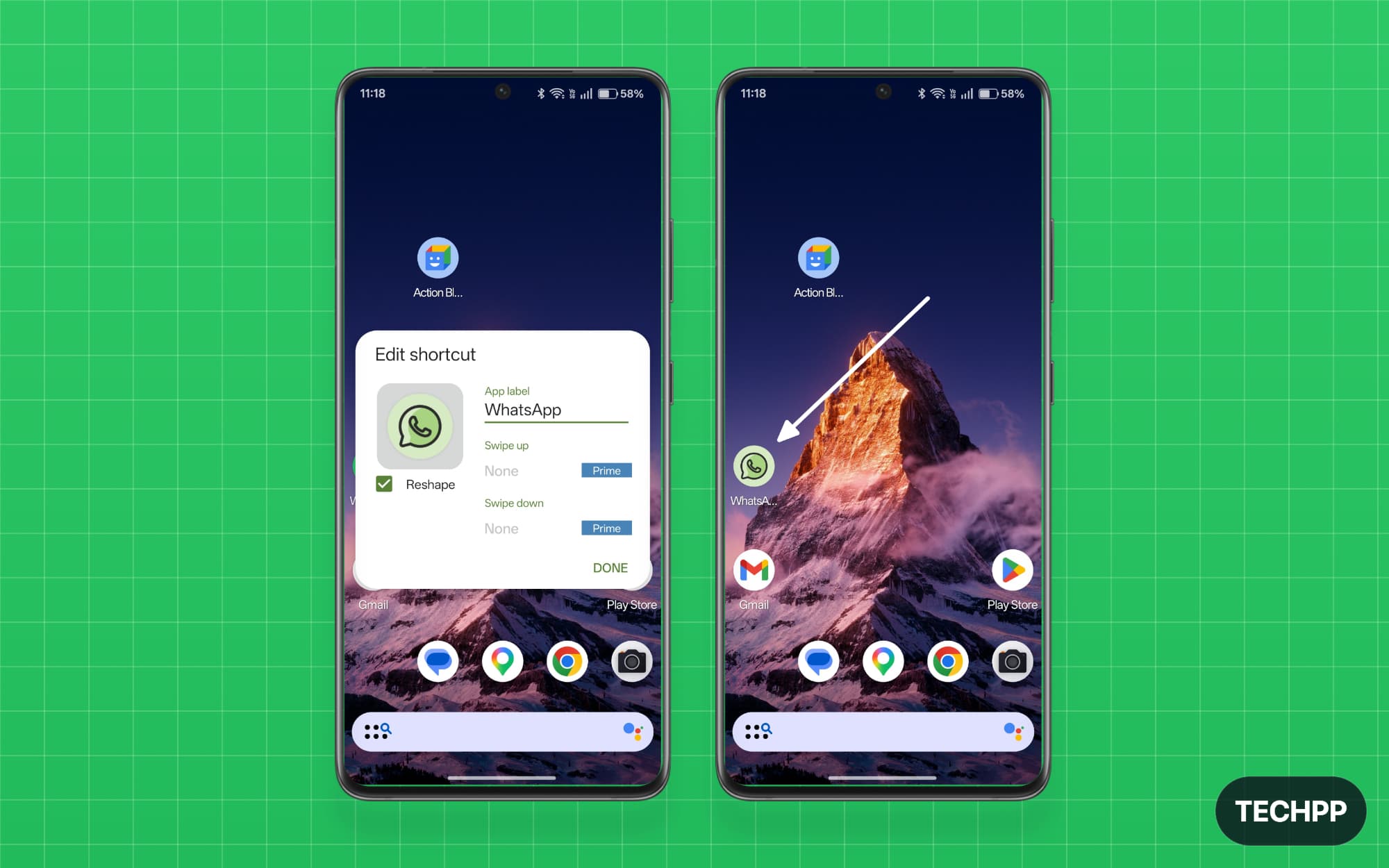
Step 4: Now, long-press the WhatsApp icon and tap on the Edit option.
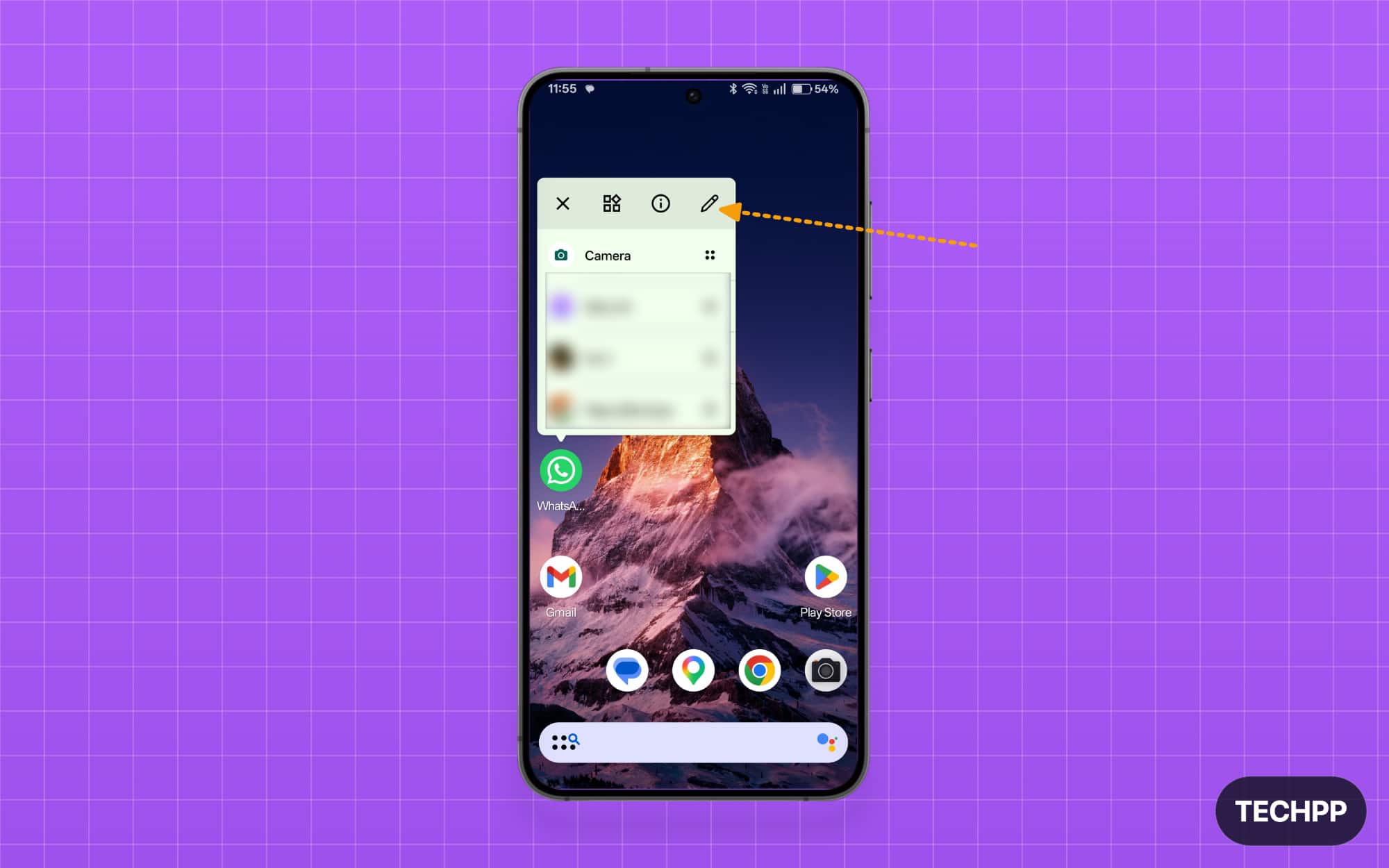
Step 5: Tap on the WhatsApp logo.
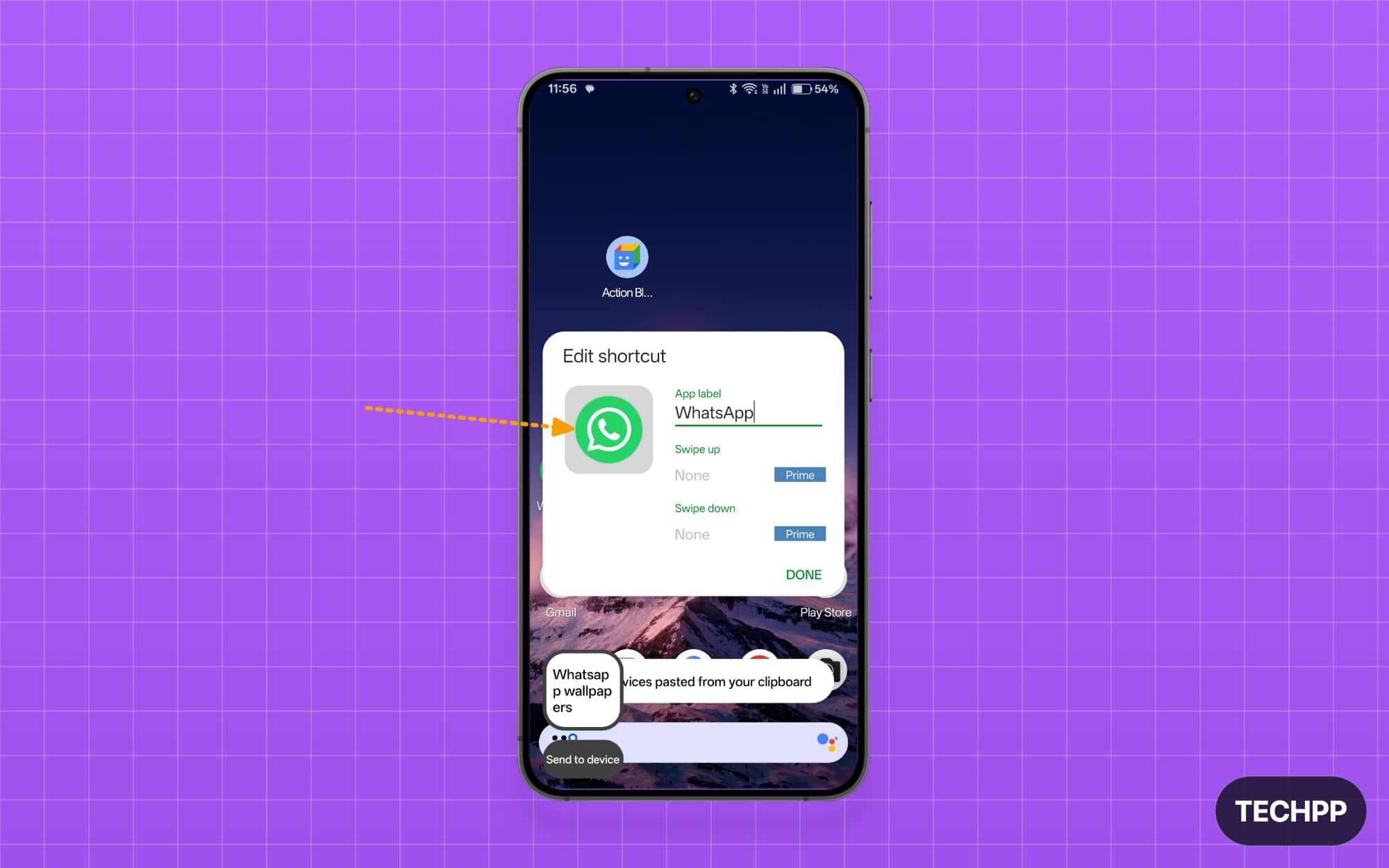
Step 6: Tap on the Gallery option.
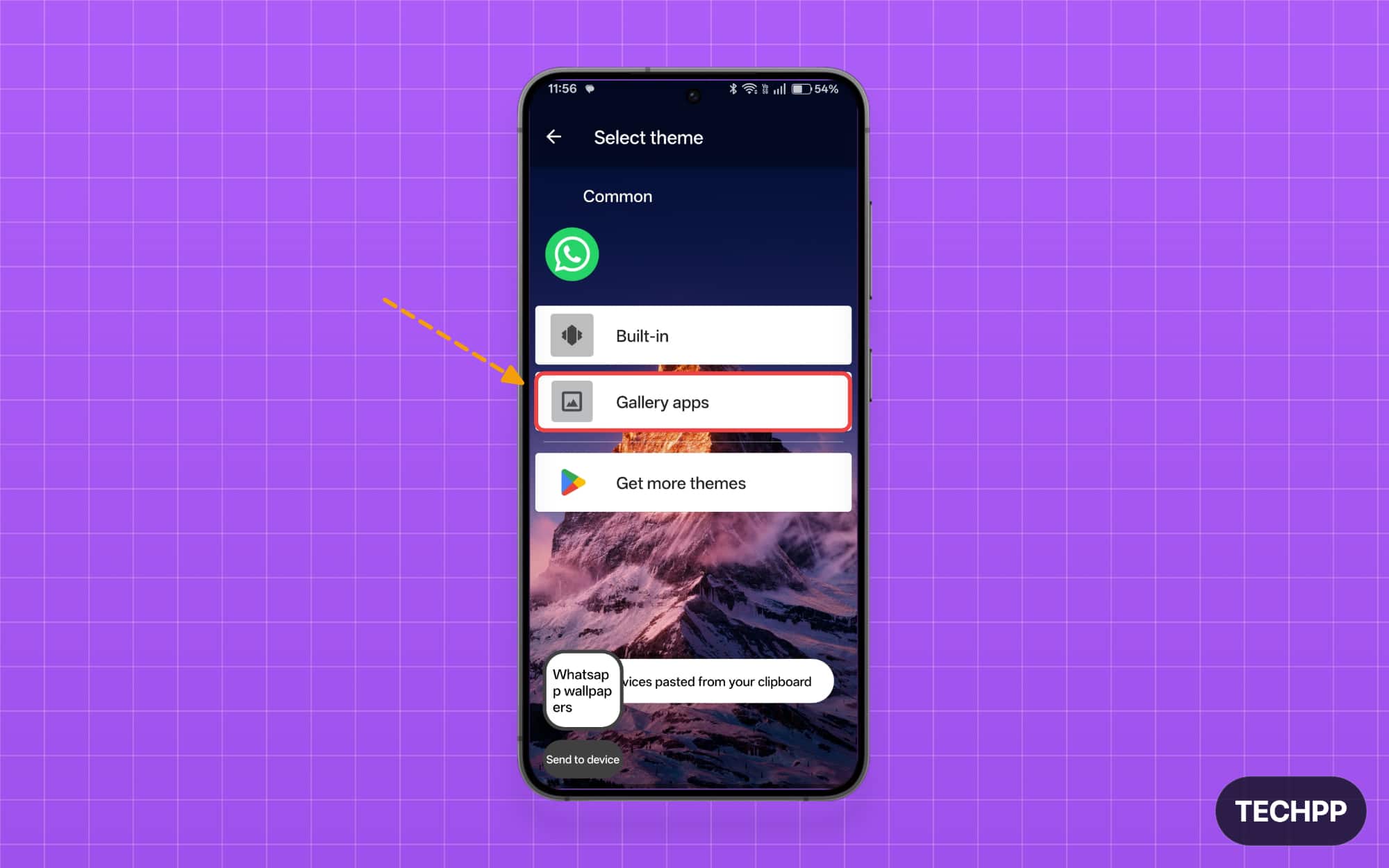
Step 7: Tap on the Files option.
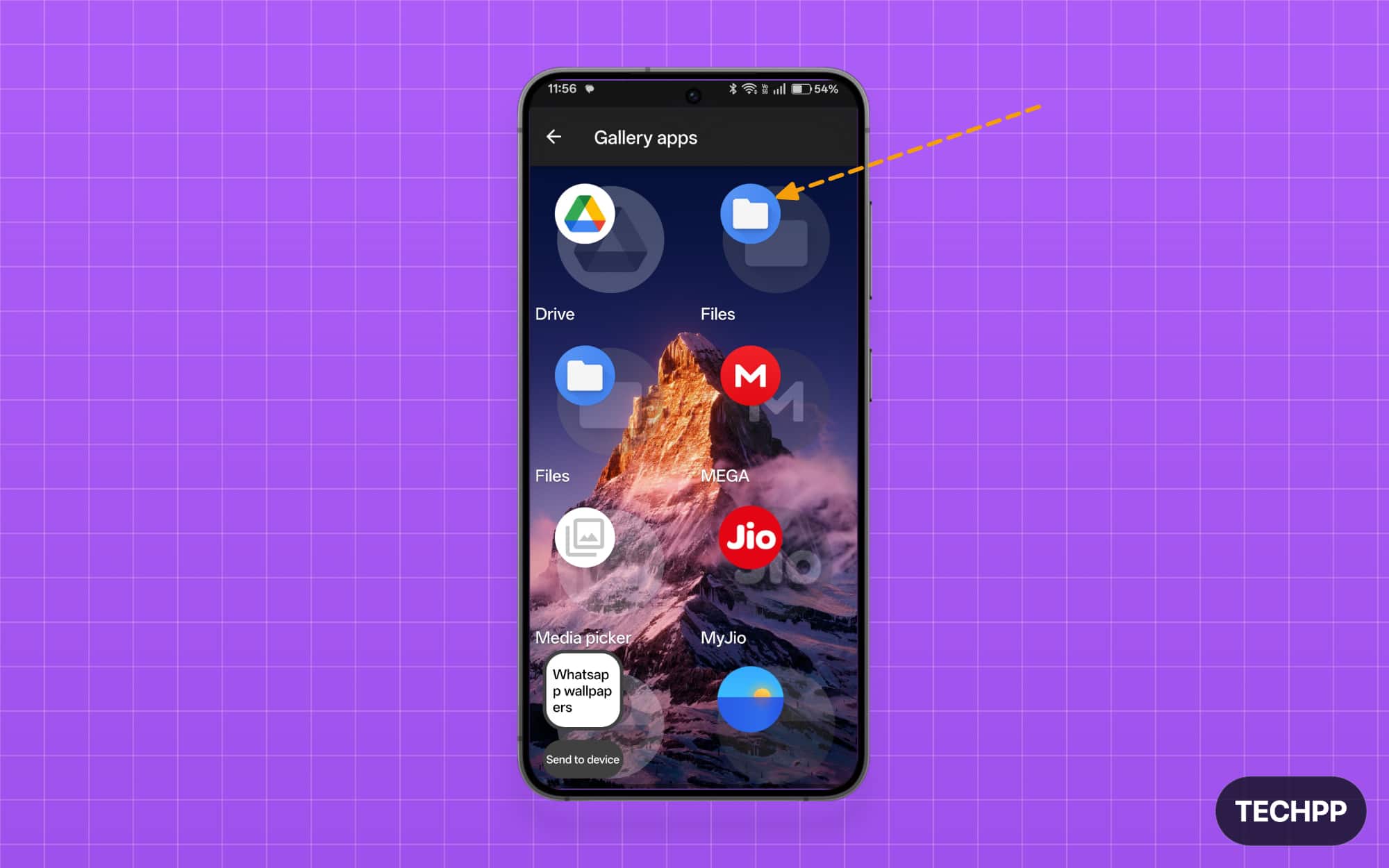
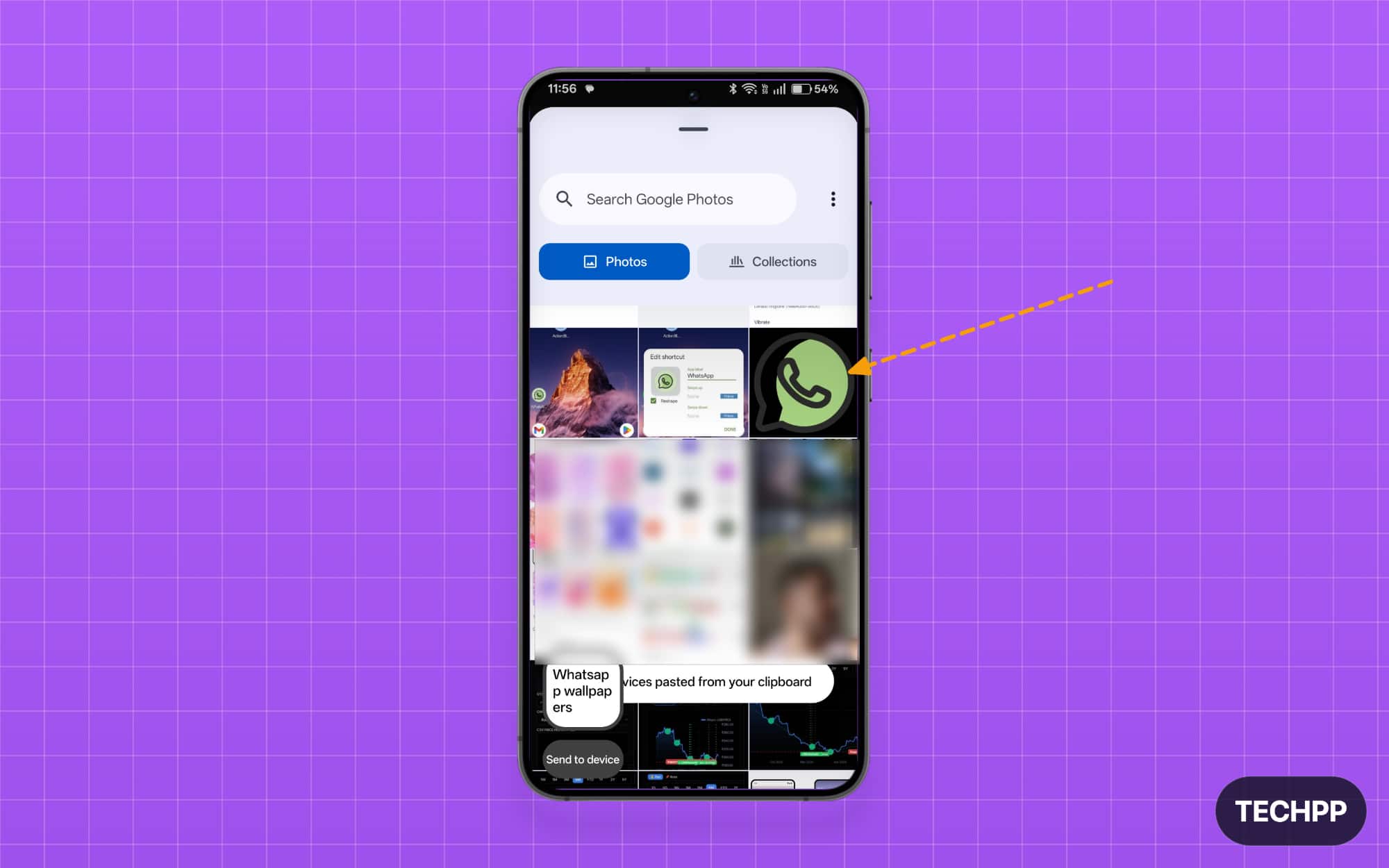
Step 8: Select the WhatsApp logo to download it.
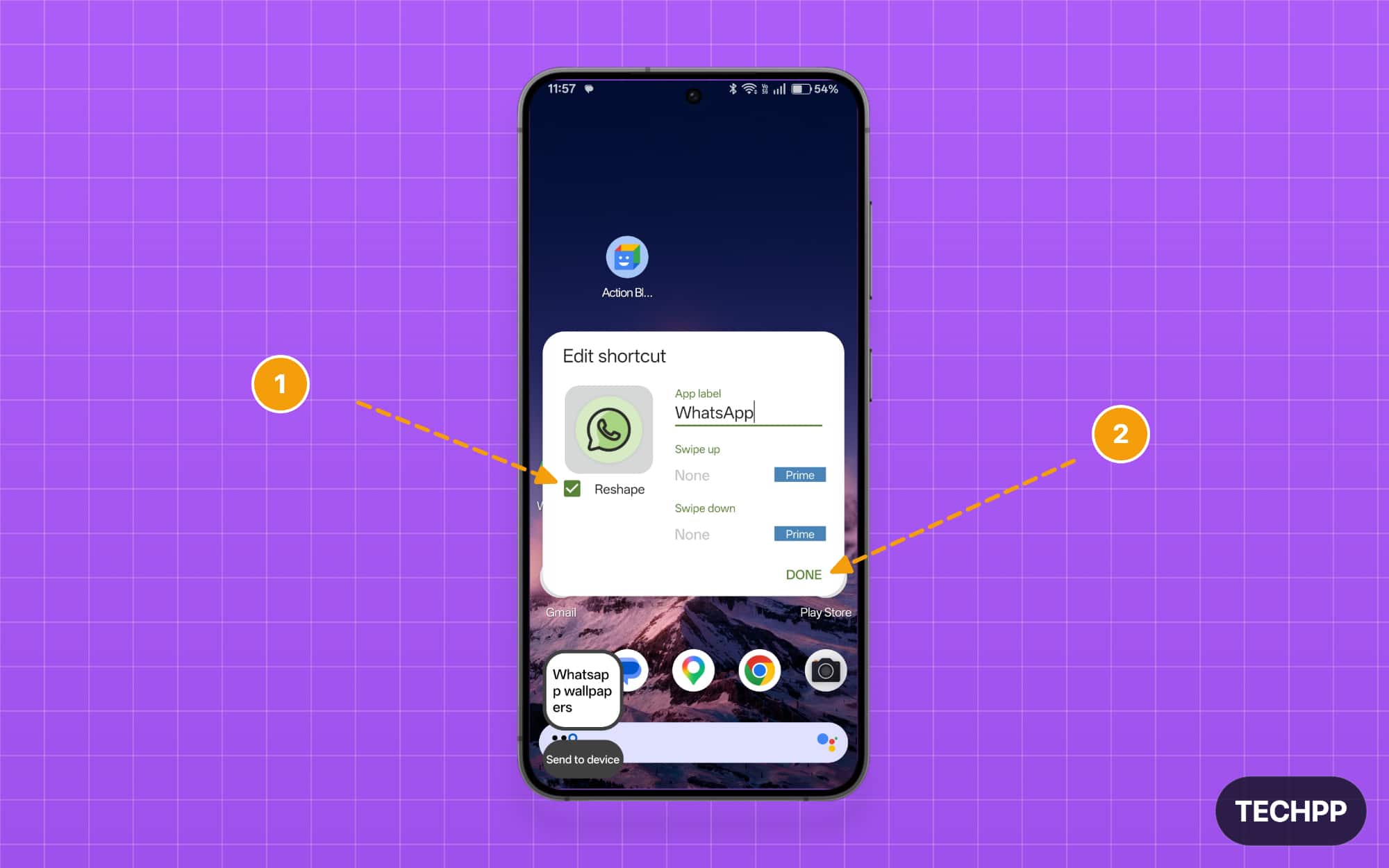
Step 9: Select the option labeled “reshape,” then tap Done.
New Ringtones: You Can Already Set Your Own WhatsApp Sounds
If you are excited about setting custom ringtones on WhatsApp, I am pretty sure you have already used custom ringtones as WhatsApp already allows you to set custom ringtones for chats and calls. The best part is that you can even import custom ringtones from your device and use them for WhatsApp.
WhatsApp Plus offers 10 new custom ringtones specially designed for paid subscribers. Chances are, those ringtones will soon be available for anyone to download and set as their custom ringtones for free. Another reason you don’t want to upgrade to WhatsApp Plus is that.
How to set custom ringtones on WhatsApp:
Step 1: Open WhatsApp and tap on Settings.
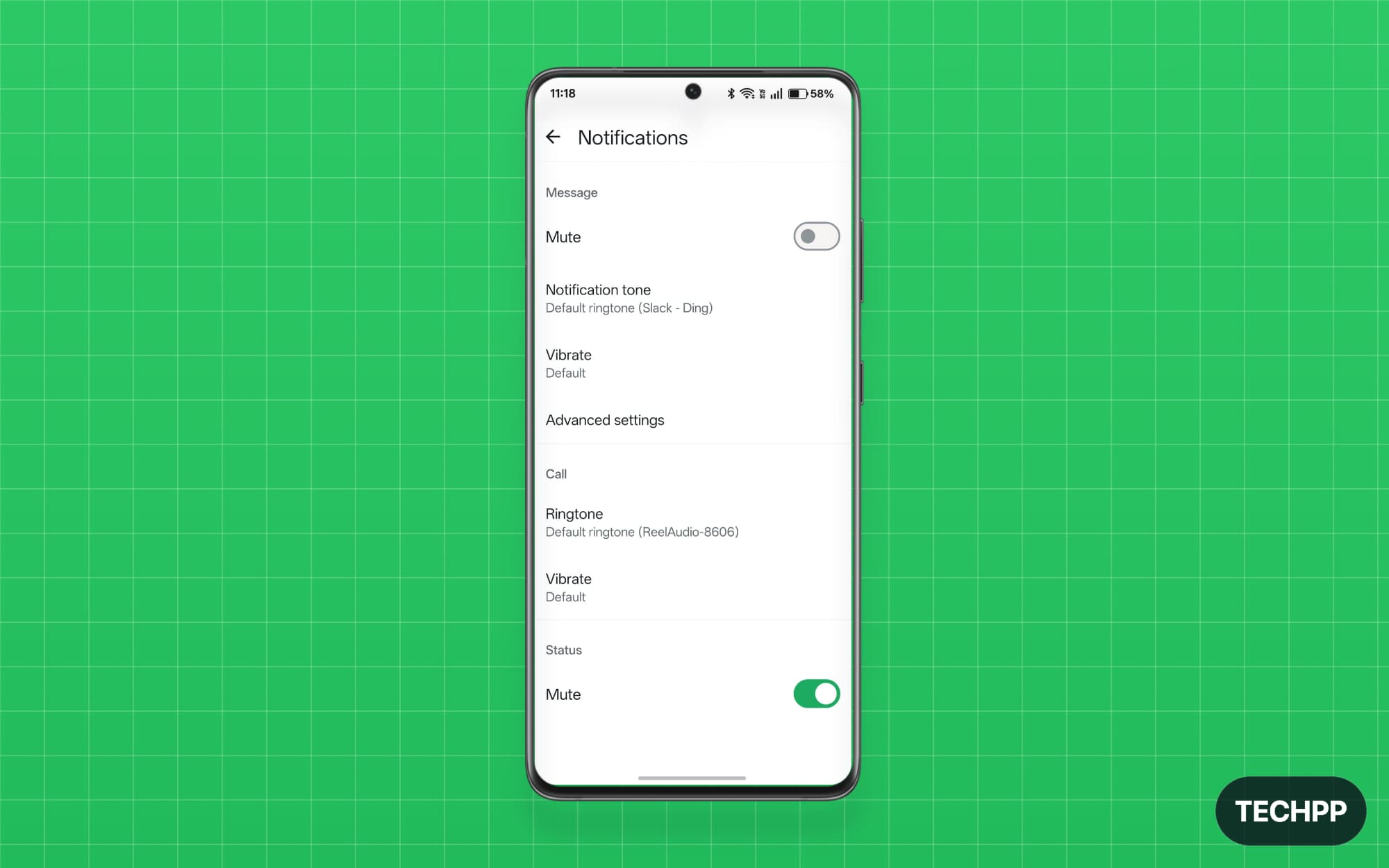
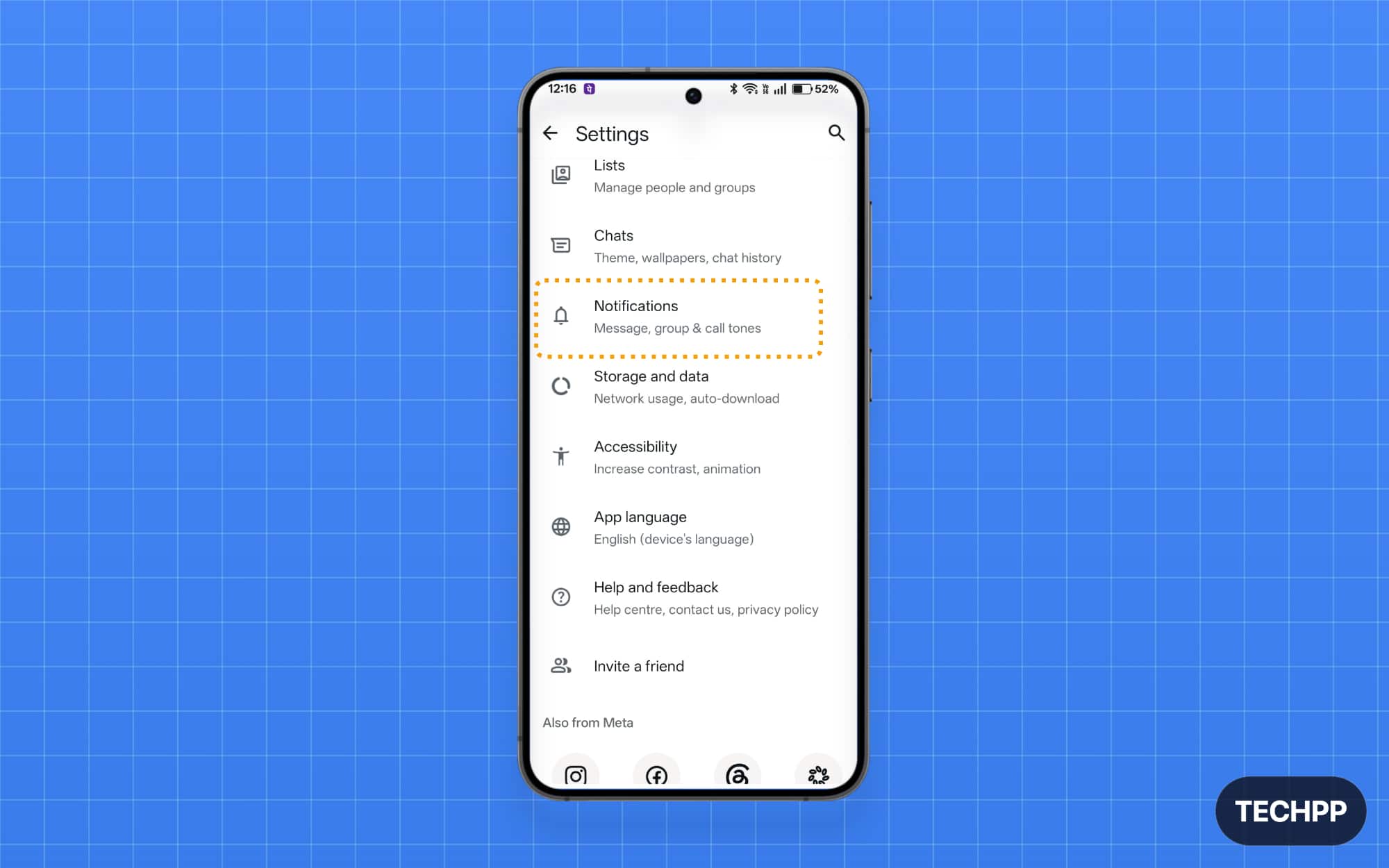
Step 2: Tap Notifications, then select your custom notification.
To select individual notifications for chats.
Step 1: Open WhatsApp and tap on any chat.
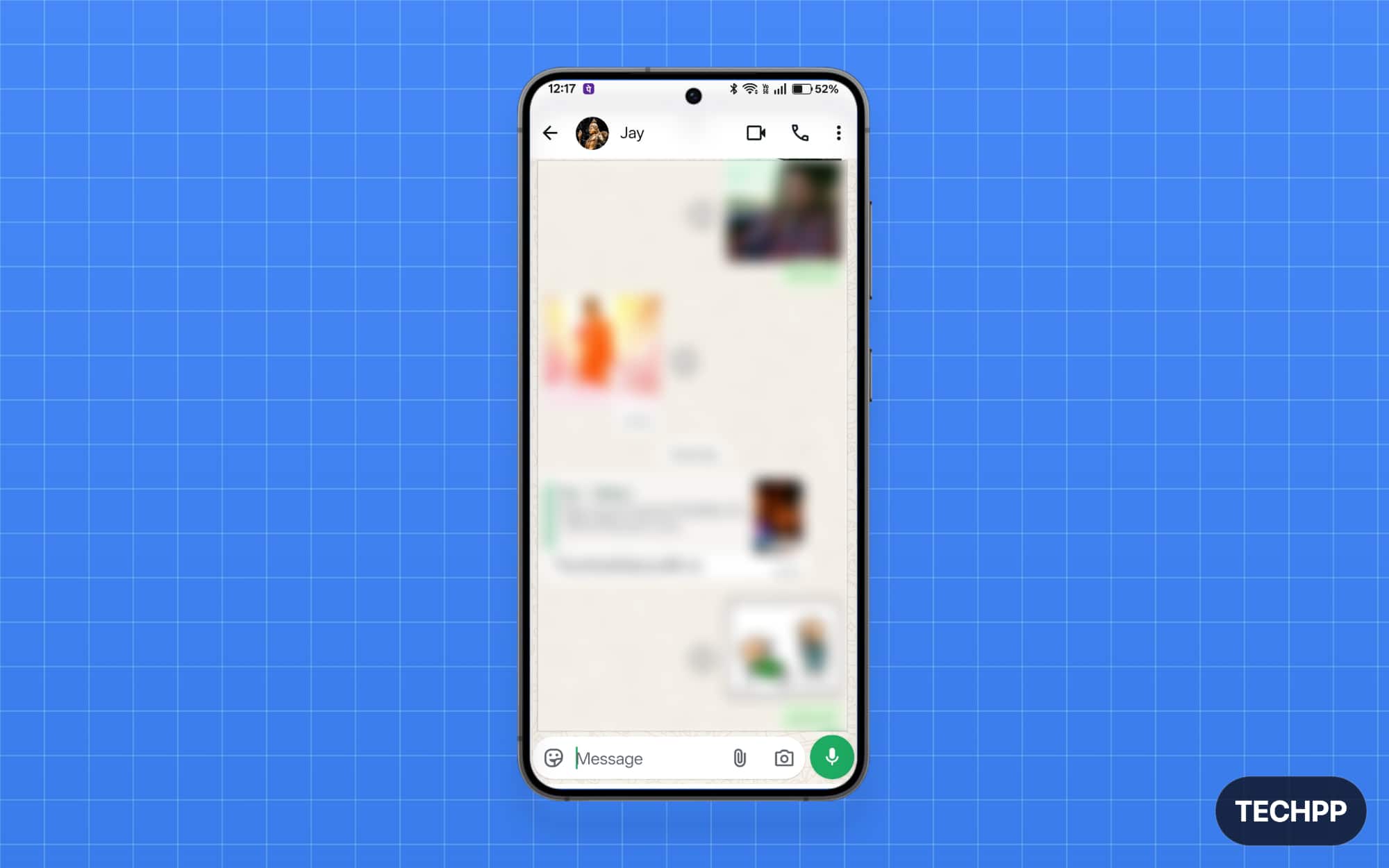
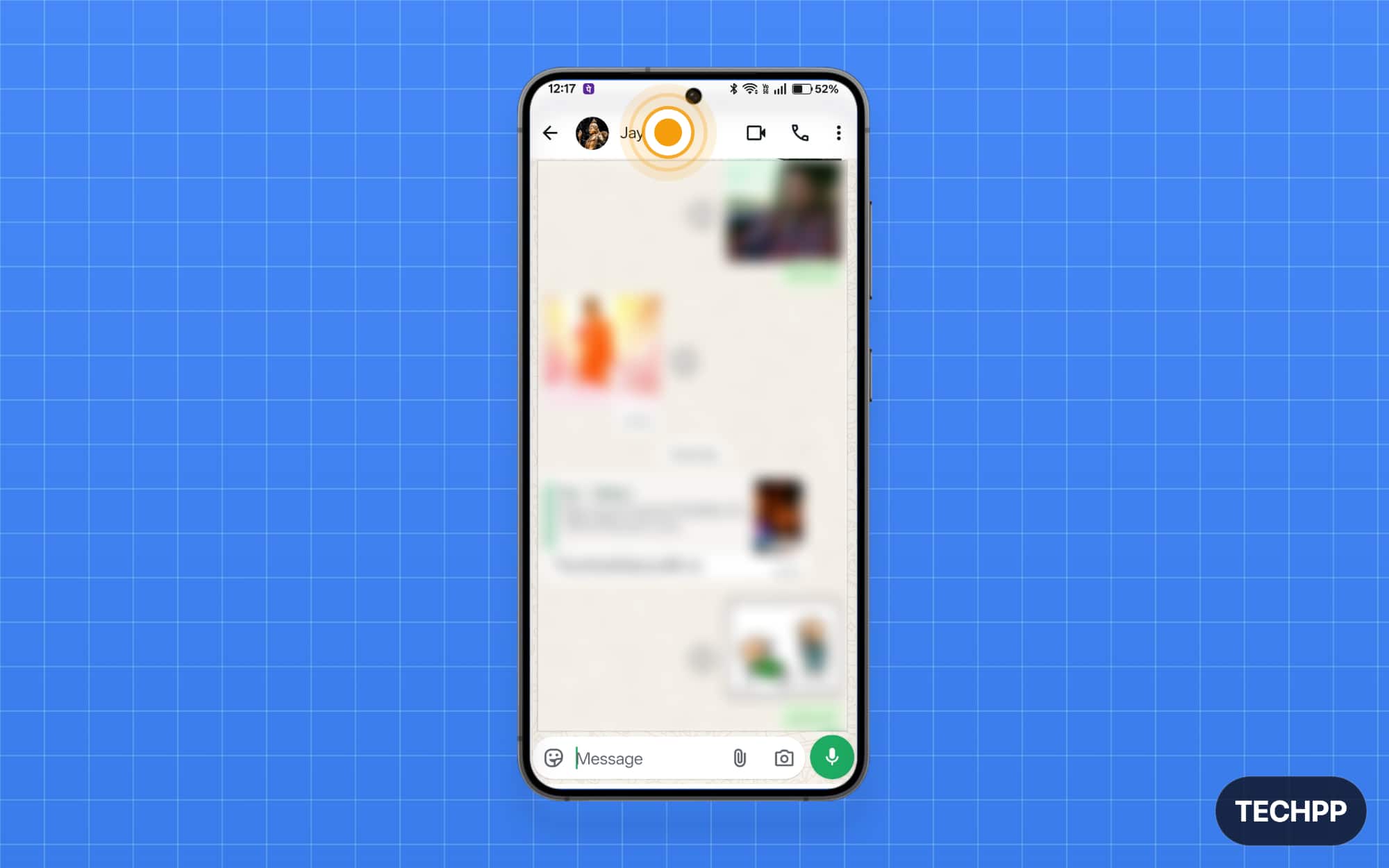
Step 2: Tap the profile, scroll down, then tap notifications.
Step 3: Tap the notification tone. Here, you can select a custom ringtone or upload your own.
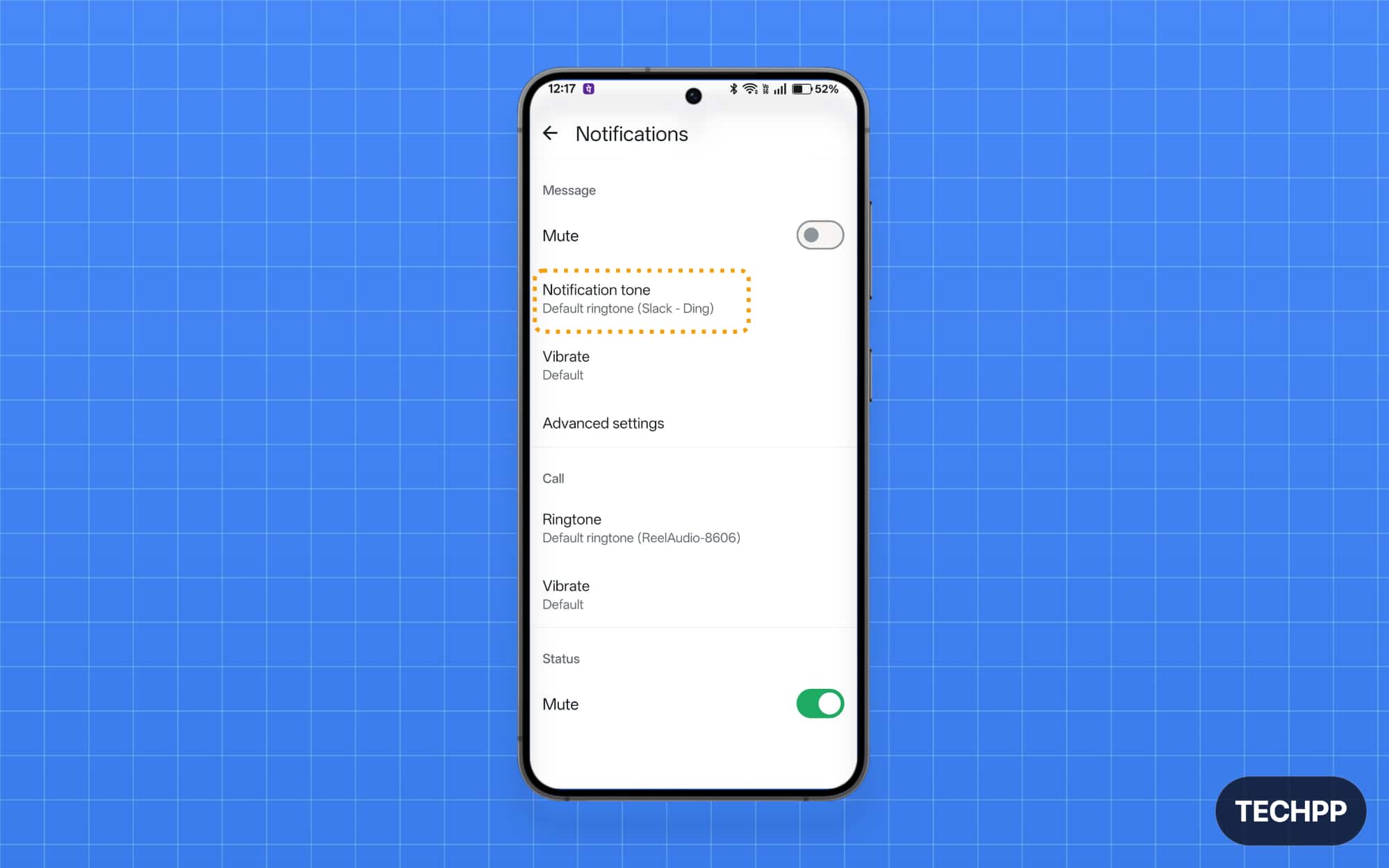
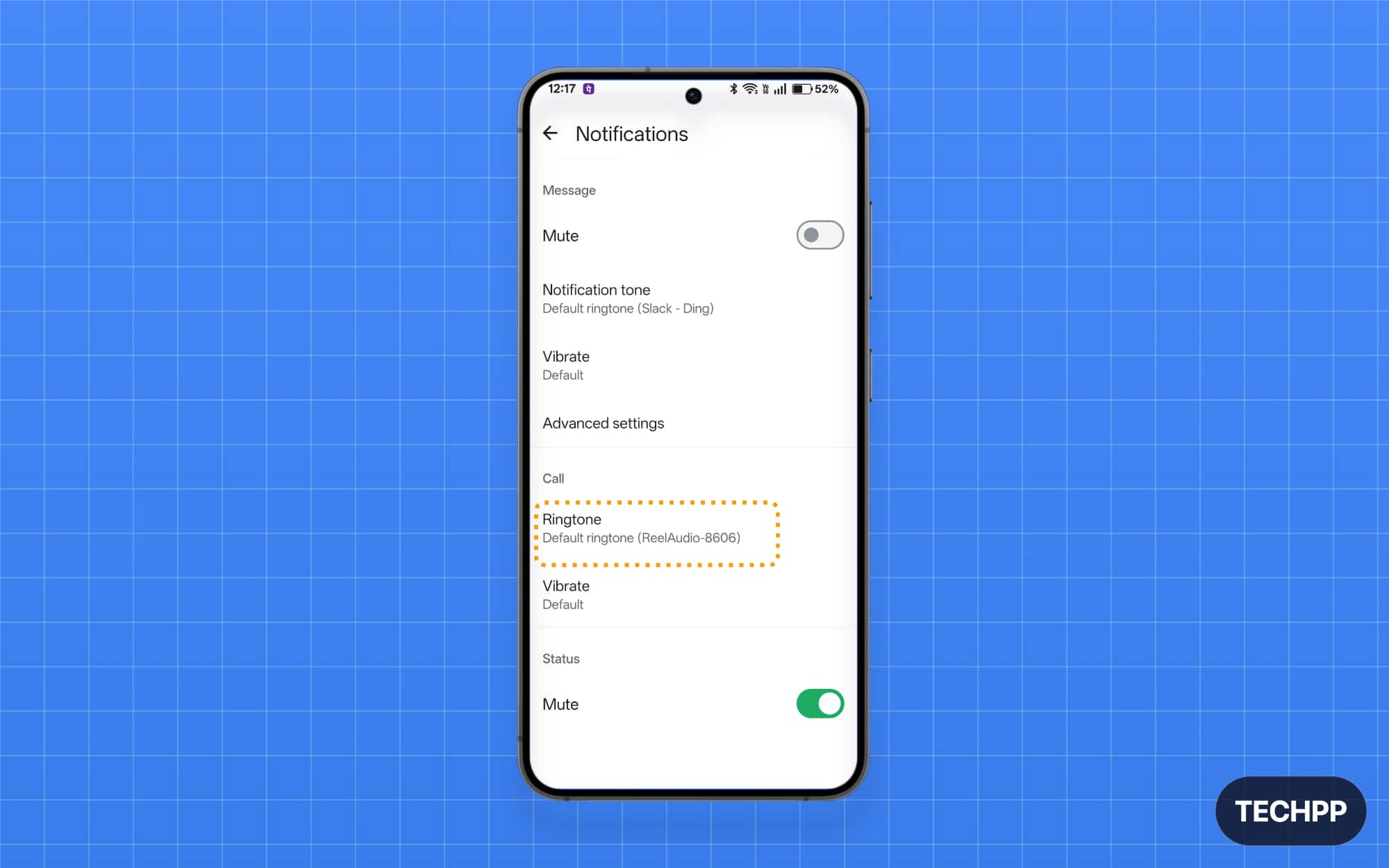
Step 4: To select a custom ringtone for calls, tap Ringtone in the call section, then select your ringtone.
Pin 20 Chats: Useful, But Lists Can Do a Better Job for Free
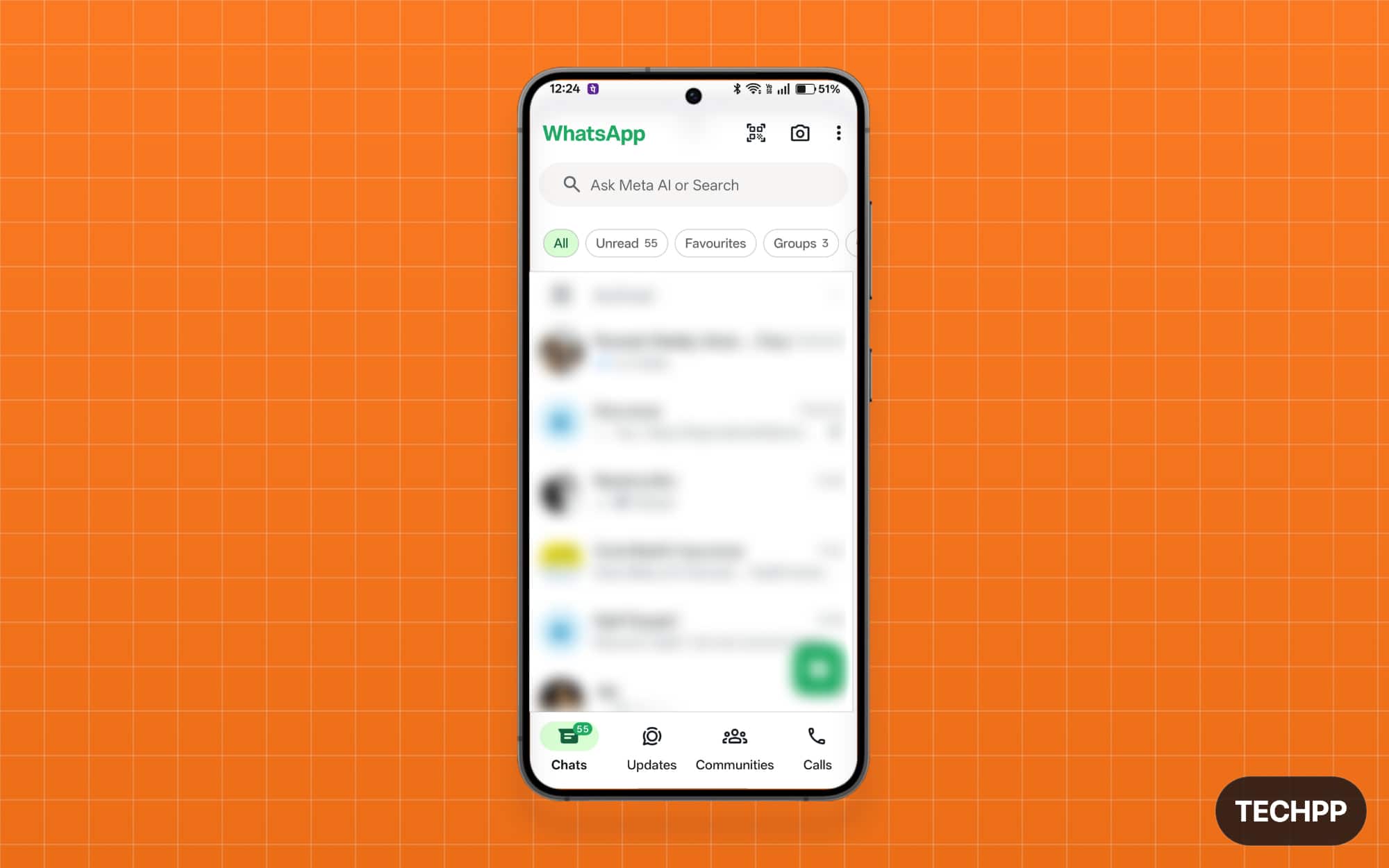
One WhatsApp Plus feature that makes sense for me is the ability to pin up to 20 chats. Currently, WhatsApp allows you to pin up to three contacts.
If you use WhatsApp as your primary communication tool, those three pinned chats aren’t enough. Considering WhatsApp is now mostly filled with advertisements, it is easy to lose sight of those important chats.
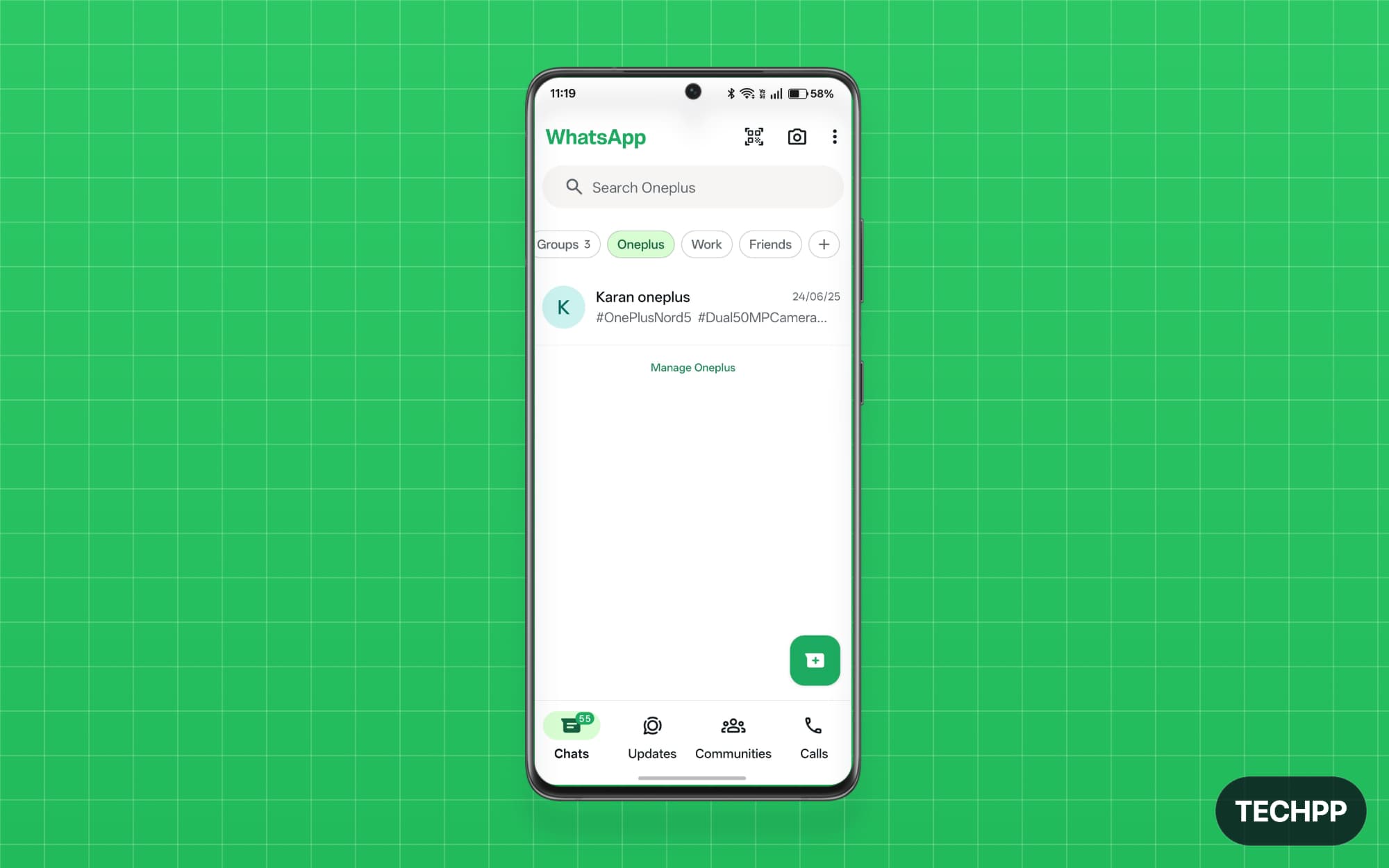
But there is an easy way to organize all your chats in a single place and make them easy to access. First, you can already use the three pinned chats: you can pin your three most important chats to the top, and you can organize the rest of the chats into lists. You can create up to 20 custom lists and add up to 256 individual chats or groups in each list.
More than enough and even better than those 20 pinned chats. Honestly, pinning 20 chats also has downsides. For example, if you get a new message, you have to scroll all the way down to see the latest updates, which definitely isn’t recommended.
Even if you don’t want to create lists, you can move the important chats to the archive and access them there only. However, the problem is that archived chats don’t show up in notifications.
How to create WhatsApp custom lists.
Step 1: Open WhatsApp.
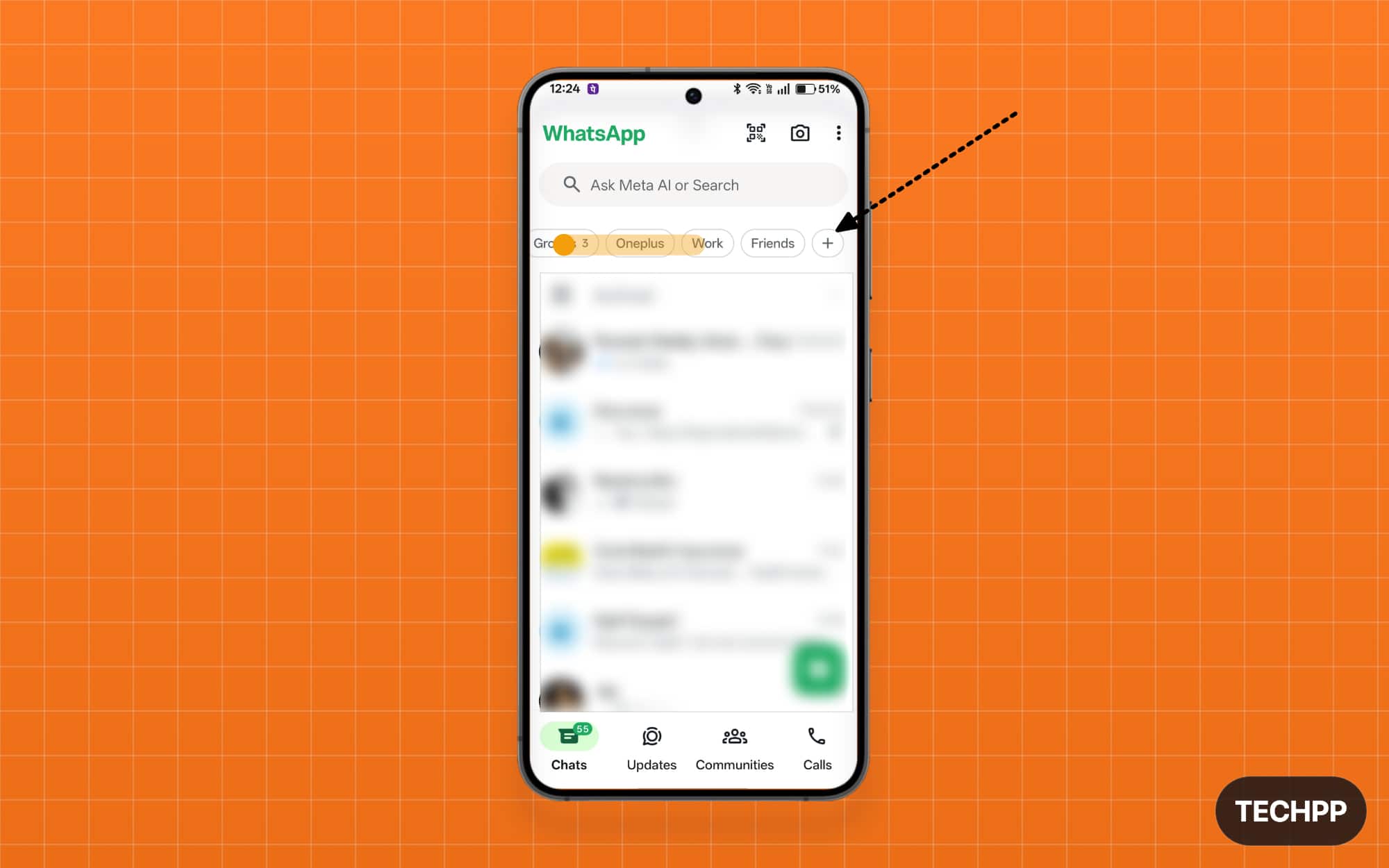
Step 2: Scroll to the right and tap on the Plus option.
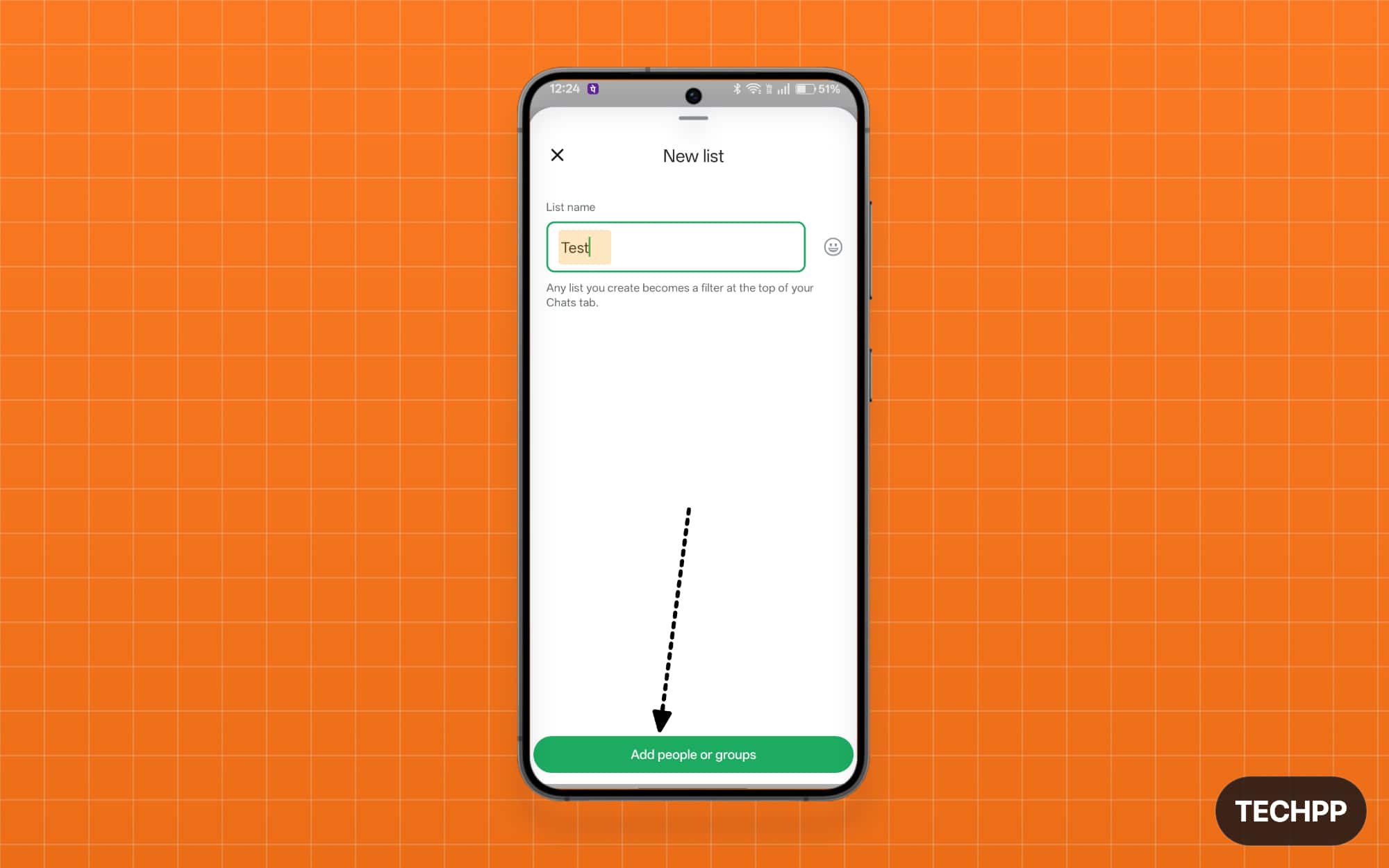
Step 3: Name the list and tap on “Add people or groups.”
Step 4: From here, you can select the people and the groups you want to add to the list.
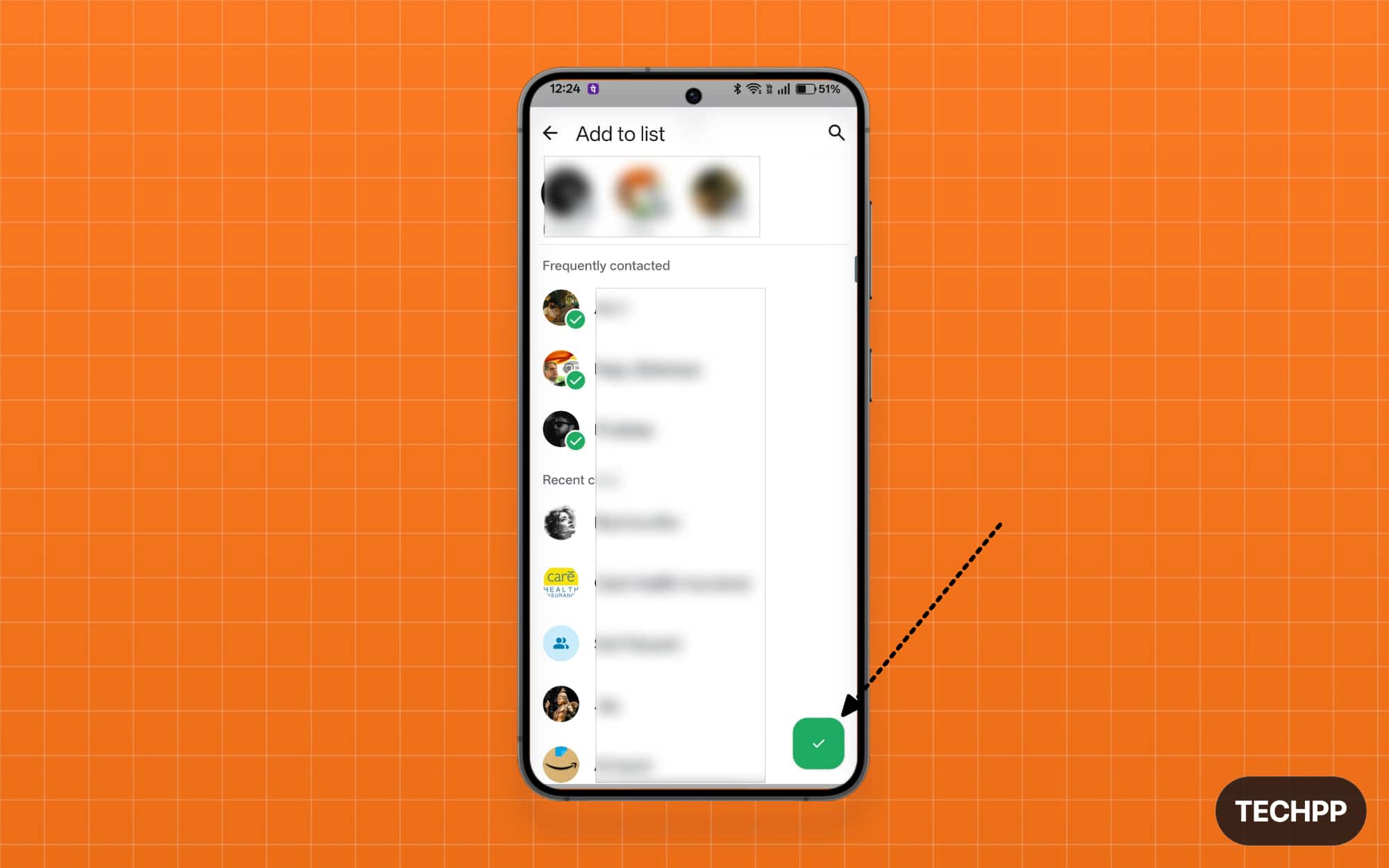
Step 5: Once added, tap on the “Right” button.
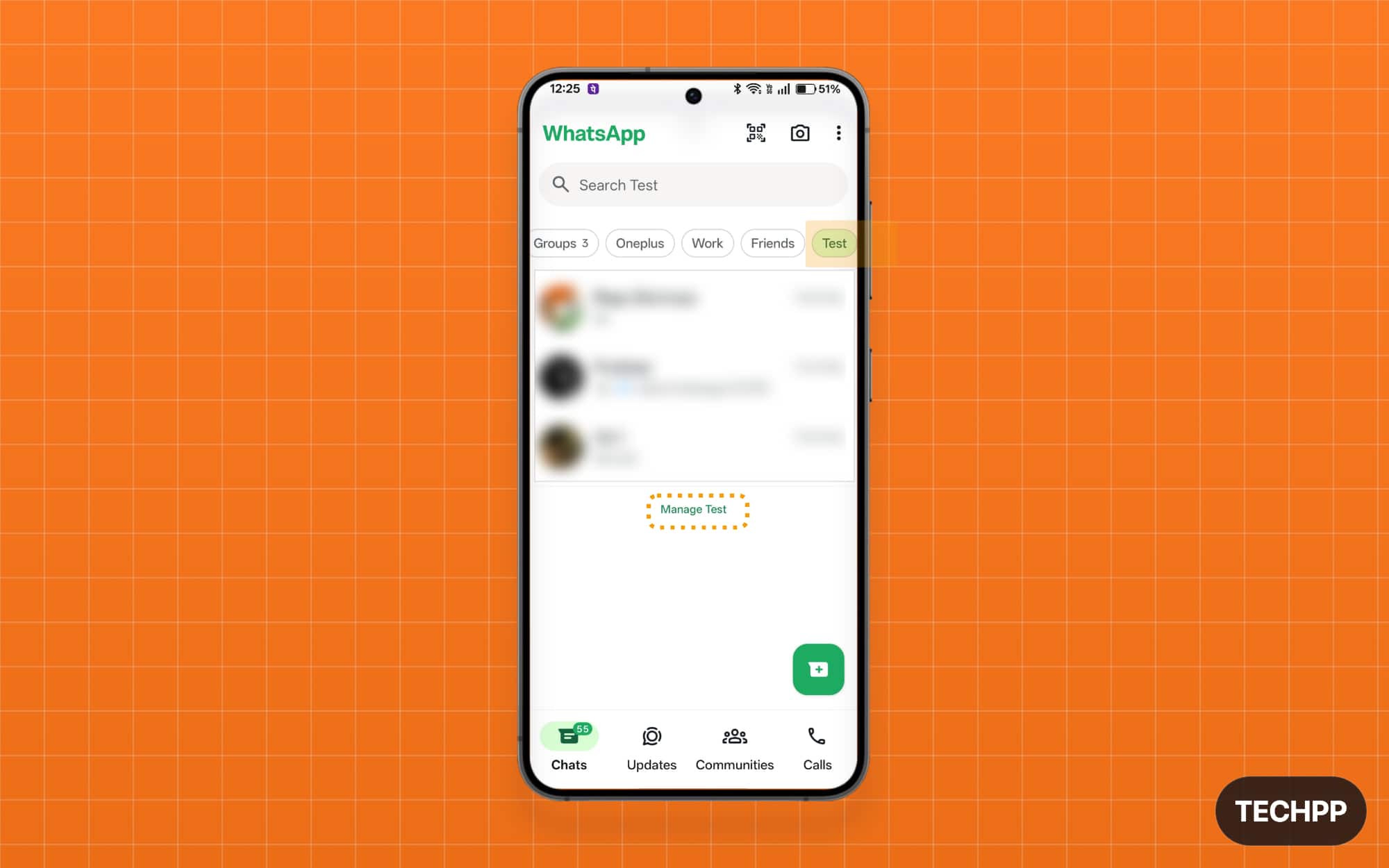
Step 6: And that’s it. Now you can see the new custom list has been created. You can manage the list by tapping on the Manage task option.
The Real Premium Features: Still Not Available Even If You Pay
Those are the five biggest Plus features WhatsApp is offering for paid users.
WhatsApp says more features are coming soon, but hopefully, they will add useful features such as the ability for custom cloud backups without depending on Google Drive, download statuses directly on WhatsApp, scheduled messages, removing unwanted status ads, hiding channels completely, and much more.
You can bookmark our WhatsApp Standard vs WhatsApp Plus guide, where we track all the latest changes to WhatsApp Plus and guide you on whether you need to purchase WhatsApp Plus or not. At the time of writing this article, WhatsApp Plus is very limited. If you are considering subscribing, think twice before upgrading and paying your hard-earned money.

