

Quick Answer
This is a workaround hack for getting Circle to Search feature on iPhones. Google’s iPhone app has a new action for the Shortcuts app called Search Images with Lens, which lets you perform visual searches on Google Lens. The workaround involves using this shortcut and mapping it to the Action Button or Back Tap for quick access.
Google got many iPhone users envious when it announced Circle to Search for select Pixel and Galaxy phones. While Apple’s restrictions make it challenging for Google to offer the same functionality on iOS, it has found a way to bring Circle to Search on iPhones.

Well, kind of.
The workaround doesn’t support the circle, tap, or scribble gestures, unlike Android’s Circle to Search, so you don’t get the same search experience. However, the result you get at the end of the search is quite similar.
Keep reading, and we’ll demonstrate the workaround to get Circle to Search on an iPhone.
How to Get Circle to Search on iPhone
As of the time of writing, Google’s iPhone app has a new action for the Shortcuts app called Search Images with Lens, which lets you perform visual searches on Google Lens. Minsang Choi, the Google Lens design manager, in a post (now deleted) on X / Twitter, shared how users can use this action to create a shortcut that emulates the functionality of Circle to Search on iPhones.
We’ll show you how to create this shortcut. But before we do, here’s how it works. As soon as you run the shortcut, it takes a screenshot of the screen currently open and opens it in Google Lens, where you can select what you want to search for by simply tapping on the item.
Step 1. Create the Shortcut
Let’s first create the shortcut using the Search Image with Lens action. Since Search Image with Lens is part of the Google app, be sure to install the app on your iPhone if you haven’t already. Alternatively, if you have the app, be sure to update it to the latest version.
After this, follow these steps to create the shortcut:
- Open the Shortcuts app on your iPhone.
- Tap the + button in the top-right corner of the screen to create a new shortcut.

Screenshot - Hit the Add Action button, search for Take Screenshot, and tap on it to add to your shortcut.

- Tap the search box at the bottom of the screen and look up Google Lens.
- Tap on the Search Images with Lens action to add it to your shortcut. (Make sure it’s linked to the previous action.)

- Shortcuts will automatically name the shortcut and choose a default icon. Hit Done to proceed and save the shortcut.
- Alternatively, tap the icon and name to personalize the shortcut.
Step 2. Set Up a Trigger for the Shortcut
With the shortcut ready, the next step is to set up a trigger, i.e., a way to run it from anywhere on the device. Depending on your iPhone model, you can either use the Action Button or the Back Tap accessibility feature to do this.
If you’re using an iPhone 15 Pro or 15 Pro Max, you can trigger the shortcut using the Action Button like this:
- Open the Settings app.
- Select Action Button.
- Swipe left or right on the screen, depending on which action you’re on until you see the Shortcut action.
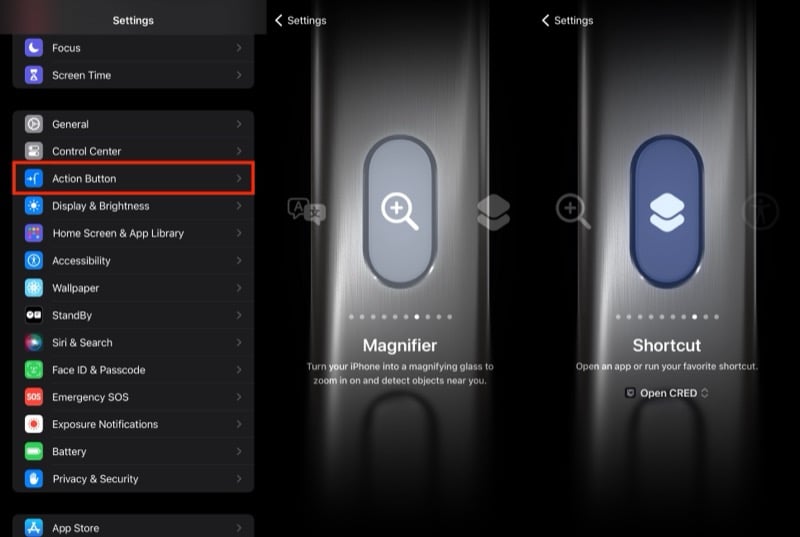
- Tap on Open under Shortcut and select the Circle to Search shortcut you created in the previous step under the My Shortcuts section.

Alternatively, if you’re using an older iPhone or prefer to keep the Action Button reserved for some other action, you can use one of the two Back Tap gestures in iOS to trigger the Circle to Search shortcut. Here’s how:
- Open Settings.
- Go to Accessibility > Touch.
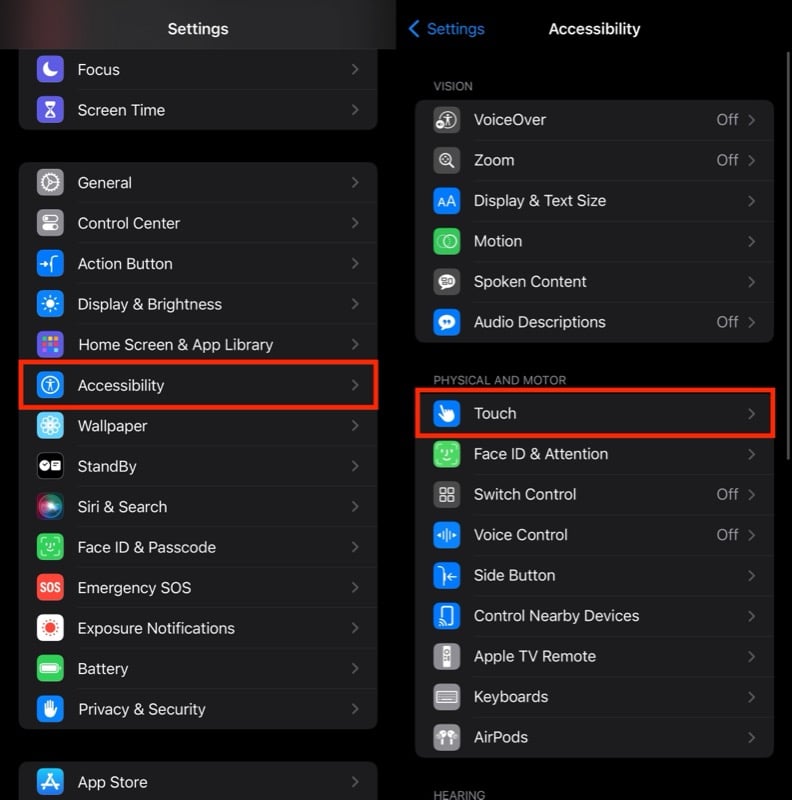
- Scroll down to the bottom of the page and tap on Back Tap.
- Now, depending on what you prefer, select a gesture between Double Tap and Triple Tap.
- Scroll down to the Shortcuts section and select the Circle to Search shortcut you created previously.

Step 3. Use the Shortcut to Look Up What’s on Your iPhone’s Screen
With the shortcut ready and assigned to your preferred trigger, anytime you need to look up something on your iPhone’s screen, you can do so effortlessly. Here’s what you need to do:
- Be sure what you want to look up is open on your iPhone screen.
- Press the Action Button or perform one of the Back Tap gestures to run the Circle to Search shortcut.
- When the shortcut runs, it’ll take a screenshot of your screen and open it in Google Lens in the Google app with a bunch of results below it. If you’re running the shortcut for the first time, you’ll need to tap on Always Allow to allow sharing of images between the two apps.

- Use the corner handles to adjust your selection and find results for precisely what you want to look up on your screen.
Circle to Search May Not Work Similarly on iPhones
Google’s made the lives of many Android phone users a lot easier with Circle to Search. While it’s hard to imagine it being fully integrated into iOS, there are rumors that Apple might be working on its own version of Circle to Search for iPhones as part of its suite of upcoming AI features in iOS 18. Likewise, speculations have been made that Google might incorporate the tool in the Google Chrome app for iOS—albeit with a limited scope of use. Until any of that happens, though, this nifty Shortcut workaround using the Google app should serve you well.

