

Quick Answer
To fix the touchpad that is not working on Windows, check if the touchpad is disabled in settings. You can use keyboard shortcuts depending on your model or enable them from the settings. If it is already enabled, try restarting your PC. If this doesn’t work, update your Windows to the latest version and update and reinstall the touchpad drivers. If the issue still exists, as a last resort, try resetting your PC.
While Microsoft’s latest desktop operating system, Windows 11, brings with it a whole host of new features and changes, it is still far from perfect.
Why? Windows 11 is still quite bug-ridden, and one such prominent bug is the Windows 11 touchpad not working issue.

A touchpad is one of the most integral parts of any laptop as everyone uses it to navigate around the UI, interact with software, and a lot more.
If the touchpad on a PC stops working, then using that PC is a user’s worst nightmare. But to help you overcome this annoyance, we will look at some of the troubleshooting steps to fix the Windows 11 touchpad not working issue.
Table of Contents
How To Fix Windows 11 Touch Pad Is Not Working
Step | Solution | How to |
|---|---|---|
1 | Restart PC | Press Alt+F4 > Select Restart |
2 | Enable Touchpad via Function Key | Try keyboard shortcut ti enable touch pad. |
3 | Enable in Settings | Windows + I > Bluetooth & Devices > Touchpad |
4 | Run Hardware Troubleshooter | CMD as admin: msdt.exe -id DeviceDiagnostic |
5 | Uninstall 3rd-Party Antivirus | Control Panel > Uninstall a Program |
6 | Update Touchpad Drivers | Device Manager > Human Interface Devices > Update |
7 | Check for Windows Updates | Windows + I > Windows Update |
8 | Reset PC | Windows + I > Recovery > Reset this PC |
1. Restart your PC
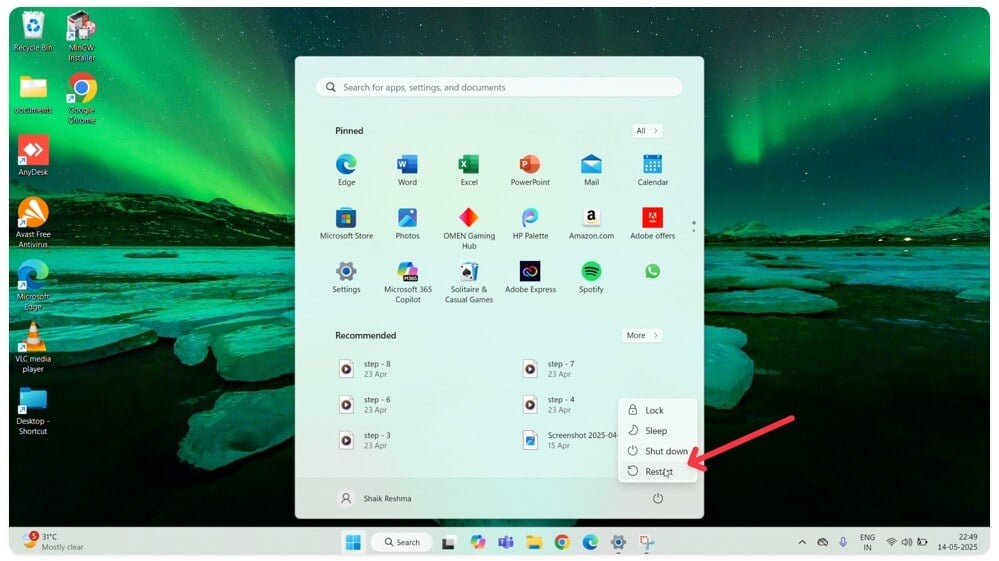
One of the easiest and most effective ways to fix the Windows 11 touchpad not working issue is to restart your PC. Every time you restart your PC, all system services will be restarted, automatically fixing most problems. However, since the touchpad is not working, you will need to use an external mouse to navigate the UI.
I do not have an external mouse; what should I do? Well, if you do not have an external mouse, you do not need to worry, as you can still restart your Windows 11 PC. Simply press the start button on your keyboard and use the arrow keys to select the power options.
Alternatively, you can also easily press the Alt+F4 keyboard shortcut and select restart using the arrow keys on your keyboard.
2. Enable the touchpad using the function key
If the touchpad does not work despite restarting your PC, then there is a high possibility that the touchpad is disabled.
Nowadays, most modern laptops have a function key to disable the touchpad quickly, and you guessed right, if you happen to press the key unintentionally, the touchpad stops working. But you can easily enable the touchpad again by pressing the same key.

Which key is the touchpad key? Generally, you will see a touchpad icon next to the function key in the function row. Having said that, if you still cannot find the function key with a touchpad icon, you should try pressing the F4 key once.
Keyboard shortcuts to enable or disable the touchpad on various laptop brands:
| Brand | Shortcut Key |
| HP | Double-tap the upper-left corner of the touchpad |
| Lenovo | Fn + F6 or Fn + F8 |
| Dell | Fn + F3 |
| Asus | Fn + F9 |
| Acer | Fn + F6 or Fn + F7 |
3. Enable the touchpad from Windows Settings
The following troubleshooting method to fix the Windows 11 touchpad not working issue is to check and enable the touchpad from native Windows 11 settings on your PC. Let us have a detailed look.
- Launch the Settings app on your Windows 11 PC.
- Now, select the Bluetooth & Devices option from the left pane.

- Here, you will see an option for a touchpad. If the touchpad option is disabled, simply toggle it on by using an external mouse.

- Once done, the Windows 11 touchpad issues should get resolved.
4. Run Hardware Troubleshooter
Another reason for Windows 11’s touchpad not working could be a hardware issue. But how do you know it is a hardware issue, not a software issue? Well, it is pretty easy using the Windows hardware troubleshooter. Let us have a look.
- Launch the Start menu by pressing the Windows key on your keyboard and typing in CMD.
- Now, launch the command prompt window as an administrator.

- Enter the following command and press Enter
msdt.exe -id DeviceDiagnostic - Once done, a troubleshooting window will pop up. Hit Next on the active window, and it will start scanning your PC for any hardware issues.

- Moreover, if it finds something wrong on the software level, then you will see an option for Automatic Repair. Click on it, and your Windows 11 touchpad not working issue should get fixed.
5. Uninstall third-party anti-virus
Are you using a third-party unsecured antivirus? If yes, you should probably uninstall it right away. Why? Many times, these third-party anti-virus software fiddles around with native Windows settings and drivers, causing the touchpad to stop working altogether.
Launch the control panel from the start menu and select the Uninstall a Program option to uninstall the anti-virus. Here, scroll down using the arrow keys and click on the anti-virus. Now hit uninstall and restart your Windows 11 PC.
6. Check and update Touchpad Drivers
Another culprit in the room for the Windows 11 touchpad not working problem is outdated drivers. To fix this, perform the following steps.
- Launch the Start menu by pressing the Windows key on your keyboard.
- Search for Device Manager and press Enter.
- Here, scroll down using an external mouse till you see the Human Interface Device options. Click on it and look for the touchpad option.
- Select the touchpad and right-click on it. Once done, click on the Update driver option from the drop-down list.

- After the drivers are updated, the touchpad should start working again.
7. Check for Updates

Probably the most common and easiest way to fix the problem of the Windows 11 touchpad not working is to update Windows 11 to the latest version. Press the Windows+I key combination and navigate to the Updates section to update your PC.
8. Reset your Windows 11 Machine
If the Windows 11 touchpad does not work even after trying all the above troubleshooting methods, your only option is to reset your Windows 11 computer.

How to reset Windows 11:
- Press the Windows + I key combination and open Settings on your device.
- Go to settings and click on the recovery option
- Once you are in, click on the option that says Reset PC. Next, follow the on-screen instructions to reset your PC.
- Ensure that you back up your device before resetting if you have any important files.
Touchpad Not Working Windows 11: FAQs
My touchpad is working fine, but the new Windows 11 gestures are not working. How do I fix that?
While most modern-day laptop trackpad support gestures, many old laptops still do not support touchpad gestures. For this reason, the Windows 11 touchpad gestures do not work.
However, if the touchpad gestures worked fine before upgrading to Windows 11, there might be an issue with the drivers. To fix it, follow these steps.
- Launch the start menu by pressing the Windows key on your keyboard.
- Search for device manager and press enter.
- Here scroll down using an external mouse till you see the Human Interface Device options. Click on it and look for the touchpad option.
- Select the touchpad and right-click on it. Once done, click on the update driver option from the drop-down list.
- After the drivers are updated, the touchpad should start working again.
How to quickly disable a laptop touchpad temporarily in Windows 11?
It is relatively simple if you wish to disable Windows 11 laptop touchpad temporarily. Nowadays, the touchpad on most laptops can be disabled temporarily by pressing the F4 key in the function row.
Having said that, the function key to a diable laptop touchpad might differ based on your laptop model, so do keep that in mind.
My touchpad problem is resolved, but my Windows 11 taskbar is also not working. Is there a fix for that?
Another bug commonly reported online is the Windows 11 taskbar not working issue. The newly revamped taskbar is not working for many users after upgrading to Windows 11, which has been quite problematic for them. But you do not need to worry, as we have already covered a detailed guide on how you can fix the Windows 11 taskbar not working problem.
How do I enable touchpad on Windows 11?
If you had disabled Touchpad on Windows 11 for whatever reasons and have now changed your mind, you can enable it back in a few simple steps.
- Click on the Start menu
- Go to Settings ==> Bluetooth & devices
- Click on Touchpad and toggle the button to disable or enable the Touchpad to the On position to enable.
Where is touchpad settings for Windows 11?
Looking for Touchpad settings in Windows 11? Follow these steps:
Open Windows Settings
On the left pane, select Bluetooth & devices
On the right side, scroll down to Touchpad section
Here, you will find all the settings related to Touchpad like Touchpad sensitivity, gestures and more.

