

Quick Answer
If links are not opening on Telegram, ensure the in-app browser is enabled in the chat settings, and Telegram has access to the internet. Additionally, turn off the VPN if it’s enabled. You can also copy the link and open it in an external browser. If these steps don’t work, check if Telegram’s servers are down. As a last resort, try clearing Telegram’s cache, restarting your device, and factory resetting your mobile if none of the steps solve the issue.
Telegram is a popular messaging app that allows users to share text, photos, videos, and links with each other. It comes with features like a built-in video player, photo viewer, built-in web browser, and more to open all sorts of media, including videos, photos, and links, within the app without needing to leave it.

These features can be handy, but sometimes, they might encounter issues that prevent you from performing specific actions. For example, links shared on Telegram may not open, leaving users frustrated and unable to access the desired content. This problem can occur for various reasons, such as incorrect link formatting, app updates, or issues with the device or network.
If you are experiencing issues with links not opening on Telegram, you are not alone. Fortunately, several solutions are available to fix this issue, and in this article, we will explore some effective troubleshooting methods. Whether you are using Telegram on your smartphone or desktop, we’ve covered you with step-by-step instructions to help you get links working smoothly on Telegram.
Table of Contents
How to Fix Links Not Opening on Telegram
We have listed nine troubleshooting steps to fix the problem of links not opening on Telegram. You must follow the steps in order, as they are arranged from the most straightforward and apparent causes to more complex solutions below.
S.no | Step | What to Do |
|---|---|---|
1 | Check if Telegram is down | Visit downdetector to check if Telegram is down. |
2 | Check Internet Connection | Make sure your internet is working. Try switching between Wi-Fi and mobile data. |
3 | Enable in-app browser | Go to Telegram settings, find Chat Settings, and turn on the in-app browser. |
4 | Turn Off VPN | If you're using a VPN, turn it off. It might be blocking or slowing links. |
5 | Restart or Force Stop Telegram | On Android, force stop Telegram. On iPhone, offload the app through settings. After restart your device. |
6 | Clear Cache & Update Telegram | Clear the app cache in settings and update Telegram to the latest version. |
7 | Reinstall Telegram | If the issue persists, uninstall and reinstall. Ensure you backup your data. |
8 | Factory Reset (Last Resort) | If nothing works, factory reset your phone (be sure to back up your data first). |
Check the Telegram App Status

Telegram servers may be unreachable if opening Telegram links takes too long or server errors like 503 or others are displayed. This can happen with any popular app, including Telegram, Instagram, Facebook, Twitter, etc. You can check the server downtime using the various methods listed below.
- Visit downdetector.in/status/telegram/ to check current issues at Telegram.
- Check Telegram’s official Twitter account (@telegram) or website (https://telegram.org/blog) for announcements or updates about Telegram outages or maintenance.
- Use a third-party app or website to test if Telegram is working. For example, you can try to access Telegram using a web browser with the web version (https://web.telegram.org/) or use a different device or internet connection to see if the problem persists.
If the server problems are confirmed, wait some time to get them back to normal. This is a problem with Telegram itself; we cannot fix it as users.
Ensure Telegram In-App Browser Is Enabled
By default, telegram uses its in-app browser to open the links on Telegram. Make sure the in-app browser settings is enabled in the settings. To check:
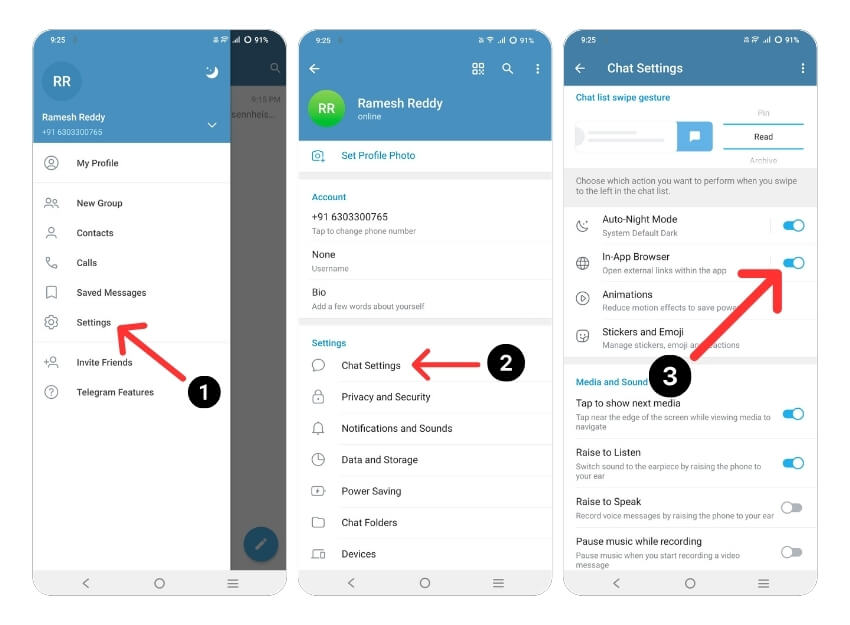
- Go to Settings on Telegram.
- Click on the Chat Settings.
- Scroll down and enable In-App Browser Settings.
Turn Off the VPN
VPN might delay your network connection or prevent you from accessing specific links on Telegram. If the VPN is enabled, disable it and try opening the link again.
Try Using an External Browser

Telegram has a built-in browser that allows users to open links shared on the platform. You can tap on the link, view the link source, and click ‘Open’ to open the link in the browser. If the built-in browser has problems, sometimes the links take longer to open or do not open. In this case, you can turn off the in-app browser and use external browsers like Google Chrome.
How to enable the external browser to open links on Telegram:
- Open the Telegram app on your smartphone and click the link you want to open.
- Now tap on the link. A new window will open to load the links. If the built-in browser can not open the link, click on the three-dot menu in the upper right corner.
- Now click “Open in browser” in the list of options to open the link.
- The link will open with the default browser on your smartphone.
Copy Links and Open Them in Your External Browser

You can also copy Telegram links and open them in your browser. Compared to opening Telegram links in an integrated browser, this requires additional steps to open the links. To open:
- Open the Telegram app
- Go to the link you want to open, long-press on the link, and click Copy
- Once the link is copied, open your preferred web browser, go to the URL, paste the link, and click Enter
- The link will now open in your browser.
Check the Telegram App’s Internet Connection

Telegram requires a constant internet connection to work. Make sure your smartphone has an active internet connection. Sometimes, the internet is slower, and no internet can open Telegram links.
There are several ways to test your smartphone’s internet connection. The most common and easiest method is an internet speed test website. If you have an Internet connection problem, you can follow the steps below to fix the network issues on your smartphone.
Here are some steps you can take to solve network issues on your Android smartphone:
- Check your network connection: Ensure you are connected to a Wi-Fi network or your mobile data connection is enabled. If you are having issues with a Wi-Fi connection, try moving closer to the router to get a better connection or reset the router settings. Then, try opening the links again.
- Turn airplane mode on and off: Turning Airplane Mode on and off can sometimes help troubleshoot network problems. You can find Airplane Mode in your Quick Settings or the Settings app.
- Restart your device: Restarting your device can sometimes help fix network issues. Press the power button and select “Restart” from the power menu.
- Check for software updates: Ensure your device has the latest updates. Go to the Settings app, select System, and then Software Update to check for updates.
- Clear the cache and data of network-related apps: Go to the Settings app, select Telegram, and then select the app connected to your network connection (for example, the browser or messaging app). Clearing the app’s cache and data can help resolve network-related issues.
- Reset network settings: Go to the Settings app, select System, then Reset Options, then Reset Wi-Fi, Cellular & Bluetooth. This will reset your network settings, including Wi-Fi, mobile data, and Bluetooth.
- Contact your internet service provider: If the network problem persists, you may need to contact your ISP for further assistance.
- Suppose your internet is working properly. To check if Telegram has access to the data, long-press the app > tap Info > Data.
Force Stop Telegram App

Android smartphones have a built-in “Force Stop” feature that allows you to pause and stop a particular app running in the background. When you force-stop an app, it closes and stops its background processes, which can help you fix issues the app is currently facing. On an iPhone, you can offload the app to force-stop it.
To force stop an app on Android:

- Open the “Settings” app on your Android device.
- Scroll down and tap “Apps” or “App Manager,” depending on your device and Android version.
- Find Telegram and click on it.
- In the app info screen, tap on “force stop.” A warning message will appear asking if you want to force-stop the app. Tap “OK” to confirm.
- Alternatively, you can search for Telegram, long press it, and click on the info to see the options to force stop.
- Note that force-stopping Telegram will not delete any data or settings associated with the app, so you can continue to use the app as usual after force quitting.
How to offload apps on iPhone:
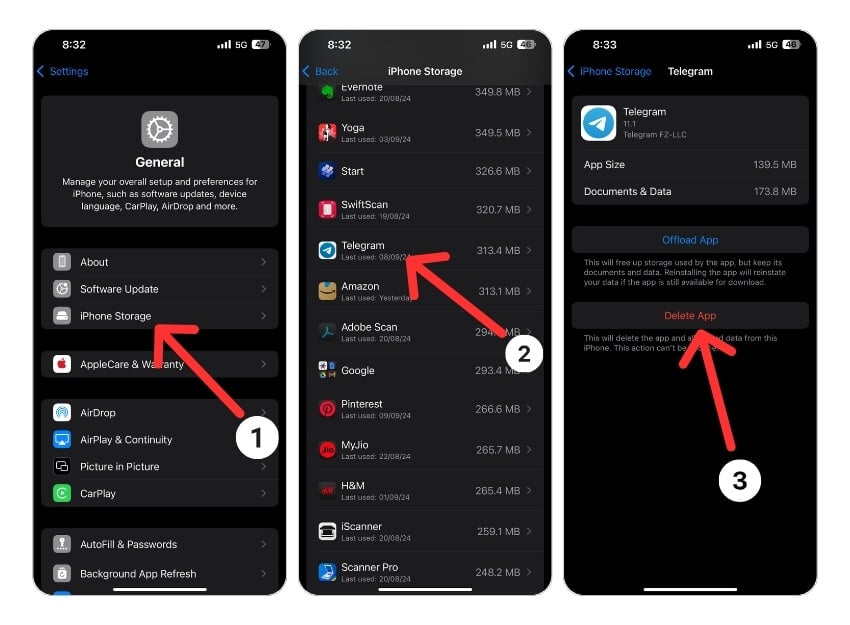
- Go to General Settings on your iPhone
- Find iPhone Storage and tap on it.
- Find Telegram and tap on it.
- Click on the Offload App. A confirmation pop-up will appear. Tap Offload App again to confirm.
Clear the Telegram App Cache

The app cache is a temporary storage on your smartphone that contains data and files such as images, videos, and other data that an app needs to access frequently to make the app load faster. Telegram uses this cache to load faster and run more smoothly. Over time, if the device has problems with the cache memory, it can cause the app to stop working. You can simply clear the cache to fix this problem.
Clearing the app cache will not delete personal data such as login credentials, saved settings, or app-related documents. It only removes temporary files and data that the app has stored in the cache.
To clear the cache on an Android device, you can follow the steps below:
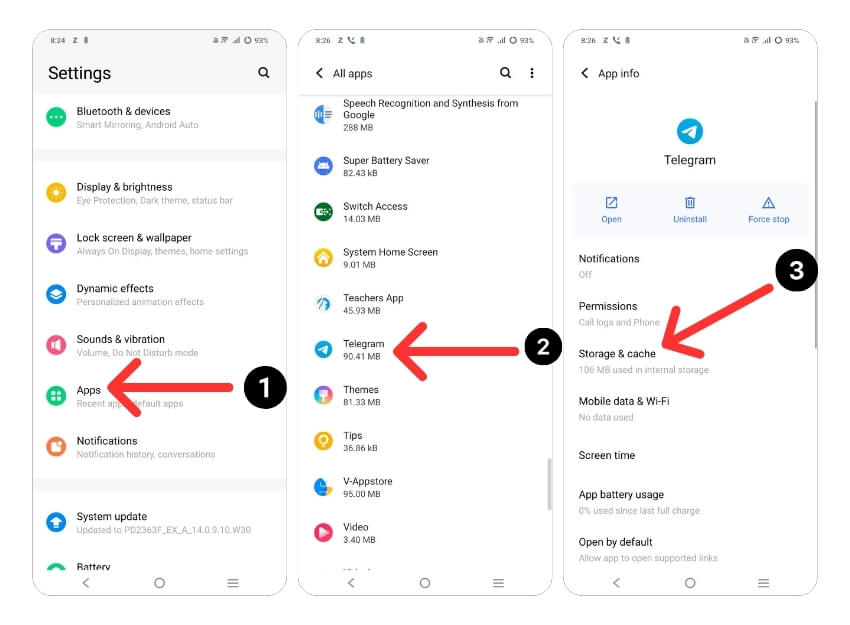
- Open the Settings app on your Android device.
- Scroll down and tap Apps or Application Manager, depending on your device and Android version.
- Find Telegram and click on it.
- Click on the storage and then tap on Clear cache.
- Alternatively, you can find the Telegram app, long-press on it, click on the info and memory settings, and then Clear Cache.
Update Telegram App

Sometimes, links cannot be opened because of the specific Telegram version. This can be a developer’s mistake or the app is not optimized for your device. You can quickly fix this issue by updating Telegram on the Google Play and Apple App Store.
To update Telegram on an Android, follow these steps:
- Open the Google Play Store app.
- Search for Telegram and tap on Update if it is available.
To update Telegram on an iPhone, follow these steps:
- Open the App Store on your iPhone.
- Tap your profile picture in the top right corner.
- Scroll down to see the list of available updates.
- Find Telegram in the list and click Update.
Uninstall and Reinstall the Telegram App

If the problem persists, uninstall Telegram and reinstall the Telegram app. This is also one of the most popular and common ways to fix Telegram issues. Before uninstalling Telegram, make sure that you back up your chats and media. If you do not do it properly, you might lose your data. Follow the steps below to back up your Telegram data.
How to back up your Telegram account:
Telegram isn’t a traditional way to back up your data. However, you can enable a few settings to back up your data on Telegram automatically. You can also manually expert each chat and save local copies on your device. After successfully backing up, you can uninstall the Telegram account. On Android and iPhone, long-press the app and click on Uninstall.
Restart your device

Another method to fix links not displayed in Telegram is to restart the device. Restarting the device is the most well-known and popular troubleshooting method for fixing most issues, including the problem of not displaying links on Telegram. Different smartphones follow different steps to restart a device, but most of the steps are very similar for all Android smartphones.
Factory Reset Your Smartphone

If the above troubleshooting methods do not work, you can reset your smartphone as a last resort. When you factory reset a device, all data, settings, and apps, including Telegram data, are reset to the original factory settings, just like a new device. All your data, including contacts, Google accounts, photos, videos, music, and documents, will be deleted from the device’s internal storage.
You need to set up your reset device just like a new one. Different Android smartphones require a different factory reset procedure. Once the reset is complete, set up your smartphone, install the app, and open the Telegram links. This should fix the issue of not being able to open links on Telegram.
FAQs about Telegram Links Not Opening

How do I prevent an automatic download in Telegram?
Just like other messaging services, Telegram offers automatic download features for downloading photos and videos shared on the platform. To prevent the automatic download of media files on Telegram, you can follow the steps below:
- Open Telegram on your device.
- Tap the three horizontal lines in the top left corner to open the menu.
- Select "Settings" from the menu.
- Tap on "Data and Storage".
- Under the "Media Auto-Download" section, you will see three options for when to download media files automatically: "In all chats," "In private chats," and "In groups."
- To prevent automatic downloading, simply turn off the toggles for each option by tapping on them.
- You can also enable automatic downloads for specific media types, such as photos, videos, or documents.
How to open Telegram links on a Laptop?
To open a Telegram link on your laptop, you can follow the steps below:
- If you do not have it installed yet, download the Telegram desktop app or open Telegram Web in your browser.
- Click the link you want to open in Telegram. The link can be on a website, social media platform, or email.
- If you have the Telegram desktop app installed, the link opens automatically in the app. If you are using Telegram Web, a window opens asking if you want to open the link in the Telegram app or in your web browser.
- Choose the option to open the link in the Telegram app, and a new chat window opens.
How to enable link previews on Telegram?
Link previews allow you to see the website before you click on the link. They give you a first impression of the website. Link previews in Telegram can be enabled with these steps:
- Open Telegram on your device.
- Go to "Settings" by tapping on the three horizontal lines in the top left corner of the app.
- Tap on "Privacy and Security".
- Scroll down to the "Link preview" section and check the toggle next to "Show link preview" to enable link preview.
- If you only want to preview links from trusted sources, you can enable the "Filter links" toggle switch, which will only display link previews from websites that are included in Telegram's trusted sources database.
- Once link previews are enabled, simply share a link in a chat or in the group, and Telegram will automatically generate a preview of the webpage.
Further Reading:
- How to Stop People From Adding You to Telegram Group or Channel
- How to Create a Telegram Channel: Step-by-Step Guide
- Two Easy Ways to Delete Your Telegram Account
- 15+ Telegram Tips and Tricks to Improve your Messaging Experience

