

Google has been offering users the ability to search for what’s on their phone’s screen for many years. In this time—going from the What’s on My Screen feature (introduced in 2018) to its replacement, Screen Search (released in 2023)—it has improved the search experience and started delivering more accurate results.

However, the search giant hasn’t stopped at that. It’s taken things a step further and introduced Circle to Search, an AI-powered search that offers a more intuitive search experience with better contextual search results than ever.
Circle to Search is available on many Google and Samsung devices. If you’ve got a supported device or plan on getting one, here’s everything you need to know about using Google’s Circle to Search feature on an Android device.
Table of Contents
What Is Circle to Search? And How Does It Work?
Circle to Search is a new way to search for things on your Android device’s screen without leaving the app you’re on.
It’s an AI-powered feature that requires you to perform a simple gesture (circle, highlight, scribble, or tap) on an object on your phone’s screen to look it up on Google and get all the related information. Plus, if you have the Search Generative Experience (SGE) feature in Search Labs turned on, you can even ask more complex questions by appending your query with the search.
For example, say you’re scrolling your feed on Instagram, and you stumble upon an interesting pair of shoes. Thanks to Circle to Search, you can quickly look it up on Google and get all sorts of results, including links to websites from where you can purchase it, all without having to leave Instagram and jump in and out of apps.
Which Devices Support Circle to Search?
Although Google is the brain behind Circle to Search, Samsung introduced Circle to Search on its Galaxy devices first, starting with the Galaxy S24 devices. Soon, Google also introduced Circle to Search on its Pixel 8 series and promised to bring the feature to older devices.
Since then, both companies have rolled out Circle to Search on some of their older phones. Below is a list of all the devices that support Circle to Search as of the time of writing this.
Google:
- Pixel 8, 8 Pro
- Pixel 7, 7 Pro
- Pixel 6, 6 Pro
- Pixel 7a
- Pixel 6a
- Pixel Fold
- Pixel Tablet
Samsung:
- Galaxy S24, S24 Plus, S24 Ultra
- Galaxy S23, S23 Plus, S23 Ultra
- Galaxy S23 FE
- Galaxy Z Fold 5
- Galaxy Z Flip 5
- Galaxy Tab S9, S9 Plus, and S9 Ultra
What Can You Do With Circle to Search?
Google’s Circle to Search is a nifty feature with many use cases. Let’s explore some ways you can use it in everyday life.
Shop for Products
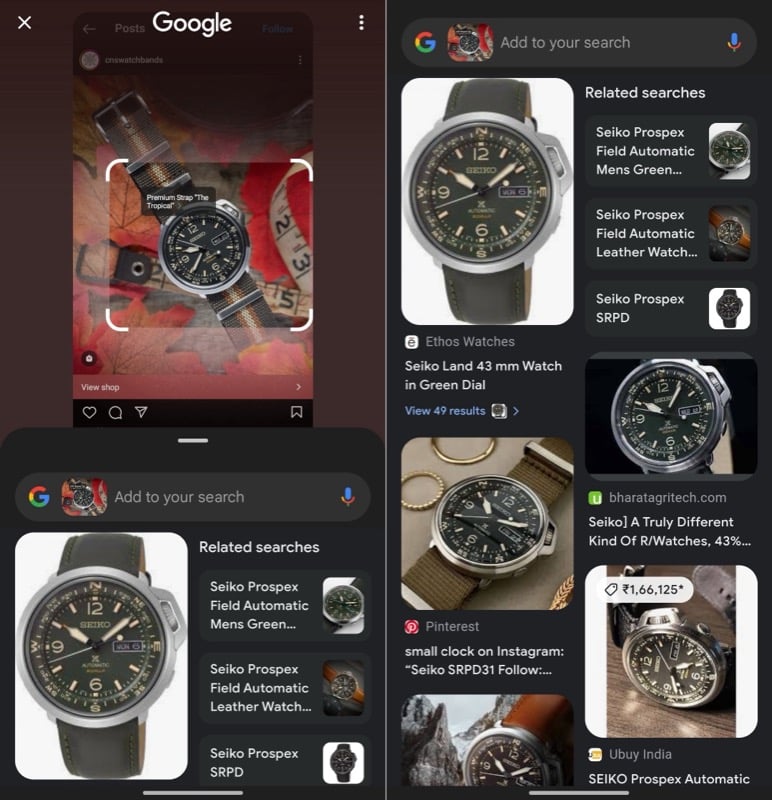
Finding a product you find interesting online can be quite a challenge. But thanks to Google’s Circle to Search feature, you can find it (or similar-looking products) with a few simple steps. In addition, you can also combine this search with the multisearch functionality for more accurate results.
Learn a Word or Phrase
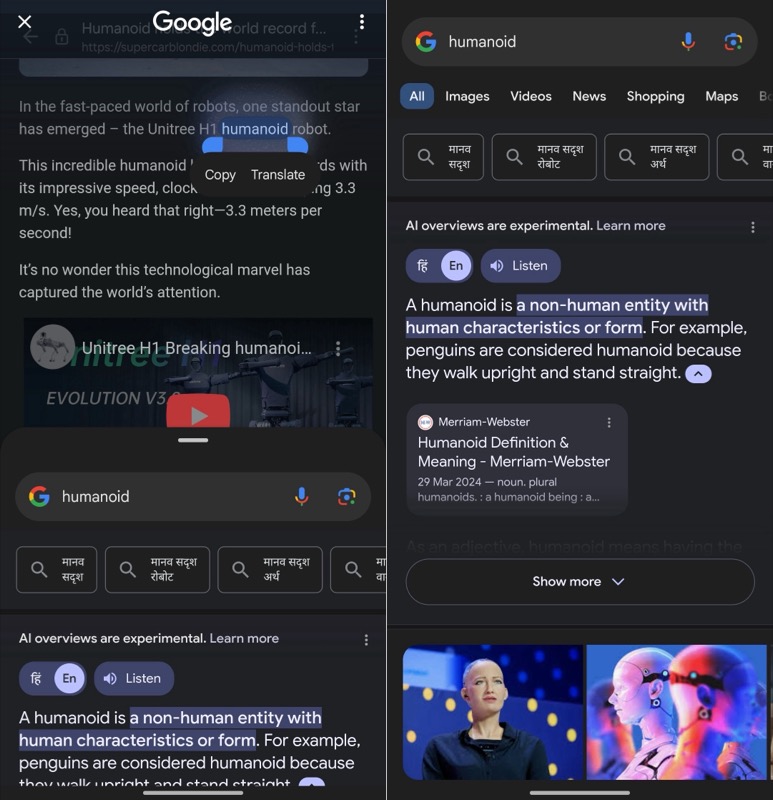
If you spend a lot of time reading on the internet, there’ll be times when you come across words or phrases you don’t understand. Circle to Search makes it quick and easy to find and understand their meaning (along with the right usage) without having to switch to a different app. You can even use Generative AI to get an overview of the results of your query.
Translate Languages

Along with finding meanings of words and phrases, Circle to Search can also help translate text online. So when you visit a website in a non-native language or come across some text in another language, you can quickly invoke Circle to Search on that page to translate the text into your native language.
Get Recipes for Dishes

Finding recipes for dishes is easy. But what if you stumble upon a dish you’ve never seen or heard of before, maybe in a photo or video online or a picture someone shared with you?
Circle to Search is a great chef, too, and it can help find recipes for dishes in photos and videos with just a few simple taps on the screen. Use the search with the multisearch functionality to know things like ingredients used, alternative ingredients you can use if you don’t have all the recommended ingredients, and more.
Identify Places for Your Next Trip
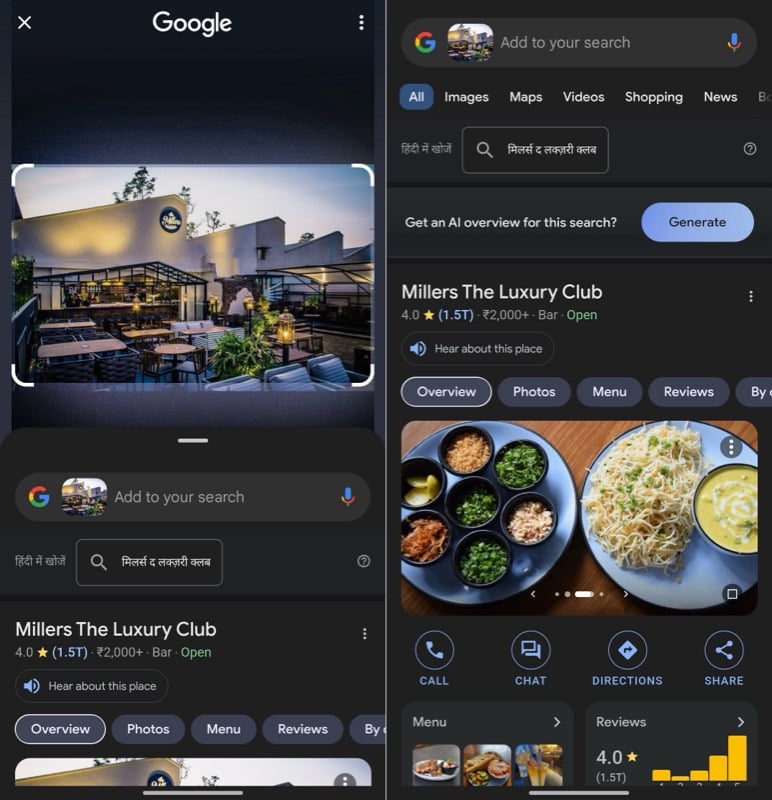
Lastly, you can also use Circle to Search to identify places. This can come in handy in situations where, say, you come across a photo or video of a building, waterfall, or something else on your phone that you wish to explore in your next trip to a place.
Simply invoke Circle to Search to find the place. Or combine your search with questions to know more details, like its location, opening hours, directions, and more.
Although the above are some common scenarios where you can use Circle to Search, there are other use cases where the feature can come in handy. For instance, you can use Circle to Search to identify plants or flowers in a garden or identify an animal’s species. Similarly, it can also help you decode the laundry symbols on your clothes. Or help you identify and decode warning lights on your car’s dashboard or safety symbols on an electronic device.
How to Use Circle to Search to Search Your Phone’s Screen
Circle to Search is enabled by default on both Google and Pixel devices. However, if it isn’t or you want to verify, you can do so using these steps:
- Open Settings on your phone.
- Select Display.
- Scroll down and select Navigation Bar.
- Make sure the switch for Circle to Search is in the on position.

Once you enable Circle to Search, you can use it to look up text, images, or videos on your phone’s screen like this:
- When the thing you want to search for appears on your screen, activate Circle to Search.
On gesture-based navigation: Long press the navigation bar at the bottom of the screen.
On button-based navigation: Long press the Home button.
Your phone will vibrate, the screen will flash, and a Google search bar will appear at the bottom of the screen indicating that Circle to Search is activated.
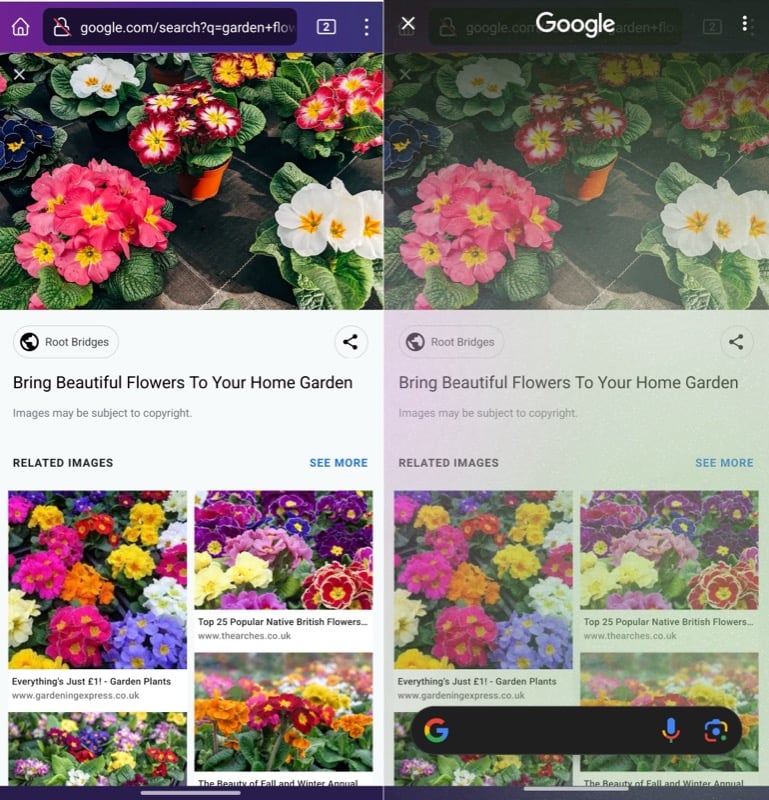
- Circle, highlight, scribble, or tap on the thing you want to look up on Google, based on your preference, to select it. You’ll now see a box around your selection. Resize or move it around to adjust the selection if required.
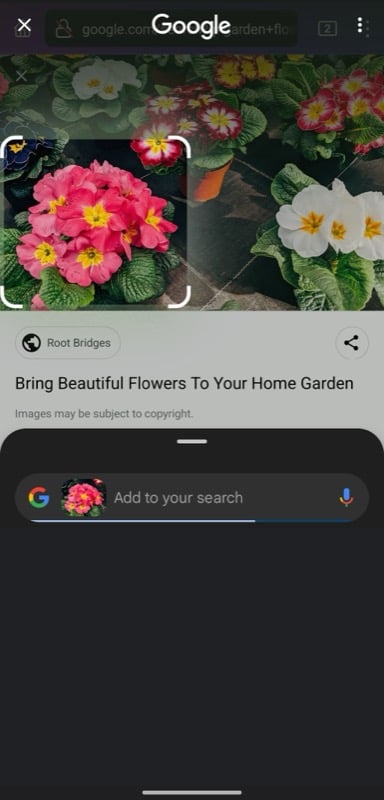
- To refine your search, tap the search bar that appears as an overlay in the bottom half of the screen and enter your query. You can also tap on Google’s search suggestions to search faster. Or use voice search if you don’t feel like typing.

- Google will now show you a bunch of results in an overlay window. Tap the handle at the top of the card and drag it to the top of the screen to view the results in full screen.
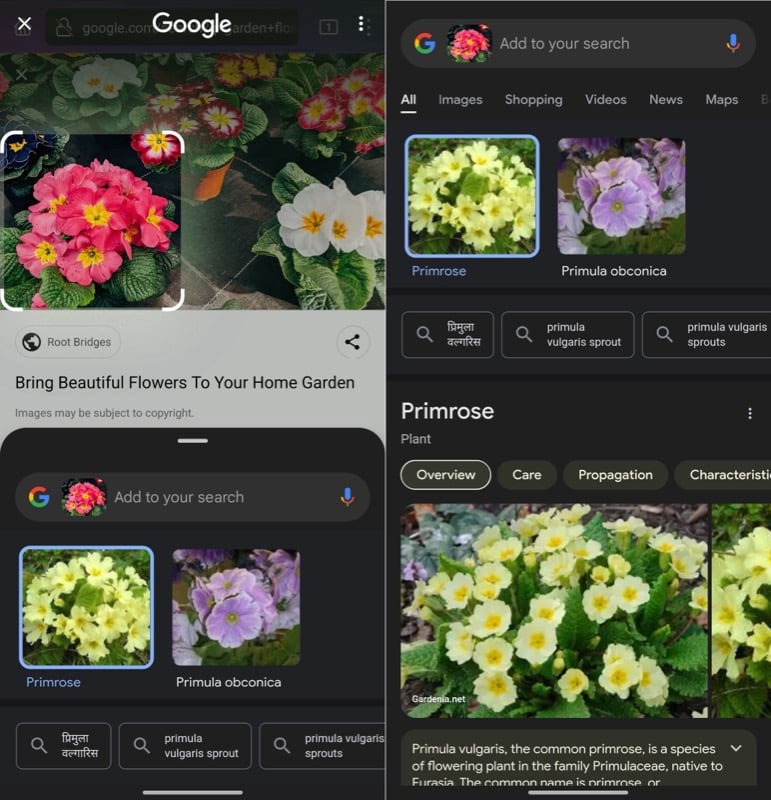
- To ask more complex questions, you can take advantage of the multisearch functionality. First, enable Search Generative Experience from Search Labs in the Google app. Then, when you select a thing on your device’s screen, tap the search bar and enter/speak your query.

- Google will then use Generative AI to respond to your query with more contextual information. Tap on Show More to view all the information. Or tap on the follow-up questions to learn more.

- Once you’re done, drag the search screen down or press the Back key on your device to exit Circle to Search and return to what you were doing previously.
Searching Your Phone’s Screen Is Easier Than Ever
Circle to Search is a nice addition to many Android devices. However, it isn’t perfect, as there are times when it can’t return the best matching results or generate responses to multisearch queries properly. Similarly, you can’t use Circle to Search to run a search on multiple items on the screen at once or compare them.
That said, none of those things can discount the fact that, with Circle to Search, Google has made searching for text, images, or videos appearing on your phone’s screen—which previously required a little more effort—easier and faster than ever.

