

Quick Answer
WhatsApp Passkeys reduces reliance on SMS-based OTPs for user authentication and makes the process faster and more secure. Enable it by going to Settings > Account > Passkeys > Create Passkey. Once enabled, WhatsApp Passkeys lets you verify your identity on WhatsApp using your phone’s PIN or biometric authentication.
WhatsApp has been using SMS-based OTPs for account registration since its existence. However, sending an authentication code over SMS can have security implications and stands the risk of failed delivery in areas with poor network coverage.
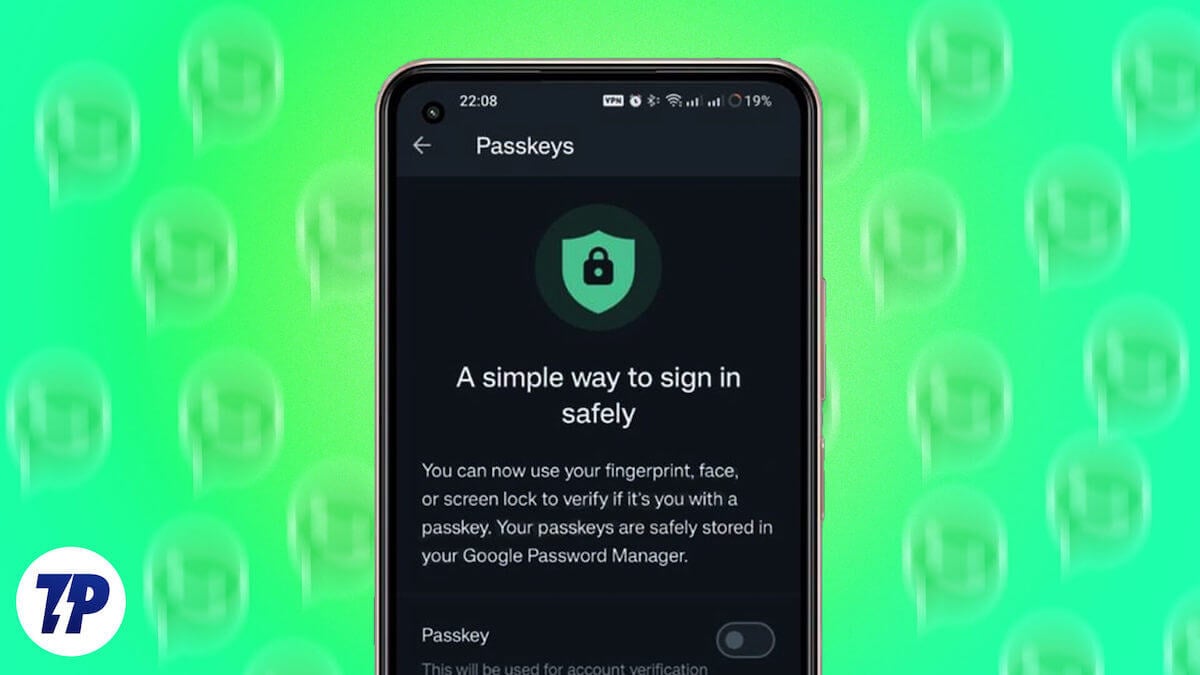
Meta has realized this and introduced WhatsApp Passkeys, an authentication mechanism that eliminates reliance on SMS-based OTPs for user authentication to make the process easier and safer. Here’s everything you need to know about WhatsApp Passkeys, including how to set it up on an Android and iPhone.
Table of Contents
What Is WhatsApp Passkeys?
WhatsApp Passkeys is an authentication mechanism that lets you authenticate yourself during account registration using your phone’s PIN or biometric authentication (fingerprint or facial recognition). It works similarly to Apple or Google’s passkeys, except, in this case, the idea is to reduce dependence on SMS-based OTP owing to its shortcomings.
The working principle of WhatsApp Passkeys is simple. As soon as you enable the feature on your account, it generates a private-public key pair for your account, where the public key is shared with the WhatsApp server, and the private key is stored securely on your device.
Then, when you begin account registration on your device, WhatsApp asks you to confirm your identity by entering your phone’s PIN or scanning your face or fingerprint, depending on what you set up at the time of setting up your device. The keys are matched once you’re verified, and you’re logged in to your WhatsApp account.
Why Should You Use WhatsApp Passkeys?
WhatsApp Passkeys is available as an opt-in feature, so you can choose to use or ignore it, depending on your preference. However, its advantages over SMS-based OTP verification make it a better authentication method.
For one, it makes the whole process smoother, as you don’t need to wait for the authentication code to arrive via SMS and enter it, which saves you time. Similarly, since the verification isn’t dependent on SMS, you can register on WhatsApp even when you’re in a place with poor cellular coverage.
Lastly, WhatsApp Passkeys is more secure than the existing method. Since the mechanism authenticates users using a private-public key, it minimizes the risk of phishing and social engineering attacks that come with SMS-based verification.
How to Set Up Passkeys on Your WhatsApp Account
WhatsApp Passkeys is available on both Android and iOS. Simply update the app on your device and follow the steps below to set up the feature. But before you do that, make sure the screen lock is set up on your device and that you’ve set your preferred password manager as the default option under your phone’s settings.
- Open WhatsApp on your Android or iPhone.
- On Android: Tap the three-dot button in the top-right corner and select Settings.
On iPhone: Tap the Settings tab at the bottom. - Go to Account > Passkeys.

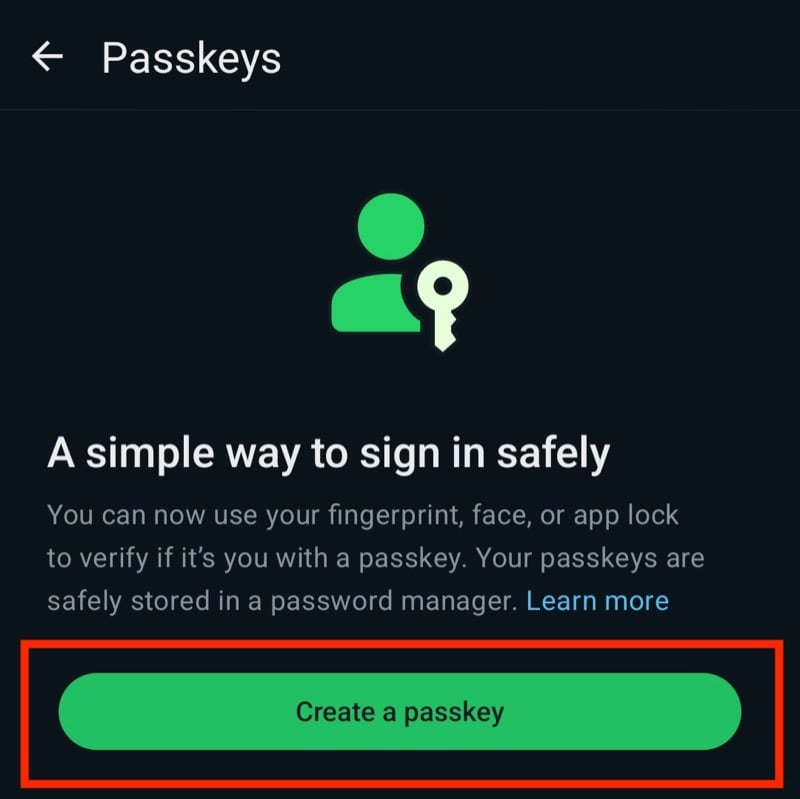
- Tap the Create Passkey (on iPhone) or Create a Passkey (on Android) button.
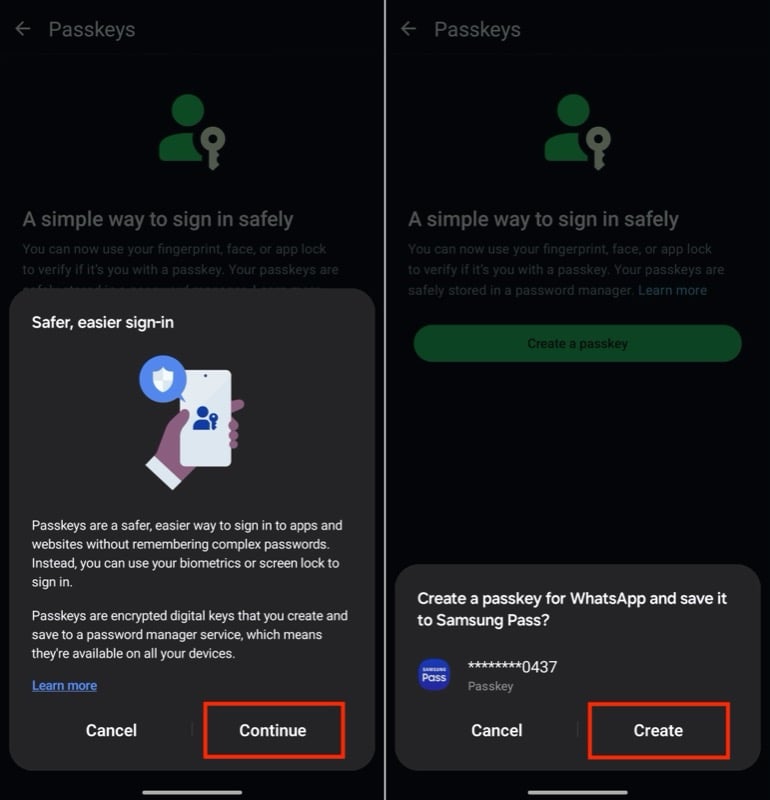
- You’ll now see a dialog box on your screen asking you to choose where you want to save the passkey for WhatsApp. Hit Continue to continue with Google Password Manager and tap on an account to save the passkey. On a Samsung phone, WhatsApp will ask you to save the passkey on Samsung Pass by default.
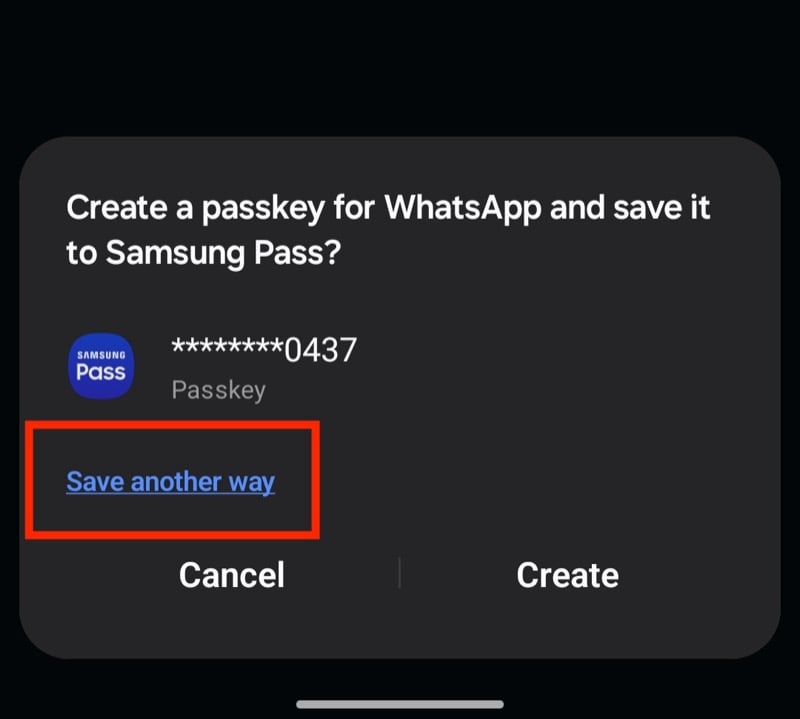
- Alternatively, if you use some other password manager, you can save your WhatsApp passkey on it. Simply tap on Save Another Way in the dialog box and choose your password manager.
- Finally, verify your identity using your face, fingerprint, or PIN, depending on your device.
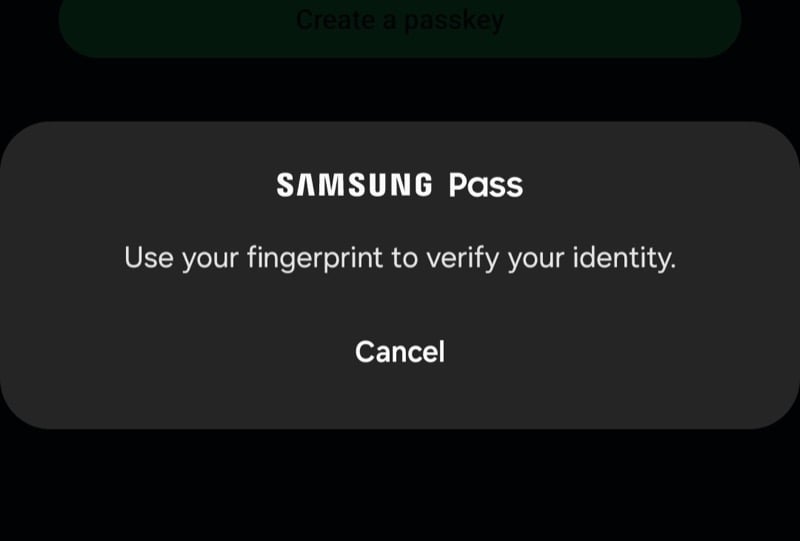
Once WhatsApp Passkeys is set up, the next time you register your phone number on WhatsApp, you won’t be required to provide an SMS-based OTP. Instead, WhatsApp will ask you to verify your identity using your phone’s PIN or biometric authentication. Do this, and you’ll be in.
How to Revoke a WhatsApp Passkey?
At any point, if you decide to use WhatsApp Passkeys for verification no longer, you can opt out of it. Simply head back into the Passkeys settings page on WhatsApp and tap the Revoke button below your registered passkey. When prompted to confirm, hit Revoke again to confirm deletion.

After you do this, you’ll be required to enter the SMS-based authentication OTP that WhatsApp sends you during registration to verify your identity.
Also See: Windows Passkeys: How to Set Up and Use Passkeys on Windows 11
What Else Should You Know About Using Passkeys on WhatsApp?
WhatsApp Passkeys is easy to set up and use, but there are a few things you should know about it.
- While WhatsApp lets you save your passkey on your preferred password manager, not all password managers support passkeys as of the time of writing this. For example, you can’t save passkeys on the Bitwarden password manager.
- Once you’ve set up WhatsApp Passkeys on your device, WhatsApp will generate the passkey and save it to your selected password manager. The password manager will then automatically sync the passkey on all the devices you’ve installed it on, so you can access the passkey on any device.
- WhatsApp Passkeys don’t replace the traditional, SMS-based OTP authentication method. It’s available as an opt-in feature only, and you can choose to opt out of it if you don’t prefer it or simply ignore it and continue using SMS-based authentication on your account.
- WhatsApp Passkeys is available on primary devices and only works during account registration. This means WhatsApp will still require you to scan a QR code to log in to your existing or new linked devices.
Secure Your WhatsApp Account Further Using Two-Factor Authentication
Meta hopping on the passkey bandwagon is a good thing for WhatsApp users. Sure, WhatsApp doesn’t always ask you to verify your identity. But for times when it does, the passkey feature ensures you can get through it quickly and more securely.
Furthermore, if you place a high value on security, you can enable two-factor authentication to add an extra layer of security to your account. Once you do this, WhatsApp will ask you for a six-digit PIN periodically (once every week), and any time you register your phone number on WhatsApp again to prevent unauthorized access to your account.
To summarise, here are the pros and cons of WhatsApp Passkeys:
Pros:
- Enhanced Security: Utilizes private-public key encryption, reducing the risk of phishing and social engineering attacks associated with SMS-based OTPs.
- Convenience: Eliminates the need to wait for SMS delivery and enter codes manually, making the registration process faster and smoother.
- Reliability: Works even in areas with poor cellular coverage, ensuring users can register on WhatsApp regardless of network availability.
- Integration with Biometrics: Allows users to leverage their device’s biometric authentication methods (fingerprint or facial recognition) for added convenience and security.
- Opt-in Feature: Users have the choice to enable or disable WhatsApp Passkeys based on their preferences and security needs.
Cons:
- Dependency on Device Security: Requires users to have screen lock security enabled on their devices and relies on the security measures implemented by device manufacturers.
- Limited Support for Password Managers: Not all password managers support saving passkeys, potentially limiting user options for securely storing Passkeys.
- Opt-in Nature: WhatsApp Passkeys are not mandatory and may not be utilized by all users, potentially leaving some accounts vulnerable to SMS-based OTP-related security risks.
- Limited Functionality: Works only during account registration and does not replace other authentication methods, such as QR code scanning for logging into existing or newly linked devices.
- Requiring Manual Re-enrollment: If users decide to revoke Passkeys, they need to manually re-enroll with SMS-based OTP authentication, which can be cumbersome for some users.

