

Quick Answer
In this guide, I’ve outlined key solutions for fixing Google Pay issues: updating the app, verifying card details, enabling NFC, clearing cache files, and reinstalling the app. These steps should help resolve common problems and ensure smooth transactions.
Is your Google Pay not working? Google Pay, popularly called GPay, is one of the fastest-growing payment platforms in the US and beyond. The Google-owned online payment system provides a secure and seamless way of making payments for goods and services online and in stores – through contactless payment.

While users’ experience with the payment gateway is mostly smooth, sometimes you might run into issues preventing you from making payments or doing transactions.
It can be really frustrating, especially when you urgently need to pay for something online or in-store and your Google Pay is the only option. This is a common glitch with payment services, and there could be several reasons for it.
Therefore, I’ll take you through a number of solutions to different problems you may encounter. Before that, let’s look at why Google Pay may fail to work.
Table of Contents
Why is Google Pay Not Working?
The cause of Google Pay not working depends on the specific problem you encounter. If you’re trying to use GPay in a store and can’t establish a connection for contactless payment, check your device’s NFC support first. You must enable NFC on your device whenever you want to use it in stores.
If GPay can’t process payments, ensure your card is properly set up. Google Pay is easy to use, but you have to set it up correctly to enjoy the experience. Are you sure Google Pay supports the credit or debit card you set up? You can check the list of supported cards compiled by Google.
The app may not work on your phone due to corrupted or compromised cache files. They mess up the system files and can lead to performance issues. Sufficient free storage space also contributes to optimal performance. The version of Google Pay is another factor to consider, as updates are usually released for both iOS and Android.
There may also be complex issues, such as suspicious activity on your card leading to payment restrictions. Any of these issues can happen to you too, but don’t worry, I’ll provide you with proven solutions here to solve the problem.
7 Ways to Fix Google Pay Not Working
Update Google Pay
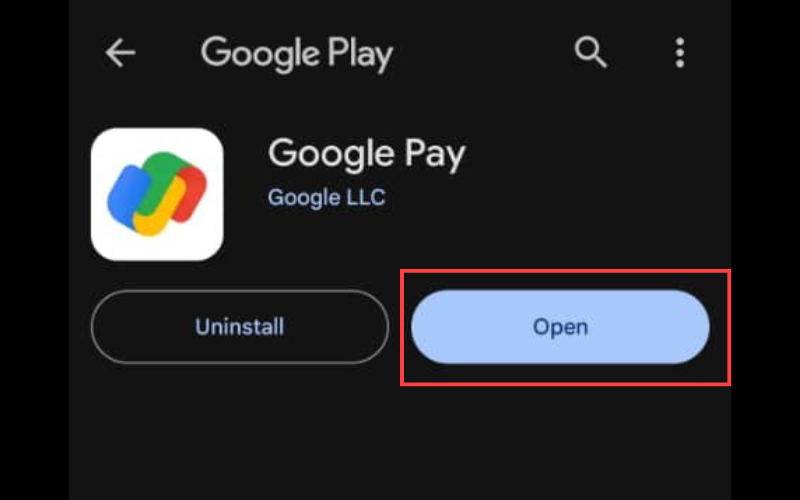
If an app is not responding or not working properly, it is often easiest to update it. Even if you have automatic updates enabled, you should open the Google Play Store or the Apple App Store to make sure the app is up to date.
- Open your App Store or Play Store, and click on the search bar.
- Type “Google Pay” and press Enter or return.
- If it says Update instead of Open, click on the Update button to run it.
There are also reports that problems can occur after a recent update. In this case, you should go to the app profile in your store and check the reviews. If others report the same problem, the update is probably faulty. In this case, you should take your time, as Google usually fixes such errors quickly.
Verify Card Details
If you’ve recently received a new credit or debit card and haven’t yet updated it with Google Pay, you should definitely do so, as your old credit card may no longer work. Take the time to check the details to make sure they’re correct. It’s recommended that you enter your name exactly as it appears on your card. Follow these steps carefully to verify your card details:
- Open Google Pay and click on the Insights button. Click on Show All Accounts.
- Under Payment methods, click on your card to verify the information and even edit it if necessary.
Verify Phone Number
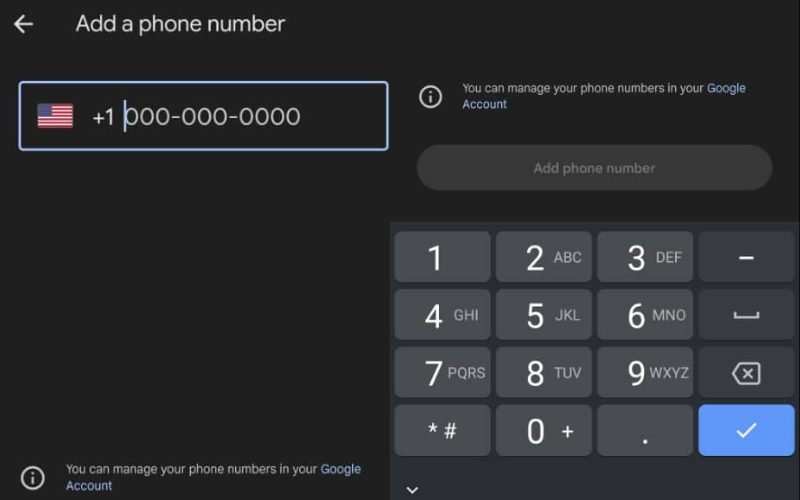
An incorrect phone number is another common reason why Google Pay doesn’t work. When setting up your Google Pay account, you must enter a phone number as a security measure. If you enter an incorrect number or have since changed your phone number, Google may not be able to verify your identity when using the app. Here is how to verify your phone number on GPay:
- Open Google Pay and click on your profile logo at the top-right corner.
- Click on Settings, then Personal info.
- You can verify your Mobile number, if it’s not updated, click on Edit number.
Verify Your Identity
It’s usually better to verify your identity to unlock higher transaction limits and other special offers on Google Pay. If you try to force a transaction after you’ve exceeded your limit, your account may be flagged for suspicious activity.
- Open Google Pay and click on the Insights button. Click on Money in Google Pay.
- Click on the Verify link. Provide the required information including photo identification and social security number.
Delete Cache Files

If an app doesn’t respond and hangs frequently, deleting the cache files can help to resolve the problem. These files are supposed to make the app run faster, but they can affect performance if there are too many of them.
- Open Settings on your Android phone and go to Application Manager.
- Click on App Info, then locate GPay from the list. Alternatively, long-press the app icon and click on the “i” button to open the app settings.
- Next, click on Storage > Clear Cache. You can also click on Clear Data, but you’ll need to log in to your account again.
Check NFC Support
I’ve already mentioned that your device must have NFC support so that you can pay in stores with NFC. Without this support, you can only pay online. Also, the iOS version of Google Pay doesn’t work with in-store NFC scanners; you’ll need to use Apple Pay for NFC payments on iPhones. Follow these steps to find NFC support on Android phones:
- Go to Settings > Connected devices / Connections.
- Look for NFC. If it’s not there, that means your phone doesn’t support it.
- If you find it there, you should enable it.
Also Read: What is UPI Lite and how to set it up?
Reinstall Google Pay

If there is a complex performance issue, it’s best to uninstall and reinstall the app. Your account won’t be affected; simply log in again with the same credentials, but you’ll need to set up your bank details later. This may be a last resort. Uninstall the app, restart your phone and then reinstall it.
Final Thoughts
These are the solutions that have helped users fix the Google Pay not working issue. If you follow the instructions I’ve given you carefully, you should be able to solve the problem too. In most cases, if Google Pay suddenly stops working, you can clear the cache and data and then set up the app again. I hope this helps you to find the solution to your problem.
FAQs: Google Pay Not Working
Should I install Google Pay or Google Wallet?
Google Pay is for tap-to-pay, while Google Wallet stores payment cards, travel ticket passes, IDs, and more. Think of Google Wallet as a regular wallet for personal items; it holds loyalty cards, gift cards, and event tickets from Gmail and lets you share valuables. You can also send and receive money, pay in stores, and shop online. Google Pay works alongside Google Wallet. For tap-to-pay and online shopping, use Google Pay; for more features, download Google Wallet.
Can I uninstall and reinstall Google Pay?
You can uninstall Google Pay and reinstall the app later. Your bank information and settings will be removed from your device after the app has been removed from your phone. This will have no effect on your bank account. When you reinstall, you can log in with the same Google Pay account credentials and set up your bank account again.
Can Google Pay be deactivated?
Yes, you can decide to delete your payment profile for whatever reason you may have. It's important to note that after you've deleted your info on Google Pay and closed your payment profile, you can no longer access your past transactions and history, and you can't reopen the profile.
Further Reading:
- How to Split a Bill on Google Pay [Guide]
- How to Setup Tap to Pay on Google Pay and Paytm
- How to Scan QR Code from Image on Android and iPhone

