

Quick Answer
To rename photos on Android, use the File Manager to locate and rename the photo, third-party apps like PhotoZen for direct renaming, or online tools like Imgtools to upload, rename, and download the photo.
There are many reasons you might need to rename photos on your Android phone, but the common one is for better arrangement and to make photos easier to find later. While doing that should be straightforward, I’ve seen many people on social media and online forums asking, “How do I rename photos on Android?”

Your gallery app is the default way to access your pictures. However, most native gallery apps on Android phones don’t offer the option to rename photos. Hence, you may need to use alternative methods to rename photos on your Android. In this piece, I’ll discuss the best approaches to do so.
Table of Contents
3 Best Way to Rename Photos on Android
There are several methods to rename photos on Android, but the ones I recommend most are:
Sl. No | Method | Pros | Cons |
|---|---|---|---|
1 | File Manager | Directly accessible on Android, No need for third-party apps | Can be challenging to locate the file, Steps might vary depending on the device |
2 | Third-Party Gallery App | Easy to use, Many apps available | Requires installation of third-party app, Potential privacy concerns with third-party applications |
3 | Online Photo Renaming Apps | No installation needed, Can batch rename photos | Requires internet access, May have privacy concerns with uploading photos to a web service |
Rename Photos with File Manager
Android allows you to rename various types of files through your phone’s File Manager. This includes renaming photos. However, locating the photo file within the File Manager can be a bit challenging. I’ll first explain how to find the photo file and then cover the steps to rename photos.
To find the file you want to rename:
1. Head over to your Gallery app
2. Open the photo you want to rename and click the three-dot menu in the upper-right corner. The position of the three-dot may differ depending on the Gallery app your phone uses.
3. Next, find Photo info or Details and click it.

4. Look for anywhere the image title is and take note of the name.
5. Go to your phone’s File Manager and click the search option.
6. Type in the photo name you noted earlier and search.

7. You should get a result of the photo in the File Manager.
Now, to rename the photo you’ve just found in your File Manager app:
1. Tap and hold the photo file and select the three-dot icon at the top-right corner.
2. Select Rename from the drop-down menu and type the new name you want to use for the photo.

3. Select OK, and the photo file name will be changed.
Third-Party Gallery App
While your phone’s native Gallery app does not allow you to name photos on Android, I found out that you can do so via third-party Gallery apps. Most third-party Gallery apps I tested on Google Play Store allowed me to rename photos, but I’ll recommend Gallery App by PhotoZen and Gallery – Photo Gallery, Album.
So, I’ll use the Gallery App by PhotoZen as an example:
1. Install the Gallery app from the Google Play Store.
2. Next, launch it and give it the necessary permissions to access your photo files.
3. After everything thing is set, find the photo you want to rename and open it.
4. Click the three-dot menu at the bottom-right corner.
5. Select Rename from the drop-down menu.
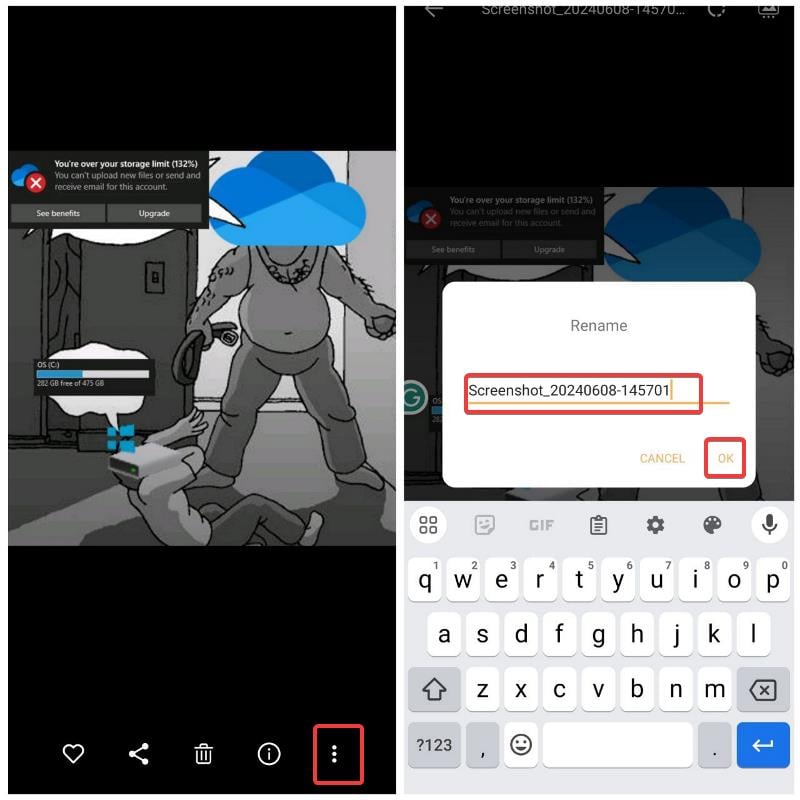
6. Type your preferred new name in the resulting dialog box and click OK when done.
Online Photo Renaming Apps

You can use web-based photo renaming apps on your Android to modify photo file names. I found Imgtools very straightforward to use; it allows both individual and batch renaming of photos.
To use it, open Imgtools on your browser → upload the image you want to rename → type the new name in the provided box (as shown in the image above) → click the checkbox icon next to the image when done → finally, download the renamed image.
Final Thoughts
Those are the most helpful methods I’ve found for renaming photos on Android. Although it’s unclear why your phone’s native Gallery app doesn’t allow the renaming of photos, I still hope they add this feature, as many users have been requesting it. I hope this helps.
FAQs about Renaming Photos on Android
Why can’t I rename photos on my Samsung phone?
While Samsung used to allow users to rename photos on their Gallery app, they've removed it due to reasons best known to them. So you'll have to rename your photos via the File Manager on your phone or using a third-party Gallery app.
How do I rename a photo in the Google Photos app?
Google Photos does not allow you to rename photos. However, you can add captions to your photos, which only serve as descriptions.

