

Quick Answer
To ping your iPhone from an Apple Watch, swipe up from the watch face to access the Control Center and tap the Ping button (phone icon). This will make your iPhone emit a sound, helping you locate it. For added visibility, tap and hold the Ping button to also flash your iPhone’s flashlight.
The Apple Watch can do many more things beyond telling time, checking notifications, and tracking health and fitness. Pinging the paired iPhone is one of them, and it can be a lifesaver when you can’t remember where you kept your iPhone and need help finding it.

Follow along as we look at how to ping an iPhone with an Apple Watch when it goes missing.
How to Ping iPhone from Apple Watch
You can use your Apple Watch to find your misplaced iPhone, thanks to Apple’s Ping Your iPhone feature. Ping Your iPhone works over Bluetooth and Wi-Fi and requires your iPhone and Apple Watch to be in Bluetooth range or connected to the same Wi-Fi network to work.
Here’s how to use the Ping Your iPhone on your Apple Watch to locate your misplaced iPhone:
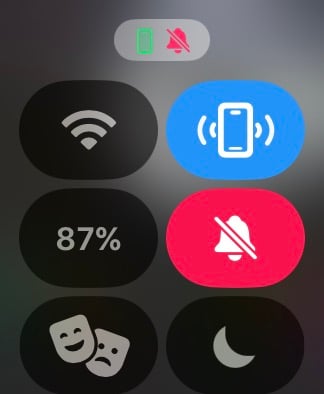
- Swipe up from the watch face or press the Side button (if you’re running watchOS 10 or later) to bring up the Control Center on your Apple Watch.
- Tap the Ping button (with the phone icon) in the Control Center. This will play a sound on the paired iPhone, allowing you to track it down.

- Alternatively, you can tap and hold the Ping button. This will ping your iPhone while also flashing its flashlight, making it easier to locate the iPhone even in dark surroundings.
If you’re an Apple Watch Series 9 user, Apple also gives you direction cues, thanks to Precision Finding, to make getting to your misplaced iPhone easier.
Simply follow the heading on your Watch’s screen, and you’ll see the distance reading going down. Once you’re near your iPhone, the screen will turn green, and you’ll hear the ping sound on your iPhone twice.
Also See: How to Access the App Switcher on Apple Watch in watchOS 10
Ping Button Isn’t Available in the Control Center? Do This
By default, the Ping button is available in the Control Center. However, if it isn’t on yours, it’s likely because you previously removed it while trying to clean up the Control Center. In this case, you can add the Ping button back to your Control Center like this:
- Access the Control Center.
- Scroll to the bottom and tap Edit.

- Again, scroll down and tap the green plus (+) button on the Ping button to add it. (You can also rearrange the Control Center buttons by long-tapping and dragging them to your desired position.)

- When you’re done, tap Done to save the configuration.

With the Ping button added to the Control Center, you can follow the instructions in the previous section to ping and locate your misplaced iPhone.
Can’t Find Your iPhone Still? Use the Find My App Instead
You should’ve found your misplaced iPhone by now. However, if you haven’t, it’s likely because your iPhone is further away.
Sadly, Ping Your iPhone can’t help you in this case since it’s effective at locating your iPhone only when you have some clue about the place where it might’ve been misplaced. But for times when you don’t, you need to use the Find My app on your other Apple devices instead. Find My is effective even when the iPhone is offline.
The Find My app uses the Find My network. As such, it should’ve been enabled on your iPhone before it got misplaced or lost, so you can locate it using the Find My app on your other devices.

