

Quick Answer
Winlator is an emulator that allows you to run Windows apps and games on Android devices. By utilizing Wine, Box86, and Box64, it supports both x86 and x64 software. After installing the APK, users can set up containers, adjust settings for optimal performance, and enjoy Windows games offline.
You might have heard and used multiple emulators on your Android that let you emulate games from various consoles such as PlayStation, GameBoy, Nintendo, etc. Recently, with the easing of App Store policies, the App Store has been inundated with emulators, bringing the fun of using emulators to iOS devices. Did you know that there is an Android emulator that lets you run Windows apps and games straight on your Android phone or tablet?

If not, then you are in the right place. We are talking about an emulator called Winlator, which allows you to run a vast library of Windows apps and games on your Android device. But to do that, you need to follow some steps, skipping any of them, which will result in you not being able to enjoy Windows apps on your Android phone. With that being said, let us jump right into the guide.
What is Winlator?
Android is a solid operating system for emulation. Taking advantage of this, developers have created the Winlator tool. This lets you run Windows apps and games on Android. It not only lets you run 2D titles, but you can also play the latest 3D games on your Android phone, provided that they are equipped with powerful CPU and GPU.
With Winlator, you can play your favorite PC games anytime, anywhere, without needing a high-end PC at your disposal. To perform emulation, the Winlator tool makes use of Wine, Box86, and Box64. It can be used to execute all Windows x86 and x64 software and games. The emulator offers a smooth user interface that is easy to use and doesn’t involve any learning curve.
You can also tweak the performance of the emulator for a better experience. Moreover, once you download the Windows apps or games using the emulator, you can use it offline.
Pre-requisites
Before you can grab the Winlator APK file and start using it, there are a few important things you should keep in mind to have a smooth Windows apps and games usage experience on your Android phone. Here’s a list:
- PROCESSOR: A capable Android smartphone. And by “capable,” we mean an Android phone that has a Snapdragon processor, as Winlator favors Qualcomm Snapdragon over MediaTek Dimensity and Samsung Exynos processors. However, do note that according to several users, the Winlator app doesn’t support the Snapdragon 8 Gen 3 processor, which is the latest processor for Android phones at the moment. The reason behind this is unknown.
- RAM: The more RAM, the better. However, you should ensure that the device that you want to try Winlator on has at least 6GB of RAM if you want to play 3D games.
- STORAGE: You need to ensure that you have sufficient space on your Android phone, as you will be running full-fledged PC games. The 256GB storage is good, but it is not good enough if you are planning on using Winlator to play games.
With the prerequisites out of the way, let us go through the process of installing and running Winlator on your Android phone and enjoying Windows PC games and software on your Android phone.
How to install and set up Winlator?
- Download the Winlator APK file from brunodev86’s GitHub repository.
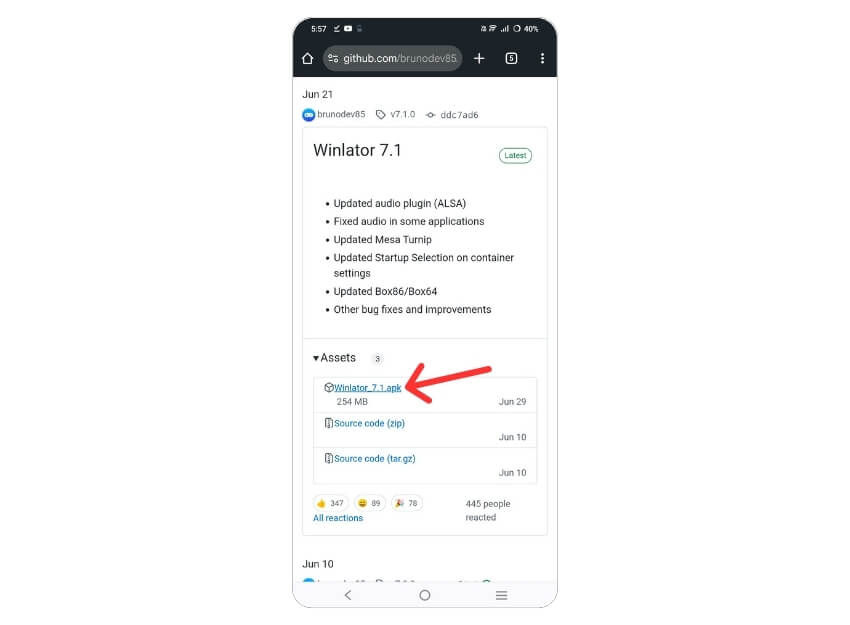
- Install the APK file on your Android phone as you would for a normal application. Make sure that you provide the necessary permissions to the File Manager app that you are using to install unknown applications.
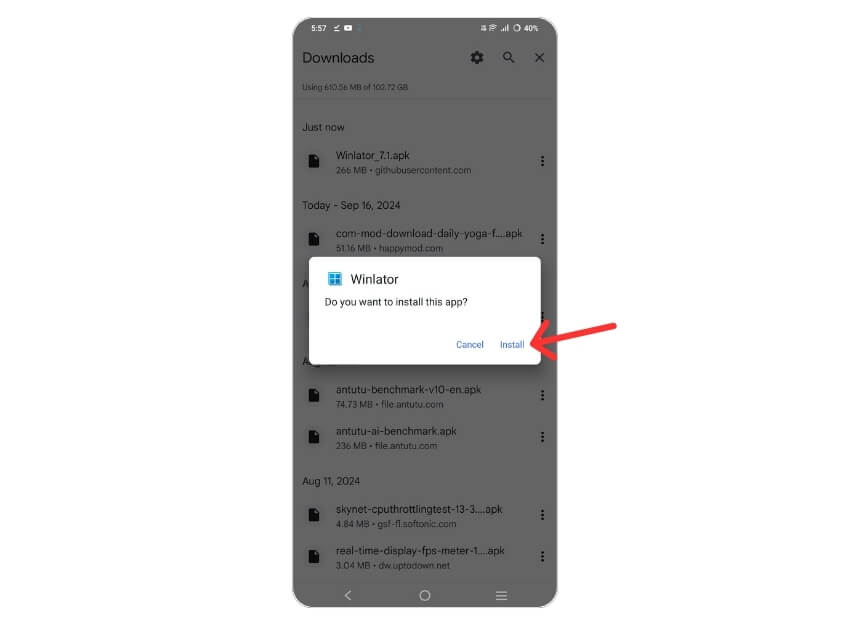
- After installation is complete, open the Winlator application.

- Now, you need to set up Winlator containers. Containers are designed to run Windows games. To set it up, after opening the app, tap on the Plus (+) icon at the top-right corner.

- You will see that by default, the container resolution is set to 800×600. Notably, the lower the resolution, the better the performance. For the 16:9 aspect ratio, you can go for 960×544 resolution.

- From the Graphics Driver drop-down menu, select Turnip (Adreno) if your device has Adreno GPU. For other GPUs, you need to select VirGL (Universal).
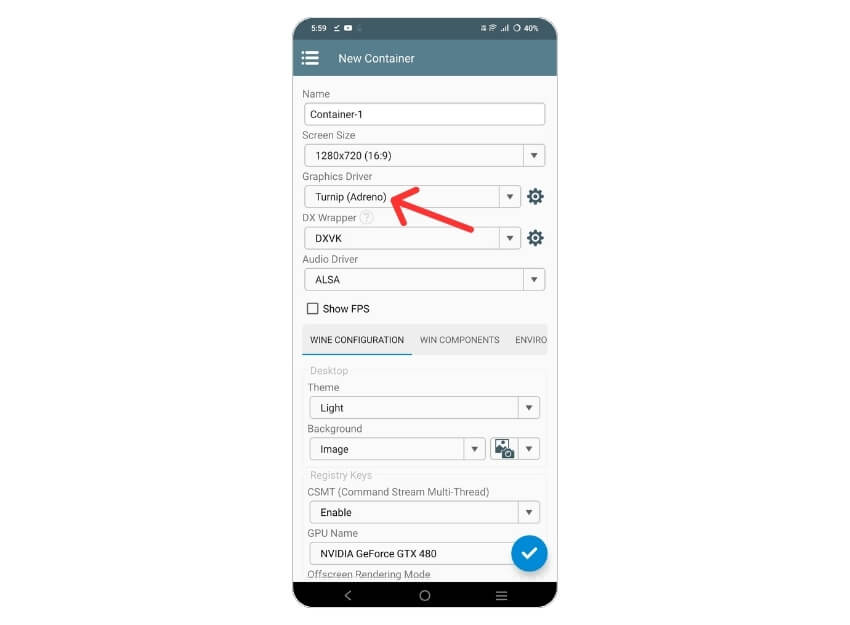
- In the DX Wrapper drop-down menu, you need to choose WineD3D for the best compatibility. Here’s what other options do:
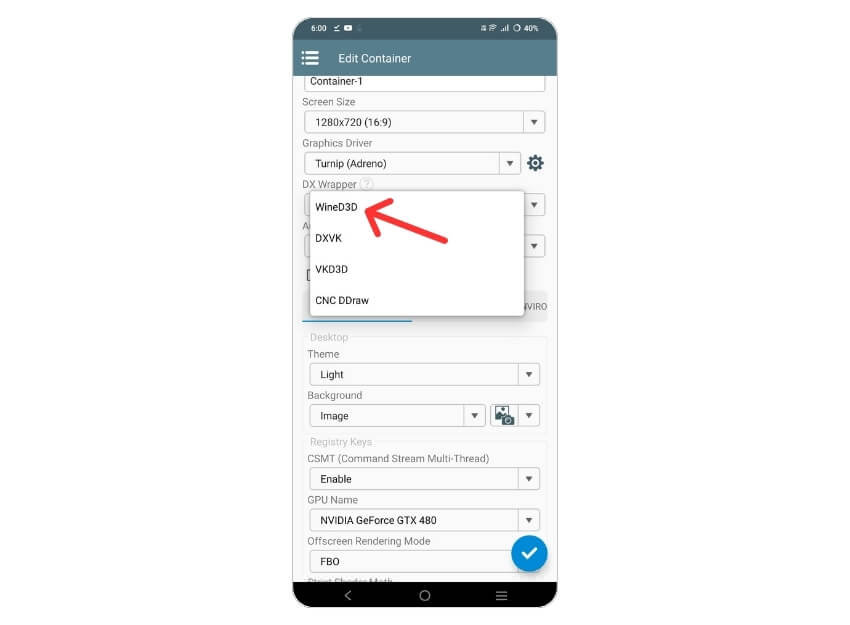
- DXVK can be good for better performance in Direct3D 9-11 games.
- VKD3D provides better FPS when translating Direct3D 12 games to Vulkan.
- CNC DDraw is better for playing Command and Conquer titles.
- Under the Wine Configuration tab, choose the video memory size based on the RAM on your phone. For example, if your phone has 6GB of RAM, then select 6144MB.
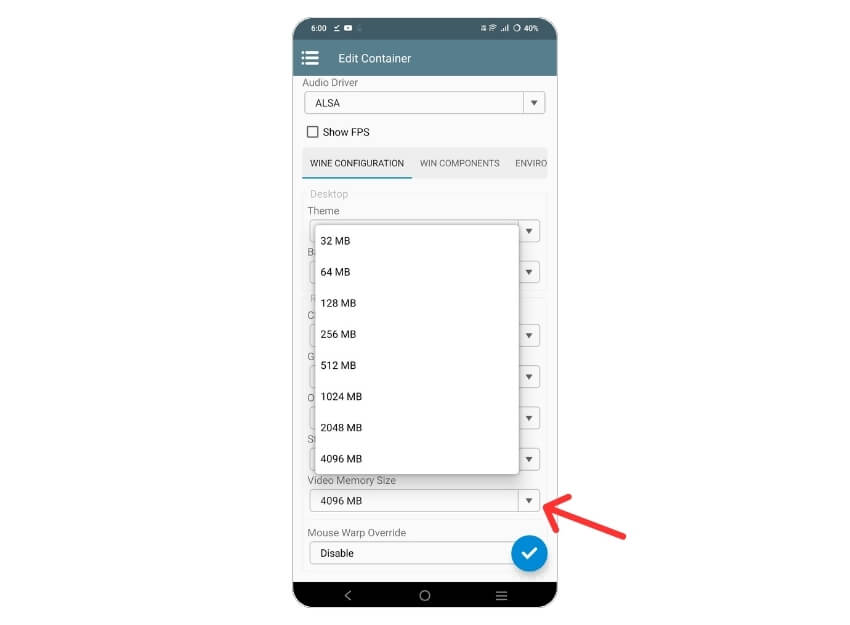
- Head to the Advanced section to modify Box86 and Box64 presets. Reportedly, Box86 and Box64 can be selected for games such as Hollow Knight, Slay The Princess, and Dragon’s Dogma: Dark Arisen.

- Tap on the Checkmark button on the bottom right to save the settings.
How to add games to Winlator?
Do note that you cannot run the Steam client on your Android phone using Winlator. So, the only way to play your game library is to use the GOG Galaxy app. Here’s what you need to do:
- Download the GOG Galaxy app from this link and install it on your PC.
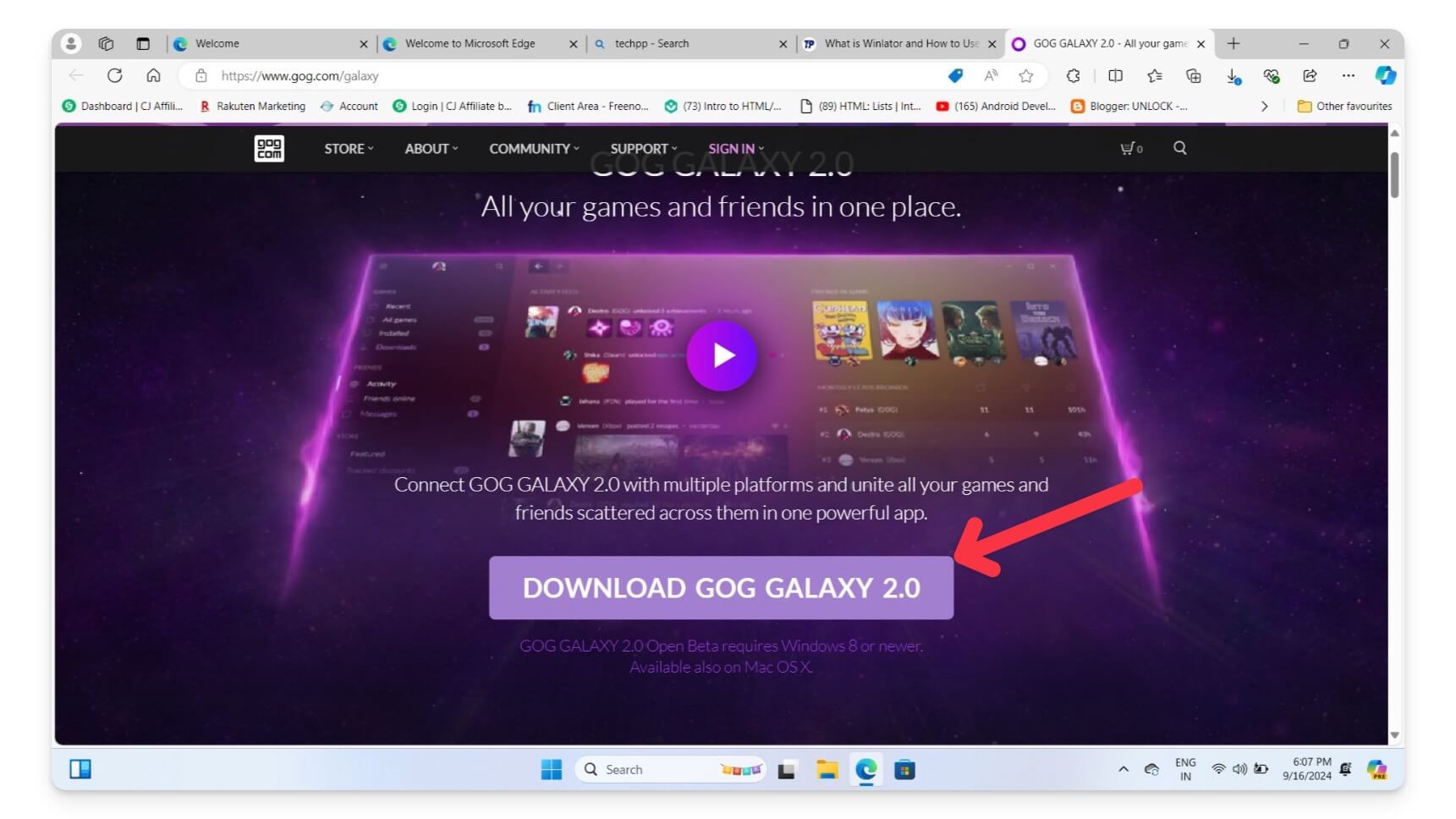
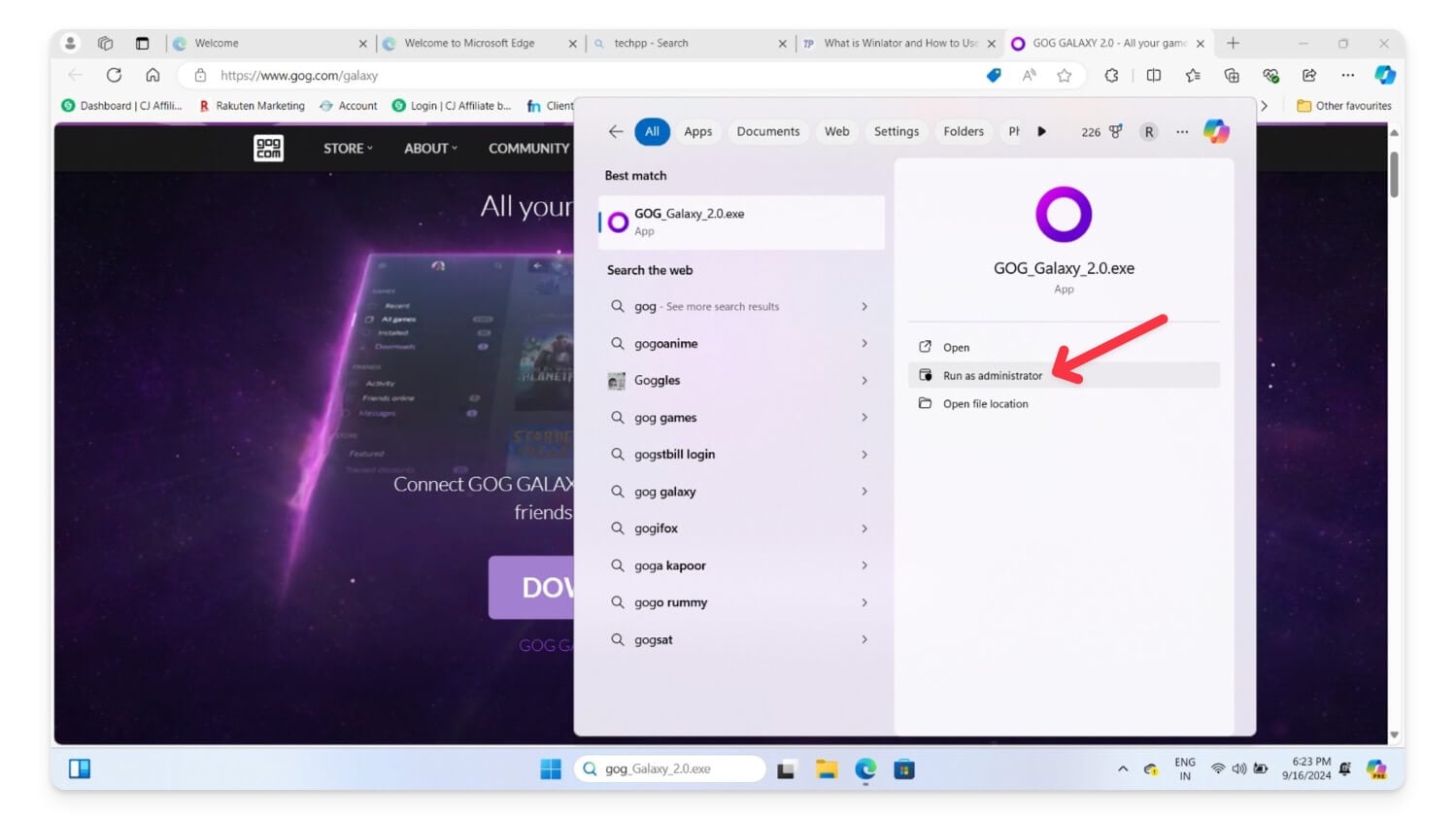
- Open the GOG Galaxy app as an administrator and sign in with your account.
- Choose the game that you wish to play on your Android phone using Winlator.
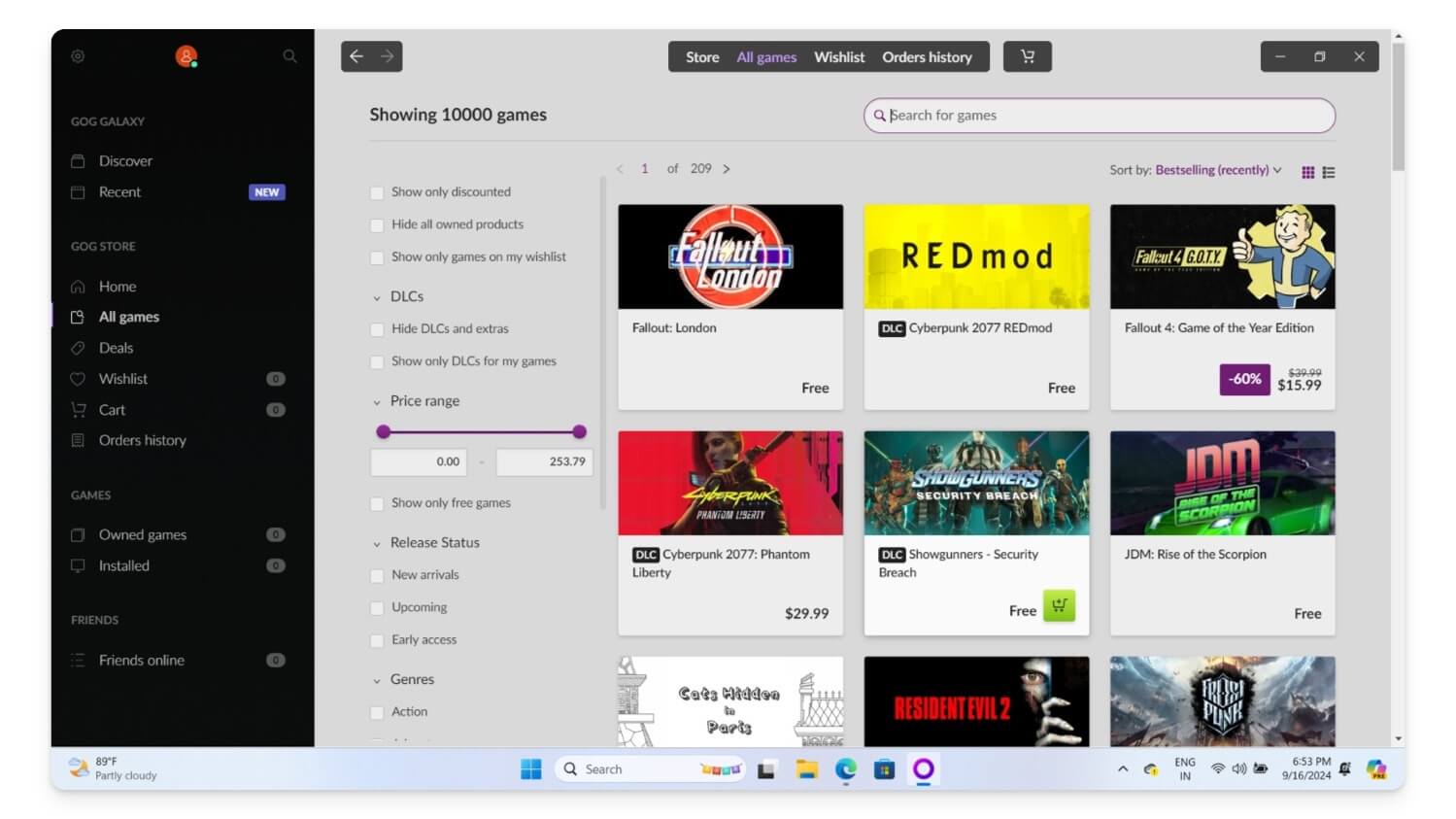
- Tap on the game, add it to the cart, and own it.

- Click on the Owned Games tab on the sidebar. Select the game and tap on it. Now, Select the Extra tab.
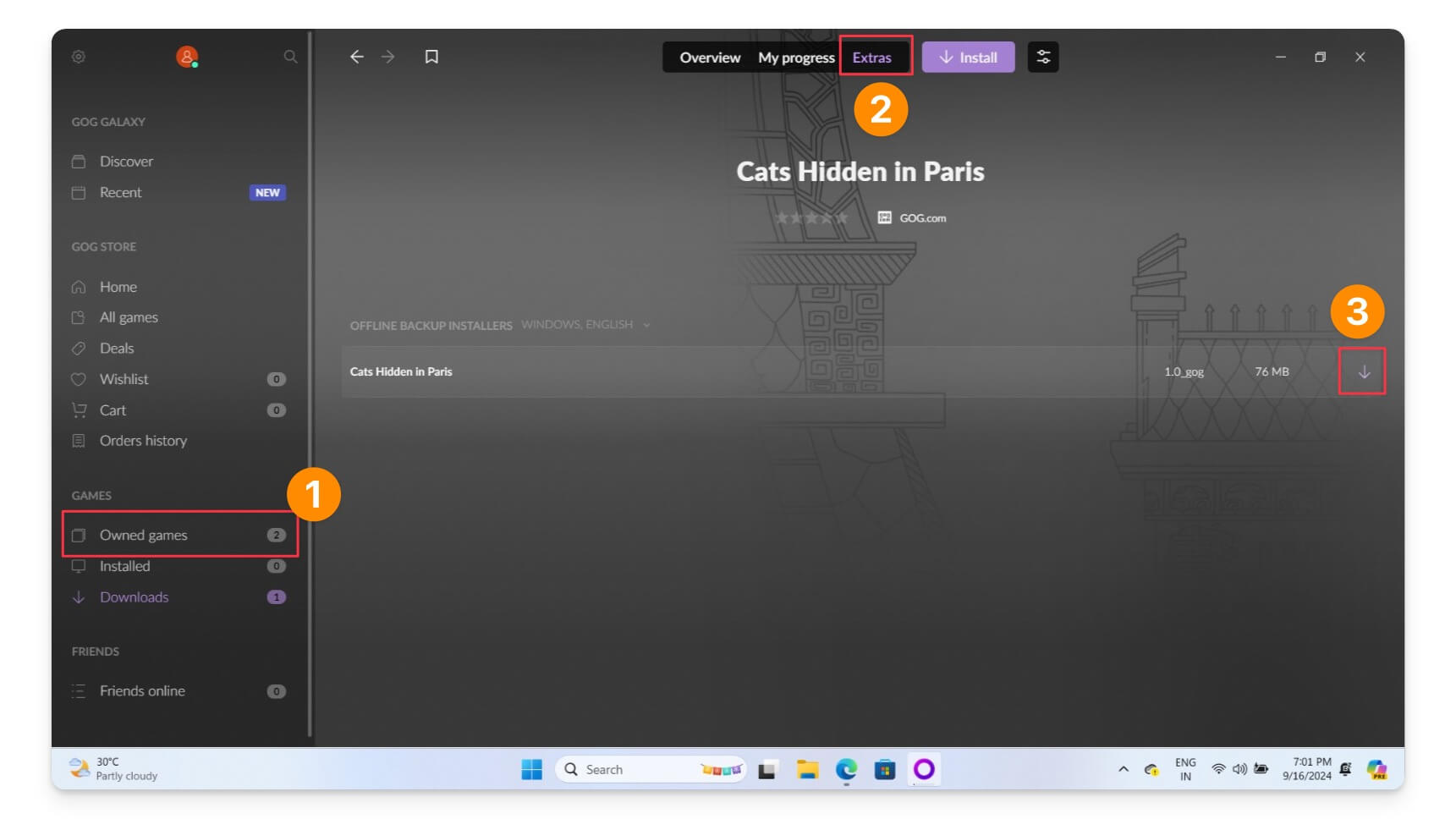
- Download all the files listed under the Offline Backup Installers tab.
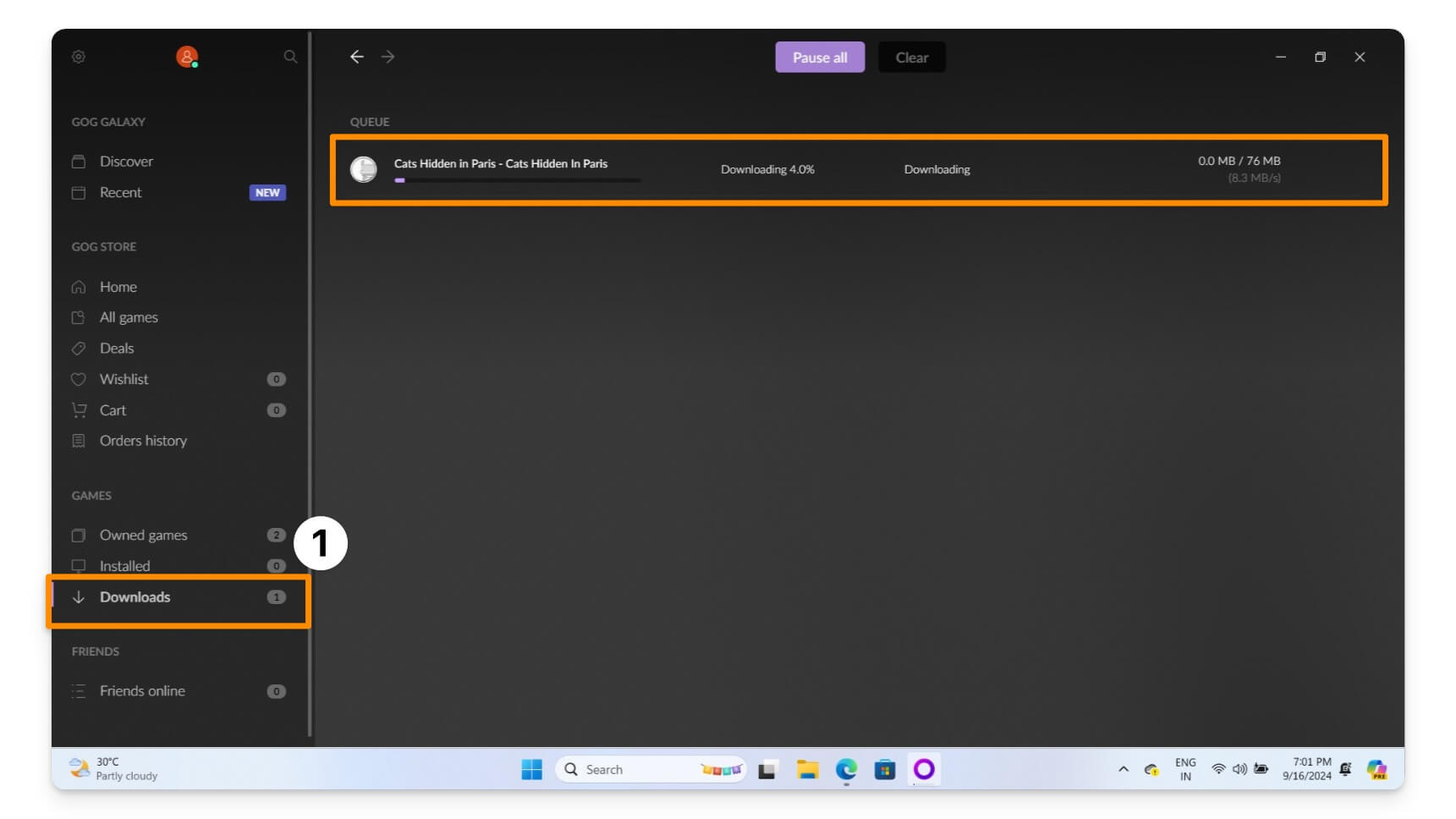
- Go to the downloads tab and wait for the file to download.
- Once the files have been downloaded, click the Folder icon and copy the files to your smartphone’s Downloads folder.

- Copy the file to the download folder on your Android smartphone.

- Paste the file in the download folder on your Android.

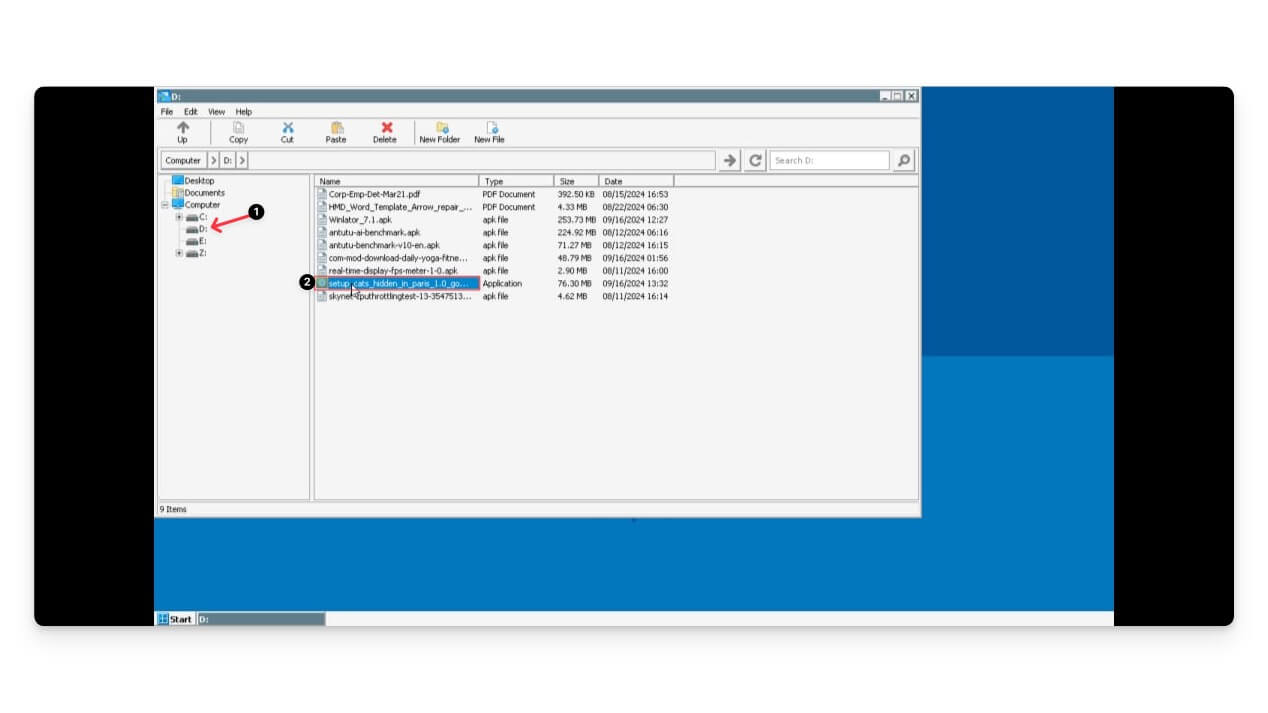
- On your Android phone, launch a Container by pressing the three-dot icon and choosing Run.

- Select D drive and install the setup.exe file for the game.
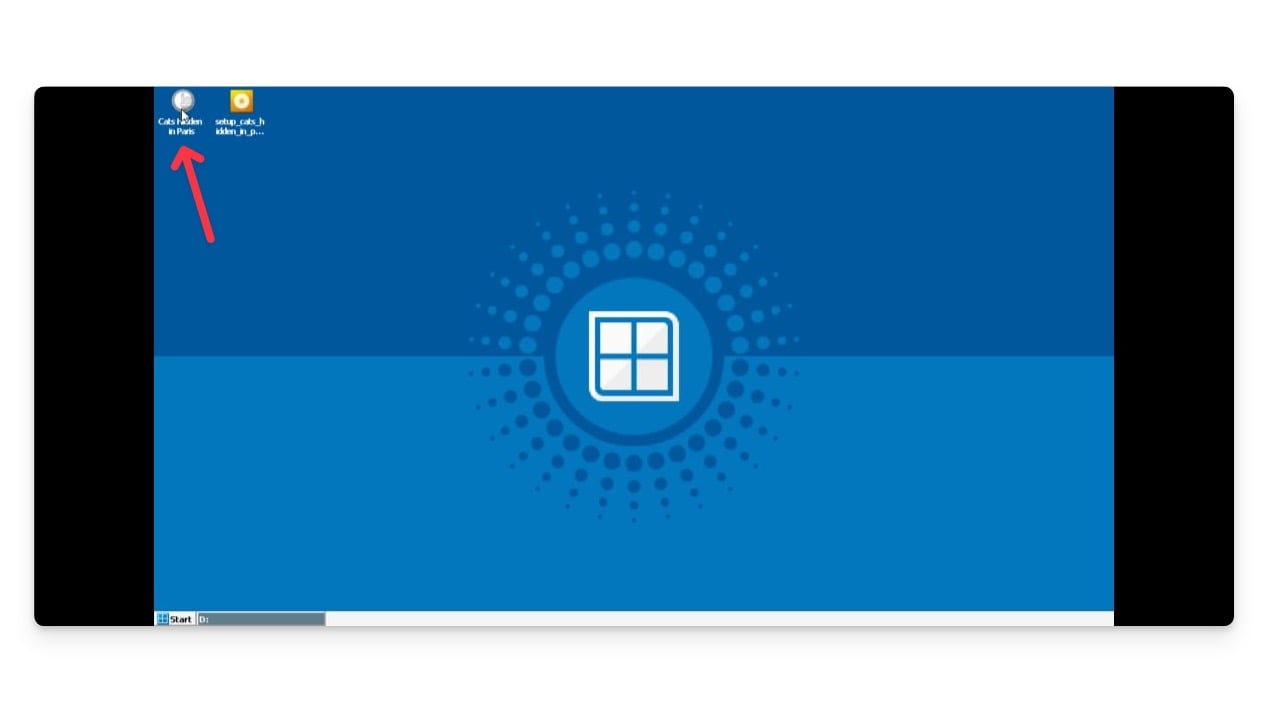
- After the game is installed, you can create a shortcut by opening Winlator Container, navigating to the location of the game’s file, right-clicking on the EXE file, and selecting Create Shortcut.

- Tap on the Menu icon and choose Shortcuts.
- All the game shortcuts will be listed here.
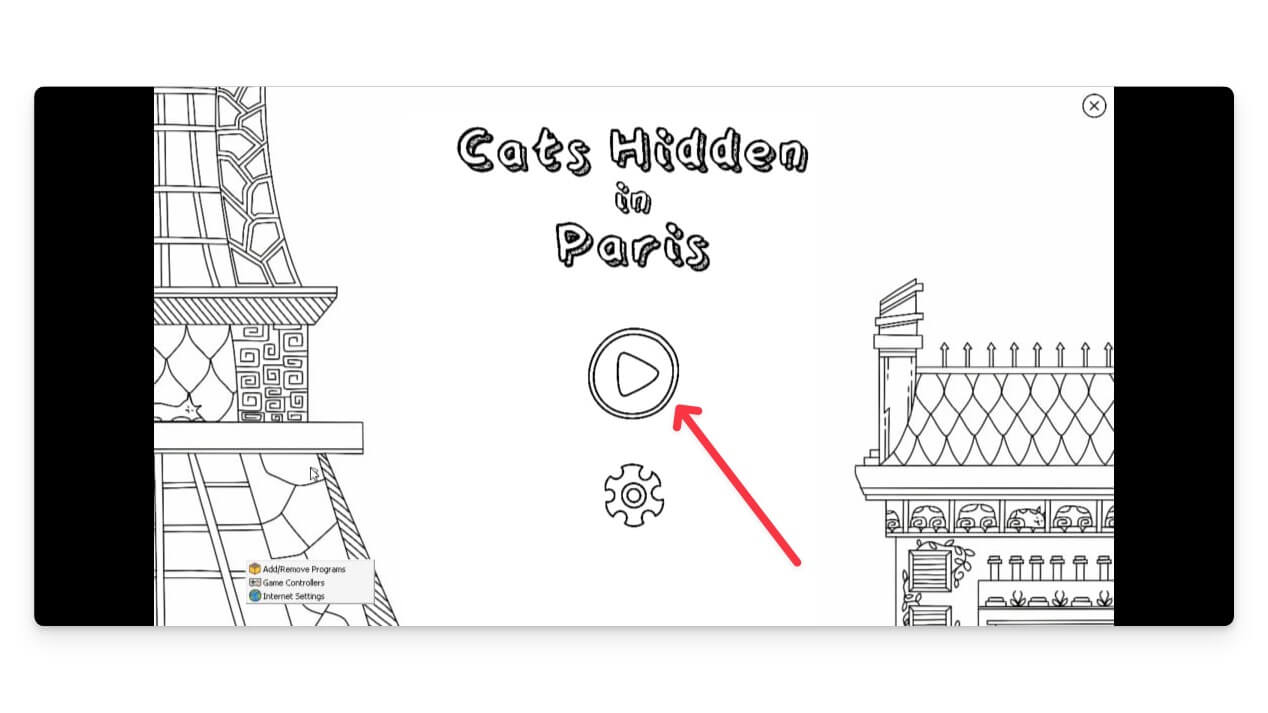
That’s it! You can enjoy Windows PC games on your Android phone, provided that you follow the steps above without skipping anything in between. Here is a video that explains everything you need to know about the setup process.
Enjoy Windows apps and games on your smartphone
Winlator is a nice tool that brings the world of Windows PC games and apps to your smartphone. While the process of downloading and setting up Winlator may appear quite tedious, it is worth it in the end. On the other hand, if you wish to sideload any Android app on your Windows PC, then you can check out our dedicated guide that will help you with the process. We also have a guide that lets you sideload apps on your iPhone, and the best part is that the process works globally.
Let us know in the comments below if you were able to use Winlator and enjoyed playing PC games on your phone or not.

