

Quick Answer
Enhance your Spotify experience by tweaking these six settings: switch to Very High streaming/download quality for crisp audio, disable volume normalization for authentic sound, enable crossfade for smooth transitions, manage Canvas for data savings, use the equalizer for tailored sound, and activate private sessions for discreet listening.
Spotify is the preferred music and podcast streaming service for many people. While you can use its app on your phone or desktop with default settings, the service lets you change some of its settings per your preference. Let’s explore six such Spotify settings you must consider tweaking to unlock a superior experience.
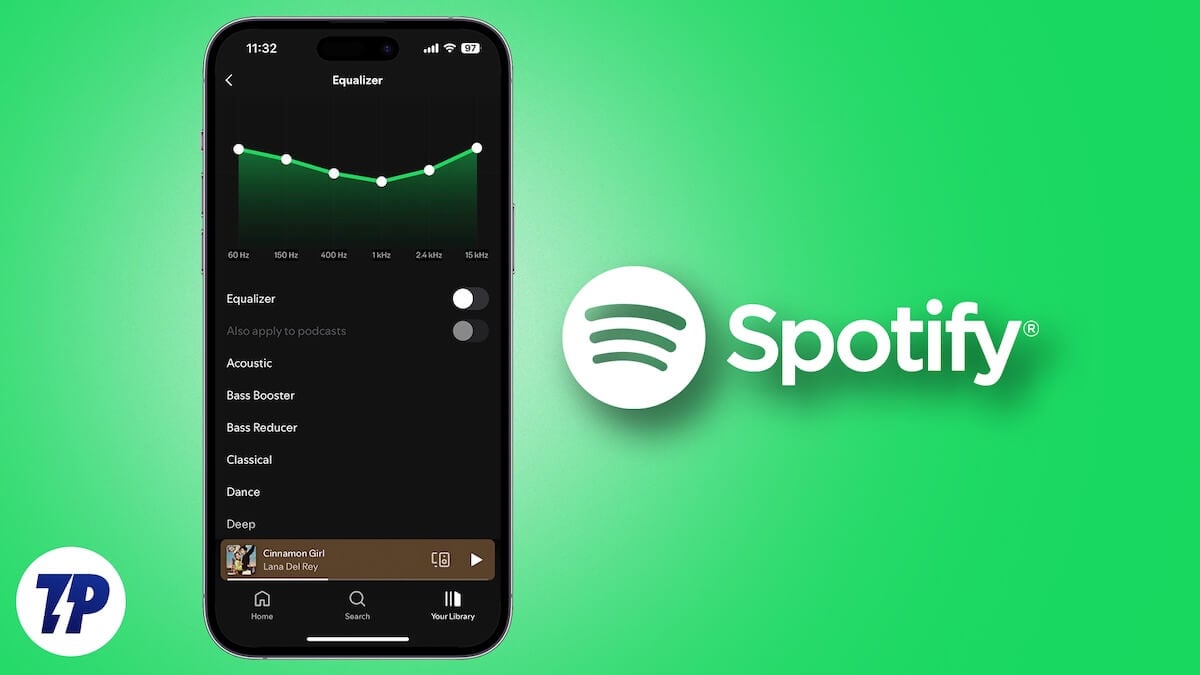
Table of Contents
Streaming and Download Quality
Spotify offers multiple audio quality options for streaming and downloading music. For streaming, it’s set to the Automatic option by default, which adjusts the quality based on your internet bandwidth to prevent buffering and ensure a smooth playback. Similarly, when you download songs for offline access, the service downloads them in Normal quality (96 kbits/s).
However, if you don’t want to compromise on the listening experience, you can make Spotify stream and download music in the highest available quality, Very High (320 kbits/s). You’ll need to be on the Premium plan to stream and download high-quality music.
To change the streaming and download quality in Spotify on your desktop, head to settings. From here, scroll to the Audio Quality section, click the drop-down button next to Streaming Quality, and set it to Very High. Similarly, click the Download drop-down button and set the download quality to Very High. Toggle off the Auto Adjust Quality toggle if it’s enabled.

On mobile, head to Spotify settings. If you’re on an Android, tap Media Quality and choose the Very High option for Wi-Fi Streaming Quality and Cellular Streaming Quality. Scroll down to the Download Quality section and set it to Very High, too.
If you use an iPhone, select Audio Quality under Settings. Then, choose the Very High option for Wi-Fi Streaming, Cellular Streaming, and Download. Make sure the auto-audio quality option under Optimize Listening is toggled off to prevent switching quality, even when your internet bandwidth is poor.

Volume Normalization
Another Spotify setting that affects your listening experience is audio normalization. It comes enabled by default, and it adjusts the volume level for all songs automatically to remove the dynamic volume variations between them and offer a consistent listening experience. Thus saving you the hassle of adjusting the volume across different tracks when you find it too low or too high.
However, if you prefer listening to songs exactly how they were meant to be—with their original characteristics and how they were mixed and mastered—you should disable the audio normalization feature. The audio normalization is referred to by different names on Spotify’s mobile and desktop apps.
To disable it on Spotify’s desktop app, head to settings, scroll down to the Audio Quality section, and toggle off the toggle next to the Normalize Volume option.

On an Android or iPhone, choose Playback on the Spotify settings page and toggle off the Enable Audio Normalization (on iOS) or Volume Normalization (on Android) option.

Crossfade
There’s a noticeable pause on Spotify between when one song ends and the next begins. This interruption can feel jarring and may disrupt the flow. Spotify’s Crossfade feature helps prevent this. Once enabled, the feature overlaps the tracks to create a seamless transition, eliminating silence and offering a continuous musical experience.
To turn on Crossfade on your desktop, go to Spotify settings and toggle on the Crossfade option. Then, use the slider to adjust the crossfade duration, i.e., the overlap length.

On Spotify’s mobile app, head to Playback on the settings page. From here, drag the Crossfade slider to set a crossfade time.

Canvas
Canvas is a Spotify feature that plays an 8-second vertical video in a loop instead of showing a traditional album artwork during playback to offer a more immersive listening experience. While it’s fun to look at, having Spotify play Canvas all the time will consume more data, which isn’t desirable when you’re streaming on cellular data.
You can disable Canvas to avoid this. On your desktop, locate Display under Spotify settings and toggle off the option for Display Short, Looping Visuals on Tracks (Canvas).

To do this on your Android or iPhone, go to settings and head to Content and Display settings. Turn off the Canvas toggle.

Equalizer
Spotify offers a built-in equalizer that gives you multiple presets that you can select based on the songs you’re playing and the device you’re playing them to adjust the sound output as you like. Besides, you also get the option to create a manual preset, which is handy when you want more control over sound.
Enabling Equalizer on Spotify’s desktop app involves accessing settings and toggling on the Equalizer toggle. Once done, click the drop-down next to Presets and choose a preset you like. To create a custom preset, adjust the bands yourself, and Spotify will save them as a Manual preset.

On Spotify’s Android or iPhone app, navigate to settings and choose Playback. Scroll down, tap Equalizer, and flip the toggle for Equalizer on. Then, if you’re on Android, tap the drop-down button and select a preset.

On an iPhone, simply tap the preset you want to use. Keep in mind that Spotify’s app doesn’t have a native equalizer; instead, it opens the default equalizer for your device.

To create a custom preset, use the sliders to adjust the frequencies. On Android, your settings are saved as User preset. As such, you can easily switch to it when you want to use it. However, Spotify’s iOS app doesn’t save the manual preset, so you’ll need to set it up from scratch every time.
Private Session
Spotify relies on your listening behavior to tailor your recommendations. So, any new artists or songs you listen to will influence what the service suggests going forward.
However, this behavior may not be ideal in certain situations. This can be, for instance, when you’ve to hand your phone to someone to have them play songs or when you want to explore new genres and artists, as you don’t want Spotify to use these listening habits to recommend new music. It’s also important to note that Spotify shows your followers what you’re listening to if you have the Friend Activity feature turned on, so you can use Private Session to avoid that, too.
Spotify’s Private Session is a handy feature meant specifically for such scenarios. To turn it on the Spotify desktop app, click the profile icon in the top-right corner and select Private Session.

On your Android or iPhone, head to Privacy and Social in Spotify settings and toggle on the switch for Private Session.

Once enabled, you’ll see the “Private Session” text at the bottom of the screen, indicating that the session is active, so you don’t have to worry about what music you listen to. Turn off Private Session after you’re done to have Spotify use your listening behavior to generate personalized recommendations. Spotify automatically terminates Private Sessions after six hours to prevent indefinite private listening.
A Few Minutes is All You Need
Whether you’re an existing user or just getting started, it’s best to take a few moments to explore the different settings available on Spotify and adjust them to your preference for a more tailored experience. I’ve got Spotify configured with the same settings across all my devices.
But that’s not all; in addition to the ones mentioned here, you may stumble upon other settings and features as you dive deep into Spotify settings. Feel free to explore and customize them to your needs.
While at it, don’t forget to check out a few noteworthy Spotify features like Karaoke Mode, which lets you sing along to songs, Blend to create shared playlists with others with matching taste, and Local Files for playing local audio files.

